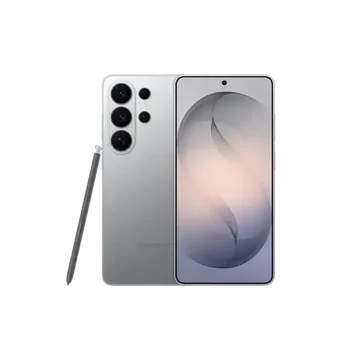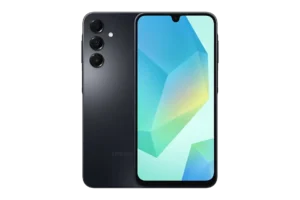
| Document Type | User Guide |
| Brand Name | Samsung |
| Product Name | Galaxy A17 |
| Model Number(s) | SM-A155F/DS, SM-A155F/DSN, SM-A155F/DSN UD, SM-A155F/N, SM-A156B/DSN, SM-A156B/DSN UD, SM-A156E/DS, SM-A156E/DSN, SM-A156E/N, SM-A156U1/DS, SM-A165F, SM-A165F/DS, SM-A165F/DSB, SM-A166B/DS, SM-A166E/DS, SM-A166P, SM-A166P/DS, SM-A175F, SM-A175F/DS, SM-A175F/DSB, SM-A176B, SM-A176B/DS, SM-E176B/DS, SM-M176B/DS, SM-E055F/DS, SM-M055F/DS, SM-A065F/DS, SM-A066B/DS, SM-A066E/DS, SM-E066B/DS, SM-M066B/DS, SM-A075F/DS, SM-E075F/DS, SM-M075F/DS |
| PDF File Size | 1519 KB |
| Number of Pages | 151 |
| Languages | English |
Samsung Galaxy A17 SM-A175F
The Samsung Galaxy A17 is a touchscreen smartphone designed for calling, messaging, photography, internet access, multimedia and everyday mobile applications. It supports nano-SIM connectivity, expandable microSD storage, USB Type-C charging, biometric security, Wi-Fi, Bluetooth and compatible Samsung services.
The Galaxy A17 user guide provides instructions for initial setup, SIM and memory card installation, battery charging, camera operation, display customization, wireless connectivity, security settings, software updates and troubleshooting.
Product Overview
The Galaxy A17 combines communication functions, multimedia tools, mobile applications and device management features in a touchscreen smartphone.
Main Features
- Touchscreen interface with customizable Home screen and navigation controls.
- Nano-SIM support, including dual-SIM configurations on supported models.
- microSD card slot for additional file storage.
- USB Type-C wired battery charging.
- Fast charging with a compatible charger.
- Front and rear cameras for photography and video recording.
- Camera modes for portraits, night photography, panoramas and other supported shooting situations.
- Face recognition and fingerprint recognition for screen unlocking.
- Wi-Fi, Bluetooth and supported NFC connectivity.
- Mobile Hotspot for sharing cellular data.
- Quick Share for transferring supported files.
- Smart View for mirroring the screen to a compatible display.
- Samsung Smart Switch for transferring data from an older device.
- Samsung Wallet, Samsung Pass and Secure Folder on supported models.
- Samsung Find for device location services.
- Modes and Routines for automatic device actions.
- Samsung account synchronization and cloud backup.
- Device care, battery management and software update settings.
Technical Specifications
| Specification | Details |
| Brand | Samsung |
| Product Name | Galaxy A17 |
| Product Category | Smartphone |
| Galaxy A17 Model Family | SM-A175F, SM-A176B |
| Physical SIM | Nano-SIM |
| Dual-SIM Configuration | Supported Models |
| Expandable Storage | microSD Card |
| Supported SD Card File Systems | FAT, exFAT |
| Charging Connector | USB Type-C |
| Included USB Cable Rating | Up to 3A |
| Charging Method | Wired Charging |
| Fast Charging | Compatible Fast or Super Fast Charger |
| Display Controls | Touchscreen, Navigation Buttons, Swipe Gestures |
| Camera System | Front and Rear Cameras |
| Biometric Authentication | Face Recognition, Fingerprint Recognition |
| Fingerprint Sensor Location | Side Button |
| Wireless Connections | Wi-Fi, Bluetooth, NFC |
| Mobile Network | Carrier and Model Dependent |
| Screen Mirroring | Smart View |
| File Sharing | Quick Share, Bluetooth |
| Supported External Accessories | Compatible USB Type-C Accessories |
| Recommended Operating Temperature | 0°C–35°C |
| Battery Type | Built-In Rechargeable Battery |
Network bands, maximum microSD capacity, available charging functions and other hardware specifications depend on the exact model.
What’s Included in the Box
Samsung supplies device-specific accessories according to the model and region.
The Galaxy A17 package includes a USB charging cable rated for up to 3A.
| Item | Description |
| Galaxy A17 Smartphone | Main Device |
| USB Cable | USB Type-C Charging Cable, Up to 3A |
| USB Power Adapter | Sold Separately in Most Regions |
The charger may be supplied in certain regions.
Samsung recommends using approved accessories designed for the device. Accessories from other manufacturers may cause compatibility or performance problems.
Parts and Components
The Galaxy A17 includes external controls, connection points and sensors for operating the smartphone.
Front and Side Components
| Component | Function |
| Screen | Displays Applications and Accepts Touch Input |
| Front Camera | Takes Selfies and Supports Video Calls |
| Light Sensor | Detects Ambient Lighting |
| Volume Button | Adjusts Sound Volume |
| Side Button | Turns the Screen On or Off and Controls Assigned Features |
| Fingerprint Recognition Sensor | Recognizes Fingerprints Registered on the Side Button |
| Speaker | Plays Calls, Notifications and Media Audio |
| Microphone | Captures Voice and Sound |
| Nano-SIM/microSD Card Tray | Holds Supported SIM and Memory Cards |
| USB Type-C Multipurpose Jack | Connects Charging and Compatible Wired Accessories |
Rear Components
| Component | Function |
| Rear Cameras | Take Photographs and Record Videos |
| Flash | Provides Light for Supported Camera Operations |
| GPS Antenna | Supports Location Services |
| NFC Antenna | Supports Compatible NFC Communication |
| Main Antenna | Supports Wireless Network Communication |
| Microphone | Captures Sound During Supported Operations |
Side Button Functions
| Button Action | Function |
| Press and Hold While Off | Turn the Phone On |
| Press Once | Turn On or Lock the Screen |
| Press Twice | Launch the Assigned Application or Feature |
| Press and Hold While On | Launch the Configured Feature |
| Side Button + Volume Down | Capture a Screenshot |
| Hold Side Button + Volume Down | Open the Power Menu |
| Hold Both Buttons for More Than 7 Seconds | Force Restart |
Customize the Side Button
- Open Settings.
- Select Advanced features.
- Tap Side button.
- Choose an action for double pressing or long pressing.
The available functions depend on the selected configuration.
Safety Instructions
General Safety Precautions
- Use Samsung-approved batteries, charging cables and accessories intended for the device.
- Do not use the phone if its glass or acrylic body is broken.
- Do not expose the camera lens to strong sunlight or other intense light sources for extended periods.
- Do not cover the light sensor with stickers or accessories.
- Avoid covering antenna areas with hands, metal stickers or metallic accessories during wireless communication.
- Keep sharp objects away from the touchscreen.
- Do not apply excessive pressure to the display.
- Do not use sharp objects to clean microphone or speaker openings.
- Keep the device away from excessive heat.
- Follow restrictions on wireless device use in hospitals, aircraft and other regulated areas.
Magnetic Interference Warning
The device contains magnets that may interfere with credit cards, implanted medical devices and other magnet-sensitive equipment.
Keep the phone more than 15 cm away from medical devices. If interference is suspected, stop using the device and contact a physician or the medical device manufacturer.
Charging Safety
- Use a compatible USB Type-C cable.
- Do not connect a charger to a wet charging port.
- Never charge the device with a damaged cable or adapter.
- Disconnect the charger if the phone becomes excessively hot.
- Avoid exposing the phone to high temperatures during charging.
- Unplug the charger from the electrical outlet when it is not being used.
Operating Temperature
The recommended operating temperature is 0°C to 35°C.
Operating outside this range may damage the phone or reduce battery lifespan.
Before First Use
The battery should be charged before the smartphone is used for the first time or after an extended period without use.
Preparing the Phone
- Check the device and charging accessories for visible damage.
- Connect the USB Type-C cable to a compatible power adapter.
- Charge the battery.
- Prepare a nano-SIM card supplied by the mobile carrier.
- Install a compatible microSD card if additional storage is required.
- Turn on the phone using the Side button.
- Complete the initial setup instructions.
- Connect to a Wi-Fi network.
- Sign in to the required accounts.
- Configure the screen lock and other preferences.
Charging the Battery
How to Charge the Galaxy A17
- Connect the USB cable to a compatible USB power adapter.
- Insert the USB Type-C connector into the phone’s multipurpose jack.
- Connect the power adapter to an electrical outlet.
- Allow the battery to charge.
- Disconnect the charger after charging is complete.
A fully discharged phone may require several minutes of charging before it can be turned on.
Fast Charging
The Galaxy A17 supports compatible fast charging functions.
- Connect a compatible fast or super-fast charger.
- Open Settings.
- Tap Battery.
- Select Charging settings.
- Check that the desired charging function is enabled.
Charging can be faster when the screen or phone is turned off.
Charging Another Device
The phone can supply battery power to another mobile device through a supported USB cable connection.
- Connect the Galaxy phone to the other device using the appropriate USB cable.
- Use a USB connector if required by the other device.
- Check for the charging indicator on the receiving device.
If an application selection window appears on the Galaxy phone, it is for data transfer and does not need to be selected for charging.
Battery Saving Instructions
Battery consumption can be reduced through the following actions:
- Turn on Power saving mode.
- Reduce the screen brightness.
- Shorten the screen timeout.
- Close unnecessary applications.
- Turn off Bluetooth when not needed.
- Turn off automatic synchronization for unused services.
- Optimize the device through Device care.
- Turn off the screen when the phone is not in use.
Battery Protection Settings
Open Settings → Battery → Battery protection.
Battery protection can stop charging when the battery is fully charged or limit charging to a selected maximum level.
Nano-SIM Card Installation
The Galaxy A17 uses nano-SIM cards supplied by a mobile carrier.
Dual-SIM models allow two supported physical SIM cards to be installed.
How to Insert a Nano-SIM Card
- Locate the nano-SIM/microSD card tray.
- Insert the SIM ejection pin into the tray’s hole.
- Keep the pin perpendicular to the hole.
- Gently pull the tray out.
- Place the nano-SIM card into its designated slot.
- For Galaxy A17 models SM-A175F and SM-A176B, position the gold-colored contacts facing downward.
- Press the card gently into the tray.
- Fully reinsert the tray into the phone.
Important: The tray must be dry before it is inserted. Make sure it is completely seated.
Dual-SIM Card Installation
Compatible dual-SIM trays accommodate two nano-SIM cards.
For the illustrated Galaxy A17 tray configurations, the secondary card position may alternatively be used for microSD storage.
Follow the tray markings when selecting the card placement.
Managing Dual SIM Cards
- Open Settings.
- Tap Connections → SIM manager.
- Select the required SIM settings.
| Setting | Function |
| SIM Cards | Activate and Configure Installed Cards |
| Preferred SIMs | Choose the SIM for Supported Communication Functions |
| Data Switching | Switch Mobile Data to Another SIM When the Preferred SIM Cannot Connect |
| More SIM Settings | Configure Additional SIM Options |
Additional carrier charges may apply when using data-switching functions.
microSD Card Installation
The Galaxy A17 supports microSD memory cards for additional storage.
How to Insert a microSD Card
- Locate the SIM/microSD card tray.
- Insert the ejection pin into the tray hole.
- Pull out the tray gently.
- Place the microSD card into the designated position.
- For Galaxy A17 models SM-A175F and SM-A176B, position the gold-colored contacts facing downward.
- Press the card gently into place.
- Reinsert the tray completely.
The SD card files can be accessed through My Files → SD card.
Supported SD Card File Systems
The phone supports:
| File System | Support |
| FAT | Supported |
| exFAT | Supported |
Cards using another file system may require formatting.
How to Safely Remove the microSD Card
The memory card must be unmounted before physical removal.
- Open Settings.
- Tap Device care → Storage.
- Swipe left to access the SD card page.
- Open More options.
- Select Unmount.
- Remove the card tray after the card has been unmounted.
Do not remove external storage while files are being transferred or accessed.
How to Format a microSD Card
- Open Settings → Device care → Storage.
- Swipe left to the SD card page.
- Tap More options → Format.
- Follow the on-screen instructions.
Warning: Formatting erases the data on the memory card. Back up important files before continuing.
Turning the Phone On and Off
Turn On the Galaxy A17
Press and hold the Side button for a few seconds.
Turn Off the Galaxy A17
- Press and hold the Side button and Volume Down button simultaneously.
- Tap Power off.
- Tap Power off again.
The power menu can also be opened from the quick settings panel.
Restart the Phone
Open the power menu and select Restart → Restart.
Force Restart an Unresponsive Phone
If the phone freezes:
- Press and hold the Side button and Volume Down button simultaneously.
- Continue holding for more than 7 seconds.
- Allow the device to restart.
Initial Setup Instructions
When the Galaxy A17 is turned on for the first time or after a factory reset, the initial setup screen appears.
Follow the displayed instructions to configure the device.
Connect to Wi-Fi
- Open Settings.
- Tap Connections → Wi-Fi.
- Turn on Wi-Fi.
- Select the desired network.
- Enter the network password if required.
Some initial setup functions may require an active Wi-Fi connection.
Sign In to a Samsung Account
- Open Settings.
- Tap Sign in to your Galaxy.
- Enter the Samsung account credentials.
- Follow the sign-in instructions.
A new account can be created using the account creation option.
Transfer Data With Samsung Smart Switch
Samsung Smart Switch transfers supported content from a previous device.
Transfers can be performed using a USB cable, wireless connection, external storage or a computer.
How to Transfer Data
- Open Settings.
- Tap Accounts and backup.
- Select Transfer data for device setup.
- Follow the on-screen instructions.
- Choose the transfer method and content.
- Complete the transfer.
For additional instructions, visit https://www.samsung.com/smartswitch.
Touchscreen and Navigation Controls
Basic Touch Gestures
| Gesture | Function |
| Tap | Select an Item |
| Touch and Hold | Open Additional Actions |
| Drag | Move Items |
| Double Tap | Perform Supported Double-Tap Action |
| Swipe | Navigate or Scroll |
| Pinch | Zoom Out |
| Spread Fingers | Zoom In |
Navigation Buttons
The default navigation bar includes:
| Button | Function |
| Recents | Open Recently Used Applications |
| Home | Return to Home Screen |
| Back | Return to Previous Screen |
Use Swipe Gestures
- Open Settings.
- Tap Display → Navigation bar.
- Select Swipe gestures.
Customize the Home Screen
Touch and hold an empty area on the Home screen to access editing options.
Available adjustments include:
- Wallpaper and style.
- Themes.
- Widgets.
- Home screen settings.
- Home screen page arrangement.
Create an Application Folder
- Touch and hold an application icon.
- Drag it over another application.
- Release it to create a folder.
- Enter a folder name.
Use the Edge Panel
Drag the Edge panel handle toward the center of the screen.
If the handle is hidden:
- Open Settings → Display.
- Enable Edge panels.
Notifications and Quick Settings
Notification Panel
Swipe down from the top of the screen, except the right side, to view notifications.
Swipe upward to close the panel.
Quick Settings Panel
Swipe down from the top-right corner to access quick settings.
Quick settings can be used to control Wi-Fi, Bluetooth and other supported functions.
Touch and hold a quick setting to open its detailed settings.
Screenshots
Capture a Screenshot Using Buttons
Press the Side button and Volume Down button simultaneously.
The screenshot is saved in Gallery.
Palm Swipe Screenshot
- Open Settings.
- Tap Advanced features → Motions and gestures.
- Enable Palm swipe to capture.
- Swipe the edge of the hand across the display.
Screenshot Editing Options
After capturing a screenshot, the toolbar may offer:
- Scroll capture.
- Drawing and annotation.
- Cropping.
- Tagging.
- Sharing.
- Selecting part of the screen.
Phone Calls and Contacts
Make a Call
- Open the Phone app.
- Tap Keypad.
- Enter the phone number.
- Tap the call button.
Answer or Reject an Incoming Call
- Drag the Answer icon outside its circle to answer.
- Drag the Decline icon outside its circle to reject.
Block a Number
- Open the Phone app.
- Tap More options → Settings → Block numbers.
- Add the number or contact.
Add a New Contact
- Open Contacts.
- Tap Create.
- Select a storage location.
- Enter the contact information.
- Tap Save.
Import Contacts
- Open Contacts.
- Go to Settings → Import contacts.
- Follow the instructions.
Camera Instructions
The Galaxy A17 includes front and rear cameras with multiple shooting modes and adjustable settings.
How to Take a Photo
- Open Camera.
- Select PHOTO.
- Point the camera toward the subject.
- Tap the screen to focus.
- Adjust brightness if needed.
- Tap the shutter button.
Camera Controls
| Control | Function |
| Shutter Button | Capture a Photograph |
| Camera Switch | Switch Between Front and Rear Cameras |
| Zoom Control | Adjust Zoom |
| Quick Controls | Access Additional Camera Options |
| Preview Thumbnail | Open Captured Media |
| Shooting Modes | Select Camera Mode |
Camera Modes
| Mode | Function |
| Photo | Standard Photography |
| Video | Video Recording |
| Portrait | Background Blur |
| Fun | Photos and Videos With Supported Effects |
| Pro | Manual Camera Controls |
| Panorama | Wide-Scene Photography |
| Food | Food Photography |
| Night | Low-Light Photography |
| Macro | Close-Up Photography |
| Slow Motion | Slow-Motion Recording |
| Hyperlapse | Fast-Motion Recording |
Available modes depend on the exact device model and software.
How to Take a Selfie
- Open Camera.
- Switch to the front camera.
- Position the subject.
- Tap the shutter button.
Portrait Mode
- Select PORTRAIT.
- Adjust the background blur level.
- Wait until Ready appears.
- Capture the photo.
Portrait effects work best in suitable lighting conditions.
Pro Mode
Pro mode allows manual adjustment of supported camera settings.
| Setting | Function |
| ISO | Adjusts Light Sensitivity |
| SPEED | Controls Shutter Speed |
| EV | Adjusts Exposure |
| FOCUS | Controls Manual Focus |
| WB | Adjusts White Balance |
To use Pro mode, open Camera and select MORE → PRO.
Night Mode
- Open Camera.
- Tap MORE → NIGHT.
- Frame the subject.
- Tap the shutter button.
- Keep the phone steady until capture is complete.
Using a tripod can help produce steadier results.
Macro Mode
Open Camera and select MORE → MACRO to take supported close-up photographs.
Panorama Mode
- Open Camera.
- Select MORE → PANORAMA.
- Tap the shutter button.
- Move the phone slowly in one direction.
- Keep the subject within the guide frame.
- Stop recording the panorama when finished.
Video Recording
- Open Camera.
- Select VIDEO.
- Tap Start recording.
- Tap Stop when finished.
Slow Motion Video
- Open Camera.
- Select MORE → SLOW MOTION.
- Record the video.
- Stop the recording.
- Open the video preview.
- Adjust the slow-motion section using the editing controls.
Camera Settings
Open Camera, tap Quick controls, and then open Settings.
Supported options may include:
- Scene optimizer.
- QR code scanning.
- Auto HDR.
- Photo watermark.
- High-efficiency pictures.
- Video stabilization.
- High-efficiency video format.
- Shooting methods.
- Location tags.
- Storage location.
- Camera settings reset.
Gallery Instructions
Gallery allows photographs and videos to be viewed, organized, edited and shared.
View Images
- Open Gallery.
- Select an image.
- Swipe left or right to view other files.
Crop a Photo
- Open a photo in Gallery.
- Spread two fingers to enlarge the desired area.
- Tap the Quick crop icon.
- Save the cropped image.
Create an Album
- Open Gallery.
- Select Albums.
- Tap Create.
- Choose the album type.
- Add the desired content.
Restore Deleted Media
- Open Gallery.
- Tap Menu → Recycle bin.
- Select the files.
- Tap Restore.
Wi-Fi and Bluetooth Instructions
Connect to Wi-Fi
- Open Settings → Connections → Wi-Fi.
- Turn on Wi-Fi.
- Select a network.
- Enter its password if required.
Wi-Fi Direct
Wi-Fi Direct connects compatible devices without a separate wireless access point.
- Open Settings → Connections → Wi-Fi.
- Turn on Wi-Fi.
- Select More options → Wi-Fi Direct.
- Choose a device.
- Accept the connection request on the other device.
Pair a Bluetooth Device
- Open Settings → Connections → Bluetooth.
- Turn on Bluetooth.
- Select the desired device.
- Confirm the pairing request.
Disconnect a Bluetooth Device
- Open Bluetooth settings.
- Tap the Settings icon next to the paired device.
- Select Unpair.
Mobile Hotspot
Mobile Hotspot allows another device to use the Galaxy A17’s mobile data connection.
Enable Mobile Hotspot
- Open Settings.
- Select Connections → Mobile Hotspot and Tethering.
- Tap Mobile Hotspot.
- Turn on the feature.
- Configure the hotspot name and password.
Connect Another Device
- Open Wi-Fi settings on the other device.
- Select the Galaxy phone’s hotspot.
- Enter the hotspot password.
A QR code can also be used.
Hotspot Not Appearing
- Open Mobile Hotspot.
- Change Band to 2.4 GHz.
- Open Advanced settings.
- Turn off Hidden network.
NFC and Contactless Payments
The Galaxy A17 model group includes NFC functionality for supported contactless services.
Enable NFC
- Open Settings.
- Select Connections.
- Turn on NFC and contactless payments.
Make a Contactless Payment
- Register with a supported payment service.
- Turn on NFC.
- Hold the phone’s NFC antenna area near the compatible card reader.
The required payment application, region and carrier support may vary.
Samsung Wallet
Samsung Wallet allows supported payment cards, tickets and other information to be managed.
Set Up Samsung Wallet
- Open Wallet.
- Sign in to a Samsung account.
- Accept the terms.
- Register a fingerprint and PIN.
- Follow the instructions to add supported cards.
Make a Payment
- Select a registered card.
- Verify identity using the fingerprint or payment PIN.
- Hold the back of the phone near the payment terminal.
Samsung Wallet services and supported cards vary by region.
Quick Share and Smart View
Share Files Using Quick Share
- Open Gallery.
- Select a file.
- Tap Share.
- Select Quick Share.
- Choose the receiving device.
- Accept the transfer request on the other device.
Mirror the Screen Using Smart View
- Open Quick settings.
- Tap Smart View.
- Select a compatible TV or display.
- Follow the connection instructions.
Smart View requires a compatible display and may not support every application.
Modes and Routines
Modes and Routines allow selected device settings to change according to configured activities or conditions.
Configure a Mode
- Open Settings → Modes and Routines.
- Select Modes.
- Choose a mode or add a new one.
- Configure the options.
Create a Routine
- Open Modes and Routines.
- Select Routines.
- Create a routine.
- Choose the conditions and actions.
- Save the routine.
Lock Screen and Security
Set a Screen Lock
- Open Settings.
- Select Lock screen.
- Tap Screen lock and biometrics.
- Choose a lock method.
- Complete the instructions.
Set Up Face Recognition
- Open Settings → Security and privacy.
- Select Screen lock and biometrics → Face recognition.
- Set a screen lock method.
- Tap Continue.
- Select Register.
- Position the face inside the displayed frame.
Face recognition is less secure than a PIN, password or pattern.
Register a Fingerprint
- Open Settings.
- Tap Security and privacy → Screen lock and biometrics → Fingerprints.
- Follow the registration instructions.
The Galaxy A17 fingerprint sensor is built into the Side button.
Enable Fingerprint Unlock
- Open Security and privacy → Screen lock and biometrics.
- Confirm the existing screen lock.
- Select Fingerprints.
- Turn on Fingerprint unlock.
Fingerprint Recognition Tips
- Keep the finger and sensor clean.
- Keep both surfaces dry.
- Place the finger over the full sensor area.
- Avoid covering the sensor with stickers.
- Register frequently used fingers.
Secure Folder
Secure Folder provides a protected storage area for personal information and supported applications.
Set Up Secure Folder
- Open Settings.
- Select Security and privacy → More security settings.
- Tap Secure Folder.
- Complete the setup process.
Important information should also be backed up in another secure location.
Display Settings
Open Settings → Display to customize the screen.
| Setting | Function |
| Brightness | Adjust Display Brightness |
| Adaptive Brightness | Automatically Adjust Brightness |
| Dark Mode | Apply a Dark Theme |
| Motion Smoothness | Change Refresh-Rate Behavior |
| Eye Comfort Shield | Reduce Blue Light |
| Screen Mode | Adjust Display Colors |
| Font Size and Style | Customize Text |
| Screen Timeout | Change Automatic Screen-Off Time |
| Easy Mode | Use a Simpler Screen Layout |
| Touch Sensitivity | Improve Recognition With Screen Protectors |
| Navigation Bar | Configure Navigation Controls |
Motion Smoothness
- Open Settings → Display.
- Select Motion smoothness.
- Choose an available refresh-rate mode.
Supported options may include High, Adaptive or Standard.
Standard refresh rate can help reduce battery consumption.
Battery and Device Care
Battery Settings
Open Settings → Battery.
Available controls include:
- Power saving.
- Background usage limits.
- Battery protection.
- Battery usage history.
- Charging settings.
- Battery information.
Optimize the Device
- Open Settings.
- Select Device care.
- Tap Optimise now.
The device can close unnecessary background applications and check for abnormal behavior.
Clean Up Storage
- Open Device care.
- Select Storage.
- Review unused files.
- Delete unwanted content after checking it.
Manage Memory
- Open Device care.
- Select Memory.
- Tap Clean now.
Software Updates
Samsung provides supported firmware and security updates through the Software update menu.
How to Update the Galaxy A17
- Open Settings.
- Tap Software update.
- Select Download and install.
- Follow the instructions if an update is available.
Security update information is available at https://security.samsungmobile.com.
Cleaning and Maintenance
General Device Care
- Keep the screen and external surfaces clean.
- Avoid sharp cleaning tools.
- Prevent dust from obstructing microphones and speakers.
- Keep the charging port free from moisture.
- Avoid exposing the camera lens to intense light.
- Keep the phone away from excessive heat and direct sunlight.
- Use compatible charging cables and accessories.
- Keep software updated.
- Back up important information regularly.
Protect the Screen
Avoid displaying fixed graphics for long periods because this can cause screen burn-in or ghosting.
Set an appropriate screen timeout through Settings → Display → Screen timeout.
Storage Precautions
Do not store the phone:
- In extremely hot or cold conditions.
- In direct sunlight for extended periods.
- Inside a hot vehicle.
- Near heaters or cooking equipment.
- On heating mats.
- Near high-pressure containers.
Device Overheating
The Galaxy A17 may become warm during charging, gaming, video recording, multitasking or other demanding tasks.
Common Causes
- Extended gaming.
- Recording videos for long periods.
- Downloading large files.
- Using several applications simultaneously.
- Streaming video at maximum brightness.
- Using Mobile Hotspot.
- Weak network signals.
- Charging with a damaged cable.
- Direct sunlight.
What to Do if the Phone Overheats
- Disconnect the charger.
- Close unnecessary applications.
- Reduce screen brightness.
- Turn off unused wireless functions.
- Allow the phone to cool.
- Restart the phone if necessary.
If overheating continues, stop using the device and contact a Samsung Service Centre or authorized service center.
Factory Reset Instructions
A factory data reset removes stored information from the phone.
Warning: Back up important data before continuing.
How to Factory Reset the Galaxy A17
- Open Settings.
- Select General management.
- Tap Reset.
- Select Factory data reset.
- Tap Reset.
- Select Delete all.
Troubleshooting Guide
| Problem | Possible Cause | Recommended Action |
| Phone Will Not Turn On | Battery Discharged | Fully Charge the Battery |
| Touchscreen Slow or Unresponsive | Screen Protector, Moisture or Software Problem | Check Screen Conditions and Restart |
| Device Freezes | Temporary Software Problem | Force Restart |
| Network Connection Fails | Weak Signal or Carrier Restriction | Move to Another Area and Check Service |
| Calls Not Connecting | Incorrect Network or Call Barring | Check Cellular Network and Call Settings |
| Others Cannot Hear Calls | Microphone Covered or Headset Problem | Check Microphone and Headset Connection |
| Poor Call Audio | Weak Reception or Volume Setting | Adjust Volume or Change Location |
| Battery Not Charging | Charging Connection or Battery Problem | Check Charger and Request Service |
| Battery Draining Quickly | Intensive Applications, Temperature or Battery Aging | Reduce Battery Usage |
| Camera Not Opening | Low Battery or Insufficient Storage | Charge, Free Storage and Restart |
| Poor Image Quality | Lighting or Focus Conditions | Adjust Shooting Conditions |
| Bluetooth Not Connecting | Pairing or Network Settings Problem | Reconnect or Reset Bluetooth Settings |
| Multimedia Files Not Playing | Unsupported Format or DRM | Check File Compatibility and Licensing |
| Computer Not Detecting Phone | USB Cable or Driver Problem | Check Cable and Computer Driver |
| GPS Location Incorrect | Obstructed GPS Signals | Use Wi-Fi or Mobile Network Location |
| Storage Full | Unnecessary Files or Apps | Free Storage |
| Home Button Missing | Navigation Bar Hidden | Swipe Up From Bottom of Screen |
Galaxy A17 Not Turning On
When the battery is completely discharged, the phone will not start.
Connect the device to a compatible charger and allow the battery to charge before turning it on.
Galaxy A17 Touchscreen Not Responding
Touch recognition can be affected by screen protectors, gloves, dirty hands, humidity or physical damage.
Restart the device and check for software updates.
If the screen is scratched or damaged, contact Samsung service.
Galaxy A17 Frozen or Unresponsive
Press and hold the Side button and Volume Down button for more than 7 seconds.
If restarting does not resolve the issue, a factory reset may be considered after backing up important data.
Galaxy A17 Battery Not Charging
- Check the charging cable and adapter.
- Make sure the cable is properly connected.
- Confirm that the charging port is dry.
- Use a compatible charger.
If charging continues to fail, contact a Samsung Service Centre and bring the charging accessories used with the phone.
Galaxy A17 Battery Draining Quickly
Battery consumption may increase during gaming, GPS navigation, internet use or other demanding tasks.
Battery performance also decreases over time.
Use Power saving and Device care settings to manage consumption.
Galaxy A17 Camera Not Working
If Camera displays an error:
- Charge the battery.
- Free storage space.
- Restart the phone.
- Open Camera again.
If the problem continues, contact Samsung service.
Galaxy A17 Bluetooth Not Working
- Check that the other device is ready to connect.
- Keep both devices within 10 m of one another.
- Turn Bluetooth off and on again.
- Retry pairing.
If needed, open Settings → General management → Reset → Reset Wi-Fi and Bluetooth settings → Reset settings.
Saved connection information may be lost.
Galaxy A17 Not Connecting to a Computer
Check that the USB cable is compatible and that the computer has the required updated device driver.
Galaxy A17 GPS Not Working
GPS reception can be obstructed indoors and in other locations.
Enable Wi-Fi or mobile network location services when GPS reception is limited.
Error Messages and Indicator Icons
Common Error Messages
| Message | Meaning or Action |
| Password | Enter the Configured Device Password |
| PIN | Enter the SIM PIN Supplied by the Carrier |
| PUK | Enter the Carrier-Provided SIM Unlocking Code |
| PIN2 | Enter the Secondary SIM PIN |
| Network Error | Check Signal and Carrier Services |
| Camera Error | Check Battery, Storage and Application Operation |
| Device Temperature Warning | Stop Using the Phone and Allow It to Cool |
Status Bar Indicators
| Indicator | Meaning |
| Signal Strength | Cellular Signal Status |
| No Signal | Network Unavailable |
| Wi-Fi | Wi-Fi Connected |
| Bluetooth | Bluetooth Enabled |
| Mobile Network | Network Connection Type |
| Roaming | Outside Normal Service Area |
| Call | Call in Progress |
| Missed Call | Missed Incoming Call |
| Message | New Message |
| Alarm | Alarm Enabled |
| Flight Mode | Flight Mode Enabled |
| Battery | Remaining Battery Power |
| Charging | Battery Charging |
| Warning | Error or Caution Required |
Replacement Parts and Accessories
Samsung recommends approved charging accessories and compatible replacement components.
Compatible Accessories
- Samsung-approved USB Type-C charging cables.
- Compatible USB power adapters.
- Supported USB Type-C headphones.
- Compatible microSD cards.
- Approved protective accessories.
Accessories should be selected according to the exact model.
Battery Replacement
The built-in battery must be replaced by an authorized service center.
Do not attempt to remove the battery.
Improper removal can damage the battery or phone, cause injury or make the device unsafe.
Warranty Information
Samsung states that damage caused by improper charging connections or misuse may not be covered by warranty.
Performance problems or malfunctions caused by unapproved accessories may also fall outside warranty coverage.
Modifying the operating system or installing software from unofficial sources can void the Samsung license agreement and warranty.
Customer Support Information
| Support Detail | Information |
| Brand | Samsung |
| Manufacturer | Samsung Electronics Co., Ltd. |
| Official Website | https://www.samsung.com |
| Samsung Account | https://account.samsung.com |
| Smart Switch | https://www.samsung.com/smartswitch |
| Samsung Wallet | https://www.samsung.com/samsung-wallet |
| Samsung Health | https://www.samsung.com/samsung-health |
| Samsung Security Updates | https://security.samsungmobile.com |
| Lost Device Service | https://smartthingsfind.samsung.com |
| Battery Removal Information | https://www.samsung.com/global/ecodesign_energy |
Samsung Members Support
The Samsung Members application provides device diagnostics, troubleshooting assistance, error reports and other support services.
Remote Management
Remote support can be accessed through Settings → Remote management.
Authorized Samsung service personnel can provide supported assistance through this feature.
Frequently Asked Questions
How do I set up the Samsung Galaxy A17 for the first time?
Charge the battery, install a nano-SIM card, turn on the phone and follow the setup instructions. Connect to Wi-Fi, sign in to the required accounts, configure security settings and transfer existing data using Samsung Smart Switch if needed.
How do I insert a SIM card into the Galaxy A17?
Remove the SIM tray using the ejection pin, place the nano-SIM card in its designated slot with the gold-colored contacts facing downward for Galaxy A17 models SM-A175F and SM-A176B, then reinsert the tray completely.
Can I use a microSD card in the Samsung Galaxy A17?
Yes. The Galaxy A17 supports microSD storage. Insert a compatible card into the designated tray position. The device supports FAT and exFAT file systems. Unmount the card through Device care before removing it.
How do I restart a frozen Samsung Galaxy A17?
Press and hold the Side button and Volume Down button simultaneously for more than 7 seconds. The phone will force restart.
How do I set up fingerprint unlocking on the Galaxy A17?
Open Settings → Security and privacy → Screen lock and biometrics → Fingerprints. Register the fingerprint using the sensor on the Side button, then enable Fingerprint unlock.
Why is my Samsung Galaxy A17 not charging?
Charging problems may result from an improperly connected charger, damaged accessories, moisture in the USB Type-C port or a battery problem. Check the charging connection and accessories. If charging still fails, contact an authorized Samsung service center.
How do I factory reset the Galaxy A17?
Open Settings → General management → Reset → Factory data reset. Select Reset and then Delete all. Back up important data first because the reset deletes stored information.