
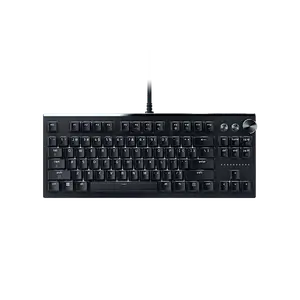
The Razer Huntsman Signature Edition is a wired gaming keyboard that connects over USB Type-C and works with both Windows and Apple Silicon Macs. A slider under the detachable magnetic accent bar selects PC, Mac or Safe Mode. The keyboard has adjustable key actuation, Rapid Trigger and Razer Snap Tap. A Multi-function Digital Dial adjusts volume and also sets actuation and Rapid Trigger values, with LED indicators that show the setting.
It also has a remappable Macro button, a Multi-function Media button, and a set of preset profiles you can load from the keyboard. Razer Synapse handles remapping, gamepad emulation, macros and lighting.
What’s Inside
- Razer Huntsman Signature Edition keyboard, with a detachable magnetic accent bar
- USB Type A to Type C cable
- 5 extra keycaps: a Metallic Novelty Keycap (pre-installed on the keyboard) and 4 additional Mac layout keycaps (2 opt and 2 cmd)
- Keycap puller
- 2 magnetic feet
- Leather mat
- Microfiber cleaning cloth
- Important Product Information Guide
Keyboard Layout
| Label | Part |
|---|---|
| A | Detachable magnetic accent bar |
| B | USB Type C port |
| C | OS compatibility mode slider (accessible after removing the accent bar) |
| D | Sleep mode key |
| E | On-The-Fly Macro record key |
| F | Gaming mode key |
| G | Backlight control keys |
| H | Remappable Macro button |
| I | Multi-function Media button |
| J | Multi-function Digital Dial |
| K | Quick Actuation Point adjustment key |
| L | Quick Rapid Trigger adjustment key |
| M | Razer Snap Tap key |
| N | Preset Profile shortcut keys |
| O | LED indicators |
| P | Magnetic feet attachment slot |
System Requirements
- Keyboard: A USB Type A port on your computer.
- Razer Synapse: Windows 11, or macOS 15 with Apple Silicon “M” series (or higher). Synapse supports Windows and Apple Silicon Macs. Compatibility with Intel-based Macs is currently unavailable.
Setting Up the Keyboard
- Detach the accent bar.
- Select the OS mode with the slider (see the next section).
- Reattach the accent bar.
- Connect the keyboard to your computer’s USB Type A port with the included cable. Install Razer Synapse when prompted, or download the installer from razer.com/synapse.
To register your warranty and unlock Razer benefits, go to razerid.razer.com. For current warranty terms, visit razer.com/warranty.
Choosing an OS Mode
The slider has three positions:
| Mode | What it does |
|---|---|
| PC (default setting) | Windows layout with Windows/alt keys, with customizable settings through Razer Synapse on Windows. |
| Mac | Mac layout with cmd/option keys, with customizable settings through Razer Synapse on macOS. |
| Safe Mode | Basic mode with Windows layout and non-customizable preset settings: red lighting, 2.0 mm actuation and 1000Hz polling rate. |
Using the Magnetic Feet
The keyboard has magnetic feet attachment slots on its underside, and two magnetic feet are included.
Replacing Keycaps for Windows or Mac Layout
For a step-by-step guide to installing or changing keycaps, use the QR code in the PDF or visit rzr.to/changing-keycaps. The PDF includes a keycap placement reference guide for both the Windows (default) and macOS layouts.
Control Buttons and Dial
- Remappable Macro button: Press it to open Game Bar. This is an out-of-the-box setting.
- Multi-function Media button: Press for Play / Pause, double press for Next track, and triple press for Previous track.
- Multi-function Digital Dial: Turn it one way for volume up and the other for volume down, and press it to mute or unmute. These are out-of-the-box settings, and you can customize and remap all functions in Razer Synapse.
Keyboard Hotkeys
Hold fn and press the key shown:
| Hotkey | Function |
|---|---|
| fn + F8 | Suspends all operating system activities and conserves power (sleep mode) |
| fn + F9 | Starts and stops on-the-fly macro recording |
| fn + F10 | Disables the Windows key, Menu/Apps key, alt + tab and alt + F4. Customizable via Razer Synapse. |
| fn + F11 / F12 | Decreases / increases keyboard LED brightness |
| fn + left shift | Razer Snap Tap. Prioritizes the latest input between two selected keys without releasing the previous one. You can choose prioritize left, prioritize right, compare level or neutral. When enabled, the selected keys briefly light up. Snap Tap is disabled by default. Customizable via Razer Synapse. |
| fn + left ctrl | Toggles the LED array actuation indicator lights |
While you are in an Adjustment Mode, all non-essential keys and lighting customizations are temporarily disabled.
Preset Profiles
| Profile | Hotkey | Color | What it does |
|---|---|---|---|
| Last-used Synapse Profile | fn + home | White | Loads the last profile used in Synapse. This profile cannot be customized. |
| FPS Rapid Trigger | fn + pg up | Red | All keys at 1.2 mm actuation. Rapid Trigger is on for the WASD keys at 0.3 mm sensitivity. |
| Analog WASD | fn + del | Blue | All keys at 1.2 mm actuation. The WASD keys act like a controller’s left analog stick. |
| Racing | fn + end | Yellow | All keys at 1.2 mm actuation. WASD act as Accelerate, Turn Left, Brake/Reverse and Turn Right, respectively. |
| General | fn + pg dn | Cyan | A default profile that reflects standard keyboard behavior while allowing full customization. All keys at 2.0 mm actuation, with Rapid Trigger disabled. |
All profiles support adjustable actuation points, Rapid Trigger sensitivity and key remapping through Razer Synapse. Profiles that include controller functionality require the app.
On-the-Fly Macro Recording
- Press fn + F9 to start recording.
- Type the keys you want to record.
- Press fn + F9 again to stop recording, or press the Esc key to cancel.
- Wait for the on-the-fly macro record key to start blinking.
- Press the key where you want to save the recording.
Quick Actuation Point Adjustment
- Press fn + tab to enter Actuation Point Adjustment Mode.
- Turn the Multi-function Digital Dial, or press the arrow keys, to increase or decrease the actuation point. The green LED shows the current setting.
- Read the LED indicators for the value in millimeters. From shallow to deep, the ten indicators stand for 0.1, 0.4, 0.8, 1.2, 1.6, 2.0, 2.4, 2.8, 3.2 and 3.6 mm.
- Press any alphanumeric key to test the setting. The LED indicators light up from left to right according to how far the key is pressed.
- Press fn + tab again, or press Esc, to save and exit. All keys on the keyboard are then set to the chosen actuation point.
Quick Rapid Trigger Adjustment
- Press fn + caps to enter Rapid Trigger Adjustment Mode.
- Press the caps lock key to turn Rapid Trigger on or off for all keys set with this function. When it is on, those keys light up bright orange.
- Turn the Multi-function Digital Dial, or press the arrow keys, to increase or decrease the Rapid Trigger sensitivity.
- Read the LED indicators for the value in millimeters. The ten indicators stand for 0.1, 0.2, 0.3, 0.4, 0.5, 0.6, 0.7, 0.8, 0.9 and 1.0 mm.
- Press any alphanumeric key to test it. When you press and release a key, its backlight turns green when it actuates and red when it resets.
- Press fn + caps again, or press Esc, to save and exit. All active or selected keys are then set to the chosen sensitivity.
Quick adjustments do not permanently overwrite your Synapse profiles. You can recall previously set profiles through Razer Synapse. To learn more about Rapid Trigger, visit rzr.to/rapid-trigger.
Chroma Lighting Hotkeys
Hold fn + right ctrl and press a number key:
| Hotkey | Effect | Hotkey | Effect |
|---|---|---|---|
| fn + ctrl + 1 | Off | fn + ctrl + 6 | Reactive* |
| fn + ctrl + 2 | Static* | fn + ctrl + 7 | Starlight* |
| fn + ctrl + 3 | Breathing* | fn + ctrl + 8 | Ripple* |
| fn + ctrl + 4 | Spectrum cycling | fn + ctrl + 9 | Wheel** |
| fn + ctrl + 5 | Wave** | fn + ctrl + 0 | Radiate* |
*Press again to change color. **Press again to change direction. Use Razer Synapse to customize the lighting further.
Configuring the Keyboard in Razer Synapse
Synapse Tab and Dashboard
Razer’s guide covers the new Razer Synapse app. It needs an internet connection to install, update, access and save cloud-based features. A Razer ID is recommended but optional. Features depend on the current version, connected devices and supported add-ons, so your screens may differ.
The Synapse tab is the default tab. The Dashboard gives an overview of your Razer devices, modules and online services. The Gamer Room subtab lists devices with the Razer Aether Light feature. Global Shortcuts binds operations or Synapse functions to custom key combinations that apply across all device profiles, and only Synapse-enabled device inputs are recognized.
Keyboard Tab: Profiles
The main tab for this keyboard covers key assignments, lighting and power consumption. Changes save automatically to your local system and cloud storage. Use the Profiles dropdown to switch profiles. The Miscellaneous button lets you add, import, rename, duplicate, export or delete a profile. The On-board Profiles button shows remaining storage and lets you transfer or change the profiles saved on the keyboard.
Customize Subtab Options
- Hypershift: A secondary set of key assignments active while the Hypershift key is held. By default the Hypershift key is fn, and you can assign any key.
- Gaming Mode: Choose which keys to disable when gaming mode is active: Windows key, Menu key, alt + tab and alt + F4.
- Windows Properties: Opens Windows Keyboard and Game Controller Properties for repeat delay, repeat rate, cursor blink rate and game controller calibration.
- Wired Polling Rate: A higher polling rate means the computer receives keyboard status more often, which reduces input latency.
- Switch Dead-zone: Responsive (quicker actuation), Medium (balanced feel) or Stable (more deliberate, controlled input).
- Gamepad Settings: Bind the W, A, S and D keys to a controller’s left joystick and the Q and E keys to the left and right triggers. The Gamepad Tester checks how the keyboard emulates joystick input.
- Gamepad Input Customization: Keyboard Input Passthrough keeps key functions active. Gamepad Override restricts input to gamepad-only actions. To keep typing with other keys while using controller-mapped inputs, enable Keyboard Input Passthrough.
- Controller Sidebar: Drag and drop controller functions onto keys in the active profile.
Remapping Keys
Open the Remap Menu to see all current assignments, or select a key on the Customize subtab. Each function lets you adjust the actuation point, and optionally sync it across all keys. Available functions:
- Default: Returns the key to its original setting.
- AI Launcher: Opens an overlay for AI queries, on either the AI Prompt Master tab or the AI Chat tab.
- Dynamic Keystroke: Map up to four bindings to stages of the key’s travel: press start, press end, release start and release end.
- Controller: Turns a key into a controller button, bumper or trigger.
- Joystick: Turns a key into a joystick button or analog stick direction.
- Keyboard Function: Turns the key into a keyboard function. You can enable Turbo mode, and bind a second function at a chosen secondary actuation point.
- Mouse Function: Left Click, Right Click, Scroll Click, Double Click, Scroll Up, Scroll Down, Mouse Button 4 (a “Backward” command for most internet browsers), Mouse Button 5 (a “Forward” command for most internet browsers), Scroll Left and Scroll Right. Turbo mode can be enabled in some of these.
- Macro: Runs a prerecorded sequence. Visible only when the Macro module is installed.
- Inter-device: Changes the function of other Synapse-enabled devices, such as using the keyboard to change a Razer mouse’s sensitivity stage.
- Switch Profile: Loads another profile’s key assignments, with an on-screen notification.
- Switch Chroma Effect: Switches between Chroma Effect Profiles in Chroma Studio. Visible only when the Chroma Studio module is installed.
- Device Brightness: Brightens, dims or toggles the LED lighting.
- Razer Hypershift: Activates Hypershift mode while the key is held.
- Launch: Opens an app or a website.
- Multimedia: Volume Down, Volume Up, Mute Volume, Mic Volume Up, Mic Volume Down, Mute Mic, Mute All, Play / Pause, Previous Track and Next Track.
- Windows Shortcuts: Assigns a Windows shortcut command.
- Text Function: Types prewritten text with full Unicode support.
- Disable: Makes the key unusable.
Actuation Subtab: Snap Tap and Rapid Trigger
- Actuation: Set a slider for how deep you press a key before it registers.
- Rapid Trigger: Adjust how much finger travel is needed to activate and reset the key. Tick the selection box to separate upstroke and downstroke settings.
- Continuous Rapid Trigger: Turns on Continuous Rapid Trigger for all applicable keys, so input registers on press and resets on release.
- Snap Tap: Blocks simultaneous input from two selected keys. Behaviors: Last Input (the default: the first key releases as soon as you press the second), Neutral (both keys release when the second is pressed), Prioritize Left, Prioritize Right, and Compare Level (the deeper press wins when both are held).
Lighting Subtab
You can turn lighting off with the Brightness toggle, or adjust it with the slider. Switch Off Lighting can disable lighting when your display turns off and/or power the keyboard down after it has been idle for a set time. Quick effects are:
| Effect | What it does | Setup |
|---|---|---|
| Ambient awareness | Reflects the averaged color of a selected screen region | Select or customize a screen region |
| Audio meter | Lights up with the audio level, using a default spectrum | Select a Color Boost level |
| Breathing | Fades in and out of the selected color(s) | Up to 2 colors, or randomize |
| Fire | Warm colors that mimic flames | None |
| Reactive | LEDs light up when a key is pressed, then fade | Select a color and a duration |
| Ripple | Light ripples away from the pressed key | Select a color |
| Spectrum cycling | Cycles between 16.8 million colors indefinitely | None |
| Starlight | Each LED randomly fades in and out | Up to 2 colors or randomize, plus a duration |
| Static | LEDs stay lit in the selected color | Select a color |
| Tidal | Lighting converges or diverges across the device | Up to 2 colors or randomize, plus a direction |
| Wave | Lighting scrolls in the chosen direction | Left-to-right or right-to-left |
| Wheel | Lighting rotates with a default spectrum | Clockwise or counter-clockwise |
The Chroma Sync button synchronizes quick effects with other supported Razer Chroma-enabled devices. Advanced Effects uses a Chroma Effect Profile, and the Launch Chroma Studio button lets you build your own. Only other Razer devices that support the selected effect will synchronize.
Linked Games
In the Games subtab, link an app to your keyboard by selecting it and choosing a device and profile. The keyboard then switches to that profile whenever you launch the app. Use the Add button to search manually or the Scan button to search automatically. In the Devices subtab, you can drag and drop an executable file, or use Add, Refresh, Search or Browse, then tick the app’s box to link it.
Macros
Create macros in the Macro tab under My Macros. Click Record to capture keystrokes, button presses and cursor movements. Before recording you can set a Start Delay of 1 to 5 seconds, a Shortcut Key to start recording while Synapse is in the background, Delay Settings, and Mouse Movement Tracking. Click Stop or press the Shortcut key to end the session. You can then edit the commands in order, with the first at the top. The Insert menu adds delays, keystrokes and button presses, macro groups, app launches, commands, typed text and loops. In Key Binds, use Assign Macro To Your Devices to bind a macro to a key without leaving the Macro tab.
Synapse Settings
- Synapse subtab: Auto Launch, Notifications (shown even over full-screen apps), Recommendations, Tutorials Reset, Synapse 3 Profile Migration (transfers Profiles, Macros and Chroma Effects from Synapse 3 to the new Synapse) and Device Lighting (choose which app controls lighting).
- General subtab: Language, and an About section with the software version, copyright statement, terms of use links and Razer’s social communities.
- Feedback: Send comments, suggestions and problems to Razer. You can earn rewards for reporting bugs.
Safety, Comfort and Care
Safety Guidelines
- If the keyboard does not work properly and troubleshooting does not help, unplug it and contact the Razer hotline or go to support.razer.com.
- Do not take the device apart, and do not try to operate it under abnormal current loads. Doing so voids your warranty.
- Keep the keyboard and all its parts and accessories out of the reach of small children to avoid accidents and/or injuries.
- Keep the device away from liquid, humidity and moisture.
- Operate it only between 0°C (32°F) and 40°C (104°F). If the temperature goes outside this range, unplug and/or switch off the device until the temperature stabilizes.
Comfort
- Place your keyboard and monitor directly in front of you, with the mouse next to the keyboard and your elbows at your sides.
- Set your chair and table height so the keyboard and mouse are at or below elbow height.
- Keep your feet well supported, your posture straight and your shoulders relaxed.
- Keep your wrist relaxed and straight while typing. Avoid bending, extending or twisting your hands for long periods.
- Do not rest your wrists on hard surfaces for long periods.
- Do not sit in one position all day. Get up and stretch your arms, shoulders, neck and legs.
If you feel pain, numbness or tingling in your hands, wrists, elbows, shoulders, neck or back while using the keyboard, consult a qualified medical doctor immediately.
Maintenance and Use
Once a month, unplug the keyboard from the computer and gently clean each component with a soft cloth or cotton swab to prevent dirt buildup. Do not use soap or harsh cleaning agents.
Frequently Asked Questions
How do I switch the Huntsman Signature Edition between PC, Mac and Safe Mode?
Detach the magnetic accent bar, then move the OS compatibility mode slider to PC, Mac or Safe Mode, and reattach the bar. PC is the default and uses the Windows layout. Mac uses cmd/option keys. Safe Mode is a basic Windows-layout mode with red lighting, 2.0 mm actuation and 1000Hz polling, and it cannot be customized.
Does the keyboard work with a Mac?
Yes. Set the slider to Mac mode for the macOS layout with cmd/option keys. The box includes extra opt and cmd keycaps (2 of each) for the Mac layout. To customize settings in Razer Synapse on macOS, you need macOS 15 with an Apple Silicon “M” series chip or higher. Synapse is not available for Intel-based Macs.
How do I change the actuation point?
Press fn + tab to enter Actuation Point Adjustment Mode. Turn the Multi-function Digital Dial or press the arrow keys to move between 0.1 mm and 3.6 mm. The green LED shows the setting. Press any alphanumeric key to test it, then press fn + tab again or Esc to save. All keys then use that actuation point.
How do I turn on Rapid Trigger and set its sensitivity?
Press fn + caps to enter Rapid Trigger Adjustment Mode. Press caps lock to turn Rapid Trigger on or off. Keys with it on glow bright orange. Use the dial or the arrow keys to set sensitivity from 0.1 mm to 1.0 mm. Press fn + caps or Esc to save.
What do the preset profile hotkeys do?
fn + home loads your last-used Synapse profile (white). fn + pg up loads FPS Rapid Trigger (red). fn + del loads Analog WASD (blue). fn + end loads Racing (yellow). fn + pg dn loads General (cyan). The color shows which profile is active.
Which profile should I use for everyday typing?
The General profile (fn + pg dn, cyan) is the default profile designed to reflect standard keyboard behavior while allowing full customization. Every key is set to a 2.0 mm actuation point, and Rapid Trigger is off.
How do I record a macro without opening Razer Synapse?
Press fn + F9 to start, type the keys you want to record, then press fn + F9 again to stop. Press Esc instead to cancel. When the on-the-fly macro record key starts blinking, press the key where you want to save the recording.
What do the Macro button, Media button and Digital Dial do?
Out of the box, the Macro button opens Game Bar. The Media button plays or pauses with one press, skips to the next track with a double press, and goes back a track with a triple press. The dial turns for volume up or down and presses to mute or unmute. You can remap all of these in Razer Synapse.
How do I turn on Snap Tap?
Press fn + left shift. Snap Tap is off by default. When it is on, the selected keys briefly light up. In Synapse you can choose how the pair behaves: Last Input (the default), Neutral, Prioritize Left, Prioritize Right or Compare Level.
How do I change the lighting effect from the keyboard?
Hold fn + right ctrl and press a number key from 1 to 0. For example, 1 turns lighting off, 2 is Static, 3 is Breathing, 4 is Spectrum cycling, 5 is Wave, 6 is Reactive, 7 is Starlight, 8 is Ripple, 9 is Wheel and 0 is Radiate. Press the same combination again to change the color on Static, Breathing, Reactive, Starlight, Ripple and Radiate, or the direction on Wave and Wheel. Use fn + F11 or F12 to change brightness.
Will the quick actuation and Rapid Trigger changes overwrite my Synapse profiles?
No. Quick adjustments do not permanently overwrite your Synapse profiles, and you can recall your previously set profiles through Razer Synapse. While you are in an Adjustment Mode, non-essential keys and lighting customizations are temporarily disabled.
How should I clean the Razer Huntsman Signature Edition?
Once a month, unplug the keyboard from the computer and gently clean each component with a soft cloth or cotton swab. Do not use soap or harsh cleaning agents. A microfiber cleaning cloth comes in the box.