
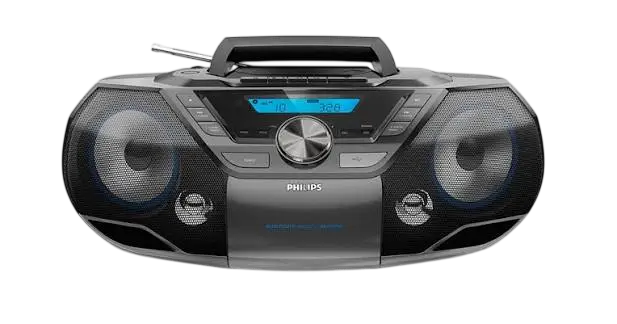
The Philips AZ797T is a 7000 Series CD Soundmachine that plays CDs, cassette tapes, USB devices, Bluetooth audio, FM radio, and external devices connected by cable. It can run on AC power or on batteries, so you can use it at a desk or carry it to another room. Dynamic Bass Boost (DBB) and Digital Sound Control (DSC) let you shape the sound, and a remote control covers most everyday functions.
Product Specifications
| Item | Specification |
| Maximum output power | 12 W |
| Frequency response | 63 Hz – 20 kHz, ±3 dB |
| Signal-to-noise ratio | >72 dBA |
| Total harmonic distortion | <1% |
| Audio-in input | 650 mV RMS, 22 kohm |
| Supported discs | CD-DA, CD-R, CD-RW, MP3-CD |
| Disc sizes | 4.75 inch / 3.125 inch |
| FM tuning range | 87.5 – 108 MHz (100 kHz grid) |
| FM presets | 30 |
| Bluetooth | V5.0 + EDR, 10 m (33 ft) free-space range, Class 2 |
| AC power | 120 V, 60 Hz |
| Battery power | DC 9 V, 6 × 1.5 V R-20/D cells (not supplied) |
| Power consumption | 15 W operating, under 0.5 W standby |
| Dimensions (W × H × D) | 17.1 × 6.69 × 10.7 inch |
| Weight | 2.96 kg |
The tape deck handles normal (Type I) tape. Wow and flutter is 0.4% DIN, and the signal-to-noise ratio is 35 dBA.
What’s in the Box
- Main unit
- AC power cord
- Remote control (battery included)
- Quick start guide and safety information
- Warranty leaflet
Safety Instructions
- Never remove the casing, lubricate any part, or look into the laser beam inside the unit.
- Do not stack the unit on other electrical equipment, and keep it away from direct sunlight, open flames, and heat.
- Keep the unit away from dripping or splashing. Do not set liquid-filled objects or lit candles on it.
- Leave enough free space around the unit for ventilation.
- Keep the power cord, plug, or adaptor easy to reach so you can disconnect power quickly.
- Use only attachments and accessories specified by the manufacturer.
- Install batteries with the + and – marks matching the unit. Keep them away from heat and fire, and remove them if you won’t use the unit for a long time (page 2).
- Using controls or procedures other than those in the manual may expose you to hazardous laser radiation (page 7).
At high volume, headphones can damage your hearing. Keep the volume at a reasonable level and take breaks. Don’t turn it up so loud that you can’t hear what’s around you.
Setup
Prepare the Remote Control
Open the battery compartment, insert the supplied AAA battery with the polarity (+/–) matching the markings, then close the compartment. Remove the battery if you won’t use the remote for a long time.
Connect Power
AC power: Check that your supply voltage matches the voltage printed on the back or underside of the unit. Connect the power cord to the AC~ MAINS socket on the unit and then to the wall outlet. When disconnecting, pull the plug, never the cord.
Battery power: Open the battery compartment, insert six R-20 (D cell) batteries with the correct polarity, and close it. Batteries are not supplied.
Turn On and Off
Press the power button. The unit returns to the last source you used. Press SOURCE repeatedly, or use the source buttons on the remote, to change sources. Press the power button again to turn it off. The display backlight goes out.
Playing Your Music
CD
- Press CD to select the disc source.
- Press OPEN•CLOSE to open the disc tray.
- Insert a disc with the printed side facing up and close the tray.
Playback starts automatically.
USB
- Press USB to select the USB source.
- Insert the USB device.
Playback starts automatically. If it doesn’t, press the play/pause button. The USB socket supplies a maximum of 0.5 A. Compatible devices are USB flash drives and flash players (USB 2.0 or 1.1). Memory cards work only with an extra card reader.
Bluetooth
Your phone or tablet must support the A2DP and AVRCP profiles. Keep it within about 10 meters (33 feet), with as few obstacles as possible.
- Press BT. The unit enters pairing mode and shows [PAIRING].
- Turn on Bluetooth on your device and search for devices.
- Select [Philips AZ797T]. If asked for a password, enter 0000.
- When you hear the pairing sound and see [CONNECTED], play audio on your device.
If the unit doesn’t appear on your device, press and hold PAIRING for 2 seconds. To disconnect, press and hold PAIRING for 2 seconds, turn off Bluetooth on your device, or move out of range. To connect a different device, turn off Bluetooth on the current one first. To clear the pairing history, press and hold the pairing button for 7 seconds.
Cassette Tape
- Press CD/TAPE repeatedly to select TAPE.
- Press the stop/open button on the unit to open the tape door.
- Load the tape with the open side up and the full spool on the right.
- Press play to start. Use the pause, rewind, and fast-forward buttons on the unit as needed.
The tape stops automatically at the end, and the unit turns itself off after a period of inactivity in tape mode. The display shows nothing in tape mode.
External Device
Press TUNER/AUDIO IN repeatedly to select AUDIO-IN. Connect an audio cable (0.138 inch, not supplied) from the AUDIO-IN socket to the headphone socket of your device, then start playback on that device.
Play Options and Sound
In CD or USB mode, skip tracks with the previous/next buttons. Press and hold them to search within a track, then release to resume. The album buttons skip between MP3 albums. Press REPEAT to repeat one track or all tracks, and SHUFFLE for random play. Press either button repeatedly until its icon disappears to return to normal play.
Program Tracks
You can program up to 20 tracks in CD or USB mode.
- Press stop.
- Press PROG. [PROG] blinks.
- For MP3 files, press ALBUM/PRESET +/– to choose an album.
- Use the skip buttons to pick a track number, then press PROG to confirm.
- Repeat steps 3–4 for more tracks.
- Press play. [PROG] shows during playback.
To erase the program, press stop twice. To review it, hold PROG for 2 seconds while playback is stopped.
Adjust Sound
Use VOL +/– for volume and the mute button to silence or restore sound. DBB turns Dynamic Bass Boost on or off. DSC cycles through POWERFUL, BALANCE, WARM, BRIGHT, and CLEAR.
FM Radio
Press TUNER/AUDIO IN repeatedly to select FM, and extend the FM antenna fully for the best reception.
- Auto tune: Press and hold the tuning button for 2 seconds. The unit searches for a strong station. Repeat to find more. For weak stations, press the tuning button repeatedly.
- Auto store: Press and hold PROG for 2 seconds. The unit stores all available stations and plays the first one.
- Manual store: Tune to a station, press PROG, use the preset buttons to assign a number from 1 to 30, then press PROG to confirm.
- Recall a preset: Use the preset buttons in FM mode.
The unit holds 30 presets. To remove one, store a different station in its place.
Other Features
Press SLEEP on the remote repeatedly to choose a sleep timer period; the unit then switches to standby on its own. Press SLEEP until [SLEEP OFF] appears to cancel. The display brightness button on the remote adjusts the display brightness. A headphone jack is on the unit.
Supported File Formats
For MP3 discs, the unit reads ISO9660 and Joliet formats at 32–256 kbps (including variable bit rate), with up to 512 titles and 255 albums.
For USB, MP3 files at 32–320 kbps (including variable bit rate) work. The drive must use FAT12, FAT16, or FAT32. The limits are 99 folders, 999 tracks, and 8 levels of folder nesting. Unsupported files are skipped. Lossless WMA and DRM-protected files are not supported.
Cleaning and Maintenance
- Cabinet: Wipe with a soft cloth slightly dampened with mild detergent. Avoid alcohol, spirits, ammonia, and abrasives.
- Discs: Wipe from the center outward with a cleaning cloth. Don’t use solvents, thinner, commercial cleaners, or antistatic spray made for vinyl records.
- Disc lens: After long use, clean the lens with Philips CD lens cleaner or another commercial cleaner, following its instructions.
- Tape heads and path: After every 50 hours of tape use, clean the heads, capstan, and pressure roller with a cotton swab slightly moistened with cleaning fluid or alcohol. You can also play a cleaning tape once.
- Heads: Demagnetize them with a demagnetizing tape from your dealer.
Troubleshooting
Don’t open the casing or try to repair the unit yourself, because that can void the warranty. Before contacting Philips support, have the model and serial number ready. Both are on the bottom of the unit.
| Problem | What to try |
| No power | Check the AC plug and outlet. For battery use, check the polarity or replace the batteries. |
| No sound or poor sound | Adjust the volume. |
| No response from the unit | Unplug and reconnect AC power, then turn it on again. Select the source with the remote before pressing function buttons. The unit also switches off automatically 15 minutes after playback ends with no control used. |
| Remote doesn’t work | Move closer, aim at the front sensor, and check or replace the battery. |
| USB device not supported | Try another USB device. |
| No disc detected | Insert a disc printed side up. Use a finalized CD in a compatible format. Wait for lens condensation to clear, or clean or replace the disc. |
| Poor radio reception | Move the unit away from TVs or VCRs and fully extend the FM antenna. |
| Bluetooth won’t connect | Make sure the device supports A2DP and AVRCP, has Bluetooth turned on, and the unit is in pairing mode and not already connected to another device. |
| Poor Bluetooth audio or dropouts | Move the device closer and remove obstacles. Some phones disconnect briefly during calls, and some devices disable Bluetooth to save power. Neither indicates a fault. |
Frequently Asked Questions
Can the AZ797T run on batteries?
Yes. It takes six R-20 (D cell) batteries, which are not supplied. The remote uses one AAA battery, which is included.
How do I pair my phone over Bluetooth?
Press BT, then select [Philips AZ797T] in your phone’s Bluetooth list. Enter 0000 if a password is requested. If the unit doesn’t show up, press and hold PAIRING for 2 seconds.
How far can the Bluetooth connection reach?
About 10 meters (33 feet) in open space. Walls and other obstacles can shorten that, as can nearby electronic devices.
How many radio stations can I save?
Up to 30 FM presets. Press and hold PROG for 2 seconds to store available stations automatically, or save them one at a time.
Why won’t my USB drive play?
Check that it is USB 2.0 or 1.1, formatted as FAT12, FAT16, or FAT32, and holds supported audio such as MP3. Lossless or DRM-protected WMA files aren’t supported. The USB port is limited to 0.5 A, and if the drive still isn’t recognized, try another one.
Why did the unit turn itself off?
It switches off automatically 15 minutes after playback ends when no control is used. In tape mode it also turns off after a period of inactivity. If a sleep timer is set, the unit goes to standby when that period ends.
Can it play any CD?
It plays CD-DA, CD-R, CD-RW, and MP3-CD discs. If a disc isn’t detected, make sure it is finalized, is the right way up, and is clean.
How often should I clean the tape heads?
After every 50 hours of tape use. Clean the heads, capstan, and pressure roller with a lightly moistened cotton swab, or play a cleaning tape once.