
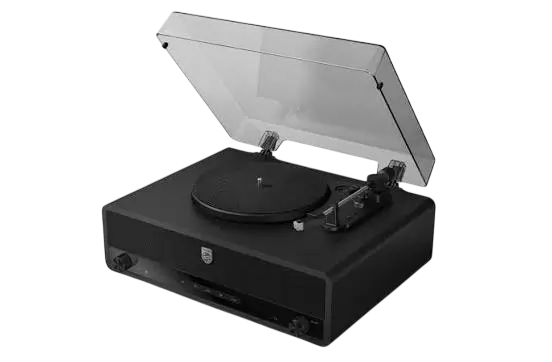
The Philips TAV3000B is a three-speed turntable with built-in speakers. It plays 33-1/3, 45, and 78 RPM records and also works as a Bluetooth speaker. You can stream music to it from a phone, or send its audio out to Bluetooth speakers or headphones. It supports Auracast™ broadcast audio in both directions and has a 3.5 mm audio input, RCA output, and a front headphone jack. The free Philips Entertainment app handles source selection, sound modes, and firmware updates. The unit ships with an Audio-Technica AT3600LA cartridge already fitted.
What’s in the Box
- Main unit
- Power adaptor (quantity and plug type vary by region)
- Slipmat
- 45 RPM adaptor
- Quick start guide
- Safety sheet
- Warranty card
The stylus cover comes on the tonearm and must be removed before playing. RCA and 3.5 mm audio cables are not included.
Product Specifications
| Item | Detail |
| Output power | Phono: 3 W x 2; Bluetooth/Audio in: 6 W x 2 (THD 10%) |
| Frequency response | 60 Hz – 20 kHz |
| Speakers | 2 x 2.25″ full range, plus bass port |
| Turntable speeds | 33-1/3, 45, and 78 RPM |
| Cartridge / stylus | AT3600LA / AT3600 (stylus not included) |
| Bluetooth | Version 5.4; A2DP, SBC, LC3; 2402–2480 MHz |
| Power supply | 12.0 V, 1.0 A |
| Power consumption | 7 W operating; under 0.5 W standby |
| Dimensions (W x H x D) | 42.0 x 17.9 x 34.8 cm |
| Weight | 4.35 kg |
Specifications are subject to change without notice (p. 21).
Parts and Controls
Tonearm area
- Tonearm lift lever: raises and lowers the arm so it touches the record gently.
- Tonearm clip: locks the arm when the turntable is not in use.
- Tonearm rest: holds the arm when it is not playing.
- Speed slide: selects 33-1/3, 45, or 78 RPM.
- Auto stop slide: turns the auto stop function on or off. It does not apply at 45 RPM.
- 45 RPM adaptor rest: the adaptor’s storage spot next to the tonearm.
Front controls
- Power button: switches the unit on and puts it in standby.
- Source knob: rotates to select Phono, Bluetooth, or Audio in.
- Volume knob: sets the volume for the speakers and headphones.
- Playback buttons: play/pause, plus previous and next track.
- Auracast™ button: a short press switches to receiver mode. Holding it for more than 3 seconds turns broadcast mode on or off.
- BT OUT button: a press starts Bluetooth Out. Holding it disables Bluetooth Out.
- Headphone jack: on the front panel.
Rear connections: RCA output, 3.5 mm audio input, and DC IN.
LED Indicators
LED 1 shows the source:
| LED 1 | Meaning |
| Solid red | Standby |
| Solid light brown | Phono |
| Solid pink | Audio in |
| Solid blue | Bluetooth connected |
| Fast blue blink | Bluetooth pairing |
| Slow blue blink | Bluetooth disconnected |
| Solid cyan | Auracast™ receiver |
LED 2 shows Auracast™ and Bluetooth Out status:
| LED 2 | Meaning |
| Solid cyan | Auracast™ receiver connected |
| Slow cyan blink | Receiver scanning |
| Solid purple | Unencrypted Auracast™ broadcast |
| Solid amber | Encrypted Auracast™ broadcast |
| Slow white blink | BT Out pairing |
| Solid white | BT Out connected |
| Fast white blink | BT Out disconnected |
| Red blink | Invalid operation |
Installation and Setup
Place the unit on a flat, level surface with enough free space around it for ventilation. Check that your outlet voltage matches the voltage printed on the unit’s underside or back. Finish all other connections before plugging in the adaptor. When unplugging, pull the plug rather than the cord (p. 7).
- Connect the power adaptor to the DC IN jack, then to the wall outlet.
- Press the power button. The unit returns to the last source you used.
- Turn the source knob to Phono, Bluetooth, or Audio in.
- Adjust the volume with the volume knob.
How to Use the Turntable
Playing a Vinyl Record
- Put the slipmat on the platter, then place the record on it.
- For a 7-inch record with a large center hole, put the 45 RPM adaptor over the center spindle.
- Set the speed slide to match the record.
- Set the auto stop slide as you prefer.
- Gently pull the stylus cover straight forward to remove it.
- Turn the source knob to Phono. LED 1 turns solid light brown.
- Unlock the tonearm clip and raise the arm with the lift lever.
- Move the arm over the record.
- Lower the lift lever so the stylus settles on the record.
A 78 RPM record may sound rustly. That comes from the record itself and is normal (p. 8).
Stopping Playback
- Raise the arm with the lift lever and move it back onto the rest.
- Lower the lever and lock the tonearm clip.
- Put the 45 RPM adaptor back on its rest, and refit the stylus cover to protect the tip.
Listening Over Bluetooth
- Turn the source knob to Bluetooth. LED 1 blinks blue.
- Press and hold the Bluetooth pairing button for 3 seconds to start pairing.
- Select The Stevie on your phone or tablet.
- When pairing succeeds, LED 1 turns solid blue and the unit plays a prompt sound.
The range is about 10 meters in open space, and obstacles reduce it. Compatibility with every Bluetooth device is not guaranteed (p. 10). To disconnect, turn Bluetooth off on your device. To clear stored pairing records, hold the same button for 3 seconds while the unit is disconnected.
Sending Audio to Bluetooth Speakers (BT Out)
In Phono or Audio in mode, press BT OUT to start pairing. LED 2 blinks white while the turntable scans and connects to the nearest or strongest device. Put the receiving device in pairing mode first. When connected, LED 2 turns solid white. If pairing fails, press the button again to rescan. Hold the button for 3 seconds to disconnect (p. 12).
Using Auracast™
Receiving a broadcast. Short-press the Auracast™ button to switch to receiver mode. LED 1 turns solid cyan and LED 2 blinks cyan.
- The first time you use it, or when the station list is empty, the turntable scans automatically.
- It joins the strongest unencrypted broadcast.
- Use the previous/next buttons to change channels, or press the Auracast™ button again to rescan. Encrypted channels are skipped on the unit itself.
- Encrypted broadcasts need the same password set on the broadcasting device, and you enter it in the app.
Broadcasting. In Phono, Bluetooth, or Audio in mode, hold the Auracast™ button for 3 seconds. In the app’s General Settings, choose Public (unencrypted) or Personal (encrypted). LED 2 turns solid purple for unencrypted or solid amber for encrypted. The manual says you can broadcast to any number of Auracast™ products. Hold the button again to exit.
Audio In, RCA Output, and Headphones
For an external device, connect a 3.5 mm cable (not included) to the AUDIO IN jack and switch to Audio in. LED 1 turns solid pink. To use external speakers, connect an RCA cable (not included): red plug to the R channel, white plug to the L channel. Volume is then controlled on the external speaker. For headphones, plug into the front jack and use the volume knob.
Philips Entertainment App
Search for “Philips Entertainment” in the Apple App Store or Google Play, or use philips.to/entapp. Turn on Bluetooth on your phone, open the app, and press the pairing button on the turntable to let the app find it. In the app you can:
- Switch between Phono, Bluetooth, Auracast™ receiver, and Audio in.
- Choose a sound mode: Balanced, Warm, Bright, Powerful, or Clear.
- Browse Auracast™ broadcasts and enter passwords.
- Enable Bluetooth Out and pick a device.
- Use the phone as a remote control.
- Open the User Manual and Quick Start Guide.
- Install firmware updates over the air. Go to Firmware Update and press Download & Update.
Safety Instructions
- Do not open or remove the casing. There are no user-serviceable parts inside.
- Never lubricate any part of the unit.
- Keep it away from rain, moisture, dripping or splashing. Do not place liquid-filled objects or lit candles on it.
- Keep it away from direct sunlight, open flames, and heat. Do not place it on other electrical equipment.
- Use it only between 0°C and 40°C.
- Use only attachments and accessories specified by the manufacturer.
- Keep the power cord and plug easy to reach so you can disconnect power quickly.
- Fully insert the plug to prevent electric shock.
- Keep at least 20 cm between the product and nearby people (p. 23).
Cleaning and Maintenance
The manual gives no cleaning procedure, so keep to what it does cover.
Replacing the Stylus
Use an AT3600 stylus. It is not included. Turn the power off first.
- Push the tip of the stylus down in direction A, then pull it out toward B.
- Hold the new stylus by the tip and press its other edge in toward C.
- Push it up toward D until it locks at the tip.
- Refit the stylus cover.
Do not bend or force the stylus. Avoid touching the tip, which can injure your hand (p. 9).
Removing the Dust Cover
Open the cover, then lift it vertically off the hinge base.
Troubleshooting
Do not try to repair the unit yourself, as that can void the warranty. If a fix below does not help, visit www.philips.com/support with the model and serial numbers ready.
| Problem | What to check |
| No power | Adaptor connection; power at the outlet |
| No sound | Volume; correct source; cable connections |
| Platter spins, no sound | Volume; Phono source; stylus cover removed; lift lever lowered |
| Weaker turntable audio | A worn stylus; replace it |
| Records sound too fast or slow | Speed slide matches the record |
| Bluetooth won’t connect | Device supports the required profiles; Bluetooth is on; unit is in pairing mode; no other device is already connected |
| Poor Bluetooth quality | Move closer and remove obstacles |
| Unit unresponsive | Unplug and reconnect the adaptor, then power on |
Frequently Asked Questions
What record speeds does the TAV3000B support?
It plays 33-1/3, 45, and 78 RPM records. Set the speed slide next to the tonearm to match the record before playing.
Why is there no sound when the platter is spinning?
Check the volume and confirm the source knob is on Phono. Make sure the stylus cover is off and the lift lever is lowered so the stylus is on the record.
How do I connect my phone over Bluetooth?
Switch to the Bluetooth source, hold the pairing button for 3 seconds, and pick The Stevie on your phone. LED 1 turns solid blue when connected.
Can I play the turntable through other speakers or headphones?
Yes. Use the RCA output with a cable (not included) for external speakers. You can also use the front headphone jack, or pair Bluetooth speakers through BT OUT.
What does Auracast™ do on this turntable?
It works two ways. In receiver mode it plays unencrypted broadcasts from a phone, dongle, or other device. In broadcast mode it sends the turntable’s audio, public or password-protected, to compatible products.
Which stylus does it use, and when should I replace it?
It uses the AT3600 stylus with the AT3600LA cartridge. The manual says to replace the stylus if turntable audio performance declines, since a worn stylus may be the cause. It gives no replacement interval.
Why did the unit switch itself off?
It powers down automatically 15 minutes after a track finishes if no control is operated.
How do I update the firmware?
Connect the turntable to the Philips Entertainment app, open Firmware Update, and press Download & Update when an update is available.