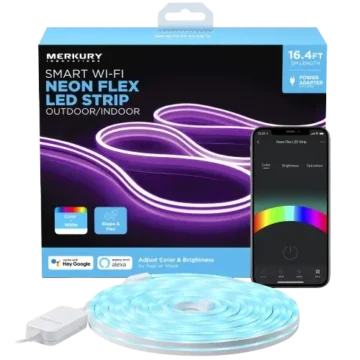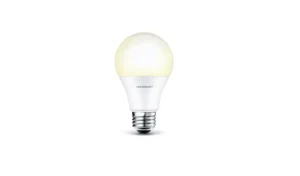
| Document Detail | Information |
| Document Title | Smart Wi-Fi LED Bulb Start Guide |
| Document Type | Start Guide |
| Brand Name | Merkury Innovations |
| Product Name | Smart Wi-Fi LED Bulb |
| Model Number(s) | — |
| PDF File Size | 804 KB |
| Number of Pages | 16 |
| Languages | English |
Merkury Smart Wi-Fi LED Bulb
The Merkury Smart Wi-Fi LED Bulb is a connected light bulb that works with the Geeni mobile app. Once connected to a compatible home Wi-Fi network, the bulb can be controlled through a smartphone or tablet. The Geeni app also allows users to manage multiple smart devices, organize bulbs into groups, and share device access with family members.
The bulb uses an E26 base, A19 bulb shape, and a 120V, 60Hz electrical supply. It connects to a 2.4 GHz Wi-Fi network using the Geeni app. Two connection methods are available: Easy Mode for normal setup and AP Mode as a backup when the first connection method is unsuccessful.
Before installation, make sure the light socket is compatible, the installation location is dry, and the mobile device meets the Geeni app requirements.
Product Overview
The Merkury Smart Wi-Fi LED Bulb combines a conventional light bulb design with wireless connectivity through the Geeni application.
Once successfully paired, the bulb appears in the Geeni device list, where it can be managed alongside other compatible smart home products.
Main Features
- Wi-Fi connectivity: Connects to a compatible 2.4 GHz wireless network.
- Geeni app control: Allows the bulb to be controlled from a supported smartphone or tablet.
- Easy Mode pairing: Provides the primary connection method using a fast-blinking indicator.
- AP Mode pairing: Provides an alternative connection method using the bulb’s temporary Wi-Fi connection.
- Device sharing: Allows access to be granted to other registered Geeni users.
- Device grouping: Allows compatible devices of the same type to be organized into groups.
- Device renaming: Lets users assign recognizable names to connected devices.
- Multiple-device management: Supports management of Geeni devices across multiple locations.
- Firmware updates: Provides an option to check for device firmware updates.
- Reset function: Uses repeated power cycling to switch between connection modes.
- Voice Control Guide: Supplied separately with the bulb’s setup instructions.
What’s Included in the Box
The Merkury Smart Wi-Fi LED Bulb package contains the following items.
| Item | Quantity | Description |
| Smart Wi-Fi LED Bulb | 1 | Main smart lighting device. |
| User Manual | 1 | Provides installation and app setup instructions. |
| Voice Control Guide | 1 | Provides separate voice control guidance. |
Parts and Components
The bulb has a standard A19-style body and an E26 screw base.
| Component | Function |
| LED Bulb | Produces light when connected to a compatible electrical supply. |
| E26 Screw Base | Connects the bulb to an appropriate light socket. |
| LED Light Source | Built-in, non-replaceable lighting component. |
| Blinking Light Indicator | Uses the bulb’s light output to indicate the selected Wi-Fi pairing mode. |
E26 Bulb Base
The bulb is designed for an E26 light socket.
Before installing it, verify that the socket matches the bulb base and that the electrical supply is compatible.
Built-In LED Light Source
The bulb contains a non-replaceable LED light source.
When the light source reaches the end of its usable life, the entire bulb must be replaced.
Pairing Status
The bulb uses different flashing patterns to indicate its connection mode.
Fast blinking indicates Easy Mode, while slow blinking indicates AP Mode.
Technical Specifications
| Specification | Details |
| Brand | Merkury Innovations |
| Product Name | Smart Wi-Fi LED Bulb |
| Product Type | Wi-Fi-Enabled LED Light Bulb |
| Bulb Shape | A19 |
| Bulb Base | E26 |
| Rated Voltage | 120 V |
| Rated Frequency | 60 Hz |
| Wi-Fi Standard | IEEE 802.11n |
| Wi-Fi Frequency | 2.4 GHz |
| 5 GHz Wi-Fi Compatibility | Not Compatible |
| Mobile Application | Geeni |
| Supported iOS Version | iOS 8 or Higher |
| Supported Android Version | Android 4.1.x or Higher |
| Operating Temperature | -20°C to 40°C |
| Operating Temperature (Fahrenheit) | -4°F to 104°F |
| Primary Connection Method | Easy Mode |
| Backup Connection Method | AP Mode |
| Easy Mode Indicator | 2 Flashes Per Second |
| AP Mode Indicator | 1 Flash Every 3 Seconds |
| Reset Method | Turn Power Off and On 3 Times |
| Dimmer Compatibility | Not Compatible |
| Installation Location | Dry Locations Only |
| Enclosed Luminaire Compatibility | Not Suitable for Totally Enclosed Luminaires |
| LED Light Source | Non-Replaceable |
| FCC Compliance | Part 15, Class B Digital Device |
Important Safety Instructions
The Merkury Smart Wi-Fi LED Bulb operates using household electricity. Improper installation or use may cause electric shock, burns, or product damage.
Electrical Safety
Caution: Risk of electric shock or burns. Use in a dry location only.
- Do not install the bulb with wet hands.
- Do not install the bulb while standing on a wet or damp surface.
- Make sure the light socket is compatible with an E26 base.
- Verify that the bulb’s voltage matches the available electrical supply.
- Do not use the bulb with a dimmer switch.
- Do not install the bulb in a totally enclosed luminaire.
- Use the bulb only within its specified operating temperature range.
Operating Temperature
The recommended operating environment is:
-20°C to 40°C (-4°F to 104°F).
The bulb must be used within these temperature limits.
Light Fixture Compatibility
The bulb is not suitable for totally enclosed light fixtures.
Before installation:
- Check that the socket uses an E26 connection.
- Confirm that the power supply is compatible with 120 V, 60 Hz.
- Verify that the light fixture is not totally enclosed.
- Make sure the fixture does not use a dimmer.
- Check that the installation area is dry.
Non-Replaceable LED Warning
The bulb contains a non-replaceable light source.
The LED component must not be treated as a separately replaceable part. When it reaches the end of its operating life, replace the entire bulb.
California Proposition 65 Warning
Warning: The product carries a California Proposition 65 notice concerning chemicals known to the State of California to cause cancer, birth defects, or other reproductive harm.
Before First Use
Before connecting the Merkury bulb to the Geeni app, prepare the mobile device, wireless network, and light socket.
Setup Requirements
| Requirement | Details |
| Smartphone or Tablet | iOS 8 or Higher, or Android 4.1.x or Higher |
| Mobile App | Geeni |
| Wi-Fi Network | 2.4 GHz |
| Wi-Fi Credentials | Network Name and Password |
| Light Socket | E26 |
| Power Supply | 120 V, 60 Hz |
| Installation Environment | Dry Location |
Initial Setup Checklist
- Check that a compatible E26 light socket is available.
- Confirm that the fixture does not use a dimmer.
- Make sure the installation location is dry.
- Prepare the home Wi-Fi network name and password.
- Check that the Wi-Fi network operates on 2.4 GHz.
- Install the Geeni application on the smartphone or tablet.
- Create a Geeni account or sign in to an existing account.
- Install the bulb and turn on the power.
- Follow the Easy Mode connection procedure.
Important: The Geeni app cannot connect this bulb through a 5 GHz Wi-Fi network.
Downloading the Geeni App
The Geeni application is used to set up and manage the Merkury Smart Wi-Fi LED Bulb.
How to Download Geeni
- Open the App Store on an iOS device or Google Play on an Android device.
- Search for Geeni.
- Select the Geeni application.
- Download and install the app.
- Open the application.
The Geeni app can manage multiple compatible smart home devices through a single account.
How to Register a Geeni Account
A Geeni account is required for the setup procedure described in the guide.
Account Registration Instructions
- Open the Geeni application.
- Select the registration option.
- Enter a mobile phone number or email address.
- Continue to the verification screen.
- Enter the verification code.
- Create an account password.
- Complete registration.
- Sign in to the Geeni app.
How to Sign In
- Open Geeni.
- Select the country or region when required.
- Enter the registered mobile number or email address.
- Enter the account password.
- Tap Login.
After signing in, the Devices screen can be used to add the smart bulb.
How to Install the Merkury Smart Bulb
The bulb must be installed in a compatible light socket before Wi-Fi pairing.
Installation Instructions
- Confirm that the light socket has an E26 fitting.
- Make sure the electrical supply is compatible with the bulb.
- Turn off the light socket’s power before installing the bulb.
- Screw the Merkury Smart Wi-Fi LED Bulb into the socket.
- Turn on the power.
When the bulb is ready for Easy Mode pairing, it should blink quickly at approximately two flashes per second.
If the bulb is not blinking quickly, use the reset procedure to place it into Easy Mode.
Wi-Fi Connection Modes
The Merkury Smart Wi-Fi LED Bulb supports two Wi-Fi pairing methods.
| Mode | Description | Blinking Pattern |
| Easy Mode | Primary setup method used by the Geeni app. | Fast blinking, twice per second. |
| AP Mode | Backup connection method when Easy Mode does not work. | Slow blinking, once every 3 seconds. |
Easy Mode
Easy Mode is the normal connection method.
The app searches for the bulb and attempts to register it using the selected home Wi-Fi connection.
AP Mode
AP Mode is an alternative method that uses a temporary Wi-Fi connection provided by the bulb during setup.
The mobile device connects to the bulb’s temporary network before Geeni completes the connection process.
How to Connect the Bulb in Easy Mode
Easy Mode is the recommended first connection method.
Step 1: Turn On the Bulb
- Install the bulb in the compatible socket.
- Turn on the light switch.
- Check whether the bulb is blinking quickly.
The bulb should flash approximately twice per second.
Step 2: Open Geeni
- Open the Geeni app.
- Sign in to the account.
- Go to the Devices screen.
- Tap the + icon in the upper corner.
Step 3: Confirm Pairing Mode
- Check that the bulb is flashing quickly.
- If it is not, turn the bulb off and on three times to reset it into Easy Mode.
- Return to the Geeni app.
- Tap Next Step.
Step 4: Enter Wi-Fi Information
- Select the home Wi-Fi network.
- Confirm that it uses 2.4 GHz.
- Enter the Wi-Fi password.
- Continue with the connection process.
Step 5: Complete the Connection
The Geeni app will attempt to connect the bulb.
During the process, the application searches for the device, registers it and initializes the connection.
Once the connection is complete, the bulb can be managed through the Geeni device list.
If Easy Mode fails, use AP Mode.
How to Connect the Bulb Using AP Mode
AP Mode is the backup connection method.
The bulb must blink slowly before starting the AP Mode procedure.
Step 1: Activate AP Mode
- Make sure the bulb is powered on.
- Turn the bulb off and on three times to enter Easy Mode.
- Repeat the off-and-on sequence three more times to enter AP Mode.
- Confirm that the bulb is blinking slowly, approximately once every 3 seconds.
Step 2: Select AP Mode in Geeni
- Open the Geeni app.
- Go to the Devices screen.
- Tap the + icon.
- Select AP Mode in the upper corner.
Step 3: Enter the Wi-Fi Details
- Tap Next.
- Select the home Wi-Fi network.
- Enter its password.
- Continue with the instructions.
The home Wi-Fi network must operate on 2.4 GHz.
Step 4: Connect to the Bulb’s Temporary Wi-Fi
- Follow the instructions displayed by Geeni.
- Open the phone’s Wi-Fi network list when prompted.
- Select the temporary device Wi-Fi connection shown during setup.
- Return to Geeni and continue.
The guide’s example Wi-Fi list shows temporary device network names such as Merkury-XXXX and Geeni-XXXX.
Step 5: Complete AP Mode Setup
The Geeni app will attempt to complete the connection.
Once the bulb is connected successfully, it becomes available for control through the application.
How to Reset the Merkury Smart Wi-Fi LED Bulb
The bulb uses repeated power cycling to switch between pairing modes.
Reset to Easy Mode
- Turn off the bulb using the light switch.
- Turn it back on.
- Repeat the off-and-on sequence three times.
- Check that the bulb begins blinking quickly.
Easy Mode indicator: Approximately two flashes per second.
Reset to AP Mode
- Reset the bulb into Easy Mode first.
- Turn the bulb off and on three more times.
- Check that the blinking pattern changes.
AP Mode indicator: Approximately one flash every 3 seconds.
What the Blinking Light Means
| Blinking Pattern | Meaning | Next Action |
| Fast blinking, 2 times per second | Easy Mode is active. | Use Easy Mode in Geeni. |
| Slow blinking, once every 3 seconds | AP Mode is active. | Select AP Mode in Geeni. |
Controlling the Smart Bulb Using Geeni
After connecting successfully, the Merkury bulb appears in the Geeni application.
From the device screen, users can access the bulb and available controls.
How to Turn the Bulb On or Off in Geeni
- Open Geeni.
- Select the connected bulb.
- Tap the on/off control on the bulb’s device screen.
The example device screen displays an on/off control for switching the light.
How to Rename the Bulb
Renaming helps identify the bulb when several Geeni devices are connected.
- Open the main device list in Geeni.
- Tap the bulb that needs to be renamed.
- Open the advanced settings using the upper-right menu.
- Select Modify Device Name.
- Enter the preferred name.
For a group, use Modify Group Name.
How to Share Bulb Access With Family and Friends
Geeni allows devices to be shared with other users.
The other person must already have the Geeni app installed and a registered account.
Device Sharing Instructions
- Open Geeni.
- Tap Profile.
- Select Device Sharing.
- Follow the instructions to grant access to the selected device.
Sharing permissions can also be revoked through the same function.
Shared Device Controls
The sharing function allows other authorized Geeni users to access supported devices, including bulbs, plugs, cameras and other Geeni smart home products.
How to Group Multiple Geeni Bulbs
Geeni allows compatible devices of the same type to be organized into groups.
A device can belong to more than one group.
For example, a bedroom bulb may appear in both a Bedroom group and an Entire House group.
Create a Device Group
- Open the Geeni app.
- Go to the main device list.
- Select a device to group.
- Tap the advanced settings menu in the upper-right corner.
- Select Create Group.
- Choose the compatible devices to include.
- Give the group a recognizable name.
Managing Groups
Groups can be named according to rooms, locations or other preferred arrangements.
The same bulb may be included in multiple groups where appropriate.
Managing Multiple Geeni Devices
The Geeni application is designed to manage an unlimited number of devices across an unlimited number of locations.
However, the number of devices that can connect to a single Wi-Fi router may be limited by the router.
Device capacity should therefore be considered when connecting many smart products to one wireless network.
Firmware Updates
The Geeni app provides a function for checking device firmware updates.
How to Check for a Firmware Update
- Open Geeni.
- Select the bulb from the device list.
- Open the advanced settings menu.
- Select Check for firmware update.
- Follow any available update instructions.
Keeping the device firmware updated may help maintain the functionality provided by Geeni.
Troubleshooting Guide
The following troubleshooting instructions cover Wi-Fi connection failures, offline devices, pairing modes and network requirements.
| Problem | Possible Cause | Recommended Solution |
| Bulb cannot connect to Wi-Fi | Incorrect Wi-Fi password. | Check and re-enter the network password. |
| Bulb cannot connect to Wi-Fi | Internet connection problem. | Check the home internet connection. |
| Bulb cannot connect to Wi-Fi | Weak wireless signal. | Reset the Wi-Fi router and try again. |
| Bulb does not connect during Easy Mode | Primary setup method unsuccessful. | Reset the bulb and use AP Mode. |
| Bulb is not blinking quickly | Easy Mode is not active. | Turn the bulb off and on three times. |
| Bulb is not blinking slowly | AP Mode is not active. | Repeat the three-cycle reset after entering Easy Mode. |
| Bulb appears offline | Light switch is off. | Turn on the light switch. |
| Bulb appears unreachable | Router is offline or outside effective range. | Check router operation and signal coverage. |
| Bulb appears offline | Firmware may need updating. | Check for firmware updates in device settings. |
| Remote app control is unavailable | Required Wi-Fi connection is unavailable. | Restore the Wi-Fi connection. |
Merkury Smart Bulb Not Connecting to Wi-Fi
If the bulb cannot connect:
- Confirm that the Wi-Fi network operates on 2.4 GHz.
- Check that the correct network password was entered.
- Check the internet connection.
- Check that the Wi-Fi signal is strong enough.
- Reset the Wi-Fi router if the signal is too weak.
- Reset the bulb and retry Easy Mode.
- If Easy Mode is unsuccessful, use AP Mode.
Merkury Smart Bulb Not Blinking During Setup
The bulb must be in the appropriate connection mode.
For Easy Mode:
- Turn the bulb off and on three times.
- Wait for fast blinking.
- Begin Easy Mode setup in Geeni.
For AP Mode:
- Repeat the three-cycle reset.
- Wait for slow blinking.
- Select AP Mode in Geeni.
Merkury Smart Bulb Blinking Fast
Fast blinking at approximately twice per second means the bulb is in Easy Mode.
Use the Geeni app’s normal connection procedure to add the bulb.
Merkury Smart Bulb Blinking Slowly
Slow blinking approximately once every 3 seconds means AP Mode is active.
Select AP Mode in the Geeni application and follow the backup connection instructions.
Merkury Smart Bulb Showing Offline
If the bulb appears offline or unreachable:
- Check that the light switch is turned on.
- Confirm that the bulb receives continuous electrical power.
- Check that the Wi-Fi router is online.
- Make sure the bulb is within the router’s wireless coverage.
- Open Geeni and check for firmware updates.
Important: The bulb requires an always-on power supply to operate properly through the application.
Geeni App Not Connecting to the Bulb
Connection problems may result from an incorrect password, weak Wi-Fi signal or an unavailable internet connection.
Check the network credentials and router connection.
If necessary, reset the router and retry the connection.
If normal pairing is unsuccessful, use AP Mode.
Geeni Bulb Not Working After Wi-Fi Goes Down
Geeni products must be connected to Wi-Fi for remote operation.
When the Wi-Fi or internet connection is unavailable, remote functionality may be affected.
Restore the required Wi-Fi connection before trying remote operation again.
What Is the Wi-Fi Range of the Merkury Smart Bulb?
The wireless range depends on the home Wi-Fi router and the conditions of the room.
Check the router’s specifications for information about its wireless coverage.
FCC Regulatory Information
The Merkury Smart Wi-Fi LED Bulb complies with Part 15 of the FCC Rules.
FCC Operating Conditions
The device operates under two conditions:
- It must not cause harmful interference.
- It must accept received interference, including interference that may cause undesired operation.
The device has been tested to meet the limits for a Class B digital device under Part 15 of the FCC Rules.
These limits are intended to provide reasonable protection against harmful interference in a residential installation.
Customer Support Information
For connection problems, setup assistance and other product questions, contact Geeni support.
| Contact Detail | Information |
| Brand | Merkury Innovations |
| Application | Geeni |
| Support Email | support@mygeeni.com |
| Official Website | https://www.mygeeni.com |
| In-App Support | Geeni App → Support |
| Company | Merkury Innovations LLC |
| Company Address | 45 Broadway, 3rd Floor, New York, NY 10006 |
| Country of Manufacture | China |
How to Get Help Through the Geeni App
- Open the Geeni app.
- Select Support.
- Follow the available support instructions.
For unresolved setup or connection issues, contact support@mygeeni.com.
Frequently Asked Questions
How do I connect the Merkury Smart Wi-Fi LED Bulb to Wi-Fi?
Install the bulb in a compatible E26 light socket and turn on the power. Make sure it is blinking quickly, approximately twice per second. Open Geeni, tap the + icon, select the normal Easy Mode connection procedure, enter the 2.4 GHz Wi-Fi network password, and follow the instructions to connect the bulb.
Does the Merkury Geeni Smart Bulb work with 5 GHz Wi-Fi?
No. The Merkury Smart Wi-Fi LED Bulb requires a 2.4 GHz Wi-Fi network. It uses IEEE 802.11n wireless connectivity and cannot connect to 5 GHz Wi-Fi networks.
How do I reset the Merkury Smart Wi-Fi LED Bulb?
Turn the bulb off and on three times to reset it into Easy Mode. The bulb should blink quickly, approximately twice per second. Repeat the off-and-on sequence three more times to enter AP Mode, indicated by slow blinking approximately once every 3 seconds.
Why is my Merkury smart bulb blinking fast?
Fast blinking means the bulb is in Easy Mode and ready for the normal Geeni Wi-Fi connection process. Open Geeni and follow the Easy Mode setup instructions.
How do I connect the Merkury bulb using AP Mode?
Reset the bulb until it blinks slowly, approximately once every 3 seconds. Open Geeni, tap the + icon, select AP Mode, and enter the 2.4 GHz Wi-Fi details. Follow the instructions to connect the phone to the bulb’s temporary Wi-Fi connection and complete setup.
Why does my Geeni smart bulb show offline?
The bulb may appear offline if the light switch is off, the Wi-Fi router is unavailable, or the bulb is outside the router’s coverage. Keep the light switch on, check the router’s connection and range, and check for firmware updates in Geeni.
Can I share my Merkury smart bulb with another person?
Yes. Open Geeni, tap Profile, and select Device Sharing. The other person must have the Geeni application installed and a registered account. Sharing permissions can be granted or revoked through Device Sharing.
Can I use the Merkury Smart Wi-Fi LED Bulb with a dimmer switch?
No. The bulb must not be used with dimmers. It is also unsuitable for totally enclosed luminaires and must be installed in a dry location with a compatible E26 socket and 120V, 60Hz electrical supply.