
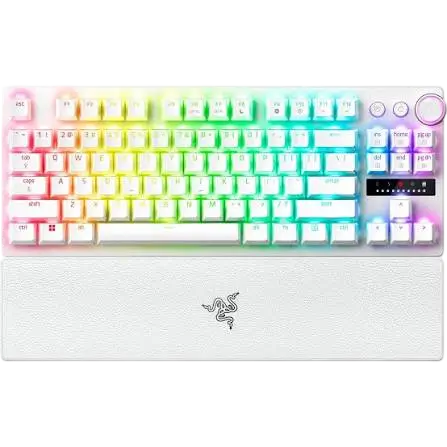
The Razer Huntsman V3 Pro is a full-size wired keyboard built on Razer Analog Optical Switch Gen-2 switches. Rapid Trigger Mode and adjustable actuation let you decide how far each key must travel to register and how far it must move to reset, and you can change both from the keyboard itself or in Razer Synapse.
It also has Razer Chroma RGB lighting, doubleshot PBT keycaps, a 5052 brushed aluminum alloy top case, a multi-function digital dial, a media button, two remappable macro buttons, a detachable USB Type-C cable and a magnetic firm leatherette wrist rest. Hybrid on-board storage holds up to 6 profiles.
What’s Included and System Requirements
Package contents
- Razer Huntsman V3 Pro keyboard
- USB Type A to Type C cable
- Important Product Information Guide
System requirements
You need a computer running Windows® 10 64-bit (or higher) with a USB Type A port. Razer Synapse needs an internet connection for installation, updates and cloud-based features. Registering a Razer ID account is recommended but optional.
Serial number and warranty registration
The serial number (S/N) is on a label on the underside of the keyboard. To register your product, go to razerid.razer.com/warranty. For the current terms of the Limited Product Warranty, visit razer.com/warranty.
Parts and Controls
Parts key
| Label | Part |
|---|---|
| A | On-the-fly macro record key |
| B | Gaming mode key |
| C | Backlight control keys |
| D | Sleep Mode key |
| E | Remappable Macro button 1 |
| F | Remappable Macro button 2 |
| G | Multi-function Media button |
| H | Multi-function Digital Dial |
| I | Quick Actuation Point adjustment key |
| J | Quick Rapid Trigger adjustment key |
| K | Preset Profile shortcut keys |
| L | LED indicators |
| M | Kickstand |
| N | USB 2.0 Type C port |
| O | Magnetic firm leatherette wrist rest |
Macro buttons, media button and digital dial
The settings below are the out-of-the-box defaults. You can customize or remap all of these functions in Razer Synapse.
| Control | Action | Default function |
|---|---|---|
| Remappable Macro button 1 | Press | Opens Xbox Game Bar on Windows |
| Remappable Macro button 2 | Press | Opens Task View on Windows |
| Multi-function Media button | Press once | Play/pause the current track |
| Multi-function Media button | Press twice | Next track |
| Multi-function Media button | Press thrice | Previous track |
| Multi-function Digital Dial | Roll up | Volume up |
| Multi-function Digital Dial | Roll down | Volume down |
| Multi-function Digital Dial | Press | Mute/unmute |
Keyboard hotkeys
| Hotkey | Function |
|---|---|
| fn + F10 | Disables the Windows key, Menu/Apps key, Alt + Tab and Alt + F4 functions (customize the options in Razer Synapse) |
| fn + F11 | Decreases the keyboard LEDs’ brightness |
| fn + F12 | Increases the keyboard LEDs’ brightness |
| fn + pause | Suspends all operating system activities and conserves power |
| fn + F9 | Starts and stops on-the-fly macro recording |
| fn + tab | Enters and exits quick actuation point adjustment |
| fn + caps | Enters and exits quick Rapid Trigger adjustment |
| fn + Menu | Cycles through your Synapse profiles |
Technical Specifications
Features
| Feature | Specification |
|---|---|
| Switch type | Razer™ Analog Optical Switch Gen-2 |
| Size | Full size |
| Lighting | Razer Chroma™ RGB |
| Wrist rest | Yes, magnetic firm leatherette wrist rest |
| Onboard memory | Hybrid on-board storage for up to 6 profiles |
| Media keys | Multi-function Dial with 3 dedicated buttons |
| Connectivity | Detachable Type C cable |
| Keycaps | Doubleshot PBT keycaps |
| Key rollover | N-key Rollover with Anti-ghosting |
| Polling rate | 1000 Hz |
| Top case | 5052 brushed aluminum alloy |
| Software | Razer™ Synapse enabled |
| Key features | Rapid Trigger Mode, Adjustable Actuation, Analog Input, Dual-step Actuation, quick onboard adjustment for Actuation and Rapid Trigger, fully programmable keys with on-the-fly macro recording, Gaming Mode |
Approximate size and weight
| Measurement | Without wrist rest | With wrist rest |
|---|---|---|
| Length | 445 mm / 17.5 in | 445 mm / 17.5 in |
| Width | 139 mm / 5.5 in | 224 mm / 8.8 in |
| Height | 39 mm / 1.5 in | 39 mm / 1.5 in |
| Weight | 880 g / 1.95 lbs | 1733 g / 2.5 lbs |
Setting Up the Keyboard
- Connect the USB Type C end of the included cable to the USB 2.0 Type C port on the keyboard, then connect the USB Type A end to a USB Type A port on your computer.
- Attach the magnetic firm leatherette wrist rest to the front of the keyboard. It holds on magnetically.
- Install Razer Synapse when prompted, or download the installer from razer.com/synapse.
The keyboard has a kickstand on the underside. Synapse is needed for profile remapping and for any profile that uses controller functions.
Lighting Effects and Brightness
Brightness
Press fn + F11 to decrease the keyboard LEDs’ brightness and fn + F12 to increase it.
Chroma effect hotkeys
Hold fn + ctrl and press the number key for the effect you want. Keys marked * change color when you press the combination again. Keys marked ** change direction when you press it again.
| Hotkey | Chroma effect |
|---|---|
| fn + ctrl + 1 | Off |
| fn + ctrl + 2* | Static |
| fn + ctrl + 3* | Breathing |
| fn + ctrl + 4 | Spectrum cycling |
| fn + ctrl + 5** | Wave |
| fn + ctrl + 6* | Reactive |
| fn + ctrl + 7* | Starlight |
| fn + ctrl + 8* | Ripple |
| fn + ctrl + 9** | Wheel |
| fn + ctrl + 0* | Radiate |
Use Razer Synapse to customize the lighting effects further and to reach other features available on the keyboard.
Out-of-the-Box Preset Profiles
| Name | Hotkey | Color | Description |
|---|---|---|---|
| Last-used Synapse Profile | fn + ins | White | Quickly loads the last used profile in Synapse. This profile cannot be customized. |
| Factory Default | fn + home | Green | Default key mapping with the actuation point set to 2.0mm. This profile cannot be customized. Press the key combination again to revert to the previous profile. |
| FPS Rapid Trigger | fn + pg up | Red | All keys are set to a 1.2mm actuation point, and the WASD keys have Rapid Trigger Mode turned on with 0.3 mm sensitivity. |
| Analog WASD | fn + del | Blue | The WASD keys work like a controller’s left analog stick. All keys are set to a 1.2mm actuation point. |
| Racing | fn + end | Yellow | The WASD keys work as Accelerate, Turn Left, Brake/Reverse and Turn Right, respectively. All other keys have their actuation point set to 1.2mm. |
| High Sensitivity | fn + pg dn | Cyan | All keys are set to a 0.8mm actuation point, and the WASD keys have Rapid Trigger Mode turned on with 0.3mm sensitivity. |
All profiles have adjustable actuation points and Rapid Trigger sensitivities. Apart from the Factory Default profile, all profiles can be remapped using Razer Synapse. Profiles mapped with controller functionality require Razer Synapse to be installed.
Quick Actuation Point and Rapid Trigger Adjustment
While the keyboard is in Adjustment Mode, all non-essential keys and lighting customizations are temporarily disabled. The quick adjustment settings do not permanently overwrite your Synapse profiles, and you can recall previously set profiles through the Razer Synapse app.
Adjust the actuation point from the keyboard
- Press fn + tab to enter Adjustment Mode.
- Use the Multi-function Digital Dial or the arrow keys to increase or decrease the actuation point.
- Read the LED indicators to find your ideal setting. From shallow to deep, the ten indicators stand for 0.1, 0.4, 0.8, 1.2, 1.6, 2.0, 2.4, 2.8, 3.2 and 3.6 mm.
- Press any alphanumeric key to test the current setting. When you press a key, the LED indicators light up from left to right to show how deep you need to press to fully actuate it.
- Press fn + tab again, or press the Esc key, to save your setting and exit Adjustment Mode. On exit, all keys on the keyboard are set to the chosen actuation point.
Adjust Rapid Trigger sensitivity from the keyboard
- Press fn + caps to enter Adjustment Mode.
- Press the Caps Lock key to enable or disable Rapid Trigger on all keys set with this function. When it is enabled, the keyboard’s backlight is brightly lit orange. When it is disabled, the backlight is dimly lit orange.
- Use the Multi-function Digital Dial or the arrow keys to increase or decrease the travel distance.
- Read the LED indicators to find your ideal setting. From high to low sensitivity, the ten indicators stand for 0.1, 0.2, 0.3, 0.4, 0.5, 0.6, 0.7, 0.8, 0.9 and 1.0 mm.
- Press any alphanumeric key to test the current setting. When you press and release a key, its backlight turns green when it actuates and red when it resets.
- Press fn + caps again, or press the Esc key, to save your setting and exit Adjustment Mode. On exit, all keys on the keyboard are set to the chosen sensitivity.
For more on Rapid Trigger, visit https://rzr.to/rapid-trigger.
On-the-Fly Macro Recording
- Press fn + F9 to start recording.
- Type the keys you want to record.
- Press fn + F9 again to stop the recording, or press the Esc key to cancel it.
- Wait for the on-the-fly macro record key to start blinking.
- Press the Macro key you want to bind your recording to.
Configuring the Keyboard in Razer Synapse
An internet connection is required for installation, updates and cloud-based features. All listed features are subject to change based on the current software version, connected devices, and supported apps and software.
Synapse tab
- Dashboard: an overview of your Razer Synapse where you can reach all your Razer devices, modules and online services.
- Modules: shows all installed and available modules.
- Global Shortcuts: binds operations or Razer Synapse functions to custom key combinations from any Razer Synapse-enabled device input. These apply across all device profiles, and only Razer Synapse-enabled device inputs are recognized.
Keyboard tab: Default and Customize
The Keyboard tab is the main tab for the Razer Huntsman V3 Pro. Changes made here are saved automatically to your system and cloud storage.
- Default: available only when your profile is set to Factory Default. This is a fixed setting with no customization. To customize the keyboard, change to any other preset profile or add your own.
- Customize: modifies the keyboard’s key assignments.
- Profile: a data store for all your Razer peripherals’ settings. The default profile name is based on your system’s name. To add, import, rename, duplicate, export or delete a profile, press the profile’s Miscellaneous button. To cycle through your profiles, press fn + Menu.
- Gaming Mode: lets you choose which keys are disabled when Gaming Mode is active. Depending on your settings, you can disable the Windows key, Alt + Tab and Alt + F4.
- Keyboard Properties: opens the Windows Keyboard Properties, where you can change Repeat delay, Repeat Rate and Cursor blink rate, or view all keyboard drivers installed on your PC.
- Hypershift: a secondary set of key assignments that is active while the Hypershift key is held down. By default the Hypershift key is the fn key, but you can assign any key as the Hypershift key.
- Gamepad Remapping: changes the W, A, S and D keys into a controller’s left joystick function and the Q and E keys into a controller’s bumper buttons.
- Sidebar: clicking the Sidebar button reveals all current key assignments for the keyboard. You can also jump to a specific key assignment by selecting it on the Customize tab.
- Controller Sidebar: clicking the Controller Sidebar button shows all available controller functions. Drag and drop any of them onto any key. To alternate between typing and using controller functions, switch between Factory Default and the current profile.
Key assignment functions
After you select a key assignment, you can change it to one of these functions.
| Function | What it does |
|---|---|
| Default | Returns the selected key to its original setting. On analog keyboards it also lets you set the actuation and release point for each key, or apply the same settings to all analog keys. |
| Keyboard Function | Changes the key into a keyboard function. You can enable Turbo mode to emulate repeatedly pressing the function while the key is held down. |
| Mouse Function | Changes the key into a mouse function: Left Click, Right Click, Scroll Click, Double Click, Mouse Button 4 (Backward in most internet browsers), Mouse Button 5 (Forward in most internet browsers), Scroll Up, Scroll Down, Scroll Left or Scroll Right. Turbo mode is available for some of these. |
| Inter-device | Changes the functionality of other Razer Synapse-enabled devices, such as using the keyboard to change the Sensitivity Stage of a Razer gaming mouse. Some functions are device-specific. |
| Switch Profile | Quickly changes profiles and loads a new set of key assignments. An on-screen notification appears whenever you switch profiles. |
| Brightness | Turns the device’s LED lighting bright or dim, or toggles it on and off. |
| Macro | Runs a prerecorded sequence of keystrokes and button presses with precise timing. Visible only when the Macro module is installed. |
| Switch Lighting | Switches between all advanced lighting effects. Visible only when the Chroma Studio module is installed. |
| Razer Hypershift | Activates Hypershift mode while the key is held down. |
| Launch Program | Opens an app or a website with the assigned key. You can search for an app or write the website address. |
| Multimedia | Assigns Volume Down, Volume Up, Mute Volume, Mic Volume Up, Mic Volume Down, Mute Mic, Mute All (mutes both microphone and audio output), Play / Pause, Previous Track or Next Track. |
| Windows Shortcuts | Assigns a Windows operating system shortcut command to the key. |
| Text Function | Types prewritten text whenever the key is pressed. It has full Unicode support, and you can insert special symbols from character maps. |
| Disable | Makes the assigned key unusable, for keys you do not want to use or that interfere with your gaming. |
Keyboard tab: Actuation
- Actuation: sets the activation point of each key. Move the slider to how deep you want to press the key before it registers as a key press.
- Rapid Trigger: sets the sensitivity of each key. Use the slider to change how far your finger must travel to activate and reset the key. Tick the selection box to separate the upstroke and downstroke settings.
Keyboard tab: Lighting
- Brightness: turn the lighting off by toggling the Brightness option, or raise and lower the luminance with the slider.
- Switch Off Lighting: a power-saving tool that turns off the lighting when your system’s display turns off, and/or automatically powers it down when the keyboard has been idle for a set amount of time.
- Studio Effects: lets you choose a Chroma effect for your Razer Chroma-enabled peripheral. Press the Chroma Studio button to start making your own Chroma effect.
- Quick Effects: the effects below can be applied to the keyboard’s lighting. Only devices that support the selected effect will synchronize, and the LED indicators are not customizable. If you have other supported Razer Chroma-enabled devices, click the Chroma Sync button to synchronize their quick effects with the keyboard.
| Quick effect | What it does | Setup |
|---|---|---|
| Ambient awareness | Lighting reflects the averaged color of the selected screen region | Select or customize a screen region |
| Audio meter | Lights up according to the audio level, with a default spectrum of colors | Select a Color Boost level |
| Breathing | Fades in and out of the selected color(s) | Select up to 2 colors or randomize colors |
| Fire | Lights up in warm colors to mimic the motion of flames | No further customization required |
| Reactive | LEDs light up when a key is pressed, then fade off after a specified time | Select a color and a duration |
| Ripple | On key press, light ripples away from the pressed key | Select a color |
| Spectrum cycling | Cycles between 16.8 million colors indefinitely | No further customization required |
| Starlight | Each LED has a chance of fading in and out at a random time and duration | Select up to 2 colors or randomize colors, and select a duration |
| Static | LEDs stay lit in the selected color | Select a color |
| Wave | Lighting scrolls in the selected direction | Select left-to-right or right-to-left |
| Radiate | The deeper a key is pressed, the brighter and bigger its glow radius becomes | Select a color |
Profiles tab
The Profiles tab manages all your profiles and links them to your games and applications.
- Devices: shows which Razer device is using a specific profile. Import profiles from your computer or the cloud with the import button, or create new profiles on the selected device with the add button. To rename, duplicate, export or delete a profile, press the Miscellaneous button. Each profile can be set to activate automatically when you run an application, using the Linked Games option.
- Linked Games: lets you add games, view peripherals linked to games, and search for added games. You can sort games alphabetically, by last played or by most played. Added games stay listed even if they are not linked to a Razer device.
To link a game to a connected Razer device:
- Click a game in the list.
- Click the link labeled Select a device and its profile to launch automatically during gameplay, then select the Razer device to link it with.
- After linking, click the Miscellaneous button of that device to select a specific profile.
Settings window and factory reset
Open the Settings window with the gear button in Razer Synapse.
- General tab: change the display language, start-up behavior and display theme. You can also sync your profiles to the cloud manually, or view the master guide of all connected Razer devices and installed modules.
- Reset tab: perform a factory reset on any connected Razer device, and/or reset the Razer Synapse tutorials so they run again on the next launch. Resetting a Razer device erases all profiles on the selected device and in its on-board memory (if present).
- About tab: shows brief software information and the copyright statement, links to the terms of use, and lets you check for software updates or open Razer’s social communities.
Safety, Comfort and Maintenance
Safety guidelines
- If you have trouble operating the keyboard properly and troubleshooting does not work, unplug it and contact the Razer hotline or go to support.razer.com for assistance.
- Do not take the keyboard apart. Doing so will void your warranty. Do not attempt to operate it under abnormal current loads.
- Keep the keyboard away from liquid, humidity and moisture.
- Operate the keyboard only within the temperature range of 0°C (32°F) to 40°C (104°F). If the temperature exceeds this range, unplug and/or switch off the keyboard to let the temperature stabilize to an optimal level.
Comfort
Long periods of repetitive motion, improper positioning of computer peripherals, incorrect body position and poor habits may be associated with physical discomfort and injury to nerves, tendons and muscles. To help avoid injury and stay comfortable:
- Position your keyboard and monitor directly in front of you with your mouse next to it. Keep your elbows next to your sides, not too far away, and your keyboard within easy reach.
- Adjust the height of your chair and table so the keyboard and mouse are at or below elbow height.
- Keep your feet well supported, your posture straight and your shoulders relaxed.
- While typing, relax your wrist and keep it straight. If you do the same tasks with your hands repeatedly, try not to bend, extend or twist your hands for long periods.
- Do not rest your wrists on hard surfaces for long periods.
- Use the provided wrist rest to support your wrist while using the keyboard.
- Customize the keys to suit your style of work to minimize repetitive or awkward motions while typing.
- Do not sit in the same position all day. Get up, step away from your desk and do exercises to stretch your arms, shoulders, neck and legs.
If you experience any physical discomfort while using the keyboard, such as pain, numbness or tingling in your hands, wrists, elbows, shoulders, neck or back, consult a qualified medical doctor immediately.
Cleaning and maintenance
The keyboard needs minimal maintenance. Once a month, unplug it from the computer and gently clean each component with a soft cloth or cotton swab to prevent dirt buildup. Do not use soap or harsh cleaning agents.
Warranty and support
Register your product at razerid.razer.com/warranty. For the latest Limited Product Warranty terms, visit razer.com/warranty. For more about the keyboard, visit support.razer.com.
Frequently Asked Questions
What do I need to use the Razer Huntsman V3 Pro?
You need a computer running Windows 10 64-bit (or higher) and a free USB Type A port. The included USB Type A to Type C cable connects the keyboard to the computer. Razer Synapse is the companion software, and you will be prompted to install it during setup. Installing it, updating it and using its cloud-based features requires an internet connection, while registering a Razer ID account is recommended but optional.
How do I set up the Razer Huntsman V3 Pro for the first time?
Plug the Type C end of the cable into the keyboard and the Type A end into your computer, then attach the magnetic wrist rest to the front of the keyboard. When Windows prompts you, install Razer Synapse, or download the installer from razer.com/synapse. To keep track of your purchase, you can also register the product at razerid.razer.com/warranty. The serial number is on the label on the underside of the keyboard.
How do I change the actuation point without opening Synapse?
Press fn + tab to enter Adjustment Mode, then turn the Multi-function Digital Dial or press the arrow keys to move the setting shallower or deeper. The LED indicators show the value from 0.1 mm to 3.6 mm, and pressing any alphanumeric key lights the indicators from left to right to show how far you need to press for that key to actuate. When you are happy with the result, press fn + tab again or press Esc. Every key on the keyboard is then set to that actuation point. For reference, the Factory Default profile uses 2.0mm.
How do I turn Rapid Trigger on and adjust its sensitivity?
Press fn + caps to enter Adjustment Mode, then press the Caps Lock key to switch Rapid Trigger on or off for all keys set with this function. A brightly lit orange backlight means Rapid Trigger is on, and a dimly lit orange backlight means it is off. Turn the dial or use the arrow keys to set the travel distance between 0.1 and 1.0 mm, with 0.1 being the highest sensitivity. When you press and release a key to test it, its backlight turns green when it actuates and red when it resets. Press fn + caps again or Esc to save and exit.
What do the preset profiles do, and how do I switch between them?
Each preset has its own hotkey and indicator color. Press fn + ins for the last-used Synapse profile (white), fn + home for Factory Default (green), fn + pg up for FPS Rapid Trigger (red), fn + del for Analog WASD (blue), fn + end for Racing (yellow) or fn + pg dn for High Sensitivity (cyan). FPS Rapid Trigger sets all keys to 1.2mm and turns on Rapid Trigger for WASD at 0.3 mm sensitivity. High Sensitivity sets all keys to 0.8mm with the same WASD Rapid Trigger setting. Pressing the Factory Default hotkey a second time returns you to the previous profile.
How do I change the lighting effect or brightness?
For brightness, press fn + F11 to dim the keyboard LEDs and fn + F12 to brighten them. For effects, hold fn + ctrl and press a number key: 1 for Off, 2 for Static, 3 for Breathing, 4 for Spectrum cycling, 5 for Wave, 6 for Reactive, 7 for Starlight, 8 for Ripple, 9 for Wheel and 0 for Radiate. Pressing the combination again changes the color for Static, Breathing, Reactive, Starlight, Ripple and Radiate, and changes the direction for Wave and Wheel. For finer control, use the Lighting subtab in Razer Synapse.
How do I record a macro on the fly?
Press fn + F9 to begin recording, type the keys you want to capture, then press fn + F9 again to stop. If you change your mind, press Esc to cancel instead. After you stop, wait for the on-the-fly macro record key to start blinking, then press the Macro key you want to bind the recording to. For macros with more control over timing and structure, assign the Macro function to a key in Razer Synapse, which requires the Macro module to be installed.
What do the macro buttons, media button and digital dial do by default?
Macro button 1 opens Xbox Game Bar on Windows and Macro button 2 opens Task View. The Multi-function Media button plays or pauses the current track with one press, skips to the next track with two presses and goes back to the previous track with three presses. Rolling the Multi-function Digital Dial up raises the volume, rolling it down lowers the volume, and pressing it mutes or unmutes the audio. These are the out-of-the-box settings, and you can customize or remap all of them in Razer Synapse.
How do I stop the Windows key from interrupting my game?
Press fn + F10 to disable the Windows key, the Menu/Apps key, Alt + Tab and Alt + F4. To choose exactly which of those are blocked, open the Gaming Mode option on the Customize subtab in Razer Synapse. If a single key keeps getting in your way, you can also assign the Disable function to it, which makes that key unusable.
Do the quick adjustments overwrite my Synapse profiles?
No. The quick actuation and Rapid Trigger adjustments made with fn + tab and fn + caps do not permanently overwrite your Synapse profiles, and you can recall your previously set profiles through the Razer Synapse app. Keep in mind that while the keyboard is in Adjustment Mode, all non-essential keys and lighting customizations are temporarily disabled, so exit with the same combination or Esc before you carry on typing.
How do I factory reset the Razer Huntsman V3 Pro?
Open the Settings window in Razer Synapse with the gear button, go to the Reset tab and choose the keyboard to reset. Be aware that a factory reset erases all profiles on the selected device and in its on-board memory (if present), so export any profiles you want to keep first. Export is available from the Miscellaneous button next to each profile.
How do I clean and look after the keyboard?
Once a month, unplug the keyboard from the computer and gently wipe each component with a soft cloth or a cotton swab to prevent dirt buildup. Do not use soap or harsh cleaning agents, and keep the keyboard away from liquid, humidity and moisture. Use it only between 0°C (32°F) and 40°C (104°F). If it gets outside that range, unplug it or switch it off until the temperature settles. Do not take the keyboard apart, because that voids the warranty.