
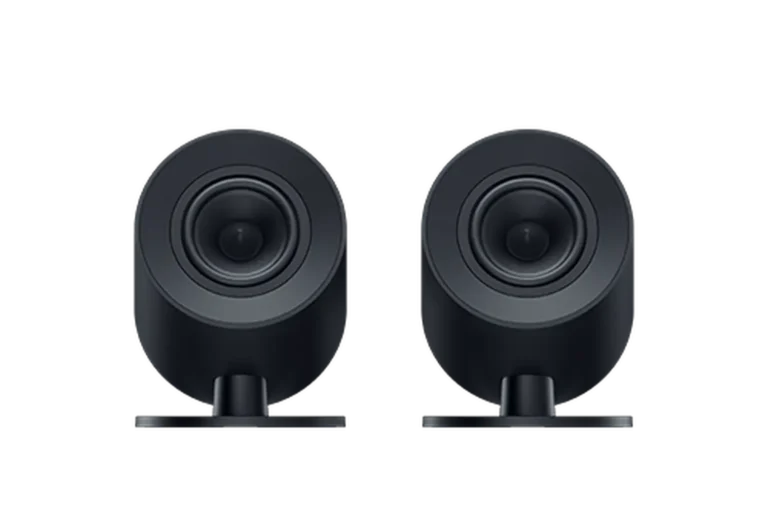
The Razer Nommo V2 X is a 2.0 PC gaming speaker system built around two full-range drivers and THX Spatial Audio. It connects to a PC over a USB Type-C to Type-A cable, or to phones and other devices over Bluetooth 5.0. The right speaker holds the power port, the controls and the status indicator, and the left speaker plugs into it. On a Windows PC, the free Razer Synapse app adds an equalizer, a Stereo/THX Spatial Audio switch and a second playback device you can jump to from the speaker buttons.
Product Specifications
| Feature | Detail |
|---|---|
| Speaker layout | 2.0 stereo system |
| Drivers | Full-range, 3.2″ / 83 mm |
| Frequency response | 75 Hz – 20 kHz |
| Maximum SPL | 96 dB at 1 meter |
| Wireless | Bluetooth 5.0 |
| Wired input | USB audio (USB Type-C to Type-A) |
| Audio features | THX Spatial Audio, customizable EQ |
| Power | External power adapter |
| USB cable length | 2 m |
| Speaker cable length | 2 m |
| AC power cord length | 2 m |
What’s in the Box
- Razer Nommo V2 X speaker set
- USB Type-A to USB Type-C cable
- Power adapter with regional plugs (the plugs included may vary by region)
- Important Product Information Guide
To use the speakers you need a USB Type-A port or a device with Bluetooth. Razer Synapse needs Windows 10 64-bit or higher and an internet connection for installation (page 4).
Parts and Controls
The right speaker carries everything you touch or plug in (page 3):
- Status indicator: shows the current mode and activity through its color.
- Volume buttons: one for volume down (–) and one for volume up (+).
- Power / Multi-function button: powers the speakers on and off, and switches modes.
- Rear-facing bass ports: keep these clear so the bass can move freely.
- USB Type-C port: takes the USB cable from your PC.
- Power port: takes the power adapter.
- Left speaker port: takes the left speaker connector.
Installation and Setup
- Plug the left speaker connector into the left speaker port on the right speaker.
- Attach the AC plug for your region to the power adapter.
- Connect the adapter to the right speaker’s power port, then plug it into a power outlet.
Connecting Your Speakers
PC Mode
- Connect the speakers to any USB Type-A port on your PC.
- Press the Power / Multi-function button. A solid green status indicator means the speakers are in PC mode.
- Set the Razer Nommo V2 X as the default output device on your PC. Do the same on any other compatible device you use with the speakers.
Bluetooth Mode
- With the speakers on and in PC mode, double press the Power / Multi-function button. The indicator blinks blue and an audio prompt tells you pairing mode is active.
- Turn on Bluetooth on your device and pick “Razer Nommo V2 X (BT)” from the list.
- Wait for a solid blue indicator and an audio prompt. Both confirm the connection.
Keep the speakers within 1 meter of your device during first-time pairing. After that, the speakers reconnect automatically whenever you switch to Bluetooth mode (page 11).
Using the Speakers
Power and Volume
Press the Power / Multi-function button to turn the speakers on or off. You will hear a tone each time. The volume buttons change the volume for the current mode, and the indicator lights white briefly as you adjust. It blinks white continuously when you reach the minimum or maximum.
Switching Between PC and Bluetooth
While the speakers are on, double press the Power / Multi-function button to move between PC mode and Bluetooth mode.
Toggling Between PC Audio Devices
In PC mode, press both volume buttons (– and +) at the same time to switch between the speakers and a secondary playback device you chose in Razer Synapse. The indicator blinks yellow briefly when the toggle happens, in either direction.
Pairing a New Bluetooth Device
- Switch to Bluetooth mode, then press and hold the Power / Multi-function button for 4 seconds. The indicator blinks blue.
- Select “Razer Nommo V2 X (BT)” on the new device.
- Wait for the solid blue indicator and the audio prompt.
Pairing mode can only be started from Bluetooth mode (page 14).
Razer Synapse Settings
Install Synapse when prompted, or download it from razer.com/synapse. You need an internet connection to install it and for updates and cloud features. A Razer ID account is recommended but not required. Features can change with the software version and the connected devices (page 16).
Audio Tab
The Audio tab is the main control page for the speakers, and changes save to your system and cloud storage automatically. The Sound subtab includes:
- Stereo / THX Spatial Audio: switches between standard stereo and 360° positional audio. THX Spatial Audio works only on Windows 10 64-bit or higher.
- Volume: adjusts speaker volume and opens the Windows volume mixer for per-app levels.
- Toggle PC audio devices: sets the secondary playback device used by the two-button toggle.
- Input source: switches the speakers to Bluetooth mode.
- Audio equalizer: offers presets for balance, gaming immersion, movies or music. Editing any preset changes it to Custom.
- Sound Properties: opens the Windows Sound Properties window.
Synapse cannot switch the speakers back to PC mode once they are in Bluetooth mode. Double press the Power / Multi-function button instead (page 20). The Power subtab lets the speakers go into standby after a set idle period.
Profiles and Linked Games
A profile stores your settings. The Profiles tab lets you add, rename, duplicate, import, export and delete profiles. Linked Games starts a chosen profile automatically when a specific game runs (pages 22–23).
Safety Instructions
- If the speakers do not work properly and troubleshooting does not help, unplug them and contact Razer support or go to support.razer.com.
- Do not take the speakers apart or run them under abnormal current loads. Doing so voids the warranty.
- Keep them away from liquid, humidity and moisture.
- Use them only between 0°C (32°F) and 40°C (104°F). If the temperature goes outside that range, unplug or switch them off until it returns to a suitable level.
- Very loud volume over long periods can damage your hearing. Some countries permit a maximum sound level of 86 dB for 8 hours a day, so lower the volume for long sessions (page 26).
Cleaning and Maintenance
Once a month, wipe each speaker with a soft cloth or cotton swab to prevent dirt buildup. Do not use soap or harsh cleaning agents (page 26).
Frequently Asked Questions
How do I connect the Nommo V2 X to my PC?
Connect the USB cable to a Type-A port on your PC and press the Power / Multi-function button. A solid green indicator means PC mode is active. Then set the speakers as the default output device in your PC’s sound settings.
How do I pair the speakers with my phone?
Double press the Power / Multi-function button while in PC mode, then select “Razer Nommo V2 X (BT)” in your phone’s Bluetooth list. A solid blue indicator and an audio prompt confirm the connection. Stay within 1 meter during the first pairing.
How do I pair a second Bluetooth device?
Switch to Bluetooth mode, then hold the Power / Multi-function button for 4 seconds until the indicator blinks blue. Pick the speakers on the new device. This only works from Bluetooth mode.
Why can’t I return to PC mode from Synapse?
Synapse can send the speakers to Bluetooth mode but cannot bring them back. Double press the Power / Multi-function button on the speakers to return to PC mode.
Do I need Razer Synapse to use the speakers?
PC mode and Bluetooth mode work with the speaker controls alone. Synapse is needed for THX Spatial Audio, equalizer presets, a secondary playback device and profiles. It requires Windows 10 64-bit or higher.
What does the yellow blink mean?
The indicator blinks yellow briefly when you press both volume buttons to switch between the speakers and your secondary PC playback device.
How should I clean the speakers?
Use a soft cloth or cotton swab about once a month. Avoid soap and harsh cleaning agents.
What temperature range is safe for the speakers?
Operate them between 0°C (32°F) and 40°C (104°F). If the temperature goes beyond this range, unplug or switch off the speakers until it stabilizes.