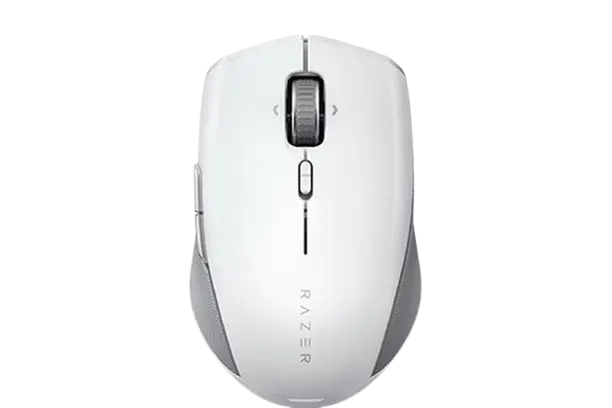
Razer Pro Click Mini
The Razer Pro Click Mini is a compact wireless mouse built for portable productivity. It has silent clicks and a Razer HyperScroll Tilt Wheel with left and right tilt-clicks. A mode switch lets you choose between Free-spin and Tactile scrolling. It connects either through the included Razer Productivity dongle (Razer HyperSpeed Wireless, 2.4 GHz) or over Bluetooth, and it can pair with up to three Bluetooth devices. It uses a True 12K DPI 5G optical sensor and runs on AA batteries, and it works on a single AA battery. The Razer Synapse app handles button assignments, sensitivity stages, polling rate and sleep timing.
What’s in the Box and What You Need
Package contents
- Razer Pro Click Mini
- Razer Productivity dongle (stored under the top cover)
- 2 x AA batteries
- Important Product Information Guide
Requirements
- A USB-A port or Bluetooth 5.1 connectivity
- 2 x AA batteries (the mouse also works on just one AA battery)
- For Razer Synapse: Windows 10 64-bit (or higher) and an internet connection for software installation
Mouse Controls and Parts
| Label | Part |
| A | Left mouse button |
| B | Right mouse button |
| C | Razer HyperScroll Tilt Wheel |
| D | Left tilt-click |
| E | Right tilt-click |
| F | Razer HyperScroll Tilt Wheel mode switch (Free-spin mode / Tactile mode) |
| G | Low battery indicator |
| H | Mouse button 5 |
| I | Mouse button 4 |
| J | Razer Productivity dongle |
| K | Silent ultra-smooth mouse feet |
| L | True 12K DPI 5G optical sensor |
| M | Pairing indicator |
| N | Pair/switch button |
| O | Slider switch (Bluetooth mode / Power off mode / Razer HyperSpeed Wireless (2.4 GHz) mode) |
The serial number (S/N) is printed on the underside of the mouse. Have it ready when you register the product or contact support.
Inserting the Batteries
- Remove the top cover of the mouse and insert the AA batteries as indicated in the battery compartment.
- Reattach the top cover and make sure it is tightly secured.
Caution: The two included AA batteries are non-rechargeable. Dispose of these batteries in accordance with your local environmental laws. For your safety, use only alkaline batteries and don’t mix old batteries with new ones.
Remove the batteries from the mouse if you don’t intend to use it for a prolonged period of time.
Connecting the Mouse
Razer HyperSpeed (2.4 GHz) mode
- Remove the top cover of the mouse and take out the Razer Productivity dongle.
- Close the top cover and insert the dongle into a USB port on your PC.
- Push the slider switch to Razer HyperSpeed wireless (2.4 GHz) mode. When connected, the pairing indicator briefly turns static white.
The mouse is now ready for use in wireless mode.
Bluetooth mode
- Push the slider switch to Bluetooth mode.
- Press the pair/switch button to select a slot for your Bluetooth device. You can pair up to 3 Bluetooth devices. The pairing indicator blinks twice in repeated intervals to show the mouse is in pairing mode.
- Activate Bluetooth on your device and select “ProClick M” from the list of devices found.
- Wait until both devices are paired. When paired, the pairing indicator briefly changes to static before turning off.
| Slot | Indicator color |
| 1 (default) | Blue |
| 2 | Green |
| 3 | Yellow |
Once paired, the mouse automatically reconnects to the last paired device whenever it is in Bluetooth mode and within range. Keep the paired devices close to each other for a faster, more stable connection.
Using Your Mouse
Pairing a new device to a Bluetooth slot
To pair a new device to a slot that is already in use, select the slot by pressing the pair/switch button. Then press and hold the pair/switch button for 3 seconds to activate pairing mode. The pairing indicator blinks twice in repeated intervals while the mouse is in pairing mode. Follow your device’s instructions to pair it with the mouse. Once paired, the pairing indicator briefly changes to static before turning off.
Low battery notification
The low battery indicator blinks red twice in repeated intervals when the battery level of the inserted battery is less than 5%. This sequence repeats until the battery is fully drained. When you see it, replace the battery.
Switching scroll modes
Use the HyperScroll Tilt Wheel mode switch to control how you move through long documents and pages.
- Free-spin mode: push the switch forward for unrestricted wheel movement and faster navigation.
- Tactile mode: nudge the switch backward for precise, stepped control of wheel movement.
Personalizing with Razer Synapse
Use Razer Synapse to change the mouse’s DPI to suit your work style, fine-tune your sensitivity setting and customize other features. Install Razer Synapse when prompted, or download the installer from razer.com/synapse. An internet connection is required for installation, updates and cloud-based features. Registering a Razer ID account is recommended but optional. Listed features are subject to change based on the current software version, connected devices and supported apps and software.
Synapse tab
The Synapse tab is the default tab when you first launch Razer Synapse. Its Dashboard subtab gives an overview of your Razer devices, modules and online services. The Modules subtab lists installed and available modules.
Mouse tab: Customize
The Mouse tab is the main tab for the Razer Pro Click Mini. Changes made here are saved automatically to your system and cloud storage. The Customize subtab is where you change button assignments.
- Profiles: A profile stores all of a Razer peripheral’s settings. By default the profile name is based on your system’s name. Use the Miscellaneous button to add, rename, duplicate or delete a profile.
- Hypershift mode: a secondary set of button assignments that is active while the Hypershift key is held down. By default the Hypershift key is the fn key of a Razer Synapse-supported keyboard, and you can also assign any mouse button as the Hypershift key.
- Sidebar: clicking the Sidebar button shows all current button assignments.
After selecting a button, you can change it to one of these functions:
| Function | What it does |
| Default | Returns the button to its original setting. |
| Keyboard Function | Assigns a keyboard function. Turbo mode can repeat the function while the button is held down. |
| Mouse Function | Substitutes another mouse function: Left Click, Right Click, Scroll Click (universal scrolling), Double Click, Mouse Button 4 (“Backward” in most browsers), Mouse Button 5 (“Forward” in most browsers), Scroll Up, Scroll Down, Scroll Left, Scroll Right. Turbo mode is available for some of these. |
| Sensitivity | Sensitivity Clutch, Sensitivity Stage Up, Sensitivity Stage Down, On-The-Fly Sensitivity, Cycle Up Sensitivity Stages, Cycle Down Sensitivity Stages. |
| Macro | Runs a prerecorded sequence of keystrokes and button presses with precise timing. Visible only when the Macro module is installed. |
| Inter-device | Changes the functionality of other Razer Synapse-enabled devices, such as using a Razer keyboard to change the mouse’s Sensitivity Stage. |
| Switch Profile | Quickly loads a new profile’s button assignments. An on-screen notification appears when you switch. |
| Razer Hypershift | Activates Hypershift mode while the button is held down. |
| Launch Program | Opens an app or website. You search for the app or type the website address. |
| Multimedia | Volume Down, Volume Up, Mute Volume, Mic Volume Up, Mic Volume Down, Mute Mic, Mute All, Play/Pause, Previous Track, Next Track. |
| Windows Shortcuts | Assigns a Windows shortcut command. |
| Text Function | Types prewritten text when the button is pressed. Full Unicode support, and special symbols can be inserted from character maps. |
| Disable | Makes the button unusable. |
The Sensitivity options work as follows:
- Sensitivity Clutch: changes to a predefined DPI while the button is held. Releasing it returns to the previous sensitivity.
- Sensitivity Stage Up / Down: raises or lowers the current sensitivity by one stage.
- On-The-Fly Sensitivity: press the designated button and move the scroll wheel up or down to raise or lower the DPI.
- Cycle Up / Cycle Down Sensitivity Stages: moves one stage at a time. After the highest stage, Cycle Up returns to stage 1. After stage 1, Cycle Down returns to the highest stage.
Mouse tab: Performance
The Performance subtab covers sensitivity, acceleration and polling rate.
- Sensitivity: the higher the DPI, the farther the cursor travels for the same physical mouse movement.
- Sensitivity stages: a stage is a preset sensitivity value. You can create up to 5 stages and cycle through them.
- Polling rate: choose 125 Hz (8 ms), 500 Hz (2 ms) or 1000 Hz (1 ms) from the dropdown. A higher rate means the computer receives mouse status updates more often.
- Mouse Properties: opens Windows Mouse Properties for operating system settings that affect the mouse.
Mouse tab: Power
The Power subtab lets you set the mouse to enter sleep mode after it has been idle for a chosen time. The pictured Wireless Power Saving slider spans 1 to 15 minutes.
Multi-Device Pairing
Multi-Device Pairing lets you pair an additional HyperSpeed-compatible device with the mouse’s Razer Productivity dongle. The dongle can support a keyboard and mouse at the same time, so you don’t need a separate dongle for each peripheral. The mouse must be in HyperSpeed (2.4 GHz) wireless mode to use this feature, and each peripheral can connect to only one dongle at a time.
Profiles tab
The Profiles tab manages all your profiles and links them to games and applications. The Devices subtab shows which games are linked to each device’s profiles. You can import profiles from your computer or the cloud, create new profiles, and rename, duplicate, export or delete them. The Linked Games subtab lets you add games, see which devices are linked, search, and sort alphabetically, by last played or by most played. To link a game, select it, then choose the Razer device and profile to launch automatically during gameplay.
Settings window
Open the Settings window with the gear button in Razer Synapse.
- General tab: change display language, start-up behavior, theme and on-screen notifications. You can also manually sync profiles to the cloud and view the master guides for connected devices and installed modules.
- Reset tab: factory reset connected Razer devices that have on-board memory, and/or reset the Razer Synapse tutorials. Resetting a device erases all profiles stored on its on-board memory.
- About tab: shows software information and terms-of-use links, checks for software updates and links to Razer’s social communities.
Safety, Comfort and Maintenance
Safety guidelines
- If you have trouble operating the device and troubleshooting doesn’t work, unplug it and contact the Razer hotline or go to support.razer.com.
- Don’t take the device apart (doing so voids the warranty) and don’t operate it under abnormal current loads.
- Keep the device away from liquid, humidity or moisture.
- Operate it only within 0°C (32°F) to 40°C (104°F). If the temperature goes beyond this range, unplug and/or switch off the device and let the temperature stabilize.
- Avoid looking directly at the tracking beam or pointing it at anyone’s eyes. The beam is not visible to the naked human eye and is set to Always-On mode.
Comfort
- Position your keyboard and monitor directly in front of you, with the mouse next to the keyboard. Keep your elbows at your sides, not too far away, and the keyboard within easy reach.
- Adjust chair and table height so the keyboard and mouse are at or below elbow height.
- Keep your feet well supported, posture straight and shoulders relaxed.
- Relax your wrist and keep it straight. For repetitive tasks, avoid bending, extending or twisting your hands for long periods.
- Don’t rest your wrists on hard surfaces for long periods. Use a wrist rest.
- Don’t sit in one position all day. Get up and stretch your arms, shoulders, neck and legs.
If you experience pain, numbness or tingling in your hands, wrists, elbows, shoulders, neck or back while using the mouse, consult a qualified medical doctor immediately.
Cleaning and use
Once a month, unplug the device from the computer and clean it with a soft cloth or cotton swab to prevent dirt buildup. Don’t use soap or harsh cleaning agents. A premium Razer mouse mat is recommended, since some surfaces cause undue wear on the feet and may require eventual replacement. The sensor is tuned for Razer mouse mats, which means it has been tested to read and track best on them.
Warranty and Support
The mouse comes with a 2-year limited warranty. Register at razerid.razer.com to access exclusive Razer benefits. For questions, contact the Razer Support Team at support.razer.com. The latest Limited Product Warranty terms are at razer.com/warranty, and warranty is not valid outside the product’s intended region.
Frequently Asked Questions
What batteries does the Razer Pro Click Mini use, and can it run on just one?
It uses AA batteries, and two non-rechargeable AA batteries come in the box. The mouse also works on just one AA battery. For safety, use only alkaline batteries and never mix old and new ones. If you won’t use the mouse for a long time, take the batteries out.
How do I connect the Razer Pro Click Mini with the USB dongle?
Open the top cover and take out the Razer Productivity dongle, which is stored inside. Close the cover, plug the dongle into a USB port on your PC, then move the slider switch to the Razer HyperSpeed (2.4 GHz) position. The pairing indicator briefly turns static white when the connection is made.
How do I pair the mouse over Bluetooth?
Move the slider switch to Bluetooth mode, then press the pair/switch button to choose a slot. The pairing indicator blinks twice in repeated intervals while the mouse is in pairing mode. On your computer or other device, turn on Bluetooth and select “ProClick M” from the list. When pairing succeeds, the indicator briefly goes static and then turns off.
How many Bluetooth devices can I pair, and what do the slot colors mean?
You can pair up to 3 Bluetooth devices. Slot 1 (the default) is blue, slot 2 is green and slot 3 is yellow. After pairing, the mouse automatically reconnects to the last paired device when it is in Bluetooth mode and in range.
How do I pair a different device to a Bluetooth slot that is already in use?
Press the pair/switch button to select the slot, then press and hold the button for 3 seconds. The pairing indicator blinks twice in repeated intervals to show pairing mode is active. Then pair from the new device’s Bluetooth settings, as you would normally.
What does the red blinking light on the mouse mean?
The low battery indicator is blinking red twice in repeated intervals, which means the inserted battery is below 5%. The pattern repeats until the battery is fully drained, so replace the battery as soon as you see it.
What is the difference between Free-spin and Tactile scroll modes?
Free-spin mode lets the wheel move freely for faster navigation through long documents and pages. Tactile mode gives more precise control over wheel movement. Push the HyperScroll Tilt Wheel mode switch forward for Free-spin, or nudge it backward for Tactile.
Do I need Razer Synapse to use the mouse?
The connection steps for 2.4 GHz and Bluetooth don’t involve Synapse. You need it to change DPI, button assignments, sensitivity stages, polling rate and sleep timing. Synapse requires Windows 10 64-bit (or higher) and an internet connection for installation. The installer is at razer.com/synapse, and a Razer ID account is recommended but optional.
How do I change the DPI or sensitivity stages?
Open the Mouse tab in Razer Synapse and go to Performance. You can create up to 5 sensitivity stages and cycle through them. To switch stages with a button, open Customize and assign one of the Sensitivity functions, such as Cycle Up Sensitivity Stages or Sensitivity Clutch. The parts list does not identify a dedicated DPI button.
Which polling rates does the mouse support?
You can choose 125 Hz (8 ms), 500 Hz (2 ms) or 1000 Hz (1 ms) in the Performance subtab of Razer Synapse. A higher polling rate means the computer receives mouse status updates more often, which increases pointer reaction time.
Can I use one dongle for both my keyboard and this mouse?
Yes, if the keyboard is HyperSpeed-compatible. The Razer Productivity dongle can support a keyboard and a mouse at the same time. Use Multi-Device Pairing in Razer Synapse to add the second device. The mouse must be in HyperSpeed (2.4 GHz) mode for this, and each peripheral can connect to only one dongle at a time.
How do I set the mouse to sleep when idle?
Open the Mouse tab in Razer Synapse and choose Power. Use the Wireless Power Saving slider to set how many minutes of idleness pass before the mouse enters sleep mode. The slider in the guide’s screenshot runs from 1 to 15 minutes.
How should I clean the mouse, and what temperatures is it safe in?
Once a month, unplug the device from the computer and wipe it with a soft cloth or cotton swab. Don’t use soap or harsh cleaning agents. Keep it away from liquid, humidity and moisture, and use it only between 0°C (32°F) and 40°C (104°F). If the temperature goes outside that range, unplug and/or switch off the device until it stabilizes.