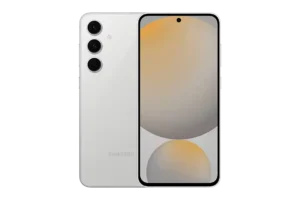
| Field | Details |
| Document Title | Samsung Galaxy S24 FE, Galaxy S23 FE and Galaxy S21 FE 5G User Guide |
| Document Type | User Guide |
| Brand Name | Samsung |
| Product Name | Galaxy S24 FE, Galaxy S23 FE, Galaxy S21 FE 5G |
| Model Number(s) | SM-S721B, SM-S721B/DS, SM-S711B, SM-S711B/DS, SM-S711B/DS UD, SM-G990B, SM-G990B/DS, SM-G990B2/DS, SM-G990E, SM-G990E/DS |
| PDF File Size | 2.45 MB |
| Total Number of Pages | 165 |
| Languages Covered | English |
Samsung Galaxy S24 FE
SM-S721B, SM-S721B/DS, SM-S711B, SM-S711B/DS, SM-S711B/DS UD, SM-G990B, SM-G990B/DS, SM-G990B2/DS, SM-G990E, SM-G990E/DS
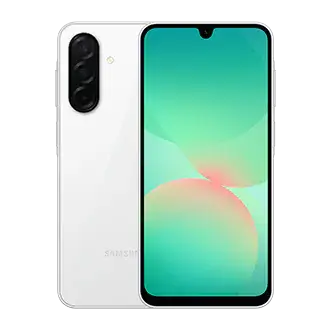
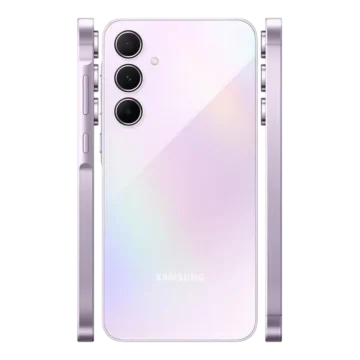
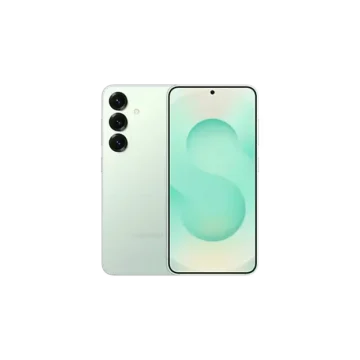
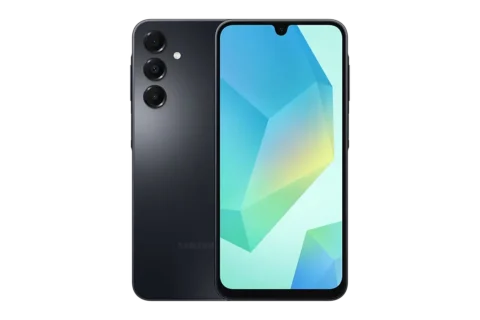
The Samsung Galaxy S24 FE, Galaxy S23 FE, and Galaxy S21 FE 5G are Galaxy smartphones with touchscreen controls, front and rear cameras, wireless connectivity, biometric security, and multiple communication and entertainment features.
These devices support USB Type-C charging, wireless charging, Wireless Power Sharing, compatible nano-SIM cards, Samsung accounts, and a range of Samsung and Google applications. Supported configurations also provide eSIM functionality, allowing mobile network services without a separate physical SIM card.
The smartphones include features for photography, video recording, internet access, file sharing, device connectivity, and personal data protection. Samsung DeX allows the phone to be connected to a compatible external display for a computer-style working environment.
The Galaxy S24 FE and Galaxy S23 FE also support Galaxy AI functions described in this guide, including communication assistance, translation, writing tools, image editing, and other supported intelligent features.
Some applications, settings, and network services vary according to the model, region, carrier, and installed software.
Supported Models and Product Identification
| Product | Model Numbers |
| Galaxy S24 FE | SM-S721B, SM-S721B/DS |
| Galaxy S23 FE | SM-S711B, SM-S711B/DS, SM-S711B/DS UD |
| Galaxy S21 FE 5G | SM-G990B, SM-G990B/DS, SM-G990B2/DS, SM-G990E, SM-G990E/DS |
How to Find the Model Number
- Open Settings.
- Tap About phone.
- Check the displayed device information.
- Open Status information for additional identification details.
The About phone menu also provides access to software information, legal information, and battery details.
Product Overview and Key Features
| Feature | Description |
| Touchscreen | Controls device functions, applications, and settings |
| Front Camera | Captures selfies and supports video calls |
| Rear Cameras | Capture photographs and record videos |
| Fingerprint Recognition | Uses an in-display fingerprint sensor |
| Face Recognition | Supports facial identification for screen unlocking |
| USB Type-C | Supports wired charging and compatible connections |
| Wireless Charging | Charges the battery using a compatible wireless charger |
| Wireless Power Sharing | Transfers battery power to another compatible wireless charging device |
| Nano-SIM | Supports physical mobile network cards |
| eSIM | Available according to model, carrier, and region |
| Bluetooth | Connects compatible wireless devices |
| Wi-Fi | Connects to wireless networks |
| NFC | Supports contactless functions on compatible models |
| Smart View | Mirrors content to supported televisions and monitors |
| Samsung DeX | Provides a computer-style interface on compatible external displays |
| Smart Switch | Transfers supported information from another device |
| Secure Folder | Protects selected personal content and applications |
| Samsung Wallet | Stores supported payment cards, tickets, and other compatible items |
| IP68 Resistance | Water and dust resistance under specified laboratory conditions |
Model-Specific Features
| Feature | Applicable Models |
| Galaxy AI | SM-S721B and SM-S711B model families |
| Call assist and Live translate | SM-S721B and SM-S711B model families |
| Writing assist and Interpreter | SM-S721B and SM-S711B model families |
| Note assist and Transcript assist | SM-S721B and SM-S711B model families |
| Photo assist and Drawing assist | SM-S721B and SM-S711B model families |
| Audio eraser | SM-S721B and SM-S711B model families |
| Now brief | SM-S721B, SM-S721B/DS |
| Dual rec | SM-S721B, SM-S721B/DS |
| Director’s view | SM-S711B model family |
| Dual recording | SM-G990 model family |
| Super Slow-mo | SM-S711B and SM-G990 model families |
| Samsung Find | SM-S721B, SM-S721B/DS |
| Samsung Shop | SM-S721B and SM-S711B model families |
| Galaxy Shop | SM-G990 model family |
Individual features may also depend on regional availability, carrier support, and software configuration.
Technical Specifications
| Specification | Details |
| Product Type | Smartphone |
| Product Families | Galaxy S24 FE, Galaxy S23 FE, Galaxy S21 FE 5G |
| SIM Type | Nano-SIM |
| Digital SIM | eSIM on supported configurations |
| Charging Port | USB Type-C |
| Wired Charging | Supported |
| Wireless Charging | Supported |
| Wireless Power Sharing | Supported |
| Charging Cable | Included USB cable supports up to 3 A on SM-S721B and SM-S711B model families |
| Camera | Front and rear cameras |
| Fingerprint Sensor | Integrated into the lower central area of the display |
| Wireless Connectivity | Wi-Fi, Bluetooth, and NFC on supported models |
| External Display | Samsung DeX and Smart View |
| Water and Dust Resistance | IP68 |
| Water Resistance Test | Fresh water, 1.5 m for 30 minutes |
| Recommended Operating Temperature | 0–35°C |
| Manufacturer | Samsung Electronics Co., Ltd. |
Device Layout and Components
The Galaxy S24 FE, S23 FE, and S21 FE 5G include similar physical controls and connections. Some component positions differ between models.
Galaxy S24 FE – SM-S721B Series
The Galaxy S24 FE includes:
- Touchscreen
- Front camera
- Rear cameras
- Camera flash
- Light sensor
- Side button
- Volume button
- Fingerprint recognition sensor beneath the display
- SIM card tray
- USB Type-C multipurpose jack
- Speakers and microphones
- GPS antenna
- NFC antenna
- Wireless charging coil
- Main antenna
- Air vent opening
Galaxy S23 FE – SM-S711B Series
The Galaxy S23 FE includes a touchscreen, front and rear cameras, light sensor, Side button, Volume button, in-display fingerprint sensor, SIM card tray, USB Type-C connector, speakers, microphones, GPS antenna, main antenna, NFC antenna, wireless charging coil, and air vent opening.
Galaxy S21 FE 5G – SM-G990 Series
The Galaxy S21 FE 5G includes:
- Touchscreen
- Front and rear cameras
- Camera flash
- Proximity and light sensor
- Side button
- Volume button
- In-display fingerprint sensor
- SIM card tray
- USB Type-C multipurpose connection
- Speakers and microphones
- GPS antenna
- NFC antenna
- Wireless charging coil
- Main antenna
Physical Controls
| Control | Function |
| Side button | Turns the device on and controls screen locking |
| Volume button | Adjusts sound volume |
| Side button + Volume Down | Captures a screenshot |
| Side button + Volume Down held together | Opens power options |
| In-display fingerprint sensor | Authenticates registered fingerprints |
| Touchscreen | Accepts taps, gestures, and swipes |
Customizing the Side Button
- Open Settings.
- Tap Advanced features.
- Select Side button.
- Choose the required double-press or long-press action.
The Side button can be configured to open an application or another supported function.
Package Contents and Compatible Accessories
Package contents and available accessories vary by region and carrier.
The included USB cable for the Galaxy S24 FE and Galaxy S23 FE model families supports charging up to 3 A. A charger is generally not included with these models, although regional packages may differ.
Compatible Accessories
Supported accessories include:
- USB Type-C charging cables
- Compatible USB power adapters
- Wireless chargers
- USB Type-C headphones with digital audio output
- Supported external display adapters
- Compatible Bluetooth accessories
- Supported Galaxy wearable devices
Samsung-approved accessories are recommended.
Accessories designed for other devices may be incompatible or may cause performance problems.
Safety Instructions and Precautions
General Safety
- Do not place the phone close to the ears when using loudspeakers at high volume.
- Avoid exposing camera lenses to strong light sources, including direct sunlight.
- Do not use a device with broken glass or damaged body components.
- Keep microphones, speakers, and other openings free from foreign materials.
- Do not insert sharp objects into openings.
- Avoid metallic accessories that may interfere with antenna operation.
- Do not cover the proximity or light sensor.
- Do not use damaged chargers, cables, or batteries.
Precautions for Medical Devices
The phone contains magnets.
Keep the device more than 15 cm away from implanted medical devices and other equipment affected by magnetic fields. If interference is suspected, stop using the phone and contact the medical device manufacturer or a medical professional.
Screen Protection
Do not apply excessive pressure to the touchscreen or use sharp objects to operate it.
Displaying fixed images for extended periods may cause afterimages or screen burn-in.
Wireless Device Restrictions
Follow posted restrictions on the use of wireless equipment in hospitals, aircraft, and other controlled locations.
Before First Use
The battery should be charged before the phone is used for the first time or after extended storage.
Initial Preparation
- Prepare a compatible USB Type-C charging cable and power adapter.
- Charge the battery.
- Prepare the nano-SIM card supplied by the carrier, if required.
- Insert the nano-SIM card using the SIM tray.
- Turn on the phone.
- Follow the on-screen setup instructions.
- Connect to a Wi-Fi or mobile network as required.
- Sign in to the appropriate accounts.
Battery Charging Instructions
Wired Charging
- Connect the USB cable to a compatible power adapter.
- Insert the USB Type-C connector into the phone’s multipurpose jack.
- Connect the adapter to an electrical outlet.
- Allow the battery to charge.
- Disconnect the charger after charging is complete.
Wireless Charging
All three device families include a wireless charging coil.
- Connect a compatible wireless charger to its power source.
- Place the center of the back of the phone on the center of the charger.
- Wait for wireless charging to begin.
- Check the estimated charging time in the notification panel.
- Remove the phone after charging.
Protective covers and accessories may interfere with wireless charging. Removing the cover can improve charging stability.
Wireless Charging Safety
- Do not place credit cards or RFID cards between the phone and the charger.
- Keep metal objects and magnets away from the charging surface.
- Use compatible wireless charging equipment.
- Avoid moving the device during charging.
- Remove accessories that interfere with charging.
Fast and Super Fast Charging
The phone supports charging through compatible fast and super fast charging equipment.
For fast wireless charging, the charger and its components must support the feature.
To manage charging settings:
- Open Settings.
- Select Battery.
- Tap Charging settings.
- Check the available charging functions.
Turning off the screen or the phone may reduce charging time.
Wireless Power Sharing
Wireless Power Sharing allows the phone to charge another compatible device using its own battery.
How to Turn On Wireless Power Sharing
- Open Settings.
- Tap Battery → Wireless power sharing.
- Turn on the feature.
- Position the other compatible device against the center of the back of the phone.
- Align the wireless charging coils.
- Disconnect the devices after charging is complete.
Wireless Power Sharing can also operate while the phone itself is charging, although charging speed may decrease.
Setting the Battery Limit
- Open Settings → Battery.
- Select Wireless power sharing.
- Tap Battery limit.
- Set the preferred remaining battery level.
Power sharing stops when the phone reaches the configured battery limit.
Wireless Power Sharing Precautions
- Remove interfering cases and accessories.
- Do not use headphones while sharing power.
- Keep both devices stationary.
- Use only compatible wireless charging devices.
- Charging speed varies according to the devices and surrounding conditions.
Battery Care and Power Saving
Battery Settings
Open Settings → Battery.
| Setting | Function |
| Power saving | Reduces power consumption |
| Background usage limits | Restricts battery usage by selected applications |
| Battery protection | Controls battery charging limits |
| Today | Shows battery usage information |
| Charging settings | Configures charging behavior |
| Wireless power sharing | Charges compatible devices |
| Auto dim screen | Reduces display brightness when the battery becomes low |
| Show battery percentage | Displays the remaining charge percentage |
| Battery information | Shows supported battery condition information |
Reducing Battery Consumption
Battery usage can be reduced by:
- Enabling Power saving.
- Reducing screen brightness.
- Shortening screen timeout.
- Closing unnecessary applications.
- Turning off unused Bluetooth connections.
- Limiting automatic synchronization.
- Using Device care optimization.
Checking Battery Health Information
Open Settings → Battery → Battery information or Settings → About phone → Battery information.
Depending on the model and region, information may include the manufacturing date, first-use date, charge/discharge cycles, and measured battery condition.
Installing a Nano-SIM Card
The Galaxy S24 FE, Galaxy S23 FE, and Galaxy S21 FE 5G use nano-SIM cards.
How to Insert a SIM Card
- Locate the SIM card tray.
- Insert the ejection pin into the tray release hole.
- Pull the tray out gently.
- Position the nano-SIM card in the tray with its gold-colored contacts facing upward.
- Press the card gently into place.
- Reinsert the tray completely.
For supported dual-SIM variants, the second SIM card is positioned in the designated tray location.
SIM Card Precautions
- Use only nano-SIM cards.
- Insert the ejection pin perpendicular to the release hole.
- Keep the tray dry.
- Position the SIM card correctly.
- Do not force the tray.
- Insert the tray completely to help prevent liquid from entering.
Setting Up an eSIM
An eSIM is a digital SIM that can be downloaded from a mobile carrier.
eSIM availability varies by region, carrier, and model.
How to Add an eSIM
- Open Settings.
- Tap Connections → SIM manager.
- Select Add eSIM.
- Follow the instructions to download the eSIM.
Adding an eSIM Using a QR Code
- Open Settings → Connections → SIM manager.
- Tap Add eSIM.
- Select Scan QR code.
- Scan the QR code provided by the carrier.
- Complete the activation instructions.
Managing SIM Cards and eSIMs
Open Settings → Connections → SIM manager.
| Option | Function |
| SIM cards | Activates and configures installed SIM cards |
| eSIMs | Downloads or activates digital SIMs |
| Preferred SIMs | Selects preferred SIMs for supported services |
| Data switching | Switches mobile data to another SIM when required |
| More SIM settings | Opens additional SIM options |
Using two SIM connections may affect data transfer speeds in some areas. Data switching may also result in additional carrier charges.
Turning the Device On and Off
Turning On
Press and hold the Side button for several seconds.
Turning Off
- Press and hold the Side button and Volume Down button simultaneously.
- Select Power off.
- Confirm the action.
The power menu can also be opened from Quick settings.
Restarting
Open the power menu and select Restart.
Forcing a Restart
If the phone stops responding, press and hold the Side button and Volume Down button simultaneously for more than seven seconds.
Initial Device Setup
When the phone is turned on for the first time or after a factory reset, the setup assistant appears.
Follow the on-screen instructions to configure the required settings.
A Wi-Fi connection may be necessary for certain setup features.
Connecting to Wi-Fi
- Open Settings → Connections → Wi-Fi.
- Turn on Wi-Fi.
- Select the required network.
- Enter the network password if requested.
Signing In to a Samsung Account
- Open Settings.
- Tap Sign in to your Galaxy.
- Enter the Samsung account information.
An account can also be added through Settings → Accounts and backup → Manage accounts → Add account.
Recovering Samsung Account Information
On the Samsung account sign-in screen, select the option for recovering an account ID or resetting a password.
Transferring Data Using Smart Switch
Smart Switch transfers supported information from a previous device.
Transfer Instructions
- Open Settings.
- Tap Accounts and backup.
- Select Transfer data for device setup.
- Choose the required transfer method.
- Follow the on-screen instructions.
Supported transfer methods include USB cable, wireless connection, external storage, and computer-based transfer.
Additional information is available at www.samsung.com/smartswitch.
Touchscreen Operation and Navigation
Touchscreen Gestures
| Gesture | Function |
| Tap | Selects an item |
| Touch and hold | Opens additional functions |
| Drag | Moves an item |
| Double tap | Activates a supported action |
| Swipe | Scrolls or changes screens |
| Pinch | Reduces the displayed scale |
| Spread fingers | Enlarges displayed content |
Navigation Buttons
| Button | Function |
| Recents | Opens recently used applications |
| Home | Returns to the Home screen |
| Back | Returns to the previous screen |
Gesture Navigation
Open Settings → Display → Navigation bar → Swipe gestures.
Circle to Search
Touch and hold the Home button, then tap or draw a circle around the image or text to search.
Home Screen and Apps Screen
The Home screen displays widgets, application shortcuts, and frequently used functions.
Swipe upward from the Home screen to open the Apps screen.
Editing the Home Screen
Touch and hold an empty area to access wallpaper, widgets, themes, and layout settings.
Creating Application Folders
Drag one application icon over another to create a folder.
Using Edge Panels
- Open Settings → Display.
- Turn on Edge panels.
- Drag the Edge panel handle toward the center of the screen.
Edge panels provide access to selected applications and functions.
Lock Screen and Always On Display
Changing the Screen Lock
Open Settings → Lock screen and AOD → Screen lock and biometrics.
Select the required lock method.
Always On Display
Always On Display can show information while the screen is off.
To configure it:
- Open Settings → Lock screen and AOD.
- Tap Always On Display.
- Select When to show.
- Choose the required setting.
Extend Unlock
Extend Unlock allows the device to remain unlocked under selected trusted conditions.
Open Settings → Lock screen and AOD → Extend Unlock and follow the setup instructions.
Notifications and Quick Settings
Opening the Notification Panel
Swipe downward from the top of the display, excluding the upper-right quick settings area.
Opening Quick Settings
Swipe downward from the upper-right area of the display.
Quick settings provide access to Wi-Fi, Bluetooth, media controls, nearby devices, and other supported functions.
Status Bar Indicators
| Indicator | Meaning |
| Signal strength | Mobile network reception |
| No signal | Mobile network unavailable |
| LTE | LTE mobile network |
| 5G | Connected 5G network |
| Wi-Fi | Wi-Fi connected |
| Bluetooth | Bluetooth enabled |
| Location | Location service active |
| Call | Active phone call |
| Missed call | Missed incoming call |
| Message | New text or multimedia message |
| Alarm | Alarm enabled |
| Mute/Vibrate | Selected sound mode |
| Flight mode | Wireless connections restricted |
| Battery | Remaining battery charge |
| Charging | Battery charging |
| Warning | Device error or caution |
The available indicators may vary by model and connected accessories.
Screenshots and Screen Recording
Taking a Screenshot
Press the Side button and Volume Down button simultaneously.
Palm Swipe Screenshot
- Open Settings → Advanced features → Motions and gestures.
- Turn on Palm swipe to capture.
- Swipe the edge of the hand across the screen.
Recording the Screen
- Open Quick settings.
- Tap Screen recorder.
- Select the sound settings.
- Tap Start recording.
- Tap Stop when finished.
The recorded file can be viewed in Gallery.
Samsung Keyboard and Text Entry
Changing the Keyboard Language
- Open the keyboard.
- Tap Settings.
- Select Languages and types → Manage input languages.
- Choose the required languages.
Copying and Pasting Text
- Touch and hold text.
- Select the required text.
- Tap Copy or Cut.
- Touch and hold the destination.
- Tap Paste.
Extracting Text from Images
- Open Gallery.
- Select an image containing text.
- Tap Extract text.
- Select the required content.
- Choose an available action, such as Copy or Share.
Installing and Managing Applications
Applications can be installed through Galaxy Store or Google Play Store.
Installing an Application
- Open Galaxy Store or Play Store.
- Search for the required application.
- Select the application.
- Complete the installation.
Uninstalling an Application
Touch and hold an application icon and select Uninstall.
Changing App Permissions
Open Settings → Apps, select the application, and tap Permissions.
Galaxy AI – Galaxy S24 FE and Galaxy S23 FE
Galaxy AI provides intelligent features for communication, writing, translation, productivity, photography, and other supported activities.
The Galaxy AI functions in this section apply to the SM-S721B and SM-S711B model families. Availability depends on the region, carrier, and software.
Galaxy AI Data Processing
Open Settings → Galaxy AI.
To restrict processing to the device when supported, turn on Process data only on device.
Certain features require online processing.
Call Assist and Live Translate
Call assist provides real-time translation during supported voice calls.
- Open Phone.
- Tap Settings.
- Select Live translate.
- Turn on the feature and configure the languages.
- During a call, select Call assist → Live translate.
Writing Assist
Writing assist provides functions such as:
- Spelling and grammar suggestions
- Writing style changes
- Text composition
- Chat translation
Open Samsung Keyboard while composing text, tap the Assist control, and select the required function.
Interpreter
Interpreter translates supported conversations into text or speech.
- Open Interpreter from Edge panels.
- Select the languages.
- Tap the microphone control.
- Begin the conversation.
Listening mode can also translate supported speech such as lectures or meetings.
Note Assist
Samsung Notes provides AI-assisted functions for summarizing, formatting, translating, and editing notes.
Open a note, tap Assist, and choose the required function.
Transcript Assist
Transcript assist converts supported recordings into written text.
To transcribe a voice recording:
- Open Voice Recorder.
- Select a recording.
- Tap Transcribe.
- Use the available translation or summarization options.
Browsing Assist
Samsung Internet provides supported webpage summarization, translation, and reading functions.
Open Samsung Internet, tap Assist, and select the required action.
Photo Assist and Generative Edit
Photo assist provides supported intelligent editing functions.
- Open Gallery.
- Select an image.
- Tap Assist.
- Select Generative edit.
- Select the object to move or remove.
- Tap Generate.
- Save the result as a copy.
Sketch to Image
- Open Gallery.
- Select an image.
- Tap Assist → Sketch to image.
- Draw the required object.
- Tap Generate.
- Save the image.
Portrait Studio
Portrait Studio creates supported stylized portraits.
- Open Gallery.
- Select a portrait.
- Choose Assist → Portrait studio.
- Select a style.
- Tap Generate.
- Save the result.
Drawing Assist
Drawing assist generates images from drawings, text descriptions, or selected pictures.
Open Drawing assist from Edge panels, choose the input method, and follow the generation instructions.
Audio Eraser
Audio eraser adjusts or removes selected background sounds from compatible videos.
- Open Gallery.
- Select a video.
- Tap Edit.
- Open Audio eraser.
- Select the sound type.
- Adjust or mute the sound.
- Apply the changes and save a copy.
Now Brief – Galaxy S24 FE
Now Brief generates personalized information based on supported interests and settings.
Open the Edge panel and select Now brief.
Phone Calls, Contacts and Messages
Making Calls
- Open Phone.
- Tap Keypad.
- Enter the phone number.
- Tap the voice or video call control.
Making International Calls
- Open Phone.
- Touch and hold 0 until the plus symbol appears.
- Enter the country code and telephone number.
- Start the call.
Answering Calls
Drag the answer control outside the displayed circle.
Blocking Numbers
Open Phone → Settings → Block numbers and add the required number.
Creating Contacts
- Open Contacts.
- Tap Create.
- Enter the contact details.
- Tap Save.
Sending Messages
- Open Messages.
- Tap Compose.
- Add the recipient.
- Enter the message.
- Tap Send.
Camera Overview and Photography
The Camera application supports several photography and video recording modes.
Taking a Photograph
- Open Camera.
- Select PHOTO.
- Point the camera toward the subject.
- Tap the preview to focus.
- Adjust brightness if required.
- Tap the shutter button.
Camera Shooting Modes
| Mode | Function |
| Photo | Automatic photography |
| Video | Standard video recording |
| Portrait | Background-blurred photography |
| Portrait video | Video with supported background effects |
| Pro | Manual photography controls |
| Pro video | Manual video settings |
| Night | Low-light photography |
| Food | Food photography |
| Panorama | Wide-scene photography |
| Single Take | Creates multiple results from one capture |
| Slow Motion | Records slow-motion video |
| Super Slow-mo | Supported on SM-S711B and SM-G990 families |
| Hyperlapse | Fast-motion video |
| Dual rec | SM-S721B family |
| Director’s view | SM-S711B family |
| Dual recording | SM-G990 family |
Taking Selfies
- Open Camera.
- Switch to the front camera.
- Position the subject.
- Tap the shutter button.
Recording Video
- Open Camera.
- Select VIDEO.
- Tap Record.
- Tap Stop when finished.
Supported camera configurations provide high-resolution video options up to 8K. Available resolutions vary by model and mode.
Advanced Camera Modes
Portrait Mode
- Open Camera.
- Select PORTRAIT.
- Choose a background effect.
- Adjust the effect intensity.
- Capture the photograph.
Pro Mode
Open Camera → MORE → PRO.
| Setting | Function |
| ISO | Adjusts camera light sensitivity |
| SPEED | Changes shutter speed |
| EV | Changes exposure value |
| FOCUS | Controls focus |
| WB | Adjusts white balance |
Night Mode
- Open Camera → MORE → NIGHT.
- Select the available shooting duration.
- Hold the phone steady.
- Tap the shutter button.
Food Mode
- Open Camera → MORE → FOOD.
- Adjust the focus frame.
- Set the color temperature.
- Capture the photograph.
Panorama Mode
- Open Camera → MORE → PANORAMA.
- Tap the shutter button.
- Move the device slowly in one direction.
- Keep the subject aligned with the guide.
- Stop the capture.
Single Take
- Open Camera → MORE → SINGLE TAKE.
- Capture the scene.
- Open the result in Gallery.
- Select the photographs or videos to save.
Dual Rec – Galaxy S24 FE
Dual rec records video using two selected cameras simultaneously.
- Open Camera → MORE → DUAL REC.
- Select two lenses.
- Configure the recording layout.
- Start recording.
- Stop when finished.
Director’s View – Galaxy S23 FE
Director’s view allows recording from different camera angles.
- Open Camera → MORE → DIRECTOR’S VIEW.
- Select the required camera view.
- Start recording.
- Change the camera thumbnail if required.
- Stop recording.
Dual Recording – Galaxy S21 FE 5G
Dual recording captures the subject and the person recording within the same screen.
- Open Camera → MORE → DUAL RECORDING.
- Select the available view.
- Start recording.
- Stop when finished.
Super Slow-mo – Galaxy S23 FE and S21 FE 5G
- Open Camera → MORE → SUPER SLOW-MO.
- Start recording.
- Open the recorded video.
- Adjust the super slow-motion section using the editing controls.
Slow Motion
- Open Camera → MORE → SLOW MOTION.
- Start recording.
- Stop the recording.
- Open the video.
- Adjust the slow-motion section.
Hyperlapse
- Open Camera → MORE → HYPERLAPSE.
- Select the recording speed.
- Start recording.
- Stop when finished.
The available settings include automatic frame-rate adjustment and supported night hyperlapse options.
Camera Settings
Open Camera, select Quick controls, and tap Settings.
| Setting | Function |
| Scan documents and text | Detects documents and text |
| Scan QR codes | Reads QR codes |
| Shot suggestions | Suggests image composition |
| Intelligent optimisation | Adjusts supported picture processing |
| Auto HDR | Captures detail across bright and dark areas |
| Watermark | Adds a watermark to photographs |
| High efficiency pictures | Saves supported HEIF files |
| RAW copies | Saves supported RAW images in Pro mode |
| Auto FPS | Adjusts video frame rate in low light |
| Video stabilisation | Reduces the effects of camera movement |
| High efficiency videos | Saves supported HEVC videos |
| High bitrate videos | Records videos with a higher bitrate |
| HDR10+ videos | Records compatible HDR10+ video |
| 360 audio recording | Records compatible spatial audio |
| Tracking auto focus | Tracks supported moving subjects |
| Composition guide | Displays framing guides |
| Location tags | Adds location information |
| Floating Shutter button | Adds a movable camera button |
| Voice commands | Controls supported camera actions through voice |
| Settings to keep | Retains selected camera settings |
| Reset settings | Restores camera settings |
Gallery and Media Management
Viewing Photos
Open Gallery and select the required image.
Editing Images
Gallery provides editing, cropping, remastering, and other supported functions.
Viewing Videos
Open Gallery and select a video.
Available controls include pause, rewind, fast-forward, playback speed, captions, screen rotation, and supported editing functions.
Creating Albums
Open Gallery → Albums → Create.
Restoring Deleted Photos and Videos
- Open Gallery.
- Select Menu → Recycle bin.
- Choose the files.
- Tap Restore.
Synchronizing Gallery with OneDrive
Open Gallery, select the OneDrive synchronization option, and follow the instructions to connect the required accounts.
Bixby and Bixby Vision
Using Bixby
Bixby allows supported device actions to be performed through voice commands.
To configure the Side button for Bixby:
- Open Settings → Advanced features.
- Select Side button.
- Choose Long press → Bixby.
Bixby can also respond to supported voice wake-up phrases.
Using Bixby Vision
Bixby Vision recognizes text, objects, and other visual information.
Open Camera and select MORE → Bixby Vision, or open an image in Gallery and select Bixby Vision.
Available functions include text recognition, translation, visual search, object identification, scene descriptions, and color detection.
Samsung Wallet
Samsung Wallet manages supported payment cards, tickets, boarding passes, and digital keys.
Initial Setup
- Open Wallet.
- Sign in to a Samsung account.
- Complete the required setup.
- Register a fingerprint and payment PIN.
Making Payments
- Open Wallet.
- Select the payment card.
- Verify identity.
- Place the back of the phone near the compatible reader.
Digital Vehicle Keys
Supported vehicles can use a compatible digital key registered through Samsung Wallet.
Follow the vehicle manufacturer’s instructions and the Wallet setup process.
Samsung Applications
| Application | Function |
| Samsung Internet | Internet browsing |
| Samsung Health | Fitness and wellness tracking |
| Samsung Notes | Notes and recordings |
| Samsung Members | Diagnostics and support |
| Samsung Kids | Child-focused device environment |
| Samsung TV Plus | Supported television content |
| Samsung Find | Device location on supported models |
| Galaxy Wearable | Connected wearable management |
| Calendar | Events and schedules |
| Reminder | Reminders and tasks |
| Voice Recorder | Audio recording |
| My Files | File management |
| Clock | Alarms, timers, and time information |
| Calculator | Calculations and conversions |
| Gaming Hub | Game management |
| Game Booster | Gaming performance controls |
| SmartThings | Smart-device management |
| Galaxy Avatar | Avatar creation |
Multi Window and Smart View
Multi Window
Multi Window allows compatible applications to operate in split-screen or pop-up view.
- Open Recent apps.
- Tap an application’s icon.
- Select Open in split screen view or Open in pop-up view.
Smart View
- Open Quick settings.
- Tap Smart View.
- Select a compatible television or monitor.
Samsung DeX Setup
Samsung DeX allows the phone to operate in a computer-style environment on a compatible external display.
Wireless Samsung DeX
- Open Settings → Connected devices → Samsung DeX.
- Select Connect wirelessly.
- Choose the compatible display.
- Complete the connection.
Wired Samsung DeX
Connect the phone to a compatible external display using an officially supported USB Type-C-to-HDMI adapter.
Controlling Samsung DeX
Samsung DeX can be operated using compatible wireless keyboards and mice.
The phone can also function as a touchpad through the available DeX touchpad control.
Wi-Fi, Bluetooth, NFC and Mobile Hotspot
Wi-Fi
Open Settings → Connections → Wi-Fi and select the required network.
Bluetooth
- Open Settings → Connections → Bluetooth.
- Turn on Bluetooth.
- Select the compatible device.
- Accept the pairing request.
NFC and Contactless Payments
On NFC-enabled models, open Settings → Connections → NFC and contactless payments.
Activate NFC before using compatible contactless services.
Mobile Hotspot
- Open Settings → Connections → Mobile Hotspot and Tethering.
- Select Mobile Hotspot.
- Turn it on.
- Configure the network name and password.
If the hotspot is not detected, change the band to 2.4 GHz and turn off Hidden network.
Display, Sound and Notification Settings
Display Settings
Open Settings → Display.
| Setting | Function |
| Light/Dark | Changes the theme |
| Brightness | Adjusts screen brightness |
| Adaptive brightness | Automatically adjusts display brightness |
| Motion smoothness | Changes supported screen refresh behavior |
| Eye comfort shield | Reduces blue light |
| Screen mode | Changes display color settings |
| Font size and style | Adjusts text appearance |
| Screen zoom | Changes interface scaling |
| Screen timeout | Controls automatic screen-off time |
| Easy mode | Uses larger icons and a simpler layout |
| Edge panels | Configures Edge panel controls |
| Touch sensitivity | Changes supported touch sensitivity |
Sound and Vibration
Open Settings → Sounds and vibration.
Available options include ringtone, notifications, vibration, system sounds, volume, Dolby Atmos, equalizer, and Separate app sound.
Notification Settings
Open Settings → Notifications to change application alerts, notification pop-ups, lock screen notifications, Do not disturb, and other notification preferences.
Modes and Routines
Creating a Mode
- Open Settings → Modes and Routines.
- Select Modes.
- Choose an available mode or tap Add mode.
- Configure the required conditions.
Creating a Routine
- Open Settings → Modes and Routines → Routines.
- Tap Create.
- Select the conditions and actions.
- Save the routine.
Fingerprint Recognition Setup
The fingerprint recognition sensor is positioned in the lower central area of the display.
Registering a Fingerprint
- Open Settings → Security and privacy.
- Select Screen lock and biometrics → Fingerprints.
- Follow the registration instructions.
- Complete fingerprint setup.
Improving Fingerprint Recognition
- Keep fingers and the display clean and dry.
- Avoid scratches around the fingerprint recognition area.
- Register frequently used fingers.
- Press the finger firmly over the sensor area.
- Avoid screen protectors that interfere with recognition.
Face Recognition Setup
- Open Settings → Security and privacy.
- Select Screen lock and biometrics → Face recognition.
- Set a secure screen lock.
- Follow the face registration instructions.
Face recognition is less secure than a PIN, pattern, or password.
Security and Privacy
Open Settings → Security and privacy.
| Feature | Function |
| Screen lock | Protects phone access |
| Face recognition | Provides facial authentication |
| Fingerprint recognition | Provides fingerprint authentication |
| Auto Blocker | Restricts suspicious activity |
| App security | Checks for harmful applications |
| Lost device protection | Supports locating and protecting a missing phone |
| Secure Folder | Protects selected files and applications |
| Secure Wi-Fi | Adds supported Wi-Fi protection |
| Samsung Pass | Manages supported authentication information |
Secure Folder
- Open Settings → Security and privacy → More security settings.
- Select Secure Folder.
- Follow the setup instructions.
Secure Wi-Fi
Open Settings → Security and privacy → More security settings → Secure Wi-Fi.
Follow the instructions to configure the supported network protection functions.
Samsung Pass
Open Settings → Security and privacy → More security settings → Passwords, passkeys, and autofill → Samsung Pass.
Complete the registration process.
Safety and Emergency Settings
Open Settings → Safety and emergency.
Available features include medical information, emergency contacts, Emergency SOS, emergency sharing, emergency alerts, and supported location services.
Backing Up and Restoring Data
Samsung Cloud Backup
- Open Settings → Accounts and backup.
- Select Back up data under Samsung Cloud.
- Choose the required data.
- Tap Back up now.
Restoring Data
- Open Settings → Accounts and backup.
- Tap Restore data.
- Select the backup device.
- Choose the items to restore.
- Tap Restore.
Device Care and Software Updates
Device Care
Open Settings → Device care.
| Function | Purpose |
| Optimise now | Checks and improves device operation |
| Battery | Reviews battery status |
| Storage | Manages stored files |
| Memory | Manages active memory |
| App protection | Checks for suspicious software |
| Performance profile | Adjusts supported performance settings |
| Auto optimisation | Runs automatic maintenance |
| Software update | Manages device updates |
| Diagnostics | Runs supported device tests |
| Maintenance mode | Protects personal information during servicing |
Updating the Phone
- Open Settings → Software update.
- Select Download and install.
- Follow the instructions.
IP68 Water and Dust Resistance
The Galaxy S24 FE, Galaxy S23 FE, and Galaxy S21 FE 5G are covered by the IP68 water- and dust-resistance information in this guide.
IP68 Testing Conditions
| Specification | Details |
| Rating | IP68 |
| Standard | IEC 60529 |
| Water | Fresh water |
| Depth | 1.5 m |
| Duration | 30 minutes |
| Temperature | 15–35°C |
| Pressure | 86–106 kPa |
Water Resistance Precautions
- Avoid seawater and swimming pool water.
- Do not expose the phone to high-pressure water.
- Avoid saunas and steam rooms.
- Dry the phone completely before charging.
- Do not connect accessories while the USB Type-C connector is wet.
- Handle the device carefully after water exposure.
Water resistance may decrease with normal wear or physical damage.
Cleaning and Storage Instructions
Cleaning After Water Exposure
- Wipe the device using a soft, clean cloth.
- Allow the phone to dry thoroughly.
- Check that microphones and speakers are dry.
- Connect charging accessories only when the phone is completely dry.
If the device comes into contact with soap, sunscreen, perfume, oil, or other chemicals, clean it using fresh water that is not flowing, wipe it with a soft cloth, and dry it thoroughly.
Storage Precautions
- Avoid extreme temperatures.
- Do not leave the device in direct sunlight for extended periods.
- Avoid storing the phone inside a hot vehicle.
- Keep it away from heaters and cooking equipment.
- Do not use damaged charging cables or chargers.
Recommended Operating Temperature
The recommended operating temperature is 0–35°C.
Device Overheating
The phone may become warm during charging, gaming, video recording, multitasking, or heavy data transfer.
If the Phone Overheats
- Disconnect the charger.
- Close running applications.
- Reduce screen brightness.
- Turn off unnecessary wireless connections.
- Allow the phone to cool before further use.
The phone may temporarily reduce screen brightness, processing performance, or charging speed to manage temperature.
If overheating continues, contact an authorized Samsung service centre.
Troubleshooting Guide
| Problem | Possible Cause | Recommended Solution |
| Phone does not turn on | Discharged battery | Charge the battery |
| Touchscreen responds slowly | Moisture, accessories, or software issue | Check the screen and restart |
| Device freezes | Software problem | Force restart |
| Calls fail | Network or call restrictions | Check mobile network and call settings |
| Microphone does not work | Microphone obstruction | Check microphone and connected accessories |
| Call audio echoes | Volume or reception conditions | Adjust volume or change location |
| Battery drains quickly | Heavy application use or battery aging | Reduce power consumption |
| Charging fails | Charging connection or battery problem | Check the charger and seek service |
| Camera error appears | Low battery or insufficient storage | Charge, clear storage, and restart |
| Photos appear blurry | Lighting or focusing conditions | Check the lens and shooting conditions |
| Multimedia file fails | Unsupported format or permissions | Check file compatibility |
| Bluetooth fails | Pairing or connection problem | Restart or reset Bluetooth settings |
| Computer does not detect phone | USB or driver issue | Check the cable and computer drivers |
| GPS cannot find location | Weak satellite signal | Use Wi-Fi or mobile network location |
| Storage is full | Excess stored data | Delete unnecessary files |
| Home button disappears | Navigation bar is hidden | Swipe upward from the bottom of the screen |
Phone Does Not Turn On
Charge the battery before attempting to restart the device.
A completely discharged battery may require several minutes of charging before the device can turn on.
Touchscreen Does Not Respond Properly
- Check for moisture.
- Remove accessories that interfere with touch recognition.
- Restart the phone.
- Install available updates.
- Seek authorized service if the display is damaged.
Phone Freezes or Stops Responding
Press and hold the Side button and Volume Down button for more than seven seconds.
Calls Are Not Connecting
Check mobile network reception and any configured call restrictions.
Battery Is Not Charging
- Check that the charging cable is connected correctly.
- Confirm that the power adapter is operating properly.
- Check wireless charger alignment if applicable.
- Contact an authorized Samsung service centre if charging continues to fail.
Camera Shows an Error
- Charge the battery.
- Free storage space.
- Restart the phone.
- Contact authorized service if the error continues.
Bluetooth Connection Problems
- Check that the accessory is ready to pair.
- Keep both devices within 10 m.
- Restart Bluetooth.
- If required, open Settings → General management → Reset → Reset Wi-Fi and Bluetooth settings.
- Tap Reset settings.
Computer Does Not Recognize the Phone
Use a compatible USB cable and check that the correct drivers are installed on the computer.
Storage Is Full
Open Device care and remove unnecessary files, cached information, or unused applications.
PIN, PUK and Security Code Messages
| Code | Meaning |
| Password | Device lock password |
| PIN | SIM authentication code |
| PUK | Code required to unlock a blocked SIM |
| PIN2 | Additional SIM authentication code for supported services |
Contact the mobile carrier if a PUK or PIN2 code is required.
Factory Reset Instructions
A factory reset removes stored personal data and restores the phone to its initial settings.
Factory Reset Procedure
- Open Settings.
- Select General management.
- Tap Reset.
- Choose Factory data reset.
- Tap Reset.
- Select Delete all.
Warning: Back up important information before starting a factory reset.
Customer Support and Authorized Repairs
Samsung provides customer support through Samsung Members and authorized service centres.
| Support Resource | Information |
| Manufacturer | Samsung Electronics Co., Ltd. |
| Official Website | www.samsung.com |
| Samsung Members | Diagnostics and technical support |
| Authorized Service Centre | Device repairs and servicing |
| Smart Switch | www.samsung.com/smartswitch |
| Samsung DeX | www.samsung.com/samsung-dex |
| Samsung Wallet | www.samsung.com/samsung-wallet |
| Samsung Health | www.samsung.com/samsung-health |
| Bixby | www.samsung.com/bixby |
| Security Updates | security.samsungmobile.com |
| Product Energy Information | www.samsung.com/global/ecodesign_energy |
Battery Replacement and Removal
Battery removal should be performed by an authorized service centre.
Attempting to remove the battery improperly may damage the device, cause injury, or create an unsafe condition.
Warranty and Repair Precautions
Damage caused by improper charging connections or misuse may not be covered by warranty.
Modifying the operating system or installing unofficial software may void warranty coverage.
Samsung recommends using compatible accessories and authorized repair services.
Frequently Asked Questions
1. How do I set up a Samsung Galaxy S24 FE, S23 FE, or S21 FE 5G for the first time?
Charge the battery, turn on the phone using the Side button, and follow the initial setup instructions. Insert a compatible nano-SIM or activate a supported eSIM, connect to Wi-Fi, and configure the required accounts.
2. Do the Galaxy S24 FE, S23 FE, and S21 FE 5G support wireless charging?
Yes. All three model families include wireless charging coils. Place the center of the back of the phone on a compatible wireless charger and wait for charging to begin.
3. How do I turn on Wireless Power Sharing?
Open Settings → Battery → Wireless power sharing and turn on the feature. Place a compatible wireless charging device against the center of the back of the phone and align the charging coils.
4. How do I activate an eSIM on a Galaxy S24 FE, S23 FE, or S21 FE 5G?
Open Settings → Connections → SIM manager → Add eSIM. Follow the carrier’s activation instructions or scan the QR code provided by the carrier. eSIM availability depends on the region, carrier, and model.
5. Where is the fingerprint sensor on the Galaxy S24 FE, S23 FE, and S21 FE 5G?
The fingerprint sensor is located beneath the lower central area of the screen. Fingerprints can be registered through Settings → Security and privacy → Screen lock and biometrics → Fingerprints.
6. Which models support Galaxy AI?
The Galaxy AI features described in this guide apply to the Galaxy S24 FE SM-S721B family and Galaxy S23 FE SM-S711B family. Individual AI functions may vary by software, region, and carrier.
7. Are the Samsung Galaxy S24 FE, S23 FE, and S21 FE 5G waterproof?
These models have an IP68 water- and dust-resistance rating based on laboratory testing in fresh water at a depth of 1.5 m for 30 minutes. They should not be exposed to seawater, swimming pool water, or high-pressure water. Water resistance may decrease over time.
8. How do I factory reset a Samsung Galaxy S24 FE, S23 FE, or S21 FE 5G?
Open Settings → General management → Reset → Factory data reset → Reset → Delete all. Back up important information before completing the reset.