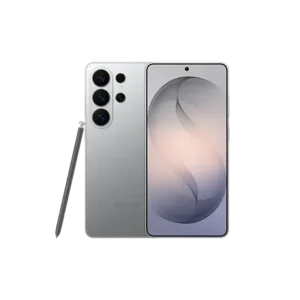
| Detail | Information |
| Brand Name | Samsung |
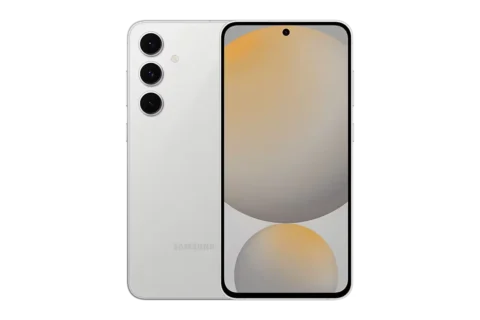
| Product Name | Samsung Galaxy S26, Galaxy S26+, and Galaxy S26 Ultra |
| Model Number(s) | SM-S942B, SM-S942B/DS, SM-S947B, SM-S947B/DS, SM-S948B, SM-S948B/DS |
| PDF File Size | 2.68 MB |
| Total Number of Pages | 190 pages |
| Languages Covered | English |
Samsung Galaxy S26 Series User Guide
The Samsung Galaxy S26 series consists of touchscreen smartphones with mobile network connectivity, Wi-Fi, Bluetooth, NFC, cameras, wireless charging, biometric security, Galaxy AI features, and Samsung’s software ecosystem.
Samsung provides separate device-layout illustrations for the Galaxy S26, Galaxy S26+, and Galaxy S26 Ultra. The Galaxy S26 Ultra additionally includes an integrated S Pen and a laser autofocus sensor.
What’s Included in the Box
The user guide does not provide a complete package-content list. Samsung directs users to the separate Quick Start Guide for the package contents. Supplied items can also differ by region or carrier.
The document does specifically confirm the following charging information:
| Model | Information Stated in the Manual |
| Galaxy S26 Ultra | Included USB cable supports up to 3A; charger is not included. Samsung recommends an official 60W charger and compatible cable for optimal charging performance. |
| Galaxy S26+ | Included USB cable supports up to 3A; charger is not included. Samsung recommends an official 45W charger and compatible cable for optimal charging performance. |
| Galaxy S26 | Included USB cable supports up to 3A; charger is not included. |
Samsung notes that a charger may nevertheless be supplied in some regions. The phone can be powered using compatible USB power adapters and a USB Type-C cable.
Parts and Components
Galaxy S26 Ultra
The device-layout diagrams identify the following major components:
- Screen
- Front camera
- Rear cameras
- Flash
- Laser AF sensor
- Fingerprint recognition sensor
- Proximity/light sensor
- Volume button
- Side button
- Speakers
- Microphones
- Air vent hole
- Nano-SIM card tray
- Tray hole
- USB Type-C multipurpose jack
- S Pen
- Wireless charging coil
- GPS antenna
- NFC antenna
- Main antenna
Galaxy S26+ and Galaxy S26
The Galaxy S26+ and Galaxy S26 diagrams identify:
- Screen
- Front camera
- Rear cameras
- Flash
- Fingerprint recognition sensor
- Proximity/light sensor
- Volume button
- Side button
- Speakers
- Microphones
- Air vent hole
- Nano-SIM card tray
- Tray hole
- USB Type-C multipurpose jack
- Wireless charging coil
- GPS antenna
- NFC antenna
- Main antenna
Important Device-Layout Precautions
Samsung advises users not to:
- Place the speaker close to the ear during speakerphone use or media playback.
- Expose the camera lens to strong light sources such as direct sunlight or lasers.
- Use the phone when glass, acrylic, or another physical component is broken.
- Remove material from microphones or speakers using sharp objects.
- Cover antenna areas with metallic stickers, metallic cases, hands, or other objects during network use.
- Cover the air vent or proximity/light sensor with films, stickers, or unsuitable accessories.
These conditions can affect sound, sensors, connectivity, battery use, or physical safety.
Buttons and Display Guide
Physical Buttons
| Button | Function |
| Side button | Press and hold while the phone is off to turn it on. Press to wake or lock the screen. It can also be configured to open a selected app or feature when double-pressed or held. |
| Side + Volume Down | Press together to capture a screenshot. Press and hold together to access power-off functions. |
| Volume buttons | Adjust volume and perform certain app-specific functions. |
The Side button can be customized under Settings → Advanced features → Side button.
Navigation Buttons
The default navigation bar can display:
| Button | Function |
| Recents | Opens recently used apps |
| Home | Returns to the Home screen; touching and holding can start Circle to Search |
| Back | Returns to the previous screen |
Samsung also allows users to replace navigation buttons with swipe gestures under Settings → Display → Navigation bar → Swipe gestures.
Technical Specifications
The official user guide does not provide a full hardware specification sheet with measurements, processor details, battery capacity, RAM, storage capacities, or exact display sizes. Those values should therefore not be inferred from this document.
The following technical characteristics are specifically documented:
| Specification | Manual Information |
| Product family | Samsung Galaxy S26 / S26+ / S26 Ultra |
| SIM type | Nano-SIM and eSIM |
| Charging port | USB Type-C multipurpose jack |
| Wireless charging | Supported |
| Wireless power sharing | Supported |
| Mobile connectivity | Includes support for cellular networks, including 5G where available |
| Wi-Fi | Supported |
| Bluetooth | Supported |
| NFC | Supported |
| UWB | Documented for Galaxy S26 Ultra and Galaxy S26+ |
| Biometrics | Face recognition and on-screen fingerprint recognition |
| Water/dust rating | IP68 |
| IP68 test condition | 1.5 m fresh water for 30 minutes at 15–35°C and 86–106 kPa |
| Recommended operating temperature | 0°C to 35°C |
| Maximum documented video resolution | Up to 8K |
| Stylus | Integrated S Pen on Galaxy S26 Ultra |
Samsung states that 5G availability varies by model, country, carrier, and environment.
The camera section states that video recording can reach a maximum resolution of 8K, although available options can vary by model.
Safety Instructions
General Safety
Users should follow these main precautions:
- Do not use a damaged device.
- Keep the phone away from excessive heat and prolonged direct sunlight.
- Do not use damaged chargers, batteries, or cables.
- Keep the multipurpose USB port dry before charging.
- Do not modify the operating system using unofficial software.
- Follow restrictions on wireless-device use in aircraft, hospitals, and other regulated locations.
- Do not expose the camera to strong light sources such as lasers.
- Keep objects that can be affected by magnets away from the phone.
The device contains magnets. Samsung instructs users to keep it more than 15 cm away from implanted medical devices and to stop use and consult a physician or medical-device manufacturer if interference is suspected.
Charging Safety
Samsung recommends compatible Samsung-approved chargers and cables. The USB Type-C port should be completely dry before charging. Improper charger connection can damage the device, and misuse-related damage may not be covered under warranty.
During wireless charging:
- Do not place credit cards or RFID cards between the phone and charger.
- Keep metal objects and magnets away from the charging surfaces.
- Remove incompatible cases or accessories when necessary.
- Samsung-approved wireless chargers are recommended.
Before First Use
Samsung instructs users to charge the battery before using the device for the first time or after it has remained unused for an extended period.
A basic first-use sequence is:
- Charge the battery.
- Install a nano-SIM card or configure an eSIM if mobile service is required.
- Press and hold the Side button to turn on the phone.
- Follow the on-screen initial-setup instructions.
- Connect to Wi-Fi where possible.
- Sign in to or create a Samsung account.
- Transfer information from a previous device with Smart Switch if required.
- Configure security, network, backup, and personal settings.
Samsung notes that some features might not be available during initial setup without a Wi-Fi connection.
Charging Instructions
Wired Charging
- Connect the USB cable to a compatible USB power adapter.
- Plug the USB Type-C end into the phone’s multipurpose jack.
- Leave the phone connected until charging is complete.
- Disconnect the charger after the battery is fully charged.
Wireless Charging
The phones contain a built-in wireless charging coil.
- Place the back of the phone in the center of a compatible wireless charger.
- Check the charging information on the notification panel.
- After charging is complete, remove the phone from the charger.
Covers and accessories can interfere with charging. Removing them may improve charging stability.
Fast Charging
The guide supports fast and super-fast charging where compatible equipment is used. Fast-charging settings can be checked under:
Settings → Battery → Charging settings
Charging can be faster when the phone or its screen is turned off.
Wireless Power Sharing
Wireless Power Sharing allows the Galaxy phone’s battery to charge another compatible wireless-charging device.
- Open Settings.
- Tap Battery → Wireless power sharing.
- Turn the feature on.
- Place the compatible device against the back of the Galaxy phone.
- Disconnect the devices when charging is finished.
A battery limit can be configured so power sharing automatically stops when the Galaxy phone reaches a selected remaining charge level.
Nano-SIM and eSIM Setup
The devices can use a physical nano-SIM or an eSIM provided by the user’s carrier. Dual-number or dual-carrier operation may be possible using another nano-SIM or eSIM, depending on model, carrier, and region.
Installing a Nano-SIM
- Insert the ejection pin into the SIM tray hole.
- Pull the tray carefully from the device.
- Position the nano-SIM on the tray with its gold-colored contacts facing upward.
- Press the card gently into position.
- Reinsert the tray completely.
The tray should be dry before reinsertion and fully inserted to help prevent liquid from entering the device.
Adding an eSIM
Go to:
Settings → Connections → SIM manager → Add eSIM
Then follow the on-screen instructions.
If the carrier provides a QR code, select:
Add eSIM → Scan QR code
and scan the supplied code.
Turning the Phone On, Off, and Restarting
Turn On
Press and hold the Side button for several seconds.
Turn Off
- Press and hold the Side button and Volume Down button together.
- Tap Power off.
- Tap Power off again.
The power controls can also be opened from the Quick Settings panel.
Force Restart
If the device becomes frozen or unresponsive, press and hold Side + Volume Down for more than seven seconds.
Initial Setup and Data Transfer
When first powered on or after a factory reset, the phone presents setup instructions on the screen.
A Samsung account gives access to Samsung services across supported devices. Users can sign in through Settings → Sign in to your Galaxy.
Transfer Data with Smart Switch
Samsung Smart Switch can transfer information from a previous device using:
- A USB cable
- Wireless transfer
- External storage
- A computer
Open:
Settings → Accounts and backup → Transfer data for device setup
and follow the instructions.
Screen and Navigation Instructions
The touchscreen supports:
- Tap
- Touch and hold
- Drag
- Double tap
- Swipe
- Pinch
- Spread
Samsung advises against using sharp objects or excessive pressure on the display. Long-term display of fixed graphics can cause afterimages or screen burn-in.
Home and Apps Screens
Swipe upward from the Home screen to open the Apps screen.
The Home screen can contain:
- Apps
- Widgets
- Shortcuts
- Folders
- Multiple Home panels
Users can change wallpapers, themes, widgets, and Home-screen settings by touching and holding an empty area of the Home screen.
Notifications and Quick Settings
Swipe down from the upper portion of the screen to view notifications.
For Quick Settings, swipe down from the top-right side of the screen. Buttons can turn functions such as Wi-Fi and Bluetooth on or off, and holding a button opens additional settings.
Common status indicators represent:
- Cellular signal
- Roaming
- Wi-Fi
- Bluetooth
- Location
- Calls
- Alarm
- Sound/vibration mode
- Flight mode
- Errors or warnings
- Battery level and charging
Screenshot and Screen Recording
Take a Screenshot
Press the Side button + Volume Down button simultaneously.
A palm-swipe gesture can also be enabled under:
Settings → Advanced features → Motions and gestures → Palm swipe to capture
Screenshots can be cropped, annotated, tagged, shared, or extended using scroll capture where supported.
Record the Screen
- Open Quick Settings.
- Select Screen recorder.
- Configure the recording options.
- Tap Start recording.
- Tap Stop when finished.
Recordings are available through Gallery.
Galaxy AI Features
The manual includes a broad collection of Galaxy AI functions. Availability can depend on region, carrier, model, language, or network processing.
Major functions described include:
- Real-time call translation
- Message translation
- Writing assistance
- Interpreter
- Voice transcription
- Recording summaries
- Call transcript summaries
- Browsing summaries and translation
- Camera text translation
- Circle to Search
- AI-assisted photo editing
- Generative image creation
- Audio Eraser
- AI-generated wallpapers
- Now brief
- Now nudge
- Notification highlights
Users who want supported AI functions to process data locally where possible can open Settings → Galaxy AI → Process data only on device. Some features still require online processing.
Live Call Translation
Live Translate can be enabled through:
Phone → More options → Settings → Live translate
During a call, select Call assist → Live translate.
Interpreter
Interpreter provides live conversation translation as speech or text. Users can select the two languages and download language packs when required.
Circle to Search
Touch and hold the Home button, then tap or draw around text or an image to search for information about it.
S Pen Instructions for Galaxy S26 Ultra
The Galaxy S26 Ultra includes an integrated S Pen. Samsung warns users not to bend it, apply excessive pressure, or press hard against the screen. Magnets can interfere with some S Pen actions.
Removing and Storing the S Pen
Press the end of the S Pen to release it, pull it from the slot, and reinsert it until it clicks when finished.
S Pen functions covered by the guide include:
- Air command
- Creative studio
- AI select
- Create note
- Screen write
- Translate
- Magnify
- PENUP
- Write on calendar
- S Pen to text
- Air view
- Pen Select
- Screen-off memos
Camera Instructions
The Camera app supports multiple photography and video modes. Users can launch it normally, double-press the Side button where configured, or open it from the lock screen.
Basic photography:
- Open Camera.
- Select the subject on the preview screen to focus.
- Adjust brightness if needed.
- Tap the shutter button.
The guide notes that dirty lenses can produce blurry pictures and sudden temperature changes can cause condensation inside the camera-cover area.
Camera functions described in the manual include:
- Photo
- Video
- Portrait
- Portrait Video
- Zoom
- AF/AE lock
- Motion photos
- Filters
- Super Steady
- HDR video
- Pro/Pro Video options
- Document scanning
- Shot suggestions
- Selfies
- Dual recordings
- Auto framing
- Focus Enhancer on Galaxy S26 Ultra
- Up to 8K video recording
Connectivity and Network Settings
The Connections menu manages the phone’s network features.
Open:
Settings → Connections
Available functions include:
- Wi-Fi
- Bluetooth
- NFC and contactless payments
- Mobile networks
- SIM manager
- Data usage
- Mobile Hotspot and tethering
- Flight mode
- UWB on supported models
- Additional connection settings
Wi-Fi Setup
- Open Settings → Connections → Wi-Fi.
- Turn Wi-Fi on.
- Select a network.
- Enter its password when required.
If a previously working network does not connect properly, Samsung recommends restarting the phone’s Wi-Fi function or the wireless router.
Mobile Hotspot
Mobile Hotspot shares the phone’s mobile-data connection with other devices. Carrier charges can apply.
The manual also supports connection by QR code and an Auto Hotspot option for compatible devices signed in to the same Samsung account.
Samsung DeX and Smart View
Smart View
Smart View mirrors the phone’s screen to a compatible TV or monitor.
- Open Quick Settings.
- Tap Smart View.
- Select the compatible display.
Samsung DeX
Samsung DeX provides a desktop-style environment when the phone is connected to an external display.
It supports:
- Wireless display connection
- USB Type-C-to-HDMI adapters
- External keyboard and mouse
- Using the phone as a touchpad
- On-screen keyboard
Samsung recommends officially supported DeX accessories.
Modes and Settings
Modes and Routines
Modes can automatically change settings based on activity or location.
Routines can automate repeated actions based on selected conditions. Users can also trigger manual routines themselves.
Display Settings
The Display menu includes settings for:
- Light and Dark mode
- Brightness
- Adaptive brightness
- Extra brightness
- Privacy display
- Motion smoothness
- Eye comfort shield
- Adaptive color tone
- Screen mode
- Font size and style
- Screen zoom
- Screen resolution
- Screen timeout
- Easy mode
- Edge panels
- Navigation bar
- Touch sensitivity
Battery Settings
Open Settings → Battery to manage:
- Daily battery usage
- Power saving
- Background usage limits
- Battery protection
- Battery information
- Charging settings
- Wireless Power Sharing
- Automatic screen dimming
Battery information can include manufacturing date, first-use date, charge/discharge cycles, and measured state of health depending on region, carrier, or model.
Security and Biometric Settings
Face Recognition
Face recognition can unlock the phone after it is registered.
Samsung states that face recognition is less secure than a pattern, PIN, or password and that the device might potentially be unlocked by someone or something resembling the registered image.
Fingerprint Recognition
The fingerprint sensor is located near the lower center of the screen.
For better recognition:
- Keep the sensor area and finger clean and dry.
- Use compatible screen protectors.
- Register commonly used fingers.
- Place enough of the fingertip over the sensor area.
Other security tools covered include:
- Secure Wi-Fi
- Secure Folder
- Samsung Pass
- Lost-device protection
- Auto Blocker
- App security
- Theft protection
- Permission controls
Cleaning and Care Instructions
The manual does not contain a conventional cleaning chapter, but it provides specific care guidance.
If water, dirt, or another listed contaminant contacts the device:
- Use fresh water that is not flowing where instructed for contaminant removal.
- Wipe the phone with a soft, clean cloth.
- Dry it thoroughly.
- Wait until the multipurpose USB jack is completely dry before connecting a charger or accessory.
Do not insert sharp objects into microphones, speakers, or other openings to remove dirt.
Maintenance Instructions
Routine care described or supported by the manual includes:
- Keep device software updated.
- Keep the camera lens clean.
- Keep microphones, speakers, charging port, and sensors clear.
- Maintain free storage space.
- Use Device Care to check battery, storage, memory, security, and performance.
- Use Samsung Members diagnostics when device checks are required.
- Replace damaged charging cables.
- Use compatible Samsung-approved accessories.
- Back up important data regularly.
Device Care can perform automatic optimization, manage storage and memory, scan for suspicious activity, schedule restarts, perform diagnostics, and provide access to software updates.
Water and Dust Resistance
The Galaxy devices covered by the guide have an IP68 water-resistance certification under IEC 60529 testing.
The stated test conditions are:
- Fresh water
- Depth: 1.5 meters
- Duration: 30 minutes
- Temperature: 15–35°C
- Pressure: 86–106 kPa
- Device stationary during testing
Samsung warns users to avoid:
- Swimming-pool water
- Seawater
- High-pressure or forceful water
- Sauna and steam-room conditions
- Charging while the device or USB port is wet
Water resistance can decrease after impact, damage, normal wear, or aging and is not permanent.
Storage Instructions and Operating Environment
The manual gives environmental precautions rather than a separate storage procedure.
Users should not:
- Store the device in very cold or very hot locations.
- Leave it in direct sunlight for long periods.
- Leave it inside a hot vehicle.
- Place it on heating mats.
- Store it near heaters, microwaves, cooking appliances, or high-pressure containers.
- Use damaged cables, chargers, or batteries.
Samsung states that the recommended operating temperature range is 0°C to 35°C. Using the device outside that range may damage it or shorten battery life.
Device Overheating
The phone can become warm during:
- Charging
- Fast or wireless charging
- Initial setup
- Large downloads
- Gaming
- Long video recording
- Video streaming at high brightness
- Multitasking
- Cloud synchronization
- Navigation
- Mobile Hotspot use
- Weak-signal conditions
- Roaming
If the phone becomes too hot:
- Disconnect the charger if charging.
- Close running applications.
- Allow the phone to cool.
- Restart the device if software conflicts are suspected.
- Disable unused Wi-Fi, GPS, and Bluetooth functions.
- Reduce brightness.
- Remove unnecessary background applications or files.
- Contact a Samsung Service Centre or authorized service centre if overheating continues.
Samsung may automatically reduce brightness, refresh rate, performance, charging speed, or available functions when the device temperature becomes excessive. In more serious cases, the phone can shut down to cool itself.
Troubleshooting Guide
Samsung recommends trying the documented solutions before contacting a Samsung Service Centre or authorized service centre. Samsung Members can also provide diagnostic and support functions.
| Problem | Possible Cause / Manual Guidance | Recommended Action |
| Device does not turn on | Battery may be fully discharged | Fully charge the battery before turning it on |
| Device freezes | Temporary software or application issue | Close apps, restart normally, or force restart with Side + Volume Down for over 7 seconds |
| Touchscreen responds poorly | Screen protector, gloves, dirt, water, humidity, sharp-object input, or software issue | Clean/dry hands and screen, restart, update software, and seek service if the display is damaged |
| Calls do not connect | Network or call-barring settings | Confirm the correct mobile network and check call-barring settings |
| Other caller cannot hear you | Microphone is blocked or headset is not correctly connected | Uncover microphone and check headset connection |
| Call audio echoes | Volume or location issue | Adjust volume or move to another area |
| Cellular connection drops | Weak signal, blocked antenna, or carrier network conditions | Avoid covering the antenna and move to an area with stronger reception |
| Battery does not charge properly | Charger connection or battery problem | Check connection; take phone, cable, and charger to Samsung service if needed |
| Battery drains faster than before | Temperature, heavy feature use, or battery aging | Avoid extreme temperatures and reduce high-consumption app usage |
| Camera displays an error | Low battery or insufficient storage | Charge battery, free storage, restart phone |
| Bluetooth does not work | Device not discoverable, range issue, or network settings problem | Confirm discoverability, remain within 10 m, toggle Bluetooth, or reset Wi-Fi/Bluetooth settings |
| Computer will not connect | USB cable or computer driver issue | Use a compatible USB cable and make sure computer drivers are installed and current |
| GPS location is unavailable | GPS obstruction, especially indoors | Allow Wi-Fi or mobile-network-assisted location |
| Storage is full | Unnecessary files or applications | Use Device Care or manually remove unused files/apps |
The troubleshooting chapter contains the complete Samsung guidance for these conditions.
SIM PIN, PUK, and Error Codes
The manual does not provide conventional numbered hardware error codes such as E1 or E2.
It does explain common SIM security prompts:
| Prompt | Meaning |
| Password | Device-lock password is required |
| PIN | SIM PIN must be entered when SIM PIN protection is enabled |
| PUK | SIM became blocked, usually after multiple incorrect PIN entries; the carrier-supplied PUK is required |
| PIN2 | Required for certain SIM functions; supplied by the carrier |
Indicator Lights and Status Icons
The status bar can display indicators for:
- Notifications
- No signal
- Signal strength
- Roaming
- GPRS/EDGE/UMTS
- HSDPA/HSPA+
- LTE
- 5G
- Wi-Fi
- Bluetooth
- Location use
- Current call
- Missed call
- Alarm
- Mute/vibration
- Flight mode
- Warning/error
- Battery charging and battery level
The exact appearance can vary by carrier and model.
Replacement Parts and Accessories
The guide does not list user-serviceable internal replacement parts.
Samsung advises users to buy compatible accessories and recommends Samsung-approved accessories. Unapproved accessories can cause performance or compatibility problems that may not be covered by warranty.
Compatible accessory categories mentioned include:
- USB Type-C charging cables
- Compatible USB power adapters
- Wireless chargers
- USB Type-C digital-output headphones
- HDMI adapters for Samsung DeX
- Bluetooth headphones and speakers
- Galaxy Buds
- Screen protectors compatible with the fingerprint sensor
Battery Replacement
The battery is not intended for user removal.
Samsung instructs users to contact an authorized service centre for battery removal. Attempting to remove the battery personally can damage the battery or device, cause injury, and make the phone unsafe.
Warranty Information
The guide does not specify a warranty duration.
It does state several conditions relevant to warranty coverage:
- Damage caused by improper charging connection or misuse is not covered.
- Performance issues caused by unsupported DeX accessories may not be covered.
- Unapproved accessories can cause malfunctions that may not be covered.
- Modifying the operating system or installing software from unofficial sources violates Samsung’s licence agreement and voids the warranty.
Users should refer to the warranty documentation supplied for their market for complete warranty terms.
Customer Support Information
The guide provides several official Samsung support routes.
Samsung Members
The Samsung Members app provides:
- Device diagnostics
- Customer support
- Error reports
- Feedback
- Product information
- Community support
- Tips
Service Centres
For unresolved hardware, charging, overheating, display, camera, Bluetooth, or other device problems, the guide repeatedly instructs users to contact a Samsung Service Centre or an authorized service centre.
Samsung Website
The guide identifies Samsung.com as the manufacturer’s website and directs users to Samsung’s official online services for additional information.
No general customer-support telephone number or email address is provided in this user guide.
Accessibility Features
The Samsung Galaxy S26 series includes a substantial accessibility section for users with visual, hearing, or dexterity requirements.
Features described include:
Vision
- High-contrast themes
- High-contrast fonts
- High-contrast keyboard
- Color inversion
- Color correction
- Color filters
- Reduced animation
- Extra dim
- Screen magnification
- Magnifier
- Larger fonts and screen zoom
- TalkBack
Hearing
- Live Transcribe
- Live Caption
- Flash notifications
- Hearing-aid support
- Sound Notifications
- Ambient sound amplification
- Adapt Sound
- Mono audio
- Left/right sound balance
Interaction and Dexterity
- Universal Switch
- Assistant Menu
- Voice Access
- Interaction Control
- Touch-and-hold delay
- Tap duration
- Ignore repeated touches
- Dwell action
- Sticky Keys
- Slow Keys
- Bounce Keys
- Mouse Keys
Frequently Asked Questions
How do I turn on a Samsung Galaxy S26?
Press and hold the Side button for several seconds until the phone turns on.
How do I force restart a Galaxy S26 if it freezes?
Press and hold the Side button and Volume Down button simultaneously for more than seven seconds.
How do I install a SIM card in the Galaxy S26?
Use the ejection pin to release the tray, pull it out, place a nano-SIM on the tray with the gold-colored contacts facing upward, and fully reinsert the dry tray.
How do I add an eSIM?
Open Settings → Connections → SIM manager → Add eSIM and follow the on-screen instructions. A carrier-provided QR code can also be scanned from this menu.
Is the Samsung Galaxy S26 waterproof?
The guide describes the covered devices as IP68 water- and dust-resistant, not permanently waterproof. Samsung’s stated test condition is 1.5 meters of fresh water for 30 minutes under specified laboratory conditions. Water resistance can decrease through normal wear or device damage.
Why is my Galaxy S26 not charging?
Check that the charger and USB cable are connected correctly and that the USB Type-C port is completely dry. If charging still fails, Samsung instructs users to take the device and charger to a Samsung Service Centre or authorized service centre.
Why is my Samsung Galaxy S26 overheating?
Heavy gaming, video recording, large downloads, wireless charging, multitasking, mobile hotspot use, weak network signals, navigation, or other high-power activities can increase temperature. Close apps, disconnect charging where appropriate, reduce brightness, let the phone cool, and contact Samsung service if overheating continues.