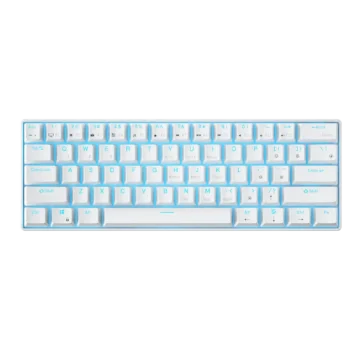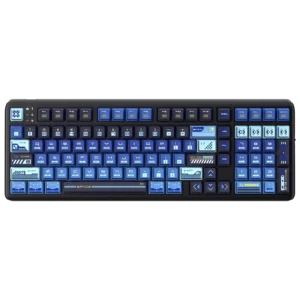
| Field | Details |
| Document Title | RK Royal Kludge Mechanical Keyboard User Manual |
| Document Type | User Manual |
| Brand Name | RK Royal Kludge |
| Product Name | R99 Mechanical Keyboard |
| Model Number(s) | R99 |
| PDF File Size | 18.56 MiB |
| Number of Pages | 64 |
| Languages Covered | English |
RK R99 Mechanical Keyboard Manual
The RK Royal Kludge R99 is a full-size mechanical keyboard featuring a 100% keyboard layout, mechanical switches, RGB backlighting, and three connection methods. It supports wired USB-C, Bluetooth, and 2.4 GHz wireless connections, allowing the keyboard to operate with compatible Windows and Mac computers and Bluetooth-enabled devices.
The keyboard includes a connection mode switch for selecting between wired, Bluetooth, and 2.4 GHz operation. Bluetooth mode supports pairing with up to three devices, with dedicated keyboard shortcuts for switching between saved connections.
The RK R99 features adjustable RGB lighting, side lighting effects, customizable key backlighting, and separate controls for brightness, lighting speed, color, and effect selection. Users can save personalized backlight settings directly through the keyboard.
The keyboard also provides function-key shortcuts for multimedia playback, volume adjustment, application access, operating system selection, and Windows key locking.
Its rechargeable battery includes a charging indicator and a keyboard-based battery level display. The number keys indicate battery charge in approximately 10% increments during Bluetooth and 2.4 GHz operation.
The RK R99 supports factory reset through a dedicated keyboard shortcut and provides access to the RK keyboard driver website for additional software.
Product Overview and Features
| Feature | Description |
| Product Type | Mechanical keyboard |
| Brand | RK Royal Kludge |
| Model | R99 |
| Keyboard Layout | 100% |
| Switch Type | Mechanical switches |
| Backlighting | RGB |
| Side Lighting | Supported |
| Wired Connection | USB Type-C |
| Wireless Connection | Bluetooth and 2.4 GHz |
| Bluetooth Device Memory | 3 devices |
| Bluetooth Switching Keys | Fn + Q / W / E |
| 2.4 GHz Pairing | Fn + P |
| Operating System Modes | Windows and Mac |
| Battery | Rechargeable |
| Battery Level Shortcut | Fn + Enter |
| Factory Reset Shortcut | Fn + Spacebar |
| Windows Lock Shortcut | Fn + Win |
| Keyboard Lighting Toggle | Fn + Esc |
| Driver Website | https://drive.rkgaming.com/ |
Technical Specifications
Keyboard Specifications
| Specification | Details |
| Model Number | RK R99 |
| Keyboard Type | Mechanical |
| Layout | 100% |
| Length | 402 mm |
| Width | 140 mm |
| Height | 43 mm |
| Dimension Tolerance | ±2 mm |
| Backlight Type | RGB |
| Switch Technology | Mechanical switches |
| Connectivity | USB / Bluetooth / 2.4 GHz |
| Windows Mode | Supported |
| Mac Mode | Supported |
| Fast Charging | Not supported |
Keyboard Dimensions
The RK R99 measures:
- Length: 402 mm
- Width: 140 mm
- Height: 43 mm
- Tolerance: ±2 mm
Connection Specifications
| Connection Mode | Selection | Connection Method |
| Wired | Center switch position | USB Type-C cable |
| Bluetooth | B | Bluetooth pairing |
| 2.4 GHz Wireless | G | Wireless receiver |
RGB Lighting Features
The keyboard supports several lighting adjustments.
| Lighting Feature | Available Control |
| Main Backlight Brightness | Increase or decrease |
| Main Backlight Speed | Increase or decrease |
| Main Backlight Color | Switch colors |
| Main Backlight Effects | Switch lighting modes |
| Side Light Brightness | Increase or decrease |
| Side Light Speed | Increase or decrease |
| Side Light Direction | Left or right |
| Side Light Color Mode | Monochrome switching |
| Side Light Effects | Switch lighting modes |
| Custom Key Backlighting | Supported |
| Lighting On/Off | Supported |
Some color and direction controls operate only when compatible lighting effects are active.
Parts and Components
The RK R99 includes a full-size mechanical keyboard layout with function keys, number keys, a numeric keypad, navigation keys, and dedicated status indicators.
Main Keyboard Components
| Component | Function |
| Mechanical Keys | Provide typing and command input |
| Function Keys | Provide multimedia and operating system shortcuts |
| Fn Key | Activates secondary keyboard functions |
| RGB Backlighting | Illuminates the keyboard keys |
| Side Lighting | Provides additional lighting effects |
| Mode Switch | Selects wired, Bluetooth, or 2.4 GHz operation |
| USB Type-C Port | Connects the keyboard using a cable |
| Status Indicators | Display Num Lock, Caps Lock, and charging conditions |
| Numeric Keys | Display battery level in wireless modes |
Function Key Row
The F1–F12 keys provide multimedia and application shortcuts when used with Fn.
Their functions depend on whether the keyboard is set to Windows or Mac mode.
Fn Key
The Fn key activates secondary functions such as:
- Bluetooth pairing
- Wireless receiver pairing
- RGB lighting adjustments
- Multimedia controls
- Operating system switching
- Battery level display
- Factory reset
RGB Backlighting
The keyboard includes RGB backlighting that can be adjusted using dedicated shortcuts.
Side Lighting
The RK R99 provides side lighting controls for brightness, speed, direction, and effect selection.
USB Type-C Port
The USB Type-C port connects the keyboard to a compatible computer using a USB Type-C cable.
Connection Mode Switch
The keyboard’s mode switch selects the connection method.
| Switch Position | Mode |
| Center | Wired USB-C |
| B | Bluetooth |
| G | 2.4 GHz Wireless |
Keyboard Indicator Lights
The RK R99 includes Num Lock, Caps Lock, and battery charging indicators.
Num Lock Indicator
The Num Lock indicator displays the status of the numeric keypad lock function.
Caps Lock Indicator
The Caps Lock indicator displays the status of Caps Lock.
Battery Charging Indicator
The keyboard uses a red indicator light to display charging and low-battery conditions.
| Indicator Behavior | Meaning |
| Solid Red | Keyboard charging |
| Red Light Off After Charging | Battery fully charged |
| Flashing Red | Battery low |
Important: The RK R99 does not support fast charging.
Before First Use
Before operating the RK R99, select the required connection method and prepare the compatible device.
The keyboard supports wired USB-C, Bluetooth, and 2.4 GHz wireless operation.
For Bluetooth connections, the keyboard must be paired with the device before wireless typing can begin.
For 2.4 GHz operation, the keyboard uses its wireless receiver.
Initial Setup
- Place the keyboard on a suitable, stable surface.
- Select the required connection mode.
- Connect the USB Type-C cable, enable Bluetooth pairing, or connect the 2.4 GHz receiver.
- Complete the connection procedure for the selected mode.
- Select Windows or Mac mode using the appropriate shortcut.
- Adjust the RGB lighting if required.
Wired USB-C Connection
The RK R99 supports direct wired operation through USB Type-C.
How to Connect the RK R99 in Wired Mode
- Move the keyboard’s connection switch to the center position.
- Connect the product’s USB Type-C cable to the keyboard’s Type-C port.
- Connect the other end to the compatible computer.
- Use the keyboard in wired mode.
The switch must remain in the center position for wired operation.
Bluetooth Connection
The RK R99 supports Bluetooth connections with up to three devices.
The keyboard uses the Fn + Q, Fn + W, and Fn + E shortcuts for pairing and switching between saved Bluetooth connections.
How to Pair the RK R99 Using Bluetooth
- Move the keyboard’s connection switch to B.
- Select a Bluetooth device slot using Fn + Q, Fn + W, or Fn + E.
- Press and hold the selected combination to enter pairing mode. For example, hold Fn + Q.
- The selected letter key begins flashing rapidly to indicate Bluetooth pairing mode.
- Enable Bluetooth on the computer, tablet, or other compatible device.
- Search for available Bluetooth devices.
- Select RK R99 from the available device list.
- Complete the connection.
Bluetooth Pairing Indicators
| Key Indicator | Meaning |
| Q, W, or E Flashes Rapidly | Bluetooth pairing mode |
| Q, W, or E Flashes Slowly | Bluetooth linking or connection process |
Bluetooth Device Slots
| Shortcut | Bluetooth Slot |
| Fn + Q | Bluetooth Device 1 |
| Fn + W | Bluetooth Device 2 |
| Fn + E | Bluetooth Device 3 |
Connecting Three Bluetooth Devices
The keyboard can store three different Bluetooth device connections.
To configure additional devices:
- Keep the connection switch in Bluetooth mode.
- Hold Fn + W to pair a second device.
- Enable Bluetooth on the second device and select RK R99.
- Hold Fn + E to pair a third device.
- Complete pairing on the third device.
Switching Between Bluetooth Devices
After the devices have been paired, briefly press:
- Fn + Q to select the first device.
- Fn + W to select the second device.
- Fn + E to select the third device.
A short press switches between saved devices, while a long press starts the pairing process.
2.4 GHz Wireless Connection
The RK R99 supports wireless operation using a 2.4 GHz receiver.
The keyboard and receiver are paired at the factory.
How to Connect the RK R99 Using 2.4 GHz
- Move the keyboard’s connection switch to G.
- Connect the 2.4 GHz receiver to the compatible computer.
- Use the keyboard with the receiver.
How to Pair the 2.4 GHz Receiver
If pairing is required:
- Move the connection switch to G.
- Press and hold Fn + P.
- Insert the wireless receiver into the computer.
- The P key flashes rapidly during pairing.
- Wait until the P key stops flashing.
When the P key stops flashing, pairing has succeeded.
2.4 GHz Pairing Indicator
| P Key Status | Meaning |
| Rapid Flashing | Pairing in progress |
| Stops Flashing | Pairing successful |
The keyboard and receiver normally do not require pairing again after leaving the factory.
Switching Between Connection Modes
The physical connection switch selects the keyboard’s operating mode.
| Required Connection | Action |
| Wired USB-C | Move switch to center |
| Bluetooth | Move switch to B |
| 2.4 GHz | Move switch to G |
Bluetooth device switching is handled separately using Fn + Q, Fn + W, and Fn + E.
Checking the Keyboard Battery Level
The RK R99 provides a battery level indicator through the number keys.
This function operates in Bluetooth and 2.4 GHz modes.
How to Check Battery Percentage
- Set the keyboard to Bluetooth or 2.4 GHz mode.
- Press and hold Fn + Enter.
- Observe the illuminated number keys.
The number keys indicate the battery level in approximately 10% increments.
Battery Level Indicator Guide
| Number Key | Battery Level |
| 1 | 10% |
| 2 | 20% |
| 3 | 30% |
| 4 | 40% |
| 5 | 50% |
| 6 | 60% |
| 7 | 70% |
| 8 | 80% |
| 9 | 90% |
| 0 | 100% |
When the backlighting illuminates simultaneously from 1 through 0, the keyboard battery is fully charged.
Charging the RK R99 Keyboard
The RK R99 has a rechargeable battery and a red charging indicator.
Charging Indicator Behavior
- A solid red indicator means the keyboard is charging.
- The indicator turns off after the battery is fully charged.
- A flashing red indicator means the battery charge is low.
Do not use fast charging. The keyboard does not support fast charging.
RGB Backlight Controls
The RK R99 includes keyboard RGB backlighting with adjustable brightness, speed, color, and lighting modes.
Main Backlight Shortcuts
| Shortcut | Function |
| Fn + ↑ | Increase backlight brightness |
| Fn + ↓ | Decrease backlight brightness |
| Fn + ← | Decrease backlight effect speed |
| Fn + → | Increase backlight effect speed |
| Fn + , / < | Switch backlight color |
| Fn + \ / | | Switch backlight mode |
| Fn + Esc | Turn lighting on or off |
Backlight color switching operates with applicable lighting effects.
Adjusting Backlight Brightness
Press Fn + Up Arrow to increase the brightness.
Press Fn + Down Arrow to decrease the brightness.
Adjusting Backlight Speed
Press Fn + Left Arrow to decrease the lighting effect speed.
Press Fn + Right Arrow to increase the lighting effect speed.
Changing Backlight Color
Press Fn + , / < to change the backlight color when a compatible lighting effect is active.
Switching RGB Lighting Modes
Press Fn + \ / | to switch between backlight modes.
Turning the Keyboard Lights On or Off
Press Fn + Esc.
This shortcut switches the keyboard lighting on or off.
Side Lighting Controls
The RK R99 includes separate controls for side lighting.
Side Light Shortcut Guide
| Shortcut | Function |
| Fn + – / _ | Decrease side light brightness |
| Fn + = / + | Increase side light brightness |
| Fn + Num – | Decrease side light speed |
| Fn + Num + | Increase side light speed |
| Fn + [ / { | Move side lighting to the left |
| Fn + ] / } | Move side lighting to the right |
| Fn + / / ? | Switch side light monochrome setting |
| Fn + . / > | Switch side light mode |
The side lighting direction and monochrome controls are available with compatible lighting effects.
Increasing Side Light Brightness
Press Fn with the equal/plus key.
Decreasing Side Light Brightness
Press Fn with the minus/underscore key.
Adjusting Side Light Speed
Use Fn + Num – or Fn + Num +.
Changing Side Lighting Direction
Use the corresponding bracket-key shortcuts to change the side light direction.
Changing Side Lighting Modes
Press Fn with the period/greater-than key.
Customizing the RK R99 RGB Backlighting
The keyboard supports custom backlight recording.
Custom lighting allows selected keys to be included in a personalized lighting configuration.
How to Set Custom Backlighting
- Press Fn + 1 to select the customizable backlight setting.
- Press Fn + Back to enter backlight recording mode.
- The keyboard backlighting turns off to indicate that recording has started.
- Press the keys that should be customized.
- Repeat the key selection process as required.
- Press Fn + Back again to save the settings and exit recording mode.
Fixed Lighting Effects
The manual identifies Fn + 2 and Fn + 3 as fixed lighting effects.
These effects are not used for custom lighting recording.
Windows and Mac Operating System Modes
The RK R99 supports Windows and Mac keyboard modes.
Use the appropriate operating system mode to access the corresponding multimedia and function-key behavior.
Switching to Windows Mode
Press Fn + A.
Switching to Mac Mode
Press Fn + S.
Operating System Mode Shortcuts
| Shortcut | Function |
| Fn + A | Switch to Windows |
| Fn + S | Switch to Mac |
Windows Multimedia Keyboard Shortcuts
In Windows mode, Fn + F1 through Fn + F12 provide application and multimedia functions.
Windows Shortcut Guide
| Shortcut | Function |
| Fn + F1 | Open Computer |
| Fn + F2 | Open Browser |
| Fn + F3 | Open Mailbox |
| Fn + F4 | Open Calculator |
| Fn + F5 | Open Media Player |
| Fn + F6 | Stop Playback |
| Fn + F7 | Previous Song |
| Fn + F8 | Play or Pause |
| Fn + F9 | Next Song |
| Fn + F10 | Mute |
| Fn + F11 | Decrease Volume |
| Fn + F12 | Increase Volume |
Opening the Browser
Press Fn + F2 in Windows mode.
Opening the Calculator
Press Fn + F4.
Controlling Media Playback
| Action | Shortcut |
| Stop | Fn + F6 |
| Previous Track | Fn + F7 |
| Play/Pause | Fn + F8 |
| Next Track | Fn + F9 |
Adjusting Audio Volume
Use Fn + F10 to mute, Fn + F11 to reduce volume, or Fn + F12 to increase volume.
Mac Multimedia Keyboard Shortcuts
In Mac mode, the keyboard provides shortcuts for screen brightness, search, keyboard lighting, audio, and multimedia playback.
Mac Shortcut Guide
| Shortcut | Function |
| Fn + F1 | Decrease Screen Brightness |
| Fn + F2 | Increase Screen Brightness |
| Fn + F3 | Multi-Screen Display |
| Fn + F4 | Search |
| Fn + F5 | Decrease Keyboard Backlight Brightness |
| Fn + F6 | Increase Keyboard Backlight Brightness |
| Fn + F7 | Previous Song |
| Fn + F8 | Play or Pause |
| Fn + F9 | Next Song |
| Fn + F10 | Mute |
| Fn + F11 | Decrease Volume |
| Fn + F12 | Increase Volume |
Adjusting Screen Brightness on Mac
Press Fn + F1 to decrease screen brightness.
Press Fn + F2 to increase it.
Adjusting Keyboard Brightness on Mac
Press Fn + F5 to decrease the keyboard backlight brightness.
Press Fn + F6 to increase it.
Mac Media Playback
Use Fn + F7, Fn + F8, and Fn + F9 to control previous track, play/pause, and next track functions.
Additional Keyboard Function Shortcuts
The RK R99 includes secondary shortcuts for pause, system switching, Windows locking, and factory reset.
| Shortcut | Function |
| Fn + Del | Pause |
| Fn + A | Windows Mode |
| Fn + S | Mac Mode |
| Fn + Win | Windows Key Lock |
| Fn + Spacebar | Factory Reset (hold for 3 seconds) |
| Fn + Right Shift | Open Keyboard Driver URL |
Locking the Windows Key
The RK R99 includes a Windows key lock function.
How to Lock the Windows Key
Press Fn + Win.
Restoring Factory Settings
The keyboard includes a factory reset function.
How to Reset the RK R99
- Press and hold Fn + Spacebar.
- Keep both keys pressed for three seconds.
- Allow the keyboard to restore its factory settings.
Keyboard Driver and Software
The manual provides a keyboard shortcut for opening the RK driver website.
Opening the Driver URL
Press Fn + Right Shift.
The driver website is:
Troubleshooting Guide
The following checks use the keyboard’s connection procedures, indicator behavior, and reset functions.
Common Problems and Solutions
| Problem | Recommended Action |
| Keyboard does not connect through Bluetooth | Select B mode and initiate pairing using Fn + Q, W, or E |
| Keyboard does not appear in the Bluetooth device list | Search for RK R99 while the selected pairing key is flashing rapidly |
| Keyboard is linking slowly | Check the slowly flashing Bluetooth slot indicator |
| Cannot switch between saved Bluetooth devices | Briefly press Fn + Q, W, or E |
| 2.4 GHz connection is not established | Select G mode and use Fn + P pairing if required |
| P key keeps flashing rapidly | Wait for pairing to finish with the receiver connected |
| Wired keyboard mode is unavailable | Move the switch to the center position and connect USB-C |
| Keyboard battery is low | Check for the flashing red charging indicator |
| Keyboard backlighting is off | Press Fn + Esc |
| Backlight adjustment does not affect an effect | Check whether the selected lighting effect supports the control |
| Custom RGB settings are not saved | Complete recording and press Fn + Back again |
| Windows multimedia shortcuts differ | Select Windows mode using Fn + A |
| Mac multimedia shortcuts differ | Select Mac mode using Fn + S |
| Factory settings need restoration | Hold Fn + Spacebar for 3 seconds |
Bluetooth Keyboard Not Connecting
- Move the mode switch to B.
- Hold Fn + Q, Fn + W, or Fn + E.
- Check whether the selected letter key flashes rapidly.
- Enable Bluetooth on the computer or other device.
- Search for RK R99.
- Select the keyboard and complete pairing.
Bluetooth Pairing Indicator Flashes Slowly
A slowly flashing Bluetooth slot key indicates linking.
A rapidly flashing key indicates pairing mode.
2.4 GHz Keyboard Not Connecting
- Move the connection switch to G.
- Connect the wireless receiver.
- If pairing is required, press and hold Fn + P.
- Wait for the P key to flash rapidly.
- Allow the pairing process to finish.
The connection is successful when P stops flashing.
Wired Mode Not Working
- Move the connection switch to the center.
- Connect the USB Type-C cable to the keyboard.
- Connect the other end to the computer.
Keyboard Backlight Is Off
Press Fn + Esc to turn the lighting on.
RGB Lighting Does Not Change Color
Some lighting modes do not support the same color adjustments.
Select a compatible lighting effect before using the color switching shortcut.
Custom Backlight Settings Are Not Saved
To save a custom backlight configuration, press Fn + Back again after selecting the desired keys.
This saves the settings and exits the recording mode.
Keyboard Battery Indicator Flashes Red
A flashing red charging indicator means the battery is low.
Windows Shortcuts Behave Differently
Press Fn + A to select Windows mode.
Mac Shortcuts Behave Differently
Press Fn + S to select Mac mode.
Restoring Keyboard Settings
Hold Fn + Spacebar for three seconds to restore factory settings.
Keyboard Care and Maintenance
Regular maintenance helps keep the RK R99 comfortable to use and protects its mechanical keys.
Keyboard Handling
- Maintain proper posture during use.
- Avoid pressing the keys with excessive force.
- Take regular breaks to reduce hand fatigue.
- Clean the keyboard regularly to remove dust and dirt.
- Keep liquids away from the keyboard.
Storage and Operating Precautions
The RK R99 should be kept in a suitable environment.
Avoid exposing the keyboard to:
- Extreme temperatures
- Excessive humidity
- Liquids
- Excessive heat
Battery Safety
The rechargeable battery must not be exposed to excessive heat, including prolonged direct sunlight or fire.
Do not:
- Replace the battery with an incorrect type.
- Throw the battery into fire or a hot oven.
- Crush or cut the battery mechanically.
- Leave it in an extremely hot environment.
- Expose it to extremely low air pressure.
These conditions may cause explosion or leakage of flammable liquid or gas.
Regulatory Information
FCC Compliance
The RK R99 is described as complying with Part 15 of the FCC Rules.
Operation is subject to two conditions:
- The device must not cause harmful interference.
- The device must accept received interference, including interference that may cause undesired operation.
The equipment has been tested against Class B digital device limits.
Reducing Radio Interference
If the keyboard causes interference with nearby radio or television reception, the manual recommends:
- Reorienting or relocating the receiving antenna.
- Increasing the separation between the equipment and receiver.
- Connecting the equipment to an outlet on a different circuit.
- Consulting the dealer or an experienced radio/TV technician.
Canadian ISED Compliance
The keyboard includes radio equipment described as complying with applicable Innovation, Science and Economic Development Canada licence-exempt RSS requirements.
Unauthorized Modifications
Changes or modifications not expressly approved by the responsible compliance party may void authorization to operate the device.
Customer Support Information
| Support Information | Details |
| Brand | RK Royal Kludge |
| Product | R99 Mechanical Keyboard |
| Model Number | R99 |
| Keyboard Driver Website | https://drive.rkgaming.com/ |
| Support Guidance | Contact Royal Kludge for product issues or questions |
Frequently Asked Questions
1. How do I connect the Royal Kludge R99 using Bluetooth?
Move the connection switch to B, then press and hold Fn + Q, Fn + W, or Fn + E to enter Bluetooth pairing mode. The selected letter key flashes rapidly. Enable Bluetooth on the computer or other device, search for RK R99, and complete the connection.
2. How do I switch between three Bluetooth devices on the RK R99?
The RK R99 stores three Bluetooth connections using Fn + Q, Fn + W, and Fn + E. After pairing the devices, briefly press the corresponding shortcut to switch to the saved Bluetooth connection.
3. How do I connect the RK R99 using the 2.4 GHz receiver?
Move the connection switch to G and connect the wireless receiver to the computer. The receiver is normally paired at the factory. If pairing is needed, hold Fn + P and connect the receiver. The P key flashes during pairing and stops flashing when pairing succeeds.
4. How do I connect the RK R99 in wired mode?
Move the mode switch to the center position. Connect the USB Type-C cable to the keyboard and then to the computer. The keyboard operates in wired mode.
5. How do I change the RGB lighting on the RK R99?
Use Fn + Up or Down Arrow to change brightness, Fn + Left or Right Arrow to change effect speed, and the dedicated Fn lighting shortcuts to change colors or lighting modes. Press Fn + Esc to turn the lights on or off.
6. How do I check the battery percentage on the RK R99?
In Bluetooth or 2.4 GHz mode, hold Fn + Enter. The number keys indicate the battery level from 10% to 100%. When keys 1 through 0 illuminate simultaneously, the battery is fully charged.
7. How do I switch the RK R99 between Windows and Mac modes?
Press Fn + A to select Windows mode or Fn + S to select Mac mode. Each mode provides its corresponding function-key and multimedia shortcuts.
8. How do I factory reset the RK R99 keyboard?
Press and hold Fn + Spacebar for three seconds. This restores the keyboard’s factory settings.