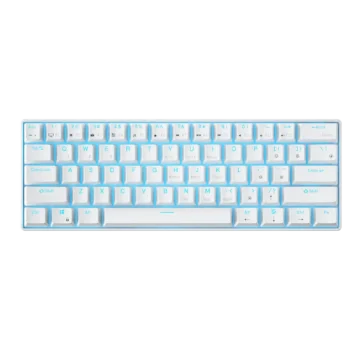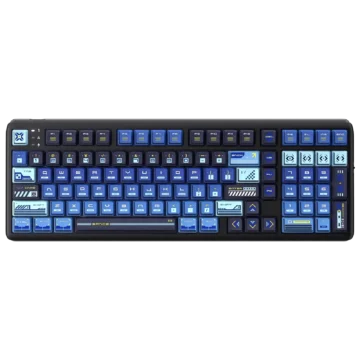
| Field | Details |
| Document Title | Mechanical Keyboard User Manual |
| Document Type | User Manual |
| Brand Name | Royal Kludge (RK) |
| Product Name | S98 Mechanical Keyboard |
| Model Number(s) | S98; Bluetooth Device Name: RK-S98 RGB |
| PDF File Size | 157.17 MB |
| Number of Pages | 92 |
| Languages Covered | English, Traditional Chinese, German, Russian, French, Spanish, Italian, Japanese, Korean, Turkish, Thai, Arabic, Portuguese (Brazil) |
Royal Kludge S98 Mechanical Keyboard
The Royal Kludge S98 is a 98% layout mechanical keyboard featuring RGB backlighting, a built-in display screen, and three connection modes: USB wired, Bluetooth, and 2.4 GHz wireless. The keyboard supports Windows and Mac keyboard layouts, customizable lighting effects, multimedia shortcuts, and a multifunction rotary knob for volume adjustment and display settings.
The S98 mechanical keyboard features a display that shows connection status, operating mode, system layout, and keyboard indicators. The display can also show the time or a customizable GIF image using the supported driver software.
Bluetooth connectivity supports up to three saved device groups, while the 2.4 GHz connection uses a USB receiver. The keyboard also includes shortcut combinations for switching between wireless devices, adjusting backlight brightness and speed, locking the Windows key, and restoring factory settings.
Technical Specifications
| Specification | Details |
| Brand | Royal Kludge (RK) |
| Product | S98 Mechanical Keyboard |
| Keyboard Layout | 98% |
| Dimensions | 410 × 141 × 43 mm (±2 mm) |
| Switch Type | Mechanical Switches |
| Backlighting | RGB |
| Connection Modes | USB Wired, Bluetooth, 2.4 GHz Wireless |
| Bluetooth Device Name | RK-S98 RGB |
| Bluetooth Profiles | BT1, BT2, BT3 |
| Display | Built-in Status and Settings Screen |
| Display Functions | Time, Connection Status, Volume, Settings, Custom GIF |
| Operating System Layouts | Windows and Mac |
| Charging Power Supply | 5V, 3A |
| Wired Connector | USB Type-C |
| Additional Connector Label | USB HUB |
| Wireless Receiver | 2.4 GHz USB Dongle |
| Main Control | Clickable Rotary Knob |
Keyboard Parts and Components
The S98 mechanical keyboard includes several controls for selecting connection modes, adjusting settings, and monitoring keyboard status.
| Component | Function |
| Mechanical Keys | Provide keyboard input |
| RGB Backlighting | Illuminates the keys with adjustable effects and colors |
| Display Screen | Shows operating mode, time, volume, and settings |
| Rotary Knob | Adjusts volume and controls the display menu |
| ON/OFF Switch | Controls wireless operation |
| Upper-Left Mode Switch | Quickly switches between wired and 2.4 GHz modes |
| USB Type-C Port | Provides the wired connection and charging |
| USB HUB Connector | Additional connector identified on the keyboard |
| 2.4G Dongle Storage Area | Stores the wireless USB receiver |
| Num Indicator | Indicates Num Lock status |
| Caps Indicator | Indicates Caps Lock status |
| Win Indicator | Indicates Windows key lock status |
Upper-Left Connection Mode Switch
The upper-left switch provides quick access to two connection modes.
| Switch Position | Connection Mode |
| Up | 2.4 GHz Wireless |
| Down | USB Wired |
After the connection mode changes successfully, the display shows the corresponding connection status.
Keyboard Indicator Lights
The keyboard includes three lock-status indicators.
| Indicator | Meaning |
| Num | Num Lock |
| Caps | Caps Lock |
| Win | Windows Key Lock |
The screen also displays status icons for these functions.
Charging and Power Connection
The Royal Kludge S98 supports charging through a 5V, 3A power supply.
Charging the Keyboard
- Locate the USB Type-C connector on the keyboard.
- Connect the USB cable to the Type-C port.
- Connect the cable to the supported 5V, 3A power supply.
The Type-C connector also supports wired keyboard operation.
Connection Modes
The S98 supports three connection methods.
| Mode | Connection Method |
| Wired | USB Type-C Cable |
| Bluetooth | BT1, BT2, or BT3 |
| 2.4 GHz Wireless | USB Receiver |
The display provides connection messages during pairing, linking, and successful connection.
How to Connect the S98 Keyboard Using USB
The wired connection uses the keyboard’s USB Type-C interface.
Wired Connection Instructions
- Set the keyboard’s power switch to OFF.
- Connect the USB cable to the Type-C port on the keyboard.
- Connect the other end of the cable to the host device.
- Move the upper-left mode switch downward to select wired connection.
- Confirm that the display shows USB Success.
When the connection is established, the keyboard operates in wired mode.
How to Connect the S98 Keyboard via Bluetooth
The S98 can store three Bluetooth device groups using BT1, BT2, and BT3.
Bluetooth pairing can be performed using either the rotary knob or keyboard shortcuts.
Bluetooth Pairing Using the Rotary Knob
- Move the keyboard’s power switch to ON.
- Press the rotary knob to enter the settings menu.
- Rotate the knob to select BT1, BT2, or BT3.
- Press and hold the knob to enter Bluetooth pairing mode.
- Confirm that the screen displays the selected pairing status, such as BT1 Pairing.
- Enable Bluetooth on the computer or other host device.
- Search for available Bluetooth devices.
- Select RK-S98 RGB.
- Complete the Bluetooth connection.
After a successful connection, the keyboard display automatically returns to the main interface.
Bluetooth Pairing Using Keyboard Shortcuts
The keyboard provides three shortcuts corresponding to its Bluetooth profiles.
| Bluetooth Profile | Shortcut | Hold Duration |
| BT1 | Fn + Q | 3 seconds |
| BT2 | Fn + W | 3 seconds |
| BT3 | Fn + E | 3 seconds |
To pair using a shortcut:
- Move the power switch to ON.
- Press and hold the desired Bluetooth shortcut for three seconds.
- Confirm that the display shows the corresponding pairing message.
- Enable Bluetooth on the host device.
- Select RK-S98 RGB from the available Bluetooth devices.
- Complete pairing.
For example, holding Fn + Q for three seconds displays BT1 Pairing.
Reconnecting to a Bluetooth Device
Previously paired Bluetooth devices can be reconnected without starting a new pairing process.
Using the rotary knob:
- Select the required Bluetooth profile.
- Press the knob briefly.
- The display shows the corresponding linking message, such as BT1 Linking.
Using keyboard shortcuts:
| Shortcut | Function |
| Short Press Fn + Q | Reconnect BT1 |
| Short Press Fn + W | Reconnect BT2 |
| Short Press Fn + E | Reconnect BT3 |
The keyboard displays the selected profile’s linking status while reconnecting.
Switching Between Three Bluetooth Devices
The keyboard stores three groups of paired Bluetooth devices.
To switch between devices:
- Pair the required devices with BT1, BT2, and BT3.
- Use the appropriate shortcut or rotary knob selection.
- Allow the keyboard to reconnect to the selected device.
The three Bluetooth groups should be paired before switching between them.
How to Connect the S98 Keyboard Using 2.4 GHz Wireless
The 2.4 GHz wireless connection uses the keyboard’s USB dongle.
The receiver has a dedicated storage area on the keyboard.
Connecting Using the Rotary Knob
- Move the power switch to ON.
- Press the rotary knob to access the settings menu.
- Rotate the knob to select the 2.4G Mode icon.
- Press the knob briefly.
- The screen displays 2.4G Linking.
- The keyboard attempts to connect through the 2.4 GHz wireless receiver.
When the connection succeeds, the display shows 2.4G Success and automatically returns to the home screen.
Connecting Using the Mode Switch
- Move the power switch to ON.
- Push the upper-left mode switch upward.
- The display shows 2.4G Linking while the keyboard reconnects.
- After a successful connection, the screen shows 2.4G Success.
Pairing the 2.4 GHz USB Receiver
The 2.4 GHz receiver is paired with the keyboard at the factory. A new pairing procedure is normally unnecessary.
If pairing is required, the rotary knob can be used.
- Move the power switch to ON.
- Open the settings menu using the rotary knob.
- Select 2.4G Mode.
- Press and hold the rotary knob.
- Confirm that the display shows 2.4G Pairing.
- Insert the 2.4 GHz USB dongle into the host device.
- Wait for the display to show 2.4G Success.
The keyboard automatically returns to its home screen after successful pairing.
Pairing Using Fn + P
The 2.4 GHz pairing function is also available through a keyboard shortcut.
- Press and hold Fn + P for three seconds.
- Confirm that the display shows 2.4G Pairing.
- Insert the 2.4 GHz receiver.
- Wait for the 2.4G Success message.
2.4 GHz Connection Messages
| Display Message | Meaning |
| 2.4G Linking | Keyboard is reconnecting |
| 2.4G Pairing | Receiver pairing mode is active |
| 2.4G Success | Wireless connection is established |
Using the Rotary Knob
The S98 features a clickable rotary knob that controls volume and provides access to the keyboard’s settings menu.
Adjusting Volume
Volume adjustment is the default knob function after the keyboard is powered on.
| Knob Action | Function |
| Rotate Clockwise | Increase volume |
| Rotate Counterclockwise | Decrease volume |
| Short Press | Enter settings or confirm selection |
Opening the Settings Menu
- Press the rotary knob.
- Rotate the knob to move through the available settings.
- Press the knob briefly to confirm a selection.
- Adjust the selected function using the knob.
The settings menu provides controls for connection modes, the home screen, system layout, display language, and RGB lighting.
Setting the Date and Time
The display supports manual date and time adjustment.
How to Set the Time on the S98 Keyboard
- Open the main time display.
- Press and hold the rotary knob for approximately five seconds.
- Wait until the year begins flashing.
- Rotate the knob clockwise to increase the selected value.
- Rotate it counterclockwise to decrease the value.
- Press the knob briefly to move through the date and time fields.
- Adjust the values until the correct date and time are displayed.
- Press and hold the knob for approximately five seconds to save and exit.
Alternatively, press Fn + T briefly to save the settings and exit.
Date and Time Formats
| Setting | Display Format |
| Date | YY/MM/DD |
| Time | HH/MM/SS |
Display Screen Functions and Indicators
The built-in screen shows information about the keyboard’s current connection mode, operating system layout, and active keyboard settings.
Display Icons and Meanings
| Display Icon or Label | Meaning |
| WIN | Windows Layout |
| MAC | Mac Layout |
| Volume | Volume Adjustment |
| Wired Mode | USB Connection |
| BT | Bluetooth Connection |
| 2.4G | 2.4 GHz Wireless Connection |
| Win Lock | Windows Key Locked |
| Caps Lock | Caps Lock Active |
| Num Lock | Num Lock Active |
Home Screen Settings
The keyboard’s main screen supports two display options:
- Time display
- Customizable GIF image with driver support
The home-screen settings also include Windows/Mac layout selection and display-language selection.
Changing the Display Language
- Press the knob to open the settings menu.
- Locate the Home/Layout/Language settings.
- Select the language option.
- Rotate the knob to choose the required language.
- Press the knob to confirm.
The English-language instructions identify English and Chinese as menu language choices. Other localized versions of the manual describe English and their corresponding language.
Changing Between Windows and Mac Layouts
The keyboard provides shortcuts for selecting the operating system layout.
| Shortcut | Function |
| Fn + A | Switch to Windows Layout |
| Fn + S | Switch to Mac Layout |
The display indicates the selected system layout as WIN or MAC.
The Windows and Mac layouts use different multimedia functions for some function keys.
RGB Backlighting Settings
The S98 includes RGB backlighting with adjustable effects, colors, brightness, and effect speed.
These settings can be changed through the rotary knob or supported key combinations.
Changing RGB Lighting Effects
- Press the knob to open the settings menu.
- Select Effect.
- Press the knob to open the effect settings.
- Rotate the knob to choose a lighting effect.
Changing RGB Lighting Colors
- Open the settings menu.
- Select Colour.
- Press the knob.
- Rotate the knob to select the desired backlight color.
Adjusting Backlight Brightness
- Open the settings menu.
- Select Brightness.
- Press the knob.
- Rotate it to adjust the lighting brightness.
Adjusting Backlight Effect Speed
- Open the settings menu.
- Select Speed.
- Press the knob.
- Rotate it to adjust the effect speed.
RGB Backlight Keyboard Shortcuts
The S98 supports the following backlight-control shortcuts.
| Shortcut | Function |
| Fn + ↑ | Increase Backlight Brightness |
| Fn + ↓ | Decrease Backlight Brightness |
| Fn + ← | Decrease Backlight Effect Speed |
| Fn + → | Increase Backlight Effect Speed |
| Fn + , (Comma Key) | Switch Backlight Color |
| Fn + \ (Backslash Key) | Switch Backlight Mode |
Setting Custom RGB Backlighting
The keyboard supports a custom backlighting recording mode.
How to Customize the Keyboard Backlight
- Press Fn + 1 to select the custom backlight setting.
- Press Fn + Back to enter backlight recording mode.
- The keyboard backlight turns off, indicating that recording has started.
- Press the keys to be included in the custom lighting arrangement.
- Repeat the selection for the required keys.
- Press Fn + Back again to save the settings and exit recording mode.
Windows Keyboard Shortcuts
The keyboard includes shortcuts for system functions, screen operations, and Windows key locking.
Secondary Function Keys
| Shortcut | Function |
| Fn + Del | Scroll Lock |
| Fn + PgUp | Pause |
| Fn + PgDn | End |
| Fn + Home | Print Screen |
| Fn + ] | Insert |
| Fn + Win | Windows Key Lock |
| Fn + A | Windows Layout |
| Fn + S | Mac Layout |
Windows Multimedia Shortcuts
When Windows layout is selected with Fn + A, the following multimedia shortcuts are available.
| Shortcut | Function |
| Fn + F1 | Computer |
| Fn + F2 | Browser |
| Fn + F3 | Mailbox |
| Fn + F4 | Calculator |
| Fn + F5 | Media Player |
| Fn + F6 | Stop |
| Fn + F7 | Previous Track |
| Fn + F8 | Play/Pause |
| Fn + F9 | Next Track |
| Fn + F10 | Mute |
| Fn + F11 | Decrease Volume |
| Fn + F12 | Increase Volume |
Mac Keyboard Shortcuts
The keyboard supports Mac-specific multimedia functions after selecting the Mac layout with Fn + S.
| Shortcut | Function |
| Fn + F1 | Decrease Screen Brightness |
| Fn + F2 | Increase Screen Brightness |
| Fn + F5 | Decrease Keyboard Backlight Brightness |
| Fn + F6 | Increase Keyboard Backlight Brightness |
| Fn + F7 | Previous Track |
| Fn + F8 | Play/Pause |
| Fn + F9 | Next Track |
| Fn + F10 | Mute |
| Fn + F11 | Decrease Volume |
| Fn + F12 | Increase Volume |
Windows Key Lock Function
The keyboard includes a Windows Lock function that changes the operating state of the Windows key.
Activating Windows Lock
Press Fn + Win.
The keyboard provides a Win Lock indicator to show its status.
Restoring Factory Settings
The S98 supports restoring its factory settings through a keyboard shortcut.
How to Reset the RK S98 Keyboard
- Locate the Fn key and Spacebar.
- Press and hold Fn + Spacebar for three seconds.
- The keyboard restores its factory settings.
Installing the RK S98 Driver
The S98 supports driver software for additional keyboard functions, including custom GIF display images and volume-display calibration.
Driver Download
The driver download address is:
https://en.rkgaming.com/download/1
The manufacturer also provides the website:
Volume Display Calibration
If the screen displays an incorrect volume level, the keyboard driver automatically calibrates the volume display when the driver is running.
Custom GIF Display
The keyboard display supports a customizable GIF image through the driver software.
The home-screen settings allow the display to be configured for time or a supported custom GIF image.
Troubleshooting and Connection Status
The keyboard’s connection messages and settings controls can be used to identify the current connection state.
| Issue or Status | Relevant Instruction |
| Bluetooth Device Needs Pairing | Hold Fn + Q, W, or E for three seconds to enter pairing for the selected BT profile |
| Previously Paired Bluetooth Device Needs Reconnecting | Briefly press Fn + Q, W, or E for the corresponding profile |
| 2.4 GHz Receiver Needs Pairing | Hold Fn + P for three seconds, then insert the USB receiver |
| Display Shows 2.4G Linking | The keyboard is attempting to reconnect |
| Display Shows 2.4G Pairing | The keyboard is in receiver pairing mode |
| Volume Display Is Incorrect | Run the supported keyboard driver for automatic calibration |
| Time or Date Needs Adjustment | Use the rotary knob’s manual time-setting function |
| Keyboard Settings Need Resetting | Hold Fn + Spacebar for three seconds |
Bluetooth Pairing and Reconnection
When connecting to a new Bluetooth device, the keyboard must enter pairing mode using a long press.
A short press on the Bluetooth profile shortcut starts reconnection to a previously paired device.
2.4 GHz Receiver Connection
The receiver is factory-paired with the keyboard. If pairing is needed again, Fn + P provides the documented pairing function.
A successful connection is confirmed by the 2.4G Success display message.
Incorrect Volume Display
The supported keyboard driver provides automatic calibration when the displayed volume level is incorrect.
Keyboard Factory Reset
The Fn + Spacebar shortcut restores factory settings when held for three seconds.
Safety Instructions
The keyboard should be operated and handled carefully to prevent damage, battery hazards, and interference.
Battery Safety
- Do not expose the battery to excessive heat, including direct sunlight or fire.
- Do not replace the battery with an incorrect type.
- Do not dispose of batteries in fire or a hot oven.
- Do not crush or cut batteries.
- Do not leave batteries in extremely high-temperature environments.
- Avoid conditions involving extremely low air pressure that may cause battery leakage or explosion.
Incorrect battery handling can result in the release of flammable liquids or gases.
General Safety
- Do not expose the keyboard to rain, water splashes, beverages, steam, or other liquids.
- Do not disassemble, modify, or attempt unauthorized repairs.
- Avoid excessive heat, humidity, and condensation.
- Keep the keyboard away from unstable surfaces, strong vibration, and excessive dust.
- Avoid locations with strong magnetic fields.
- Stop using the product if it becomes damaged, overheats abnormally, produces smoke, or develops an unusual smell.
Cleaning and Maintenance
Regular maintenance helps keep the mechanical keyboard comfortable to use.
Cleaning Instructions
- Clean the keyboard regularly to remove dust and dirt.
- Keep liquids away from the keyboard.
- Avoid excessive force when pressing the keys.
- Maintain a suitable operating environment.
Comfortable Keyboard Use
- Maintain proper posture during keyboard use.
- Avoid pressing keys with unnecessary force.
- Take regular breaks to reduce hand fatigue.
Storage Instructions
The keyboard should be stored in an environment away from excessive temperature, humidity, dust, and direct sunlight.
Avoid locations where the keyboard may be exposed to liquids, condensation, excessive vibration, or strong impacts.
The 2.4 GHz receiver can be placed in its designated storage compartment when not being used.
Regulatory Information
FCC Compliance
The keyboard complies with Part 15 of the FCC Rules.
Operation is subject to two conditions:
- The device must not cause harmful interference.
- The device must accept received interference, including interference that could affect its operation.
The equipment has been tested against applicable Class B digital device limits.
Reducing Radio Interference
If the keyboard equipment causes radio or television reception interference, the following measures are recommended:
- Reorient or relocate the receiving antenna.
- Increase the distance between the equipment and receiver.
- Connect the equipment to an outlet on a different electrical circuit.
- Consult the dealer or an experienced radio/TV technician.
ISED Compliance
The device contains licence-exempt radio equipment that complies with applicable Innovation, Science and Economic Development Canada requirements.
The device must not cause prohibited interference and must accept interference that may affect its operation.
Changes or modifications not approved by the responsible party may void the user’s authority to operate the equipment.
Manufacturer and Customer Support
The S98 mechanical keyboard is branded Royal Kludge.
Manufacturer Information
| Field | Details |
| Manufacturer | JingHeng TengWei (HuiZhou) Electronic Technology Co., Ltd. |
| Address | No. 8, Minying 1st Road, Yuanzhou Town, Boluo County, Huizhou City, Guangdong Province, China |
| Executive Standard | GB/T 14081-2010 |
Support Resources
| Resource | Details |
| Brand Website | www.rkgaming.com |
| Driver Downloads | https://en.rkgaming.com/download/1/ |
For product issues or questions, customers can contact Royal Kludge through its support channels.
Frequently Asked Questions
1. How do I connect the Royal Kludge S98 keyboard using Bluetooth?
Move the power switch to ON, then press and hold Fn + Q, Fn + W, or Fn + E for three seconds. When the display shows the corresponding pairing message, enable Bluetooth on the host device and select RK-S98 RGB.
2. How do I connect the S98 keyboard with the 2.4 GHz USB receiver?
Move the power switch to ON and push the upper-left mode switch upward. The display shows 2.4G Linking. When connected, it displays 2.4G Success. The receiver is paired at the factory.
3. How do I reset the Royal Kludge S98 keyboard?
Press and hold Fn + Spacebar for three seconds to restore the keyboard’s factory settings.
4. How do I change the RGB backlight on the S98?
Use Fn + ↑ or Fn + ↓ to change brightness, Fn + ← or Fn + → to adjust effect speed, Fn + Comma to change color, and Fn + Backslash to change the lighting mode. Lighting can also be adjusted through the rotary knob menu.
5. How do I set the time on the S98 keyboard screen?
Open the time display, hold the rotary knob for approximately five seconds, and rotate it to adjust the values. Press the knob to move between fields. Hold it again for five seconds or press Fn + T to save.
6. How many Bluetooth devices can the S98 keyboard store?
The keyboard supports three Bluetooth device groups: BT1, BT2, and BT3. Their shortcuts are Fn + Q, Fn + W, and Fn + E, respectively.
7. How do I switch the S98 between Windows and Mac modes?
Press Fn + A to select Windows layout or Fn + S to select Mac layout. The display shows the selected operating system mode.
8. Where can I download the Royal Kludge S98 keyboard driver?
The driver download address is https://en.rkgaming.com/download/1/. The driver supports functions including customizable GIF display images and automatic volume-display calibration.