| Field | Details |
| Document Title | Royal Kludge Mechanical Keyboard User Manual |
| Document Type | User Manual |
| Brand Name | Royal Kludge (RK) |
| Product Name | RK61 Mechanical Keyboard |
| Model Number(s) | RK61 |
| PDF File Size | 2.70 MB |
| Number of Pages | 1 |
| Languages Covered | English, German, Japanese |
Royal Kludge RK61 Mechanical Keyboard
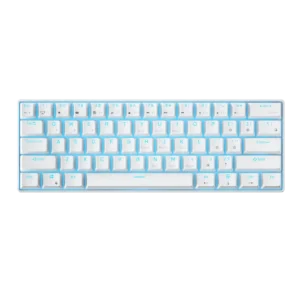
The Royal Kludge RK61 is a compact 61-key mechanical keyboard designed for wired and wireless operation. It features a 60% keyboard layout, mechanical switches, LED backlighting, and support for Windows and Mac keyboard functions.
The RK61 supports three connection methods: USB wired, Bluetooth, and 2.4GHz wireless. Bluetooth mode allows switching between three paired devices using the Fn + Q, Fn + W, and Fn + E shortcuts. The 2.4GHz wireless mode uses a USB receiver, while wired operation connects through a USB Type-C cable.
The keyboard includes secondary functions for arrow keys, navigation controls, multimedia playback, volume adjustment, and lighting settings. Users can switch between Windows and Mac layouts and change the primary and secondary functions of combination keys.
The following instructions cover the RK61 keyboard’s components, charging indicators, wired and wireless connections, supported systems, backlight controls, function keys, and operating shortcuts.
Product Overview and Technical Specifications
| Specification | Details |
| Brand | Royal Kludge (RK) |
| Model | RK61 |
| Product Type | Mechanical Keyboard |
| Keyboard Layout | 61 Keys (60% Layout) |
| Dimensions | 289 × 103 × 39 mm (±2 mm) |
| Key Switch Type | Mechanical |
| Backlight | LED |
| RGB Color Selection | RGB Version Only |
| Connection Modes | Wired USB, Bluetooth, 2.4GHz Wireless |
| Wired Connection | USB Type-C |
| Wireless Modes | Bluetooth and 2.4GHz Receiver |
| Bluetooth Profiles | 3 Device Profiles |
| Operating System Layouts | Windows and Mac |
| Charging Interface | USB Type-C |
| Keyboard Controls | Fn Key Combinations |
What’s Included in the Box
The RK61 package illustration identifies the following items:
| Item | Description |
| RK61 Mechanical Keyboard | 61-key mechanical keyboard |
| USB Type-C Cable | Used for wired connection and charging |
| User Manual | Operating and keyboard shortcut instructions |
The keyboard also includes a receiver storage compartment for its 2.4GHz USB dongle.
Parts and Components
The RK61 includes a compact key arrangement with secondary functions printed on selected keys.
Main Keyboard Components
| Component | Function |
| Mechanical Keys | Provide standard typing input |
| Fn Key | Activates secondary keyboard functions |
| USB Type-C Port | Supports wired operation and charging |
| ON/OFF Switch | Controls wireless power |
| B/G Mode Switch | Selects Bluetooth or 2.4GHz wireless operation |
| LED Backlight | Provides keyboard illumination |
| Number Keys | Provide numeric input and F1–F12 shortcuts |
| Navigation Keys | Provide secondary arrow and navigation functions |
| Receiver Storage Compartment | Holds the 2.4GHz USB receiver |
Wireless Connection Switches
The keyboard has two switches used for wireless operation.
The first switch controls wireless power and is labeled OFF/ON. The second switch selects the wireless connection type.
| Switch | Position | Function |
| Power Switch | OFF | Wired Mode |
| Power Switch | ON | Enables Wireless Operation |
| Connection Switch | B | Bluetooth |
| Connection Switch | G | 2.4GHz Wireless |
Before First Use
The keyboard should be fully charged before its first use.
Initial Preparation
- Remove the keyboard and accessories from the packaging.
- Locate the USB Type-C port on the keyboard.
- Connect the supplied USB cable.
- Connect the cable to an available USB port on the computer.
- Allow the keyboard to charge fully before wireless operation.
- Select the required connection mode.
The keyboard can operate through USB while connected to a compatible computer.
Wired USB Connection and Charging
How to Connect the RK61 in Wired Mode
- Move the keyboard’s power switch to OFF.
- Connect the USB Type-C cable to the keyboard.
- Connect the USB-A end to an available USB port on the computer.
- The keyboard enters wired operation.
The connection diagram shows wired operation with the keyboard switch set to OFF.
Charging Indicator
The RK61 uses a flashing light to show the battery’s charging condition.
| Indicator Behavior | Meaning |
| Flashes Three Times After USB Connection | Keyboard is charging |
| Flashes Five Times | Keyboard is fully charged |
The light sequence distinguishes active charging from a completed charge.
Bluetooth Connection
The RK61 supports Bluetooth connections with compatible computers, tablets, and mobile devices.
Three Bluetooth profiles are available through Fn + Q, Fn + W, and Fn + E.
How to Pair the RK61 via Bluetooth
- Move the keyboard’s power switch to ON.
- Set the wireless connection switch to B.
- Choose one of the three Bluetooth profiles.
- Press and hold the corresponding key combination to enter pairing mode.
- Enable Bluetooth on the computer, tablet, or phone.
- Complete the connection through the host device’s Bluetooth settings.
Bluetooth Profile Shortcuts
| Shortcut | Bluetooth Profile | Function |
| Fn + Q | Profile 1 | Pair or switch to the first device |
| Fn + W | Profile 2 | Pair or switch to the second device |
| Fn + E | Profile 3 | Pair or switch to the third device |
Bluetooth Pairing and Switching
The same combinations provide different actions depending on how long the keys are pressed.
| Key Action | Function |
| Short Press Fn + Q/W/E | Switch to the corresponding Bluetooth profile |
| Long Press Fn + Q/W/E | Enter Bluetooth pairing mode for that profile |
Switching Between Paired Bluetooth Devices
After pairing devices with the three Bluetooth profiles:
- Keep the keyboard powered on.
- Select Bluetooth mode using the B/G switch.
- Briefly press Fn + Q, Fn + W, or Fn + E.
- The keyboard switches to the selected profile.
The pairing operation is required when connecting a new device to a profile.
2.4GHz Wireless Connection
The RK61 supports a separate 2.4GHz wireless mode using a USB receiver.
How to Connect Using the 2.4GHz Receiver
- Move the power switch to ON.
- Move the B/G connection switch to G.
- Remove the 2.4GHz USB receiver from its storage compartment.
- Insert the receiver into an available USB port on the computer.
- Use the keyboard through its 2.4GHz wireless connection.
2.4GHz Receiver Storage
The keyboard includes a dedicated receiver storage compartment.
The receiver can be stored in this compartment when the keyboard is not being used in 2.4GHz mode.
LED Backlight Controls
The RK61 includes LED backlighting with keyboard shortcuts for switching lighting modes, changing brightness, and adjusting lighting-effect speed.
The RGB version also supports backlight color selection.
Backlight Keyboard Shortcuts
| Shortcut | Function |
| Fn + | Switch Backlight Mode |
| Fn + ] | Increase Backlight Brightness |
| Fn + [ | Decrease Backlight Brightness |
| Fn + . | Switch Backlight Color (RGB Version Only) |
| Fn + ‘ | Increase Backlight Effect Speed |
| Fn + ; | Decrease Backlight Effect Speed |
Changing the Backlight Mode
Press Fn + Backslash (\) to switch between the supported lighting modes.
Adjusting Backlight Brightness
- Press Fn + ] to increase brightness.
- Press Fn + [ to decrease brightness.
Changing Backlight Color
On the RGB version, press Fn + Period (.) to switch the backlight color.
Adjusting Backlight Effect Speed
- Press Fn + Apostrophe (‘) to increase the effect speed.
- Press Fn + Semicolon (;) to decrease the effect speed.
Special Function Keys
The RK61 uses secondary key functions to provide navigation controls that are normally available as dedicated keys on larger keyboards.
Navigation and System Shortcuts
| Shortcut | Function |
| Fn + Y | Print Screen |
| Fn + U | Scroll Lock |
| Fn + I | Pause |
| Fn + H | Insert |
| Fn + J | Home |
| Fn + K | Page Up |
| Fn + N | Delete |
| Fn + M | End |
| Fn + , | Page Down |
| Fn + Backspace | Delete |
These combinations provide additional key functions without increasing the keyboard’s physical size.
Arrow Key Function
The RK61 provides an alternate arrow-key mode using keys in the lower-right section.
How to Enable Arrow Key Mode
Press Fn + Enter to enter the arrow-key function.
The following keys perform directional input in this mode.
| Key | Direction |
| /? | Up |
| Right Alt | Left |
| Menu Key | Down |
| Right Ctrl | Right |
How to Disable Arrow Key Mode
Press Fn + Enter again to exit the arrow-key function.
The affected keys then return to their normal primary functions.
Windows and Mac System Modes
The keyboard supports different operating system layouts.
Switching Between Operating Systems
| Shortcut | Function |
| Fn + A | Switch to Windows Mode |
| Fn + S | Switch to Mac Mode |
The keyboard’s multimedia shortcuts operate according to the selected system mode.
Primary and Secondary Function Switching
The RK61 allows the primary functions and secondary functions of combination keys to be interchanged.
Function Switching Shortcut
Press Fn + Left Ctrl.
This changes which function of the relevant composite keys operates as the primary function.
The function applies to the keyboard’s Windows and Mac layouts.
Function Keys F1–F12
The compact keyboard provides the standard F1–F12 functions through Fn combinations with the number row.
F1–F12 Key Combinations
| Shortcut | Function |
| Fn + 1 | F1 |
| Fn + 2 | F2 |
| Fn + 3 | F3 |
| Fn + 4 | F4 |
| Fn + 5 | F5 |
| Fn + 6 | F6 |
| Fn + 7 | F7 |
| Fn + 8 | F8 |
| Fn + 9 | F9 |
| Fn + 0 | F10 |
| Fn + – | F11 |
| Fn + = | F12 |
Windows Multimedia Shortcuts
The Windows multimedia controls are available after switching to Windows mode using Fn + A.
The shortcuts use the keyboard’s F1–F12 functions. The primary/secondary function setting can be changed with Fn + Left Ctrl.
| Shortcut | Function |
| Fn + F1 | Computer |
| Fn + F2 | Browser |
| Fn + F3 | Mailbox |
| Fn + F4 | Calculator |
| Fn + F5 | Media Player |
| Fn + F6 | Stop |
| Fn + F7 | Previous Track |
| Fn + F8 | Play/Pause |
| Fn + F9 | Next Track |
| Fn + F10 | Mute |
| Fn + F11 | Decrease Volume |
| Fn + F12 | Increase Volume |
Mac Multimedia Shortcuts
After selecting Mac mode using Fn + S, the keyboard provides the following multimedia controls.
| Shortcut | Function |
| Fn + F7 | Previous Track |
| Fn + F8 | Play/Pause |
| Fn + F9 | Next Track |
| Fn + F10 | Mute |
| Fn + F11 | Decrease Volume |
| Fn + F12 | Increase Volume |
System Requirements and Compatibility
The RK61 supports different connection requirements depending on whether Bluetooth or USB/2.4GHz mode is used.
Bluetooth Mode Requirements
| Device or Platform | Requirement |
| Bluetooth Hardware | Bluetooth 3.0 or Later |
| Windows PC | Windows 7 or Later |
| Mac | Mac OS X 10.6 Snow Leopard or Later |
| iOS | iPads / iPhone 5 or Later |
| Android | Android 5.0 Lollipop or Later |
Wired and 2.4GHz Mode Requirements
| Device or Platform | Requirement |
| Host Computer | Available USB Port |
| Windows PC | Windows 7 or Later |
| Mac | Mac OS X 10.6 Snow Leopard or Later |
Connection and Charging Indicator Guide
The keyboard uses charging light patterns and switch positions to identify its operating condition.
| Condition | Indication or Required Selection |
| Wired Connection | Power Switch OFF |
| Bluetooth Connection | Power ON, Connection Switch B |
| 2.4GHz Connection | Power ON, Connection Switch G |
| Select Bluetooth Profile | Short Press Fn + Q/W/E |
| Enter Bluetooth Pairing | Long Press Fn + Q/W/E |
| Battery Charging | Light Flashes Three Times |
| Battery Fully Charged | Light Flashes Five Times |
Customer Support Information
Royal Kludge provides product assistance through its seller support channel.
For product problems or questions, customers should contact the seller.
Frequently Asked Questions
1. How do I connect the Royal Kludge RK61 using Bluetooth?
Move the keyboard’s power switch to ON and set the B/G switch to B. Press and hold Fn + Q, Fn + W, or Fn + E to enter the required Bluetooth pairing profile. Then enable Bluetooth on the host device and complete pairing.
2. How do I connect the RK61 using the 2.4GHz USB receiver?
Move the power switch to ON and set the connection switch to G. Insert the 2.4GHz receiver into an available USB port on the computer to use the wireless connection.
3. How do I switch between Bluetooth devices on the RK61?
The keyboard supports three Bluetooth profiles. Briefly press Fn + Q for the first profile, Fn + W for the second, or Fn + E for the third. A long press enters pairing mode.
4. How do I change the RK61 backlight settings?
Press Fn + Backslash to switch lighting modes. Use Fn + ] or Fn + [ to change brightness, and Fn + Apostrophe or Fn + Semicolon to adjust effect speed. The RGB version also supports color switching with Fn + Period.
5. How do I enable arrow keys on the RK61?
Press Fn + Enter to activate the arrow-key function. The /? key operates as Up, Right Alt as Left, Menu as Down, and Right Ctrl as Right. Press Fn + Enter again to return to the normal key functions.
6. How do I know when the RK61 is fully charged?
The charging indicator flashes three times after USB connection to indicate charging. It flashes five times when the keyboard is fully charged.
7. How do I switch between Windows and Mac modes?
Press Fn + A to switch to Windows mode or Fn + S to switch to Mac mode.
8. How do I use F1–F12 on the RK61?
Hold Fn and press the corresponding number-row key. Fn + 1 through Fn + 0 provide F1 through F10, while Fn + Minus provides F11 and Fn + Equals provides F12. The primary and secondary functions can also be interchanged using Fn + Left Ctrl.