| Document Detail | Information |
| Document Title | Smart Wi-Fi LED Strip Start Guide |
| Document Type | Start Guide |
| Brand Name | Merkury Innovations |
| Product Name | Smart Wi-Fi LED Strip |
| Model Number(s) | EW010 |
| PDF File Size | 2 MB |
| Number of Pages | 11 |
| Languages | English |
Merkury Smart Wi-Fi LED Strip EW010
The Merkury Smart Wi-Fi LED Strip EW010 is a connected LED lighting strip that works with the Geeni mobile application. It connects to a compatible 2.4 GHz Wi-Fi network, allowing the strip to be managed through a smartphone or tablet. It also supports voice control through Amazon Alexa and Google Assistant when connected to the appropriate services.
The LED strip measures 79 inches in length and can be cut at designated 10 cm intervals. It includes an adhesive backing for installation on suitable surfaces, along with anchor mounts for additional support.
The strip connects to a Wi-Fi controller with a built-in power and reset button. Initial setup requires the Geeni app, the home Wi-Fi network name and password, and a compatible mobile device.
Two wireless connection methods are available: Easy Mode and AP Mode. Easy Mode is the primary method, while AP Mode provides an alternative when the initial connection is unsuccessful.
Product Overview
The Merkury EW010 Smart Wi-Fi LED Strip combines flexible LED lighting with wireless control through the Geeni app.
It is designed for mounting on suitable clean surfaces using its adhesive backing or supplied anchor mounts. The strip can be shortened at marked cutting points to fit the intended installation length.
Main Features
- Smart Wi-Fi connectivity: Connects through a 2.4 GHz wireless network.
- Geeni app control: Supports management through a compatible smartphone or tablet.
- 79-inch LED strip: Provides a flexible lighting strip for surface installation.
- Cuttable design: Can be shortened at designated 10 cm intervals.
- Adhesive backing: Allows installation on compatible clean, dry surfaces.
- Anchor mounts: Provide another installation method.
- Wi-Fi controller: Includes a button for power control and reset.
- Easy Mode pairing: Uses a fast-blinking indicator for primary Wi-Fi setup.
- AP Mode pairing: Uses a slow-blinking indicator for backup setup.
- Voice assistant support: Works with Google Assistant and Amazon Alexa.
- Device sharing: Allows authorized family members or friends to control the device.
- Device grouping: Allows compatible Merkury devices to be managed together.
- Device renaming: Supports recognizable names through Geeni.
- Firmware update checking: Available through the device settings in Geeni.
What’s Included in the Box
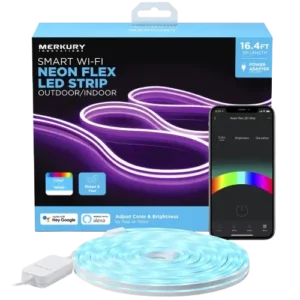
The Merkury Smart Wi-Fi LED Strip package contains the following components.
| Item | Description |
| Smart Wi-Fi LED Strip | Main flexible LED lighting strip |
| Wi-Fi Controller | Connects the strip to power and Wi-Fi |
| Power Adapter | Supplies electrical power |
| Anchor Mounts | Provide additional mounting support |
| User Manual | Contains setup and operating instructions |
| Review Card | Product feedback card |
The anchor mounts are supplied with mounting hardware and adhesive backing.
Parts and Components
The LED strip system includes a lighting strip, Wi-Fi controller, power adapter, and mounting accessories.
| Component | Function |
| LED Strip | Produces light |
| Power Adapter | Supplies electrical power |
| Wi-Fi Controller | Controls power and wireless connectivity |
| Controller Button | Turns the strip on or off and resets the Wi-Fi connection |
| LED Input Connector | Connects the lighting strip to the controller |
| Adhesive Backing | Attaches the strip to a suitable surface |
| Cutting Marks | Indicate permitted cutting locations |
| Anchor Mounts | Secure the strip to the mounting surface |
| Mounting Screws | Secure anchor mounts when using screw installation |
Wi-Fi Controller
The controller is positioned between the power adapter and LED strip.
Its button provides two functions:
- Press: Turn the strip on or off.
- Press and hold: Reset the connection mode.
The controller is also used when switching between Easy Mode and AP Mode.
LED Strip Connector
The LED strip attaches to the controller through its designated connector.
The strip must be measured and cut starting from the end closest to this connection.
Cutting Marks
The strip can be cut at designated intervals of 10 cm.
Cutting from the incorrect end may prevent the remaining strip from connecting to the Wi-Fi controller.
Technical Specifications
| Specification | Details |
| Brand | Merkury Innovations |
| Product Name | Smart Wi-Fi LED Strip |
| Model Number | EW010 |
| Product Type | Smart LED Light Strip |
| Strip Size | 0.5 × 79 Inches |
| Cutting Interval | Every 10 cm |
| Input Voltage | 100–240V |
| Input Frequency | 50/60 Hz |
| Listed LED Lifespan | 10,000 Hours |
| LED Strip Protection Rating | IP44 |
| Wi-Fi Controller Protection Rating | IP20 |
| Wireless Standard | IEEE 802.11n |
| Wi-Fi Frequency | 2.4 GHz |
| 5 GHz Wi-Fi Support | Not Supported |
| Mobile Application | Geeni |
| iOS Requirement | iOS 9 or Higher |
| Android Requirement | Android 5.0 or Higher |
| Primary Pairing Method | Easy Mode |
| Backup Pairing Method | AP Mode |
| Easy Mode Indicator | Flashes 2 Times Per Second |
| AP Mode Indicator | Flashes Once Every 3 Seconds |
| Voice Assistant Support | Google Assistant, Amazon Alexa |
| Mounting Methods | Adhesive Backing, Anchor Mounts |
| FCC Compliance | Part 15, Class B Digital Device |
Important Safety Instructions
The Merkury Smart Wi-Fi LED Strip uses electrical power and must be installed according to the specified precautions.
Electrical Safety
Warning: Risk of electric shock or burns. Use in a dry location only.
- Disconnect the strip from electrical power before making modifications.
- Do not handle electrical connections while the device is powered.
- Keep the controller and electrical connections away from water.
- Use the supplied power adapter and accessories.
- Do not immerse the LED strip in water.
- Follow the manufacturer’s installation instructions before operating the strip.
Water Resistance Precautions
The LED strip has an IP44 rating, while the Wi-Fi controller has an IP20 rating.
| Component | Protection Rating |
| LED Strip | IP44 |
| Wi-Fi Controller | IP20 |
The IP44 rating protects the LED strip against splashes from different directions.
Important: The strip must not be immersed in water. The IP44 rating does not make the entire lighting system waterproof.
Installation Safety
- Disconnect electrical power before cutting or modifying the strip.
- Measure the required length carefully before cutting.
- Cut only at the designated cutting intervals.
- Avoid damaging electrical connections while installing the strip.
- Use a clean, dry mounting surface.
- Follow the supplied anchor mounting instructions when using the mounts.
Radio Frequency Exposure
The FCC instructions specify maintaining at least 20 cm separation between the device’s radio-frequency radiator and the user’s body during installation and operation.
Use only the supplied antenna.
Before First Use
Before connecting the LED strip to the Geeni app, prepare the power supply, installation surface, Wi-Fi connection, and mobile device.
Setup Requirements
| Requirement | Details |
| Smartphone or Tablet | iOS 9+ or Android 5.0+ |
| Mobile Application | Geeni |
| Wi-Fi Network | 2.4 GHz |
| Network Credentials | Wi-Fi Name and Password |
| Power Supply | Supplied Power Adapter |
| Mounting Surface | Clean, Dry, Suitable Surface |
| Installation Materials | Adhesive Backing or Anchor Mounts |
Initial Preparation
- Remove the LED strip and accessories from the packaging.
- Identify the Wi-Fi controller and power adapter.
- Check the desired installation location.
- Measure the length required.
- Locate the designated cutting marks if the strip needs shortening.
- Prepare the mounting surface.
- Connect the strip to its controller.
- Connect the power adapter.
- Prepare the Geeni app for Wi-Fi pairing.
Important: The Geeni connection requires a 2.4 GHz Wi-Fi network. It cannot connect through a 5 GHz network.
LED Strip Setup Instructions
The lighting strip must be connected to the Wi-Fi controller and power adapter before wireless setup.
How to Connect the LED Strip
- Identify the LED input connector on the Wi-Fi controller.
- Connect the LED strip to the designated input.
- Connect the power adapter to the controller.
- Connect the power adapter to a compatible power outlet.
- Check that the strip receives power.
The controller button can be pressed to turn the strip on or off.
Controller Button Functions
| Button Action | Function |
| Press Once | Turn LED Strip On or Off |
| Press and Hold | Reset the LED Strip |
| Hold Reset to Enter Easy Mode | Fast Blinking |
| Reset Again to Enter AP Mode | Slow Blinking |
How to Measure and Cut the LED Strip
The Merkury EW010 LED strip can be shortened at designated cutting locations.
Cutting Instructions
- Disconnect the strip from electrical power.
- Measure the required installation length.
- Begin measuring from the end closest to the Wi-Fi controller connector.
- Locate the designated cutting marks.
- Cut only at an appropriate marked position.
- Continue with installation using the connector end of the strip.
LED Strip Cutting Distance
| Cutting Detail | Requirement |
| Cutting Interval | Every 10 cm |
| Starting Position | End Closest to Wi-Fi Controller |
| Cutting Location | Designated Cutting Points |
| Power During Modification | Disconnected |
Important: If the strip is measured and cut from the opposite end, the remaining strip cannot be connected to the Wi-Fi controller using the documented connection method.
LED Strip Adhesive Installation
The LED strip includes an adhesive backing for mounting on compatible surfaces.
Step 1: Prepare the Surface
- Select the intended installation area.
- Clean the surface thoroughly using standard rubbing alcohol.
- Allow the surface to dry completely.
The mounting surface must be clean and solid before installation.
Step 2: Remove the Adhesive Liner
- Locate the adhesive liner on the back of the LED strip.
- Peel the liner away.
- Avoid damaging the strip while removing the backing.
Step 3: Attach the LED Strip
- Position the strip against the prepared surface.
- Press each section firmly against the surface.
- Hold each section for at least 30 seconds to establish a strong bond.
Adhesive Installation Precautions
The 3M adhesive may not adhere properly to:
- Vinyl surfaces.
- Delicate wallpaper.
Check surface suitability before applying the strip.
Installation Using Anchor Mounts
The supplied anchor mounts offer an alternative to adhesive-only installation.
How to Install the Anchor Mounts
- Identify the positions where additional mounting support is required.
- Select the anchor mounting method.
- Secure the mounts using a standard Phillips-head screwdriver and the supplied screws, or use the adhesive backing.
- Place the LED strip along each installed mount.
- Lock the strip into the mounts.
The mounting screws and adhesive backing are provided with the anchor mounts.
Downloading the Geeni App
The Geeni mobile application is required for Wi-Fi setup and smart control.
How to Download Geeni
- Open the App Store on an iPhone or Google Play on an Android device.
- Search for Geeni.
- Download the application.
- Install and open Geeni.
Supported Mobile Devices
| Platform | Minimum Version |
| iOS | 9 |
| Android | 5.0 |
How to Register a Geeni Account
A Geeni account is required for the connection procedure described in the guide.
Registration Instructions
- Open the Geeni app.
- Select Register.
- Enter a mobile phone number or email address.
- Tap Continue.
- Enter the verification code.
- Create an account password.
- Complete registration.
Sign In
- Open Geeni.
- Enter the registered mobile number or email address.
- Enter the password.
- Tap Login.
After signing in, the Devices screen can be used to add the LED strip.
Wi-Fi Connection Modes
The Merkury Smart Wi-Fi LED Strip supports two wireless setup methods.
| Mode | Purpose | Blinking Pattern |
| Easy Mode | Primary Wi-Fi Connection | Fast, Twice Per Second |
| AP Mode | Backup Wi-Fi Connection | Slow, Once Every 3 Seconds |
Easy Mode
Easy Mode is the first connection method to try.
The LED indicator flashes quickly when the device is ready for this setup.
AP Mode
AP Mode is used when Easy Mode cannot complete the connection.
The LED indicator flashes slowly during AP Mode.
How to Connect the LED Strip in Easy Mode
Step 1: Open Geeni
- Open the Geeni application.
- Sign in to the account.
- Go to the Devices screen.
- Tap the + icon in the upper corner.
- Select Smart LED Strip.
Step 2: Activate Easy Mode
- Check that the LED indicator is flashing quickly.
- If it is not, press and hold the controller reset button.
- Continue until the strip enters Easy Mode.
- Confirm that the indicator flashes approximately twice per second.
Step 3: Confirm the Connection Mode
- Return to the Geeni app.
- Confirm that the light is blinking quickly.
- Tap Next Step.
Step 4: Enter Wi-Fi Details
- Select the 2.4 GHz Wi-Fi network.
- Enter the network password.
- Confirm the details.
- Continue with the setup.
Step 5: Complete the Connection
Geeni will attempt to connect to the LED strip.
Once connected, the device can be managed through the Geeni app.
If Easy Mode cannot complete the connection, use AP Mode.
How to Connect the LED Strip Using AP Mode
AP Mode provides an alternative setup method.
Step 1: Activate AP Mode
- Make sure the LED strip is powered on.
- Press and hold the controller reset button to enter Easy Mode.
- Press and hold the reset button again to switch to AP Mode.
- Check that the light is blinking slowly, approximately once every 3 seconds.
Step 2: Select AP Mode in Geeni
- Open Geeni.
- Go to the Devices screen.
- Tap the + icon.
- Choose Smart Lighting.
- Select AP Mode in the upper corner.
Step 3: Enter Wi-Fi Information
- Tap Next.
- Select the home Wi-Fi network.
- Enter the Wi-Fi password.
- Continue with the instructions.
Step 4: Connect to the Temporary Wi-Fi Network
- Follow the instructions displayed in Geeni.
- Open the mobile device’s Wi-Fi settings when prompted.
- Choose the temporary device Wi-Fi network.
- Return to Geeni.
The guide illustrates temporary connection names such as Merkury-XXXX and Geeni-XXXX.
Step 5: Finish Setup
The app will attempt to complete the connection.
Once pairing is successful, the LED strip can be accessed through Geeni.
How to Reset the Merkury EW010 LED Strip
The LED strip is reset using the button on its Wi-Fi controller.
Reset to Easy Mode
- Locate the controller reset button.
- Press and hold the button.
- Release it when the strip enters Easy Mode.
- Check for fast blinking.
Easy Mode indicator: Two flashes per second.
Reset to AP Mode
- Reset the strip into Easy Mode.
- Press and hold the reset button again.
- Wait for the indicator to change to slow blinking.
AP Mode indicator: One flash approximately every 3 seconds.
Reset Indicator Guide
| Indicator Behavior | Connection Mode |
| Flashing Quickly | Easy Mode |
| Flashing Slowly | AP Mode |
Geeni App Controls
After connecting the LED strip, the device can be managed through the Geeni app.
The app supports connected device management and provides access to compatible lighting controls.
Turning the LED Strip On or Off
The Wi-Fi controller includes a button that turns the LED strip on or off.
The Geeni app can also be used to control the connected device.
Renaming the LED Strip
- Open the Geeni device list.
- Select the LED strip.
- Tap the advanced settings icon in the upper-right corner.
- Select Modify Device Name.
- Enter the preferred name.
The device can be renamed according to its location, such as a bedroom or living room.
Sharing LED Strip Access
Geeni allows device access to be shared with family members or friends.
The recipient must already have the Geeni app installed and an account registered.
How to Share the Device
- Open Geeni.
- Tap Profile.
- Select Device Sharing.
- Follow the instructions to share the LED strip.
Sharing permissions can also be revoked through Device Sharing.
Grouping Multiple Merkury Devices
Compatible Merkury smart devices can be organized into groups.
How to Create a Group
- Open the Geeni app.
- Go to the device list.
- Select a device to group.
- Open the advanced settings.
- Tap Create Group.
- Select the compatible devices.
- Name the group.
A compatible device can belong to more than one group.
For example, a device may be included in a Bedroom group and an Entire House group.
Managing Multiple Devices
Geeni supports management of multiple devices across multiple locations.
The number of devices connected to one router may be limited by the router’s capacity.
Google Assistant Voice Control
The Merkury Smart Wi-Fi LED Strip supports voice control through Google Assistant using the Geeni service.
Before starting: Connect the LED strip to the Geeni app.
How to Connect Geeni to Google Assistant
- Open the Google Home app.
- Go to Home Control.
- Tap the + button.
- Select Geeni from the available Home Control partners.
- Sign in using the Geeni account credentials.
- Authorize the connection.
After authorization, the Google Home app and Geeni devices are linked.
Renaming Devices for Google Assistant
Devices can be renamed in the Geeni app.
Google Assistant recognizes the same device names.
Devices may also be organized into rooms, such as:
- Bedroom.
- Living Room.
- Kitchen.
Example Google Assistant Commands
The voice control guide provides examples of supported smart lighting commands.
| Voice Command | Function |
| “Hey Google, turn on all the lights in my bedroom.” | Turn On Supported Lights |
| “Hey Google, turn off fan.” | Turn Off a Compatible Device |
| “Hey Google, set the bedroom light to orange.” | Change Color on Compatible Lighting |
| “Hey Google, set the living room to 50%.” | Adjust Supported Lighting Brightness |
| “Hey Google, dim porch light.” | Dim Compatible Lighting |
Some voice commands require compatible devices and supported functions.
Amazon Alexa Voice Control
The Merkury LED strip can also be controlled through Amazon Alexa after Geeni account linking.
Before starting: Make sure the device is already connected through the Geeni app.
How to Connect Geeni to Alexa
- Open the Amazon Alexa app.
- Go to Skills.
- Search for Geeni.
- Select the Geeni skill.
- Tap Enable.
- Sign in using the Geeni account credentials.
- Authorize the account connection.
- Select Discover Devices.
- Wait for Alexa to locate the connected Merkury device.
Once discovery is complete, the device appears under Smart Home in Alexa.
Alexa Device Names and Groups
Alexa recognizes device names assigned in Geeni.
Users can also create Alexa groups, such as:
- Bedroom.
- Downstairs.
- Living Room.
Example Alexa Commands
| Voice Command | Function |
| “Alexa, discover my devices.” | Search for Connected Smart Devices |
| “Alexa, turn on the bedroom light.” | Turn On a Supported Light |
| “Alexa, set the bedroom light to orange.” | Change Color on Compatible Lighting |
| “Alexa, set the living room to 50%.” | Adjust Supported Brightness |
| “Alexa, dim porch light.” | Dim Compatible Lighting |
Some Alexa commands require compatible device features.
Firmware Updates
The Geeni app provides a firmware update checking function.
How to Check for Updates
- Open Geeni.
- Select the LED strip.
- Open the advanced settings menu.
- Select Check for firmware update.
- Follow any available instructions.
Cleaning and Maintenance
Preparing the Mounting Surface
Before installing the strip with adhesive backing:
- Clean the chosen surface thoroughly with standard rubbing alcohol.
- Allow it to dry.
- Apply the strip.
- Hold each section firmly for at least 30 seconds.
Electrical Safety During Maintenance
Disconnect the power supply before making modifications to the LED strip or its connections.
Do not immerse the strip or controller in water.
Mounting Checks
If the strip is being installed using adhesive backing, check that the mounting surface is suitable.
The supplied 3M adhesive may not adhere properly to vinyl surfaces or delicate wallpaper.
Anchor mounts can be used as an alternative mounting method.
Troubleshooting Guide
| Problem | Possible Cause | Recommended Solution |
| LED Strip Cannot Connect to Wi-Fi | Incorrect Wi-Fi Password | Enter the Correct Network Password |
| LED Strip Cannot Connect | Weak Wi-Fi Signal | Reset the Router and Retry |
| Connection Fails in Easy Mode | Primary Pairing Method Unsuccessful | Reset and Use AP Mode |
| LED Strip Is Not Blinking Quickly | Easy Mode Not Active | Hold Controller Reset Button |
| LED Strip Is Not Blinking Slowly | AP Mode Not Active | Reset Again to Enter AP Mode |
| LED Strip Appears Offline | Router Offline or Outside Coverage | Check Router and Wireless Range |
| Geeni Remote Control Is Unavailable | Wi-Fi Connection Is Down | Restore Wi-Fi Connectivity |
| Voice Assistant Cannot Find Device | Geeni Device Not Linked or Discovered | Link Geeni and Run Device Discovery |
| Temporary Wi-Fi Cannot Be Found | AP Mode Connection Not Ready | Confirm Slow Blinking and Retry |
| Strip Will Not Fit Installation Area | Strip Length Is Too Long | Measure and Cut Only at Marked Intervals |
Merkury EW010 Not Connecting to Wi-Fi
If the LED strip cannot connect:
- Confirm that the wireless network operates on 2.4 GHz.
- Check the Wi-Fi password.
- Check the internet connection.
- Check the Wi-Fi signal strength.
- Reset the Wi-Fi router if the connection is weak.
- Reset the LED strip to Easy Mode.
- Retry pairing.
- Use AP Mode if Easy Mode fails.
Merkury LED Strip Not Blinking Quickly
Fast blinking is required for Easy Mode.
- Locate the reset button on the Wi-Fi controller.
- Press and hold the button.
- Release it when the strip begins flashing quickly.
- Continue with Easy Mode pairing in Geeni.
Merkury LED Strip Blinking Slowly
Slow blinking indicates AP Mode.
When the indicator flashes approximately once every 3 seconds:
- Open Geeni.
- Choose the backup AP Mode setup.
- Enter the 2.4 GHz Wi-Fi credentials.
- Follow the temporary Wi-Fi connection instructions.
Merkury LED Strip Showing Offline
If the device appears offline or unreachable:
- Check that the Wi-Fi router is online.
- Make sure the LED strip is within the router’s wireless coverage.
- Open the Geeni device settings.
- Check for a firmware update.
The router’s specifications determine the effective wireless coverage.
Merkury LED Strip Not Working Without Wi-Fi
Merkury smart devices require a Wi-Fi connection for remote operation through Geeni.
If the Wi-Fi or internet connection becomes unavailable, remote control may be interrupted.
Restore the required Wi-Fi connection before attempting remote operation again.
Alexa or Google Assistant Not Finding the LED Strip
The device must already be connected to Geeni before voice assistant setup.
For Google Assistant, link Geeni through Home Control.
For Alexa, enable the Geeni skill, authorize the account, and select Discover Devices.
FCC Regulatory Information
The Merkury Smart Wi-Fi LED Strip complies with Part 15 of the FCC Rules.
FCC Operating Conditions
The equipment operates under two conditions:
- It must not cause harmful interference.
- It must accept received interference, including interference that may cause unwanted operation.
The device has been evaluated under Class B digital device requirements.
Radio and Television Interference
If the equipment causes interference with radio or television reception:
- Reorient or relocate the receiving antenna.
- Increase the distance between the equipment and receiver.
- Connect the equipment to an outlet on a different electrical circuit.
- Consult the dealer or an experienced radio or television technician.
Unauthorized Modifications
Changes or modifications not expressly approved by the party responsible for compliance may void the user’s authority to operate the equipment.
Customer Support Information
Merkury Innovations provides assistance through its support service and the Geeni mobile application.
| Contact Detail | Information |
| Brand | Merkury Innovations |
| Mobile Application | Geeni |
| Support Website | https://support.mygeeni.com |
| Official Website | https://www.mygeeni.com |
| Customer Support Phone | 1-888-232-3143 |
| In-App Support | Geeni → Support |
| Company | Merkury Innovations LLC |
| Company Address | 45 Broadway, 3rd Floor, New York, NY 10006 |
| Country of Manufacture | China |
How to Access Geeni Support
- Open the Geeni application.
- Select Support.
- Follow the available support instructions.
For additional assistance, call the listed support number or visit the Geeni support website.
Frequently Asked Questions
How do I set up the Merkury EW010 Smart Wi-Fi LED Strip?
Connect the LED strip to its Wi-Fi controller and power adapter. Download Geeni, register an account, and connect the phone to a 2.4 GHz Wi-Fi network. In Geeni, tap the + icon and select Smart LED Strip. Confirm that the strip is blinking quickly, enter the Wi-Fi password, and complete Easy Mode pairing.
How do I reset the Merkury Smart Wi-Fi LED Strip?
Press and hold the reset button on the Wi-Fi controller to enter Easy Mode. The strip will blink quickly, approximately twice per second. Press and hold the reset button again to enter AP Mode, indicated by slow blinking once every 3 seconds.
Does the Merkury EW010 LED Strip work with 5 GHz Wi-Fi?
No. The strip uses IEEE 802.11n wireless connectivity on 2.4 GHz. The Geeni app cannot connect this device through a 5 GHz Wi-Fi network.
Can I cut the Merkury EW010 LED Strip?
Yes. The strip can be cut at designated intervals of 10 cm. Measure from the end closest to the Wi-Fi controller connector, disconnect power, and cut only at the appropriate marks. Cutting from the opposite end may prevent the remaining strip from connecting to the controller.
How do I install the Merkury LED Strip on a wall?
Clean the mounting surface with rubbing alcohol and let it dry. Remove the adhesive liner, position the strip, and press each section firmly for at least 30 seconds. The supplied anchor mounts can also be secured with screws or adhesive backing.
How do I connect the Merkury LED Strip to Alexa?
Connect the strip through Geeni first. Open Alexa, search for the Geeni skill, enable it, and authorize the Geeni account. Select Discover Devices to locate the connected LED strip. Supported voice commands can then be used.
Why is my Merkury LED Strip showing offline in Geeni?
The device may appear offline if the Wi-Fi router is unavailable or the LED strip is outside the router’s wireless coverage. Check that the router is online, confirm the connection range, and check for firmware updates through the device settings.
Is the Merkury Smart Wi-Fi LED Strip waterproof?
The LED strip has an IP44 rating that provides protection against splashes from different directions. It must not be immersed in water. The Wi-Fi controller has an IP20 rating, and the guide instructs users to operate the system in a dry location.