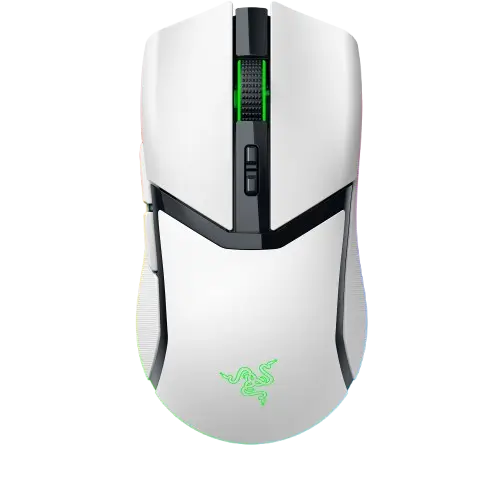
Razer Cobra Pro
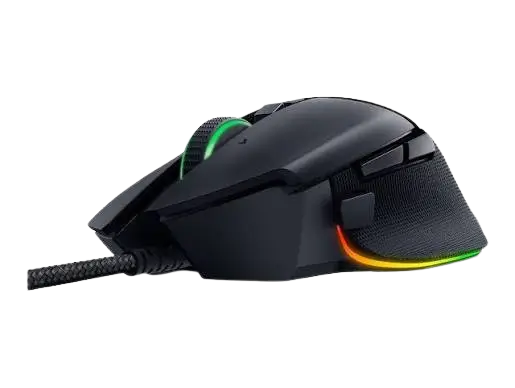
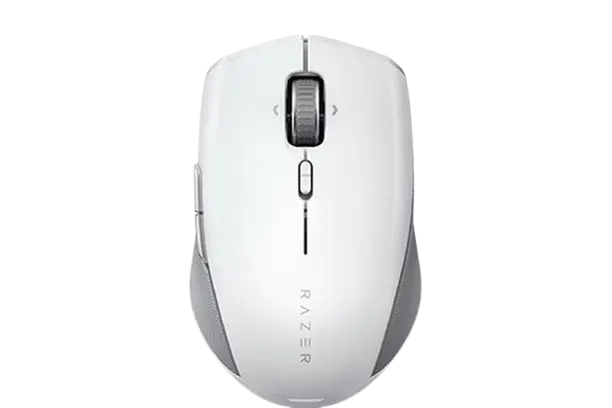
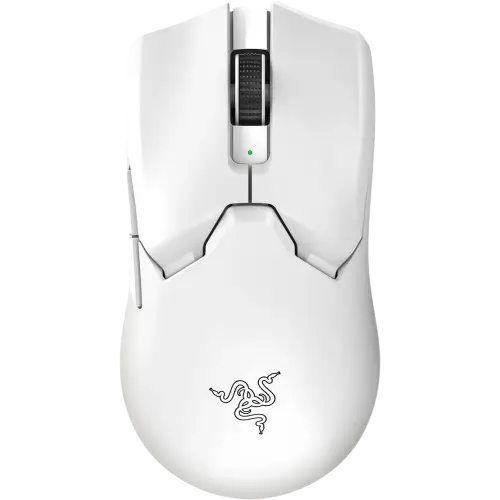
The Razer Cobra Pro is a right-handed, symmetrical wireless gaming mouse with eight programmable buttons and Razer Chroma RGB lighting in the scroll wheel, logo and a multi-zone underglow. It connects three ways: Razer HyperSpeed Wireless (2.4 GHz), Bluetooth, or wired through its USB Type C port. A slider switch on the underside selects the mode or powers the mouse off. A Focus Pro 30K Optical Sensor, five DPI stages and five on-board profile slots cover everyday and competitive use. The optional Razer Synapse software adds button remapping, lighting effects, sensor calibration and power settings.
Parts and Controls
Mouse Components
| Label | Part |
| A | Left mouse button |
| B | Right mouse button |
| C | Scroll wheel |
| D | DPI stage up button |
| E | DPI stage down button |
| F | Mouse button 5 |
| G | Mouse button 4 |
| H | USB Type C port |
| I | PTFE mouse feet |
| J | Profile indicator |
| K | Profile button |
| L | Razer Focus Pro 30K Optical Sensor |
| M | Slider switch (Bluetooth mode, Power off mode, Razer HyperSpeed Wireless (2.4 GHz) mode) |
| N | Wireless dongle compartment / Cover puck |
The cover puck can be swapped for the Razer Wireless Charging Puck to charge wirelessly on a Razer Mouse Dock Pro. The puck and dock are each sold separately.
Default DPI Stages
The DPI stage buttons cycle through 400, 800, 1600 (default), 3200 and 6400. You can customize these stages in Razer Synapse.
What’s in the Box and What You Need
Box Contents
- Razer Cobra Pro
- Razer HyperSpeed Wireless dongle and USB dongle adapter
- USB Type A to USB Type C Speedflex cable
- Important Product Information Guide
Requirements
- Product: a USB Type A port or Bluetooth connectivity
- Razer Synapse: Windows 10 64-bit (or higher) and an internet connection for software installation
Specifications
| Specification | Value |
| Form factor | Right-handed symmetrical |
| Connectivity | Razer HyperSpeed Wireless (2.4 GHz), Bluetooth, wired (Speedflex Cable USB Type C) |
| Battery life, Bluetooth | Up to 170 hours |
| Battery life, HyperSpeed Wireless | Up to 100 hours (constant motion at 1000 Hz) |
| Battery life, HyperPolling Wireless Dongle and Mouse Dock Pro | Up to 33 hours (constant motion at 4000 Hz); both sold separately |
| RGB lighting | Razer Chroma RGB (scroll wheel, logo, multi-zone underglow) |
| Sensor | Focus Pro 30K Optical Sensor |
| Max sensitivity | 30000 DPI |
| Max speed | 750 IPS |
| Max acceleration | 70 G |
| Programmable buttons | 8 |
| Switch type | Optical Mouse Switches Gen-3 |
| Switch lifecycle | 90-Million Clicks |
| On-board memory profiles | 5 |
| Mouse feet | 100% PTFE |
| Cable | Razer Speedflex Cable USB Type C |
| Dock compatibility | Razer Mouse Dock Pro with Razer Wireless Charging Puck (both sold separately) |
| Polling rate | 1000 Hz (up to 4000 Hz with Mouse Dock Pro or HyperPolling Wireless Dongle, sold separately) |
Charging and First Use
Plug the USB Type A to USB Type C cable from your PC’s USB port into the Razer Cobra Pro. A depleted battery is fully charged in approximately 4 hours. Fully charge the mouse before using it for the first time. Install Razer Synapse when prompted, or download the installer from razer.com/synapse.
Connecting Your Mouse
Wired Mode
Connect the mouse to any USB port on your PC with the charging cable.
Razer HyperSpeed Wireless (2.4 GHz) Mode
- Connect the wireless dongle to your PC. Plug it directly into a USB Type A port, or use the USB dongle adapter with the USB Type A to USB Type C cable.
- Push the slider switch to Razer HyperSpeed Wireless (2.4 GHz) mode.
The mouse is now ready to use in this mode.
Bluetooth Mode
- Push the slider switch to Bluetooth mode.
- Press and hold mouse button 5, the scroll wheel and the right mouse button together for three seconds to start pairing mode. The Razer logo blinks twice in repeated intervals while the mouse is in pairing mode.
- Turn on Bluetooth on your device and select “Cobra Pro” from the list of devices found.
- Wait for the mouse to pair. When paired, the Razer logo briefly turns static blue.
Once paired, the mouse reconnects automatically whenever it is in Bluetooth mode and within range. Keep the devices close together for a faster, more stable connection.
Everyday Use
Low Battery Notification
When battery power falls below 5%, the scroll wheel blinks red twice in repeated intervals. The pattern repeats until the battery is drained or you connect the mouse to a PC with the charging cable.
Changing the DPI
Press the DPI stage up or down button to change the DPI, or fine-tune sensitivity in Razer Synapse. With Synapse installed, an on-screen prompt appears as you cycle through each stage.
Switching Between Profiles
The mouse stores up to 5 profiles from Razer Synapse, so you can use them on systems without the app. Press the profile button to cycle through profiles. The profile indicator color shows which one is active.
| Profile | Designated color |
| Active Profile | White |
| Profile 1 | Red |
| Profile 2 | Green |
| Profile 3 | Blue |
| Profile 4 | Cyan |
Configuring the Mouse in Razer Synapse
Synapse needs an internet connection for installation, updates and cloud-based features. A Razer ID account is recommended but optional. Available features depend on the software version, the connected devices and supported apps.
Synapse Tab
The Synapse tab opens by default. Its Dashboard subtab gives an overview of your Razer devices, modules and online services. The Modules subtab lists installed and available modules. Global Shortcuts lets you bind operations or Synapse functions to custom key combinations from Synapse-enabled device inputs, and they apply across all device profiles.
Mouse Tab: Customize
Use the Customize subtab to change button assignments, manage stored profiles and set up Hypershift.
- Profile: A profile stores your Razer peripheral settings. To add, import, rename, duplicate, export, reset or delete a profile, press the Miscellaneous button.
- Standard / Hypershift: Hypershift is a secondary set of button assignments that is active while the Hypershift key is held. By default, the Hypershift key is the fn key of a Synapse-supported Razer keyboard. You can also assign any mouse button to activate it.
- HyperSpeed Multi-Device Pairing: Pairs an additional HyperSpeed-compatible device with the mouse’s dongle. The dongle can support a keyboard and a mouse at the same time. The mouse must be in HyperSpeed Wireless (2.4 GHz) mode, and each peripheral can connect to only one dongle at a time.
- Stored Profiles: To put a profile in an on-board memory slot, click the On-board Profiles button and drag the profile to the slot you want.
- Sidebar: The Sidebar button shows all current button assignments. You can also select a button on the Customize tab to jump to its assignment.
Button Assignment Functions
| Function | What it does |
| Default | Returns the button to its original setting |
| Keyboard Function | Assigns a keyboard function; Turbo mode repeats it while the button is held |
| Mouse Function | Assigns another mouse function: Left Click, Right Click, Scroll Click, Double Click, Mouse Button 4 (Backward), Mouse Button 5 (Forward), Scroll Up, Scroll Down, Scroll Left or Scroll Right. Turbo mode is available on some of these. |
| Sensitivity | Sensitivity Clutch, Sensitivity Stage Up, Sensitivity Stage Down, On-The-Fly Sensitivity, Cycle Up Sensitivity Stages, Cycle Down Sensitivity Stages |
| Macro | Runs a prerecorded sequence of keystrokes and button presses; visible only when the Macro module is installed |
| Inter-device | Changes the functionality of other Synapse-enabled devices, for example using a Razer keyboard to change the mouse’s sensitivity stage |
| Switch Profile | Loads a different profile; an on-screen notification appears |
| Switch Lighting | Switches between advanced lighting effects; visible only when the Chroma Studio module is installed |
| Razer Hypershift | Activates Hypershift mode while the button is held |
| Launch Program | Opens an app or a website |
| Multimedia | Volume Down, Volume Up, Mute Volume, Mic Volume Up, Mic Volume Down, Mute Mic, Mute All, Play / Pause, Previous Track, Next Track |
| Windows Shortcuts | Assigns a Windows shortcut command |
| Text Function | Types prewritten text with full Unicode support |
| Disable | Makes the button unusable |
Sensitivity Clutch changes the DPI to a predefined value while the button is held, then returns to the previous value on release. With On-The-Fly Sensitivity, you hold the assigned button and move the scroll wheel up or down to raise or lower the DPI. The Cycle options wrap around: at the highest stage, Cycle Up returns to stage 1, and at stage 1, Cycle Down returns to the highest stage.
Mouse Tab: Performance
- Sensitivity: Higher DPI moves the cursor farther for the same hand movement.
- Sensitivity Stages: When enabled, you can create up to 5 stages and cycle through them with the DPI stage up and down buttons.
- Enable X-Y Sensitivity: The horizontal and vertical axes share one value by default. Select Enable X-Y to set separate values.
- Polling Rate: Choose 125 Hz, 500 Hz or 1000 Hz. A higher rate means the computer receives mouse status updates more often.
- Mouse Properties: Opens the Windows Mouse Properties for operating-system settings that affect the mouse.
Mouse Tab: Lighting
- Brightness: Toggle lighting off or adjust brightness with the slider.
- Switch Off Lighting: Turns the lighting off when your system display turns off, or powers the mouse down after it has been idle for a set time.
- Smart Dimming: Dims the lighting automatically in Razer HyperSpeed Wireless or Bluetooth mode.
- Advanced Effects: Choose a Chroma Effect, or press the Chroma Studio button to build your own.
- Chroma Sync: Click the Chroma Sync button to synchronize quick effects with other supported Chroma-enabled devices. Only devices that support the selected effect will sync.
| Quick effect | Description | Setup |
| Audio meter | Lights up according to audio level with a default spectrum of colors | Select a Color Boost level |
| Breathing | Fades in and out of the selected color(s) | Select up to 2 colors or randomize |
| Fire | Warm colors mimic flames | No further customization |
| Reactive | Lights up when you click any mouse button | Select a color and a duration |
| Spectrum cycling | Cycles through 16.8 million colors indefinitely | No further customization |
| Starlight | Each LED has a chance of fading in and out at a random time and duration | Select up to 2 colors or randomize, and select a duration |
| Static | Stays lit in the selected color | Select a color |
| Wave | Lighting scrolls in the selected direction | Select a wave direction |
Mouse Tab: Calibration and Power
The Calibration subtab optimizes the sensor for your surface. Smart Tracking sets the distance at which the sensor stops tracking when the mouse is lifted, to avoid unwanted cursor movement. Select Enable Asymmetric Cut-Off to set different lift-off and landing distances. The Calibration screen also shows a Reset note: to reset manually, press and hold the left, right and scroll wheel buttons simultaneously for 7 seconds.
The Power subtab lets you set the mouse to enter sleep mode after being idle for a chosen time, and manage energy use when wireless. The screen shows a Wireless Power Saving slider (1 to 15 minutes) and a Low Power Mode setting (a battery-level threshold from 0 to 100%).
Profiles Tab
The Profiles tab manages all your profiles and links them to games and applications. In the Devices subtab, you can see which games are linked to each device’s profiles. You can import profiles from your computer or the cloud with the import button, or create a new profile with the add button. The Miscellaneous button renames, duplicates, exports or deletes a profile. In the Linked Games subtab, you can add games, search them and sort them alphabetically, by last played or by most played. To link a game, select it, click “Select a device and its profile to launch automatically during gameplay,” and choose the Razer device or Chroma Effect. Each profile can then activate when the linked application runs.
Settings Window
Open Settings with the gear button in Razer Synapse.
- General: Display language, startup behavior, theme and on-screen notifications. You can also sync profiles to the cloud manually or view the master guide for connected Razer devices and installed modules.
- Dashboard: Controls which device recommendations appear on the Dashboard.
- Firmware: Shows the firmware version and links to the Software and Firmware Update page.
- Reset: Factory resets all connected Razer devices with on-board memory, or resets Synapse tutorials.
- About: Software information, update checks and links to terms of use and Razer’s communities.
Warning: All profiles stored in the selected device’s on-board memory are erased when you reset a Razer device.
Safety, Care and Battery
Safety Guidelines
If the mouse does not operate properly and troubleshooting does not help, unplug it and contact the Razer hotline or go to support.razer.com. Do not take the device apart or operate it under abnormal current loads, which voids your warranty. Keep it away from liquid, humidity and moisture. Operate it only between 0°C (32°F) and 40°C (104°F). If the temperature goes outside this range, unplug and/or switch off the device until it stabilizes.
Cleaning and Surface
Once a month, unplug the mouse from the computer and clean it with a soft cloth or cotton swab to prevent dirt buildup. Do not use soap or harsh cleaning agents. Some surfaces cause undue wear on the feet, requiring constant care and eventual replacement. The sensor is tuned for Razer mouse mats and is described as tracking best on them.
Battery Warning
The mouse contains a Li-ion rechargeable battery, and its life depends on usage. If you suspect the battery is drained, try charging it. Caution: do not open, mutilate, or expose the battery to conducting materials (metal), moisture, liquid, fire or heat. Doing so may cause the battery to leak or explode, resulting in personal injury.
Comfort
Keep the keyboard and monitor directly in front of you with the mouse beside them. Keep your elbows at your sides and set chair and table height so the keyboard and mouse are at or below elbow height. Keep your feet supported, posture straight and shoulders relaxed. Keep your wrist relaxed and straight, and use a wrist rest rather than resting your wrists on hard surfaces for long periods. Get up and stretch regularly. If you feel pain, numbness or tingling in your hands, wrists, elbows, shoulders, neck or back, consult a qualified medical doctor immediately.
Warranty and Support
The mouse is covered by a 2 year warranty, shown on the warranty page. Register your product at razerid.razer.com/warranty. The serial number is on the underside of the mouse, in the wireless dongle compartment area. For current Limited Product Warranty terms, visit razer.com/warranty. For support, go to support.razer.com.
Frequently Asked Questions
How do I charge the Razer Cobra Pro, and how long does it take?
Connect the USB Type A to USB Type C cable from your PC’s USB port to the mouse’s USB Type C port. A fully depleted battery takes approximately 4 hours to charge. Fully charge the mouse before its first use. You can also charge wirelessly if you swap the cover puck for the Razer Wireless Charging Puck and use a Razer Mouse Dock Pro, both sold separately.
How do I connect the Razer Cobra Pro with the HyperSpeed wireless dongle?
Connect the wireless dongle to your PC, either directly in a USB Type A port or through the USB dongle adapter and the included USB Type A to USB Type C cable. Then push the slider switch on the underside to Razer HyperSpeed Wireless (2.4 GHz) mode. The mouse is then ready to use.
How do I pair the Razer Cobra Pro over Bluetooth?
Push the slider switch to Bluetooth mode. Press and hold mouse button 5, the scroll wheel and the right mouse button together for three seconds. The Razer logo blinks twice in repeated intervals to show pairing mode is active. Turn on Bluetooth on your device and select “Cobra Pro” from the list. When pairing succeeds, the logo briefly turns static blue. After that, the mouse reconnects automatically in Bluetooth mode when in range, and keeping the devices close together helps the connection stay fast and stable.
How do I turn the Razer Cobra Pro off?
Push the slider switch on the underside to the Power off position. The same switch selects Bluetooth mode and Razer HyperSpeed Wireless (2.4 GHz) mode, so it doubles as the mode selector.
What are the DPI stages, and how do I change them?
The default stages are 400, 800, 1600 (the default setting), 3200 and 6400. Press the DPI stage up button to move up a stage and the DPI stage down button to move down. If Razer Synapse is installed, an on-screen prompt shows each stage as you cycle. In Synapse you can create up to 5 custom sensitivity stages or set separate X and Y values. The sensor supports up to 30000 DPI.
What does it mean when the scroll wheel blinks red?
Blinking red twice in repeated intervals means the battery is below 5%. The pattern continues until the battery is drained or you connect the mouse to a PC with the charging cable, so plug it in as soon as you see it.
How do I switch profiles on the mouse, and what do the indicator colors mean?
Press the profile button on the underside to cycle through the stored profiles. The profile indicator shows which one is active: Profile 1 is red, Profile 2 is green, Profile 3 is blue and Profile 4 is cyan. The mouse holds up to 5 profiles from Razer Synapse, and these work even on computers without Synapse installed. To assign a profile to a memory slot, open the Mouse tab in Synapse, click the On-board Profiles button and drag the profile to the slot.
How long does the battery last?
Battery life depends on connection type and usage. It is up to 170 hours on Bluetooth and up to 100 hours on Razer HyperSpeed Wireless with constant motion at 1000 Hz. It is up to 33 hours with the Razer HyperPolling Wireless Dongle and Mouse Dock Pro (both sold separately) at 4000 Hz. Actual life varies with how you use the mouse.
Can one dongle work with both my mouse and a Razer keyboard?
Yes, if the other device is HyperSpeed-compatible. The mouse’s wireless dongle can support a keyboard and a mouse at the same time. In Razer Synapse, use the HyperSpeed Multi-Device Pairing feature on the Customize subtab to pair the additional device. The mouse must be in Razer HyperSpeed Wireless (2.4 GHz) mode, and each peripheral can connect to only one dongle at a time.
What polling rates does the Razer Cobra Pro support?
The standard polling rate is 1000 Hz. In Razer Synapse’s Performance subtab, you can choose 125 Hz, 500 Hz or 1000 Hz. A higher rate means the computer receives mouse status updates more often. Rates up to 4000 Hz are available with the Razer Mouse Dock Pro or the HyperPolling Wireless Dongle, which are sold separately.
How should I clean the Razer Cobra Pro?
Once a month, unplug the mouse from the computer and wipe it with a soft cloth or cotton swab to prevent dirt buildup. Do not use soap or harsh cleaning agents, and keep the mouse away from liquid, humidity and moisture. Some surfaces wear the PTFE feet quickly, so the feet may eventually need replacement.
What happens if I factory reset the mouse?
In Razer Synapse, open Settings with the gear button, go to the Reset tab and choose to factory reset the connected device. All profiles stored in the on-board memory of the selected device are erased. Export any profile you want to keep first, using the Miscellaneous button on the Profiles tab.