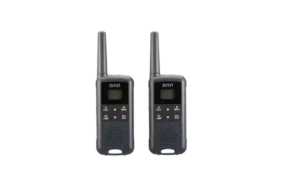
| Brand Name | onn. |
| Product Name | Walkie Talkie / Two-Way Radio |
| Model Number | 100068732 |
| File Size | 1.01 MiB |
| Number of Pages | 2 |
| Languages Covered | English |
onn. Walkie Talkie 100068732
The onn. Walkie Talkie model 100068732 is an FRS two-way radio designed for short-range voice communication. The radio provides 22 channels, 121 interference eliminator sub-codes, 10 call tones, VOX hands-free transmission, scanning, Dual Watch, a built-in LED lamp, keypad lock and weather-radio reception for the United States and Canada. onn-Walkie-Talkie-User-Guide onn-Walkie-Talkie-User-Guide
The radio runs on three AA NiMH rechargeable batteries and charges through its Micro-USB port using a certified 5V, 1A or greater adapter. The guide also provides an FRS channel/frequency table and RF-exposure instructions. onn-Walkie-Talkie-User-Guide
Product Controls and Components
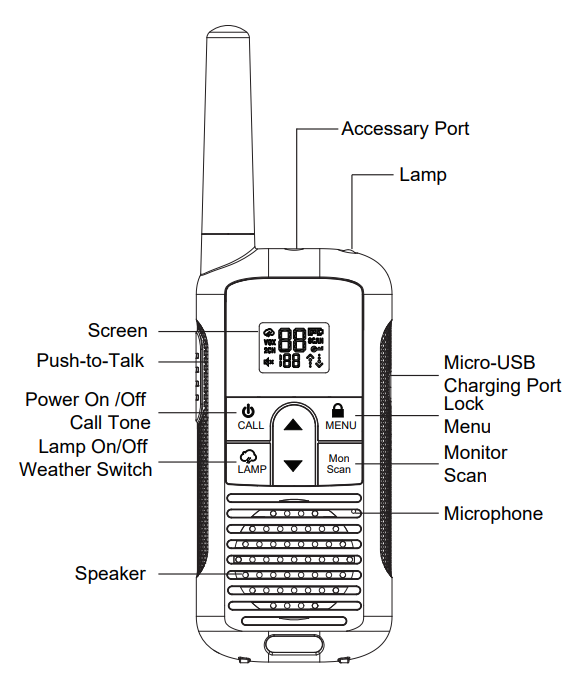
The diagram on page 1 identifies the main controls and connection points on the radio. onn-Walkie-Talkie-User-Guide
| Control / Component | Purpose |
| Screen | Displays channel, code, battery and operating-status information |
| Push-to-Talk (PTT) | Held while transmitting voice |
| Power On/Off / Call Tone Button | Turns the radio on or off and accesses call-tone functions |
| Lamp On/Off / Weather Switch | Controls the LED lamp and weather-radio mode |
| Up Button | Increases values or moves through menu selections |
| Down Button | Decreases values or moves through menu selections |
| Lock / Menu Button | Opens menu settings and locks the keypad |
| Monitor / Scan Button | Checks channel activity and starts scanning |
| Microphone | Picks up speech during transmission |
| Speaker | Plays received audio |
| Micro-USB Charging Port | Charges the installed NiMH batteries |
| Accessory Port | Connection point for compatible accessories |
| Lamp | Built-in LED light |
Display Screen Guide
The LCD can display the following information and status icons:
| Display Item | Meaning |
| Channel Number | Current radio channel |
| Code Number | Current interference eliminator code |
| Call Tone | Call-tone setting |
| Weather Icon | Weather-radio mode |
| VOX | Voice-operated transmission enabled |
| 2CH | Dual Watch enabled |
| Volume Mute | Volume is set to level 0 |
| Battery Meter | Remaining battery charge |
| SCAN | Channel scan is active |
| Lock | Keypad is locked |
| Transmit / Receive Status | Shows current radio communication state |
Installing the Batteries
The radio uses three AA NiMH rechargeable batteries.
How to Install the Three AA NiMH Batteries
- Remove the belt clip.
- Hold the radio with the back facing the user.
- Lift the battery-cover latch.
- Remove the battery cover.
- Insert three AA NiMH batteries according to the + and – polarity markings inside the battery compartment.
- Reinstall the battery cover firmly. onn-Walkie-Talkie-User-Guide onn-Walkie-Talkie-User-Guide
Removing the Batteries
Before removing the batteries:
- Turn the radio off.
- Remove the battery cover from the back.
- Take out the batteries carefully.
- Reinstall the battery cover. onn-Walkie-Talkie-User-Guide
Do not use sharp or conductive tools when removing NiMH batteries.
The guide also warns users not to mix:
- Old and new batteries
- Alkaline and rechargeable batteries
- Standard carbon-zinc batteries and rechargeable batteries
- Different rechargeable battery chemistries onn-Walkie-Talkie-User-Guide
How to Charge the onn. Walkie Talkie
The Micro-USB charging port can charge the installed NiMH batteries.
A certified adapter rated at 5V and at least 1A should be used. Alkaline batteries must not be charged in the radio. onn-Walkie-Talkie-User-Guide
Charging Steps
- Turn the radio off.
- Connect the Micro-USB cable to the radio’s charging port.
- Connect the charger to a wall power outlet.
- Watch the LCD battery meter. Its movement indicates that charging is taking place. onn-Walkie-Talkie-User-Guide onn-Walkie-Talkie-User-Guide
Charging Precautions
The guide recommends powering the radio off while charging.
When the batteries have recently moved between hot and cold environments, they should be allowed to reach the surrounding temperature before charging. The guide gives an acclimation time of about 20 minutes.
For battery life:
- Remove the radio from the charger within 16 hours.
- Do not store the radio while it remains connected to the charger. onn-Walkie-Talkie-User-Guide
Battery Maintenance and Storage
When the radio will not be used regularly:
- Recharge the NiMH batteries once every 3 months.
- Remove the batteries before storing the radio.
- Store NiMH batteries between -20°C and 35°C.
- Store them in a low-humidity location.
- Keep them away from damp conditions and corrosive materials. onn-Walkie-Talkie-User-Guide
The guide repeatedly advises removing the batteries before long-term radio storage because battery corrosion can permanently damage the radio. onn-Walkie-Talkie-User-Guide
Battery Meter and Low-Battery Alert
The number of bars in the battery icon represents the remaining charge.
When only one battery segment remains:
- The radio begins giving a low-battery chirp.
- The warning sounds approximately every 10 minutes.
- The warning can also sound after the PTT button is released. onn-Walkie-Talkie-User-Guide
Turning the Radio On and Off
Press and hold the Power button to turn the radio on or off.
When powered on:
- The radio chirps.
- The LCD briefly displays the available feature icons.
- The screen then shows the current channel, interference code and active features.
- The radio starts in Two-Way mode. onn-Walkie-Talkie-User-Guide
Setting the Volume
To check or change volume:
- Press and hold the Monitor/Scan control for about 3 seconds to hear the current volume level.
- Press either the Up or Down button to enter volume adjustment.
- Press Up to increase volume.
- Press Down to decrease volume.
- At volume level 0, the mute icon remains on the display. onn-Walkie-Talkie-User-Guide
The radio should not be held close to the ear when the volume is set at an uncomfortable level.
How to Talk With Another Radio
For two radios to communicate, each radio must use the same channel and interference eliminator code. onn-Walkie-Talkie-User-Guide
To Transmit
- Press and hold the PTT button.
- Speak into the microphone.
- The transmit-status icon appears on the display.
- Release PTT after speaking. onn-Walkie-Talkie-User-Guide
To Receive
Release the PTT button.
The receive-status icon appears while an incoming transmission is being received. onn-Walkie-Talkie-User-Guide
Correct Talking Position
For clear speech, the operating instructions recommend holding the radio approximately 2 to 3 cm from the mouth and speaking directly into the microphone.
The microphone should not be covered while talking. onn-Walkie-Talkie-User-Guide
The RF-safety section separately specifies keeping the microphone, antenna and other radio parts at least 1 inch / 2.5 cm from the nose or lips while transmitting. onn-Walkie-Talkie-User-Guide
Talk Range
The guide does not give a mileage figure for communication range.
It does state that the radios are designed to maximize transmission performance and that two radios should not be operated closer than five feet apart. onn-Walkie-Talkie-User-Guide
Monitor Mode
Monitor Mode can be used to listen for weak signals on the current channel.
Press and hold the Monitor button for 3 seconds to enter Monitor Mode.
It can also be used to:
- Listen to the current volume level.
- Check for activity on the selected channel before transmitting. onn-Walkie-Talkie-User-Guide
Push-to-Talk Timeout
To reduce accidental transmissions and battery drain, the radio automatically stops transmitting when the PTT button is held continuously for 60 seconds. onn-Walkie-Talkie-User-Guide
Selecting a Channel
The channel determines the radio frequency used for transmission.
To change it:
- Press the Menu button until the channel number flashes.
- Press Up or Down to select another channel.
- Press PTT to exit the menu, or press Menu again to continue to another setting. onn-Walkie-Talkie-User-Guide
The radio provides 22 channels.
Interference Eliminator Codes
Interference eliminator sub-codes help reduce unwanted transmissions from other users.
The radio provides 121 sub-codes. onn-Walkie-Talkie-User-Guide
How to Change the Code
- Press Menu until the code number flashes.
- Press Up or Down to select a code.
- Press PTT to save and exit, or press Menu to move to another setting. onn-Walkie-Talkie-User-Guide
Radios intended to communicate with each other must be configured with matching channels and codes.
Call Tones
The radio provides 10 call tones that can be transmitted to other radios in the group. onn-Walkie-Talkie-User-Guide
How to Select a Call Tone
- Press Menu until CA appears.
- The current call-tone setting flashes.
- Press Up or Down to hear and select a tone.
- Press PTT to exit or Menu to continue. onn-Walkie-Talkie-User-Guide
VOX Hands-Free Transmission
VOX allows the radio to begin transmitting when the user speaks instead of requiring the PTT button. onn-Walkie-Talkie-User-Guide
How to Turn On VOX
- Press Menu until VOX appears.
- The current setting from 0 to 3 flashes.
- Press Up or Down to select a sensitivity level.
- Press PTT to exit the menu. onn-Walkie-Talkie-User-Guide
VOX Sensitivity Levels
| Setting | Sensitivity |
| L3 | High sensitivity for quiet environments |
| L2 | Medium sensitivity for most environments |
| L1 | Low sensitivity for noisy environments |
| L0 | VOX turned off |
onn-Walkie-Talkie-User-Guide
Dual Watch
Dual Watch allows the radio to monitor the current channel and another selected channel alternately.
How to Set Dual Watch
- Press Menu until 2CH appears.
- The current setting, from OFF through channels 1-22, flashes.
- Press Up or Down to choose the second channel.
- Press PTT to exit or Menu to continue setup.
- Press PTT or allow the menu to time out to activate Dual Watch.
- The screen alternates between the Home Channel and Dual Watch Channel. onn-Walkie-Talkie-User-Guide
To stop Dual Watch, return to the Dual Watch menu and select OFF.
Dual Watch does not operate when the second channel and code are set to the same channel/code combination as the current channel. onn-Walkie-Talkie-User-Guide
Scanning Channels
Scan Mode searches the available channels and code combinations for active transmissions.
It can be useful for:
- Finding another group member who changed channels.
- Detecting active transmissions.
- Finding an unused channel. onn-Walkie-Talkie-User-Guide
How to Start Scanning
- Briefly press the Monitor/Scan button.
- The SCAN icon appears.
- The radio begins moving through channel and code combinations.
- When matching activity is detected, scanning pauses so the transmission can be heard. onn-Walkie-Talkie-User-Guide
Responding During a Scan
To respond to a transmission detected during scanning, press PTT within 5 seconds after the transmission ends.
The radio resumes scanning five seconds after received activity ends. onn-Walkie-Talkie-User-Guide
Stopping Scan Mode
Briefly press the Monitor/Scan button again. onn-Walkie-Talkie-User-Guide
Scan Notes
- Pressing PTT while scanning inactive channels transmits on the Home Channel.
- Scanning resumes approximately five seconds after that transmission ends.
- If the radio stops on an unwanted signal, Up or Down can be briefly pressed to continue scanning.
- An unwanted channel can be temporarily removed from the scan list by holding Up or Down for 3 seconds.
- More than one channel can be temporarily removed.
- Removed channels return after the radio is turned off and back on or after Scan Mode is exited and entered again.
- The Home Channel cannot be removed from the scan list. onn-Walkie-Talkie-User-Guide
Keypad Lock
Keypad Lock helps prevent accidental changes to radio settings.
Lock the Radio
Press and hold the Menu/Lock button until the lock icon appears.
Unlock the Radio
Press and hold the same button until the lock icon disappears. onn-Walkie-Talkie-User-Guide
Keypad Tones
The radio normally beeps when buttons are pressed, except for the controls identified in the guide.
To turn keypad tones on or off:
- Turn the radio off.
- Hold the Down button.
- Turn the radio on while continuing to hold the button. onn-Walkie-Talkie-User-Guide
Roger Tone
Roger Tone sends a short tone when a transmission ends.
To turn it on:
- Turn the radio off.
- Press and hold the Up button.
- Turn the radio on.
- Repeat the same process to turn Roger Tone off. onn-Walkie-Talkie-User-Guide
Built-In LED Lamp
The radio includes an LED lamp.
Briefly press the Lamp button once to turn the lamp on.
Press it again to turn the lamp off. onn-Walkie-Talkie-User-Guide
Automatic Power Save
When the radio has had no transmissions for approximately 5 seconds, it can switch to Power Save Mode to conserve battery power.
The radio can still receive transmissions while in this mode. onn-Walkie-Talkie-User-Guide
Weather Radio Mode
The weather feature is designed for use in the United States and Canada.
The radio can receive broadcasts from:
- U.S. National Oceanic and Atmospheric Administration (NOAA) Weather Radio.
- Environment Canada Weather Radio.
These services broadcast weather watches, forecasts and other information. onn-Walkie-Talkie-User-Guide
While listening to a weather channel, the radio cannot be used for normal two-way communication or Scan Mode. onn-Walkie-Talkie-User-Guide
How to Enter Weather Mode
From normal Two-Way Mode:
- Press and hold the Weather / Mode button for 3 seconds.
- The radio switches to Weather Mode. onn-Walkie-Talkie-User-Guide
The same control switches between normal two-way operation and weather operation. onn-Walkie-Talkie-User-Guide
Selecting a Weather Channel
- Enter Weather Mode.
- Press Menu until the weather-channel number flashes.
- Press Up or Down to select a channel with good reception.
- Press PTT to set the channel and exit the menu. onn-Walkie-Talkie-User-Guide
FRS Channels and Frequencies
The guide identifies model 100068732 as an FRS device approved for use in the USA.
The following values reproduce the channel, frequency and maximum-output table as printed in the document. onn-Walkie-Talkie-User-Guide
| Channel | Frequency (MHz) | Max Power Output |
| 1 | 462.5625 | 1 W |
| 2 | 462.5876 | 1 W |
| 3 | 462.6125 | 1 W |
| 4 | 462.6375 | 1 W |
| 5 | 462.6625 | 1 W |
| 6 | 462.6876 | 1 W |
| 7 | 462.7125 | 1 W |
| 8 | 467.5625 | 0.5 W |
| 9 | 467.5875 | 0.5 W |
| 10 | 467.6125 | 0.5 W |
| 11 | 467.6375 | 0.5 W |
| 12 | 467.6625 | 0.5 W |
| 13 | 467.6875 | 0.5 W |
| 14 | 467.7125 | 0.5 W |
| 15 | 462.5500 | 1 W |
| 16 | 462.5750 | 1 W |
| 17 | 462.6000 | 1 W |
| 18 | 462.6250 | 1 W |
| 19 | 462.6250 | 1 W |
| 20 | 462.6750 | 1 W |
| 21 | 462.7000 | 1 W |
| 22 | 462.7250 | 1 W |
Radio Safety and RF Exposure
The radio contains both a transmitter and receiver.
The RF safety instructions state that users should:
- Transmit no more than 50% of the time.
- Release the PTT button to receive.
- Press PTT only when transmitting.
- Keep the radio in a vertical position.
- Keep the microphone, antenna and other radio parts at least 1 inch / 2.5 cm from the nose or lips while transmitting. onn-Walkie-Talkie-User-Guide
The guide states that the radio complies with applicable U.S. FCC RF-exposure requirements and references IEEE C95.1. onn-Walkie-Talkie-User-Guide
Antenna and Accessory Safety
Only approved antennas and audio accessories should be used with the radio.
Changes or modifications not approved by the party responsible for compliance may remove the user’s authority to operate the equipment. onn-Walkie-Talkie-User-Guide
FCC SAR Information
The radio is designed to meet FCC radio-frequency exposure requirements.
The guide lists an SAR limit of 1.6 W/kg averaged over one gram of tissue and states that certification testing included use on the body and in front of the face with a minimum distance of 25 mm. onn-Walkie-Talkie-User-Guide
Customer Support
onn. provides telephone assistance every day.
Customer Support: 1-888-516-2630
Hours: 7:00 a.m. to 9:00 p.m. CST, daily onn-Walkie-Talkie-User-Guide
Frequently Asked Questions
How do you use the onn. Walkie Talkie model 100068732?
Install three AA NiMH rechargeable batteries, turn the radio on, select a channel and interference eliminator code, and make sure the other radio uses the same settings. Hold PTT while speaking and release it to listen. onn-Walkie-Talkie-User-Guide
How do you charge the onn. Walkie Talkie?
Turn the radio off, connect a Micro-USB cable to the charging port and connect the charger to a wall outlet. Use a certified 5V, at least 1A adapter. The LCD battery meter moves during charging. Alkaline batteries must not be charged. onn-Walkie-Talkie-User-Guide
How do two onn. walkie talkies communicate with each other?
Both radios must be set to the same channel and interference eliminator code. The user then holds PTT while speaking and releases PTT to receive the reply. onn-Walkie-Talkie-User-Guide
How many channels does the onn. 100068732 walkie talkie have?
The radio provides 22 FRS channels and 121 interference eliminator sub-codes. onn-Walkie-Talkie-User-Guide
How do you turn on VOX on the onn. Walkie Talkie?
Press Menu until VOX appears, then use Up or Down to select L1, L2 or L3. L3 is intended for quieter environments, L2 for most environments and L1 for noisy surroundings. Select L0 to turn VOX off. onn-Walkie-Talkie-User-Guide onn-Walkie-Talkie-User-Guide
How do you scan channels on the onn. Walkie Talkie?
Briefly press the Monitor/Scan button. The SCAN icon appears and the radio begins moving through channel/code combinations. Press the Scan button again to stop scanning. onn-Walkie-Talkie-User-Guide
What does one battery bar mean on the onn. Walkie Talkie?
One remaining battery segment triggers the Low Battery Alert. The radio chirps approximately every 10 minutes or after the PTT button is released. onn-Walkie-Talkie-User-Guide
How do you use weather mode on the onn. Walkie Talkie?
Press and hold the Weather/Mode control for about 3 seconds. In Weather Mode, press Menu until the weather channel flashes, select a channel with Up or Down, and press PTT to save and exit. Weather reception is intended for NOAA broadcasts in the U.S. and Environment Canada broadcasts in Canada. onn-Walkie-Talkie-User-Guide