
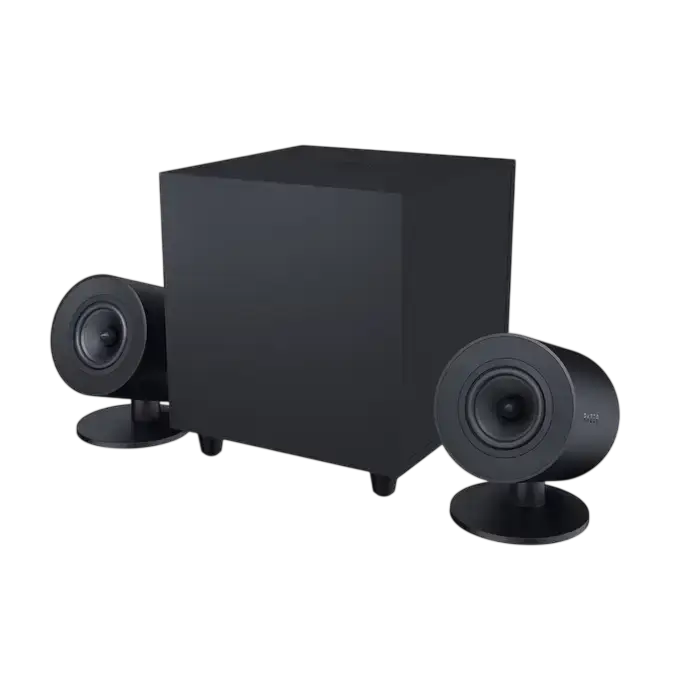
The Razer Nommo V2 is a full-range gaming speaker system with a wired subwoofer. It’s built for room-filling sound and strong bass. It supports THX Spatial Audio and Razer Chroma RGB lighting, which projects from the back of the speakers. You can connect it to a PC over USB or to a phone or other device over Bluetooth 5.3, and you can tune the sound and lighting in Razer Synapse on Windows. This page covers setup, connections, daily controls, Synapse options, safety, and care.
Product Specifications
| Feature | Detail |
|---|---|
| Audio features | THX Spatial Audio, customizable EQ |
| Frequency response | 40 Hz – 20 kHz |
| Max SPL | 98 dB at 1 meter |
| Full-range drivers | 2 x 3.2″ / 83 mm, with aluminum phase plugs |
| Subwoofer driver | 1 x 5.5″ / 140 mm |
| Connectivity | USB audio input, Bluetooth 5.3 |
| Subwoofer connection | Wired to the speakers |
| Lighting | Razer Chroma RGB, rear projection zones |
| Power | External power adapter |
| Cable lengths | USB Type C to Type A: 2 m; speaker cable: 2 m; subwoofer power cord: 2 m |
You need a USB Type A port or a Bluetooth-capable device. Razer Synapse needs Windows 10 64-bit or higher and an internet connection for installation (p. 4).
What’s in the Box
- Razer Nommo V2 speakers (left and right)
- Subwoofer
- USB Type A to USB Type C cable
- Regional power cords (these may vary by region)
- Important Product Information Guide
Parts and Controls
Speakers
- Status indicator
- Volume control buttons (– and +)
- Power / Multi-function button
- Rear projection Razer Chroma RGB lighting
- Right and left speaker connectors
Subwoofer
- Rear-facing bass port
- Power port
- Right and left speaker ports
- USB Type C port
Installation and Setup
Connect the speakers to the subwoofer
- Line up the pins on the right and left speaker connectors with the matching ports on the subwoofer.
- Plug each connector in and tighten its screws so it stays fastened.
To unplug a connector, loosen its screws first. Never pull a connector out of the subwoofer by force (p. 7).
Connect power
Plug the regional power cord into the subwoofer’s power port, then into a wall outlet. Use the cord that matches your region (p. 8).
Connecting Your Speakers
PC mode
- Plug the USB Type C end of the supplied cable into the subwoofer and the Type A end into a USB port on your PC.
- Press the Power / Multi-function button. A solid green status indicator means the speakers are in PC mode. The rear lighting briefly turns solid green, then shows the default spectrum cycling effect.
- Set the Razer Nommo V2 as the default output device on your PC.
Bluetooth mode
- With the speakers on and in PC mode, double press the Power / Multi-function button. The status indicator blinks blue and you hear a pairing prompt.
- Turn on Bluetooth on your device and select “Razer Nommo V2 (BT).”
- Wait for a solid blue indicator and a second audio prompt. That means you’re connected.
Keep the speakers within 1 meter of your device while pairing. After the first pairing, the speakers reconnect automatically whenever you switch to Bluetooth mode. In Bluetooth mode, the lighting switches to the audio reactive effect and follows your device’s audio level.
Everyday Controls
| Action | How |
|---|---|
| Power on or off | Press the Power / Multi-function button. The rear lighting flashes green when powering on and red when powering off. |
| Adjust volume | Press the – or + button. The indicator flashes white, then blinks continuously at minimum or maximum volume. |
| Switch between PC and Bluetooth | Double press the Power / Multi-function button while powered on. |
| Toggle PC audio devices | In PC mode, press both volume buttons at once. The indicator blinks yellow. |
| Pair a new Bluetooth device | In Bluetooth mode, hold the Power / Multi-function button for 4 seconds. |
Bluetooth pairing mode can only be started while the speakers are already in Bluetooth mode. The device toggle switches between the speakers and a secondary playback device you pick in Razer Synapse.
Razer Synapse Settings
Install Synapse when prompted, or download it from razer.com/synapse. An internet connection is needed for installation, updates, and cloud features. A Razer ID account is recommended but optional. Features can change with the software version and connected devices.
Audio tab
The Sound subtab covers most day-to-day tuning:
- Stereo or THX Spatial Audio: THX Spatial Audio gives 360° positional audio and is available only on Windows 10 64-bit or higher.
- Volume: adjusts the speakers and opens the Windows volume mixer.
- Toggle PC audio devices: sets the secondary playback device.
- Input source: switches the speakers to Bluetooth. Synapse can’t switch back to PC mode, so double press the Power / Multi-function button to return.
- Audio equalizer: presets for balance, gaming immersion, movies, and music. Adjusting a preset by hand changes it to Custom.
Lighting
You can dim the lighting with the Brightness slider or turn it off. You can also have it switch off when your display turns off. The quick effects are:
| Effect | What it does | Setup |
|---|---|---|
| Audio meter | Lights up with the audio level in a default spectrum | Choose a Color Boost level |
| Breathing | Fades in and out of your chosen colors | Pick up to 2 colors or randomize |
| Spectrum cycling | Cycles through 16.8 million colors | None needed |
| Static | Stays lit in one color | Pick a color |
Advanced Effects and Chroma Studio let you build custom Chroma effects. The Chroma Sync button syncs quick effects with other supported Chroma devices.
Power, profiles, and reset
The Power subtab lets the speakers enter standby after a set idle time. The Profiles tab stores settings and can link profiles to specific games. Changes on the Audio tab save automatically to your system and the cloud. The Settings window handles language, startup behavior, and factory reset. A factory reset erases profiles stored on a device’s on-board memory (p. 23).
Safety Instructions
- Use the correct power cord for your region.
- If you notice any hazard on the speakers or subwoofer, unplug the power cord from the outlet right away.
- Don’t take the device apart, and don’t run it under abnormal current loads. Doing either voids your warranty.
- Unplug all cables before moving the speakers so the connectors aren’t damaged.
- Keep the system away from liquid, humidity, and moisture.
- Operate it only between 0°C (32°F) and 40°C (104°F). If it gets outside that range, unplug or switch it off until the temperature settles.
- Very loud listening over long periods can damage your hearing. Keep the volume at a comfortable level for long sessions (p. 24).
Cleaning and Maintenance
The system needs little upkeep. Once a month, clean each speaker with a soft cloth or cotton swab to prevent dirt buildup. Don’t use soap or harsh cleaning agents (p. 25).
Frequently Asked Questions
What do the status indicator colors mean?
Solid green means PC mode. Blinking blue means pairing mode, and solid blue means a Bluetooth device is connected. White flashes show volume changes, and a brief yellow blink means you toggled between PC audio devices.
How do I switch between PC and Bluetooth?
While the speakers are on, double press the Power / Multi-function button. You can also select Bluetooth as the input source in Synapse, but you must double press the button to return to PC mode.
How do I pair a different Bluetooth device?
Put the speakers in Bluetooth mode, then hold the Power / Multi-function button for 4 seconds. The indicator blinks blue and you hear a prompt. Select “Razer Nommo V2 (BT)” on the new device.
Do I need Razer Synapse to use the speakers?
The setup and connection steps use only the speakers’ own buttons. Synapse is where you get EQ presets, lighting effects, THX Spatial Audio, and standby settings. It requires Windows 10 64-bit or higher.
Can I use THX Spatial Audio over Bluetooth or on a Mac?
The manual describes THX Spatial Audio as a Synapse feature, available only on Windows 10 64-bit or higher. It doesn’t describe using it in Bluetooth mode or on other systems.
Why does the lighting change when I use Bluetooth?
In Bluetooth mode the rear lighting switches to the audio reactive effect, so it follows your device’s audio level.
What should I do if the speakers won’t work properly?
The manual has no troubleshooting steps. If you can’t get the speakers working and the setup steps don’t help, unplug them and contact the Razer hotline or visit support.razer.com.
How often should I clean them, and with what?
Clean each speaker monthly with a soft cloth or cotton swab. Skip soap and harsh cleaners.