| Document Detail | Information |
| Document Title | EMS Si Manual |
| Document Type | User Manual |
| Brand Name | ecobee |
| Product Name | Energy Management System Si Thermostat |
| Model Number(s) | — |
| PDF File Size | 1485 KB |
| Number of Pages | 73 |
| Languages | English |
ecobee EMS Si Thermostat
The ecobee Energy Management System Si (EMS Si) is a programmable Wi-Fi thermostat designed for commercial buildings and energy management applications. It combines heating and cooling control, equipment scheduling, remote monitoring, alerts, and automation through dry-contact sensor inputs.
The EMS Si supports conventional heating and cooling systems with up to two heating and two cooling stages. It also supports compatible heat pump systems with up to three heating and two cooling stages, including auxiliary heat. Its two dry-contact inputs can trigger actions such as changing occupancy settings, adjusting temperatures, disabling cooling, or shutting down HVAC equipment.
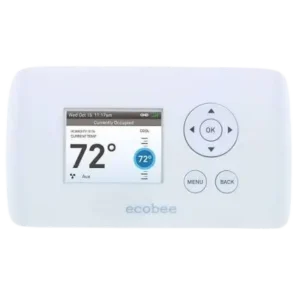
The thermostat features a color display, physical navigation buttons, configurable temperature holds, weekly schedules, calendar events, and equipment maintenance reminders. Through its Wi-Fi connection, the EMS Si can register with the ecobee Web Portal for remote monitoring and configuration.
The system must be installed by a trained service professional. Installation requires compatible low-voltage HVAC equipment, correct wiring, and configuration of the connected heating and cooling system.
Product Overview
The ecobee EMS Si provides centralized temperature and HVAC equipment control for commercial properties and other supported installations.
The system is intended for locations requiring more control than a basic programmable thermostat without using a full building automation system.
Main Features
- Multi-stage HVAC control: Supports up to two conventional heating and two conventional cooling stages.
- Heat pump compatibility: Supports up to three heating and two cooling stages on compatible heat pump systems.
- Color display: Shows current temperature, operating information, and configuration menus.
- Physical navigation controls: Uses directional arrows, OK, MENU, and BACK buttons.
- Wi-Fi connectivity: Supports 802.11 b/g/n wireless networks.
- Web Portal management: Provides remote monitoring, configuration, and control through the ecobee EMS Web Portal.
- Weekly scheduling: Supports Occupied, Unoccupied, and additional custom program periods.
- Calendar events: Applies special temperature schedules for vacations and planned absences.
- Dry-contact automation: Uses two configurable sensor inputs to trigger HVAC actions.
- Equipment alerts: Reports heating, cooling, temperature, and maintenance conditions.
- Compressor protection: Provides configurable minimum compressor off times.
- Multi-stage control: Supports adjustable thresholds, cycle times, and stage activation.
- Access control: Restricts selected thermostat functions using a four-digit code.
- Temperature adjustment limits: Restricts the heating and cooling setpoint ranges.
- Smart Recovery: Adjusts heating and cooling startup times to meet scheduled temperatures.
- Utility pricing response: Supports configured Critical Peak Pricing events.
HVAC System Compatibility
The ecobee EMS Si operates with compatible low-voltage heating and cooling systems.
It is not intended for line-voltage or millivolt equipment.
Supported HVAC Equipment
| Equipment Type | Compatibility |
| Gas Heating | Up to 2 Stages |
| Oil Heating | Up to 2 Stages |
| Electric Heating | Up to 2 Stages |
| Conventional Cooling | Up to 2 Stages |
| Heat Pump With Auxiliary Heat | Up to 3 Heating Stages |
| Geothermal Heat Pump | Supported |
| Dual-Fuel System | Supported |
| Boiler Heating | Supported |
| Sensors With Dry-Contact Outputs | Supported |
| Line-Voltage Heating or Cooling | Not Supported |
| Millivolt Systems | Not Supported |
Conventional Heating and Cooling
The thermostat supports:
- Single-stage heating and cooling.
- Single-stage heating with two-stage cooling.
- Two-stage heating with single-stage cooling.
- Two-stage heating and cooling.
Heat Pump Systems
The EMS Si supports compatible heat pump installations, including:
- Single-stage heat pumps with auxiliary heat.
- Two-stage heat pumps with auxiliary heat.
- Geothermal heat pumps.
- Dual-fuel configurations.
Technical Specifications
| Specification | Details |
| Brand | ecobee |
| Product Name | Energy Management System Si |
| Product Type | Programmable Wi-Fi Commercial Thermostat |
| Power Supply | 24 VAC |
| Minimum Power Requirement | 3 VA |
| Heating Setpoint Range | 45°F–79°F |
| Cooling Setpoint Range | 45°F–92°F |
| Temperature Display Range | 40°F–100°F |
| Temperature Sensitivity | ±1°F |
| Operating Temperature | 32°F–130°F |
| Humidity Display Range | 20%–90% RH |
| Humidity Sensitivity | ±5% RH |
| Operating Humidity | 5%–95% RH, Non-Condensing |
| Dimensions (W × H × D) | 5.5 × 3.25 × 1 Inches |
| Conventional Heating Stages | Up to 2 |
| Conventional Cooling Stages | Up to 2 |
| Heat Pump Heating Stages | Up to 3 |
| Heat Pump Cooling Stages | Up to 2 |
| Wireless Standard | IEEE 802.11 b/g/n |
| Dry-Contact Inputs | 2 |
| Terminal Voltage Rating | 30 VAC |
| Maximum Terminal Current | 3 A |
| Factory RC/RH Jumper | Installed |
| Temperature Display Units | Fahrenheit, Celsius |
| Warranty | 3-Year Limited Warranty |
| FCC ID | WR9EBSTAT |
| IC ID | 7981A-EBSTAT |
Wiring Requirements
The thermostat connects to HVAC equipment using low-voltage thermostat wiring.
Maximum Wire Lengths
| Wire Gauge | Maximum Length |
| 18 AWG | 128 ft |
| 20 AWG | 80 ft |
| 22 AWG | 50 ft |
Wiring Terminals
| Terminal | Function | Electrical Rating |
| N/C | Unused | N/A |
| Y | First-Stage Compressor | 30 VAC, 3 A |
| W (O/B) | First-Stage Heating or Reversing Valve Changeover | 30 VAC, 3 A |
| G | Fan | 30 VAC, 3 A |
| RC | Cooling Transformer | 30 VAC, 3 A |
| RH | Heating Transformer | 30 VAC, 3 A |
| C | Common | 30 VAC, 3 A |
| Y2 | Second-Stage Compressor | 30 VAC, 3 A |
| W2 (AUX) | Second-Stage Heating or First-Stage Auxiliary Heat | 30 VAC, 3 A |
| R1+ | Input 1 Positive | Dry Contact Only |
| R1- | Input 1 Negative | Dry Contact Only |
| R2+ | Input 2 Positive | Dry Contact Only |
| R2- | Input 2 Negative | Dry Contact Only |
RC and RH Jumper
A jumper is installed between RC and RH at the factory.
For two-transformer applications, remove this jumper and follow the applicable wiring diagram.
Important Safety Instructions
The EMS Si connects to HVAC electrical control circuits. Incorrect installation may cause electric shock, equipment damage, or improper HVAC operation.
Electrical Safety
- Disconnect power to the heating and cooling equipment before installation.
- Do not connect or disconnect thermostat wiring while the HVAC system is energized.
- Use the EMS Si only with compatible low-voltage systems.
- Do not connect it to line-voltage or millivolt systems.
- Follow applicable local electrical codes.
- Use the correct terminal connections for the installed equipment.
- Keep unused wires from having exposed bare copper conductors.
- Remove the factory RC/RH jumper only when required by the wiring configuration.
- Have installation and electrical servicing performed by trained professionals.
Compressor Protection Warning
Warning: Compressor protection and minimum equipment runtime features are not enforced during the Test Equipment function.
Rapid equipment switching during testing may damage HVAC components.
Mercury Disposal
The ecobee EMS Si does not contain mercury.
If replacing an older thermostat containing mercury, contact the local waste-management authority for disposal instructions.
Do not discard a mercury-containing thermostat with ordinary household waste.
Radio Frequency Safety
Maintain a separation distance of at least 8 inches (20 cm) between the EMS Si and people to meet the stated FCC/IC radio-frequency exposure requirements.
Before Installation
Before installing the thermostat, identify the equipment configuration and select a suitable mounting location.
Installation Preparation
- Confirm that the HVAC system uses compatible low-voltage controls.
- Identify the connected heating and cooling equipment.
- Determine the required thermostat wiring.
- Locate the HVAC power disconnect.
- Turn off heating and cooling equipment power.
- Identify the existing thermostat wiring.
- Prepare the thermostat backplate and mounting fasteners.
- Choose a suitable wall location.
- Keep the appropriate wiring diagram available.
Recommended Thermostat Location
The thermostat should be mounted approximately 5 feet (1.5 meters) above the floor in the main occupied area.
Avoid installing it:
- Near incandescent lighting or other heat sources.
- Close to heating or cooling supply outlets.
- In direct sunlight.
- On exterior or poorly insulated walls.
- In kitchens or other areas with unusually high heat or humidity.
- In locations where airflow is restricted.
EMS Si Installation Instructions
The installation procedure consists of five main steps.
Step 1: Turn Off HVAC Power
Before removing the existing thermostat:
- Locate the HVAC power disconnect.
- Turn off power to the heating and cooling equipment.
- Confirm that power is disconnected before working on the wiring.
Step 2: Remove the Existing Thermostat
- Disconnect the wires from the existing thermostat.
- Remove the existing thermostat from the wall if using the same location.
- Keep the wires accessible for connection to the EMS Si.
Step 3: Install the EMS Si Backplate
- Gently separate the thermostat from its backplate.
- Position the backplate against the wall.
- Pass the existing wires through the central wiring opening.
- Mark the mounting-hole positions using the backplate as a template.
- Move the backplate aside.
- Prepare the mounting holes.
- Install the supplied drywall plugs or suitable anchors.
- Secure the backplate using the supplied screws.
The mounting holes accommodate #6 pan-head screws. The supplied fasteners are recommended for proper fitting of the thermostat housing.
Step 4: Connect the Wiring
- Check the wiring diagram for the installed HVAC equipment.
- Connect the wires to the appropriate backplate terminals.
- Check the RC/RH factory jumper.
- Remove the jumper if required for a two-transformer installation.
- Check that unused wire conductors are safely insulated.
- Align the thermostat pins with the terminal block on the backplate.
- Attach the thermostat to the backplate.
Step 5: Restore HVAC Power
After completing the wiring:
- Restore electrical power to the HVAC equipment.
- Allow the thermostat to start.
The EMS Si receives electrical power from the HVAC equipment and turns on automatically.
EMS Si Wiring Configurations
The manual provides diagrams for several heating and cooling arrangements.
| HVAC Configuration | Heating Stages | Cooling Stages |
| Single-Stage Furnace and AC | 1 | 1 |
| Single-Stage Furnace and Two-Stage AC | 1 | 2 |
| Two-Stage Furnace and Single-Stage AC | 2 | 1 |
| Two-Stage Furnace and Two-Stage AC | 2 | 2 |
| Single-Stage Heat Pump With Auxiliary Heat | Heat Pump + Auxiliary | 1 |
| Two-Stage Heat Pump With Auxiliary Heat | Heat Pump + Auxiliary | 2 |
| Single-Stage Boiler With Air Handler and AC | 1 | 1 |
| Two-Stage Boiler With Air Handler and AC | 2 | 1 |
| Single-Stage Boiler With Two-Stage AC | 1 | 2 |
| Two-Stage Boiler With Two-Stage AC | 2 | 2 |
Conventional HVAC Wiring
Conventional heating and cooling installations use terminals such as:
- Y for first-stage cooling.
- Y2 for second-stage cooling.
- W for first-stage heating.
- W2 for second-stage heating.
- G for fan control.
- RC and RH for transformer connections.
- C for common.
Only the terminals required by the installed equipment should be connected.
Heat Pump Wiring
For heat pump systems, the W (O/B) terminal provides the reversing valve changeover function.
The W2 (AUX) terminal supports auxiliary heat as shown in the heat pump diagrams.
The heat pump’s reversing valve operation must also be configured in the Equipment settings.
Boiler and Air Handler Wiring
For the illustrated boiler systems using separate transformers:
- Remove the factory RC/RH jumper.
- Connect the C terminal to the heating transformer common.
- Follow the boiler, air handler, and cooling equipment wiring diagram.
Important: The thermostat wiring must match the equipment configuration. Electrical installation should be completed by a qualified HVAC technician.
Control Buttons and Menu Navigation
The ecobee EMS Si uses physical navigation buttons positioned to the right of the color display.
Navigation Button Functions
| Button | Home Screen Function | Menu Function |
| ▲ Up | Increase Setpoint by 1°F (0.5°C) | Move Up |
| ▼ Down | Decrease Setpoint by 1°F (0.5°C) | Move Down |
| ◀ Left | Select Cool Setpoint in Auto Mode | Return to Previous Screen |
| ▶ Right | Select Heat Setpoint in Auto Mode | Select Highlighted Option |
| OK | Confirm Current Selection | Save Value or Select Option |
| MENU | Open Main Menu | Cancel Unsaved Changes and Return Home |
| BACK | — | Return to Previous Screen |
On-Screen Keyboard
When text entry is required:
- Use the arrow buttons to highlight a character.
- Press OK to select it.
- Continue entering the required letters or numbers.
- Use the uppercase or symbol options when needed.
- Use the delete control to correct mistakes.
- Select Save to keep the entry.
Press BACK to cancel text entry.
Configuring the HVAC Equipment
The Equipment settings identify the heating and cooling devices connected to the EMS Si.
How to Open Equipment Settings
- Press MENU from the Home screen.
- Select Settings.
- Select Installation Settings.
- Open Equipment.
- Configure the installed HVAC components.
Heat Pump Settings
| Setting | Function |
| Geothermal Heat Pump | Selects Geothermal or Air-to-Air Heat Pump Defaults |
| O/B Energize on Cool | Sets the Reversing Valve Operation |
| Minimum Cycle Off Time | Sets the Compressor Protection Interval |
| Minimum Outdoor Temperature | Controls Compressor Operation at Low Outdoor Temperatures |
| Allow Heat Pump With Auxiliary Heat | Determines Whether Auxiliary Heat Can Operate With the Heat Pump |
Reversing Valve Configuration
Select Yes for O/B Energize on Cool when the reversing valve should activate during cooling.
Select No when the reversing valve should activate during heating.
Compressor Minimum Off Time
The minimum compressor off time can be adjusted between 240 and 900 seconds.
This limits rapid restarting between cycles.
Minimum Outdoor Temperature
The compressor can be disabled below a selected outdoor temperature.
The range is 0°F–65°F, or the setting can be disabled.
This function requires an internet connection to operate correctly.
Heat Pump and Auxiliary Heat Operation
When Allow HP With Aux Heat is enabled, the heat pump and auxiliary heating can operate together under the stated conditions.
When the setting is disabled, the thermostat uses the heat pump before changing over to auxiliary heat.
The described default behavior is:
| Setting | Operation |
| Yes | Heat Pump Runs for 30 Minutes Before Auxiliary Heat Assists if Needed |
| No | Heat Pump Runs for Up to 2 Hours Before Switching to Auxiliary Heat if Needed |
This selection is available when the compressor-to-auxiliary temperature and runtime settings are both set to Auto.
Furnace Settings
The Furnace menu configures conventional heating equipment.
Available settings include:
- Furnace type.
- Heating fuel characteristics.
- Heat fan control.
- Conventional heating stages.
The Heat Fan Control option determines whether the thermostat or HVAC equipment controls the fan during heating.
Air Conditioner Settings
The Air Conditioner menu supports up to two cooling stages.
When a second cooling stage is installed, the Y2 relay must be enabled.
HVAC Threshold Settings
Thresholds control temperature differences, compressor timing, equipment runtime, and stage activation.
How to Open Threshold Settings
- Press MENU.
- Select Settings.
- Open Installation Settings.
- Select Thresholds.
- Configure the required values.
Equipment settings should be completed before configuring thresholds.
Only settings relevant to the installed equipment are displayed.
Main Threshold Options
| Setting | Range or Default | Function |
| Allow Auto Heat/Cool | Enabled or Disabled | Allows Automatic Changeover |
| Heat/Cool Minimum Delta | 2°F–10°F; Default 5°F | Separates Heating and Cooling Setpoints |
| Compressor Minimum Off Time | 240–900 Seconds | Prevents Rapid Compressor Restarting |
| Compressor Minimum Outdoor Temperature | 0°F–65°F or Disabled | Limits Compressor Operation |
| Auxiliary Heat Maximum Outdoor Temperature | 0°F–80°F; Default 70°F | Restricts Auxiliary Heat Above Selected Outdoor Temperature |
| Heat Differential | 0°F–3°F | Controls When Heating Starts |
| Cool Differential | 0°F–3°F | Controls When Cooling Starts |
| Heat Dissipation Time | 0–900 Seconds; Default 30 Seconds | Runs Fan After Heating Stops |
| Cool Dissipation Time | 0–900 Seconds; Default 30 Seconds | Runs Fan After Cooling Stops |
| Stage 2 Temperature Delta | Auto or 1°F–10°F | Controls Higher-Stage Activation |
| Stage 1 Maximum Runtime | Auto or 10–120 Minutes | Limits First-Stage Runtime |
| Cool Minimum On Time | 1–20 Minutes; Default 5 Minutes | Sets Minimum Cooling Runtime |
| Heat Minimum On Time | 1–20 Minutes; Default 5 Minutes | Sets Minimum Heating Runtime |
| Temperature Correction | ±10°F in 0.5°F Steps | Adjusts Displayed Temperature Offset |
Heat/Cool Minimum Delta
The minimum delta prevents heating and cooling setpoints from being placed too close together when Auto mode is enabled.
The default separation is 5°F.
Heat and Cool Differentials
The differential settings determine how far the current temperature must move from the setpoint before heating or cooling starts.
Smaller differentials result in shorter operating cycles, while larger differentials result in longer cycles.
Heat and Cool Dissipation
The dissipation settings control how long the fan continues operating after the heating or cooling call ends.
Both have a default value of 30 seconds.
Reverse Staging
Reverse Staging allows higher equipment stages to disengage as the temperature approaches the setpoint.
The system can continue operating in first stage until the selected temperature is reached.
Temperature Correction
Temperature Correction adjusts the displayed reading to account for differences between the temperature measured at the thermostat and the temperature used for control.
The adjustment range is ±10°F, in 0.5°F increments.
Installer Access Code
The EMS Si supports a four-digit installer code to prevent unauthorized changes to installation settings.
The manual identifies the preprogrammed installer code as:
3262
The code can be enabled in the installation settings.
How to Test HVAC Equipment
The Test Equipment function allows a technician to check the connected devices.
Testing Procedure
- Press MENU.
- Select Settings.
- Select Installation Settings.
- Open Test Equipment.
- Press OK.
- Select the equipment to test.
- Turn the selected component on or off.
- Exit the menu when testing is complete.
The connected equipment turns off when the test menu is exited.
Warning: Compressor protection and minimum runtime controls are not enforced during equipment testing. Avoid rapid compressor cycling.
Reset and Reboot Instructions
The EMS Si supports different reset functions.
Reset HVAC Equipment Settings
This restores the HVAC configuration to its factory defaults without changing unrelated user settings.
- Press MENU.
- Select Settings.
- Select Reset.
- Choose HVAC Equipment Settings.
- Select Yes.
Reset All Settings
The Reset All Settings option restores the thermostat to its original factory settings, including user preferences and registration.
Reset Registration
To register the thermostat under another account:
- Press MENU.
- Select Settings.
- Select Reset.
- Choose Reset Registration.
- Select Yes.
- Complete registration again.
Hardware Reboot
A hardware reboot may be required after certain power interruptions or static electricity events.
The physical reset button is accessible through an opening at the bottom-left corner of the thermostat.
Pressing the hardware reset button reboots the EMS Si without changing its programmed settings or configuration.
Reminders and Alerts
The EMS Si provides maintenance reminders and HVAC condition alerts.
How to Configure Reminders
- Press MENU.
- Select Reminders and Alerts.
- Choose the reminder or alert.
- Configure the required settings.
Maintenance Reminders
| Reminder | Function |
| HVAC Service | Reminds Users About Scheduled Equipment Maintenance |
| Furnace Air Filter | Indicates When the Filter Requires Cleaning or Replacement |
| UV Lamp | Reminds Users About UV Lamp Cleaning or Replacement |
Maintenance reminders can include the last service date, an On/Off setting, and the reminder interval.
For registered thermostats, supported reminders can also appear in the Web Portal and be sent by email.
Temperature Alerts
| Alert | Adjustable Range |
| Low Temperature | 35°F–68°F or Off |
| High Temperature | 60°F–104°F or Off |
These alerts report temperatures outside the configured limits.
HVAC Alert Messages
| Alert | Meaning |
| Furnace Air Filter | Filter Requires Cleaning or Replacement |
| UV Lamp | UV Lamp Requires Attention |
| Low Temp Alert | Temperature Is Below the Configured Limit |
| High Temp Alert | Temperature Is Above the Configured Limit |
| Heat Not Responding | Heating System Failed to Heat the Area |
| Cool Not Responding | Cooling System Failed to Cool the Area |
| Maintenance Reminder | Scheduled HVAC Maintenance Is Due |
| Auxiliary Heat Run Time | Auxiliary Heat Is Running Too Frequently |
| Auxiliary Outdoor Temperature | Auxiliary Heat Was Requested Above the Configured Outdoor Temperature |
Alert Display Settings
Users can disable alerts on the thermostat screen.
When on-screen alerts are disabled, registered systems can still show alerts in the Web Portal and send them by email.
The heating and cooling failure alerts can also be disabled separately.
Dry-Contact Sensor Automation
The EMS Si supports two dry-contact inputs:
- R1.
- R2.
These inputs can trigger automation actions based on whether a connected contact is open or closed.
How to Configure a Sensor Input
- Press MENU.
- Select Settings.
- Open Installation Settings.
- Select Sensors.
- Choose R1 or R2.
- Enter a name for the input.
- Configure the input state.
- Select Add New Action.
- Choose the required action.
- Configure the activation settings.
Removing the sensor name disables that input.
Available Automation Actions
| Action | Function |
| Do Nothing | Performs No Action |
| Switch to Occupied | Activates the Occupied Program |
| Switch to Unoccupied | Activates the Unoccupied Program |
| Shutdown Compressor | Stops Compressor Operation |
| Shut Down AC | Stops Air Conditioning |
| Adjust Temperature | Changes Heating or Cooling Setpoints |
| Turn On Fan | Forces Fan Operation |
| Disable Auxiliary Heat | Prevents Auxiliary Heating |
| Shutdown All HVAC | Disables Heating and Cooling Equipment |
| Disable All Heat | Disables Heating Equipment |
| Send Alert | Generates an Alert |
| Send Update Log | Records Input Activation |
Automation Example
A door or window sensor can be connected to a dry-contact input.
When the sensor is activated, the thermostat can be configured to:
- Wait for a selected activation delay.
- Disable the air conditioner.
- Maintain the action while the sensor remains active.
- Restore normal operation after the configured deactivation conditions are met.
Automation Timing Settings
| Setting | Function |
| Activation Delay | Wait Time Before an Action Starts |
| Deactivation Delay | Wait Time Before Normal Operation Resumes |
| Minimum Action Duration | Minimum Time an Action Must Remain Active |
These settings help prevent unwanted equipment cycling when sensor contacts change state frequently.
Temperature Adjustment Automation
When Adjust Temperature is selected, the thermostat can apply a programmed offset to the heating or cooling setpoint.
The offset remains active according to the sensor configuration.
When the input returns to its inactive state, the thermostat restores the normal temperature settings.
Connecting the EMS Si to Wi-Fi
The EMS Si supports Wi-Fi networks using IEEE 802.11 b/g/n.
Internet connectivity enables the Web Portal functions described in the manual.
Wi-Fi Requirements
- Broadband internet connection.
- Compatible wireless router.
- IEEE 802.11 b/g/n Wi-Fi network.
- Network password when encryption is enabled.
How to Connect to Wi-Fi
- Press MENU.
- Select Register Thermostat.
- Choose Continue.
- Open WiFi Settings.
- Select WiFi Radio.
- Set the radio to Enabled.
- Choose the wireless network from the list.
- Enter the network password if requested.
- Allow the thermostat to connect.
The thermostat displays a chain-link symbol when a connection to the ecobee servers is established.
Obtaining the Registration Code
After connecting successfully, the thermostat displays a registration code.
Write down the code for the Web Portal registration process.
Registering the EMS Si Web Portal Account
The manual describes registration through ecobee’s website.
Registration Instructions
- Open https://www.ecobee.com.
- Select LOGIN.
- Choose REGISTER THERMOSTAT.
- Select EMS Si.
- Create a new account, or use an existing Web Portal account.
- Enter the required account and contact information.
- Complete registration using the code displayed on the thermostat.
Web Portal Functions
The manual describes the following functions:
- Remote temperature monitoring.
- Heating and cooling control.
- Thermostat configuration.
- Scheduling.
- Maintenance reminders.
- HVAC alerts.
- Access through supported smartphones and tablets.
- Weather-based operating functions.
Advanced Wi-Fi Settings
The Advanced Configuration menu allows network parameters to be entered manually.
How to Open Wi-Fi Settings
- Press MENU.
- Select WiFi.
- Open the advanced network settings.
- Configure the required connection information.
Available Network Settings
| Setting | Function |
| DHCP | Automatic IP Configuration |
| SSID | Wireless Network Name |
| Encryption | Network Security Type |
| Password | Wireless Network Password |
| Wi-Fi Channel | Wireless Channel |
| IP Address | Device Network Address |
| Subnet | Network Subnet |
| Gateway | Network Gateway |
| Primary DNS | Primary DNS Server |
| Secondary DNS | Secondary DNS Server |
Supported encryption options listed in the manual include WEP, WEP128, WPA, and WPA2.
If using a static IP address, DHCP must be disabled.
The device MAC address is available in the About menu.
Operating Instructions
The EMS Si can control heating, cooling, system modes, and fan operation directly from the thermostat.
How to Adjust the Temperature
- Display the Home screen.
- Press ▲ to increase the setpoint.
- Press ▼ to decrease the setpoint.
Each press changes the temperature by:
- 1°F.
- 0.5°C.
Adjusting Temperature in Auto Mode
When Auto mode is enabled:
- Press ◀ to select the cooling setpoint.
- Press ▶ to select the heating setpoint.
- Use ▲ or ▼ to change the selected temperature.
Manual temperature changes place the thermostat into Hold mode according to the configured Hold Action settings.
Heating and Cooling Modes
How to Change the System Mode
- Press MENU.
- Select System Mode.
- Choose the required operating mode.
Available System Modes
| Mode | Function |
| Heat | Operates Heating When Temperature Falls Below Setpoint |
| Cool | Operates Cooling When Temperature Rises Above Setpoint |
| Auto | Automatically Selects Heating or Cooling |
| Auxiliary Heat Only | Uses the Configured Backup Heat Source |
| Off | Turns Off Heating and Cooling Control |
Auxiliary Heat Only appears when auxiliary heating equipment has been configured.
Fan Settings
The EMS Si provides On and Auto fan operation.
| Setting | Function |
| On | Fan Runs Continuously |
| Auto | Fan Runs With Heating, Cooling, or Minimum Fan Runtime |
The fan can continue operating in On mode even when the heating and cooling system mode is Off.
How to Change Fan Settings
- Press MENU.
- Select Fan.
- Choose On or Auto.
- Select the required hold duration.
Fan Hold Options
| Hold Option | Description |
| Hold 2 Hours | Returns to Schedule After 2 Hours |
| Hold 4 Hours | Returns to Schedule After 4 Hours |
| Indefinite | Remains Active Until Changed |
| Until Next Transition | Returns to Schedule at Next Program Period |
| Update Schedule | Updates Current Schedule Settings |
The Minimum On Time setting can also run the fan for a selected amount of time each hour.
Weather Forecast
The EMS Si can display weather information for its registered location.
How to View Weather
- Press MENU.
- Select Weather Forecast.
- Press OK to switch between the available forecasts.
The thermostat provides:
- Current outdoor temperature.
- Current weather conditions.
- 4-day forecast.
- 24-hour forecast.
This function requires thermostat registration.
Personal Preference Settings
Personal preferences can be changed through the Settings menu.
How to Open Preferences
- Press MENU.
- Select Settings.
- Select Preferences.
- Configure the required options.
Available Preferences
| Setting | Function |
| Name | Assigns a Thermostat Name |
| Temperature Display | Selects Fahrenheit or Celsius |
| Date and Time | Configures Time and Date |
| Brightness | Adjusts Display Lighting |
| Hold Action | Controls Manual Temperature Holds |
| Quick Save | Applies Configured Temperature Adjustments |
| Access Control | Restricts Selected Functions |
| Temperature Range | Limits Available Setpoints |
| Recovery Options | Configures Smart Recovery and Random Start |
Date and Time
The thermostat allows configuration of:
- Current date.
- Current time.
- 12-hour or 24-hour format.
- Time zone.
- Daylight saving adjustments.
When connected to the internet, the date and time are programmed automatically.
Display Brightness
The brightness settings control:
- Active screen brightness.
- Standby screen brightness.
- Time before the screen returns to standby brightness.
Hold Action Settings
When a temperature is adjusted manually, the thermostat can maintain that setting for a selected duration.
| Hold Option | Function |
| Hold 2 Hours | Maintain Temperature for 2 Hours |
| Hold 4 Hours | Maintain Temperature for 4 Hours |
| Until Next Transition | Hold Until the Next Scheduled Period |
| Indefinite | Hold Until Manually Canceled |
| Update Schedule | Save the Temperature to the Current Schedule |
| Ask Me | Prompt for a Hold Option Each Time |
Quick Save
Quick Save adjusts the heating or cooling setpoint by a preconfigured amount.
The manual describes Quick Save activation through the Web Portal or ecobee smartphone/tablet application.
Access Control
The EMS Si can restrict selected features using a four-digit code.
Access Restrictions
| Restriction | Function |
| Restrict All Access | Allows Only Home Screen and Weather Viewing |
| Restrict Details Access | Requires Code for Details |
| Restrict Program Access | Protects Weekly Schedule |
| Restrict Vacation Access | Protects Vacation Settings |
| Restrict QuickSave | Requires Code to Exit Quick Save Through Web Portal |
Access protection also applies to the Settings menu, except the About screen.
Temperature Range Restrictions
The administrator can set:
- Maximum allowed heating setpoint.
- Minimum allowed cooling setpoint.
Users cannot adjust temperatures beyond these configured limits.
Smart Recovery and Random Start
Smart Recovery Heat
Smart Recovery Heat starts heating early enough to reach the scheduled temperature at the programmed time.
Smart Recovery Cool
Smart Recovery Cool performs the same function for cooling.
Random Start Heat
Random Start Heat applies a configured delay before heating begins.
For facilities with multiple heating systems, this can reduce the number of systems starting simultaneously.
Random Start Cool
Random Start Cool applies a similar delay to cooling equipment.
Utility Critical Peak Pricing Settings
The EMS Si includes optional Critical Peak Pricing (CPP) controls for participating utility programs.
CPP Response
| Setting | Function |
| Always Accept | Automatically Participates in Utility Events |
| Ask Me | Prompts for Participation |
Preferred CPP Strategies
| Strategy | Description |
| Absolute Temperature | Uses Selected Heating and Cooling Setpoints |
| Relative Temperature | Adjusts Existing Setpoints by a Selected Amount |
| System Off | Turns Heating and Cooling Off During the Event |
| Duty Cycle | Limits Equipment Runtime During Each Hour |
For example, a 30% duty cycle limits equipment operation to 18 minutes in a one-hour period.
Creating a Weekly Schedule
The EMS Si supports configurable weekly heating and cooling schedules.
Default Schedule Periods
| Period | Description |
| Occupied | Building or Area Is Occupied |
| Unoccupied | Building or Area Is Unoccupied |
How to Edit the Weekly Schedule
- Press MENU.
- Select Weekly Schedule.
- Press OK to edit.
- Choose the required day.
- Select the time, heating temperature, or cooling temperature.
- Use ▲ and ▼ to adjust the value.
- Use ◀ and ▶ to move between columns.
- Press OK.
- Select Save and Continue.
- Apply the settings to other days if required.
- Select Continue.
Adding a New Schedule Period
- Open the schedule for the required day.
- Select Add New.
- Select Create New Item.
- Enter a name.
- Save the new period.
- Specify whether the area is occupied.
- Select Enable.
- Choose the required time.
- Press OK.
Disabling a Schedule Period
Select the period’s time and choose Disable.
Scheduling Calendar Events
Calendar Events allow special temperature settings to be used during planned absences or other scheduled periods.
How to Create a Calendar Event
- Press MENU.
- Select Calendar Events.
- Choose Add Event.
- Enter an event name.
- Set the start date and time.
- Set the end date and time.
- Configure occupancy and temperature preferences.
- Save the event.
Calendar Event Options
| Setting | Function |
| ecobee Optimize | Automatically Selects Energy-Saving Settings |
| Is Occupied | Identifies Whether the Area Will Be Occupied |
| Heat Temperature | Sets Heating Temperature During Event |
| Cool Temperature | Sets Cooling Temperature During Event |
| Fan | Selects On or Auto |
When the event ends, the EMS Si returns to its previous scheduled or Hold settings.
Deleting Calendar Events
To delete one event:
- Open its details.
- Select Delete Event.
- Confirm Yes.
To remove all events, use Delete All from the Calendar Event menu.
Cleaning Instructions
The EMS Si display can be cleaned using a soft cloth.
How to Clean the Screen
- Apply a small amount of water or mild, non-abrasive household cleaner to a clean cloth.
- Wipe the thermostat screen gently.
- Remove any remaining moisture with the cloth.
Important: Do not spray water or cleaning products directly onto the thermostat.
Maintenance Instructions
The EMS Si includes configurable maintenance reminders for connected HVAC equipment.
Maintenance Reminder Functions
| Maintenance Task | Available Reminder |
| HVAC Servicing | HVAC Service Reminder |
| Furnace Filter Cleaning or Replacement | Furnace Filter Reminder |
| UV Lamp Cleaning or Replacement | UV Lamp Reminder |
Reminder intervals can be configured according to the equipment’s service requirements.
Troubleshooting Guide
| Problem | Possible Cause or Condition | Recommended Action |
| Thermostat Does Not Start After Installation | HVAC Power Is Off | Check That Equipment Power Has Been Restored |
| Thermostat Operation Is Interrupted | Static Electricity or Power Disturbance | Perform Hardware Reboot |
| Wi-Fi Network Is Not Found | Weak Wireless Signal | Adjust Router Antenna or Move Router Closer |
| Wi-Fi Does Not Connect | Network Settings Require Configuration | Check Manual Wi-Fi Parameters |
| Registration Is Required Again | Registration Must Be Reset | Use Reset Registration |
| Heating Is Not Responding | HVAC Equipment Failure or Configuration Issue | Review Alert and Have Equipment Checked |
| Cooling Is Not Responding | HVAC Equipment Failure or Configuration Issue | Review Alert and Have Equipment Checked |
| Compressor Does Not Restart Immediately | Minimum Cycle Off Time May Be Active | Allow Configured Protection Interval |
| Temperature Setting Is Restricted | Temperature Limits or Auto Mode Delta | Check the Configured Limits |
| Temperature Reading Requires Adjustment | Measurement Offset | Configure Temperature Correction |
| System Settings Need Restoration | HVAC Configuration Changed | Use Reset HVAC Equipment Settings |
EMS Si Not Turning On
The EMS Si receives power from the connected HVAC system.
If it does not start after installation, check that HVAC power has been restored and that the installation connections match the applicable wiring diagram.
Electrical troubleshooting should be completed by a trained HVAC technician.
EMS Si Wi-Fi Not Connecting
If the thermostat cannot connect to the internet:
- Check whether the Wi-Fi radio is enabled.
- Check that the correct network has been selected.
- Verify the wireless password.
- Check the router signal strength.
- Adjust the router antenna if needed.
- Move the router closer if the signal remains weak.
- Use Advanced Configuration when manual network parameters are required.
EMS Si Not Finding the Wi-Fi Network
The thermostat displays available networks and their signal strengths.
If the network is missing, check the wireless router.
For networks that do not broadcast their SSID, use manual network configuration.
EMS Si Heating or Cooling Not Responding
The thermostat includes Heat Not Responding and Cool Not Responding alerts.
These indicate that the connected heating or cooling equipment has failed to achieve the required temperature response.
Review the configured equipment settings and arrange HVAC service as needed.
EMS Si Temperature Setting Cannot Be Changed
Temperature adjustment may be limited by:
- Heating temperature range restrictions.
- Cooling temperature range restrictions.
- Minimum Heat/Cool Delta.
- Access Control.
Check the relevant settings before changing the temperature.
EMS Si Needs a Reboot
The thermostat can be restarted using the physical hardware reset button.
The button is accessible through the opening at the bottom-left corner of the device.
A hardware reboot does not change saved programming or configuration settings.
Warranty Information
The ecobee EMS Si includes a three-year limited warranty.
Warranty Coverage
| Warranty Detail | Information |
| Warranty Provider | ecobee |
| Warranty Period | 3 Years |
| Warranty Begins | Consumer Purchase Date |
| Covered Defects | Materials and Workmanship |
| Warranty Remedy | Repair or Replacement |
| Replacement Coverage | Remaining Original Warranty or 90 Days, Whichever Is Longer |
| Warranty Service Phone | 1-877-932-6233 |
During the warranty period, ecobee may repair or replace an eligible defective product without charge.
Warranty Service
To request service:
- Contact ecobee Customer Service.
- Explain the product problem.
- Follow the instructions for product evaluation or return.
- Complete any required shipping arrangement.
ecobee determines whether a replacement can be supplied or the product must be returned for inspection.
Advanced Replacement
An advance replacement may be available.
A temporary credit card hold may be required until the defective product is returned and evaluated.
Warranty Exclusions
The warranty does not cover removal or reinstallation costs.
It excludes damage caused by:
- Abnormal operation or storage.
- Improper maintenance.
- Abuse or neglect.
- Electrical faults.
- Improper handling.
- Accidents or natural events.
- Unauthorized repairs or modifications.
- Improper installation.
- Installation not performed by a licensed HVAC contractor.
Important: The warranty requires installation by a licensed Heating, Ventilating, and Air Conditioning contractor.
Specific warranty rights and limitations may vary by jurisdiction.
Customer Support Information
ecobee provides technical support for EMS Si installation, operation, configuration, and warranty service.
| Contact Detail | Information |
| Brand | ecobee |
| Official Website | https://www.ecobee.com |
| Support Email | support@ecobee.com |
| Toll-Free Support | 1-877-932-6233 |
| Company Address | 477 Richmond Street West, #210, Toronto, Ontario M5V 3E7, Canada |
Frequently Asked Questions
How do I install the ecobee EMS Si thermostat?
Disconnect HVAC power, remove the existing thermostat, and mount the EMS Si backplate approximately 5 feet above the floor in a suitable location. Connect the thermostat wires according to the installed heating and cooling equipment, attach the thermostat body, and restore HVAC power. Installation should be completed by a trained HVAC professional.
What HVAC systems are compatible with the ecobee EMS Si?
The EMS Si supports conventional heating and cooling with up to two stages each, compatible heat pumps with up to three heating and two cooling stages, geothermal heat pumps, dual-fuel systems, boilers, and dry-contact sensors. It is not compatible with line-voltage or millivolt systems.
How do I connect the ecobee EMS Si to Wi-Fi?
Press MENU, select Register Thermostat, choose Continue, and open WiFi Settings. Enable the Wi-Fi radio, select the wireless network, and enter its password. When the connection is established, the thermostat displays a registration code for the ecobee Web Portal.
How do I reset the ecobee EMS Si?
For an HVAC settings reset, open MENU → Settings → Reset → HVAC Equipment Settings. To reset all thermostat settings, choose Reset All Settings. To reboot without changing saved configuration, use the physical reset button through the opening at the bottom-left corner of the thermostat.
How do I change the temperature on the ecobee EMS Si?
From the Home screen, press ▲ to increase the temperature or ▼ to decrease it. Each press changes the setpoint by 1°F or 0.5°C. In Auto mode, use ◀ or ▶ to select the cooling or heating setpoint before adjusting it.
What are the R1 and R2 terminals used for?
R1 and R2 are configurable dry-contact sensor inputs. They can trigger programmed actions such as switching between Occupied and Unoccupied modes, adjusting temperature, operating the fan, disabling auxiliary heating, shutting down cooling, or sending alerts.
Why is my ecobee EMS Si not connecting to Wi-Fi?
The wireless signal may be weak, the selected network may be incorrect, or manual configuration may be required. Check the Wi-Fi settings, verify the password, adjust the router antenna, or move the router closer. Advanced Configuration supports manual network settings, including DHCP, SSID, encryption, IP address, gateway, and DNS.