| Document Detail | Information |
| Document Title | ecobee3 Installation Guide |
| Document Type | Installation Guide |
| Brand Name | ecobee |
| Product Name | ecobee3 Smart Thermostat |
| Model Number(s) | EB-STATe3-01 |
| PDF File Size | 462 KB |
| Number of Pages | 44 |
| Languages | English |
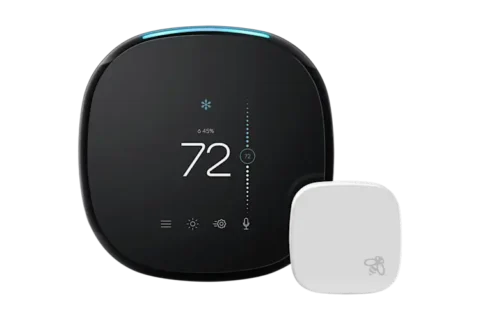
ecobee3 Smart Thermostat EB-STATe3-01
The ecobee3 is a Wi-Fi-enabled smart thermostat designed to control compatible residential heating, cooling, heat pump, and ventilation systems. It includes a touchscreen interface, remote temperature and occupancy sensing, scheduling features, and internet connectivity for monitoring and managing home comfort.
The thermostat supports up to two stages of conventional heating and two stages of cooling. It also works with compatible air-source and geothermal heat pumps, including configurations with auxiliary heating. Supported accessories include humidifiers, dehumidifiers, and ventilation equipment.
The ecobee3 can connect directly to a compatible 24 VAC HVAC system using a C-wire. For certain systems without a C-wire, the included Power Extender Kit (PEK) provides an alternative power connection.
Installation involves shutting off HVAC power, labeling the existing thermostat wires, installing the PEK when required, mounting the back plate, connecting the thermostat wiring, restoring system power, and completing the initial setup.
The installation also includes pairing a remote sensor, connecting the thermostat to Wi-Fi, and registering the device for supported remote access.
Important: The ecobee3 operates on 24 VAC with a maximum current of 2 A. It must not be connected to line-voltage or millivolt systems. The limited warranty excludes products not installed by a licensed HVAC contractor.
Product Overview
The ecobee3 uses temperature information from the main thermostat and compatible remote sensors to manage indoor heating and cooling.
The thermostat also provides scheduling, Home and Away comfort settings, vacation temperature management, and occupancy-based adjustments.
Once connected to Wi-Fi and registered, the ecobee3 can be accessed through supported mobile and online services.
Main Features
- Touchscreen control: Provides direct access to temperature settings and system configuration.
- Multi-stage HVAC support: Controls up to two conventional heating stages and two cooling stages.
- Heat pump compatibility: Supports one- or two-stage heat pumps with up to two auxiliary heating stages.
- Power Extender Kit: Supports certain HVAC systems without an existing C-wire.
- Remote sensor: Measures temperature and detects occupancy in another room.
- Smart Home/Away: Automatically adjusts comfort settings based on detected occupancy.
- Follow Me: Uses selected remote sensors to calculate the temperature used for comfort control.
- Comfort Wise: Excludes unreliable remote sensor readings under specified conditions.
- Custom schedules: Changes temperature settings according to the day and time.
- Comfort Settings: Provides Home, Away, and Sleep configurations.
- Vacation mode: Applies selected temperature settings for a future period.
- Wi-Fi connectivity: Supports registration and remote thermostat access.
- Temperature units: Allows Fahrenheit or Celsius display.
- Fan controls: Supports automatic and continuous fan operation.
- Accessory control: Supports compatible humidifiers, dehumidifiers, and ventilation devices.
- Alerts and reminders: Displays thermostat notifications and system reminders.
Compatible Heating and Cooling Systems
The ecobee3 is designed for most centralized residential heating and cooling systems that meet its electrical requirements.
HVAC Compatibility
| System Type | Supported Configuration |
| Conventional Heating | Up to 2 Stages |
| Conventional Cooling | Up to 2 Stages |
| Air-Source Heat Pumps | 1 or 2 Stages |
| Geothermal Heat Pumps | 1 or 2 Stages |
| Heat Pump Auxiliary Heating | Up to 2 Stages |
| Humidifiers | Supported Accessory |
| Dehumidifiers | Supported Accessory |
| Ventilation Devices | Supported Accessory |
| HRV Systems | Supported Accessory |
| ERV Systems | Supported Accessory |
| 24 VAC HVAC Systems | Supported Within Electrical Limits |
| 110/120V Line-Voltage Systems | Not Compatible |
| Millivolt Systems | Not Compatible |
Electrical Compatibility
The ecobee3 is designed for:
- 24 VAC HVAC control power.
- Maximum current of 2 A.
- A compatible C-wire or supported Power Extender Kit installation.
Warning: Do not connect the ecobee3 to 110/120V line-voltage wiring or a millivolt heating system.
What’s Included in the Box
The ecobee3 package includes the thermostat, a remote sensor, installation hardware, and setup materials.
| Item | Description |
| ecobee3 Thermostat | Main smart thermostat with touchscreen |
| Back Plate and Trim Plate | Mounting and wiring components |
| Remote Sensor | Measures room temperature and occupancy |
| Remote Sensor Stand | Supports tabletop placement |
| Power Extender Kit (PEK) | Used when required for compatible systems without a C-wire |
| Large Trim Plate | Covers marks or openings left by an older thermostat |
| Screws | Secure the thermostat mounting plate |
| Drywall Plugs | Provide mounting support |
| Double-Sided Adhesives | Used for mounting supported components |
| Wire Labels | Identify existing thermostat wires |
| Installation Guide | Provides installation and wiring instructions |
| Quick Start Guide | Provides basic setup information |
| Information Booklets | Additional product documentation |
Tools Required for Installation
| Tool | Purpose |
| Phillips Screwdriver | Removing and securing mounting hardware |
| Drill | Preparing wall anchor holes |
| 3/16-Inch Drill Bit | Drilling mounting holes for drywall anchors |
Parts and Components
The ecobee3 installation system includes the main thermostat, back plate, wiring terminals, remote sensor, and Power Extender Kit.
Main Thermostat Components
| Component | Function |
| Touchscreen | Displays temperature, menus, and operating settings |
| Thermostat Body | Houses the main thermostat electronics |
| Back Plate | Mounts the thermostat and provides wiring connections |
| Trim Plate | Provides the mounting finish around the thermostat |
| Built-In Level | Helps align the back plate during installation |
| Terminal Blocks | Connect HVAC control wires |
| Terminal Release Levers | Secure or release thermostat wires |
| Remote Sensor | Measures temperature and detects occupancy |
| Remote Sensor Battery | Powers the remote sensor |
| Remote Sensor Stand | Supports placement on a flat surface |
| Power Extender Kit | Provides an alternative power arrangement for compatible systems without a C-wire |
ecobee3 Wiring Terminals
The thermostat has terminals for heating, cooling, fan control, power, and HVAC accessories.
| Terminal | Function |
| Rc | Cooling Transformer Power |
| Rh | Heating Transformer Power |
| C | 24 VAC Common |
| G | Fan |
| Y1 | First-Stage Cooling or Heat Pump Compressor |
| Y2 | Second-Stage Cooling or Heat Pump Compressor |
| W1 (AUX1) | First-Stage Conventional Heat or Auxiliary Heat |
| W2 (AUX2) | Second-Stage Conventional Heat or Auxiliary Heat |
| O/B | Heat Pump Reversing Valve |
| ACC+ | Accessory Connection |
| ACC- | Accessory Connection |
The ACC terminals are used for compatible humidifiers, dehumidifiers, ventilators, heat recovery ventilators, and energy recovery ventilators.
Important Safety Instructions
The ecobee3 connects to HVAC electrical control circuits. Incorrect wiring or installation may damage the thermostat or connected equipment.
Electrical Safety
- Disconnect power to the HVAC system before starting installation.
- Use the HVAC equipment’s master switch or circuit breaker.
- Confirm that heating and cooling equipment cannot start before working on the wiring.
- Do not connect the thermostat to a 110/120V line-voltage system.
- Do not connect the thermostat to a millivolt system.
- Use only compatible 24 VAC HVAC equipment.
- Do not exceed the thermostat’s 2 A maximum current rating.
- Follow the correct wiring configuration for the HVAC equipment.
- Secure all wires inside the thermostat terminal blocks.
- Close the HVAC equipment cover before restoring power.
High-Voltage System Warning
Warning: The ecobee3 is incompatible with high-voltage systems.
If the existing thermostat has 110/120V wires joined with wire nuts, do not connect those wires to the ecobee3.
Power Extender Kit Safety
The Power Extender Kit requires access to the HVAC control board.
Warning: Installation involves working with electrical connections inside HVAC equipment.
If the installer is not comfortable working with HVAC wiring, contact ecobee support or hire a professional installer.
Accessory Wiring Warning
For one-wire accessory installations, the accessory must be connected to the ACC+ terminal.
Warning: Connecting a one-wire accessory to ACC- may damage the equipment.
Radio Frequency Exposure
Maintain a minimum separation distance of 8 inches (20 cm) between the device and people to comply with the stated FCC and IC radio-frequency exposure requirements.
Changes or modifications not expressly approved by ecobee may void the user’s authority to operate the equipment.
Before Installation
Before replacing an existing thermostat, confirm the HVAC system’s electrical compatibility and identify the existing wire connections.
Installation Preparation
- Review the thermostat and mounting components.
- Confirm that the HVAC equipment operates on a compatible 24 VAC control system.
- Identify the existing thermostat wiring.
- Check whether a C-wire is available.
- Determine whether the Power Extender Kit is required.
- Prepare a Phillips screwdriver and drill.
- Select a suitable location on an interior wall.
- Make sure the thermostat will be away from direct heat sources.
Recommended Thermostat Location
Install the ecobee3:
- In a conditioned indoor space.
- On an interior wall.
- Away from direct heat sources.
These conditions help the thermostat measure the indoor temperature accurately.
ecobee3 Installation Overview
The installation consists of seven main steps.
| Step | Task |
| 1 | Turn Off HVAC Power |
| 2 | Label Existing Thermostat Wires |
| 3 | Install the Power Extender Kit if Required |
| 4 | Mount the Back Plate |
| 5 | Connect the Thermostat Wires |
| 6 | Restore HVAC Power and Complete Setup |
| 7 | Install and Pair the Remote Sensor |
Step 1: Turn Off the HVAC System
Electrical power must be disconnected before removing the old thermostat or changing any wiring.
How to Turn Off HVAC Power
- Locate the HVAC equipment’s master power switch.
- Turn the switch off.
- If no master switch is available, locate the appropriate breaker in the electrical panel.
- Turn off the circuit breaker.
- Attempt to change the temperature on the existing thermostat.
- Confirm that the heating or cooling equipment does not start.
The old thermostat may still display a temperature change, but the HVAC equipment must remain off.
Important: Do not proceed with wiring until HVAC power has been disconnected.
Step 2: Label the Existing Thermostat Wires
The original wire labels help identify the correct ecobee3 terminal connections.
How to Identify and Label Wires
- Remove the cover from the existing thermostat.
- Check whether the cover snaps off or is secured with screws.
- Inspect the wires connected to the existing thermostat.
- Take a photograph of the wiring for reference.
- Use the original thermostat terminals to identify the wire connections.
- Apply the supplied labels to the corresponding wires.
Check for a C-Wire
Look for a wire connected to a terminal marked:
C or Common.
If a C-wire is present, the installation can proceed to mounting the back plate.
If no C-wire is present, check whether the HVAC wiring arrangement supports the Power Extender Kit.
Existing Thermostat Jumper Wires
The ecobee3 does not require external jumper wires between Rh, Rc, or R.
Discard jumper wires that were installed between these terminals on the old thermostat.
Unfamiliar Wire Labels
If the existing thermostat uses completely different wire labels, contact ecobee technical support before connecting the wires.
Step 3: Install the Power Extender Kit
The Power Extender Kit provides an alternative power connection when the existing thermostat does not have a C-wire.
The PEK is not required for every installation.
When Is the PEK Required?
If a C-wire is already connected to the existing thermostat, the PEK can be skipped.
For systems without a C-wire, the PEK can be used when the existing wiring meets the supported configurations.
PEK Wiring Requirements
The Power Extender Kit requires one of the following wiring arrangements.
| Existing Thermostat Wires | PEK Compatibility |
| W, Y, G, R | Supported |
| W, Y, G, Rc | Supported |
| W, Y, G, Rh | Supported |
| Y, G, R | Supported |
| Y, G, Rc | Supported |
| Y, G, Rh | Supported |
The wire configurations must correspond to the supported HVAC equipment.
How the PEK Works
The PEK connects between the existing thermostat wires and the HVAC control board.
One side connects to the wires leading to the thermostat.
The other side contains preinstalled wires that connect to the HVAC control board.
PEK Installation Instructions
Warning: This procedure requires working inside the HVAC equipment cabinet. Power must be disconnected, and installation should be performed by a qualified HVAC technician.
Step 1: Remove the HVAC Cover
- Confirm that HVAC electrical power is off.
- Locate the HVAC equipment cover.
- Remove the cover panel.
Step 2: Locate the Control Board
- Find the HVAC control board.
- Identify the terminals connected to the thermostat wires.
- Take a photograph of the existing connections.
Typical control board terminal labels include:
- R.
- G.
- Y.
- W.
- C.
Step 3: Label the Control Board Wires
Use the supplied labels to identify the wires running between the control board and thermostat.
Step 4: Open the Power Extender Kit
The PEK has two terminal groups:
| PEK Connection Side | Purpose |
| Thermostat Side | Connects the Existing Thermostat Wires |
| Equipment Side | Connects to the HVAC Control Board Using Preinstalled Wires |
Step 5: Connect Thermostat Wires to PEK
- Disconnect the identified thermostat wires from the HVAC control board.
- Connect the wires to their corresponding terminals on the thermostat side of the PEK.
- Confirm that each connection is secure.
Step 6: Connect PEK to HVAC Control Board
- Locate the wires supplied with the PEK.
- Connect the equipment-side wires to their corresponding terminals on the HVAC control board.
- Confirm that the connections match the labeled terminal functions.
Step 7: Mount the PEK
- Close the PEK housing.
- Apply the supplied double-sided adhesive to the back.
- Mount the PEK in a dry location inside the HVAC unit.
- Select a location that does not put strain on the wires.
The PEK may be placed in available space on an interior wall of the HVAC cabinet.
Step 8: Close the HVAC Equipment
Reinstall the HVAC equipment cover panel before restoring power.
Important PEK Thermostat Wiring Rule
When using the PEK, the R wire from the wall must connect to the ecobee3 Rc terminal.
Do not connect the R wire to Rh when using the PEK.
The thermostat will not power on if the R wire is connected incorrectly in this configuration.
Step 4: Mount the ecobee3 Back Plate
The ecobee3 back plate must be installed together with a trim plate.
Remove the Existing Thermostat Base
- Unscrew the old thermostat base from the wall.
- Gently remove the base.
- Make sure the thermostat wires do not fall back inside the wall opening.
Position the Back Plate
- Place the ecobee3 back plate against the wall.
- Use the built-in level to align it.
- Center the level bubble.
- Mark the mounting hole locations with a pencil.
Choose the Trim Plate
The ecobee3 includes a regular trim plate and a larger trim plate.
| Trim Plate | Purpose |
| Standard Trim Plate | Regular Wall Installation |
| Large Trim Plate | Covers Marks Left by the Previous Thermostat |
The back plate must be used with a trim plate.
Install the Back Plate
- Drill the mounting holes using a 3/16-inch drill bit.
- Insert the supplied drywall anchors.
- Position the trim plate and back plate.
- Use the right-side tabs to align the back plate.
- Press until it snaps into position.
- Secure the assembly with the supplied screws.
Check that the back plate is level before tightening the hardware completely.
Step 5: Connect the Wires to ecobee3
The labeled thermostat wires connect to the corresponding terminal blocks on the ecobee3 back plate.
How to Insert Thermostat Wires
- Confirm that HVAC power remains disconnected.
- Identify the appropriate ecobee3 terminal.
- Insert the labeled wire into the terminal block.
- Check that the terminal release lever moves down, indicating engagement.
- Gently pull the wire to confirm that it is securely connected.
- Repeat for the remaining wires.
How to Release a Wire
Press down on the terminal release lever to release the connected wire.
R Wire Connection
| Installation Type | R Wire Connection |
| Installation Using PEK | Rc Terminal Only |
| Installation Without PEK | Rc or Rh According to Wiring Configuration |
For installations without the PEK, the ecobee3 automatically handles the required Rc/Rh connection.
Do not install an external jumper between Rc and Rh.
Attach the Thermostat Body
After wiring is complete:
- Push excess wire back into the wall opening.
- Align the thermostat with the installed back plate.
- Push the thermostat into position.
ecobee3 Wiring Diagrams and Configurations
The ecobee3 supports several HVAC wiring arrangements.
The connections must match the installed equipment and the corresponding wiring diagram.
Conventional Heating and Cooling
Supported configuration:
Up to two stages of heating and two stages of cooling.
| ecobee3 Terminal | Connected Function |
| Rc or Rh | HVAC Power |
| C | 24 VAC Common |
| G | Fan |
| Y1 | First-Stage Cooling |
| Y2 | Second-Stage Cooling, If Installed |
| W1 | First-Stage Heating |
| W2 | Second-Stage Heating, If Installed |
The system’s actual wiring determines which terminal connections are required.
Heat Pump Wiring
The ecobee3 supports air-source and geothermal heat pumps with auxiliary heating.
| Terminal | Heat Pump Function |
| Rc or Rh | HVAC Power |
| C | 24 VAC Common |
| G | Fan |
| Y1 | First-Stage Compressor |
| Y2 | Second-Stage Compressor, If Installed |
| O/B | Reversing Valve |
| W1 (AUX1) | First-Stage Auxiliary Heat |
| W2 (AUX2) | Second-Stage Auxiliary Heat |
Use the heat pump configuration appropriate to the installed equipment.
Boiler or Radiant Heat Systems
The ecobee3 supports the illustrated boiler or radiant heating arrangement with an air handler and conventional cooling or heat pump.
The connection may include:
- Boiler heating terminals.
- Air handler fan and power connections.
- Conventional cooling or heat pump connections.
- Second-stage heating or cooling where applicable.
A reversing valve connection is used only for heat pump applications.
Wiring Jumper Requirement
The ecobee3 handles the Rc and Rh connection internally when appropriate.
External jumper wiring between Rc and Rh is not required.
Accessory Wiring Instructions
The ecobee3 can control compatible HVAC accessories using its ACC terminals.
Supported accessory types include:
- Humidifiers.
- Dehumidifiers.
- Ventilation devices.
- Heat recovery ventilators (HRVs).
- Energy recovery ventilators (ERVs).
Two-Wire Accessory Connection
For a two-wire accessory, use the accessory’s two control wires and the corresponding ecobee3 ACC terminals.
| Accessory Wire | ecobee3 Terminal |
| Accessory Wire 1 | ACC+ |
| Accessory Wire 2 | ACC- |
The accessory must be configured during the thermostat’s initial setup.
One-Wire Accessory Connection
A supported one-wire accessory connects to ACC+.
| Connection | Requirement |
| Accessory Control Wire | ACC+ |
| ACC- | Do Not Connect Accessory Wire |
Warning: Equipment damage may occur if a one-wire accessory is connected to ACC-.
When one-wire accessory mode is selected during setup, the ecobee3 automatically connects Rc to ACC- internally.
Integrated Dehumidifier Wiring
For an integrated dehumidifier connection, the HVAC equipment’s DEHUM control connection is wired according to the one-wire accessory configuration.
The one-wire accessory warning also applies to this arrangement.
HRV and ERV Wiring
The ecobee3 supports compatible HRV and ERV ventilation systems through ACC+ and ACC-.
The relevant HRV or ERV equipment instructions identify which two control wires are required.
These wires may be described as:
- Optional auxiliary control for high-speed fan.
- Dry contact timer configuration.
The accessory must be configured after the thermostat is powered on.
Step 6: Restore Power and Set Up ecobee3
After installation and wiring are complete, restore power to the HVAC system.
Turn On the Thermostat
- Confirm that the thermostat is attached to the back plate.
- Make sure the HVAC equipment cover is properly closed.
- Restore power using the HVAC master switch or circuit breaker.
- Wait for the ecobee3 to turn on.
The thermostat starts automatically when the HVAC power connection is correct.
Initial On-Screen Setup
The ecobee3 guides users through the initial configuration.
| Setup Section | Function |
| Equipment Configuration | Identifies Heating, Cooling, and Accessory Equipment |
| Temperature Preferences | Selects Fahrenheit or Celsius |
| Heating Setpoint | Sets Desired Heating Temperature |
| Cooling Setpoint | Sets Desired Cooling Temperature |
| Thermostat Name | Assigns a Recognizable Device Name |
| Wi-Fi Setup | Connects the Thermostat to a Wireless Network |
| Registration | Registers the ecobee3 Online |
Temperature Unit Selection
During setup, choose either:
- Fahrenheit (°F).
- Celsius (°C).
The selection can be changed later in the thermostat settings.
Equipment Configuration
Follow the on-screen instructions to configure the detected heating and cooling equipment.
If the system includes a humidifier, dehumidifier, or ventilator, configure the accessory when prompted.
ecobee3 Wi-Fi Setup
The ecobee3 supports Wi-Fi connectivity for online registration and remote access.
How to Connect ecobee3 to Wi-Fi
- Complete the physical thermostat installation.
- Restore HVAC power.
- Follow the ecobee3 on-screen setup.
- Open the Wi-Fi setup section when prompted.
- Follow the displayed connection instructions.
- Complete the online registration process.
Wi-Fi settings can also be accessed later through the thermostat Settings menu.
Online Registration
Register the thermostat at:
Registration provides access to supported control functions from compatible smartphones, tablets, or desktop computers.
Mobile Application
The installation guide identifies the ecobee3 mobile application as available through the Apple App Store and Google Play.
After registration, follow the app’s instructions to access the registered thermostat.
Step 7: Install the ecobee3 Remote Sensor
The ecobee3 remote sensor measures temperature and detects occupancy in another part of the home.
It allows the thermostat to use temperature information from more than one location.
How to Pair the Remote Sensor
- Stand in front of the ecobee3 thermostat.
- Make sure the thermostat screen is awake.
- Touch the thermostat screen if necessary.
- Locate the plastic battery tab on the remote sensor.
- Pull the plastic tab to activate the sensor.
- Wait for the sensor to connect automatically.
- Follow the thermostat instructions to name the sensor.
- Confirm that the thermostat recognizes the sensor.
Remote Sensor Pairing Troubleshooting
If the remote sensor does not connect:
- Open the back cover using the provided ridges.
- Remove the sensor battery.
- Wait 2 minutes.
- Reinsert the battery.
- Allow the thermostat to detect the sensor again.
Attaching the Remote Sensor Stand
- Remove the smaller back cover from the sensor.
- Insert the supplied stand.
- Press the stand into place.
To remove the stand, pull its base outward.
Remote Sensor Placement Instructions
Correct placement helps the remote sensor measure the room temperature and detect occupancy.
Recommended Remote Sensor Height
Place the sensor approximately 5 feet (1.5 meters) above the floor.
Recommended Location
Install the sensor:
- On an interior wall.
- Away from direct heating and cooling sources.
- Away from direct sunlight.
- Away from air vents.
- Away from window openings.
- Where it can measure the room’s ambient temperature.
- Where it has an unobstructed view when occupancy sensing is required.
Locations to Avoid
Do not place the sensor:
- In direct sunlight.
- Close to fireplaces.
- Near heating or cooling vents.
- Near open windows.
- Inside closed drawers.
- Inside cabinets.
- Inside closets.
Enclosed locations and nearby heat sources can distort temperature readings.
Sensor Orientation
Position the sensor so the bee logo points upward and to the right.
Remote Sensor Installation Methods
The sensor can be installed in three ways.
| Installation Method | Description |
| Wall Screw | Attach to an Interior Wall Using the Supplied Screw |
| Adhesive Mounting | Attach to a Suitable Wall Using the Supplied Adhesive |
| Stand | Place on a Flat Surface Using the Supplied Stand |
For homes with children or pets, wall mounting can help prevent the sensor from being knocked over.
ecobee3 Remote Sensor Range
The remote sensor has an approximate operating range of:
45 feet (13.7 meters).
What Happens When the Sensor Is Out of Range?
When the remote sensor moves outside the effective communication range, the thermostat displays:
N/A
This indicates that the thermostat cannot communicate with the remote sensor.
When the sensor is back within range, it automatically reconnects.
Remote Sensor Features
The ecobee3 provides several functions that use remote temperature or occupancy information.
Smart Home/Away
Smart Home/Away uses occupancy detection to adjust the selected comfort setting.
For example:
- When occupancy is detected during a scheduled Away period, the thermostat can override the Away schedule.
- When no occupancy is detected during a scheduled Home period, the thermostat can override the Home schedule.
The function automatically adjusts operation according to the detected occupancy conditions.
Follow Me
Follow Me uses temperature readings from selected sensors.
| Follow Me Setting | Temperature Calculation |
| Enabled | Averages Selected Sensors Detecting Motion |
| Disabled | Averages All Selected Sensors, Regardless of Motion |
Comfort Wise
Comfort Wise helps prevent inaccurate remote sensor readings from influencing home temperature control.
The thermostat excludes a remote sensor reading when:
- Communication with the sensor is lost.
- The remote sensor and thermostat temperature readings differ by more than the configured amount.
Remote Sensor Occupancy Detection
A sensor can be positioned to measure temperature without detecting normal room movement.
For temperature-only placement, position it away from a clear view of the room, such as facing away from the occupied area.
How to Store the Remote Sensor
If a remote sensor will not be used:
- Open the ecobee3 Sensors menu.
- Delete the sensor from the thermostat.
- Remove or disconnect its battery.
- Store the sensor.
Removing the battery prevents the sensor from continuing to operate while stored.
ecobee3 Menu and Operating Settings
The thermostat’s main menu provides access to temperature control, scheduling, comfort settings, and system configuration.
Touch the screen and open the menu.
Main Menu Options
| Menu Option | Function |
| System | Selects Heating, Cooling, Auto, or Off; Controls Fan Operation |
| Schedule | Configures Temperature by Time and Day |
| Comfort Settings | Configures Home, Away, and Sleep Temperatures |
| Vacation | Sets Temperatures for a Future Time Period |
| Settings | Configures Display, Wi-Fi, Equipment, and Sensors |
| Reminders | Shows Reminder and Alert Messages |
| About | Displays Technical Thermostat Information |
Heating, Cooling, and Fan Settings
The System menu controls the thermostat’s operating mode.
System Modes
| Mode | Function |
| Heat | Operates the Heating System |
| Cool | Operates the Cooling System |
| Auto | Automatically Selects Heating or Cooling |
| Off | Turns Heating and Cooling Control Off |
Fan Modes
| Setting | Function |
| Auto | Fan Operates According to HVAC System Demand |
| On | Fan Operates Continuously |
How to Change System Mode
- Wake the thermostat screen.
- Open the main menu.
- Select System.
- Choose Heat, Cool, Auto, or Off.
How to Change Fan Operation
- Open System.
- Locate the fan setting.
- Select Auto or On.
Schedule Settings
The ecobee3 can adjust temperature settings based on the time and day.
How to Access the Schedule
- Wake the thermostat.
- Open the main menu.
- Select Schedule.
- Configure the desired temperature schedule.
Scheduling allows different temperature settings to be used during selected periods.
Comfort Settings
The Comfort Settings menu provides separate temperature preferences for different occupancy conditions.
Available Comfort Settings
| Comfort Setting | Purpose |
| Home | Temperature Preferences While Home |
| Away | Temperature Preferences While Away |
| Sleep | Temperature Preferences During Sleeping Hours |
How to Access Comfort Settings
- Open the thermostat menu.
- Select Comfort Settings.
- Choose Home, Away, or Sleep.
- Configure the preferred temperatures.
These settings can be used with scheduling and occupancy-based functions.
Vacation Mode
Vacation mode applies selected temperature settings for a specific future period.
How to Access Vacation Settings
- Open the main menu.
- Select Vacation.
- Follow the on-screen instructions.
- Configure the temperature settings and time period.
Display and Equipment Settings
The Settings menu provides access to the thermostat’s general preferences and HVAC configuration.
Available Settings
| Setting Category | Description |
| Temperature Units | Fahrenheit or Celsius |
| Date | Date Preferences |
| Display Brightness | Screen Brightness |
| Wi-Fi | Wireless Connection |
| Equipment | HVAC Operating Parameters |
| Thresholds | Equipment Control Thresholds |
| Sensors | Remote Sensor Management |
Reminders and Alerts
The ecobee3 displays reminder and alert messages through the Reminders menu.
How to View Reminders
- Wake the thermostat.
- Open the main menu.
- Select Reminders.
- Review the displayed messages.
Thermostat Information
Open About to view available technical information about the thermostat.
ecobee3 Troubleshooting Guide
The following troubleshooting instructions cover power problems, wiring checks, and remote sensor connection issues described in the installation guide.
| Problem | Possible Cause | Recommended Action |
| Thermostat Does Not Power On | Wire Not Fully Inserted | Check Terminal Connections and Secure Wires |
| Thermostat Does Not Power On | HVAC Cover Panel Is Open | Close the Equipment Cover Properly |
| Thermostat Does Not Power On After PEK Installation | R Wire Connected Incorrectly | Connect R to Rc |
| Thermostat Does Not Power On After PEK Installation | G Wire Not Seated | Check G Terminal Connection |
| Thermostat Does Not Power On | Required 24 VAC Supply Missing | Have a Qualified Technician Check Voltage |
| Remote Sensor Will Not Pair | Sensor Connection Not Established | Remove Battery, Wait 2 Minutes, and Reinsert |
| Remote Sensor Shows N/A | Sensor Is Outside Communication Range | Move Within Approximate 45 ft Range |
| Remote Sensor Temperature Is Excluded | Reading Difference Exceeds Configured Limit or Connection Is Lost | Check Sensor Placement and Connection |
| Temperature Reading Is Inaccurate | Sensor Near Heat, Sunlight, Vents, or Windows | Reposition the Sensor |
ecobee3 Thermostat Not Turning On
If the thermostat does not power on after installation, check the following conditions.
Check Thermostat Wiring
- Confirm that all wires are inserted into their corresponding terminals.
- Gently pull each wire to check that it is secure.
- Reinsert loose wires into the correct terminals.
Electrical power must be disconnected before adjusting wiring.
Check the HVAC Equipment Cover
Some HVAC equipment uses a safety switch that disconnects power when the equipment cover is open.
Make sure the HVAC cover panel is closed securely.
Check PEK Wiring
If the Power Extender Kit is installed:
- Confirm that the R wire is connected to Rc.
- Check that the G wire is correctly inserted.
- Verify the PEK and HVAC control board connections.
Important: The R wire must connect to Rc when the PEK is used.
Check the HVAC Voltage
The guide specifies checking for 24 VAC between:
- Rc and C.
- Rh and C.
This electrical measurement should be performed by a qualified HVAC technician using an appropriate multimeter.
Contact ecobee Support
If the thermostat still does not power on, contact:
- North America: 1-877-932-6233
- International: 1-647-428-2220
ecobee3 Power Extender Kit Not Working
If the thermostat does not turn on after PEK installation, the guide identifies two important wiring checks.
PEK R Wire Connection
The wall’s R wire must connect to the Rc terminal only.
PEK G Wire Connection
The G wire must be inserted securely into its corresponding terminal.
The HVAC cover must also be installed correctly before the system is powered on.
ecobee3 Remote Sensor Not Connecting
If the remote sensor does not automatically pair:
- Open the sensor’s rear cover.
- Remove the battery.
- Wait 2 minutes.
- Reinsert the battery.
- Allow the thermostat to detect the sensor again.
Make sure the thermostat screen is awake during the pairing process.
ecobee3 Remote Sensor Showing N/A
When the remote sensor is outside its effective wireless range, the thermostat displays N/A.
How to Restore the Connection
- Check the sensor’s distance from the thermostat.
- Move the sensor within approximately 45 feet.
- Allow the sensor and thermostat to reconnect automatically.
ecobee3 Remote Sensor Temperature Not Being Used
Comfort Wise may exclude a sensor reading when communication is lost or when the reading differs from the thermostat by more than the configured amount.
Check that the sensor:
- Is within communication range.
- Is not located near a heat source.
- Is not exposed to direct sunlight.
- Is not near an air vent or window opening.
- Can measure the room’s ambient temperature.
ecobee3 Remote Sensor Placement Problems
If the sensor is inside a drawer, cabinet, or closet, the temperature reading may not represent the room accurately.
Move it to a suitable interior wall or open surface.
Install it approximately 5 feet above the floor and away from direct heating or cooling sources.
Maintenance and Storage Instructions
The installation guide provides maintenance guidance for remote sensor placement, battery handling, and equipment connections.
Remote Sensor Maintenance
- Keep the sensor in a suitable location.
- Avoid direct sunlight and nearby heating or cooling sources.
- Check for communication problems when N/A appears.
- Remove the battery before long-term storage.
- Delete unused sensors from the thermostat’s Sensors menu.
Thermostat Wiring Checks
If the thermostat loses power, check terminal engagement and HVAC equipment cover installation.
Electrical checks or wiring changes should be performed by a qualified technician.
FCC and Regulatory Information
The ecobee3 complies with applicable FCC requirements for Class B digital devices under Part 15 of the FCC Rules.
FCC Compliance
The device generates and uses radio-frequency energy.
If interference occurs with radio or television reception:
- Reorient or relocate the receiving antenna.
- Increase the distance between the thermostat and affected equipment.
- Connect the affected equipment to a different electrical circuit.
- Consult an experienced radio or television technician.
Radio Frequency Separation
Maintain at least 8 inches (20 cm) between the device and people to meet the stated FCC and IC exposure requirements.
Regulatory Identifiers
| Identifier | Value |
| FCC ID | WR9EBSTATZBE3 |
| IC ID | 7981A-EBSTATZBE3 |
| FCC Classification | Class B Digital Device |
| FCC Rules | Part 15 |
RoHS Compliance
The ecobee3 was designed and built according to RoHS Directive 2002/95/EC.
The guide states that the product does not contain hazardous substances as defined by that directive.
Warranty Information
The ecobee3 includes a three-year limited warranty.
Warranty Coverage
The warranty covers qualifying defects in materials and workmanship during normal use and service.
| Warranty Detail | Information |
| Warranty Provider | ecobee Inc. |
| Warranty Period | 3 Years |
| Warranty Begins | Original Consumer Purchase Date |
| Covered Defects | Materials and Workmanship |
| Available Remedy | Repair or Replacement at ecobee’s Option |
| Repair or Replacement Cost | No Charge for Eligible Defects |
| Replacement Warranty | Remaining Original Warranty or 90 Days, Whichever Is Longer |
| Warranty Support | 1-877-932-6233 |
Warranty Service
If a qualifying product defect occurs during the warranty period, ecobee may repair or replace the defective product.
Repaired or replacement devices are covered for the longer of:
- The remaining original warranty period.
- Ninety days.
How to Request Warranty Service
- Contact ecobee Customer Service at 1-877-932-6233.
- Explain the product problem.
- Follow the service instructions.
- Complete any required return or replacement process.
ecobee determines whether a replacement can be supplied or the original product must be returned for inspection.
Warranty Service Through an HVAC Contractor
If the thermostat was purchased from a third-party contractor rather than directly from ecobee, the customer may contact the contractor about an equivalent replacement.
The contractor must determine that the product is defective and eligible under the warranty.
Advanced Replacement
ecobee may arrange an equivalent replacement before receiving the defective unit.
In this situation, a temporary credit card hold may be required until the defective thermostat is received.
The hold is not charged if ecobee confirms that the returned product is defective and qualifies for replacement.
Warranty Exclusions
The limited warranty does not cover removal or reinstallation costs.
It also excludes damage resulting from:
- Abnormal use or storage conditions.
- Improper maintenance.
- Unauthorized repairs.
- Unauthorized modifications.
- Abuse or neglect.
- Electrical faults.
- Improper handling.
- Accidents.
- Natural events.
- Incorrect installation.
- Installation not performed by a licensed HVAC contractor.
Important: The warranty excludes a product that was not installed by a licensed Heating, Ventilating, and Air Conditioning contractor.
Warranty Limitations
ecobee limits its responsibility for qualifying product defects to the remedies described in the warranty.
Certain exclusions or limitations may not apply in some U.S. states or Canadian provinces.
Warranty rights may vary by jurisdiction.
Customer Support Information
ecobee provides technical support for installation, wiring, remote sensor setup, and thermostat operation.
| Contact Detail | Information |
| Brand | ecobee |
| Manufacturer | ecobee Inc. |
| Official Website | https://www.ecobee.com |
| Professional installation | https://www.ecobee.com/en-us/professional-installation/ |
| Self Installation Tutorials | https://www.ecobee.com/en-us/installation/ |
| Support Email | support@ecobee.com |
| North America Support | 1-877-932-6233 |
| International Support | 1-647-428-2220 |
| Customer Service Address | 250 University Ave, Suite 400, Toronto, Ontario, M5H 3E5, Canada |
How to Get Installation Assistance
For technical help, use the contact information above.
ecobee provides support for:
- HVAC compatibility questions.
- Installation and wiring.
- Power Extender Kit connections.
- Thermostat startup problems.
- Remote sensor pairing.
- General setup and operation.
Frequently Asked Questions
How do I install the ecobee3 smart thermostat?
Turn off HVAC power, remove the existing thermostat cover, and label the wires. If a compatible system does not have a C-wire, install the Power Extender Kit. Mount the ecobee3 back plate, connect the thermostat wires, attach the thermostat body, and restore HVAC power. Complete the on-screen equipment setup, Wi-Fi connection, registration, and remote sensor pairing.
Does the ecobee3 thermostat require a C-wire?
The ecobee3 requires a compatible power connection. A C-wire provides 24 VAC common power. If the existing thermostat does not have a C-wire, the Power Extender Kit can be used with supported wiring configurations, including W, Y, G, R or Y, G, R arrangements.
How do I wire the ecobee3 with the Power Extender Kit?
Install the PEK at the HVAC control board, connecting the existing thermostat wires to the thermostat side of the PEK and the provided PEK wires to the control board. At the ecobee3 thermostat, the R wire must connect to Rc. The G wire must also be installed correctly. HVAC wiring work should be completed by a qualified technician.
Why is my ecobee3 thermostat not turning on?
Check that all thermostat wires are securely connected, the HVAC equipment cover is closed, and the HVAC system has power. If the PEK is installed, confirm that the R wire connects to Rc and the G wire is secure. A qualified technician can check for 24 VAC between Rc and C or Rh and C. Contact ecobee support if the thermostat still does not start.
How do I pair an ecobee3 remote sensor?
Wake the thermostat screen and stand nearby. Pull the plastic battery tab from the remote sensor. The sensor should power on and connect automatically. When the thermostat detects it, assign the sensor a name. If pairing fails, remove the sensor battery, wait two minutes, and reinsert it.
How far can the ecobee3 remote sensor be from the thermostat?
The remote sensor has an approximate communication range of 45 feet (13.7 meters). If the sensor is outside this range, the thermostat may display N/A. When the sensor returns within range, it should reconnect automatically.
How do I connect ecobee3 to Wi-Fi?
After installing the thermostat and restoring HVAC power, follow the on-screen setup instructions. The setup process includes equipment configuration, temperature preferences, thermostat naming, Wi-Fi connection, and online registration. Wi-Fi settings can also be accessed later through the main Settings menu.