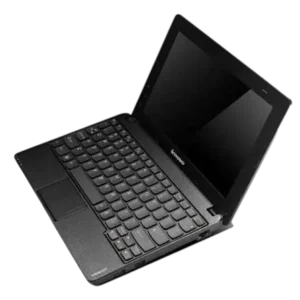
| Field | Details |
| Document Title | Lenovo E10-30 User Guide |
| Document Type | User Guide |
| Brand Name | Lenovo |
| Product Name | E10-30 Laptop |
| Model Number(s) | E10-30 |
| PDF File Size | 3.09 MB |
| Number of Pages | 42 |
| Languages Covered | English |
Lenovo E10-30
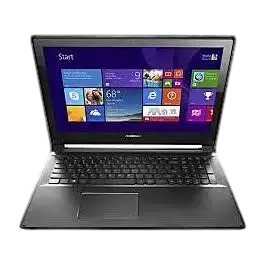
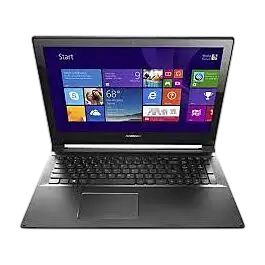
The Lenovo E10-30 is a laptop computer designed for everyday computing, document work, internet access, communication, and multimedia applications. It includes a built-in display, integrated camera, microphone, wireless antennas, keyboard, touchpad, speakers, and connections for external devices.
The computer supports Windows 7 and Windows 8.1, with operating system instructions for initial setup, power management, wireless networking, and system recovery.
The Lenovo E10-30 includes USB ports, a VGA connector, RJ-45 Ethernet port, combo audio jack, and memory card reader. A removable rechargeable battery supplies power during portable use, while the AC power adapter powers the computer and charges the battery.
The keyboard includes shortcuts for adjusting volume, display brightness, Airplane Mode, and other functions. The Novo button provides access to the BIOS Setup Utility, boot menu, and Lenovo OneKey Recovery System.
Lenovo OneKey Recovery allows the system partition to be backed up and restored if Windows develops problems. The computer also supports customer replacement of the battery pack and keyboard.
These instructions cover hardware components, setup, keyboard controls, WiFi and Bluetooth connections, Windows operation, BIOS settings, recovery, troubleshooting, and component replacement.
Technical Specifications
| Specification | Details |
| Brand | Lenovo |
| Product Name | E10-30 |
| Product Type | Laptop Computer |
| Operating Systems Covered | Windows 7 and Windows 8.1 |
| Display | Integrated Display |
| Integrated Camera | Yes |
| Built-In Microphone | Yes |
| Wireless Networking | Wireless LAN |
| Bluetooth | Available on Supported Configurations |
| Bluetooth Range | Up to 10 m (32.8 ft) in Open Space |
| Keyboard | Built-In Keyboard with Function Keys |
| Pointing Device | Touchpad with Left and Right Buttons |
| USB Connections | USB 3.0 and USB Port |
| External Display Connection | VGA |
| Wired Networking | RJ-45 Ethernet |
| Audio Connection | Combo Audio Jack |
| Memory Card Reader | SD and MMC |
| Speakers | Built-In |
| Battery | Removable Rechargeable Battery Pack |
| Power Connection | AC Power Adapter Jack |
| System Recovery | Lenovo OneKey Recovery |
| Firmware Configuration | BIOS Setup Utility |
| Boot Modes | UEFI and Legacy Support on Selected Models |
| Maximum Display Opening Angle | 130 Degrees |
Hardware configurations and some available functions may vary between individual computers.
Parts and Components
The Lenovo E10-30 includes components positioned around the display, keyboard, sides, front edge, and bottom cover.
Top Components
| Component | Function |
| Integrated Camera | Supports video communication |
| Wireless Antennas | Send and receive wireless signals |
| Display | Shows applications, images, and other visual information |
| Novo Button | Opens recovery, BIOS Setup, or boot selection |
| Power Button | Turns on the computer |
| Built-In Microphone | Captures audio for recording and communication |
| System Indicators | Show battery, power, and device activity |
| Touchpad | Controls pointer movement |
| Touchpad Buttons | Provide left-click and right-click functions |
Integrated Camera
The integrated camera supports video communication through compatible applications.
Built-In Microphone
The microphone captures sound for video conferencing, voice narration, and audio recording.
Wireless Antennas
The integrated antennas communicate with the wireless adapter to transmit and receive wireless signals.
The antennas are installed inside the computer and are not externally visible.
Power Button
Press the Power button to turn on the computer.
The button can also be used to place the computer into Sleep mode or resume operation.
Novo Button
The Novo button provides access to system startup and recovery functions.
When the computer is turned off, pressing the Novo button allows access to:
- Lenovo OneKey Recovery System
- BIOS Setup Utility
- Boot Menu
Left-Side Ports and Connections
The left side includes the AC power connector, VGA port, ventilation openings, USB 3.0 connection, and combo audio jack.
| Component | Function |
| AC Power Adapter Jack | Connects the external power adapter |
| VGA Port | Connects compatible external display devices |
| Ventilation Slots | Release internal heat |
| USB 3.0 Port | Connects compatible USB devices |
| Combo Audio Jack | Connects compatible headsets |
AC Power Adapter Jack
The AC power adapter connects to the dedicated power jack.
The adapter supplies electrical power to the computer and charges the battery.
VGA Port
The VGA connector supports compatible external display equipment.
Ventilation Slots
The ventilation openings allow internal heat to escape.
Important: Keep the ventilation slots unobstructed. Blocked openings may cause the computer to overheat.
USB 3.0 Port
The USB 3.0 connector supports compatible USB peripherals, including storage devices, keyboards, and mice.
Combo Audio Jack
The combo audio jack supports compatible headsets.
Conventional standalone microphones are not supported through this connector.
Recording through certain third-party headsets may be unavailable because of differences in connector standards.
Right-Side Ports and Connections
The right side includes a USB port and an RJ-45 Ethernet connection.
| Component | Function |
| USB Port | Connects compatible USB devices |
| RJ-45 Port | Connects the computer to a wired Ethernet network |
USB Port
The USB port allows compatible external devices to be connected.
RJ-45 Ethernet Port
The RJ-45 connection provides access to compatible wired networks.
An Ethernet cable can be connected between the computer and the network equipment.
Front Memory Card Slot
The front edge of the computer contains a memory card reader.
Supported Memory Cards
| Memory Card Type | Supported |
| Secure Digital (SD) | Yes |
| MultiMediaCard (MMC) | Yes |
| SDIO Devices | No |
How to Insert a Memory Card
- Locate the memory card slot on the front edge.
- Position the card correctly.
- Insert the card until it reaches the bottom of the slot.
Only one memory card should be inserted at a time.
How to Remove a Memory Card
- Safely eject the card through Windows.
- Wait until Windows completes the operation.
- Gently pull the card out of the slot.
Important: Removing a card without ejecting it properly may cause data corruption.
Bottom Components
The underside of the laptop includes the removable battery pack, battery latches, ventilation openings, and speakers.
| Component | Function |
| Manual Battery Latch | Locks the battery in place |
| Battery Pack | Supplies portable electrical power |
| Spring-Loaded Battery Latch | Secures the battery pack |
| Ventilation Slots | Allow cooling air to enter |
| Speakers | Provide audio output |
The two battery latches must be operated correctly when removing or replacing the battery.
Battery, Power and Device Activity Indicators
The laptop includes indicator lights that display battery charge, power status, and storage activity.
Battery Indicator Light Guide
| Indicator Status | Meaning |
| Solid White | Battery charge is above 20% |
| Solid Amber | Battery charge is between 5% and 20% |
| Fast Blinking Amber | Battery charge is below 5% |
| Slow Blinking Amber | Battery is charging and has not yet reached 20% |
| Slow Blinking White | Battery is charging between 20% and 80% |
When the battery reaches 20% during charging, the blinking amber indicator changes to white.
When charging reaches 80%, the white indicator stops blinking. Charging continues until the battery becomes fully charged.
Power Status Indicator
| Indicator Status | Meaning |
| Solid White | Computer is powered on |
| Blinking | Computer is in Sleep mode |
| Off | Computer is powered off |
Device Access Indicator
A blinking device access indicator means data is being read from or written to the hard disk drive or an external storage device.
Important Safety Instructions
Before using the computer, read the Lenovo Safety and General Information Guide supplied with the product.
Display Safety
Do not open the display beyond 130 degrees.
Before closing the display, check that no pens or other objects remain between the keyboard and screen.
Objects trapped between these surfaces may damage the display panel.
Ventilation Safety
Keep the ventilation openings clear during operation.
Blocked ventilation may cause overheating.
Battery Safety
Only a battery approved and supplied by Lenovo should be used.
Warning: An unsuitable replacement battery may ignite or explode.
Remove the battery and disconnect the AC adapter before performing the keyboard replacement procedure.
External Device Safety
Do not connect or disconnect non-USB external-device cables while the computer is turned on.
Doing so may damage the computer.
External devices requiring substantial power, such as certain USB optical drives, should use their own external power adapters.
Data Protection
Always eject USB storage devices and memory cards properly before disconnecting them.
Before moving the computer after entering Sleep mode, wait until the Power indicator starts blinking.
Moving the computer while the hard disk drive is spinning may damage the drive and cause data loss.
Before First Use
The laptop may require Windows configuration when it is turned on for the first time.
Initial Preparation
- Place the computer on a stable surface.
- Make sure its ventilation openings are unobstructed.
- Connect the AC power adapter to the laptop.
- Connect the adapter to an electrical outlet.
- Press the Power button.
- Follow the operating system’s setup instructions.
First-Time Windows Configuration
The initial Windows setup may require:
- Accepting the end-user license agreement
- Configuring an internet connection
- Registering the operating system
- Creating a user account
The available setup screens depend on the installed Windows version.
How to Use the Keyboard
The Lenovo E10-30 keyboard includes function keys and hotkeys for common computer settings.
Keyboard Hotkeys
| Key | Function |
| F1 | Mutes or unmutes sound |
| F2 | Decreases speaker volume |
| F3 | Increases speaker volume |
| F4 | Closes the active window |
| F5 | Refreshes the desktop or active window |
| F6 | Enables or disables the touchpad |
| F7 | Enables or disables Airplane Mode |
| F8 | Displays currently active applications |
| F9 | Turns the LCD backlight on or off |
| F10 | Switches between the laptop display and an external display |
| F11 | Decreases display brightness |
| F12 | Increases display brightness |
Function Key Combinations
Some keyboard functions require the Fn key.
To activate an Fn combination, hold Fn and press the corresponding key.
| Key Combination | Function |
| Fn + PgUp | Pause |
| Fn + PgDn | Break |
| PgUp | Enables or disables Scroll Lock |
| PgDn | Insert |
Hotkey Mode
Hotkey Mode controls whether a special function or conventional function-key command is activated directly.
When Hotkey Mode is enabled, the special hotkey function can be used directly.
When Hotkey Mode is disabled, the Fn key must be held while pressing the corresponding hotkey.
Using the Touchpad
The touchpad provides pointer control similar to a conventional mouse.
Moving the Pointer
Slide a fingertip across the touchpad in the direction the pointer should move.
Left-Click and Right-Click
The touchpad includes separate button areas.
| Control | Function |
| Left Touchpad Button | Performs a left mouse click |
| Right Touchpad Button | Performs a right mouse click |
Enabling or Disabling the Touchpad
Press F6 to enable or disable the touchpad and its buttons.
If Hotkey Mode has been disabled in BIOS, hold Fn while pressing F6.
Connecting USB Devices
USB devices can be connected using a compatible Type-A connector.
How to Connect a USB Device
- Locate an available USB port.
- Insert the compatible USB Type-A connector.
- Wait for Windows to detect the device.
- Allow Windows to install the required driver.
After the driver is installed, the device can normally be disconnected and reconnected without repeating the installation.
Some devices require their drivers to be installed before connection. Follow the device manufacturer’s instructions when applicable.
USB Devices with External Power
If a USB device requires an external power cord, connect the device to its power source before connecting it to the computer.
Otherwise, Windows may fail to recognize the device.
Removing USB Storage
Before disconnecting a USB storage device:
- Wait until all transfers finish.
- Eject the device properly through Windows.
- Disconnect it from the USB port.
Connecting Bluetooth Devices
Supported Lenovo E10-30 configurations include Bluetooth connectivity.
Bluetooth allows compatible nearby devices to communicate and exchange information wirelessly.
Bluetooth Operating Range
The guide specifies a range of up to 10 meters (32.8 feet) in open space.
The actual operating distance may vary because of interference and physical barriers.
For faster transfers, position the connected device as close to the computer as practical.
Enabling Bluetooth and Wireless LAN
Press F7 to access the wireless communication configuration.
Enable the required wireless functions.
Pairing Bluetooth Devices
Before transferring information, the Bluetooth device must be paired with the computer.
Follow the pairing instructions supplied with the Bluetooth device.
Saving Battery Power
Turn off Bluetooth when it is not needed to reduce battery consumption.
Windows 7 and Windows 8.1 Operation
The Lenovo E10-30 user guide covers Windows 7 and Windows 8.1.
The illustrated operating system interface is Windows 8.1.
Windows 8.1 Start Screen and Desktop
Windows 8.1 includes two main interfaces:
- Start Screen
- Windows Desktop
Switching from Start Screen to Desktop
Use either method:
- Select the Desktop tile on the Start Screen.
- Press Windows + D.
Switching from Desktop to Start Screen
Use any of the following methods:
- Select Start from the Charms bar.
- Press the Windows key.
- Move the pointer to the lower-left corner and select the Start Screen button.
Windows 8.1 Charms Bar
The Charms bar provides quick access to common Windows functions.
Opening the Charms Bar
Use either method:
- Move the pointer to the upper-right or lower-right corner.
- Press Windows + C.
Charms Bar Functions
| Charm | Function |
| Search | Finds settings, files, web images, videos, and other information |
| Share | Shares links, photographs, and other supported content |
| Start | Returns to the Windows Start Screen |
| Devices | Connects or sends information to external devices |
| Settings | Provides access to volume, power controls, and Control Panel |
Search Charm
The Search charm allows applications, files, settings, and online information to be searched.
Share Charm
The Share charm supports sending content through compatible applications and services.
Devices Charm
The Devices charm provides options for connected hardware, including printing, playback, and projection.
Settings Charm
The Settings charm provides access to common system settings, including volume and power controls.
Control Panel can also be opened through Settings when using the desktop.
Sleep Mode, Hibernation and Shutdown
The laptop supports power-saving features for periods when it is not being actively used.
Sleep Mode
Sleep mode reduces power consumption while allowing the current session to resume quickly.
Entering Sleep Mode
Use any of the following methods:
- Close the display lid.
- Press the Power button.
- Select Sleep through Windows.
For Windows 7:
Start > Sleep
For Windows 8.1:
Charms > Settings > Power > Sleep
Waking the Computer
Press any key on the keyboard or press the Power button.
Hibernation Mode
Hibernation saves the currently open programs, folders, and files to the hard disk before switching off the computer.
For Windows 7, select:
Start > Hibernation
The saved session can be restored when the computer starts again.
Shutting Down the Computer
Use Shutdown when the computer will not be used for an extended period.
For Windows 7:
Start > Shut down
For Windows 8.1:
- Open the Charms bar.
- Select Settings.
- Select Power > Shut down.
Connecting to a WiFi Network
The Lenovo E10-30 supports wireless LAN connections.
Step 1: Enable Wireless Networking
Press F7 to turn on wireless communication.
Step 2: View Available Networks
For Windows 7:
Select the wireless network connection icon in the Windows notification area.
For Windows 8.1:
Open the Charms bar and select Settings, then open the wireless network list.
Step 3: Connect to the Network
- Select the required network.
- Click Connect.
- Enter the security key or passphrase if prompted.
For network passwords and software configuration details, consult the network administrator or internet service provider.
Windows Help and Support
Windows includes built-in help resources.
Windows 7
Open:
Start > Help and Support
Windows 8.1
Use either method:
- Open the Charms bar, select Settings, and then select Help.
- Press Windows + Fn + F1.
Windows 8.1 also includes the Help+Tips application on the Start Screen.
Lenovo Novo Button and BIOS Setup
The Novo button provides access to the BIOS Setup Utility and startup options.
How to Enter BIOS
- Shut down the computer.
- Press the Novo button.
- Select BIOS Setup.
BIOS Setup Functions
The BIOS Setup Utility provides information and settings for:
- Boot devices
- Security
- Hardware modes
- Other system preferences
BIOS Boot Modes
Selected configurations support two boot modes.
| Boot Mode | Description |
| UEFI | Default boot mode |
| Legacy Support | Used for supported legacy operating system installations |
How to Change Boot Mode
- Enter the BIOS Setup Utility.
- Open the Boot menu.
- Change the boot mode to UEFI or Legacy Support as required.
The guide specifies Legacy Support when installing a legacy Windows operating system released before Windows 8.
Configuring Boot Device Priority
The BIOS Boot menu contains startup device priority settings.
A device must be enabled and included in the appropriate UEFI or Legacy boot priority list to start the computer from it.
Lenovo OneKey Recovery System
Lenovo OneKey Recovery is software for backing up and restoring the system partition.
It can restore Windows to its original factory condition or a previously created backup point.
Recovery Partition
The hard disk contains a hidden partition that stores the system image and OneKey Recovery program files.
Because this hidden partition occupies storage space, the available disk capacity may appear smaller than the drive’s stated capacity.
Lenovo OneKey Recovery is not available on computers preinstalled with GNU/Linux.
How to Back Up the System Partition
The OneKey Recovery System allows a backup image of the system partition to be created.
Backup Instructions
- Start Windows normally.
- Open Lenovo OneKey Recovery using the Novo button.
- Select System Backup.
- Choose a backup location.
- Select Next.
- Wait for the backup to finish.
Backup Locations
The backup image may be stored on:
- The local hard disk drive
- An external storage device
Backup Precautions
Remove any removable hard disk drive before starting OneKey Recovery, as instructed by Lenovo.
Otherwise, data on that drive may be lost.
The backup function is available only when Windows starts normally.
How to Restore Windows Using OneKey Recovery
The system partition can be restored to its original condition or a previously created backup point.
Restoring Windows When It Starts Normally
- Start Lenovo OneKey Recovery.
- Select System Recovery.
- Allow the computer to restart into the recovery environment.
- Follow the on-screen instructions.
- Select the required recovery option.
Restoring Windows When It Cannot Start
- Shut down the computer.
- Press the Novo button.
- Select System Recovery from the Recovery Boot Menu.
- Press Enter.
- Follow the recovery instructions.
Recovery Precautions
Important: System recovery is irreversible.
Back up any important files on the system partition before restoring the computer.
Keep the AC power adapter connected throughout the recovery process.
Recovery may take some time to complete.
Troubleshooting Guide
The following troubleshooting procedures cover startup, display, Sleep mode, sound, battery, hard disk, and external-device problems.
Common Problems and Solutions
| Problem | Recommended Action |
| Nothing appears on the display at startup | Check the AC adapter, power connection, and display brightness |
| Only a white cursor appears on a blank screen | Restore Windows using OneKey Recovery |
| Display becomes blank during operation | Exit Sleep mode or check the LCD backlight |
| Screen is unreadable or distorted | Check display driver, resolution, color quality, and monitor settings |
| Incorrect characters appear | Check Windows and application installation |
| Critical low-battery warning appears | Connect the AC adapter or install a charged battery |
| Computer enters Sleep immediately after startup | Check battery charge and operating temperature |
| Computer does not resume from Sleep | Connect AC power and attempt to wake or reset the computer |
| No sound comes from the speakers | Check Mute, audio jack use, and playback settings |
| Battery indicator appears inaccurate | Recharge the battery |
| Hard disk does not operate | Check the BIOS Boot priority list |
| Computer fails to start from a selected device | Check boot order and device status |
| External device is not recognized | Check its connection and power requirements |
Computer Screen Remains Blank
If nothing appears when the computer starts:
- Confirm that the AC adapter is connected.
- Check that the power cord is plugged into a working outlet.
- Press the Power button to confirm the computer is on.
- If the battery indicator is illuminated, press F12 to increase screen brightness.
If the display remains blank, the computer requires service.
White Cursor on a Blank Screen
If only a white cursor appears after startup, restore Windows using Lenovo OneKey Recovery.
If the problem remains after restoration, the computer requires service.
Screen Goes Blank During Operation
The screen may become blank because of a screen saver or power-management setting.
To restore the display:
- Touch the touchpad.
- Press any keyboard key.
- Press the Power button if necessary.
- Press F9 to check whether the LCD backlight is disabled.
Screen Is Unreadable or Distorted
Check that:
- The display driver is installed correctly.
- The screen resolution is configured correctly.
- The color quality is correct.
- The monitor type is appropriate.
Incorrect Characters on the Screen
Check whether the operating system and installed applications are correctly configured.
If they are installed and configured correctly but the problem continues, the computer requires service.
Sleep Mode Troubleshooting
Critical Low-Battery Error
If a critical low-battery warning appears and the computer shuts down, connect the AC adapter or replace the battery with a fully charged one.
Computer Enters Sleep Immediately After Startup
Check that:
- The battery is charged.
- The operating temperature is within the acceptable range.
If both conditions are normal and the problem persists, the computer requires service.
Computer Does Not Wake from Sleep
- Connect the AC adapter.
- Press any key or the Power button.
- If the computer remains unresponsive, follow the forced shutdown procedure below.
How to Reset an Unresponsive Computer
If the Lenovo E10-30 stops responding:
- Press and hold the Power button for at least four seconds.
- If the computer does not respond, remove the battery pack and AC power adapter.
Important: A forced shutdown may cause unsaved data to be lost.
The computer may become unresponsive if it enters Sleep mode during network communication. Disable the Sleep timer when performing network operations that must not be interrupted.
Sound Troubleshooting
No Sound from the Speakers
If the speaker volume is increased but no sound is heard, check that:
- The Mute function is turned off.
- The combo audio jack is not being used.
- The speakers are selected as the playback device.
Battery Troubleshooting
If the computer shuts down before the battery indicator shows empty, recharge the battery.
The same instruction applies if the computer continues operating after the indicator shows empty.
Hard Disk and Startup Troubleshooting
Hard Disk Drive Does Not Work
Open BIOS Setup and check the Boot menu.
Confirm that the hard disk drive is included in the UEFI or Legacy boot priority list, as applicable.
Computer Does Not Start from the Selected Device
Check that:
- The required startup device is enabled.
- The BIOS boot priority is configured correctly.
- The device appears in the applicable UEFI or Legacy priority list.
Forgotten BIOS Passwords
The recovery options depend on the type of password.
Forgotten User Password
Contact the system administrator to reset the user password.
Forgotten Hard Disk Password
A Lenovo-authorized service provider cannot reset a forgotten hard disk password or recover the protected data.
The hard disk drive must be replaced through authorized service.
Proof of purchase is required, and parts and service fees apply.
Forgotten Administrator Password
A forgotten administrator password cannot be reset by Lenovo-authorized service personnel.
System board replacement is required through authorized service.
Proof of purchase is required, and parts and service fees apply.
Customer Replaceable Units
The Lenovo E10-30 supports customer replacement of certain components.
| Component | Replacement Instructions |
| AC Power Adapter | Safety, Warranty, and Setup Guide |
| AC Power Cord | Safety, Warranty, and Setup Guide |
| Battery Pack | User Guide |
| Keyboard | User Guide |
Important: The battery must be removed before replacing other internal customer-replaceable components.
How to Replace the Battery Pack
Only a compatible Lenovo battery should be used.
Battery Replacement Instructions
- Turn off the computer.
- Disconnect the AC power adapter and all cables.
- Close the display.
- Turn the computer over.
- Move the manual battery latch to the unlocked position.
- Hold the spring-loaded battery latch in its unlocked position.
- Remove the battery pack in the direction shown in the removal diagram.
- Install a fully charged compatible battery.
- Slide the manual battery latch to the locked position.
- Turn the computer upright.
- Reconnect the AC adapter and cables.
Warning: Using a battery other than the Lenovo-specified replacement may create a fire or explosion hazard.
How to Replace the Keyboard
The keyboard is a customer-replaceable component.
Keyboard Replacement Instructions
- Turn off the computer.
- Disconnect the AC power adapter and all connected cables.
- Close the display and turn the computer over.
- Remove the battery pack.
- Remove the three screws securing the keyboard.
- Turn the computer upright and open the display.
- Carefully lift the keyboard in the direction shown in the removal diagram.
- Remove the keyboard from the keyboard bezel and turn it over.
- Pull the keyboard connector slot cover upward.
- Disconnect the keyboard cable.
- Remove the old keyboard.
- Install the replacement keyboard.
- Connect the keyboard cable to its connector.
- Press the connector slot cover downward to secure the cable.
- Position the keyboard in the keyboard bezel.
- Close the display and turn the computer over.
- Reinstall and tighten the three keyboard screws.
- Reinstall the battery pack.
- Turn the computer upright.
- Reconnect the AC adapter and other cables.
The keyboard connector and ribbon cable must be handled carefully during removal and installation.
Warranty Information
The Lenovo E10-30 is subject to the Lenovo Limited Warranty applicable to the purchased computer.
The warranty period and service type are identified in the Lenovo Limited Warranty flyer supplied with the product.
Customer Support Information
Lenovo provides support resources for device drivers, software installation, recovery, warranty, and hardware problems.
| Support Resource | Details |
| Manufacturer | Lenovo |
| Product | E10-30 |
| Official Support | http://support.lenovo.com |
| Regulatory Documentation | Guides & Manuals through Lenovo Support |
| Warranty Documentation | Lenovo Limited Warranty Flyer |
| Safety Information | Lenovo Safety and General Information Guide |
Finding Preinstalled Software
Installation programs for Lenovo preinstalled desktop software may be available on the D partition of the hard disk.
If they are unavailable locally, they can be obtained through Lenovo Support.
Finding Device Drivers
For factory Windows installations, Lenovo provides the required hardware drivers on the D partition.
Updated device drivers are also available through Lenovo’s support website.
Contacting Customer Support
For assistance with hardware problems or warranty service, follow the Getting Help and Service instructions in the Lenovo Safety and General Information Guide.
Frequently Asked Questions
1. How do I enter BIOS on the Lenovo E10-30?
Shut down the computer, press the Novo button, and select BIOS Setup. The BIOS utility provides access to startup devices, security settings, hardware modes, and other system preferences.
2. How do I turn the Lenovo E10-30 touchpad on or off?
Press F6 to enable or disable the touchpad and its buttons. If Hotkey Mode has been disabled in BIOS, hold Fn while pressing F6.
3. How do I connect the Lenovo E10-30 to WiFi?
Press F7 to enable wireless networking. In Windows 7, open the network list from the notification area. In Windows 8.1, open the wireless network list through Settings. Select the network, click Connect, and enter the password if required.
4. How do I restore Windows using Lenovo OneKey Recovery?
Use the Novo button to open Lenovo OneKey Recovery and select System Recovery. If Windows cannot start, shut down the computer, press Novo, and choose System Recovery from the Recovery Boot Menu. Back up important information before restoring the system partition.
5. What does a blinking amber battery light mean?
A fast-blinking amber light means the battery charge is below 5%. A slowly blinking amber light means the battery is charging and has not yet reached 20%. The indicator changes to blinking white after the charge reaches 20%.
6. How do I reset the Lenovo E10-30 if it freezes?
Press and hold the Power button for at least four seconds. If the computer remains unresponsive, remove the battery pack and disconnect the AC adapter. Unsaved information may be lost during a forced shutdown.
7. Can I replace the Lenovo E10-30 battery and keyboard?
Yes. The user guide provides replacement instructions for both components. The battery is removed using the manual and spring-loaded latches. Keyboard replacement requires removing the battery, three retaining screws, and the keyboard cable.
8. Which memory cards are supported by the Lenovo E10-30?
The memory card reader supports Secure Digital (SD) and MultiMediaCard (MMC) cards. Only one card should be inserted at a time. SDIO devices are not supported.