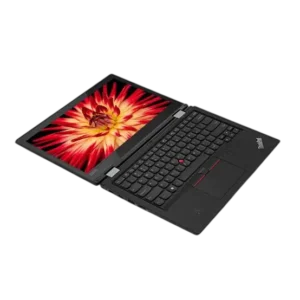
| Field | Details |
| Document Title | Lenovo G360 User Guide |
| Document Type | User Guide |
| Brand Name | Lenovo |
| Product Name | G360 Laptop |
| Model Number(s) | G360 |
| PDF File Size | 2.72 MiB |
| Number of Pages | 52 |
| Languages Covered | English (US) |
Lenovo G360 Laptop
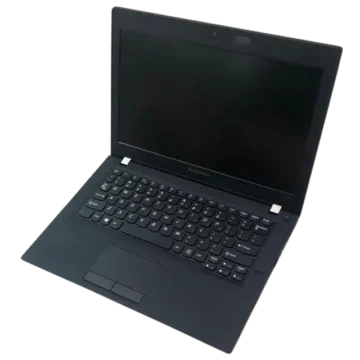
The Lenovo G360 is a notebook computer designed for everyday computing, internet connectivity, document work, and multimedia use. It features an LED-backlit display, integrated keyboard, touchpad, built-in speakers, webcam, microphone, and support for wired and wireless networking.
The laptop includes a removable rechargeable battery, optical disc drive, VGA connection, Ethernet port, two USB ports, and dedicated connectors for headphones and an external microphone. It also provides a Kensington security slot for attaching a compatible computer lock.
The Lenovo G360 supports Windows 7 operating system functions, including sleep mode, power management, wireless configuration, and system security features. Its function keys provide shortcuts for adjusting display brightness, controlling sound, enabling wireless devices, and managing multimedia playback.
A dedicated OneKey Rescue button allows users to access Lenovo’s recovery environment when the operating system cannot start normally. Through Lenovo OneKey Recovery, the system partition can be backed up, recovery discs can be created, and the computer can be restored to its original factory state or a previously created backup.
Select configurations also include Bluetooth connectivity and NVIDIA Optimus graphics technology. NVIDIA Optimus automatically switches between integrated Intel graphics and a discrete NVIDIA graphics processor according to application requirements.
The Lenovo G360 provides customer-replaceable components, including the battery pack, hard disk drive, memory modules, and optical drive. The user guide includes procedures for accessing and replacing these parts.
Product Overview and Features
| Feature | Description |
| Product Type | Notebook computer |
| Display | LED-backlit display |
| Maximum Display Opening Angle | 130 degrees |
| Operating System Instructions | Windows 7 |
| Keyboard | Integrated keyboard with numeric keypad function |
| Pointing Device | Touchpad with left and right buttons |
| Camera | Integrated webcam |
| Microphone | Built-in microphone with noise reduction |
| Audio Output | Stereo speakers |
| Audio Connections | Separate headphone and microphone jacks |
| Optical Drive | Reads and burns optical discs |
| Storage | Internal hard disk drive |
| Memory | DDR3 SDRAM |
| USB Connectivity | Two USB ports |
| External Display | VGA |
| Wired Networking | RJ-45 Ethernet |
| Wireless Networking | Wi-Fi on supported configurations |
| Bluetooth | Available on select models |
| WiMAX | Available on select models |
| Security | Kensington slot, passwords, VeriFace |
| Graphics Switching | NVIDIA Optimus on select models |
| System Recovery | Lenovo OneKey Rescue |
| Battery | Removable rechargeable battery pack |
| Replaceable Components | Battery, hard drive, memory, optical drive |
Technical Specifications
The Lenovo G360 User Guide identifies the following hardware features and connections.
| Specification | Details |
| Brand | Lenovo |
| Model | G360 |
| Device Type | Notebook Computer |
| Display Technology | LED-backlit |
| Maximum Screen Opening | 130° |
| Keyboard | Integrated with numeric keypad function |
| Touchpad | Integrated with two click buttons |
| Camera | Integrated |
| Microphone | Integrated with noise reduction |
| Speakers | Stereo |
| Internal Storage Interface | SATA hard disk connection |
| Memory Technology | DDR3 SDRAM |
| USB Ports | 2 |
| External Video Connection | VGA |
| Ethernet | RJ-45 |
| Headphone Connection | Dedicated jack |
| Microphone Connection | Dedicated jack |
| Optical Drive | Disc reading and burning |
| Battery Type | Removable rechargeable battery pack |
| AC Power | External AC adapter |
| Wireless LAN | Supported |
| Bluetooth | Select configurations |
| WiMAX | Select configurations |
| NVIDIA Optimus | Select configurations |
| Recovery System | Lenovo OneKey Rescue |
Supported Memory Type
The computer uses DDR3 SDRAM memory modules.
The memory compartment supports the module installation procedure described in this guide.
Only memory types supported by the computer should be installed.
If an unsupported module is installed, the computer may produce a warning beep when started.
Battery Charging Temperature
The recommended battery charging temperature is:
50–86°F (10–30°C)
Bluetooth Operating Range
On Bluetooth-equipped models, the approximate communication range in open space is up to:
10 meters
Actual range varies depending on interference and physical obstacles.
Important Safety Instructions
Before using the Lenovo G360, read the Lenovo Safety and General Information Guide supplied with the computer.
Display Panel Safety
Do not open the display beyond 130 degrees.
Opening it farther can damage the display assembly or hinges.
Before closing the laptop, check that no objects remain between the display panel and keyboard.
Pens and other objects can damage the screen when the lid is closed.
Ventilation and Overheating
The computer includes ventilation openings on the left side.
These openings allow internal heat to escape.
Keep all fan louvers unobstructed to prevent overheating.
Battery Safety
An incorrect replacement battery can create a risk of explosion.
Observe the following precautions:
- Use only a battery type recommended by Lenovo.
- Keep the battery away from fire.
- Do not expose the battery to water or rain.
- Do not disassemble the battery pack.
- Do not short-circuit its electrical contacts.
- Keep the battery away from children.
- Dispose of used batteries according to applicable regulations.
Hard Disk Drive Precautions
The hard disk drive contains sensitive components.
Do not drop it, apply pressure to its cover, or touch its connectors.
Never remove the drive while the computer is:
- Powered on
- In sleep mode
- In hibernation mode
Back up important files before replacing the drive.
Memory Installation Safety
Before handling a DDR3 memory module, touch a grounded metal object to reduce static electricity.
Do not touch the memory module’s contact edge.
External Device Safety
Before disconnecting a USB storage device, use the Windows Safely Remove Hardware function.
For high-power USB accessories, use the device’s external power adapter when required.
Recovery Data Warning
System recovery can permanently erase data from the Windows system partition.
Back up important files before restoring the computer.
Parts and Components
The Lenovo G360 has components on its top, left, right, front, rear, and bottom surfaces.
Top View – Main Components
| Component | Function |
| Wireless Module Antennas | Receive and transmit wireless radio signals |
| Built-in Microphone | Captures voice and audio |
| Integrated Camera | Supports video communication |
| Computer Display | Provides LED-backlit visual output |
| Stereo Speakers | Provide audio playback |
| Power Button | Turns on the computer |
| OneKey Rescue Button | Opens Lenovo recovery functions |
| Touchpad | Controls the on-screen pointer |
Wireless Module Antennas
The integrated antennas support wireless communication.
They are positioned inside the laptop’s display assembly.
Built-in Microphone
The microphone includes noise reduction and can be used for:
- Video conferencing
- Voice narration
- Audio recording
Integrated Camera
The built-in webcam supports video communication.
LED-Backlit Display
The display provides visual output for Windows, applications, and multimedia.
Stereo Speakers
The built-in speakers provide audio output.
Power Button
Press the Power button to turn on the computer.
OneKey Rescue Button
The OneKey Rescue button provides access to Lenovo’s recovery tools.
When the computer is turned off, it starts the OneKey Rescue environment.
When Windows is running, it can start Lenovo OneKey Recovery.
Touchpad
The touchpad allows cursor control using a fingertip.
It includes separate left-click and right-click buttons.
Left-Side Ports and Connections
The left side contains several external connections and cooling features.
| Component | Function |
| Kensington Slot | Connects a compatible security lock |
| Fan Louvers | Release internal heat |
| VGA Port | Connects an external display |
| RJ-45 Port | Connects to an Ethernet network |
| USB Port | Connects compatible USB devices |
Kensington Security Slot
A compatible security lock can be attached to help protect the computer from unauthorized removal.
Verify lock compatibility before purchasing a security product.
Fan Louvers
The cooling openings dissipate internal heat.
Do not obstruct these openings.
VGA Port
The VGA port connects the computer to a compatible external monitor or display device.
RJ-45 Ethernet Port
The Ethernet port supports wired network connections.
USB Port
The USB port connects compatible USB peripherals.
Right-Side Ports and Components
| Component | Function |
| Microphone Jack | Connects an external microphone |
| Headphone Jack | Connects external headphones |
| Optical Drive | Reads and burns optical discs |
| USB Port | Connects USB devices |
External Microphone Jack
Connect a compatible external microphone to the microphone jack.
Headphone Jack
The headphone jack provides audio output for external headphones.
Optical Drive
The optical drive supports reading and burning compatible optical discs.
USB Port
The right-side USB port provides an additional connection for peripherals.
Front View
The front of the laptop contains system status indicators and a physical wireless switch.
| Component | Function |
| System Status Indicators | Show power, battery, disk, and wireless activity |
| Integrated Wireless Device Switch | Enables or disables the computer’s wireless radio |
Integrated Wireless Device Switch
Slide the switch to turn wireless radio functions on or off.
This switch works with the computer’s wireless configuration controls.
Rear View
The rear of the Lenovo G360 contains the AC power adapter jack.
AC Power Adapter Jack
Connect the compatible AC adapter to this connector.
Bottom View
The underside provides access to the battery and internal component compartments.
| Component | Function |
| Manual Battery Latch | Locks the removable battery in place |
| Battery Pack | Supplies portable power |
| HDD/Mini PCI Express Compartment | Provides access to the hard disk and related components |
| Spring-Loaded Battery Latch | Holds the battery securely |
| Memory/CPU Compartment | Provides access to memory components |
Before First Use
The battery supplied with the Lenovo G360 is not fully charged when purchased.
Before using the computer for the first time, install the battery pack and connect the AC power adapter.
Initial Setup
- Read the supplied safety documentation.
- Install the battery pack using the instructions on the Setup Poster.
- Connect the computer to AC power.
- Press the Power button.
- Complete Windows initial configuration.
- Configure the internet connection if required.
- Create a Windows user account.
Connecting the AC Power Adapter
The battery charges automatically while the computer operates on AC power.
Power Connection Procedure
- Connect the power cord to the AC adapter.
- Connect the AC adapter firmly to the computer’s power jack.
- Plug the power cord into an electrical outlet.
Turning On the Computer
Press the Power button to start the computer.
Windows begins loading when the startup process completes.
Configuring Windows for the First Time
The Windows 7 setup process may include:
- Accepting the end-user license agreement.
- Configuring the internet connection.
- Registering the operating system.
- Creating a user account.
Follow the on-screen instructions.
Using Sleep Mode
Sleep Mode allows the computer to resume quickly after a short break.
How to Enter Sleep Mode
Use either method:
- Open the Windows Start menu and select Sleep.
- Press Fn + F1.
Before Moving the Computer
Wait until the Power indicator begins blinking.
Moving the computer while the hard disk is spinning can cause drive damage or data loss.
How to Wake the Computer
Use either method:
- Press the Power button.
- Press any key on the keyboard.
Shutting Down the Computer
When the laptop will not be used for a day or two, shut it down.
Shutdown Procedure
- Open the Windows Start menu.
- Select Shut down.
Using the AC Adapter and Battery
The Lenovo G360 operates using its rechargeable battery pack or the AC power adapter.
Checking Remaining Battery Power
The remaining battery percentage can be checked through the battery icon in the Windows notification area.
Battery operating time depends on factors such as:
- Current battery charge
- Hard disk activity
- Display brightness
- Computer usage
When to Charge the Battery
Charge the battery when:
- A new battery has been installed.
- The battery status indicator begins blinking.
- The battery has not been used for an extended period.
- Battery charge is low.
Charging Temperature
Charge the battery at an ambient temperature between:
10°C and 30°C (50°F and 86°F).
Battery Charging Behavior
The computer may not begin charging immediately after a fully charged battery loses a small amount of charge.
This behavior helps extend battery life.
A complete discharge or recharge cycle is not required for routine charging.
Removing the Battery Pack
Remove the battery when the computer will be unused for an extended period or when preparing it for certain service procedures.
Battery Removal Precautions
Before removing the battery:
- Shut down the computer.
- Disconnect the AC power adapter.
- Disconnect external cables.
Battery Removal Procedure
- Close the display.
- Turn the laptop over.
- Move the manual battery latch to the unlocked position.
- Hold the spring-loaded latch in the unlocked position.
- Remove the battery pack in the direction shown by the battery compartment arrow.
Installing a Replacement Battery
Use only a compatible Lenovo-recommended battery.
Battery Installation Procedure
- Install the fully charged replacement battery.
- Slide the manual battery latch into the locked position.
- Turn the computer upright.
- Reconnect the AC adapter and cables.
Using the Touchpad
The Lenovo G360 has a touchpad with separate left-click and right-click buttons.
| Component | Function |
| Touchpad Surface | Moves the pointer |
| Left Click Button | Performs left mouse-button actions |
| Right Click Button | Performs right mouse-button actions |
Moving the Pointer
- Place a fingertip on the touchpad.
- Move the finger in the desired direction.
- The on-screen pointer follows the movement.
Enabling or Disabling the Touchpad
Press Fn + F6.
Using the Keyboard
The Lenovo G360 provides standard typing keys, a numeric keypad function, and Fn shortcuts.
Numeric Keypad
Some keyboard keys can operate as a 10-key numeric keypad.
Press Fn + F8 to enable or disable the numeric keypad.
Lenovo G360 Keyboard Shortcuts
| Shortcut | Function |
| Fn + Esc | Turn the integrated camera on or off |
| Fn + F1 | Enter Sleep Mode |
| Fn + F2 | Turn LCD backlight on or off |
| Fn + F3 | Open the display device selection interface |
| Fn + F4 | Open display resolution settings |
| Fn + F5 | Open wireless device settings |
| Fn + F6 | Enable or disable touchpad |
| Fn + F8 | Enable or disable numeric keypad |
| Fn + F9 | Play or pause Windows Media Player |
| Fn + F10 | Stop Windows Media Player |
| Fn + F11 | Previous media track |
| Fn + F12 | Next media track |
| Fn + PrtSc | System Request |
| Fn + Home | Pause |
| Fn + End | Break |
| Fn + PgUp | Enable or disable Scroll Lock |
| Fn + PgDn | Insert |
| Fn + Up Arrow | Increase display brightness |
| Fn + Down Arrow | Decrease display brightness |
| Fn + Right Arrow | Increase audio volume |
| Fn + Left Arrow | Decrease audio volume |
Turning the Camera On or Off
Press Fn + Esc.
Adjusting Screen Brightness
Use Fn + Up Arrow or Fn + Down Arrow.
Changing Audio Volume
Use Fn + Right Arrow to increase the volume.
Use Fn + Left Arrow to decrease it.
Switching External Displays
Press Fn + F3 to open the display selection interface.
Changing Screen Resolution
Press Fn + F4 to open display resolution settings.
Controlling Wireless Devices
Press Fn + F5 to open the wireless device settings interface.
Connecting USB Devices
The Lenovo G360 includes two USB ports.
USB Device Connection Procedure
- Locate a USB port.
- Insert the USB Type-A connector.
- Wait for Windows to detect the device.
The first time a USB device is connected, Windows normally installs the required driver automatically.
Some devices require their drivers to be installed before connection.
Follow the peripheral manufacturer’s instructions where applicable.
Safely Removing USB Storage
- Wait until all file transfers are complete.
- Open the Windows notification area.
- Select Safely Remove Hardware.
- Select the appropriate device.
- Disconnect it after Windows completes the removal procedure.
Externally Powered USB Devices
If a USB peripheral requires its own power connection, connect that power supply before attaching the device to the laptop.
Connecting Bluetooth Devices
Bluetooth is available on select Lenovo G360 configurations.
It supports wireless communication with compatible devices such as computers, phones, and PDAs.
Bluetooth Range
The approximate range in open space is up to 10 meters.
How to Enable Bluetooth
- Slide the integrated wireless device switch to the enabled position.
- Press Fn + F5.
- Configure the Bluetooth wireless setting.
Pairing Bluetooth Devices
The Bluetooth accessory must be paired with the laptop before data can be transferred.
Follow the pairing instructions supplied with the connected device.
Saving Battery Power
Turn off Bluetooth when it is not required.
Special Buttons
The Lenovo G360 includes a dedicated OneKey Rescue button.
OneKey Rescue Button Functions
| Computer State | Function |
| Powered Off | Starts Lenovo OneKey Rescue |
| Windows Running | Starts Lenovo OneKey Recovery |
The button is located near the Power button.
System Status Indicators
The laptop has four primary status indicators.
| Indicator | Purpose |
| Power | Shows operating and sleep states |
| Battery | Shows charging and charge level |
| Hard Disk Drive | Indicates storage activity |
| Wireless Communication | Indicates wireless connectivity status |
Power Status Indicator
| Indicator | Meaning |
| Solid White | Computer powered on |
| Blinking | Computer in Sleep Mode |
| Off | Computer powered off |
Battery Status Indicator
| Indicator | Meaning |
| Solid White | More than 20% battery charge |
| Solid Amber | Between 5% and 20% charge |
| Fast Blinking Amber | Less than 5% charge |
| Slowly Blinking Amber | Battery charging below 20% |
| Slowly Blinking White | Battery charging between 20% and 80% |
| Off | Battery pack detached |
When charging reaches 80%, the white light stops blinking, although charging continues.
Hard Disk Drive Indicator
A blinking hard disk indicator means data is being read from or written to the internal drive or another connected storage device.
Do not turn off the computer or put it into sleep or hibernation mode while this indicator is blinking.
Wireless Communication Indicator
| Indicator | Meaning |
| On | Wireless communication enabled |
| Off | Wireless communication disabled |
Securing the Computer
The Lenovo G360 provides physical and software-based security functions.
Kensington Security Lock
The Kensington slot is located on the left side.
A compatible security lock can be attached to help prevent unauthorized removal.
Verify compatibility before purchasing a lock.
Lenovo VeriFace
Lenovo VeriFace is face-recognition software that can use a registered facial image for system authentication.
Setting Up VeriFace
- Locate the VeriFace icon on the Windows desktop.
- Open the application.
- Register a facial image.
- Follow the on-screen instructions.
Facial registration and verification work best with steady, even lighting.
BIOS Password Protection
The computer supports passwords that prevent unauthorized startup or configuration access.
The guide specifies passwords containing one to seven alphanumeric characters.
Entering BIOS to Configure Passwords
- Turn on or restart the computer.
- Press F2 when the Lenovo logo appears.
- Open the relevant password setting.
- Follow the BIOS help instructions.
NVIDIA Optimus Graphics Technology
Some Lenovo G360 models include NVIDIA Optimus technology.
Optimus automatically selects an appropriate graphics processor according to the application’s workload.
How NVIDIA Optimus Works
The system can switch between:
- Integrated Intel graphics
- Discrete NVIDIA graphics
Integrated Graphics
Integrated graphics are selected for less demanding tasks to reduce power consumption.
Discrete NVIDIA Graphics
The NVIDIA processor may be selected for demanding graphics applications such as high-definition video playback or 3D games.
Automatic Graphics Switching
The NVIDIA driver controls graphics switching automatically.
Users can change supported application preferences through the NVIDIA Control Panel.
The guide identifies Windows 7 as the supported operating system for NVIDIA Optimus on these configurations.
Connecting to the Internet
The Lenovo G360 supports wired networking and wireless connections on compatible models.
Internet Connection Methods
| Method | Description |
| Wired Ethernet | Uses physical network cables |
| Cable Internet | Uses a cable modem |
| DSL | Uses a DSL modem and telephone line |
| Wi-Fi | Connects through a wireless access point |
| WiMAX | Available on select configurations |
Wired Internet Connection
The RJ-45 port connects the laptop to an Ethernet network.
Cable Internet
Cable internet service uses a cable modem connected to a cable television line.
DSL Internet
DSL internet service uses a DSL modem connected through a telephone line.
The required modem, splitter, and network equipment depend on the service provider.
Wired Network Configuration
Consult the internet service provider for network setup instructions.
Wireless Internet Connection
Wireless networking allows the computer to access the internet without an Ethernet cable.
Wi-Fi
Wi-Fi connects devices within a local wireless coverage area, such as a home, office, or small group of buildings.
A wireless access point is required.
WiMAX
WiMAX can connect several wireless LAN systems over a larger metropolitan coverage area.
WiMAX support depends on the Lenovo G360 configuration.
How to Enable Wireless Networking
- Slide the integrated wireless device switch to the enabled position.
- Press Fn + F5.
- Configure the wireless connection using the available settings.
For additional network setup information, consult the internet service provider or Windows Help and Support.
Lenovo OneKey Rescue System
Lenovo OneKey Rescue is a backup and recovery system designed to restore the Windows system partition when needed.
Available Functions
| Function | Description |
| System Backup | Creates a backup of the system partition |
| System Recovery | Restores the system partition |
| Factory Recovery | Restores the original factory condition |
| Backup Recovery | Restores a previously generated backup |
| Recovery Disc Creation | Creates recovery media |
Hidden Recovery Partition
The hard disk contains a hidden partition storing the recovery image and OneKey Rescue program files.
Because this partition occupies disk space, the available capacity may be lower than the stated drive capacity.
Using Lenovo OneKey Recovery in Windows
When Windows starts normally, Lenovo OneKey Recovery can be opened from the desktop.
Procedure
- Start Windows.
- Double-click the OneKey Recovery icon.
- Follow the available backup or recovery options.
The program can back up the system partition to supported storage locations.
It can also create recovery discs.
Backup Precautions
Connect the AC adapter and keep the battery installed.
System backup and recovery disc creation may take some time.
Using OneKey Rescue Without Windows
If Windows cannot start, use the OneKey Rescue button.
Procedure
- Shut down the computer.
- Press the OneKey Rescue button.
- Wait for the recovery environment.
- Select the required recovery function.
The system partition can be restored to:
- Original factory condition
- A previously created backup
Warning: Recovery is irreversible. Back up important data before beginning whenever possible.
Creating Recovery Discs
The Lenovo G360 is not supplied with recovery discs.
Lenovo OneKey Recovery can create them.
Recovery Disc Types
| Type | Description |
| Existing Backup Recovery Disc | Uses an existing backup image |
| Current System Recovery Disc | Uses the current system partition |
| Factory Default Recovery Disc | Uses the factory recovery image |
How to Create Recovery Discs
- Insert a recordable disc into the optical drive.
- Start Windows.
- Press the OneKey Rescue button to open OneKey Recovery.
- Select Create Recovery Disc.
- Choose the required recovery disc type.
- Follow the on-screen instructions.
- Insert additional discs when prompted.
Recovery Disc Recommendations
Use recordable DVDs when compatible with the drive to reduce the number of discs required.
Number the discs in the order they are created.
The first disc is used to start the computer during recovery.
Troubleshooting Guide
The following troubleshooting procedures address problems identified in the Lenovo G360 User Guide.
Common Problems and Solutions
| Problem | Recommended Solution |
| Blank screen at startup | Check battery, AC power, and memory installation |
| White cursor on blank screen | Use Lenovo OneKey Rescue |
| Screen goes blank during use | Wake the computer or check LCD backlight |
| Numeric characters appear when typing letters | Disable Num Lock with Fn + F8 |
| Critical low-battery warning | Connect AC power |
| Computer enters Sleep Mode immediately | Check battery charge and operating temperature |
| Computer will not wake | Connect AC power and press a key or Power |
| No sound | Check mute, headphones, and playback device |
| Incorrect battery reading | Discharge and recharge the battery |
| Fully charged battery does not power laptop | Reset the battery surge protector |
| Hard drive does not work | Check BIOS boot priority |
| Windows does not start | Use OneKey Rescue |
| OneKey backup fails | Check Windows and available storage |
| Factory recovery fails | Check whether the system partition was modified |
| Computer stops responding | Hold Power for four seconds or longer |
| Computer does not boot from selected device | Check BIOS boot priority and press F12 |
| External device does not work | Check device power and connections |
Display Troubleshooting
Blank Screen at Startup
If nothing appears when the computer starts:
- Confirm that the battery is installed correctly.
- Check that the AC adapter is connected.
- Confirm that the power cord is plugged into a working electrical outlet.
- Press the Power button to verify that the computer is on.
- Check that the memory is installed correctly.
If the display remains blank, the computer requires service.
White Cursor on a Blank Screen
If only a white cursor appears during startup:
- Open Lenovo OneKey Rescue.
- Restore Windows from a previously created backup or the factory image.
- Follow the recovery instructions.
If the problem remains, have the computer serviced.
Screen Becomes Blank During Use
The screen saver or power-management system may be active.
Try:
- Moving a finger across the touchpad.
- Pressing any keyboard key.
- Pressing the Power button.
- Pressing Fn + F2 to check whether the LCD backlight is off.
Screen Is Too Dark
Press Fn + Up Arrow to increase screen brightness.
If the Power indicator is blinking, press the Power button to resume from Sleep Mode.
Distorted or Unreadable Display
Check that:
- The display driver is installed correctly.
- Screen resolution is configured correctly.
- Color quality is set correctly.
- The monitor type is correct.
Incorrect Characters on the Screen
Check that the operating system and installed applications are configured correctly.
If the problem continues despite correct software configuration, the computer requires service.
Password Troubleshooting
Forgotten User Password
Contact a Lenovo-authorized service provider or representative to have the password changed.
Forgotten Hard Disk Password
A Lenovo-authorized service provider cannot reset a forgotten hard disk password or recover the stored data through the documented procedure.
The hard disk drive must be replaced.
Proof of purchase is required, and parts and service charges apply.
Forgotten Supervisor Password
A Lenovo-authorized service provider cannot reset a forgotten supervisor password through the documented procedure.
System board replacement is required.
Proof of purchase is required, and service charges apply.
Keyboard Troubleshooting
Numbers Appear Instead of Letters
The numeric keypad function is enabled.
Press Fn + F8 to disable numeric keypad mode.
Sleep and Hibernation Troubleshooting
Critical Low-Battery Error
If the computer displays a critical low-battery warning and immediately shuts down:
- Connect the AC adapter.
- Alternatively, install a fully charged battery pack.
Computer Enters Sleep Immediately After Startup
Check that:
- The battery is charged.
- The operating temperature is within the acceptable range.
If both conditions are normal, the computer requires service.
Computer Will Not Return From Sleep Mode
The computer may have entered hibernation automatically because the battery was depleted.
- Connect the AC adapter.
- If the computer is in Sleep Mode, press a keyboard key or the Power button.
- If it is hibernating or powered off, press the Power button.
If the computer remains unresponsive:
- Hold the Power button for four seconds or longer.
- If necessary, disconnect the AC adapter and remove the battery.
Unsaved data may be lost during a forced reset.
Sound Troubleshooting
No Sound From the Speakers
If no sound is heard:
- Confirm that the Mute function is disabled.
- Check that headphones are not connected.
- Confirm that Speakers are selected as the playback device.
Battery Troubleshooting
Battery Indicator Is Inaccurate
If the computer shuts down before the battery indicator shows empty, or continues operating after it shows empty:
- Discharge the battery.
- Recharge the battery.
Fully Charged Battery Does Not Power the Computer
The battery’s surge protector may be active.
- Turn off the computer.
- Wait one minute.
- Turn the computer on again.
Hard Disk Troubleshooting
Hard Disk Drive Does Not Work
Open BIOS Setup and check the Boot menu.
Confirm that the hard disk is included in the correct boot priority order.
Windows Startup Troubleshooting
Windows Does Not Start
Use Lenovo OneKey Rescue to diagnose or recover the system.
OneKey Backup Cannot Be Created
Possible causes include:
- Windows is not running.
- Insufficient free space is available on the system partition.
Free the required storage space and try again.
Factory Recovery Fails
Factory recovery may fail when the system partition has been modified.
Examples include changes to the partition size or C drive capacity.
Computer Does Not Respond
If the system becomes unresponsive:
- Hold the Power button for four seconds or longer.
- If the computer remains unresponsive, remove the AC adapter and battery pack.
The computer may also stop responding when entering Sleep Mode during network communication.
If this occurs, disable the sleep timer while using the network.
Boot Device Troubleshooting
If the computer does not start from the desired device:
- Open BIOS Setup.
- Check the Boot menu.
- Confirm that the device is enabled.
- Check that it appears in the boot priority list.
- Move it to the appropriate position if necessary.
Using the Boot Menu
Press F12 when the Lenovo logo appears during startup.
Select the desired startup device.
External Device Troubleshooting
Avoid connecting or disconnecting non-USB device cables while the computer is powered on.
For high-power external devices, use an external power adapter where required.
Without sufficient power, the device may not be recognized or the computer may shut down.
Customer Replaceable Units
The Lenovo G360 includes several Customer Replaceable Units (CRUs).
| Component | Replacement Information |
| AC Adapter | Setup Poster |
| AC Power Cord | Setup Poster |
| Battery Pack | Setup Poster and User Guide |
| Bottom Access Covers | User Guide |
| Hard Disk Drive | User Guide |
| Memory | User Guide |
| Optical Drive | User Guide |
Replacing the Battery
Use only a Lenovo-recommended replacement battery.
Battery Replacement Steps
- Turn off the computer or enter hibernation mode.
- Disconnect the AC adapter and all cables.
- Close the display.
- Turn the computer over.
- Unlock the manual battery latch.
- Hold the spring-loaded latch in the unlocked position.
- Remove the battery pack.
- Install a fully charged replacement battery.
- Move the manual battery latch to the locked position.
- Turn the computer upright.
- Reconnect the adapter and external cables.
Replacing the Hard Disk Drive
The hard disk drive can be replaced with a compatible drive of greater capacity.
Before Replacement
Back up all important data.
Turn off the computer and disconnect AC power.
Do not remove the hard disk while the system is operating, sleeping, or hibernating.
Hard Disk Replacement Procedure
- Turn off the computer.
- Disconnect the AC adapter and external cables.
- Close the display and turn the computer over.
- Remove the battery pack.
- Remove the HDD/Mini PCI Express compartment cover.
- Loosen the screws securing the compartment cover.
- Remove the cover.
- Remove the hard disk frame fixing screws.
- Carefully pull the tab to lift the hard disk assembly from its compartment.
- Hold the SATA receptacle connector and carefully disconnect the drive.
- Remove the screws securing the metal frame to the drive.
- Remove the old hard disk from the frame.
- Attach the metal frame to the replacement hard disk.
- Reconnect the drive to the SATA connector.
- Reinstall the drive with the removal tab facing upward.
- Reinstall the frame fixing screws.
- Replace the compartment cover and tighten the screws.
- Reinstall the battery.
- Turn the laptop upright and reconnect the cables.
Hard Disk Handling Precautions
- Do not drop the drive.
- Do not apply pressure to its cover.
- Do not touch the connector.
- Use a soft surface when handling the drive.
- Avoid frequent drive swapping.
Preinstalled software is not included on an optional replacement hard disk.
Replacing or Upgrading Memory
The Lenovo G360 supports compatible DDR3 SDRAM memory modules.
Before Installing Memory
- Touch a grounded metal object to discharge static electricity.
- Turn off the computer.
- Disconnect the AC adapter and external cables.
- Close the display.
- Turn the laptop over.
- Remove the battery pack.
Memory Replacement Procedure
- Loosen the screws securing the Memory/CPU compartment cover.
- Remove the compartment cover.
- If necessary, release an existing memory module by pressing the socket latches outward.
- Remove the module carefully.
- Align the notch of the replacement DDR3 module with the socket.
- Insert the module at a 30–45-degree angle.
- Press the module into the socket until the retaining latches close.
- Reinstall the compartment cover.
- Tighten the screws.
- Reinstall the battery.
- Reconnect the AC adapter and cables.
Memory Slot Requirements
If only one memory module is installed, it must be installed in SLOT-0, the lower slot.
Do not install a single memory module in SLOT-1, the upper slot.
Checking Installed Memory
- Turn on the computer.
- Hold F2 during startup.
- Open BIOS Setup.
- Check Total Memory.
The Total Memory field displays the amount of installed memory.
Unsupported Memory Warning
If an unsupported memory type is installed, the computer may produce a warning beep during startup.
Use only compatible memory modules.
Removing the Optical Drive
The optical drive is a customer-replaceable component.
Optical Drive Removal Procedure
- Turn off the computer and disconnect external power and cables before servicing.
- Locate the optical drive retaining screw on the underside.
- Remove the screw.
- Gently pull the optical drive out of the computer.
Maintenance and Care
Display Care
Do not open the display beyond 130 degrees.
Remove objects from the keyboard before closing the display.
Ventilation Care
Keep the fan louvers clear.
Blocked airflow can cause overheating.
Battery Care
- Charge within the recommended temperature range.
- Use Lenovo-recommended replacement batteries.
- Do not expose the battery to fire or water.
- Do not disassemble or short-circuit it.
- Remove the battery for extended periods of non-use as directed by the guide.
Storage Device Care
Back up important data before replacing the hard disk.
Avoid physical shocks and pressure on the drive.
Do not disconnect USB storage before completing file transfers.
Recovery Maintenance
Create system backups through OneKey Recovery when Windows is operating normally.
Recovery discs can be used if the operating system later fails.
Storage and Handling
When the laptop will not be used for a day or two, shut it down.
For extended periods of non-use, remove the battery pack as instructed.
Keep the battery away from fire, water, and excessive heat.
Store the computer where ventilation openings will remain clear during use.
Warranty Information
The Lenovo G360 is supplied with Lenovo Limited Warranty documentation.
The applicable warranty period and service type are provided in the warranty flyer supplied with the computer.
Warranty service information should be checked using the documentation supplied with the product.
Customer Support Information
| Support Detail | Information |
| Brand | Lenovo |
| Product | G360 |
| Official Website | www.lenovo.com |
| Support Website Listed | http://consumersupport.lenovo.com |
| Device Drivers | Lenovo Consumer Support |
| Preinstalled Software | Lenovo Consumer Support |
| Recovery System | Lenovo OneKey Rescue |
| Warranty Documentation | Lenovo Limited Warranty flyer |
| Safety Documentation | Lenovo Safety and General Information Guide |
Finding Drivers
Hardware device drivers can be downloaded from Lenovo’s consumer support website.
On computers preinstalled with Windows, drivers may also be located in the Driver folder on the D partition.
Finding Preinstalled Software
Installation programs for some preinstalled applications may be available in the Application folder on the D partition.
Other installation programs can be obtained through Lenovo Support.
Contacting Customer Support
For the contact procedure, consult Chapter 3, Getting Help and Service, in the Lenovo Safety and General Information Guide supplied with the computer.
Frequently Asked Questions
1. How do I factory reset the Lenovo G360?
Turn off the laptop and press the OneKey Rescue button. When the recovery environment opens, select the option to restore the system partition to its original factory state or a previously created backup. Back up important data before beginning because the recovery process is irreversible.
2. How do I enter BIOS on the Lenovo G360?
Turn on or restart the computer. When the Lenovo logo appears, press F2 to enter BIOS Setup.
3. How do I open the Lenovo G360 boot menu?
Turn on the computer and press F12 when the Lenovo logo appears. Select the device from which the computer should start.
4. How do I turn on Wi-Fi on the Lenovo G360?
Slide the integrated wireless device switch into the enabled position. Press Fn + F5 to open the wireless configuration interface, then enable the wireless adapter and configure the network connection.
5. How do I enable or disable the Lenovo G360 touchpad?
Press Fn + F6. This shortcut switches the touchpad between enabled and disabled states.
6. What type of RAM does the Lenovo G360 use?
The Lenovo G360 uses compatible DDR3 SDRAM memory modules. When only one module is installed, it must be placed in SLOT-0, the lower memory slot. The installed memory amount can be checked in BIOS Setup under Total Memory.
7. Why does the Lenovo G360 show an orange battery light?
A solid amber light indicates that battery charge is between 5% and 20%. Fast blinking amber indicates less than 5% charge. Slowly blinking amber while charging means the battery is charging below 20%.
8. How do I fix a Lenovo G360 that will not turn on or shows a black screen?
Check that the battery is installed correctly, the AC adapter is connected, the power outlet is working, and the memory is installed properly. Press the Power button to confirm startup. If the screen becomes blank during use, press a keyboard key, use the touchpad, or press Fn + F2 to check whether the LCD backlight is off. If the problem continues after these checks, the computer may require service.