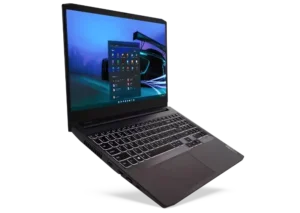
| Field | Details |
| Document Title | IdeaPad Gaming 3 series |
| Document Type | Setup Guide / Quick Start Guide |
| Brand Name | Lenovo |
| Product Name | IdeaPad Gaming 3 Series |
| Model Number(s) | IdeaPad Gaming 3 Series; individual machine model numbers are not identified in the PDF |
| PDF File Size | 1.15 MB |
| Number of Pages | 8 |
| Languages Covered | English, Spanish, Bulgarian, Portuguese (Brazil), Polish, and Portuguese (Portugal) |
Lenovo IdeaPad Gaming 3 Series
The Lenovo IdeaPad Gaming 3 Series is a laptop family equipped with a physical keyboard, touchpad, camera cover, built-in microphones, and connections for power, audio, external displays, USB devices, and wired networking.
The laptop includes two USB 3.2 Gen 1 ports, a USB-C connector, an HDMI connector, an Ethernet connector, a combo audio jack, and a dedicated power connector. A recessed Novo button hole is also provided on the side of the computer.
The IdeaPad Gaming 3 supports wireless LAN and Bluetooth communication. Its wireless equipment specifications include 2.4 GHz and 5 GHz WLAN frequency ranges, along with Bluetooth BR, EDR, and LE technologies.
The computer is started by connecting the power adapter to the laptop and an electrical outlet, then pressing the Power button. Its exterior hardware includes a camera cover for covering the camera lens and a touchpad for controlling the on-screen pointer.
The following instructions describe the initial setup procedure, laptop components, connector locations, available USB ports, network connections, and wireless radio specifications.
Product Overview and Technical Specifications
General Specifications
| Specification | Details |
| Brand | Lenovo |
| Product Series | IdeaPad Gaming 3 |
| Product Type | Laptop Computer |
| Power Input | Dedicated Power Connector |
| USB Type-A Ports | 2 × USB 3.2 Gen 1 |
| USB-C Connection | Yes |
| Video Connection | HDMI |
| Wired Network Connection | Ethernet |
| Audio Connection | Combo Audio Jack |
| Camera Cover | Yes |
| Built-In Microphones | Yes |
| Pointing Device | Touchpad |
| Power Button | Yes |
| Novo Button Hole | Yes |
| Wireless Networking | WLAN |
| Bluetooth Technologies | BR, EDR, LE |
| Setup Guide Part Number | SP41J10927 |
The product illustrations represent the IdeaPad Gaming 3 series. The appearance of individual laptops may differ from the diagrams.
Parts and Components
The laptop includes controls and connectors positioned around its display, keyboard, side edges, and rear panel.
Main Components
| Component | Description |
| Camera Cover | Covers the camera lens |
| Microphones | Capture sound |
| Power Button | Used to start the laptop |
| Touchpad | Provides pointer input |
| Novo Button Hole | Recessed Novo button opening |
| USB 3.2 Gen 1 Ports | Connections for compatible USB devices |
| Combo Audio Jack | Audio connection for compatible headphones or headsets |
| USB-C Connector | Connection for compatible USB-C equipment |
| Ethernet Connector | Wired network connection |
| HDMI Connector | Digital audio/video connection |
| Power Connector | Connection for the laptop’s power adapter |
Camera Cover
The camera cover is positioned at the top of the display, where the camera assembly is located.
The cover can be moved over the camera lens when the camera is not being used.
Built-In Microphones
The microphones are positioned near the camera assembly at the top of the display.
They provide audio input for applications that use the laptop’s microphone hardware.
Power Button
The Power button is positioned above the keyboard.
Pressing this button during the initial setup starts the computer.
Touchpad
The touchpad is positioned below the keyboard.
It provides a touch-sensitive surface for moving the on-screen pointer and performing mouse-style input.
Before First Use
Before starting the laptop, prepare its power adapter and power cord.
The initial startup procedure consists of four steps.
Step 1: Connect the Power Cord to the Adapter
Connect the power cord to the AC power adapter.
The cord and adapter must be connected as shown in the startup illustration.
Step 2: Connect the Adapter to the Laptop
Insert the power adapter’s connector into the dedicated power input on the laptop.
The power connector is located on the rear connection panel.
Step 3: Connect the Power Cord to an Electrical Outlet
Connect the power cord plug to the electrical outlet.
The power adapter supplies the laptop with external electrical power.
Step 4: Press the Power Button
Press the Power button above the keyboard to start the laptop.
<text></text>
USB Ports and Connections
The IdeaPad Gaming 3 series includes two USB 3.2 Gen 1 Type-A ports and one USB-C connector.
USB 3.2 Gen 1 Ports
The two USB 3.2 Gen 1 ports are positioned on opposite sides of the computer.
| Port | Position | Function |
| USB 3.2 Gen 1 | Side with the Novo Button Hole | Connects compatible USB devices |
| USB 3.2 Gen 1 | Side with the Combo Audio Jack | Connects compatible USB devices |
Both ports carry the USB SuperSpeed symbol.
USB-C Connector
The USB-C connector is located on the rear panel.
It accepts compatible USB-C equipment.
USB Transfer Rate Information
The setup guide provides a QR code linking to the product’s User Guide.
The QR code is positioned alongside the USB connector illustration and directs the reader to the USB transfer-rate statement.
Novo Button Hole
The Novo button hole is located on the side of the laptop next to one of the USB 3.2 Gen 1 ports.
It is a small recessed opening identified by the Novo symbol.
The illustration distinguishes the Novo button hole from the adjacent USB connection.
Combo Audio Jack
The combo audio jack is located on the side opposite the Novo button hole.
It is marked with a headset symbol.
The connector provides an audio connection for compatible headphones or headsets.
Rear Ports and Connections
The rear panel contains the power connector, USB-C connector, Ethernet connector, and HDMI connector.
Rear Connector Layout
When the rear panel is viewed as shown in the connector diagram, the connections are arranged as follows:
| Order | Connector | Function |
| 1 | HDMI | Connects compatible digital displays and audio/video equipment |
| 2 | Ethernet | Connects a wired network cable |
| 3 | USB-C | Connects compatible USB-C equipment |
| 4 | Power Connector | Connects the AC power adapter |
Power Connector
The power connector is used during the laptop’s initial setup.
The AC adapter plug fits into this dedicated connector.
Ethernet Connector
The Ethernet connector provides the physical connection for wired networking equipment.
A compatible Ethernet cable can be connected between the laptop and network hardware.
HDMI Connector
The HDMI connector provides a digital audio/video connection.
It can be used with compatible HDMI displays and other HDMI equipment.
Wireless LAN Specifications
The IdeaPad Gaming 3 series includes wireless LAN radio equipment operating in frequency ranges specified for the European Union and United Kingdom.
WLAN Frequency Bands and Transmit Power
| Wireless Technology | Frequency Band | Maximum Transmit Power |
| WLAN 802.11b/g/n/ax | 2400–2483.5 MHz | Less than 20 dBm |
| WLAN 802.11a/n/ac/ax | 5150–5725 MHz | Less than 23 dBm |
| WLAN 802.11a/n/ac/ax | 5725–5875 MHz | Less than 13.98 dBm |
These values describe the wireless equipment’s listed operating frequency bands and maximum transmitted radio-frequency power for the EU and UK.
2.4 GHz WLAN Frequency Range
The 2400–2483.5 MHz range is associated with the listed IEEE 802.11b, 802.11g, 802.11n, and 802.11ax radio technologies.
Its maximum transmit power is below 20 dBm.
5 GHz WLAN Frequency Ranges
The wireless equipment also lists two 5 GHz frequency ranges:
- 5150–5725 MHz, with maximum transmit power below 23 dBm.
- 5725–5875 MHz, with maximum transmit power below 13.98 dBm.
These ranges are associated with the listed IEEE 802.11a, 802.11n, 802.11ac, and 802.11ax technologies.
Bluetooth Specifications
The IdeaPad Gaming 3 series wireless equipment includes Bluetooth BR, EDR, and LE.
Bluetooth Radio Specifications
| Specification | Details |
| Wireless Technology | Bluetooth |
| Supported Radio Technologies Listed | BR, EDR, LE |
| Frequency Band | 2400–2483.5 MHz |
| Maximum Transmit Power | Less than 20 dBm |
Bluetooth BR, EDR and LE
The Bluetooth specification identifies three radio technology types:
- BR (Basic Rate): Bluetooth basic-rate radio technology.
- EDR (Enhanced Data Rate): Bluetooth enhanced-data-rate technology.
- LE (Low Energy): Bluetooth low-energy technology.
The listed maximum transmit power for Bluetooth is below 20 dBm.
European Union and United Kingdom Radio Compliance
The IdeaPad Gaming 3 series wireless equipment has declared radio-frequency bands and maximum power levels for EU and UK operation.
The WLAN and Bluetooth frequency ranges listed above are the regulatory radio specifications provided for these regions.
Frequently Asked Questions
1. How do I turn on the Lenovo IdeaPad Gaming 3?
Connect the power cord to the AC adapter, connect the adapter to the laptop’s rear power connector, and plug the power cord into an electrical outlet. Press the Power button above the keyboard to start the computer.
2. Where is the power connector on the IdeaPad Gaming 3?
The dedicated power connector is located on the rear panel. It is positioned alongside the USB-C, Ethernet, and HDMI connectors.
3. How many USB 3.2 Gen 1 ports does the IdeaPad Gaming 3 have?
The laptop has two USB 3.2 Gen 1 Type-A ports. One is positioned next to the Novo button hole, while the other is next to the combo audio jack.
4. Where is the Novo button hole on the Lenovo IdeaPad Gaming 3?
The Novo button hole is located on the side of the laptop beside one of the USB 3.2 Gen 1 ports. It is identified by a curved-arrow symbol.
5. Does the IdeaPad Gaming 3 have a USB-C connector?
Yes. The laptop includes a USB-C connector on the rear panel, alongside its other rear connections.
6. Does the IdeaPad Gaming 3 support Ethernet and HDMI?
Yes. The rear panel includes both an Ethernet connector for wired networking and an HDMI connector for compatible digital audio/video equipment.
7. What wireless frequency bands does the Lenovo IdeaPad Gaming 3 use?
The wireless equipment specifications list WLAN operation in the 2400–2483.5 MHz, 5150–5725 MHz, and 5725–5875 MHz ranges. Bluetooth BR, EDR, and LE use the 2400–2483.5 MHz band.