
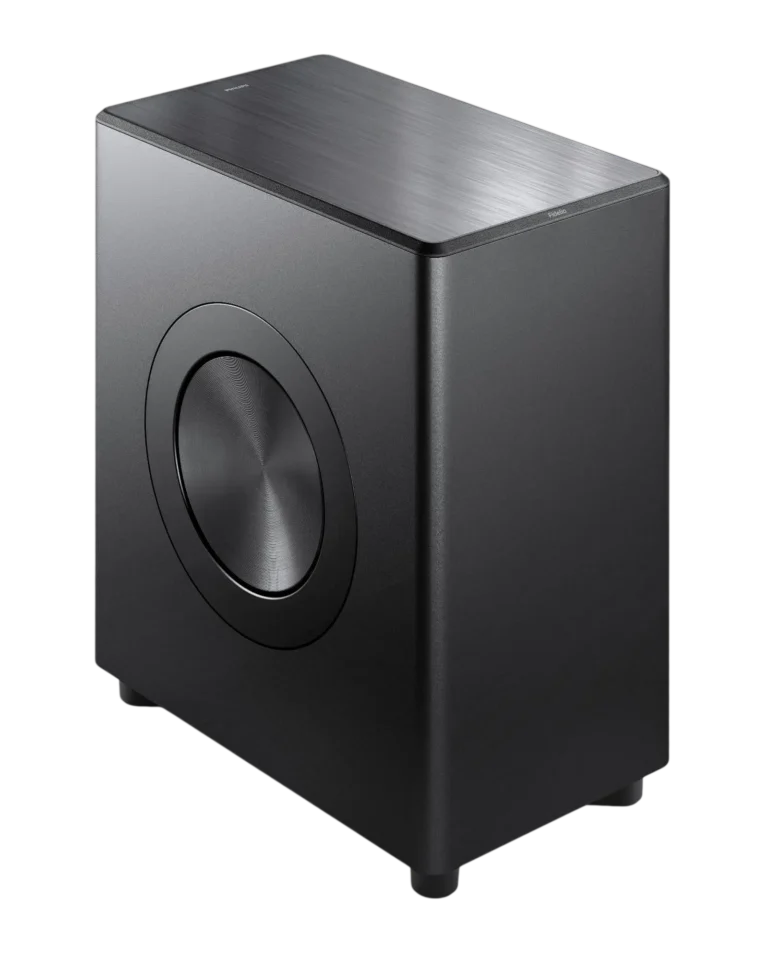
The Philips Fidelio Wireless Subwoofer FW1 is a 210 W RMS (420 W max) subwoofer that can work in three ways. It can pair wirelessly with a Fidelio FB1 soundbar over an RF link. It can join your home Wi-Fi as a DTS Play-Fi speaker, controlled from the Philips Sound app. Or it can act as a conventional wired subwoofer through its Sub in socket. A three-position source switch on the back selects the mode. The Gain, Crossover, and Phase controls work only in wired mode.
What’s in the Box
- Subwoofer (1)
- Power cord (1). Quantity and plug type vary by region.
- Quick Start Guide (1)
- Warranty Card (1)
- Safety Sheet (1)
The manual covers five regional versions: FW1/37 and FW1/10 (Europe/UK and US/Canada approvals), FW1/93 (China), FW1/96 (Taiwan), and FW1/98 (Asia). The images in the manual are for reference only, so your unit may look slightly different (p. 7).
Parts and Controls
The back panel holds the main controls (p. 8):
- Wi-Fi Setup button and indicator: Hold for 8 seconds for Access Point (AP) mode, which blinks the light. Hold for 4 seconds for WPS mode, which double-blinks it. A solid light means the subwoofer is connected or paired.
- Power/RF link indicator: Shows the wireless link status with an FB1 soundbar.
- Source switch: Selects Play-Fi/RF Link or Sub in.
- USB service socket: For service use only.
- Reset button (pinhole): Restores default settings.
- Phase switch: 0° or 180°.
- Sub in socket: Takes a subwoofer cable, which is not supplied.
- Crossover knob: 25 Hz to 150 Hz.
- Gain knob: −6 dB to +6 dB.
- AC in socket: Connects the power cord.
| Setting | Range | Default |
| Gain | −6 dB to +6 dB | 0 dB |
| Crossover | 25 Hz to 150 Hz | Not stated |
| Phase | 0° or 180° | 0° |
These three controls apply only when the source switch is set to Sub in. They do nothing in Play-Fi or RF link mode.
Installation and Setup
Connect to Power
Make all other connections first, and plug in the power cord last. Check that your outlet voltage matches the value printed on the back or bottom of the unit. When unplugging, pull the plug, never the cable (p. 9).
Pair with an FB1 Soundbar (RF Link)
The FB1 soundbar is sold separately.
- Set the source switch to Play-Fi/RF Link.
- The Power/RF link indicator fast-blinks green.
- Turn on the FB1 soundbar.
- On the soundbar remote, open the settings menu, select “SUB PAIR,” and confirm.
- Wait for the subwoofer’s indicator to turn solid green. The two devices will then discover each other and pair (p. 10).
To reconnect after using Wi-Fi mode, make sure the subwoofer is powered and the switch is at Play-Fi/RF Link. Turn on the soundbar, then hold the Wi-Fi button for 15 seconds. The indicator fast-blinks green, then turns solid green once the RF link is made (p. 13).
Connect to Wi-Fi with the Philips Sound App
Keep the switch at Play-Fi/RF Link for this.
- Install the Philips Sound app (powered by DTS Play-Fi) on your phone or tablet.
- Connect the phone or tablet to the Wi-Fi network you want the subwoofer to use.
- Hold the Wi-Fi button on the back for 8 seconds, until you hear a second tone, then release.
- Wait for the Wi-Fi light to change from a fast blink to a slow pulse. This means setup mode is active.
- Open the app and follow its prompts to join your network.
- When the light turns solid, setup is complete. You can then rename the speaker, choosing a preset name or a custom one.
Expect a software update after first setup. It can take several minutes, and the manual says not to unplug the speaker, turn off the device, or leave the network during the update. The update is required, and without it not all features are available (p. 12).
If first-time setup fails, hold the Wi-Fi button for 8 seconds again, restart the app, and repeat. Switching to a different network also requires holding the button for 8 seconds to reset the connection.
WPS option: If your router supports WPS, hold the Wi-Fi button for 4 seconds until you hear a tone and the light double-blinks. Press the WPS button on the router, then follow the app’s pairing instructions. Press the Wi-Fi button once to exit WPS, or wait 2 minutes for it to exit on its own (p. 12).
Use with a Play-Fi TV
With an internet-connected DTS Play-Fi TV powered on, go to Settings > Sound > DTS Play-Fi on the TV. Follow the on-screen setup for Surround Sound or TV Audio, then pick the FW1 from the speaker list (pp. 14–15).
Wired Connection (Sub In)
- Connect a subwoofer cable from your TV or amplifier’s subwoofer or audio output to the Sub in socket.
- Set the source switch to Sub in.
- Adjust Gain, Crossover, and Phase to taste (p. 15).
Switching to Sub in stops all network audio functions. Wi-Fi disconnects, though saved credentials are kept.
Product Specifications
| Item | Specification |
| Power supply | 100–240 V~, 50/60 Hz |
| RMS output power | 210 W |
| Max output power | 420 W (1% THD) |
| Power consumption | 50 W |
| Standby consumption | < 0.5 W |
| Frequency response | 25 Hz – 150 Hz |
| Impedance | 3 Ω |
| USB | 5 V, 500 mA (service only) |
| Dimensions (W × H × D) | 240 × 472 × 400 mm |
| Weight | 13.4 kg |
| Operating temperature | 0°C – 45°C |
| 5.8G wireless | 5742–5852 MHz, ≤ 10 dBm EIRP |
| Wi-Fi standards | IEEE 802.11a/b/g/n/ac |
| 2.4 GHz Wi-Fi | 2400–2483.5 MHz, ≤ 20 dBm |
| 5 GHz Wi-Fi | 5150–5350 MHz, ≤ 20 dBm; 5470–5725 MHz, ≤ 27 dBm; 5725–5850 MHz, ≤ 14 dBm |
Specifications can change without notice (p. 16). The 5150–5350 MHz band is for indoor use only (p. 4).
Safety Instructions
Read all instructions before use. Damage caused by not following them is not covered by the warranty (p. 3).
- Never open the cover. There are no user-serviceable parts inside.
- Keep the unit away from rain, water, and liquid containers such as vases. If liquid gets in or on the unit, unplug it immediately and contact Consumer Care before using it again.
- Keep it away from flames, direct sunlight, and other heat sources.
- Never push objects into the vents or other openings.
- Unplug the unit before lightning storms.
- Leave at least four inches of space around the unit, and keep curtains and other objects off the vents. Never install it in a confined space.
- Do not place the unit or other objects on power cords or other electrical equipment.
- If the unit was transported below 5°C, unpack it and let it reach room temperature before plugging it in.
- Use it in tropical or moderate climates.
- Keep the plug or appliance coupler easy to reach so you can disconnect power quickly.
- This is a Class II apparatus with double insulation and no protective earth.
- Keep at least 20 cm between the unit and your body during operation (p. 6).
Cleaning and Maintenance
Clean the subwoofer with a microfiber cloth only (p. 4). For the best features and performance, keep the firmware current. Once the unit is on Wi-Fi, open the Philips Sound app and go to Settings > PS Fine Tune / Update Firmware. If an update is available, tap the upgrade icon. The MCU and DSP firmware update over the air (p. 15).
Factory Reset
With the subwoofer plugged in, press the rear Reset button with a needle for 5 seconds. You will hear a tone, and the unit restarts with factory defaults (p. 16).
Troubleshooting
Never remove the casing, and do not attempt repairs yourself, as this can void the warranty (p. 17).
| Problem | What to try |
| No power | Check that the AC cord is firmly connected and that the outlet has power. |
| Playback freezes or no sound in Wi-Fi mode | Check that your home network is working normally. |
| Distorted sound or echo | Mute the TV if you are playing its audio through the subwoofer. |
| Wi-Fi connection fails | Confirm the WLAN is available, move the router closer, check the password, and reboot the modem and router. |
| App cannot find the subwoofer | Make sure the device is connected to Wi-Fi. |
| Play-Fi music won’t play | Close and restart the app after a failed first setup. If the speaker was part of a Stereo Pair or Surround group, disconnect it in the app before using it alone. |
If the problem continues, visit www.philips.com/support.
Frequently Asked Questions
Which switch position should I use?
Use Play-Fi/RF Link for Wi-Fi streaming or for pairing with an FB1 soundbar. Use Sub in when connecting by cable.
Why don’t the Gain, Crossover, and Phase controls change anything?
They work only in Sub in mode. In Play-Fi or RF link mode they are not applicable (p. 8).
Can I use the subwoofer with a soundbar other than the FB1?
Wireless soundbar pairing is described only for the Fidelio FB1. You can connect other equipment with a subwoofer cable in Sub in mode.
How do I put the subwoofer in Wi-Fi setup mode?
Hold the Wi-Fi button for 8 seconds until you hear the second tone. The light will move from a fast blink to a slow pulse.
Do I need to enter my Wi-Fi password?
Not if your router supports WPS. Hold the Wi-Fi button for 4 seconds, then press the router’s WPS button. Standard setup through the app is needed if your router lacks WPS.
Do I have to install the software update?
Yes. The manual says an upgrade is required after initial setup, and without it not all features are available.
How do I switch to a different Wi-Fi network?
Hold the Wi-Fi button for 8 seconds to reset the Wi-Fi connection, then run setup again for the new network.
What does the factory reset do?
It restores the subwoofer to its default settings. Hold the Reset button with a needle for 5 seconds while the unit is powered.