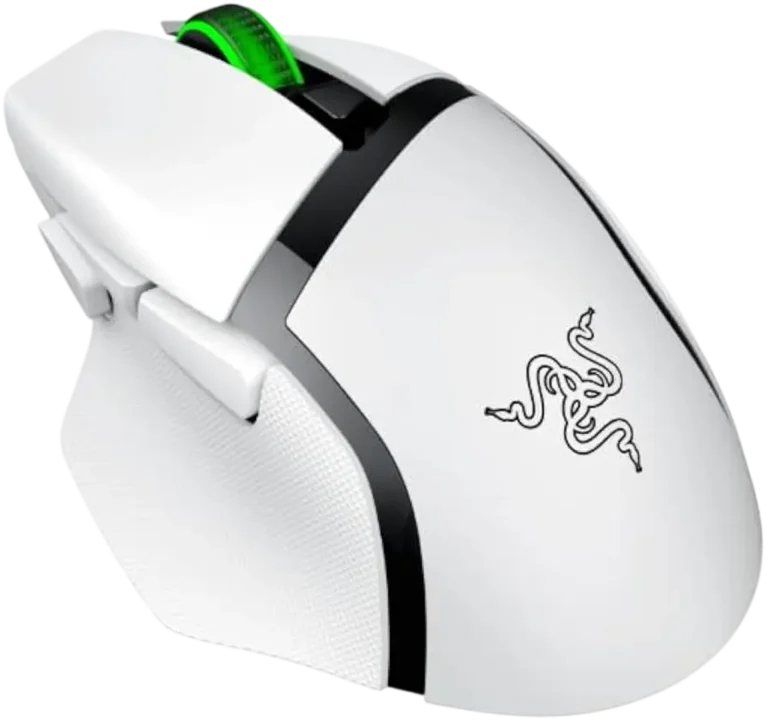
Razer Basilisk X HyperSpeed Wireless Gaming Mouse
The Razer Basilisk X HyperSpeed is a right-handed wireless gaming mouse with six programmable buttons. It connects in two ways: through the included 2.4 GHz wireless USB dongle (Razer HyperSpeed Wireless) or over Bluetooth. A three-position slider on the mouse selects Bluetooth, power off or 2.4 GHz. It runs on one included AA battery. The mouse has a 5G optical sensor with true 16,000 DPI, five default DPI stages, and mechanical switches rated for 50 million clicks. It also supports Razer Synapse 3 for customizing DPI stages.
What’s Inside and Where Each Control Is
The mouse has these labeled parts:
- Left mouse button, right mouse button and scroll wheel
- Cycle DPI stage up button
- Status indicator
- Mouse button 4 and mouse button 5
- Ultraslick mouse feet
- True 16,000 DPI 5G optical sensor
- Mode slider
- Wireless USB dongle compartment and the wireless USB dongle
- Battery compartment and the AA battery
The mode slider has three positions:
- Bluetooth mode
- Power off mode
- 2.4GHz mode
Technical Specifications
| Specification | Value |
|---|---|
| Wireless | Razer HyperSpeed Wireless (2.4GHz dongle) and Bluetooth (listed as BLE) |
| Sensor | Razer 5G Advanced Optical Sensor, true 16,000 DPI |
| Tracking | Up to 450 inches per second (IPS) / 40 G acceleration |
| Switches | Razer Mechanical Mouse Switches rated for 50M clicks |
| Buttons | Six independently programmable buttons |
| Design | Ergonomic right-handed |
| Default DPI stages | 800 / 1800 / 3600 / 7200 / 16000 |
| Storage | On-board DPI and keymap storage |
| Software | Razer Synapse 3 enabled |
| Battery life | Up to 285 hours (2.4GHz), 450 hours (BLE), with the included AA battery |
| Length | 130 mm / 5.12 in |
| Width | 60 mm / 2.36 in |
| Height | 42 mm / 1.65 in |
| Weight | 83 g / 2.9 oz |
System Requirements
- Product: A PC with a free USB port or Bluetooth 4.0 connectivity.
- Razer Synapse: Windows 7 64-bit (or higher), an internet connection and 500 MB of free hard disk space.
Setting Up the Battery
Inserting the Battery
- Remove the top cover of the mouse.
- Insert the included AA battery, following the directions indicated on the battery compartment.
- Reattach the top cover and make sure it is tightly secured.
Caution: The included AA battery is non-rechargeable. Dispose of it in accordance with your local environmental laws. For your safety, only use an alkaline battery.
Razer highly recommends removing the battery from the mouse if you will not use it for a prolonged period.
Low Battery Notification
When the status indicator blinks red twice in repeated intervals, the battery level is less than 5%. This sequence repeats until the battery is fully drained. When you see it, replace the battery.
Connecting in 2.4 GHz Mode
- Remove the top cover of the mouse and take out the wireless USB dongle.
- Close the top cover and connect the dongle to a USB port on your computer.
- Switch the slider to 2.4 GHz mode. The status indicator starts blinking rapidly.
- Wait for the mouse to pair with the dongle automatically. When paired, the status indicator turns static blue for 5 seconds and then turns off.
For a faster and more stable connection, keep the pairing devices close to each other. Install Razer Synapse when prompted, or download the installer from razer.com/synapse.
Connecting in Bluetooth Mode
- Switch the slider to Bluetooth mode.
- Press and hold the two side buttons and the cycle DPI stage up button at the same time for three seconds to start pairing mode. The status indicator blinks twice in repeated intervals while the mouse is in pairing mode.
- Turn on Bluetooth on your device and search for “Razer Basilisk X HyperSpeed” in the list of devices found.
- Wait for the two devices to pair. When paired, the status indicator turns static blue for 2 seconds and then turns off.
Keep the pairing devices close to each other for a faster and more stable connection. After pairing, the mouse reconnects automatically whenever it is in Bluetooth mode and the device is within range.
DPI Stages
The default DPI stages are 800, 1800, 3600, 7200 and 16000. You can customize them with Razer Synapse 3. The cycle DPI stage up button changes the stage on the fly.
Safety, Comfort and Care
Safety Guidelines
- If the device does not work properly and troubleshooting does not help, unplug it and contact the Razer hotline or go to support.razer.com.
- Do not take the device apart (doing so voids your warranty). Do not try to operate it under abnormal current loads.
- Keep the device away from liquid, humidity and moisture.
- Operate it only between 0°C (32°F) and 40°C (104°F). If the temperature goes outside this range, unplug and/or switch off the device until the temperature stabilizes.
Comfort
- Place your keyboard and monitor directly in front of you, with the mouse next to the keyboard and your elbows at your sides.
- Set your chair and table height so the keyboard and mouse are at or below elbow height.
- Keep your feet well supported, your posture straight and your shoulders relaxed.
- Keep your wrist relaxed and straight during gameplay. Avoid bending, extending or twisting your hands for long periods during repeated tasks.
- Do not rest your wrists on hard surfaces for long periods. Use a wrist rest.
- Do not sit in one position all day. Get up and stretch your arms, shoulders, neck and legs.
If you feel pain, numbness or tingling in your hands, wrists, elbows, shoulders, neck or back while using the mouse, consult a qualified medical doctor immediately.
Maintenance and Use
Once a month, unplug the device from the computer and clean it with a soft cloth or cotton swab and a little warm water. Do not use soap or harsh cleaning agents. Some surfaces cause undue wear on the feet, which then need constant care and eventual replacement. Razer recommends one of its premium mouse mats. The sensor is tuned for Razer mouse mats and tracks best on them.
Warranty and Registration
The mouse comes with a 2-year limited warranty. Register at razerid.razer.com for exclusive Razer benefits. The serial number is on the underside of the mouse. For current warranty terms, visit razer.com/warranty.
Frequently Asked Questions
What are the default DPI stages on the Razer Basilisk X HyperSpeed?
The five default stages are 800, 1800, 3600, 7200 and 16000 DPI. You can customize them with Razer Synapse 3.
What battery does the Razer Basilisk X HyperSpeed use?
It uses one AA battery, and one is included. The included battery is non-rechargeable. For safety, use only an alkaline battery, and dispose of it according to your local environmental laws.
How do I install the battery in the Razer Basilisk X HyperSpeed?
Remove the top cover, insert the AA battery following the directions marked on the battery compartment, then put the top cover back on. Make sure it is tightly secured.
How long does the battery last?
Razer lists up to 285 hours in 2.4GHz mode and up to 450 hours in Bluetooth (BLE) mode with the included AA battery.
How do I know when the battery is low?
The status indicator blinks red twice in repeated intervals when the battery level is below 5%. The pattern repeats until the battery is fully drained, so replace the battery when you see it.
How do I connect the Razer Basilisk X HyperSpeed with the 2.4 GHz dongle?
Take the wireless USB dongle out of its compartment under the top cover, close the cover, and plug the dongle into a USB port on your computer. Then move the mode slider to 2.4 GHz. The status indicator blinks rapidly while the mouse pairs, then turns static blue for 5 seconds and goes off once it is paired.
Where is the wireless USB dongle stored?
It is kept in the wireless USB dongle compartment, which you reach by removing the mouse’s top cover.
How do I pair the Razer Basilisk X HyperSpeed over Bluetooth?
Move the slider to Bluetooth mode. Press and hold the two side buttons and the cycle DPI stage up button together for three seconds. The status indicator blinks twice in repeated intervals to show pairing mode. Then turn on Bluetooth on your device and select “Razer Basilisk X HyperSpeed” from the list. When pairing succeeds, the indicator turns static blue for 2 seconds and then goes off.
Does the mouse reconnect automatically after Bluetooth pairing?
Yes. After pairing, it reconnects automatically whenever it is in Bluetooth mode and the paired device is within range.
What does the mode slider do?
It has three positions: Bluetooth mode, power off, and 2.4GHz mode. Use it to pick the connection type or turn the mouse off.
What do I need to use Razer Synapse with this mouse?
You need Windows 7 64-bit (or higher), an internet connection and 500 MB of free hard disk space. Install Synapse when prompted, or download it from razer.com/synapse.
How should I clean the Razer Basilisk X HyperSpeed?
Once a month, unplug the device from the computer and wipe it with a soft cloth or cotton swab dampened with a bit of warm water. Do not use soap or harsh cleaning agents.