| Field | Details |
| Document Title | Mechanical Keyboard User Manual |
| Document Type | User Manual |
| Brand Name | RK Royal Kludge |
| Product Name | S104 Mechanical Keyboard |
| Model Number(s) | RK S104 |
| PDF File Size | 49.38 MiB |
| Number of Pages | 60 |
| Languages Covered | English, Traditional Chinese, German, Russian, French, Spanish, Japanese, and Korean |
RK Royal Kludge S104 Mechanical Keyboard
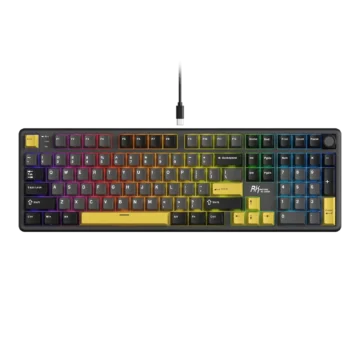
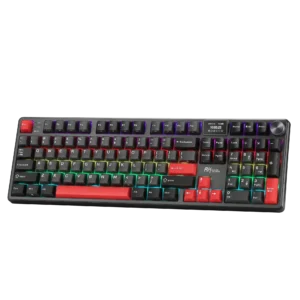
The RK Royal Kludge S104 is a 100% layout mechanical keyboard with RGB backlighting, a built-in display, a clickable rotary control knob, and three connection methods. It supports wired USB-C, Bluetooth, and 2.4 GHz wireless operation, allowing the keyboard to connect to compatible computers and Bluetooth-enabled devices.
The RK S104 features mechanical switches, a full-size keyboard layout, function keys, navigation keys, and a numeric keypad. Its RGB backlighting supports adjustable brightness, animation speed, color selection, lighting effects, and personalized key lighting configurations.
The integrated display shows keyboard status information, including the selected connection mode, Windows or Mac layout, Num Lock, Caps Lock, and Windows key lock. It also includes a date and time interface with 12-hour and 24-hour display options.
A clickable rotary knob provides access to the keyboard settings menu. It can adjust volume, select connection modes, change RGB effects, configure display settings, and set the date and time.
Bluetooth mode supports up to three saved device connections. The keyboard can switch between these devices using the rotary knob or Fn key shortcuts. The 2.4 GHz wireless mode uses a dedicated USB receiver, which is normally paired with the keyboard at the factory.
The RK S104 also supports Windows and Mac operating system modes, multimedia shortcuts, custom backlighting, driver-supported GIF display images, and a factory reset function.
Product Overview and Features
| Feature | Description |
| Product Type | Mechanical Keyboard |
| Model | RK S104 |
| Keyboard Layout | 100% |
| Switch Type | Mechanical switches |
| Backlighting | RGB |
| Wired Connection | USB Type-C |
| Wireless Connections | Bluetooth and 2.4 GHz |
| Bluetooth Device Memory | 3 connections |
| Integrated Display | Keyboard status and settings screen |
| Rotary Knob | Clickable multifunction control |
| Display Time Format | 12-hour or 24-hour |
| Display Language Options | English and Chinese |
| GIF Display Customization | Supported through driver software |
| Operating System Modes | Windows and Mac |
| Backlight Customization | Supported |
| Windows Key Lock | Supported |
| Factory Reset | Fn + Spacebar |
| 2.4 GHz Receiver Storage | Built-in storage area |
| Fast Charging | Not supported |
Technical Specifications
General Specifications
| Specification | Details |
| Brand | RK Royal Kludge |
| Model Number | RK S104 |
| Keyboard Type | Mechanical |
| Keyboard Layout | Full-size, 100% |
| Length | 422.4 mm |
| Width | 137.5 mm |
| Height | 42.8 mm |
| Dimension Tolerance | ±2 mm |
| Mechanical Switches | Yes |
| Backlight Type | RGB |
| Connection Version | USB / Bluetooth / 2.4 GHz |
| Wired Port | USB Type-C |
| Operating System Modes | Windows / Mac |
| Bluetooth Device Slots | BT1, BT2, BT3 |
| Wireless Receiver | 2.4 GHz USB dongle |
| Control Knob | Rotary, clickable |
| Integrated Display | Yes |
| Fast Charging Support | No |
Keyboard Dimensions
The RK S104 measures:
- Length: 422.4 mm
- Width: 137.5 mm
- Height: 42.8 mm
- Tolerance: ±2 mm
Connection Modes
| Connection Mode | How to Activate |
| Wired USB | Connect USB-C cable and briefly press Fn + R |
| Bluetooth | Set power switch to ON and select BT1, BT2, or BT3 |
| 2.4 GHz Wireless | Set switch to ON and briefly press Fn + P |
| USB Mode Through Knob | Select USB Mode in the display menu |
| Bluetooth Through Knob | Select a BT slot in the display menu |
| 2.4 GHz Through Knob | Select the 2.4G icon |
Parts and Components
The RK S104 combines a mechanical keyboard layout with an integrated status display, rotary knob, mode controls, and RGB lighting.
Main Components
| Component | Function |
| Mechanical Keys | Provide typing and command input |
| Fn Key | Activates secondary functions |
| Function Keys | Provide multimedia and system shortcuts |
| Numeric Keypad | Supports number entry |
| RGB Backlighting | Illuminates the keyboard |
| Integrated Display | Shows keyboard status, time, and settings |
| Rotary Knob | Adjusts volume and controls display menus |
| USB Type-C Port | Provides wired connectivity |
| ON/OFF Switch | Controls wireless operation |
| 2.4 GHz Receiver Storage | Holds the wireless dongle |
| Num Lock Indicator | Shows numeric keypad lock status |
| Caps Lock Indicator | Shows uppercase typing mode |
| Win Lock Indicator | Shows Windows key lock status |
Mechanical Keys
The keyboard uses mechanical switches for key input.
The layout includes standard alphanumeric keys, function keys, navigation controls, and a numeric keypad.
Fn Key
The Fn key activates secondary keyboard functions, including:
- Bluetooth switching
- Wireless receiver pairing
- Wired mode selection
- RGB lighting adjustments
- Multimedia playback
- Windows and Mac mode switching
- Windows key locking
- Factory reset
RGB Backlighting
The keyboard has RGB backlighting with adjustable effects, colors, brightness, and animation speed.
Integrated Display
The keyboard includes a display positioned near the rotary control knob.
The display provides information about:
- Connection mode
- Operating system layout
- Time
- Num Lock
- Caps Lock
- Windows Lock
- RGB lighting settings
Rotary Control Knob
The knob controls volume by default.
It also allows menu navigation, selection, and confirmation.
USB Type-C Connector
The USB Type-C port provides a wired connection to a compatible computer.
ON/OFF Switch
The power switch is used when operating the keyboard wirelessly.
Set the switch to ON before using Bluetooth or 2.4 GHz mode.
2.4 GHz Receiver Storage Area
The keyboard includes a storage compartment for the 2.4 GHz wireless receiver.
Keyboard Indicator Lights
The RK S104 provides dedicated status indicators.
| Indicator | Function |
| Num | Num Lock status |
| Caps | Caps Lock status |
| Win | Windows key lock status |
Num Lock
The Num Lock indicator shows whether the numeric keypad lock is active.
Caps Lock
The Caps Lock indicator shows whether uppercase typing mode is enabled.
Windows Lock
The Win Lock indicator shows whether the Windows key lock function is active.
Important Safety Instructions
Charging Safety
The RK S104 does not support fast charging.
The keyboard should not be charged using a fast-charging method.
Battery Safety
The battery must not be exposed to excessive heat, including direct sunlight, fire, or similar sources.
Avoid the following conditions:
- Replacing the battery with an incorrect type that defeats a safety safeguard.
- Placing the battery in fire or a hot oven.
- Mechanically crushing or cutting the battery.
- Leaving the battery in an extremely hot environment.
- Exposing the battery to extremely low air pressure.
These conditions may result in explosion or leakage of flammable liquid or gas.
Keyboard Handling Precautions
- Maintain correct posture during keyboard use.
- Avoid excessive force when pressing keys.
- Take regular breaks to reduce hand fatigue.
- Keep the keyboard clean and free from dust.
- Avoid exposing the keyboard to liquids.
- Keep the keyboard away from extreme temperatures and humidity.
Unauthorized Modifications
Changes or modifications not expressly approved by the responsible compliance party may affect authorization to operate the device.
Before First Use
Before operating the RK S104, select the required connection method.
The keyboard supports three connection types:
- Wired USB-C
- Bluetooth
- 2.4 GHz wireless
For wired operation, connect the USB cable and activate USB mode.
For Bluetooth or 2.4 GHz operation, move the power switch to ON and select the corresponding connection mode.
Initial Setup
- Place the keyboard on a stable surface.
- Select the required connection method.
- Connect the USB cable or prepare the wireless connection.
- Complete pairing if required.
- Select Windows or Mac mode.
- Adjust the display and RGB settings if desired.
Connecting the RK S104 in Wired USB Mode
The keyboard supports a direct wired connection through its USB Type-C connector.
How to Connect in Wired Mode
- Connect the USB cable to the keyboard’s Type-C port.
- Connect the other end to the compatible computer.
- Briefly press Fn + R.
- The keyboard enters wired mode.
Wired Connection Shortcut
| Shortcut | Function |
| Fn + R (short press) | Activate wired USB mode |
Selecting USB Mode Using the Rotary Knob
Wired mode can also be activated through the integrated display.
Procedure
- Connect the USB cable between the keyboard and computer.
- Press the rotary knob to open the settings menu.
- Rotate the knob to select the USB Mode icon.
- Press the knob to confirm.
- The keyboard switches to USB mode.
Using the Rotary Knob
The RK S104 has a clickable rotary knob for volume control and display navigation.
Default Knob Functions
| Knob Action | Function |
| Clockwise Rotation | Increase volume |
| Counterclockwise Rotation | Decrease volume |
| Click | Open settings menu |
| Rotate in Settings Menu | Move between options or adjust values |
| Short Press in Menu | Confirm selection |
Adjusting Volume
Turn the knob clockwise to increase volume.
Turn it counterclockwise to decrease volume.
Opening the Settings Menu
- Click the knob.
- The settings menu appears.
- Rotate the knob to choose the required option.
- Press the knob briefly to confirm.
Setting the Date and Time
The keyboard display supports manual date and time configuration.
The time interface uses:
- Year
- Month
- Day
- Hour
- Minute
- Second
How to Set the RK S104 Clock
- Open the main time interface on the keyboard display.
- Press and hold the rotary knob for approximately five seconds.
- Wait until the year begins flashing.
- Rotate the knob clockwise to increase the selected value.
- Rotate it counterclockwise to decrease the value.
- Briefly press the knob to advance to the next date or time field.
- Set the year, month, day, hour, minute, and second values.
- After completing the settings, press and hold the knob for approximately five seconds to save and exit.
Quick Save Shortcut
Press Fn + T briefly to save the date and time settings and exit.
Time Settings Summary
| Control | Function |
| Hold Knob for 5 Seconds | Enter time setting mode |
| Clockwise Rotation | Increase value |
| Counterclockwise Rotation | Decrease value |
| Short Knob Press | Move to next field |
| Hold Knob for 5 Seconds | Save and exit |
| Fn + T | Quick save and exit |
Setting the Time Format
The keyboard display supports:
- 12-hour format
- 24-hour format
The time format can be selected through the display settings menu.
Bluetooth Connection
The RK S104 supports up to three saved Bluetooth devices.
Bluetooth devices can be paired and selected using the rotary knob or dedicated keyboard shortcuts.
The keyboard appears in the Bluetooth device list as:
RK S104
Connecting Through Bluetooth Using the Knob
Step 1: Enable Wireless Mode
Move the keyboard power switch to ON.
Step 2: Select a Bluetooth Device Slot
Press the knob to open the settings menu.
Rotate it to select one of the following Bluetooth icons:
- BT1
- BT2
- BT3
Step 3: Start Bluetooth Pairing
To pair the first device:
- Select BT1.
- Press and hold the knob.
- The display shows BT1 Pairing.
The keyboard has entered Bluetooth pairing mode.
Step 4: Connect the Computer or Mobile Device
- Enable Bluetooth on the computer, tablet, or phone.
- Search for available Bluetooth devices.
- Select RK S104.
- Complete the connection.
After the connection is completed, the keyboard display automatically returns to the main interface.
Pairing Additional Bluetooth Devices
Repeat the same procedure using BT2 and BT3.
The keyboard can store three groups of Bluetooth device connections.
Switching Between Bluetooth Devices Using the Knob
After pairing, Bluetooth connections can be selected through the display.
Switching Procedure
- Open the Bluetooth selection screen.
- Rotate the knob to select BT1, BT2, or BT3.
- Briefly press the knob.
- The display shows the corresponding linking message, such as BT1 Linking.
- The keyboard reconnects to the selected device.
The manual recommends pairing the three Bluetooth device slots before using the switching function.
Bluetooth Pairing With Fn Shortcuts
Bluetooth pairing can also be started directly through keyboard shortcuts.
Bluetooth Device Shortcuts
| Shortcut | Bluetooth Slot |
| Fn + Q | BT1 |
| Fn + W | BT2 |
| Fn + E | BT3 |
How to Pair Bluetooth Device 1
- Move the power switch to ON.
- Press and hold Fn + Q for three seconds.
- The display shows BT1 Pairing.
- Enable Bluetooth on the target device.
- Search for RK S104.
- Select the keyboard to complete pairing.
Pairing Bluetooth Device 2
- Move the switch to ON.
- Hold Fn + W for approximately three seconds.
- Complete pairing through the target device’s Bluetooth settings.
Pairing Bluetooth Device 3
- Move the switch to ON.
- Hold Fn + E for approximately three seconds.
- Complete pairing through the target device’s Bluetooth settings.
Switching Between Paired Bluetooth Devices
After pairing:
- Briefly press Fn + Q for BT1.
- Briefly press Fn + W for BT2.
- Briefly press Fn + E for BT3.
A long press activates pairing, while a short press selects a saved connection.
Bluetooth Display Messages
| Display Message | Meaning |
| BT1 Pairing | Bluetooth slot 1 is in pairing mode |
| BT2 Pairing | Bluetooth slot 2 is in pairing mode |
| BT3 Pairing | Bluetooth slot 3 is in pairing mode |
| BT1 Linking | Connecting through Bluetooth slot 1 |
| BT2 Linking | Connecting through Bluetooth slot 2 |
| BT3 Linking | Connecting through Bluetooth slot 3 |
After a Bluetooth connection is completed, the display automatically returns to the main interface.
Connecting Using 2.4 GHz Wireless
The RK S104 uses a 2.4 GHz USB receiver for wireless operation.
The keyboard and receiver are paired at the factory.
How to Connect in 2.4 GHz Mode
- Move the power switch to ON.
- Press the rotary knob to open the settings menu.
- Rotate the knob to the 2.4G icon.
- Briefly press the knob to select the connection mode.
- The display shows 2.4G Linking.
- When the connection succeeds, the display shows 2.4G Success.
- The screen automatically returns to the Home interface.
Pairing the 2.4 GHz Receiver Using the Knob
If receiver pairing is required:
- Move the power switch to ON.
- Rotate the knob to select the 2.4G icon.
- Press and hold the knob.
- Wait for the display to show 2.4G Pairing.
- Insert the 2.4 GHz receiver into the computer.
- Wait for the display to show 2.4G Success.
After pairing succeeds, the keyboard returns to the Home screen.
2.4 GHz Connection Using Fn + P
The keyboard also provides a dedicated 2.4 GHz shortcut.
Switching to 2.4 GHz Mode
- Move the power switch to ON.
- Briefly press Fn + P.
- The display shows 2.4G Linking.
- When the connection succeeds, the display shows 2.4G Success.
Pairing the 2.4 GHz Receiver
- Press and hold Fn + P for approximately three seconds.
- The display shows 2.4G Pairing.
- Insert the 2.4 GHz receiver.
- Wait for 2.4G Success.
The keyboard and receiver normally do not require re-pairing because they are paired at the factory.
2.4 GHz Shortcut Summary
| Shortcut | Function |
| Fn + P (short press) | Switch to 2.4 GHz mode |
| Fn + P (hold 3 seconds) | Enter receiver pairing mode |
Storing the 2.4 GHz Receiver
The RK S104 has a dedicated receiver storage area next to the power switch.
Keep the receiver in this compartment when it is not connected to a computer.
Understanding the Integrated Display
The RK S104 display provides keyboard status information and configuration menus.
Display Indicators
| Display Icon | Meaning |
| WIN | Windows mode |
| MAC | Mac mode |
| Wired Connection Icon | USB wired mode |
| 2.4G | 2.4 GHz wireless mode |
| BT | Bluetooth mode |
| Num Lock | Numeric keypad lock |
| Caps Lock | Caps Lock |
| Win Lock | Windows key lock |
Display Settings Menu
The keyboard display includes the following settings.
| Menu Section | Available Settings |
| Home/Layout/Language | Main screen, Win/Mac layout, language |
| Backlight Effects/Colour | Lighting effect and color |
| Backlight Brightness/Speed | Brightness and animation speed |
| Time Format | 12-hour or 24-hour |
| Time Setting | Date and time configuration |
Changing the Display Home Screen
The Home screen can be set to:
- Time interface
- Customizable GIF image
Custom GIF images require compatible driver support.
Changing the Display Language
The integrated display supports:
- English
- Chinese
Language Selection
- Open the display settings menu.
- Select Home/Layout/Language.
- Open the language setting.
- Select the required display language.
Changing Windows and Mac Layout Through the Display
The display settings include a layout selection option.
Layout Selection
- Open the settings menu using the knob.
- Select Home/Layout/Language.
- Open Layout.
- Choose Windows or Mac.
The operating system mode can also be changed through Fn shortcuts.
Using a Custom GIF on the Display
The RK S104 supports a customizable GIF image on its built-in display.
This function requires the compatible RK keyboard driver.
The driver download address is:
https://en.rkgaming.com/download/1
The Home screen settings provide the option to select a customizable GIF image when driver support is available.
Changing RGB Backlight Effects Using the Knob
The display menu provides controls for RGB backlighting.
Changing Lighting Effects
- Press the rotary knob to open the settings menu.
- Select Effect.
- Press the knob.
- Rotate the knob to choose a backlight effect.
Changing Backlight Color
- Open the display menu.
- Select Colour.
- Press the knob.
- Rotate the knob to choose a different color.
Adjusting Backlight Brightness
- Open Backlight Brightness/Speed Settings.
- Select Brightness.
- Press the knob.
- Rotate the knob to adjust brightness.
Adjusting Lighting Speed
- Open Backlight Brightness/Speed Settings.
- Select Speed.
- Press the knob.
- Rotate the knob to change the lighting animation speed.
RGB Backlight Keyboard Shortcuts
The RK S104 provides direct shortcuts for adjusting lighting without opening the display menu.
| Shortcut | Function |
| Fn + ↑ | Increase backlight brightness |
| Fn + ↓ | Decrease backlight brightness |
| Fn + ← | Decrease backlight speed |
| Fn + → | Increase backlight speed |
| Fn + , / < | Switch backlight color |
| Fn + \ / | | Switch backlight mode |
Increasing Backlight Brightness
Press Fn + Up Arrow.
Decreasing Backlight Brightness
Press Fn + Down Arrow.
Increasing Backlight Speed
Press Fn + Right Arrow.
Decreasing Backlight Speed
Press Fn + Left Arrow.
Changing RGB Color
Press Fn with the comma/less-than key.
Switching RGB Effects
Press Fn with the backslash/vertical-bar key.
Customizing the RGB Backlighting
The RK S104 supports custom key backlighting.
Users can select individual keys for a personalized lighting configuration.
How to Set Custom Backlighting
- Press Fn + 1 to select the customizable backlight mode.
- Press Fn + Backspace to enter backlight recording mode.
- The keyboard backlight turns off to indicate that recording has started.
- Press the keys that should be included in the custom configuration.
- Repeat the selection process for additional keys.
- Press Fn + Backspace again to save the settings and exit recording mode.
Custom Backlight Shortcuts
| Shortcut | Function |
| Fn + 1 | Select customizable backlight mode |
| Fn + Backspace | Start or save custom backlight recording |
Windows and Mac Operating System Modes
The RK S104 supports Windows and Mac keyboard layouts.
The selected mode changes the available multimedia and function-key behavior.
Switching to Windows Mode
Press Fn + A.
Switching to Mac Mode
Press Fn + S.
Operating System Shortcuts
| Shortcut | Function |
| Fn + A | Windows mode |
| Fn + S | Mac mode |
Windows Multimedia Keyboard Shortcuts
When the keyboard is set to Windows mode, Fn + F1 through Fn + F12 provide application and media controls.
| Shortcut | Function |
| Fn + F1 | Open Computer |
| Fn + F2 | Open Browser |
| Fn + F3 | Open Mailbox |
| Fn + F4 | Open Calculator |
| Fn + F5 | Open Media Player |
| Fn + F6 | Stop Playback |
| Fn + F7 | Previous Track |
| Fn + F8 | Play/Pause |
| Fn + F9 | Next Track |
| Fn + F10 | Mute |
| Fn + F11 | Decrease Volume |
| Fn + F12 | Increase Volume |
Opening the Browser
Press Fn + F2.
Opening the Calculator
Press Fn + F4.
Controlling Multimedia Playback
| Action | Shortcut |
| Stop | Fn + F6 |
| Previous Track | Fn + F7 |
| Play/Pause | Fn + F8 |
| Next Track | Fn + F9 |
Adjusting Audio Volume
Press Fn + F10 to mute sound.
Press Fn + F11 to decrease volume.
Press Fn + F12 to increase volume.
Mac Multimedia Keyboard Shortcuts
When the keyboard is set to Mac mode, the function keys provide Mac-specific controls.
| Shortcut | Function |
| Fn + F1 | Decrease Screen Brightness |
| Fn + F2 | Increase Screen Brightness |
| Fn + F3 | Show Desktop |
| Fn + F4 | Search |
| Fn + F5 | Decrease Keyboard Backlight Brightness |
| Fn + F6 | Increase Keyboard Backlight Brightness |
| Fn + F7 | Previous Track |
| Fn + F8 | Play/Pause |
| Fn + F9 | Next Track |
| Fn + F10 | Mute |
| Fn + F11 | Decrease Volume |
| Fn + F12 | Increase Volume |
Adjusting Screen Brightness on Mac
Press Fn + F1 to decrease screen brightness.
Press Fn + F2 to increase it.
Adjusting Keyboard Backlight Brightness on Mac
Press Fn + F5 to decrease backlight brightness.
Press Fn + F6 to increase backlight brightness.
Mac Playback Controls
Use Fn + F7, Fn + F8, and Fn + F9 for previous track, play/pause, and next track.
Additional Function Key Shortcuts
The RK S104 includes several secondary shortcuts.
| Shortcut | Function |
| Fn + Insert | Pause |
| Fn + Delete | Scroll Lock |
| Fn + A | Switch to Windows mode |
| Fn + S | Switch to Mac mode |
| Fn + Win | Windows key lock |
| Fn + Spacebar | Restore factory settings |
Locking the Windows Key
The RK S104 includes a Windows key lock function.
How to Lock or Unlock the Windows Key
Press Fn + Win.
The Win Lock indicator shows the current lock state.
Restoring Factory Settings
The keyboard supports a factory reset shortcut.
How to Reset the RK S104
- Press and hold Fn + Spacebar.
- Keep both keys pressed for approximately three seconds.
- Allow the keyboard to restore its factory settings.
Keyboard Driver and Software
The RK S104 includes driver-supported customization features.
The manual provides the following driver download address:
https://en.rkgaming.com/download/1
The driver supports the customizable GIF display feature.
Troubleshooting Guide
The following checks use the connection procedures, display messages, and keyboard functions described in the manual.
Common Problems and Connection Checks
| Problem | Recommended Check |
| Wired mode is not selected | Connect USB and briefly press Fn + R |
| Bluetooth pairing is not active | Hold Fn + Q, W, or E for three seconds |
| Keyboard does not appear in Bluetooth list | Enter pairing mode and search for RK S104 |
| Bluetooth device switching is unsuccessful | Select an already paired BT slot |
| 2.4 GHz mode is not selected | Briefly press Fn + P |
| Receiver pairing is required | Hold Fn + P for three seconds |
| Keyboard display shows Linking | Allow the selected connection process to complete |
| RGB brightness needs adjustment | Use Fn + Up or Down Arrow |
| RGB effect speed needs adjustment | Use Fn + Left or Right Arrow |
| Custom lighting settings are not saved | Press Fn + Backspace again |
| Incorrect operating system shortcuts | Select Windows or Mac mode |
| Factory settings need restoration | Hold Fn + Spacebar for three seconds |
Wired Connection Does Not Work as Expected
- Connect the USB Type-C cable to the keyboard and computer.
- Briefly press Fn + R to select wired mode.
- Alternatively, open the display settings menu and select USB Mode.
Bluetooth Device Is Not Found
- Move the power switch to ON.
- Hold Fn + Q, Fn + W, or Fn + E for three seconds.
- Check the Bluetooth pairing message on the display.
- Enable Bluetooth on the target device.
- Search for RK S104.
- Select the keyboard to complete pairing.
Bluetooth Device Does Not Reconnect
Select the previously paired Bluetooth slot through the rotary knob.
Alternatively, briefly press Fn + Q, Fn + W, or Fn + E.
2.4 GHz Receiver Pairing Is Required
- Set the power switch to ON.
- Hold Fn + P for three seconds.
- Wait for the display to show 2.4G Pairing.
- Insert the wireless receiver.
- Wait for 2.4G Success.
The receiver is normally paired at the factory.
Display Shows 2.4G Linking
The keyboard is attempting to establish the saved 2.4 GHz connection.
A successful connection is indicated by 2.4G Success.
Custom Backlight Settings Are Not Saved
After selecting the required keys in recording mode, press Fn + Backspace again.
This saves the configuration and exits recording mode.
Windows Multimedia Shortcuts Are Incorrect
Press Fn + A to select Windows mode.
Mac Multimedia Shortcuts Are Incorrect
Press Fn + S to select Mac mode.
Factory Settings Need Restoration
Hold Fn + Spacebar for three seconds.
Cleaning and Maintenance
Regular care helps maintain reliable keyboard operation.
General Keyboard Care
- Keep the keyboard clean.
- Remove accumulated dust and dirt regularly.
- Avoid spilling liquids on the keys or housing.
- Avoid excessive force when pressing keys.
- Keep the keyboard away from extreme temperatures.
- Avoid exposing the keyboard to high humidity.
Comfortable Keyboard Use
Maintain a suitable posture while typing.
Take regular breaks to reduce hand fatigue.
Storage and Battery Precautions
Keep the keyboard in an environment protected from:
- Extreme heat
- Extreme cold
- Excessive moisture
- Liquids
- Physical damage
Battery Storage Safety
Do not leave the battery in extremely hot surroundings or expose it to fire.
Do not subject the battery to extremely low air pressure.
Do not mechanically crush, cut, or disassemble the battery.
Regulatory and Compliance Information
FCC Compliance
The RK S104 complies with Part 15 of the FCC Rules.
Operation is subject to two conditions:
- The device must not cause harmful interference.
- The device must accept received interference, including interference that may cause undesired operation.
The keyboard has been tested against the limits for a Class B digital device.
Radio Interference Precautions
If the keyboard causes interference with radio or television reception, the manual recommends:
- Reorienting or relocating the receiving antenna.
- Increasing the separation between the keyboard and receiver.
- Connecting the equipment to an outlet on a different circuit.
- Consulting the dealer or an experienced radio/TV technician.
Radio Frequency Exposure
The equipment complies with applicable FCC radiation exposure requirements for an uncontrolled environment.
The transmitter must not be co-located or operated together with another antenna or transmitter.
Canadian ISED Compliance
The keyboard contains licence-exempt radio equipment subject to applicable Innovation, Science and Economic Development Canada requirements.
The device must not cause interference and must accept received interference, including interference that may result in undesired operation.
Customer Support Information
| Support Information | Details |
| Brand | RK Royal Kludge |
| Product | S104 Mechanical Keyboard |
| Model | RK S104 |
| Driver Download | https://en.rkgaming.com/download/1/ |
| Manufacturer | JingHeng TengWei (HuiZhou) Electronic Technology Co., Ltd. |
| Manufacturer Address | No. 8, Minying 1st Road, Yuanzhou Town, Boluo County, Huizhou City, Guangdong Province, China |
| Executive Standard | GB/T 14081-2010 |
| Document Number | 166-900601-001 |
For product issues or questions, contact RK Royal Kludge through its product support channels.
Frequently Asked Questions
1. How do I connect the Royal Kludge RK S104 using Bluetooth?
Move the keyboard power switch to ON, then hold Fn + Q, Fn + W, or Fn + E for three seconds to enter Bluetooth pairing mode. Enable Bluetooth on the computer or other device, search for RK S104, and complete the connection.
2. How do I connect the RK S104 using the 2.4 GHz receiver?
Move the power switch to ON and briefly press Fn + P to select 2.4 GHz mode. The receiver is normally paired at the factory. If pairing is required, hold Fn + P for three seconds, connect the receiver, and wait for the display to show 2.4G Success.
3. How do I use the RK S104 in wired mode?
Connect a USB Type-C cable between the keyboard and computer, then briefly press Fn + R. Wired mode can also be selected by opening the settings menu with the rotary knob and choosing USB Mode.
4. How do I set the date and time on the RK S104 display?
Open the time interface and hold the rotary knob for approximately five seconds until the year flashes. Rotate the knob to change the selected value and press it to advance through the fields. Hold the knob again for five seconds to save, or briefly press Fn + T.
5. How do I switch between Bluetooth devices on the RK S104?
The keyboard supports three Bluetooth connections. After pairing each device, briefly press Fn + Q, Fn + W, or Fn + E to switch between BT1, BT2, and BT3. The paired device can also be selected using the rotary knob.
6. How do I change the RGB lighting on the RK S104?
Press Fn + Up or Down Arrow to adjust brightness, Fn + Left or Right Arrow to change animation speed, and Fn with the comma or backslash key to change colors and effects. Lighting can also be configured through the display menu.
7. How do I switch the RK S104 between Windows and Mac modes?
Press Fn + A to switch to Windows mode or Fn + S to switch to Mac mode. The keyboard changes its multimedia and function-key behavior according to the selected operating system.
8. How do I factory reset the Royal Kludge RK S104?
Press and hold Fn + Spacebar for approximately three seconds. The keyboard restores its factory settings.