Samsung Galaxy A21s SM-A217F
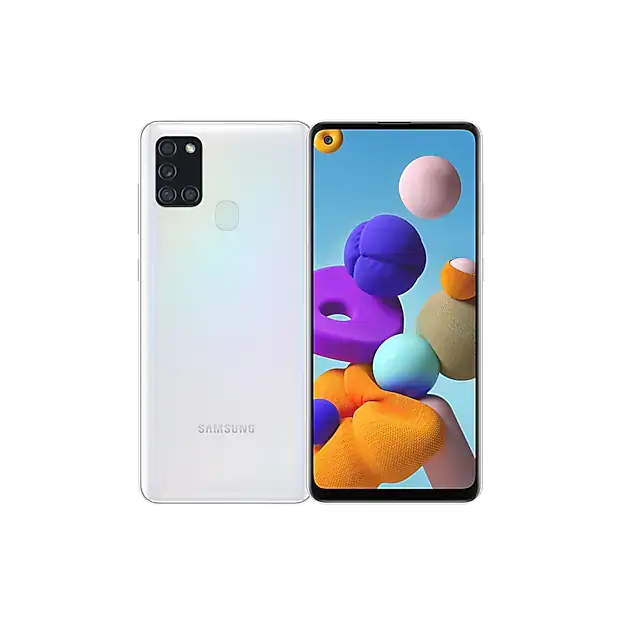
The Samsung Galaxy A21s is a smartphone with a touchscreen, a Side key and Volume key on the edge, a USB Type-C multipurpose jack, an earphone jack, and a fingerprint recognition sensor on the back. It unlocks with a pattern, PIN, password, fingerprint, or face recognition. The rear camera includes an Ultra wide (.5) and a wide-angle (1) setting, and the front camera takes selfies. It takes a nano-SIM card (two on dual SIM models) and a microSD memory card. Connectivity includes Wi-Fi, Wi-Fi Direct, Bluetooth, a mobile hotspot, and NFC on NFC-enabled models.
The sections below cover the physical controls, charging, SIM and memory cards, security, camera, connections, care, and troubleshooting.
Covered Models
This manual covers SM-A217F, SM-A217F/DS, and SM-A217F/DSN. The manual does not say which suffix has which feature. It identifies some features only by type: dual SIM models, and NFC-enabled models. Features can also differ by region, service provider, and software version.
Device Layout, Keys and Buttons
Device layout
| Location | Parts |
|---|---|
| Front | Proximity sensor, speaker, SIM card / Memory card tray, Volume key, Side key, front camera, touchscreen, multipurpose jack (USB Type-C) |
| Back | Flash, rear camera, fingerprint recognition sensor, microphone, GPS antenna, main antenna, NFC antenna (NFC-enabled models), speaker, earphone jack |
Keep the camera lens away from direct sunlight and other strong light. It can permanently damage the image sensor and cause dots or spots in pictures. Do not cover the proximity sensor with a screen protector, stickers, or a cover, because the sensor may malfunction.
Hard keys
| Key | Function |
|---|---|
| Side key | Press and hold to turn the device on or off. Press to turn on or lock the screen. Press twice to launch the app or feature you set. |
| Side key + Volume Down key | Press simultaneously to capture a screenshot. Press and hold simultaneously to turn off the device. |
To choose what a double press of the Side key does, open Settings, tap Advanced features → Side key, and select an option.
Soft buttons
| Button | Function |
|---|---|
| Recents | Tap to open the list of recent apps. |
| Home | Tap to return to the Home screen. Tap and hold to launch the Google Assistant app. |
| Back | Tap to return to the previous screen. |
The soft buttons appear at the bottom of the screen when the screen is on, and their functions can change with the app in use. To hide the navigation bar, open Settings, tap Display → Navigation bar, and tap Swipe gestures under Navigation type. If the Home button disappears in an app, drag upwards from the bottom of the screen to bring the navigation bar back.
Charging the Battery
Charge the battery before first use or after the device has been unused for a long time. Use only the Samsung-approved battery, charger, and cable designed for this device. An incompatible battery, charger, or cable can cause serious injury or damage to the device.
Wired charging
- Connect the USB cable to the USB power adaptor.
- Plug the cable into the device’s multipurpose jack.
- After the battery is fully charged, disconnect the charger from the device.
Use only the USB Type-C cable supplied with the device. A Micro USB cable can damage it. The charger has no power switch, so unplug it from the electric socket when not in use. Keep it close to the socket and easy to reach while charging.
Fast charging
Open Settings, tap Battery and device care → Battery → More battery settings, and activate the feature you want. Fast charging needs a charger that supports Adaptive fast charging. You can charge faster while the device or its screen is turned off.
Charging tips and precautions
- If the battery is completely discharged, the device cannot be turned on right away when the charger is connected. Let it charge for a few minutes first.
- A computer or other non-charger power source may charge more slowly because of its lower electric current.
- You can use the device while it charges, but charging may take longer.
- If the power supply is unstable while charging, the touchscreen may stop working. If that happens, unplug the charger from the device.
- Do not charge the device while the multipurpose jack is wet. Dry it thoroughly first.
- The device and charger may get warm while charging. This is normal. If the battery gets hotter than usual, the charger may stop charging.
Overheating
If the device heats up while charging, disconnect the charger, close running apps, and wait for it to cool before charging again. If the lower part of the device overheats, the USB cable may be damaged. Replace it with a new Samsung-approved cable.
During use, close running apps and rest the device. Also keep the software updated, restart the device, turn off Wi-Fi, GPS, and Bluetooth when not needed, delete unused files and apps, and lower the screen brightness. If it keeps overheating, contact a Samsung Service Centre.
If the temperature rises far enough, a warning message appears. Screen brightness and performance are limited, charging stops, and running apps close. All calling and other features are limited except emergency calls. If a second message appears, the device turns off. Do not use it until it cools below the specified level. A second warning during an emergency call does not disconnect the call through a forced shutdown.
SIM Card and Memory Card
Installing a SIM or USIM card
Use only a nano-SIM card. Dual SIM models can hold two cards.
- Insert the ejection pin into the hole next to the tray to loosen the tray.
- Pull the tray out gently.
- Place the SIM or USIM card on the tray with the gold-coloured contacts facing downwards, and press it gently into place.
- Insert the tray back into the slot.
Keep the ejection pin perpendicular to the hole, or the device may be damaged. Make sure the tray is dry and fully inserted, because a wet tray can damage the device and a loose tray lets liquid in.
SIM card manager (dual SIM models)
Open Settings and tap Connections → SIM card manager. Options are SIM cards, Preferred SIM card, Auto data switching, and More SIM card settings. On some networks, data speeds may be slower with two SIM cards inserted than with one.
Installing a memory card
Insert a microSD card with the same four tray steps, with the gold-coloured contacts facing downwards and the card right-side up. The maximum supported capacity varies, and some cards may not be compatible. An incompatible card can damage the device or the card, or corrupt data. Check the Samsung website for the maximum capacity. Removing the tray disables the mobile data connection.
The device supports the FAT and exFAT file systems. Cards in another format will need reformatting. When a card is inserted, its files appear in My Files → SD card.
Removing the memory card
- Open Settings and tap Battery and device care → Storage.
- Swipe left to the SD card page.
- Tap the menu icon → Unmount.
Do not remove the card while the device is transferring or accessing data.
Formatting the memory card
A card formatted on a computer may not work in the device, so format it on the device. Follow the same path as for removal, but tap the menu icon → Format. Back up important data first, because formatting erases the card and the warranty does not cover data loss from user actions.
Turning the Device On and Off
Turning the device on or off
To turn it on, press and hold the Side key for a few seconds. To turn it off, press and hold the Side key and tap Power off. Alternatively, open the notification panel, swipe downwards, and tap the power icon. To restart, tap Restart.
Forcing a restart
If the device is frozen and unresponsive, press and hold the Side key and the Volume Down key at the same time for more than 7 seconds.
Emergency mode
Emergency mode reduces battery consumption and restricts some apps and functions. You can still make an emergency call, send your location to others, and sound an emergency alarm. To activate it, press and hold the Side key and tap Emergency mode. To deactivate it, tap the menu icon → Turn off Emergency mode.
Initial setup
When you turn the device on for the first time, or after a data reset, follow the on-screen instructions. Without a Wi-Fi connection, you may not be able to set up some features during initial setup.
Screen Lock, Fingerprint and Face Recognition
Changing the screen lock
Open Settings, tap Lock screen → Screen lock type, and select a method. To factory reset the device automatically after too many incorrect unlock attempts, tap Lock screen → Secure lock settings, unlock the screen, and activate the Auto factory reset switch.
If you change the method to Swipe or None, all biometric data is deleted.
Registering a fingerprint
- Open Settings and tap Biometrics and security → Fingerprints.
- Read the on-screen instructions and tap Continue.
- Set a screen lock method.
- Place your finger on the fingerprint recognition sensor, lift it, and place it again. Repeat until the fingerprint is registered.
- Tap Done.
To unlock with a fingerprint, go to Settings → Biometrics and security → Fingerprints, unlock with your preset method, and turn on the Fingerprint unlock switch. To delete one, select it and tap Remove.
For better recognition, keep the sensor and your finger clean and dry, cover the whole sensor with your finger, and remove any film or sticker covering the sensor. Avoid dry places where static electricity builds up, or touch a metal object first. Wrinkles, scars, and small or thin fingers can affect recognition.
After the device is turned on, the fingerprint cannot unlock the screen the first time. You must use the pattern, PIN, or password set during registration, so do not forget it. If it is forgotten, you cannot use the device without resetting it, and Samsung is not responsible for data loss.
Registering a face
Register your face indoors and out of direct sunlight.
- Open Settings and tap Biometrics and security → Face recognition.
- Read the on-screen instructions and tap Continue.
- Set a screen lock method.
- Position your face inside the frame on the screen.
To use it, return to Face recognition, unlock with your preset method, and turn on the Face unlock switch. Face recognition is less secure than a pattern, PIN, or password, and someone who looks like you could unlock the device. As with fingerprints, the face cannot unlock the device the first time after turning it on. To remove face data, tap Remove face data → Remove.
Camera
Taking a photo
- Launch the Camera app. You can also press the Side key twice quickly or drag the camera icon to the left on the locked screen.
- Tap the preview where the camera should focus.
- Tap the shutter button to take the photo.
Some camera features are unavailable when you launch the camera from the locked screen or when the screen turned off while a screen lock was set.
Zoom, focus and exposure
| Control | Function |
|---|---|
| .5 | Ultra wide camera for wide-angle photos or videos |
| 1 | Wide-angle camera for basic photos or normal videos |
| Tap and hold an area | Locks focus (AF) and exposure (AE) on that area |
| Tap and hold the shutter button | Takes burst shots |
Zoom is available only with the rear camera.
Shooting modes
| Mode | How to use |
|---|---|
| PHOTO | Automatically adjusts shooting options to the surroundings |
| VIDEO | Tap the record button to start and the stop button to finish |
| PORTRAIT | Drag the background blur bar, and tap the shutter when Ready appears |
| PRO (MORE → PRO) | Manually adjust ISO, EV, and WB |
| FOOD (MORE → FOOD) | Drag the circular frame over the area to highlight, and adjust the colour tone |
| PANORAMA (MORE → PANORAMA) | Tap the shutter and move the device slowly in one direction |
| MACRO (MORE → MACRO) | Photograph subjects at close range |
| DECO PIC (MORE → DECO PIC) | Capture photos or videos with stickers |
Use Portrait mode with enough light. Blur may not apply properly when the device or subject moves, or when the subject is thin, transparent, or a similar colour to the background.
Camera settings
On the preview screen, tap the settings icon. Options include Scan QR codes, Hold Shutter button to, High efficiency pictures (HEIF), Reduce file size (HEVC video), Auto HDR, Grid lines, Location tags, Storage location (appears with a memory card inserted), and Watermark. HEVC videos cannot be played on other devices or shared online. Location tags can put your location on photos you upload, so deactivate them to avoid that.
If photos are blurry, clean the lens and try again. If the camera fogs after a sudden temperature change, let it dry naturally at room temperature.
Connections
Wi-Fi
- Open Settings and tap Connections → Wi-Fi, then turn the switch on.
- Select a network from the list. Networks with a lock icon need a password.
The device reconnects automatically to a network it has joined before. To stop that, tap the network’s settings icon and deactivate Auto reconnect. If you cannot connect, restart the device’s Wi-Fi or the wireless router.
Bluetooth pairing
- Open Settings and tap Connections → Bluetooth, then turn the switch on.
- Select a device to pair with. If it is not listed, put the other device in pairing mode.
- Accept the connection request on your device.
Your device is visible to other devices while the Bluetooth settings screen is open. To unpair, tap the settings icon next to the device name and tap Unpair.
NFC (NFC-enabled models)
Turn on NFC and contactless payments under Settings → Connections. Hold the NFC antenna area on the back near a tag or card reader, with the screen on and unlocked. Payments need registration with a mobile payment service through your service provider. Choose a default payment app under Connections → NFC and contactless payments → Contactless payments → Payment.
Mobile hotspot
- Open Settings and tap Connections → Mobile Hotspot and Tethering → Mobile Hotspot.
- Turn the switch on.
- On the other device, select your device from the Wi-Fi list, or tap QR code and scan it.
Tap Configure to change the security level and password. Data charges may apply.
Data saver and mobile data only apps
Settings → Connections → Data usage → Data saver restricts background data for some apps. Mobile data only apps makes selected apps use mobile data even when Wi-Fi is connected, which may incur charges.
Sounds, Display and Everyday Features
| Setting path | What it does |
|---|---|
| Sounds and vibration → Sound mode | Sound, vibration, or silent mode |
| Sounds and vibration → Sound quality and effects | Dolby Atmos, Dolby Atmos for gaming, Equaliser, UHQ upscaler, Adapt sound (some need an earphone) |
| Display | Dark mode, brightness, Adaptive brightness, Eye comfort shield, font size, screen zoom, screen timeout, Navigation bar |
| Advanced features → Motions and gestures | Lift to wake, double tap to turn the screen on or off, and other motion features |
| Battery and device care | Optimise now, Battery, Storage, Memory, Device protection |
Press the Side key and Volume Down key together to capture a screenshot. It is not possible in some apps, and you can find screenshots in Gallery.
Backup, Data Transfer and Updates
- Samsung Cloud backup: open Settings → Accounts and backup, tap Back up data under Samsung Cloud, turn on the items you want, and tap Back up now. To restore, tap Restore data and select a device.
- Smart Switch from another phone: open Settings → Accounts and backup → Bring data from old device. Wireless transfer works over Wi-Fi Direct with the old device sending and your device receiving. A microSD card or a computer can also be used.
- Software update: open Settings → Software update. Options are Download and install, and Auto download over Wi-Fi.
- Factory data reset: open Settings → General management → Reset → Factory data reset → Reset → Delete all. Back up important data first.
Care, Safety and Warranty Notes
- Use only Samsung-approved accessories. Unapproved accessories may cause performance problems and malfunctions not covered by the warranty.
- Do not let water touch the touchscreen, because it may malfunction in humid conditions or when exposed to water.
- Do not tap the screen with sharp objects or apply excessive pressure.
- Avoid fixed graphics on the screen for long periods, which can cause afterimages (burn-in) or ghosting.
- A device cover made of metal, metallic stickers on the antenna area, or covering the antenna area with your hands during calls or mobile data use can cause connectivity problems and battery drain.
- The device contains magnets. Keep it away from credit cards and implantable medical devices, and consult your physician if you have an implantable medical device.
- Do not use the device with a broken glass or acrylic body. Have it repaired at a Samsung Service Centre first.
- Do not try to remove the battery yourself. Contact an authorised service centre.
- Modifying the operating system or installing software from unofficial sources can cause malfunctions and data loss, and will void the warranty.
Troubleshooting
| Problem | Documented checks |
|---|---|
| Device does not turn on | A completely discharged battery will not turn on. Fully charge it first. |
| Touchscreen slow or improper | Remove screen protectors or accessories, check for gloves, dirty hands, or water, restart the device, and update the software. If the screen is scratched or damaged, visit a Samsung Service Centre. |
| Freezes or fatal error | Restart, then force restart. If that fails, perform a factory data reset. |
| Calls not connected | Check the cellular network and any call barring. |
| Others cannot hear you | Do not cover the microphone, keep it close to your mouth, and check the earphone connection. |
| Sound echoes during a call | Adjust the volume with the Volume key or move to another area. |
| Network or Internet drops often | Do not block the internal antenna, and move away from weak-signal areas. |
| Battery does not charge properly | Check the charger connection, or visit a Samsung Service Centre to have the battery replaced. |
| Battery drains faster | Extreme temperatures, GPS, games, and Internet use all raise consumption, and the battery is consumable. |
| Camera error messages | Charge the battery, free memory, and restart. |
| Storage full | Delete cache and unused files or apps using device care. |
| Cannot connect to a computer | Check that the USB cable is compatible and the proper driver is installed and updated. |
| Location not found | GPS can be blocked indoors, so set the device to use Wi-Fi or mobile networks. |
Frequently Asked Questions
How do I turn off or restart the Galaxy A21s?
Press and hold the Side key, then tap Power off. Tap Restart if you want it to restart instead. You can also open the notification panel, swipe downwards, and tap the power icon. Holding the Side key and Volume Down key together also turns the device off.
How do I force restart a frozen Galaxy A21s?
Press and hold the Side key and the Volume Down key at the same time for more than 7 seconds. If the problem continues, a factory data reset is the next documented step. Back up your data before doing that, because the reset deletes everything on the device.
How do I take a screenshot on the Galaxy A21s?
Press the Side key and the Volume Down key at the same time. The screenshot is saved to Gallery. A toolbar then appears at the bottom of the screen for scrolling capture, drawing, cropping, and sharing. If the toolbar does not appear, go to Settings → Advanced features → Screenshots and turn on Show toolbar after capturing. Screenshots are not possible in some apps.
What size SIM card does the Galaxy A21s use, and how do I insert it?
It takes a nano-SIM card only. Insert the ejection pin straight into the hole beside the tray, pull the tray out, set the card on it with the gold contacts facing down, and slide the tray back in fully. Dual SIM models hold two cards. Keep the pin perpendicular to the hole, and make sure the tray is dry.
How do I safely remove or format a microSD card?
Open Settings, tap Battery and device care → Storage, and swipe left to the SD card page. Tap the menu icon and choose Unmount before removing the card. To format it, choose Format from the same menu. The device supports FAT and exFAT. Format the card on the device, not a computer, and back up the card first because formatting erases it.
Is it normal for the phone to get hot while charging?
Yes. The device and charger may get warm while charging, and this does not affect the device’s lifespan or performance. If it gets hotter than usual, the charger may stop charging. Disconnect the charger, close running apps, and let the device cool before charging again. If the lower part of the device overheats, the USB cable may be damaged, so replace it with a new Samsung-approved cable.
Why won’t my Galaxy A21s turn on or charge?
If the battery is completely discharged, the phone cannot turn on immediately when the charger is connected. Leave it charging for a few minutes first. Make sure the charger is connected properly and that the multipurpose jack is dry. If the touchscreen stops responding while charging, the power supply may be unstable, so unplug the charger. If it still does not charge properly with a Samsung-approved charger, take it to a Samsung Service Centre.
How do I turn on fast charging?
Open Settings, tap Battery and device care → Battery → More battery settings, and turn on the fast charging option. You need a charger that supports Adaptive fast charging. Charging is faster while the device or its screen is turned off.
How do I set up fingerprint unlock, and why does it ask for my PIN after a restart?
Go to Settings → Biometrics and security → Fingerprints, tap Continue, set a screen lock, and register your finger by lifting and replacing it on the back sensor until it is done. Then turn on the Fingerprint unlock switch. After the device is turned on, you must unlock it once with your pattern, PIN, or password, and the fingerprint works after that. Do not forget that code, because a forgotten one means you cannot use the device without resetting it.
What happens when I press the Side key twice?
It launches the app or feature you chose. The Camera app opens by default in this manual’s description of the camera, but you can change it. Open Settings, tap Advanced features → Side key, and select the option you want.
How do I share my mobile data with another device?
Open Settings → Connections → Mobile Hotspot and Tethering → Mobile Hotspot and turn it on. On the other device, pick your phone from its Wi-Fi list or scan the QR code shown on the hotspot screen. Tap Configure to change the security level and password. If the other device cannot find the hotspot, tap Configure, set Band to 2.4 GHz, tap Advanced, and turn off the Hidden network switch. Your plan may charge for this.
What can I do when Bluetooth is not working well?
Make sure the other device is ready to be found or connected, and that the two are within 10 m. Turn the Bluetooth switch off and on again under Settings → Connections. If that does not help, go to General management → Reset → Reset network settings → Reset settings → Reset. You may lose registered information with this reset. If the problem remains, contact a Samsung Service Centre.