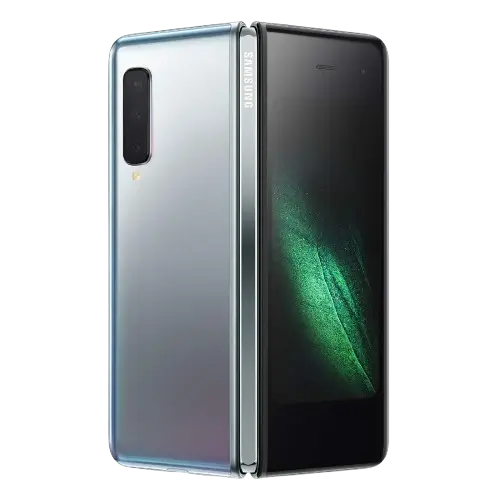
Samsung Galaxy Fold SM-F900F
The Samsung Galaxy Fold SM-F900F is a foldable smartphone with two screens: a Cover screen for one-handed use when the device is folded, and a large Main screen for viewing content when it is unfolded. It supports a nano-SIM card plus an eSIM, wired USB Type-C charging, built-in wireless charging and wireless power sharing, and a side-mounted fingerprint sensor in the Side key. The camera system includes a rear camera, a Cover camera and an inner front camera, and the software includes Multi window, Samsung DeX, Secure Folder and Bixby.
This page covers the controls, handling precautions, charging, setup, core features and documented troubleshooting steps that owners need most. The same manual covers model SM-F907B, and it does not describe any difference in procedures between the two models.
Device Layout and Hard Keys
Unfolded View
When the device is unfolded, the layout includes these parts:
- Inner front camera
- Speakers (top and bottom)
- Microphones (top and bottom)
- Proximity/Light sensor
- SIM card tray
- Volume key
- Side key, with the fingerprint recognition sensor
- Main screen
- Home button (soft button)
- Multipurpose jack (USB Type-C)
Folded View
When the device is folded, the layout includes these parts:
- Cover screen
- Cover camera
- Proximity/Light sensor
- Speaker
- Home button (soft button)
- Rear camera
- Flash
- Light sensor
- GPS antenna
- NFC antenna
- MST antenna / wireless charging coil
- Main antenna
Side Key Functions
| Key | Function |
|---|---|
| Side key | When the device is off, press and hold to turn it on. Press to turn on or lock the screen. Press and hold to start a conversation with Bixby. Press twice or press and hold to launch the app or feature you set. |
| Side key + Volume Down key | Press simultaneously to capture a screenshot. Press and hold simultaneously to turn off the device. |
To choose what the Side key launches, open the Settings app, tap Advanced features → Side key, and select an option.
Soft Buttons
The Recents, Home and Back soft buttons appear at the bottom of the screen when the screen is on. Tap Recents to open the list of recent apps. Tap Home to return to the Home screen, or tap and hold it to launch the Google Assistant app. Tap Back to return to the previous screen. To hide the navigation bar and use gestures instead, tap Settings → Display → Navigation bar → Swipe gestures. If the Home button is missing, drag upwards from the bottom of the screen to show the navigation bar.
Folding, Handling and Screen Care
This is a foldable device, and the manual lists specific handling precautions. Follow them to avoid damage that the manual says can result from misuse.
Folding and Storing
- Do not fold the device toward the backside. The device will be damaged.
- Fold the device before putting it in a bag or storing it. Do not store it unfolded, because another object could scratch or puncture the screen.
- Make sure no objects, such as cards, coins or keys, are between the screens when you fold the device.
- Do not unfold the device by pushing the screen apart with your finger.
- Do not apply excessive pressure to the area where the screen folds.
- Do not drop the device. It could damage the screen or the area where the screen folds.
- A crease at the centre of the Main screen is a normal characteristic of the device.
Screen and Film
- Do not press the screen or the front camera lens with a hard or sharp object, such as a pen or fingernail.
- The protector film on the Main screen is designed exclusively for foldable devices. Removing it may damage the screen, and the manual recommends not removing it.
- Do not apply other unapproved films or stickers. The coating of the film may peel off after repeated touch actions such as swiping.
- Do not cover the proximity/light sensor area with screen protectors, stickers or covers.
- Fixed graphics left on the touchscreen for extended periods may cause afterimages (screen burn-in) or ghosting. To limit this, set Settings → Display → Screen timeout, or turn on Adaptive brightness under Display.
Magnets, Liquids and Dust
- The device contains magnets, shown in grey in the device images. Keep a safe distance between the device and credit cards, passbooks, access cards, boarding passes, parking passes and implantable medical devices. If you have an implantable medical device, consult your physician before use.
- The device is not dust or waterproof. Water, coffee or sand can damage it, and the touchscreen may malfunction in humid conditions.
- Do not expose the camera lens to strong light such as direct sunlight, because the image sensor can be damaged irreparably.
- If dust or foreign material enters the microphone, speaker or receiver, sound may become quiet. Do not remove it with a sharp object.
- Do not attach metallic stickers to the antenna area or use a metallic cover, and do not cover the antenna area with your hands during calls or mobile data use. These can cause connectivity problems and battery drain.
- If the glass or acrylic body is broken, use the device only after it has been repaired at a Samsung Service Centre.
Attaching the Supplied Cover
Attach the supplied cover to the front and back of the device. To attach it:
- Remove the protective vinyl from the device.
- Clean the mounting surfaces of the device and the cover to remove foreign objects.
- Remove the tape attached inside the cover.
- While the device is folded, attach the cover starting from the top outer edge of the device.
To remove the cover, unfold the device and detach the cover from the top inner edge. Do not apply excessive pressure when attaching or removing it. If foreign objects get between the cover and the device, wipe them away to avoid scratches.
Charging the Battery
Charge the battery before first use or after it has been unused for an extended period. Use only a Samsung-approved battery, charger and cable designed for this device. Use only the USB Type-C cable supplied with the device, because a Micro USB cable may damage it. The charger has no power switch, so unplug it from the electric socket when not in use.
Wired Charging
Connect the USB cable to the USB power adaptor, plug the cable into the multipurpose jack, and disconnect the charger after charging is complete. Dry the multipurpose jack thoroughly before charging, because charging with a wet jack may damage the device.
Wireless Charging
- Fold the device.
- Place the centre of the device’s back on the centre of the wireless charger (sold separately).
- After charging is complete, disconnect the device from the charger.
The estimated charging time appears on the notification panel. For stable charging, separate any cover or accessory from the device. Do not place a credit card or RFID card (such as a transportation card) between the back of the device and the cover, and do not place metal objects or magnets between the device and the charger. Use Samsung-approved wireless chargers.
Quick Charging
Open Settings → Battery and device care → Battery → More battery settings and turn on the feature you want.
- Fast charging: requires a battery charger that supports Adaptive fast charging.
- Fast wireless charging: requires a charger and components that support fast wireless charging.
If a wireless charger has a fan, it may make noise during fast wireless charging. You can use Bixby Routines to turn the feature off automatically at a preset time to reduce the fan noise and indicator light.
Wireless Power Sharing
You can charge another device from this device’s battery, including a smartphone, Galaxy Watch or Galaxy Buds.
- Open the notification panel, swipe downwards, and tap the Wireless power sharing button to turn it on. If it is not on the quick panel, tap and drag the button to add it.
- Fold the device.
- Place the other device on the centre of your device with their backs facing.
- When finished, disconnect the other device.
Do not use earphones while sharing power, and do not move or use either device while charging. To stop sharing when your battery drops to a chosen level, open Settings → Battery and device care → Battery → Wireless power sharing → Battery limit.
Charging Tips and Precautions
- If the battery is completely discharged, the device cannot turn on immediately after the charger is connected. Let it charge for a few minutes first.
- A power source other than the charger, such as a computer, may charge more slowly because of lower current.
- If the device receives an unstable power supply while charging, the touchscreen may not work. Unplug the charger if this happens.
- If the device is not charging properly, take the device and charger to a Samsung Service Centre.
Overheating
While charging, the device and charger may become warm, and wireless or fast charging may feel hotter. The manual says this is within the normal range of operation and does not affect lifespan or performance. If the battery becomes too hot, charging may slow or stop.
If the Device Heats Up While Charging
- Disconnect the charger and close running apps. Let the device cool, then start charging again.
- If the lower part overheats, a damaged USB cable may be the cause. Replace it with a new Samsung-approved cable.
- During wireless charging, do not put metal objects, magnets or magnetic stripe cards between the device and the charger.
If the Device Heats Up During Use
Close running apps and stop using the device for a while. The manual also recommends keeping the software updated, restarting the device, turning off Wi-Fi, GPS and Bluetooth when not needed, deleting unnecessary files or apps, and lowering screen brightness. If the device keeps overheating, stop using it for a while and contact a Samsung Service Centre.
Overheating Warnings
If the device reaches a certain temperature, a warning message appears. Screen brightness and performance are limited, charging stops, running apps close, and calling and other features are limited except emergency calls until the device cools. If a second message appears because the temperature rises further, the device turns off. If the second warning appears during an emergency call, the call is not disconnected by the forced shutdown. Do not use the device in very hot places such as a closed car in summer, in direct sunlight for long periods, or near heaters or microwaves.
Nano-SIM Card and eSIM
Installing a SIM or USIM Card
Use only a nano-SIM card.
- Insert the ejection pin into the hole on the tray to loosen it.
- Pull the tray out gently.
- Place the card on the tray with the gold-coloured contacts facing downwards, and press it gently into the tray to secure it.
- Insert the tray back into the slot.
Keep the ejection pin perpendicular to the hole, or the device may be damaged. Make sure the tray is dry before inserting it, and push it fully in to prevent liquid from entering the device.
Activating an eSIM
Open Settings → Connections → SIM card manager → Add mobile plan and follow the on-screen instructions when a plan is found. If your service provider gave you a QR code, tap Scan carrier QR code on the same screen and scan the code. Using both a nano-SIM card and an eSIM may result in slower data transfer speeds in some areas, and eSIM availability depends on region, service provider, model and software version.
SIM Card Manager Options
Under Settings → Connections → SIM card manager you can set a Preferred SIM card for features such as voice calls, turn on Auto data switching so another SIM is used for data if the preferred one cannot connect, and open More SIM card settings.
Turning the Device On, Off and Restarting
- Turn on: Press and hold the Side key for a few seconds.
- Turn off: Press and hold the Side key and Volume Down key simultaneously, or open the notification panel, swipe downwards and tap the power icon. Then tap Power off. Tap Restart to restart.
- Force restart: If the device is frozen, press and hold the Side key and Volume Down key simultaneously for more than 7 seconds.
- Emergency mode: This reduces battery consumption and restricts some apps. You can make an emergency call, send your location and sound an alarm. Press and hold the Side key and Volume Down key and tap Emergency mode, or use the notification panel power menu. To turn it off, use the same menu and tap Turn off Emergency mode.
You can make a long press of the Side key open the Power off menu instead of Bixby by tapping Settings → Advanced features → Side key → Power off menu under Press and hold.
Initial Setup and Moving Your Data
When you turn the device on for the first time, or after a data reset, follow the on-screen instructions. Without a Wi-Fi connection, you may not be able to set up some features during initial setup.
Samsung Account
Open Settings → Samsung account to sign in, create an account, or continue with a Google account. If you forget your ID or password, tap Find ID or Forgot password? on the sign-in screen. Signing out removes data such as contacts and events from the device.
Smart Switch
Open Settings → Accounts and backup → Bring data from old device. You can transfer data with a USB cable, wirelessly via Wi-Fi Direct, or from a computer backup using the Smart Switch computer app. Do not disconnect the USB cable during a transfer, because that may cause data loss or device damage. Transfers use extra battery, so charge the device first.
Using the Cover Screen and Main Screen
Fold the device to use the Cover screen with one hand for calls, messages and quick browsing. Unfold it to view content on the Main screen. Some apps may not resize when you switch to the Main screen.
Continuing Apps on the Cover Screen
To move apps you are using on the Main screen to the Cover screen when you fold the device, open Settings → Display → Continue apps on cover screen and turn on the apps you want. Some apps do not support this.
Screen Lock
Folding the device or pressing the Side key turns off and locks the screen. To change the lock method, open Settings → Lock screen → Screen lock type. You can turn on Auto factory reset under Secure lock settings so the device resets after too many incorrect unlock attempts.
Notification Panel, Screenshots and Screen Recording
Drag the status bar downwards to open the notification panel, which holds quick setting buttons, notifications and media controls. Tap a button to turn a feature on or off, tap and hold it for detailed settings, and tap the plus icon to add buttons.
- Screenshot: Press the Side key and Volume Down key simultaneously, or swipe the edge of your hand across the screen if Palm swipe to capture is on under Settings → Advanced features → Motions and gestures.
- Screen recorder: Tap the Screen recorder button on the quick panel, choose a sound setting and tap Start recording.
Camera Basics
Open the Camera app, or press the Side key twice quickly if that setting is active. Tap the preview to focus, then tap the camera button to take a picture. Drag the shooting modes list or swipe the preview to change modes.
- Zoom (rear camera only): .5 uses the ultra wide camera, 1 uses the wide-angle camera and 2 uses the telephoto camera.
- Lock focus and exposure: Tap and hold the area to show the AF/AE frame.
- Camera button: Tap and hold to record video. Swipe it to the edge of the screen and hold it for burst shots.
- Modes: PHOTO, VIDEO, SINGLE TAKE, PORTRAIT, and under MORE: PORTRAIT VIDEO, AR DOODLE, PRO, PRO VIDEO, PANORAMA, FOOD, NIGHT, SUPER SLOW-MO, SLOW MOTION, HYPERLAPSE and BIXBY VISION.
Taking Pictures With the Cover Screen
You can use the Cover screen as a preview whether the device is folded or unfolded.
- Folded: Launch Camera on the Cover screen for one-handed shooting.
- Selfies with the rear camera: Launch Camera on the Cover screen, tap SELFIE, unfold the device and face the rear camera.
- Dual preview: On the preview screen, tap the Cover screen icon to turn the Cover screen on, so both screens show the scene.
Do not use the flash close to your eyes. The camera may fog up after sudden temperature changes. If it does, let it dry naturally at room temperature.
Multi Window
Multi window runs up to three apps at once in split screen view, and also supports pop-up view. To open split screen view, tap Recents, swipe to an app, tap its icon and tap Open in split screen view, then pick a second app. For pop-up view, tap Open in pop-up view instead. Drag the circles between app windows to resize them. You can also drag apps from the Edge panel, and save a split pair as an app pair. Some apps and features are unavailable on the Cover screen.
Samsung Pay and NFC
To pay with Samsung Pay, swipe up on a card image or open the app, scan your fingerprint or enter your PIN, then touch the back of the device to the card reader. If you have been using the device unfolded, fold it first. For NFC, turn on NFC and contactless payments under Settings → Connections, and keep the screen on and unlocked when reading tags. Handle the device carefully to avoid damaging the NFC antenna. Magnetic secure transmission (MST) may not be supported in some regions.
Wi-Fi, Bluetooth and Hotspot
Connecting to Wi-Fi
Open Settings → Connections → Wi-Fi, turn it on and select a network. If you cannot connect, restart the device’s Wi-Fi feature or the wireless router.
Pairing Bluetooth Devices
- Open Settings → Connections → Bluetooth and turn it on.
- Select a device from the list. If it is not listed, put the other device in pairing mode.
- Accept the connection request on your device and on the other device.
To unpair, tap the settings icon next to the device name and tap Unpair.
Mobile Hotspot
Open Settings → Connections → Mobile Hotspot and Tethering → Mobile Hotspot and turn it on. On the other device, select your device from the Wi-Fi list or scan the QR code. If the hotspot is not found, tap Configure, set Band to 2.4 GHz, tap Advanced and turn off Hidden network. Using the hotspot may incur additional charges.
Fingerprint, Face Recognition and Secure Folder
Registering a Fingerprint
The fingerprint sensor is built into the Side key. Open Settings → Biometrics and security → Fingerprints, tap Continue, set a screen lock method, then place your finger on the Side key, lift it and place it again until registration is complete. Clean, dry fingers and a clean sensor work best, and protective films or stickers over the sensor can reduce recognition. After you turn the device on, you must first unlock it with the pattern, PIN or password you set. Do not forget it.
Face Recognition
Open Settings → Biometrics and security → Face recognition and follow the prompts. Face recognition is less secure than a pattern, PIN or password, and the device could be unlocked by someone or something that looks like you. If you change the screen lock to Swipe or None, your biometric data is deleted.
Secure Folder
Secure Folder is a separate secured storage area for private content and apps. Open Settings → Biometrics and security → Secure Folder and follow the on-screen instructions. Back up data before saving it there, because customizing the operating system or modifying software will automatically lock Secure Folder.
Battery and Device Care, and Software Updates
Open Settings → Battery and device care to see battery, storage, memory and security status. Tap Optimise now to close background apps, manage abnormal battery usage and scan for crashed apps and malware. Under Battery, you can turn on Power saving and set Background usage limits. To update software, open Settings → Software update → Download and install, or turn on Auto download over Wi-Fi. Emergency security updates may install automatically.
Troubleshooting
| Problem | What the manual recommends |
|---|---|
| The device does not turn on | A completely discharged battery will not turn on. Fully charge the battery first. |
| The touchscreen responds slowly or improperly | Remove screen protectors or accessories that may interfere, make sure hands are clean and dry, avoid gloves, sharp objects and water, restart the device, and update the software. If the screen is scratched or damaged, visit a Samsung Service Centre. |
| The device freezes | Restart it. If it is unresponsive, press and hold the Side key and Volume Down key for more than 7 seconds. As a last resort, open General management → Reset → Factory data reset → Reset → Delete all, after backing up important data. |
| Calls are not connected | Check the cellular network and call barring settings for the dialed and incoming numbers. |
| Others cannot hear you | Do not cover the microphone, keep it close to your mouth, and check earphone connections. |
| Battery does not charge properly | Check that the charger is connected properly. If it still fails, visit a Samsung Service Centre to have the battery replaced. |
| Battery drains faster than when new | Extreme temperatures, GPS, games and Internet use increase consumption. The battery is consumable and useful charge shortens over time. |
| Camera error messages | Charge the battery, free memory, restart the device, then contact a Samsung Service Centre if needed. |
| Bluetooth is not working well | Stay within 10 m, turn Bluetooth off and on, or reset network settings under General management → Reset → Reset network settings. You may lose registered information. |
| Cannot find your location | GPS may be blocked indoors. Use Wi-Fi or a mobile network for location. |
| Not enough storage | Delete cache using device care or remove unused apps and files. |
| Small gap around the case | The manual describes this as a necessary manufacturing feature. Over time it may expand slightly. |
Do not attempt to remove the battery yourself. Contact an authorised service centre.
Frequently Asked Questions
How do I force restart a frozen Galaxy Fold?
Press and hold the Side key and the Volume Down key at the same time for more than 7 seconds. The device restarts. If it still does not respond, the manual’s last resort is a factory data reset, which erases the device, so back up anything important first if you can.
How do I turn off or restart the Galaxy Fold?
Press and hold the Side key and the Volume Down key together, then tap Power off or Restart. You can also open the notification panel, swipe downwards and tap the power icon. If you would rather have a long press of the Side key open the power menu, go to Settings → Advanced features → Side key and choose Power off menu under Press and hold.
How do I take a screenshot?
Press the Side key and Volume Down key at the same time, or swipe the edge of your hand left or right across the screen. If the swipe method does nothing, turn on Palm swipe to capture under Settings → Advanced features → Motions and gestures. Screenshots are not possible in some apps and features, and you can view them in Gallery.
Can I charge the Galaxy Fold wirelessly while it is unfolded?
Fold the device first. Place the centre of the back of the folded device on the centre of the wireless charger. Remove thick covers or accessories if charging is unreliable, and keep cards, metal objects and magnets out from between the device and the charger. Misalignment may stop charging or cause overheating.
How do I charge another device from my Galaxy Fold?
Use Wireless power sharing. Turn it on from the quick panel, fold the device, and place the other device back to back on the centre of yours. It works for devices that support wireless charging, such as a Galaxy Watch or Galaxy Buds, though some devices may not charge. To keep your own battery from running too low, set a Battery limit under Settings → Battery and device care → Battery → Wireless power sharing.
Why is my Galaxy Fold hot while charging?
Some warmth is expected, especially with wireless or fast charging, and the manual says it is within the normal range of operation. If it gets too hot, unplug the charger, close running apps and let the device cool before charging again. If the lower part is hot, try a new Samsung-approved USB cable, since a damaged cable can cause it.
How do I install a SIM card or set up an eSIM?
For a physical card, use the ejection pin to open the tray, place a nano-SIM with the gold contacts facing down, and push the tray fully back in. For an eSIM, go to Settings → Connections → SIM card manager → Add mobile plan. If your carrier gave you a QR code, choose Scan carrier QR code. If you use both, you can pick a preferred SIM card for calls in the same menu.
How do I keep using an app on the Cover screen after folding the device?
Open Settings → Display → Continue apps on cover screen and switch on the apps you want. When you fold the device while one of those apps is running, it appears on the Cover screen. Apps that do not support the feature will not carry over.
Is the crease in the Main screen normal, and can I remove the screen protector?
A crease at the centre of the Main screen is a normal characteristic of the device. The protector film on the Main screen is made for foldable devices, and removing it may damage the screen, so the manual recommends leaving it in place. Do not add other unapproved films or stickers.
Is the Galaxy Fold waterproof?
No. The manual states the device is not dust or waterproof, and liquids or small particles such as water, coffee or sand can damage the screen. If the multipurpose jack or SIM tray is wet, dry it before charging or inserting the tray.
Where is the fingerprint sensor, and why won’t it unlock after a restart?
The fingerprint sensor is built into the Side key. After the device is turned on, fingerprint unlock cannot be used the first time, so enter the pattern, PIN or password you set when registering. A film, sticker or damp or dirty finger can also reduce recognition. If your fingerprint stops working reliably, unlock with your code and register it again.
What should I do if my phone will not pair with a Bluetooth device?
Make sure the other device is in pairing mode and within 10 m. Turn Bluetooth off and on in Settings → Connections. If that does not help, open Settings → General management → Reset → Reset network settings and tap Reset settings. That reset may remove registered information, so use it only after the simpler steps.