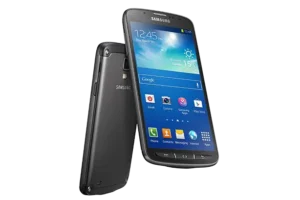
| Brand | Samsung |
| Product Name | Galaxy S4 Active |
| Model Number | SGH-I537 |
| File Size | 6.61 MB |
| Number of Pages | 265 |
| Languages Covered | English |
Samsung Galaxy S4 Active SGH-I537
The Samsung Galaxy S4 Active SGH-I537 is a 4G LTE Android smartphone with a 5-inch Full HD display, a 2.4 GHz quad-core processor, Wi-Fi, Bluetooth, NFC, mobile hotspot support, expandable microSD storage, front and rear cameras, GPS, Multi Window, motion controls, and an IP67-rated enclosure.
This user manual covers the AT&T version of the SGH-I537 and includes instructions for installing the SIM card and battery, charging the phone, completing the initial setup, making calls, managing contacts and messages, connecting to Wi-Fi and Bluetooth, using the camera, configuring settings, protecting the phone from water and dust, resetting the device, and following Samsung’s safety and warranty requirements.
Quick Facts
| Feature | Manual Information |
| Model | SGH-I537 |
| Product type | 4G LTE smartphone |
| Carrier edition | AT&T |
| Operating system | Android 4.2.2 Jelly Bean |
| Processor | 2.4 GHz quad-core |
| Display | 5.0-inch Full HD TFT |
| Cellular connectivity | 4G LTE and HSPA+ |
| Wi-Fi | Yes |
| Bluetooth | Yes |
| NFC | Yes |
| S Beam | Yes |
| Mobile Hotspot | Yes |
| USB tethering | Yes |
| GPS navigation | Yes |
| microSD support | Up to 64GB |
| Water/dust rating | IP67 |
| Maximum stated water exposure | Up to 1 meter for up to 30 minutes |
| Charging time from discharged battery | Approximately 4 hours |
| Samsung warranty – phone | 1 year |
| Samsung warranty – battery | 1 year |
Samsung lists the display, processor, Android version, network capabilities, wireless connections, expandable storage, messaging, and other key features in the phone overview.
Main Phone Parts and Controls
The diagrams in the manual identify the phone’s front, sides, and rear controls.
Front controls and sensors
| Part | Function |
| Status light | Shows charging, full-charge, startup, and notification status |
| Light sensor | Helps adjust screen brightness based on ambient light |
| Earpiece / external speaker | Used to hear calls |
| Front-facing camera | Used for self-portraits and supported video functions |
| Proximity sensor | Turns off the touchscreen when the phone is held near the face |
| Menu key | Opens available options for the current screen |
| Home key | Returns to the Home screen |
| Back key | Returns to the previous screen or menu |
| Application icons | Provide access to installed apps |
| Primary shortcuts | Give quick access to frequently used functions |
The front-view diagram on page 18 also shows the Home-screen layout, sensors, primary shortcuts, and navigation keys.
Side and bottom controls
The phone includes:
- 3.5 mm headset jack
- Volume keys
- Microphones
- Power/Lock key
- Power/Accessory Interface connector
- Infrared sensor
The Power/Lock key turns the phone on or off and locks or unlocks the touchscreen. The volume keys control ringtone volume while idle and call volume during a conversation.
Rear components
The rear of the phone includes:
- Camera lens
- Camera flash
- External speaker
The camera lens is used for photos and video, while the rear speaker provides audio when speakerphone and other audio functions are used.
Status Light Colors
The status light provides quick information about the phone.
| Light Color | Meaning |
| Red | Battery is charging |
| Green | Battery is fully charged |
| Blue | Phone is powering on |
| Orange | A notification has arrived |
Setting Up the Samsung Galaxy S4 Active
Before using the phone, the SIM card and battery must be installed. A microSD card can also be installed if additional storage is required.
The SIM, battery, and microSD slot are all located beneath the rear cover.
Removing the back cover
- Locate the opening at the top of the phone.
- Insert a fingernail into the slot.
- Lift the rear cover upward.
- Move the cover toward the right to remove it.
Do not remove the rubber seal inside the rear cover. That seal is important for protecting the phone against water.
The cover should also not be bent or twisted excessively.
How to Install the SIM Card
Handle the SIM card carefully because its contacts can be damaged by scratching or bending.
To install it:
- Remove the rear cover.
- Locate the SIM card socket.
- Position the card so its gold contacts face into the phone.
- Align the angled corner as shown in the manual.
- Slide the SIM into the socket until it locks into position.
If the phone does not detect the SIM, remove it and check its orientation before inserting it again.
How to Install the Battery
The battery used by this phone contains the NFC antenna needed for supported NFC functions.
To install it:
- Position the battery inside the rear battery compartment.
- Align the battery connectors with the phone’s contacts.
- Press the battery gently downward until it is securely seated.
Samsung instructs owners to use the battery designed for the phone so NFC functions can operate correctly.
Installing a microSD Memory Card
The Galaxy S4 Active SGH-I537 supports microSD and microSDHC cards and was tested with memory cards up to 64GB.
To install a card:
- Remove the rear cover.
- Locate the microSD slot.
- Position the card with its gold contacts facing downward.
- Push the card into the slot.
- Continue until it clicks securely into position.
Removing the memory card
Before physically removing a card during normal use, it should be unmounted through the Storage menu to help prevent corruption.
Go to:
Settings → More → Storage → Unmount SD card
Then:
- Confirm the unmount operation.
- Remove the rear cover.
- Press the memory card inward until it releases.
- Pull it from the slot.
Formatting the microSD card
To erase and format the installed card:
- Open Settings.
- Select More.
- Select Storage.
- Tap Format SD card.
- Confirm the format.
- Select Delete all.
Formatting permanently erases the files stored on the card.
Installing the Back Cover Correctly
Correct rear-cover installation is especially important because the seal contributes to the phone’s water and dust protection.
Before closing the cover:
- Check the rubber sealing area for dust, sand, or other debris.
- Attach the upper section of the cover.
- Align all hooks around the cover.
- Press around the edges until they are tightly closed.
- Press below the flash until a click is heard.
The manual warns that an improperly closed back cover can allow water to enter the device.
Charging the Samsung Galaxy S4 Active
The phone uses a rechargeable lithium-ion battery and includes a Travel Charger.
Samsung recommends using Samsung-approved batteries and chargers.
First charge
The battery should be fully charged before the phone is used for the first time.
A fully discharged battery takes approximately 4 hours to recharge under the conditions stated in the manual.
How to charge the phone
- Make sure the battery is properly installed.
- Open the multipurpose jack cover on the bottom of the phone.
- Insert the flat end of the Travel Charger into the Power/Accessory Interface port.
- Connect the other end to a standard AC wall outlet.
- Allow the battery to charge.
- Disconnect the charger from the phone when charging is finished.
- Inspect the jack-cover seal for dust or sand.
- Close the multipurpose jack cover tightly.
The phone can be used while charging, but this increases charging time.
Low battery warning
When only a small amount of battery power remains:
- The battery icon flashes.
- The phone sounds warning tones.
- The display enters a dimming state to conserve power.
If the battery becomes too depleted, the phone automatically turns off.
Turning the Galaxy S4 Active On and Off
Turning the phone on
- Press and hold the Power/Lock key.
- Wait for the phone to start.
- Swipe across the screen to unlock it.
Turning the phone off
- Press and hold the Power/Lock key.
- Wait for the Device Options menu.
- Tap Power off.
- Tap OK to confirm.
Locking and Unlocking the Touchscreen
To lock the screen, press the Power/Lock key.
To unlock:
- Press Power/Lock again.
- Wait for the lock screen.
- Swipe across the display.
Swipe is the default locking method, but additional lock types are available through the Lock Screen settings.
Available screen-lock methods include:
- Swipe
- Face unlock
- Face and voice
- Pattern
- PIN
- Password
- None
First-Time Phone Setup
The initial configuration process begins when the phone is switched on for the first time.
The manual’s setup sequence includes:
- Choose a display language.
- Configure Accessibility settings if required.
- Continue to the Google-account screen.
- Sign in to an existing Google account or create a new one.
- Choose Google location-service preferences.
- Enter the owner’s name.
- Set up an email account if desired.
- Sign in to or create a Samsung account.
- Enter an optional device name.
- Review key phone features.
- Finish the setup procedure.
The manual’s version of the setup wizard is AT&T-specific and begins with AT&T Ready2Go.
After setup is finished, the main Home screen appears.
Setting Up a Samsung Account
A Samsung account provides access to supported Samsung services included with this version of the phone.
To create one:
- Open Settings.
- Select Accounts.
- Tap Add account.
- Select Samsung account.
- Tap Create new account.
- Enter the requested information.
- Review the terms and privacy policy.
- Accept the terms.
- Follow the instructions to verify the email address.
Setting Up a Google Account
A Google account provides access to Google applications and synchronization.
To add one from Gmail:
- Open Gmail.
- Select New to create an account.
Or:
- Select Existing.
- Enter the details for an existing Google account.
- Follow the on-screen setup process.
Setting Up Voicemail
To set up voicemail:
- Open the Phone application from the Home screen.
- Press and hold the voicemail key.
- Follow the voice tutorial.
- Create a voicemail password.
- Record a greeting.
- Record a name when prompted.
Exact steps can vary according to the mobile network.
IP67 Water and Dust Resistance
The Galaxy S4 Active SGH-I537 is rated IP67 under the Ingress Protection system.
Samsung describes the rating as:
- Dust rating 6: highest level of dust protection in the referenced rating system.
- Water rating 7: water resistance at up to 1 meter for up to 30 minutes.
The phone is not protected against water damage under every possible condition.
How to maintain water and dust protection
- Keep the back cover tightly closed.
- Keep the multipurpose jack cover closed.
- Inspect seals for dust, sand, or other debris.
- Dry the phone with a clean, soft cloth when it becomes wet.
- Do not expose it to salt water or ionized water.
- Do not exceed 1 meter of water depth or 30 minutes of exposure.
- After salt-water exposure, rinse the device with fresh water and dry it thoroughly.
- Dry the earpiece, microphone, and speaker carefully.
- Check both covers after the phone is dropped or receives an impact.
- Keep the multipurpose jack cover clean and undamaged.
The touchscreen may not operate while submerged.
Key Phone Features
The manual identifies major features including:
- 4G LTE and HSPA+
- Android 4.2.2 Jelly Bean
- 5-inch Full HD TFT display
- 2.4 GHz quad-core processor
- Wi-Fi
- Bluetooth
- Mobile Hotspot
- USB tethering
- NFC
- GPS navigation
- Front-facing camera
- Rear camera and camcorder
- Expandable microSD storage up to 64GB
- Corporate and personal email
- Google Mobile services
- Samsung Link
- Multi Window
- Smart Remote through WatchON
Understanding the Home Screen
The Home screen is the main starting point for applications and phone functions.
It can contain:
- Application shortcuts
- Widgets
- Folders
- Google widgets
- Primary shortcuts
The phone initially provides three Home screens and can be expanded to as many as seven.
Main navigation keys
Home: Returns to the main Home screen. Holding it opens recently used apps and Task Manager.
Menu: Opens options related to the current screen or application.
Back: Returns to the previous screen or step.
Touchscreen Gestures
The phone supports several touch and motion actions.
Tap
Lightly touch an item to select, open, or launch it.
Touch and hold
Hold a finger on an item to display additional options or move objects such as widgets.
Swipe
Move a finger horizontally or vertically to:
- Scroll
- Change Home screens
- Unlock the phone
Palm swipe
Swipe the edge of the hand across the display for supported palm-motion actions such as capturing the screen.
Tilt
Touch and hold two points, then tilt the phone to zoom in or out in supported applications.
Turn over
Turning the phone face-down can mute supported incoming calls and sounds.
Multi Window
Multi Window allows two supported applications to run on the screen at the same time.
To activate it:
- Open Settings.
- Select My device.
- Tap Display.
- Enable Multi window.
- Return to the Home screen.
- Open the Multi Window panel and choose supported applications.
Applications can then be displayed in split-screen form, resized, rearranged, or maximized.
Notification Panel and Quick Settings
Swipe downward from the Notification Bar to view alerts and active processes.
Quick controls can include:
- Wi-Fi
- GPS
- Sound
- Screen rotation
- Bluetooth
- Mobile data
- Blocking mode
- Power saving
- Screen Mirroring
- Multi Window
- S Beam
- NFC
- Air View
- Air Gesture
- Driving mode
- Smart Stay
- Smart Pause
- Smart Scroll
- Sync
- Airplane mode
Making a Phone Call
To make a standard call:
- Open the Phone application.
- Use the on-screen keypad to enter the number.
- Tap the Call button.
Ending a call
Tap the End Call button.
Calling from the call log
Open:
Phone → Logs
Select a previous incoming, outgoing, or missed call and tap the appropriate call control.
Speed Dial
Speed-dial locations from 1 through 100 are available, with position 1 reserved for voicemail.
Answering or Rejecting Calls
When a call arrives:
- Drag the Answer control to accept it.
- Drag the Reject control to send the call to voicemail.
- Use Reject call with message to reject the call and send a predefined response.
Controls Available During a Call
Supported in-call functions include:
- Hold
- Add call
- Keypad
- End call
- Speaker
- Mute / Unmute
- Bluetooth headset
- Contacts
- Memo
- Message
Call volume can be adjusted using the physical Volume keys.
Text Input Methods
The phone provides three main ways to enter text:
- Samsung keyboard – the default on-screen QWERTY keyboard.
- Google Voice typing – converts spoken words into text.
- Swype – creates words by sliding a finger across letters rather than tapping each letter individually.
The Samsung keyboard also supports predictive text, symbols, numbers, emoticons, and handwriting input.
Camera Modes
The camera includes several shooting modes designed for different situations.
| Camera Mode | Purpose |
| Auto | Automatically adjusts color and brightness |
| Beauty Face | Produces softer-looking facial images |
| Best Photo | Takes multiple images and allows preferred shots to be selected |
| Continuous Shot | Captures multiple pictures in sequence |
| Best Face | Combines preferred facial expressions from multiple group photos |
| Sound & Shot | Adds several seconds of sound to a photo |
| Drama | Combines a moving subject across a sequence |
| Animated Photo | Creates an image with selected moving areas |
| Rich Tone (HDR) | Produces richer colors and contrast |
| Eraser | Uses multiple shots to remove unwanted passersby |
| Panorama | Creates wide panoramic images |
| Sports | Intended for fast-moving subjects |
| Night | Captures low-light images without flash |
| Aqua | Allows photos or video to be captured underwater using the Volume key |
Using Aqua mode
Aqua mode is specifically provided for underwater photo or video capture.
When Aqua mode is selected, the Volume button acts as the capture control because normal touchscreen operation may be unavailable underwater.
The IP67 limits and sealing requirements still apply.
Camera Settings
Available settings vary by shooting mode and can include:
- Photo size
- Video size
- Face detection
- Metering
- ISO
- Anti-Shake
- Flash
- Timer
- Voice control
- GPS tagging
- Photo review
- Volume-key function
GPS tagging adds location information to photos. Owners who do not want location information attached to pictures can turn the option off.
How to Connect the Galaxy S4 Active to Wi-Fi
To turn Wi-Fi on:
- Open Settings.
- Select Connections.
- Tap Wi-Fi.
- Move the Wi-Fi slider to ON.
Connecting to a Wi-Fi network
- Open Settings → Connections → Wi-Fi.
- Wait for available networks to appear.
- Select the required network.
- Enter the wireless password if the network is secured.
- Complete the connection.
Open networks connect without requiring a password.
Manually adding a network
If a network does not appear automatically:
- Select Add Wi-Fi network.
- Enter the SSID.
- Choose the appropriate security type.
- Enter the password when required.
- Configure any advanced proxy or IP options if necessary.
- Tap Connect.
Bluetooth Setup and Pairing
Bluetooth can connect the phone wirelessly to devices such as:
- Headsets
- Hands-free car systems
- Computers
- Printers
- Other Bluetooth-enabled devices
The manual gives an approximate Bluetooth communication range of 30 feet.
Pairing a Bluetooth device
- Turn Bluetooth on.
- Open the Bluetooth settings screen.
- Tap Scan.
- Select the required device.
- Enter a passkey or PIN when requested.
- Confirm the connection on the other device when required.
A Bluetooth connection icon appears after successful pairing.
NFC, Android Beam and S Beam
NFC
NFC allows compatible devices to exchange data when placed close together.
To activate it:
Settings → Connections → NFC → ON
Android Beam
Android Beam can transfer supported content such as:
- Browser pages
- YouTube content
- Contacts
S Beam
S Beam supports sharing items such as:
- Photos
- Videos
- Music
Hold the backs of compatible NFC devices together to initiate supported transfers.
Mobile Hotspot and USB Tethering
The Galaxy S4 Active can share its mobile data connection through:
- Portable Wi-Fi hotspot
- USB tethering
These settings are found under:
Settings → Connections → More networks → Tethering and portable hotspot
Carrier plan requirements and charges can apply.
Settings Menu
The phone organizes Settings into four main categories.
| Settings Tab | Main Functions |
| Connections | Wi-Fi, Bluetooth, Data Usage, Mobile Networks, Hotspot, VPN, NFC, S Beam, Nearby Devices, Screen Mirroring, Kies via Wi-Fi |
| My Device | Lock Screen, Display, Sound, Calls, Driving Mode, Torch, Power Saving, Accessibility, Language, Motions, Smart Screen, Air View, Voice Control |
| Accounts | Samsung, Google, email and other accounts; backup and reset |
| More | Location, Security, Applications, Battery, Storage, Date & Time, About Device |
How to Factory Reset the Samsung Galaxy S4 Active
A factory data reset returns phone and sound settings to their factory state.
Before resetting, any important files and account data should be backed up.
To reset the SGH-I537:
- Open Settings.
- Select Accounts.
- Select Back up and reset.
- Tap Factory data reset.
- Review the reset information.
- Tap Reset device.
- Follow the prompts.
What does a factory reset erase?
A factory reset erases data from the phone and internal storage, including:
- Google account information
- System and app data
- Device settings
- Downloaded applications
It does not remove:
- Current system software
- Preinstalled applications
- Files on the external microSD card, such as photos and music
Battery Safety
Samsung instructs users to use only compatible Samsung-approved batteries and chargers designed for the phone.
Battery precautions include:
- Do not use damaged or leaking batteries.
- Do not use damaged chargers.
- Do not allow battery terminals to contact metal objects.
- Avoid dropping the battery.
- Have the battery inspected if physical damage is suspected.
- Do not use incompatible or counterfeit batteries and chargers.
Using an unapproved battery or charger can create a risk of fire, leakage, or explosion and may result in damage not covered by Samsung’s warranty.
Care and Maintenance
Samsung recommends protecting the phone from conditions that can damage its electronics or casing.
Water and liquids
Although the Galaxy S4 Active has IP67 protection when properly sealed, Samsung’s general care guidance warns against unnecessary exposure to moisture.
If the phone becomes wet, do not attempt to speed drying with:
- Oven
- Microwave
- Clothes dryer or similar heat source
Dry it according to the water-resistance instructions instead.
Temperature
Avoid storing or using the phone at temperatures:
- Below 0°C / 32°F
- Above 45°C / 113°F
Dust, dirt and sand
Do not unnecessarily expose the device to dust, dirt, or sand.
This is particularly important around the back-cover and multipurpose-jack seals.
Cleaning the phone
Do not use:
- Harsh chemicals
- Cleaning solvents
- Strong detergents
Samsung recommends wiping the device with a soft cloth slightly dampened with a mild soap-and-water solution.
Shock and vibration
Do not drop, knock, or shake the phone. Rough handling can damage internal circuit boards.
Samsung Limited Warranty
Samsung provides the following warranty periods for products covered by this manual:
| Product | Warranty Period |
| Phone | 1 year |
| Battery | 1 year |
| Case / Pouch / Holster | 90 days |
| Other phone accessories | 1 year |
Coverage begins on the date of purchase by the first consumer purchaser.
Warranty coverage is conditional on proper use and contains exclusions for issues including certain accidents, misuse, improper storage, exposure, unauthorized modifications, and other conditions described in the full warranty terms.
Obtaining warranty service
For warranty service, Samsung requires the device to be returned to an authorized service facility with appropriate proof of purchase showing information such as:
- Original purchase date
- Product serial number
- Seller’s name and address
Samsung also recommends creating a separate backup of device contents because data may be deleted or reformatted during service.
Samsung Customer Support
The manual provides the following Samsung contact information:
Samsung Customer Care Center
1000 Klein Rd.
Plano, TX 75074
Toll-Free: 1-888-987-HELP (4357)
Samsung also directs users to its online support system for product information and assistance.
Frequently Asked Questions
How do you set up a Samsung Galaxy S4 Active SGH-I537?
Remove the rear cover, install the SIM card and battery, add a microSD card if required, and close the rear cover securely. Charge the battery fully before first use, then hold the Power/Lock key to turn on the phone. Follow the on-screen setup process to configure language, Google account, Samsung account, email, location preferences, and other options.
How long does the Samsung Galaxy S4 Active take to charge?
The manual states that a completely discharged battery takes approximately 4 hours to charge fully. Using the phone while it is charging can increase the charging time.
What size memory card does the Samsung Galaxy S4 Active support?
The SGH-I537 was tested to support microSD or microSDHC memory cards of up to 64GB.
Is the Samsung Galaxy S4 Active waterproof?
The phone has an IP67 rating when its covers and seals are correctly closed. Samsung describes this as dust protection and water resistance at a depth of up to 1 meter for up to 30 minutes. The manual also warns that the phone is not protected from water damage under every possible condition.
How do you connect the Galaxy S4 Active to Wi-Fi?
To connect your Galaxy S4 Active to Wi-Fi, open Settings, go to Connections > Wi-Fi, and turn Wi-Fi on. Select the Wi-Fi network you want to use, enter the password if required, and tap Connect. If the network does not require a password, your phone can connect after you select it.
How do you factory reset a Samsung Galaxy S4 Active SGH-I537?
To factory reset your Samsung Galaxy S4 Active SGH-I537, open Settings, go to Accounts > Back up and reset > Factory data reset, and tap Reset device. Follow the on-screen instructions to complete the reset. This will delete your accounts, settings, downloaded apps, and data stored on the phone, so back up any important files before you begin.
Can the Galaxy S4 Active take pictures underwater?
The camera includes an Aqua mode for underwater photos and video. In Aqua mode, the Volume button is used as the capture control. The phone’s IP67 limits still apply, including the stated maximum of 1 meter for up to 30 minutes with the protective covers correctly sealed.