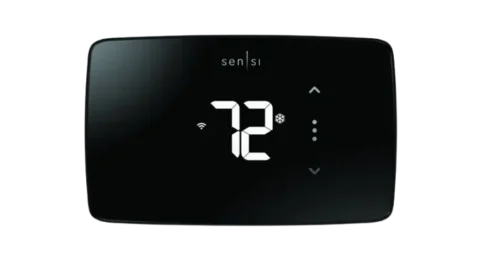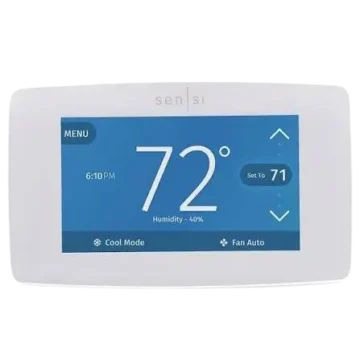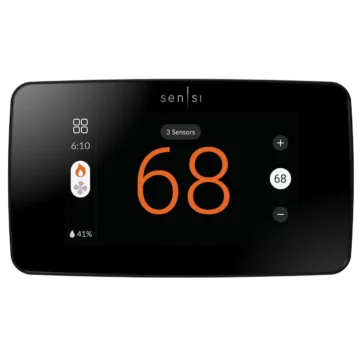
| Brand Name | Sensi |
| Product Name | Sensi Smart Thermostat |
| Model Number(s) | 1F87U-42WF Series, ST55 Series |
| File Size | 0.25 MiB |
| Number of Pages | 10 |
| Languages Covered | English |
Sensi Smart Thermostat 1F87U-42WF Guide
The Sensi Smart Thermostat is a Wi-Fi-enabled thermostat installed and configured through the Sensi app. This installation guide applies to the 1F87U-42WF series and ST55 series. It covers the full replacement process, including preparing the Sensi app, removing an existing thermostat, identifying and labeling HVAC wires, mounting the Sensi base, connecting the thermostat, restoring HVAC power, connecting to Wi-Fi and registering the thermostat.
The official wiring diagrams also cover conventional single-stage and multi-stage systems, as well as single-stage and multi-stage heat pumps. The thermostat provides terminals for cooling, heating, common, fan, reversing-valve/zone functions, second-stage equipment and configurable humidification or dehumidification connections.
Sensi Smart Thermostat Models Covered
The Sensi app’s Smart Thermostat installation option applies to these models:
| Model | Product Family |
| 1F87U-42WF Series | Sensi Smart Thermostat |
| ST55 Series | Sensi Smart Thermostat |
The model number can be checked on the back of the thermostat cover before installation begins.
What Is Needed Before Installation
Before beginning the installation, the official guide recommends having the network information, tools and thermostat hardware ready.
| Requirement | Details |
| Wi-Fi Network Name / SSID | Required |
| Wi-Fi Frequency | 2.4GHz |
| Wi-Fi Password | Required |
| Screwdriver | Required during installation |
| Sensi Thermostat Hardware | Hardware included in the Sensi Smart Thermostat package |
| Smartphone or Tablet | Used to run the Sensi app |
| Sensi App | Required to correctly install and configure the thermostat |
The installation checklist specifically states that the Wi-Fi network should be a 2.4GHz network.
Download the Sensi App
The Sensi Smart Thermostat must be installed and configured through the Sensi app.
Before working with thermostat wiring:
- Download the Sensi app to a smartphone or tablet.
- Open the app.
- Create a Sensi account.
- Enter a valid email address.
- Choose a password and keep the login information available.
Once the thermostat is registered, it becomes linked to the email address used for the Sensi account. The account is also required for remote thermostat access and the full range of Sensi features.
The guide notes that the Install a device option is intended only for HomeKit installation. Some Sensi features will not be available if an account is not created.
Add the Sensi Smart Thermostat to the App
After downloading the app and creating an account:
- Open the Sensi app.
- Tap the plus (+) sign to add a thermostat.
- Select the Sensi Smart Thermostat.
- Confirm that the thermostat is an 1F87U-42WF series or ST55 series model.
Choose the Correct Installation Path
After selecting the thermostat model, tap New Installation.
The app asks whether the thermostat is:
- Not Mounted
- Is Currently Mounted
Not Mounted
The Not Mounted option is intended for a full DIY installation.
The app walks through:
- Identifying existing thermostat wires
- Labeling the wires
- Connecting the wires to Sensi
- Configuring the thermostat for the HVAC system
- Connecting Sensi to Wi-Fi
The official guide recommends this option when the thermostat has not already been installed professionally.
Is Currently Mounted
Choose Is Currently Mounted when the Sensi thermostat has already been installed by a technician.
This setup path asks the user to identify the wiring already connected to Sensi, checks the HVAC configuration and then continues to Wi-Fi setup.
Turn Off HVAC Power Before Installation
Before touching any thermostat wiring, switch off power to the heating and air-conditioning system.
Power should remain off while the old thermostat is removed and the Sensi base is being wired.
Remove the Existing Thermostat
Remove the Old Thermostat Cover
Depending on the existing thermostat, the cover may:
- Pull straight off
- Release using a pressure latch
- Require a screwdriver
Remove the cover carefully while leaving the existing wires connected.
Photograph the Existing Wiring
Before disconnecting any wires, take a clear photograph of the existing thermostat and its wiring.
The Sensi app prompts the installer to take this picture, which is saved to the smartphone’s camera roll or photo gallery. The photo can be useful if wiring needs to be checked later or if technical support is required.
Remove Old Jumper Wires
The official guide states that Sensi has a built-in jumper, so jumper wires from the old thermostat are not required.
Old jumper wires should therefore not be transferred to the new Sensi thermostat.
Identify the Existing Wire Terminals
In the Sensi app, select every terminal label on the existing thermostat that currently has a wire connected.
The app checks the selected terminals and indicates whether the wiring is a valid configuration.
The installation flow also asks the installer to select the type of HVAC or furnace system being connected.
Label the Thermostat Wires
Use the wire-label stickers included with Sensi.
For each existing wire:
- Identify its current thermostat terminal.
- Attach the corresponding Sensi wire label.
- Disconnect the wire.
- Repeat for all connected wires.
Once all wires have been labeled and disconnected, remove the old thermostat base from the wall.
Mount the New Sensi Thermostat Base
Position the Sensi base on the wall and secure it with the mounting screws included with the thermostat.
The wiring should remain accessible through the opening in the thermostat base.
Connect the Thermostat Wires
Once the base is secured:
- Match each labeled wire to its corresponding Sensi terminal.
- Insert the wire into the terminal slot.
- Use a screwdriver to secure the wire in place.
- Check each connection before attaching the thermostat cover.
The installation image on page 5 shows the labeled thermostat wires being matched with the corresponding terminals on the Sensi base.
Attach the Thermostat Cover
Push the front thermostat display onto the mounted base.
After the thermostat has been attached securely, restore power to the heating and air-conditioning system.
Setting Up a Sensi Smart Thermostat That Is Already Mounted
If the thermostat has already been installed professionally, use the Is Currently Mounted option.
The guide instructs the user to:
- Turn off HVAC power.
- Hold the thermostat with both hands.
- Pull it straight forward to detach the cover from the base.
- Identify the terminals that already have wires attached.
- Select the heating-source type.
- Push the thermostat cover back onto the base.
- Restore HVAC power.
Sensi Smart Thermostat Wiring Terminals
The wiring diagrams on page 10 show the thermostat terminal layout for conventional and heat-pump systems.
| Terminal | Function Shown in the Official Wiring Diagrams |
| RC | 24V power for cooling |
| RH | 24V power for heating |
| C | 24V common wire |
| Y | First-stage cooling or first-stage heat-pump compressor |
| Y2/* | Second-stage cooling or second-stage heat-pump compressor; configurable accessory use |
| W/E | First-stage heat or auxiliary/emergency heat depending on system |
| W2/* | Second-stage heat or additional auxiliary/emergency heat; configurable accessory use |
| G | Indoor blower / fan |
| O/B | Heat-pump reversing valve, zone panel or three-wire hot-water zone valve connection |
| L | Heat-pump L terminal connection |
The page 10 diagrams distinguish conventional single-/multi-stage systems from heat-pump systems and show how terminal functions change according to the selected HVAC configuration.
Conventional HVAC Wiring
For conventional systems without a heat pump, the official diagram supports:
| Configuration | System Type |
| AC1 | Single-stage conventional cooling |
| GA1 | Single-stage gas heating |
| EL1 | Single-stage electric heating |
| AC2 | Two-stage conventional cooling |
| GA2 | Two-stage gas heating |
| EL2 | Two-stage electric heating |
The diagram shows separate connections for cooling power, heating power, common, first- and second-stage cooling, first- and second-stage heating, fan control and configurable accessory or zone connections.
Two-Transformer Systems
For HVAC systems that use separate RC and RH wires from two transformers, the official wiring diagram instructs the installer to clip the internal RC/RH jumper on the back of the thermostat.
This instruction applies specifically to two-transformer installations.
Heat Pump Wiring
The page 10 heat-pump diagram covers:
- HP1 — single-stage heat pump
- HP2 — two-stage heat pump
The diagram identifies:
- Y for first-stage heating and cooling compressor operation
- Y2/* for second-stage compressor operation where applicable
- G for the indoor blower
- O/B for the heat-pump reversing valve
- W/E and W2/* for auxiliary/emergency heat functions according to system staging
- C for common
- RC/RH for 24V power
- L for the heat-pump L terminal connection
How to Connect the Sensi Smart Thermostat to Wi-Fi
After the thermostat has been wired, mounted and powered, Wi-Fi setup can begin.
Enter Wi-Fi Setup Mode
On the thermostat:
- Press Menu.
- Press Mode.
- Watch for the Wi-Fi icon in the upper-left corner to begin flashing.
Identify the Sensi Version
During Wi-Fi setup, the thermostat displays one of the following codes in the center of the screen:
- 00
- 11
- 22
The displayed code tells the Sensi app which version of the thermostat is being connected.
The screenshot on page 7 shows the app asking the installer to choose the thermostat display that matches the physical thermostat.
Connect to the Wi-Fi Network
Continue through the instructions shown in the Sensi app.
The exact Wi-Fi connection sequence may differ depending on:
- Smartphone operating system
- Sensi app version
- Sensi thermostat version
The network information gathered before installation should include a 2.4GHz network name and password.
HomeKit Error on iPhone
If an iPhone displays a HomeKit-related error during setup, check the Sensi app permissions and confirm that Sensi has access to Home Data.
Name the Thermostat
After the connection process, the app allows the user to:
- Select a suggested thermostat name, or
- Enter a custom name.
Press Next after selecting the preferred name.
Register the Thermostat
After successful Wi-Fi connection, the Sensi app prompts the user to register the thermostat.
Registration can be completed by:
- Selecting Locate Me, or
- Entering street address, city, state, ZIP code, country and time zone manually.
Contractor Information
If a Sensi partner professionally installed the thermostat, that contractor may enter a phone number during registration.
If no registered contractor number is available, this step can be skipped.
Select Start Using Sensi to open the main app screen when registration is complete.
HVAC Configuration Menu
The physical thermostat includes an HVAC configuration menu that can be checked when:
- Heating is not operating correctly.
- Cooling is not operating correctly.
- The installer needs to verify HVAC settings.
The configuration reference on page 9 covers the following major settings.
| Setting | Options Shown in the Guide |
| Wireless Setup | Connect |
| Temperature Scale | °F / °C |
| Outdoor Equipment | AC1 / AC2 / HP1 / HP2 |
| Indoor Equipment | No Cooling / EL1 / EL2 / Fan / GA1 / GA2 |
| Heat Pump Reversing Valve | O / B |
| Circulating Fan | Off or 10%–100% in 5% increments |
| Humidification Accessory | Off / On |
| Humidification Set Point | Off or 5%–50% in 5% increments |
| Dehumidification Mode | Od / Oc |
| Dehumidification Set Point | Off or 40%–95% in 5% increments |
| Wireless Radio | Off / On |
The configuration chart appears on page 9 of the official guide.
Outdoor Equipment Configuration
The configuration table defines:
- AC1 — conventional cooling, single stage
- AC2 — conventional cooling, two stage
- HP1 — heat pump, single stage
- HP2 — heat pump, two stage
Indoor Equipment Configuration
The indoor-equipment choices include:
- AC0 — no cooling
- EL1 — electric heat, single stage
- EL2 — electric heat, two stage
- Fan
- GA1 — gas heat, single stage
- GA2 — gas heat, two stage
Heat Pump Reversing Valve Setting
The configuration menu allows the reversing valve to be set to:
- O
- B
This setting applies to heat-pump systems.
The wiring diagram also identifies O/B as the heat-pump changeover or reversing-valve connection.
Circulating Fan Setting
The Circulating Fan configuration can be:
- Off
- 10% through 100%
The percentage can be adjusted in 5% increments.
Humidification Settings
For a wired humidifier, the thermostat configuration provides:
- Humidification accessory Off/On control
- Humidification set point from 5% to 50% in 5% increments, or Off
The conventional and heat-pump wiring diagrams also show configurable humidifier connections.
Dehumidification Settings
The thermostat configuration provides:
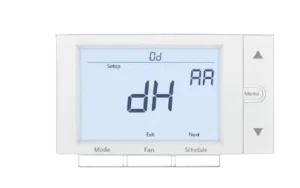
- Od — Optimal dehumidification using overcooling
- Oc — Optimal comfort
- Wired dehumidification set point from 40% to 95% in 5% increments, or Off
The wiring diagrams also identify configurable dehumidifier connections through the applicable starred terminal.
Fahrenheit and Celsius Setting
The thermostat configuration menu allows the display to use either:
- Fahrenheit
- Celsius
Wireless Radio Setting
The thermostat’s Wi-Fi radio can be switched:
- On
- Off
Sensi Smart Thermostat Wi-Fi Troubleshooting
If the thermostat will not connect to Wi-Fi, the official guide recommends several checks.
Update the Sensi App
Make sure the Sensi app is running the newest version available from the phone’s app store.
Restart the Smartphone
Reboot the smartphone before trying the Wi-Fi connection again.
Restart the Router
Unplug the router from power for a few minutes, reconnect it and retry thermostat setup.
Check Sensi App Permissions
The guide recommends checking both phone and app permissions.
For iPhone:
- Make sure Keychain is on.
- Allow Home Data access for Sensi.
- Turn on Location services.
- Allow Location and Nearby Devices permissions for the Sensi app.
Android Wi-Fi Setup Problems
On Android, disable the feature that automatically switches from Wi-Fi to cellular data when the Wi-Fi connection appears weak.
Depending on the device, the option may be called:
- Switch to mobile data
- Smart Network Switch
- Avoid poor connections
The manual also suggests temporarily turning Mobile Data completely off during setup if necessary.
Try Another Phone or Tablet
If connection still fails:
- Install the Sensi app on another smartphone or tablet.
- Sign in using the same Sensi account email address and password.
- Retry the Wi-Fi setup.
Reconnecting Sensi After Changing the Router or Wi-Fi Password
If the home router is replaced or the network password changes, the thermostat must be connected to Wi-Fi again.
The official guide notes that the exact process differs according to the smart device being used.
Heating or Cooling Configuration Problems
If the HVAC system is not behaving as expected, the guide directs users to check the HVAC Configuration Menu on the physical thermostat.
The outdoor equipment, indoor equipment, reversing-valve and accessory settings should match the connected heating and cooling system.
The wiring diagrams on page 10 can then be used to compare the connected terminals with the selected conventional or heat-pump configuration.
Accessing the Sensi Thermostat From Multiple Devices
Any compatible phone or tablet logged into the same Sensi account can access thermostats registered to that account.
The official guide states that there is no limit to the number of devices that can access the thermostat.
Anyone given the Sensi account email address and password can also control thermostats registered to the account, so login information should be shared carefully.
Forgot the Sensi Account Password
If the Sensi account password is forgotten:
- Open the Sensi app login screen.
- Tap Forgot Password.
- A temporary password is sent to the email address associated with the account.
Installing Multiple Sensi Smart Thermostats
Multiple thermostats can be added to one Sensi account.
After installing the first thermostat:
- Open the Sensi app.
- Go to the main screen.
- Press the + sign.
- Follow the normal installation steps for the next thermostat.
Managing Sensi Account Information
The Account area of the app can be used to change:
- Email preferences
- Account information
- Email address associated with Sensi
According to the guide:
- iOS: Tap the person icon in the upper-right corner.
- Android: Tap the three dots in the upper-right corner.
Technical Support
For Sensi Smart Thermostat installation problems and feature assistance, the official guide provides:
Support Website: sensihelp.com
Technical Support Phone: (888) 605-7131
Frequently Asked Questions
Does the Sensi Smart Thermostat require 2.4GHz Wi-Fi?
The official installation checklist specifies a 2.4GHz Wi-Fi network. The Wi-Fi network name and password should be available before setup begins.
How do you put the Sensi Smart Thermostat into Wi-Fi setup mode?
Press Menu, then press Mode on the thermostat. The Wi-Fi icon in the upper-left corner begins flashing. The thermostat then displays 00, 11 or 22, which identifies the Sensi version used during app setup.
Do old thermostat jumper wires need to be connected to Sensi?
No. The official guide states that Sensi has a built-in jumper, so jumper wires from the previous thermostat are not needed.
What should be done before disconnecting the old thermostat wires?
Turn off HVAC power, remove the thermostat cover and take a clear photograph of the existing wiring. Then identify and label every wire before disconnecting it.
Why won’t the Sensi Smart Thermostat connect to Wi-Fi?
Check that the Sensi app is current, restart the phone and router, verify app permissions, and try another phone or tablet if needed. Android users may need to disable automatic switching to mobile data while completing setup.
Can the Sensi Smart Thermostat work with a heat pump?
The official wiring diagram includes both HP1 single-stage and HP2 multi-stage heat-pump configurations, with terminals for the compressor, fan, reversing valve and auxiliary/emergency heat functions.
Can more than one phone control the same Sensi thermostat?
Yes. Devices signed into the same Sensi account can control thermostats registered to that account, and the installation guide states that there is no limit to the number of devices that can access the thermostat.