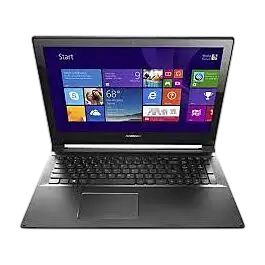
| Field | Details |
| Document Title | Lenovo Edge 15 User Guide |
| Document Type | User Guide |
| Brand Name | Lenovo |
| Product Name | Edge 15 |
| Model Number(s) | Edge 15 (specific machine-type number not identified) |
| PDF File Size | 3.42 MiB |
| Number of Pages | 40 |
| Languages Covered | English (US) |
Lenovo Edge 15
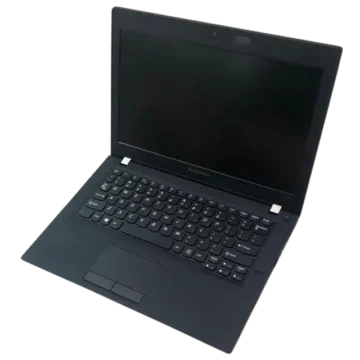
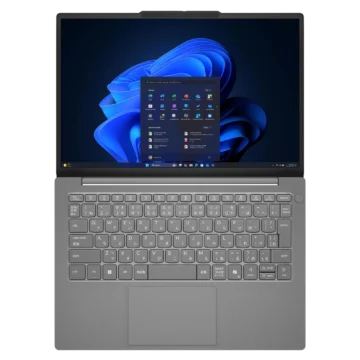
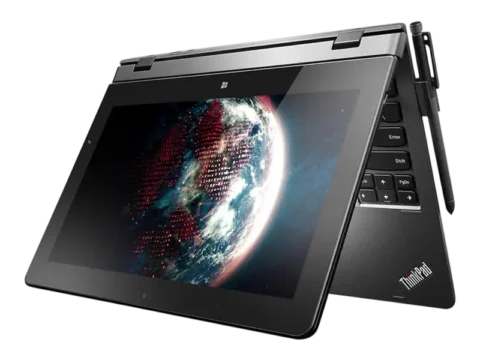
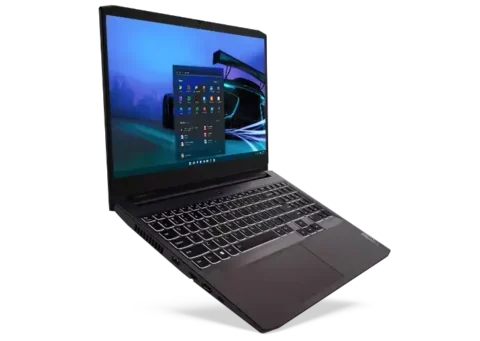
The Lenovo Edge 15 is a notebook computer with a multi-touch display, built-in keyboard, numeric keypad, touchpad, and adjustable display hinge. It supports conventional laptop operation and a Stand Mode (Theater Mode) for viewing multimedia content.
The display can open up to 300 degrees, allowing the computer to be positioned for different activities. Notebook Mode is suitable for typing, working with documents, and writing emails. Stand Mode provides a convenient position for viewing photographs and watching videos.
The Edge 15 includes an integrated camera, microphone, wireless antennas, stereo speakers, HDMI output, Ethernet connection, USB ports, and a memory card reader. Its keyboard provides dedicated shortcuts for volume, brightness, wireless controls, display output, and other system functions.
The operating instructions are based on Windows 8.1, including the Start screen, Windows desktop, Charms bar, touchscreen gestures, wireless networking, power controls, and Windows Help and Support.
The computer also includes a Novo button that provides access to Lenovo OneKey Recovery, BIOS Setup, and the boot menu. Lenovo OneKey Recovery allows supported Windows installations to back up the system partition and restore it when operating system problems occur.
Product Overview and Features
| Feature | Description |
| Product Type | Convertible notebook computer |
| Display | Multi-touch display |
| Maximum Display Opening Angle | 300 degrees |
| Operating Positions | Notebook Mode and Stand Mode |
| Operating System Instructions | Windows 8.1 |
| Keyboard | Integrated keyboard with numeric keypad |
| Keyboard Hotkeys | Audio, display, wireless, and system shortcuts |
| Keyboard Backlight Control | Fn + Space |
| Pointing Device | Integrated touchpad |
| Camera | Built-in camera |
| Microphone | Built-in microphone |
| Wireless Connectivity | Wireless networking |
| Wired Networking | RJ-45 Ethernet |
| External Display Connection | HDMI |
| USB Connectivity | USB 2.0 and USB 3.0 |
| USB Ports | 3 |
| Memory Card Reader | SD and MMC |
| Audio Connection | Combo audio jack |
| Audio Output | Built-in speakers |
| Security Connection | Kensington security lock slot |
| Recovery Feature | Lenovo OneKey Recovery System |
| Firmware Configuration | BIOS Setup |
| Boot Modes | UEFI and Legacy Support |
| System Indicators | Power and battery status lights |
Technical Specifications
The following information describes the hardware connections and functions identified for the Lenovo Edge 15.
| Specification | Details |
| Brand | Lenovo |
| Product | Edge 15 |
| Device Type | Notebook computer |
| Touchscreen | Multi-touch |
| Display Rotation | Up to 300 degrees |
| Keyboard | Integrated keyboard |
| Numeric Keypad | Yes |
| Touchpad | Integrated |
| Camera | Integrated |
| Microphone | Integrated |
| Wireless Network Support | Yes |
| Ethernet Connection | RJ-45 |
| HDMI Connection | Yes |
| USB 2.0 Ports | 2 |
| USB 3.0 Ports | 1 |
| USB Ports Total | 3 |
| Audio Connection | Combo audio jack |
| Card Reader | SD and MMC |
| Speakers | Integrated |
| BIOS Setup | Supported |
| Lenovo OneKey Recovery | Supported on applicable Windows installations |
Memory Card Compatibility
| Memory Card Type | Compatibility |
| Secure Digital (SD) | Supported |
| MultiMediaCard (MMC) | Supported |
| SDIO Devices | Not supported |
USB Port Configuration
| Port | Quantity | Location |
| USB 2.0 | 1 | Left side |
| USB 2.0 | 1 | Right side |
| USB 3.0 | 1 | Right side |
Important Safety Instructions
Before using the Lenovo Edge 15, read the Lenovo Safety and General Information Guide supplied with the computer.
Display Panel Safety
The display must not be opened beyond 300 degrees.
Applying excessive force to the display or hinges can cause damage.
Before closing the laptop, check that no pens or other objects remain between the display panel and keyboard.
Closing the display on an object can damage the screen.
Ventilation and Overheating
The laptop includes ventilation openings on the left side and bottom.
These openings allow internal heat to escape and cooling air to enter.
Do not block the ventilation openings.
Obstructed airflow can cause the computer to overheat.
External Device Safety
Avoid connecting or disconnecting external device cables other than USB while the computer is powered on.
Doing so may damage the computer or connected equipment.
USB Storage Safety
Before disconnecting a USB storage device:
- Wait until all data transfers are complete.
- Use the Windows Safely Remove Hardware and Eject Media function.
- Disconnect the device only after it has been safely released.
Battery and Power Safety
If the laptop displays a critical low-battery warning, connect the AC power adapter.
When the battery charge becomes critically low, the computer may shut down immediately.
Sleep Mode Precautions
Wait until the power indicator begins blinking before moving the computer after placing it in sleep mode.
Moving the computer while the hard disk is operating can damage the drive and cause data loss.
System Recovery Warning
Restoring the system partition can permanently erase existing data.
Important files should be backed up before a recovery operation.
The AC power adapter must remain connected during recovery.
Parts and Components
The Lenovo Edge 15 includes controls and connections on the top, left, right, and bottom surfaces.
Top View and Main Components
| Component | Function |
| Integrated Camera | Captures photographs and supports video communication |
| Built-in Microphone | Records voice and sound |
| Display | Provides visual output and touchscreen input |
| Wireless Antennas | Send and receive wireless signals |
| Touchpad | Controls the on-screen pointer |
| Touchpad Buttons | Provide conventional left-click and right-click functions |
| Numeric Keypad | Provides dedicated number-entry keys |
Integrated Camera
The camera can be used for video communication and taking photographs.
Built-in Microphone
The microphone captures sound for:
- Video conferencing
- Voice narration
- Audio recording
Display
The display provides visual output for Windows, applications, and multimedia.
It also accepts touch input.
Wireless Antennas
The wireless antennas connect to the computer’s wireless adapter to send and receive radio signals.
Touchpad
The touchpad performs the functions of a conventional mouse.
Slide a fingertip across the pad to move the pointer.
The touchpad buttons provide left-click and right-click functions.
Numeric Keypad
The keyboard includes a separate numeric keypad.
Press Num Lock to enable or disable it.
Using the Touchpad
Moving the Pointer
- Place a fingertip on the touchpad.
- Slide the finger in the desired direction.
- The pointer moves across the screen.
Touchpad Buttons
| Control | Function |
| Left Touchpad Button | Performs left-click actions |
| Right Touchpad Button | Performs right-click actions |
| Touchpad Surface | Moves the pointer |
Enabling or Disabling the Touchpad
Press the keyboard hotkey marked with the touchpad symbol.
The hotkey enables or disables the touchpad and its buttons.
If Hotkey Mode has been disabled in BIOS, hold Fn while pressing the corresponding hotkey.
Using the Keyboard
The Lenovo Edge 15 keyboard includes:
- Standard typing keys
- Separate numeric keypad
- Hotkeys
- Function keys
- Fn key combinations
Numeric Keypad
Press Num Lock to switch the numeric keypad on or off.
Keyboard Hotkeys
The keyboard includes dedicated controls for common laptop functions.
| Hotkey Function | Description |
| Mute/Unmute | Turns sound off or on |
| Volume Down | Decreases sound volume |
| Volume Up | Increases sound volume |
| Close Active Window | Closes the current window |
| Refresh | Refreshes the desktop or current window |
| Touchpad | Enables or disables touchpad and buttons |
| Airplane Mode | Enables or disables Airplane Mode |
| Switch Active Program | Changes the active program |
| LCD Backlight | Turns the display backlight on or off |
| External Display | Projects the screen to a connected display |
| Brightness Down | Decreases display brightness |
| Brightness Up | Increases display brightness |
Function Key Combinations
To activate an Fn key combination, press and hold Fn and then press the required key.
| Shortcut | Function |
| Fn + Home | Pause |
| Fn + End | Break |
| Fn + PgUp | Enable or disable Scroll Lock |
| Fn + PgDn | System Request |
| Fn + Space | Turn keyboard backlight on or off |
Adjusting the Keyboard Backlight
Press Fn + Space to switch the keyboard backlight on or off.
Changing Hotkey Mode
Hotkey Mode determines whether hotkey functions require the Fn key.
When Hotkey Mode is enabled, the hotkeys can be pressed directly.
When Hotkey Mode is disabled, hold Fn while pressing the required hotkey.
How to Change Hotkey Mode
- Open BIOS Setup.
- Locate the Hotkey Mode option.
- Change the setting between Enabled and Disabled.
- Save the BIOS settings.
Positioning the Display Panel
The Lenovo Edge 15 supports two main operating positions.
Notebook Mode
Notebook Mode is suitable for activities involving the keyboard and touchpad.
Examples include:
- Creating documents
- Writing emails
- Typing text
- Working with applications
Stand Mode (Theater Mode)
Stand Mode is designed for activities requiring little or no keyboard input.
Examples include:
- Viewing photographs
- Watching videos
- Multimedia playback
Switching Between Modes
Adjust the display panel to the desired position within its supported range.
The keyboard and touchpad automatically lock when the keyboard panel faces downward.
Do not force the display beyond 300 degrees.
Left-Side Ports and Connections
The left side includes the power connection, ventilation openings, USB port, audio connector, memory card reader, and Novo button.
| Component | Function |
| AC Power Adapter Jack | Connects the AC power adapter |
| Ventilation Slots | Release internal heat |
| USB 2.0 Port | Connects USB devices |
| Combo Audio Jack | Connects compatible headsets |
| Memory Card Slot | Accepts supported SD or MMC cards |
| Novo Button | Opens recovery, BIOS Setup, or the boot menu |
AC Power Adapter Jack
Connect the compatible AC power adapter to this jack.
Ventilation Slots
The ventilation slots dissipate heat.
Keep the openings unobstructed.
USB 2.0 Port
The USB 2.0 port connects compatible USB peripherals and storage devices.
Combo Audio Jack
The audio jack connects compatible headsets.
Conventional standalone microphones are not supported.
Some third-party headsets may not support recording because of differences between industry connector standards.
Memory Card Slot
The memory card slot accepts supported SD and MMC cards.
Novo Button
The Novo button provides access to:
- Lenovo OneKey Recovery
- BIOS Setup
- Boot Menu
The button is used when the computer is turned off.
Connecting USB Devices
The Lenovo Edge 15 supports USB connections through its USB 2.0 and USB 3.0 ports.
How to Connect a USB Device
- Locate a compatible USB port.
- Insert the USB Type-A connector.
- Wait for Windows to detect the device.
When a USB device is connected for the first time, Windows normally installs the required driver automatically.
Some devices require the driver to be installed before connecting the hardware.
Follow the instructions supplied by the device manufacturer when necessary.
Safely Removing a USB Storage Device
- Wait until the device finishes transferring data.
- Open the Windows notification area.
- Select Safely Remove Hardware and Eject Media.
- Select the connected device.
- Disconnect it after Windows completes the removal procedure.
USB Devices With External Power
If a USB device has its own power cord, connect it to its power source before connecting it to the laptop.
Otherwise, the device may not be recognized.
Right-Side Ports and Controls
The right side includes the security lock slot, Ethernet connection, HDMI port, USB ports, Power button, and battery indicator.
| Component | Function |
| Kensington Slot | Connects a compatible security lock |
| RJ-45 Port | Connects to an Ethernet network |
| HDMI Port | Connects to an external display |
| USB 2.0 Port | Connects USB peripherals |
| USB 3.0 Port | Connects USB peripherals |
| Power Button | Turns on the computer |
| Power Indicator | Shows power and sleep status |
| Battery Indicator | Shows battery charge and charging status |
Kensington Security Slot
The Kensington slot accepts a compatible security lock.
Follow the instructions supplied with the lock.
RJ-45 Ethernet Port
The RJ-45 port connects the computer to a wired Ethernet network.
HDMI Port
The HDMI port connects to devices with HDMI input, such as a television or external monitor.
Power Button
Press the Power button to turn on the computer.
Power Status Indicator
The Power indicator identifies the laptop’s operating state.
| Indicator | Meaning |
| Solid White | Computer powered on |
| Blinking | Computer in sleep mode |
| Off | Computer powered off |
Battery Status Indicator
The battery indicator shows charge level and charging activity.
| Indicator State | Battery Condition | Meaning |
| Solid White | Discharging | Battery charge above 20% |
| Solid Amber | Discharging | Battery charge between 5% and 20% |
| Fast Blinking Amber | Charging or discharging | Battery charge below 5% |
| Slowly Blinking Amber | Charging | Battery is charging below 20% |
| Slowly Blinking White | Charging | Battery charge between 20% and 80% |
Slowly Blinking Amber
When charging, the amber blinking indicator changes to white after battery charge reaches 20%.
Slowly Blinking White
A slowly blinking white light means the battery is charging between 20% and 80%.
When the battery reaches 80%, the indicator stops blinking, but charging continues until the battery is fully charged.
Fast Blinking Amber
A fast blinking amber indicator means the battery has less than 5% charge.
Connect the AC power adapter.
Connecting an Ethernet Cable
The RJ-45 network port includes a protective cover.
Ethernet Connection Procedure
- Hold the Ethernet cable connector.
- Use the connector to gently push down the RJ-45 cover.
- Insert the cable connector into the Ethernet port.
For internet or network configuration details, consult the internet service provider.
Using the Memory Card Reader
The Edge 15 supports SD and MMC memory cards.
Supported Memory Cards
| Card Type | Support |
| Secure Digital (SD) | Yes |
| MultiMediaCard (MMC) | Yes |
| SDIO | No |
Only one memory card should be inserted at a time.
Inserting a Memory Card
- Locate the memory card slot.
- Remove any supplied dummy card if present.
- Slide the memory card into the slot.
- Push until it clicks into place.
Removing a Memory Card
- Open the Windows notification area.
- Use Safely Remove Hardware and Eject Media.
- Disable or eject the memory card.
- Gently pull it out.
Removing a card without using the eject function can cause data corruption.
Bottom Components
The underside contains ventilation openings and built-in speakers.
| Component | Function |
| Ventilation Slots | Allow cooling air to enter |
| Speakers | Provide audio output |
Ventilation
Keep the bottom ventilation openings clear.
Speakers
The integrated speakers provide sound output for Windows and multimedia applications.
Before First Use
The operating instructions are based on Windows 8.1.
During initial startup, the operating system may require several configuration steps.
Windows Initial Setup
The setup process may include:
- Accepting the end-user license agreement.
- Configuring the internet connection.
- Registering the operating system.
- Creating a user account.
Follow the on-screen instructions to complete setup.
Understanding Windows 8.1
Windows 8.1 provides two main interfaces:
- Start screen
- Windows desktop
Start Screen
The Start screen provides access to Windows applications and tiles.
Windows Desktop
The desktop provides the conventional Windows working environment.
Switching From Start to Desktop
Use either method:
- Select the Desktop tile on the Start screen.
- Press Windows + D.
Switching From Desktop to Start
Use any of the following:
- Select Start from the Charms bar.
- Press the Windows key.
- Move the pointer to the lower-left corner and select Start.
Using the Windows 8.1 Charms Bar
The Charms bar provides quick access to Windows navigation and settings.
Available Charms
| Charm | Function |
| Search | Searches applications, settings, files, and online content |
| Share | Shares links, photographs, and other content |
| Start | Opens the Start screen |
| Devices | Connects to external devices for playback, printing, or projection |
| Settings | Opens common system controls |
How to Open the Charms Bar
Use either method:
- Move the pointer to the upper-right or lower-right corner.
- Press Windows + C.
Search Charm
The Search charm can find:
- Windows settings
- Files
- Web images
- Web videos
- Applications
Share Charm
Share allows supported content to be sent without leaving the current application.
Start Charm
Start returns to the Windows Start screen.
Devices Charm
Devices provides access to compatible external devices, including displays and printers.
Settings Charm
Settings provides access to system controls such as volume and shutdown.
Control Panel can also be opened through Settings while on the desktop.
Putting the Computer Into Sleep Mode
Sleep Mode is suitable when the computer will not be used for a short period.
It allows the system to resume quickly.
How to Enter Sleep Mode
Use any of the following:
- Close the display lid.
- Press the Power button.
- Open the Charms bar and select Settings → Power → Sleep.
Before Moving the Laptop
Wait until the Power indicator begins blinking.
This confirms that the laptop has entered sleep mode.
How to Wake the Computer
Use either method:
- Press any key on the keyboard.
- Press the Power button.
If a keyboard key does not wake the computer, it may have entered an enhanced power-saving state.
Use the Power button.
Shutting Down the Computer
Shut down the laptop when it will not be used for an extended period.
Method 1: Charms Bar
- Open the Charms bar.
- Select Settings.
- Select Power.
- Choose Shut down.
Method 2: Start Button
- Right-click the Start button.
- Select Shut down or sign out.
- Choose Shut down.
Method 3: Start Screen
Select the power control on the Start screen and choose Shut down.
The availability of this method depends on BIOS settings.
Using the Multi-Touch Screen
The Edge 15 touchscreen accepts input from one or more fingertips.
Touch gestures can be used for selecting items, opening menus, scrolling, and changing applications.
Touch Gesture Guide
| Gesture | How to Perform | Function |
| Tap | Touch an item once | Opens or activates an item |
| Press and Hold | Keep a finger on an item briefly | Displays additional information or options |
| Zoom | Move two fingers together or apart | Zooms out or in |
| Rotate | Place two fingers on an item and rotate | Rotates compatible content |
| Slide | Drag a finger across the screen | Scrolls or pans content |
| Edge Swipe | Swipe inward from the screen edge | Opens navigation or application controls |
Tap
Touch an item once to activate it.
Tapping is similar to clicking the left mouse button.
Press and Hold
Press an item and hold briefly.
This can display additional information or open a menu, similar to right-clicking.
Zoom
Place two fingers on the touchscreen.
Move them together to zoom out or apart to zoom in.
Rotate
Place two or more fingers on an item and rotate the hand.
The selected content rotates when supported by the application.
Slide
Drag a finger across the touchscreen to scroll through pages, lists, or images.
Swipe From the Right Edge
Swipe inward from the right edge to display the Charms bar.
Swipe From the Left Edge
Swipe inward from the left edge to open an application running in the background.
To display the list of running applications:
- Swipe inward from the left edge.
- Without lifting the finger, push the application back toward the left edge.
Swipe From the Top Edge
Swiping from the top or bottom edge can display application commands.
Dragging an open application from the top edge toward the left or right can place it alongside another application.
Dragging from the top edge to the bottom closes the current application.
Connecting to a Wireless Network
The computer supports wireless networking.
Enabling Wireless Connectivity
Use either method:
- Press the Airplane Mode hotkey to disable Airplane Mode.
- Open the Charms bar, select Settings, and open the network configuration screen. Turn Airplane Mode off.
Connecting to Wi-Fi
- Enable wireless networking.
- Wait for Windows to scan available networks.
- Open the wireless network list.
- Select the required network.
- Click Connect.
- Enter the network security key or password if required.
For secured networks, the network administrator or internet service provider can supply the password.
Accessing Windows Help and Support
Windows 8.1 includes built-in Help and Support.
How to Open Windows Help
Use either method:
- Open the Settings charm and select Help.
- Press F1 or Fn + F1, depending on the keyboard layout.
Windows also includes a Help + Tips application on the Start screen.
Using the Novo Button
The Novo button is located on the left side of the computer.
When the laptop is turned off, pressing Novo opens a menu of startup and recovery options.
Novo Menu Functions
| Option | Function |
| System Recovery | Opens Lenovo OneKey Recovery |
| BIOS Setup | Opens BIOS configuration |
| Boot Menu | Selects a startup device |
How to Open the Novo Menu
- Shut down the laptop.
- Locate the Novo button on the left side.
- Press the button.
- Select the required option.
Entering BIOS Setup
BIOS Setup provides hardware and startup configuration options.
Method 1: Using the Novo Button
- Turn off the computer.
- Press the Novo button.
- Select BIOS Setup.
Method 2: Using the Keyboard
Press Fn + F2 during startup.
BIOS Setup Functions
The BIOS utility provides options for:
- Boot devices
- Security
- Hardware mode
- System preferences
Changing the Boot Mode
The Edge 15 supports two boot modes.
| Boot Mode | Description |
| UEFI | Default boot mode |
| Legacy Support | Compatibility mode for supported older operating systems |
How to Change Boot Mode
- Open BIOS Setup.
- Navigate to the Boot menu.
- Locate Boot Mode.
- Select UEFI or Legacy Support.
- Save the configuration.
When Legacy Support Is Required
The guide identifies Legacy Support as necessary when installing a legacy Windows operating system released before Windows 8.
UEFI is the computer’s default boot mode.
Lenovo OneKey Recovery System
Lenovo OneKey Recovery provides system backup and restoration functions.
It allows the system partition to be restored to its original state or a previously created backup.
OneKey Recovery Functions
| Function | Description |
| System Backup | Creates a backup image of the system partition |
| System Recovery | Restores the system partition |
| Factory Recovery | Restores the original system state |
| Backup Point Recovery | Restores a previously saved backup |
Hidden Recovery Partition
OneKey Recovery uses a hidden hard disk partition to store its program files and recovery image.
Because this partition occupies disk space, the available storage capacity can be lower than the advertised capacity.
The OneKey Recovery System is not available when the computer is preinstalled with an operating system other than Windows.
Backing Up the System Partition
A backup image can be created when Windows starts normally.
Backup Procedure
- Press the Novo button to start Lenovo OneKey Recovery.
- Enter System Recovery.
- Select a backup location.
- Click Next to begin.
Backup Locations
The backup can be saved to:
- Local hard disk storage
- An external storage device
Backup Precautions
- Remove any removable hard disk drive before starting OneKey Recovery, as instructed by Lenovo.
- Allow sufficient time for the backup.
- Use the backup function only when Windows starts normally.
Restoring the System Partition
The system partition can be restored to its original condition or a previous backup point.
Warning: Recovery is irreversible and can delete data from the system partition.
Recovery Procedure
- Start Lenovo OneKey Recovery using the Novo button.
- Select System Recovery.
- The computer restarts into the recovery environment.
- Follow the on-screen instructions.
- Select the original system state or an available backup point.
- Complete the recovery.
Recovery Precautions
- Back up important files before starting.
- Connect the AC power adapter.
- Do not interrupt the recovery process.
- Allow sufficient time for recovery to finish.
Starting Recovery When Windows Will Not Boot
If Windows cannot start normally, recovery can be started through the Novo button.
Recovery Procedure
- Shut down the computer.
- Press the Novo button.
- Open the Novo Button Menu.
- Select System Recovery.
- Press Enter.
- Follow the recovery instructions.
Troubleshooting Guide
The following troubleshooting procedures address problems described for the Lenovo Edge 15.
Common Problems and Solutions
| Problem | Recommended Action |
| Blank screen at startup | Check AC power, Power button, and brightness |
| White cursor on blank screen | Use OneKey Recovery to restore Windows |
| Screen goes blank while running | Wake the computer or check the LCD backlight |
| Screen unreadable or distorted | Check display driver, resolution, and monitor settings |
| Incorrect characters appear | Check operating system and software configuration |
| BIOS password forgotten | Follow the appropriate Lenovo service procedure |
| Critical low-battery warning | Connect the AC power adapter |
| Laptop enters sleep immediately | Check battery charge and operating temperature |
| Laptop will not wake from sleep | Connect AC power and press a key or Power button |
| No sound from speakers | Check mute, audio connection, and playback device |
| Battery charge indicator is inaccurate | Reset the battery gauge using Lenovo Energy Management |
| Fully charged battery does not power laptop | Turn off for one minute and restart |
| Hard disk does not work | Check the EFI list in BIOS |
| Backup process fails | Close programs and check the backup destination |
| Computer stops responding | Hold Power for at least four seconds |
| Boot device not listed | Check UEFI and Legacy Support settings |
| External device does not work | Check power requirements and cable connections |
Screen Is Blank at Startup
If nothing appears when the computer is turned on:
- Confirm that the AC power adapter is connected.
- Check that the power cord is plugged into a working electrical outlet.
- Confirm that the computer is powered on.
- Press the Power button again.
- If the battery indicator is illuminated, press the F12 brightness hotkey to increase screen brightness.
If the screen remains blank, the computer requires service.
White Cursor Appears on a Blank Screen
If only a white cursor appears during startup, Windows may need to be restored.
Use Lenovo OneKey Recovery to restore a backup or the original factory system.
Back up important data whenever possible before starting recovery.
If the problem continues after restoration, have the computer serviced.
Screen Becomes Blank While Using Windows
The screen saver or power-management settings may have activated.
Try the following:
- Touch the touchpad.
- Press a keyboard key.
- Press the Power button.
- Use the F9 LCD backlight hotkey to check whether the display backlight is off.
If the problem continues, check the display settings.
Screen Is Unreadable or Distorted
Confirm that:
- The display driver is installed correctly.
- The screen resolution is correctly configured.
- Color quality settings are correct.
- The monitor type is selected correctly.
Incorrect Characters Appear on the Screen
Check that Windows and installed applications are configured correctly.
If they are installed and configured correctly but the problem remains, the computer requires service.
BIOS Password Troubleshooting
Forgotten User Password
If the user password is forgotten, contact the system administrator to have it reset.
Forgotten Hard Disk Password
A Lenovo-authorized service provider cannot reset a forgotten hard disk password or recover the stored data through the documented service procedure.
The hard disk drive must be replaced through an authorized Lenovo service provider or representative.
Proof of purchase is required, and parts and service charges apply.
Forgotten Administrator Password
A forgotten administrator password cannot be reset by Lenovo-authorized service personnel through the documented procedure.
System board replacement is required.
Proof of purchase is necessary, and service charges apply.
Sleep Mode Troubleshooting
Critical Low-Battery Warning
If a critical low-battery warning appears and the computer shuts down:
- Connect the AC power adapter.
- Alternatively, replace the battery pack with a fully charged one where appropriate.
Computer Enters Sleep Immediately After Startup
Check that:
- The battery is charged.
- The operating temperature is within the acceptable range.
If these conditions are normal but the problem continues, the computer requires service.
Computer Will Not Wake From Sleep
- Connect the AC power adapter.
- Press any keyboard key.
- Press the Power button.
If the computer remains unresponsive:
- Press and hold the Power button for four seconds or longer.
- Allow the computer to reset.
- Restart it.
Unsaved data may be lost during a forced reset.
No Sound From Speakers
If the speakers produce no sound even when the volume is increased:
- Confirm that the Mute function is off.
- Check that the combo audio jack is not being used.
- Confirm that the built-in speakers are selected as the playback device.
Battery Troubleshooting
Laptop Shuts Down Before the Battery Indicator Shows Empty
Reset the battery gauge using Lenovo Energy Management.
If the problem persists, the battery pack may need replacement.
Laptop Continues Running After the Battery Indicator Shows Empty
Reset the battery gauge through Lenovo Energy Management.
If the problem continues, the battery pack may need replacement.
Fully Charged Battery Does Not Power the Computer
The battery’s surge protector may be active.
- Turn off the computer.
- Wait one minute.
- Turn the computer on again.
Hard Disk Drive Troubleshooting
Hard Disk Drive Does Not Work
- Open BIOS Setup.
- Navigate to the Boot menu.
- Check that the hard disk drive appears in the EFI list.
OneKey Recovery Troubleshooting
Where Are the Recovery Discs?
The computer is not supplied with recovery discs.
Use Lenovo OneKey Recovery to restore the system.
System Backup Fails
If the backup begins but fails before completion:
- Close all open programs.
- Restart the backup process.
- Check whether the backup destination is damaged.
- Select another backup location if necessary.
- Try again.
When Should Factory Recovery Be Used?
Factory recovery is intended for situations where the operating system fails to start.
If important files are stored on the system partition, back them up before starting recovery whenever possible.
Computer Does Not Respond
If the computer becomes unresponsive:
- Press and hold the Power button for at least four seconds.
- If the computer still does not respond, disconnect the AC power adapter and remove the battery pack as directed by the service procedure.
The computer may also stop responding when entering sleep mode during network communication.
If this occurs, disable the sleep timer while working on the network.
Boot Device Does Not Appear
If a connected device does not appear in the startup device list:
- Open BIOS Setup.
- Check Boot Mode.
- If UEFI is enabled, confirm that the device supports UEFI startup.
- If the device does not support UEFI, select Legacy Support.
- Check the boot device list again.
If the device still does not appear, the device or startup medium may need replacement.
External Device Does Not Work
Avoid connecting or disconnecting non-USB external device cables while the computer is powered on.
For high-power USB accessories, such as external optical drives, use the device’s external power adapter where required.
Without sufficient power, the device may not be recognized or the computer may shut down.
Maintenance and Care
Protecting the Display
- Do not open the display beyond 300 degrees.
- Avoid excessive force on the hinges.
- Remove objects from the keyboard before closing the screen.
Maintaining Ventilation
Keep all left-side and bottom ventilation openings clear.
Obstructed airflow can cause overheating.
Protecting Data
Before removing USB storage or memory cards, use Windows Safely Remove Hardware and Eject Media.
Avoid moving the computer before it has fully entered sleep mode.
Creating System Backups
Use Lenovo OneKey Recovery to create a system partition backup when Windows is operating normally.
A backup can be used if the operating system later requires restoration.
Storage and Handling
When the computer will not be used for an extended period, shut it down.
For short periods, Sleep Mode can be used.
Before moving the computer after selecting Sleep, wait until the Power indicator begins blinking.
Keep the computer’s ventilation openings clear during operation.
Avoid forcing the display or placing objects between the keyboard and screen.
Warranty Information
The Lenovo Edge 15 is supplied with Lenovo limited warranty documentation.
The applicable warranty period, coverage, and service type are described in the Lenovo Limited Warranty flyer provided with the computer.
Warranty conditions depend on the product and applicable purchase terms.
Customer Support Information
| Support Information | Details |
| Brand | Lenovo |
| Product | Edge 15 |
| Support Website | http://support.lenovo.com |
| Documentation | Guides & Manuals |
| Warranty Information | Lenovo Limited Warranty flyer |
| Safety Information | Lenovo Safety and General Information Guide |
| Recovery Support | Lenovo OneKey Recovery System |
Obtaining Device Drivers
For computers preinstalled with Windows, hardware drivers may be stored on the C or D partition.
Updated drivers can also be downloaded from Lenovo Support.
Reinstalling Lenovo Software
Preinstalled Lenovo software installation programs may be available on the C or D partition.
If the required installer is not available there, it can be obtained from the Lenovo consumer support website.
Contacting Lenovo Customer Support
For customer support contact instructions, consult Chapter 3, Getting Help and Service, in the Lenovo Safety and General Information Guide supplied with the laptop.
Frequently Asked Questions
1. How do I enter BIOS on the Lenovo Edge 15?
Shut down the computer and press the Novo button on the left side. Select BIOS Setup from the Novo Button Menu. Alternatively, press Fn + F2 during startup to enter BIOS Setup.
2. How do I factory reset the Lenovo Edge 15?
Shut down the laptop and press the Novo button. Select System Recovery and press Enter. Follow the Lenovo OneKey Recovery instructions to restore the system partition to its original factory condition. Back up important files before beginning because recovery is irreversible.
3. How do I turn on Wi-Fi on the Lenovo Edge 15?
Press the Airplane Mode hotkey to disable Airplane Mode. Open the Windows 8.1 Charms bar, select Settings, and open the network configuration screen. Choose the wireless network, click Connect, and enter the security key if required.
4. How do I enable or disable the Lenovo Edge 15 touchpad?
Press the keyboard hotkey marked with the touchpad symbol. If Hotkey Mode has been disabled in BIOS, hold Fn while pressing the touchpad hotkey.
5. What do the Lenovo Edge 15 battery indicator colors mean?
Solid white while discharging means the battery has more than 20% charge. Solid amber indicates 5–20% remaining. Fast blinking amber indicates less than 5%. During charging, slowly blinking amber indicates a charge below 20%, while slowly blinking white indicates charging between 20% and 80%.
6. How do I fix a black screen on the Lenovo Edge 15?
Check the AC power connection and confirm that the laptop is on. If the battery indicator is illuminated, press the F12 brightness hotkey. If the screen goes blank during operation, press a key, touch the touchpad, or press the Power button. Use the F9 hotkey to check the LCD backlight. If the screen remains blank, the computer may require service.
7. How do I boot the Lenovo Edge 15 from a USB drive?
Turn off the computer, press the Novo button, and select Boot Menu. Choose the required startup device. If the device does not appear, check the BIOS Boot Mode setting and confirm whether the startup media supports UEFI or requires Legacy Support.
8. What is Lenovo OneKey Recovery, and how does it work?
Lenovo OneKey Recovery is a system backup and restoration utility. It can create an image of the Windows system partition and restore the partition to its original state or a previous backup point. When Windows cannot start, the utility can be opened through the Novo button by selecting System Recovery.