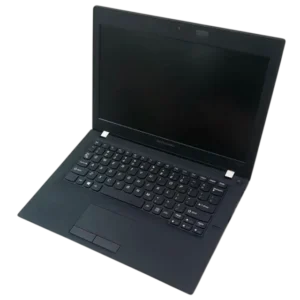
| Field | Details |
| Document Title | Lenovo K2450 User Guide |
| Document Type | User Guide |
| Brand Name | Lenovo |
| Product Name | K2450 Notebook Computer |
| Model Number(s) | K2450; machine types 80GY and 20437 are identified for ENERGY STAR-qualified configurations |
| PDF File Size | 3.02 MiB |
| Number of Pages | 56 |
| Languages Covered | English |
Lenovo K2450
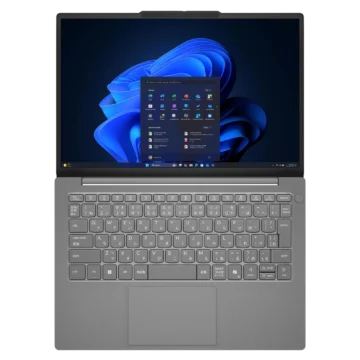
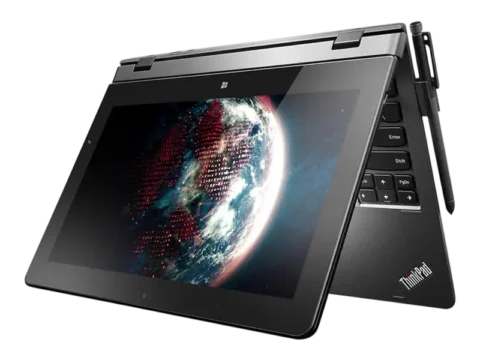
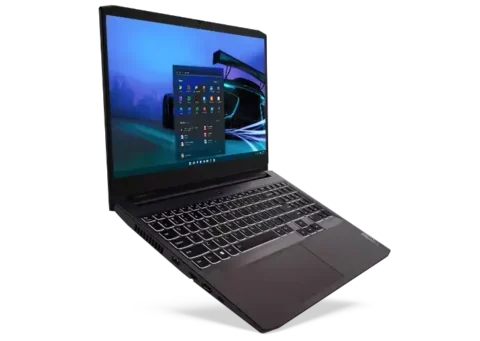
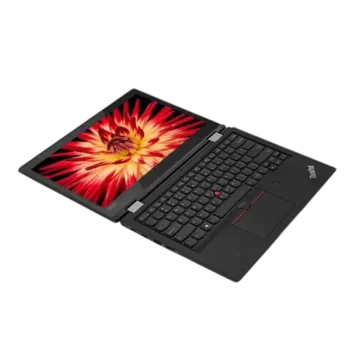
The Lenovo K2450 is a 12.5-inch notebook computer designed for everyday computing, business productivity, internet access, and multimedia applications. It features an HD display, six-row Lenovo keyboard, integrated touchpad, fingerprint reader, webcam, stereo speakers, and built-in wireless networking.
The K2450 supports Windows 7 and Windows 8.1 operating systems, with instructions for configuring the computer, using keyboard shortcuts, connecting external devices, managing power, and restoring the operating system.
The computer includes DDR3L memory and supports 2.5-inch hard disk drives or compatible solid-state storage configurations. Its external connections include HDMI, a monitor connector, USB 2.0, USB 3.0, Ethernet, a 3.5 mm combo audio jack, and a four-in-one memory card reader.
For security, the Lenovo K2450 provides a fingerprint reader, BIOS password protection, a security cable lock connection, and the Active Protection System on supported configurations. The Active Protection System helps protect a mechanical hard disk drive from damage caused by sudden movement or vibration.
The recovery functions depend on the installed operating system. Windows 7 configurations include Product Recovery and OneKey Recovery Pro, while Windows 8.1 configurations provide recovery options for refreshing, resetting, and repairing the computer.
Product Overview and Features
| Feature | Description |
| Product Type | Notebook computer |
| Display Size | 12.5 inches |
| Display Resolution | 1366 × 768 pixels |
| Keyboard | Six-row Lenovo keyboard |
| Keyboard Light | Supported |
| Touchpad | Integrated, with left and right buttons |
| Touchpad Gestures | Multi-touch on select models |
| Camera | Integrated |
| Microphones | Built-in |
| Fingerprint Reader | Integrated |
| Audio Output | Built-in speakers |
| Memory | DDR3L SDRAM |
| Internal Storage | Hard disk drive or solid-state drive |
| Wireless Networking | Integrated wireless LAN |
| Bluetooth | Bluetooth 4.0 as identified in regulatory information |
| Wired Networking | Ethernet |
| USB Ports | USB 2.0 and USB 3.0 |
| External Displays | HDMI and monitor connector |
| Memory Card Reader | Four-in-one |
| Battery | Removable lithium-ion battery |
| Security | BIOS passwords, fingerprint reader, security lock |
| Hard Drive Protection | Active Protection System on supported configurations |
| Recovery | Windows recovery tools and OneKey Recovery Pro |
| Operating Systems Covered | Windows 7 and Windows 8.1 |
Technical Specifications
Display Specifications
| Specification | Details |
| Display Size | 317.5 mm (12.5 inches) |
| LCD Resolution | 1366 × 768 pixels |
| Maximum External Monitor Resolution | 2048 × 1536 pixels |
| Integrated Camera | Yes |
| Built-in Microphones | Yes |
| Maximum Display Opening Angle | 130 degrees |
Memory and Storage
| Component | Specification |
| Memory Technology | DDR3L SDRAM |
| Hard Disk Drive | 2.5-inch, 7 mm or 9.5 mm height |
| Solid-State Drive | 2.5-inch, 7 mm height |
| M.2 Solid-State Drive | Cache function on supported configurations |
Important: On configurations equipped with both a hard disk drive and an M.2 solid-state drive, Lenovo does not recommend using the M.2 drive as the boot device. The M.2 drive is designed for caching, and its reliability as a boot device is not guaranteed.
Power Specifications
| Specification | Details |
| AC Adapter Input Voltage | 100–240 V AC |
| AC Adapter Input Frequency | 50–60 Hz |
| Heat Output | 45 W (222 Btu/hr), as specified in the guide |
| Battery Type | Lithium-ion rechargeable battery |
| Battery Charging Minimum Temperature | 10°C (50°F) |
| Recommended Storage Charge | Approximately 30–50% |
| Long-Term Battery Maintenance | Charge approximately once per year |
Networking Specifications
| Connection | Details |
| Wireless LAN | Integrated |
| Ethernet | 100/1000 Mbps |
| Wired Network Data Rate | Up to 1 Gbps |
| Bluetooth | Bluetooth 4.0 information provided |
| Network Management Software | Access Connections or Lenovo Settings |
Ports and Interfaces
| Connection | Description |
| AC Power Connector | External power adapter |
| HDMI Connector | Digital audio/video connection |
| External Monitor Connector | Monitor or projector connection |
| USB 2.0 Connectors | Compatible USB peripherals |
| USB 3.0 Connector | Supports USB 1.1, USB 2.0, and USB 3.0 devices |
| Ethernet Connector | Wired LAN |
| Combo Audio Jack | 3.5 mm headphone/headset connection |
| Media Card Reader | SD, SDHC, SDXC, and MMC |
| Security Keyhole | Compatible mechanical cable lock |
Important Safety Instructions
Read the Safety, Warranty, and Setup Guide before using the Lenovo K2450.
The following precautions help prevent electrical hazards, battery damage, overheating, data loss, and physical injury.
Electrical Safety
- Use only power cords and AC adapters supplied or approved by the manufacturer.
- Do not use damaged, cracked, or overheated power cords.
- Do not bend or modify power plugs.
- Keep electrical connectors away from water and other liquids.
- Do not overload power strips, extension cords, or outlets.
- Connect the computer to a properly wired electrical outlet.
- Do not cover the AC power adapter while it is connected.
- Avoid connecting or disconnecting cables during a lightning storm.
Before opening any service-accessible cover, turn off the computer and disconnect the power source.
Conditions Requiring Immediate Service
Stop using the computer and disconnect power if any of the following occurs:
- Smoke, sparks, fire, or unusual odors.
- Cracked or damaged power cables.
- Signs of overheating.
- Battery swelling, leakage, or physical damage.
- Liquid entering the computer.
- Unusual cracking, hissing, or popping sounds.
- Damage caused by dropping the computer.
- Failure to operate normally after following the instructions.
Contact Lenovo Support or an authorized service provider before using a damaged computer again.
Heat and Ventilation Safety
The computer base, palm rest, and AC adapter can become hot during operation or charging.
Avoid keeping these surfaces in contact with the body for extended periods.
Do not operate the laptop on soft surfaces that block ventilation.
Keep airflow openings clear of dust and other obstructions.
The temperature of air entering the computer should not exceed 35°C (95°F).
Battery Safety
The Lenovo K2450 uses a rechargeable lithium-ion battery.
Do not disassemble, modify, crush, puncture, or short-circuit the battery.
Additional precautions include:
- Use only Lenovo-approved replacement batteries.
- Keep batteries away from fire and excessive heat.
- Do not expose batteries to water or rain.
- Do not drop the battery pack.
- Keep batteries away from children.
- Stop using a leaking or damaged battery.
- Follow local recycling requirements when disposing of used batteries.
An incorrect replacement battery may cause an explosion.
External Device Safety
Do not connect or disconnect external device cables other than USB while the computer is powered on.
After shutting down, wait at least five seconds before disconnecting external devices.
Display Safety
Do not open the display beyond 130 degrees.
Avoid placing objects between the screen and keyboard before closing the lid.
If the LCD panel breaks, do not touch the damaged glass or internal liquid.
If liquid from the display contacts the skin or eyes, wash the affected area with water for at least 15 minutes and seek medical attention if symptoms remain.
Headphone Safety
Listening through headphones at high volume for long periods can cause hearing damage.
Keep the listening volume at a safe level.
Parts and Components
The Lenovo K2450 includes components on the front, left, right, and bottom surfaces.
Front Components
| Component | Function |
| Camera | Takes photographs and supports video conferencing |
| Camera Indicator | Illuminates when the camera is in use |
| Keyboard Light | Illuminates the keyboard |
| Power Button | Turns on the computer |
| Fingerprint Reader | Supports fingerprint authentication |
| Right-Click Button | Performs right mouse-button functions |
| Touchpad | Controls the pointer |
| Left-Click Button | Performs left mouse-button functions |
| Status Indicators | Display system and battery activity |
| Microphones | Capture voice and sound |
Camera
The integrated camera supports photography and video communication.
Camera Indicator
The camera indicator turns on when the camera is active.
Keyboard Light
The keyboard light allows the keys to be used in lower-light conditions.
The hardware description identifies Fn + Esc as the keyboard light control.
The function-key instructions also associate Fn + Esc with camera/audio settings in Windows 7 and camera control in Windows 8.1. The applicable behavior should be checked against the installed software configuration.
Power Button
Press the Power button to turn on the computer.
Fingerprint Reader
The fingerprint reader provides an additional method of authenticating a user.
It can be used for Windows sign-in and other functions supported by the installed fingerprint software.
Touchpad
The integrated touchpad operates similarly to a conventional mouse.
The left and right buttons provide the corresponding mouse functions.
Left-Side Ports and Connections
| Component | Function |
| Security Keyhole | Attaches a compatible cable lock |
| AC Power Connector | Connects the AC power adapter |
| Fan Louvers | Provide cooling airflow |
| HDMI Connector | Connects a compatible digital display |
| USB 2.0 Connectors | Connect USB devices |
| Combo Audio Jack | Connects headphones or a headset |
Security Keyhole
The security keyhole can be used with a compatible mechanical cable lock.
The cable lock can be attached to a stationary object to help prevent unauthorized removal of the computer.
AC Power Connector
Connect the compatible Lenovo AC power adapter to this connector.
Fan Louvers
The fan and ventilation openings help cool the processor and internal components.
Keep the openings unobstructed.
HDMI Connector
The HDMI connector supports digital audio and video output to compatible external equipment.
USB 2.0 Connectors
The USB 2.0 connectors support compatible peripheral devices, such as printers and digital cameras.
Insert the USB connector with its USB mark facing upward.
Combo Audio Jack
The combo audio jack supports headphones and compatible headsets with a 3.5 mm, four-pole plug.
Conventional standalone microphones are not supported through this connector.
Use the built-in microphones or a compatible headset for microphone input.
Right-Side Ports and Connections
| Component | Function |
| Media Card Reader Slot | Accepts compatible flash memory cards |
| USB 3.0 Connector | Connects USB devices |
| Monitor Connector | Connects an external monitor or projector |
| Ethernet Connector | Connects to a wired network |
Media Card Reader
The four-in-one card reader supports SD, SDHC, SDXC, and MMC cards.
USB 3.0 Connector
The USB 3.0 connector supports compatible USB 1.1, USB 2.0, and USB 3.0 devices.
When inserting a USB cable, the USB mark should face upward.
Monitor Connector
The external monitor connector can be used with a compatible monitor or projector.
Ethernet Connector
The Ethernet connector supports wired LAN connections.
Do not connect a telephone cable to the Ethernet connector. Only a compatible Ethernet cable should be connected.
Bottom Components
| Component | Function |
| Battery Lock | Secures the battery in position |
| Battery | Provides portable power |
| Battery Latch | Holds the battery securely |
| Speakers | Produce audio output |
Battery Lock and Latch
The battery lock and latch hold the removable battery pack in position.
Battery Pack
The rechargeable battery supplies power when the computer is disconnected from an electrical outlet.
Speakers
The built-in speakers provide audio playback.
Use the keyboard volume shortcuts to adjust sound.
System Status Indicators
The Lenovo K2450 includes indicators for Active Protection System activity, storage access, and battery status.
Active Protection System Indicator
| Indicator | Meaning |
| Green | Impact or shock detected; hard disk temporarily protected |
| Off | No shock detected; hard disk operating normally |
Device Access Indicator
When the device access indicator is illuminated, the hard disk is reading or writing data.
While the indicator is on:
- Do not turn off the computer.
- Do not put the computer into Sleep Mode.
- Do not move the computer unnecessarily.
Battery Status Indicator
| Indicator State | Meaning |
| Green | Charging at 80–100%, or discharging at 20–100% |
| Slowly Blinking Green | Charging between 20% and 80% |
| Slowly Blinking Amber | Charging between 5% and 20% |
| Solid Amber | Discharging between 5% and 20% |
| Fast Blinking Amber | Battery charge or discharge level is 5% or less |
| Off | Battery detached or computer powered off |
Battery Charging Indicator Behavior
When charging reaches 20%, the blinking indicator changes from amber to green.
At 80% charge, the green indicator stops blinking, although charging can continue until the battery reaches 100%.
Before First Use
The Lenovo K2450 may be supplied with Windows 7 or Windows 8.1.
During initial startup, the operating system may request the following:
- Acceptance of the end-user license agreement.
- Internet connection configuration.
- Operating system registration.
- Creation of a user account.
Follow the on-screen instructions to complete setup.
Registering the Computer
Registration allows Lenovo to associate the computer with its owner for relevant service and product communications.
Online Registration
- Open a web browser.
- Visit http://www.lenovo.com/register.
- Follow the registration instructions.
Windows 7 Registration
The Lenovo Product Registration program may open automatically after the computer has been used for a period of time.
Follow its on-screen instructions.
Windows 8.1 Registration
- Open Lenovo Support.
- Select Registration.
- Complete the displayed instructions.
Using the Keyboard and Function Keys
The Lenovo K2450 has a six-row keyboard with special Fn key combinations.
To use a function key combination:
- Press and hold Fn.
- Press the required function key.
- Release the keys.
Function Key Shortcut Guide
| Shortcut | Function |
| Fn + Esc | Keyboard-light control in the hardware description; also associated with camera settings in the OS-specific shortcut instructions |
| Fn + F1 | Enter Sleep Mode |
| Fn + F2 | Enable or disable the display backlight |
| Fn + F3 | Switch display output |
| Fn + F4 | Camera/audio settings on Windows 7; camera toggle on Windows 8.1 |
| Fn + F5 | Enable or disable wireless networking |
| Fn + F6 | Mute or unmute audio |
| Fn + F7 | Enable or disable the built-in microphone |
| Fn + F8 | Enable or disable the touchpad |
| Fn + F9 | Play or pause media |
| Fn + F10 | Stop media playback |
| Fn + F11 | Previous track or scene |
| Fn + F12 | Next track or scene |
| Fn + Left Arrow | Decrease volume |
| Fn + Right Arrow | Increase volume |
| Fn + Up Arrow | Increase display brightness |
| Fn + Down Arrow | Decrease display brightness |
| Fn + Insert | Enable or disable numeric keypad |
| Fn + PrtSc | System Request |
| Fn + PgUp | Home |
| Fn + PgDn | End |
Switching Display Output
Press Fn + F3 to open display output options.
Available display modes include:
| Mode | Function |
| PC Screen Only | Uses the laptop display |
| Duplicate | Shows the same content on both displays |
| Extend | Expands the desktop to another screen |
| Second Screen Only | Uses the external display |
The shortcut Windows + P provides another way to access display modes.
Camera Controls
In Windows 7, Fn + F4 opens the camera and audio settings interface.
In Windows 8.1, Fn + F4 enables or disables the camera.
Adjusting Volume
Use Fn + Left Arrow to reduce the volume.
Use Fn + Right Arrow to increase it.
Press Fn + F6 to mute or unmute sound.
Adjusting Display Brightness
Press Fn + Up Arrow to increase brightness.
Press Fn + Down Arrow to decrease brightness.
Using the Numeric Keypad
Certain keyboard keys can operate as a 10-key numeric keypad.
Enabling the Numeric Keypad
Press Fn + Insert.
Disabling the Numeric Keypad
Press Fn + Insert again.
Using the Touchpad
The Lenovo K2450 has a touchpad and two mouse buttons.
Moving the Pointer
- Place a fingertip on the touchpad.
- Slide the finger in the desired direction.
- The on-screen pointer moves accordingly.
Touchpad Buttons
| Control | Function |
| Touchpad Surface | Moves the pointer |
| Left-Click Button | Performs left mouse-button actions |
| Right-Click Button | Performs right mouse-button actions |
Enabling or Disabling the Touchpad
Press Fn + F8.
Multi-Touch Touchpad
On supported configurations, the touchpad supports additional gestures for:
- Scrolling through pages
- Zooming in
- Zooming out
These functions can be used while browsing websites or working with compatible documents.
Power Management
The Lenovo K2450 can operate from its rechargeable battery or the AC power adapter.
Use AC power when available and battery power when an electrical connection is unavailable.
Checking Battery Status
The Windows battery icon displays the remaining battery percentage.
Battery operating time varies according to:
- Remaining battery charge
- Hard disk activity
- Display brightness
- Other power-consuming activities
Connecting the AC Power Adapter
The AC adapter supplies power to the computer and charges the battery.
Adapter Components
The adapter consists of:
- Transformer pack
- Power cord
Connection Procedure
- Connect the power cord to an electrical outlet.
- Connect the cord to the transformer pack.
- Connect the AC adapter to the laptop’s power connector.
Use only a suitable power cord and compatible adapter.
Charging the Battery
The battery charges automatically when the AC adapter is connected and the battery is installed.
When to Charge the Battery
Charge the battery when:
- It is newly purchased.
- The battery meter indicates low charge.
- The battery has been unused for an extended period.
- Windows displays a low-battery warning.
Charging Temperature
The battery temperature must be at least 10°C (50°F) before charging.
Maximizing Battery Life
The guide recommends:
- Using the battery until its status indicator begins blinking amber.
- Fully recharging the battery before further use.
- Using power-management functions, including Sleep and Hibernation.
Using Sleep Mode
Sleep Mode allows the computer to resume quickly after a short period of inactivity.
Entering Sleep Mode in Windows 7
- Open the Start menu.
- Open the menu next to Shut down.
- Select Sleep.
Entering Sleep Mode in Windows 8.1
- Move the pointer to the upper-right or lower-right corner.
- Open the Charms bar.
- Select Settings.
- Open Power.
- Choose Sleep.
Keyboard Shortcut
Press Fn + F1.
Waking the Computer
Press either:
- The Power button
- The Fn key
Moving the Computer During Sleep
Wait until the Power indicator begins blinking before moving the laptop.
This helps prevent mechanical hard disk damage and data loss.
Using Hibernation Mode
Hibernation saves open applications, folders, and files to the hard disk before turning off the computer.
Windows 7 Hibernation
- Open Start.
- Open the menu next to Shut down.
- Select Hibernation.
Windows 8.1 Hibernation
- Right-click the Start button.
- Open Control Panel.
- Select Hardware and Sound.
- Open the settings for changing Power button actions.
- Select Change settings that are currently unavailable.
- Enable Hibernate under Shutdown settings.
- Open the Charms bar.
- Select Settings → Power → Hibernation.
Shutting Down the Computer
Shut down the laptop when it will not be used for an extended period.
Windows 7
Select Start → Shut down.
Windows 8.1
- Open the Charms bar.
- Select Settings.
- Open Power.
- Select Shut down.
Connecting to a Wired Network
The Lenovo K2450 has an Ethernet connector for connecting to a local area network or wired internet service.
Ethernet Connection
- Connect an Ethernet cable to the Ethernet port.
- Connect the other end to compatible networking equipment.
- Configure the network using Windows or the installed Lenovo networking software.
The Ethernet connection supports up to 1 Gbps data transmission.
Connecting to Wi-Fi
The laptop has an integrated wireless network card.
Wireless Connection Procedure
- Press Fn + F5 to enable wireless networking.
- Click the wireless network icon in the Windows notification area.
- Wait for the available networks to appear.
- Double-click the desired network.
- Enter the required security information if prompted.
Network Profile Management
The Access Connections or Lenovo Settings program can manage network profiles for different locations, such as home and office.
Each profile can store network settings associated with its location.
Using a Flash Media Card
The Lenovo K2450 includes a four-in-one memory card reader.
Supported Card Types
| Card Type | Supported |
| Secure Digital (SD) | Yes |
| Secure Digital High Capacity (SDHC) | Yes |
| Secure Digital eXtended Capacity (SDXC) | Yes |
| MultiMediaCard (MMC) | Yes |
Inserting a Memory Card
- Touch a grounded metal object to reduce static electricity.
- Check the card’s orientation.
- Insert the card firmly into the reader slot.
Removing a Memory Card
- Push the card inward until a click is heard.
- Gently pull the card out.
Data Transfer Precautions
Do not place the computer into Sleep or Hibernation Mode during memory card transfers.
Interrupted transfers may damage stored data.
Using the Fingerprint Reader
The integrated fingerprint reader supports fingerprint-based authentication.
It can be used for:
- Windows sign-in
- Supported website logins
- Launching supported applications
- Protecting private information through supported encryption functions
Configuring Fingerprint Authentication
Open the installed fingerprint software and follow its enrollment instructions.
The fingerprint software’s Help system provides additional details.
BIOS Password Protection
BIOS passwords help prevent unauthorized computer use.
Once a startup password is configured and enabled, the computer requests the password during startup.
The documented password format supports one to seven alphanumeric characters.
Entering BIOS Setup
- Turn on or restart the laptop.
- Wait for the Lenovo logo.
- Press F1.
The BIOS setup utility opens.
Configuring a Password
Use the password configuration options in BIOS Setup.
Follow the Help instructions displayed within the BIOS interface.
Active Protection System
Some Lenovo K2450 configurations include the Active Protection System.
This feature helps protect the hard disk from physical shock.
How Active Protection Works
When the computer detects a sudden movement or excessive vibration, the shock sensor temporarily stops the hard disk drive.
When conditions become stable, normal operation can resume.
Indicator Behavior
| Indicator | Meaning |
| Green | Shock detected; hard disk temporarily protected |
| Off | No shock detected; hard disk operating normally |
Windows 7 Recovery
Windows 7 configurations provide Lenovo Product Recovery and OneKey Recovery Pro functions.
Available Recovery Programs
| Program | Function |
| Product Recovery | Restores the operating system |
| OneKey Recovery Pro | Creates backups and performs recovery |
| OneKey Recovery Pro Workspace | Provides recovery without starting Windows |
| Rescue Media | Starts recovery tools if the recovery workspace cannot be accessed |
Starting Product Recovery
- Turn on the computer.
- When the Lenovo logo appears, press F11.
- Follow the displayed instructions.
Opening OneKey Recovery Pro
- Start Windows 7.
- Open Start.
- Select Lenovo Solution Center.
- Follow the recovery program instructions.
Creating Recovery Media
Recovery media can be used to return the hard disk to its original factory state.
Create recovery media as early as possible and store it safely.
Using OneKey Recovery Pro
The program can back up:
- Operating system
- Data files
- Installed software
- Personal settings
- Other hard disk contents
A backup location can be selected through the program.
OneKey Recovery Pro Workspace
The recovery workspace is stored in a protected, hidden area of the hard disk.
It operates independently from Windows.
This allows supported recovery operations even when Windows does not start normally.
Reinstalling Windows 7
Warning: The recovery operation is irreversible. Back up important data before continuing.
Windows 7 Reinstallation Procedure
- Turn off the laptop.
- Turn it on again.
- Press F11 when the Lenovo logo appears.
- Open Product Recovery.
- Follow the on-screen instructions.
The system partition can be restored to its original factory state or an available backup.
Solving Windows 7 Recovery Problems
If Windows and the recovery workspace cannot be accessed:
- Use previously created rescue media to start OneKey Recovery Pro.
- If other recovery methods fail, use recovery media to restore the factory configuration.
If the computer cannot boot from the recovery device:
- Open BIOS Setup.
- Select Startup → Boot.
- Move the recovery device to the required boot position.
- Save the settings and restart.
Windows 8.1 Recovery
Windows 8.1 provides recovery functions for refreshing, resetting, and repairing the operating system.
Available Windows 8.1 Recovery Options
| Recovery Option | Function |
| Refresh | Restores Windows while preserving personal files |
| Reset | Removes data and restores factory settings |
| Advanced Startup | Accesses additional startup and recovery tools |
| Product Recovery | Reinstalls the operating system using recovery tools |
Refreshing Windows 8.1
Refresh restores Windows while preserving personal files.
Refresh Procedure
- Open the Charms bar.
- Select Settings → Change PC settings → Update and recovery → Recovery.
- Locate Refresh your PC without affecting your files.
- Click Get started.
- Follow the on-screen instructions.
Resetting Windows 8.1
Reset restores the computer to factory settings and deletes data from the hard disk.
Warning: Back up important files before resetting the computer.
Reset Procedure
- Open the Charms bar.
- Select Settings.
- Open Change PC settings.
- Select Update and recovery.
- Open Recovery.
- Under Remove everything and reinstall Windows, click Get started.
- Follow the on-screen instructions.
Some device drivers may need to be reinstalled after factory recovery.
Using Windows 8.1 Advanced Startup
Advanced Startup allows access to additional recovery functions.
Procedure
- Open Settings through the Charms bar.
- Select Change PC settings.
- Open Update and recovery.
- Select Recovery.
- Under Advanced startup, click Restart now.
- Select Troubleshoot.
- Open Advanced options.
The available recovery tools can be used to change startup settings, boot from external media, or restore Windows from an available system image.
Cleaning and Maintenance
Regular maintenance helps keep the Lenovo K2450 operating correctly.
General Maintenance Recommendations
- Check hard disk free space regularly.
- Empty the Recycle Bin.
- Remove unused programs.
- Delete unnecessary email messages.
- Back up important files regularly.
- Create system restore points before major software changes.
- Update device drivers and BIOS when needed.
- Keep a record of major system changes.
Lenovo recommends backing up data at least once a week, or daily when critical information is stored.
Cleaning the Computer Cover
Turn off the computer and disconnect the power cord before cleaning.
Cleaning Procedure
- Mix five parts water with one part mild kitchen detergent.
- Use a detergent without abrasive powder, strong acid, or alkaline chemicals.
- Absorb the solution into a sponge.
- Squeeze out excess liquid.
- Wipe the cover using circular movements.
- Remove the detergent residue.
- Rinse the sponge with clean water.
- Wipe the cover again.
- Dry with a soft, lint-free cloth.
- Allow the cover to dry completely.
Do not allow liquid to enter the computer.
Cleaning the Keyboard
Keyboard Cleaning Procedure
- Apply a small amount of isopropyl rubbing alcohol to a soft, dust-free cloth.
- Wipe each key separately.
- Prevent liquid from entering the spaces between keys.
- Allow the keyboard to dry.
- Use a camera blower with a brush or cool air from a hair dryer to remove loose dust.
Do not spray cleaning fluid directly onto the keyboard.
Cleaning the Display
Display Cleaning Procedure
- Use a dry, soft, lint-free cloth to wipe the screen.
- Gently remove dust and fingerprints.
- If a stain remains, lightly dampen the cloth with water or a 50/50 mixture of isopropyl alcohol and pure water.
- Squeeze out excess liquid.
- Wipe the display carefully.
- Do not allow liquid to drip into the computer.
- Let the display dry before closing it.
Storage and Handling Instructions
Laptop Storage
Keep the computer away from extreme temperatures.
Avoid environments below 5°C (41°F) or above 35°C (95°F).
Battery Storage
For long-term battery storage:
- Keep the battery at room temperature.
- Maintain approximately 30–50% charge.
- Recharge approximately once per year.
- Avoid storing a completely discharged battery.
Carrying the Computer
Before transporting the laptop:
- Remove any media from connected drives.
- Turn off connected external devices.
- Disconnect cables.
- Shut down, hibernate, or place the computer into Sleep Mode.
- Use a protective carrying case.
Do not carry the computer by the display.
Troubleshooting Guide
The following troubleshooting instructions apply to problems described for the Lenovo K2450.
Common Problems and Solutions
| Problem | Recommended Action |
| Battery does not fully charge | Allow additional charging; replace if necessary |
| Battery charge indicator is inaccurate | Discharge and recharge battery |
| Fully charged battery does not power laptop | Reset battery surge protection |
| Battery will not charge | Allow overheated battery to cool |
| AC adapter not detected | Reconnect adapter and battery |
| Windows does not start | Use recovery tools |
| Critical low-battery shutdown | Connect AC power or replace battery |
| Computer immediately enters Sleep Mode | Check battery and operating temperature |
| Screen is blank | Check power, brightness, and display backlight |
| White cursor appears on black screen | Use recovery tools |
| Display is distorted | Check driver and display settings |
| Hard disk does not boot | Check BIOS boot priority |
| Optical drive tray will not open | Check drive connection or emergency eject |
| OneKey Recovery backup fails | Check Windows and storage space |
| Factory recovery fails | Check whether partition structure was modified |
| Password forgotten | Contact Lenovo-authorized service |
| No speaker sound | Check mute and playback settings |
| Computer is unresponsive | Hold Power for four seconds or longer |
| External device does not work | Check power and connection requirements |
Battery Troubleshooting
Battery Does Not Fully Charge
If the battery does not fully charge within the normal charging time:
- Turn off the computer.
- Keep the battery installed.
- Connect the AC adapter.
- Allow the battery to charge.
If charging remains incomplete after 24 hours, use a replacement battery.
Battery Indicator Is Inaccurate
If the laptop shuts down before the battery indicator shows empty, or continues operating after it shows empty:
- Discharge the battery.
- Recharge the battery.
Fully Charged Battery Does Not Power the Laptop
The battery surge protector may be active.
- Turn off the computer.
- Wait one minute.
- Turn the laptop on again.
Battery Will Not Charge
An overheated battery cannot charge normally.
- Remove the battery when the computer is powered off and it is safe to do so.
- Allow it to cool to room temperature.
- Reinstall it.
- Connect the AC adapter.
If the problem continues, contact an authorized service provider.
AC Power Adapter Troubleshooting
If the AC adapter is connected but Windows does not show AC power:
- Turn off the computer.
- Disconnect the AC adapter.
- Remove the battery.
- Reinstall the battery.
- Reconnect the AC adapter.
- Check that the connection is secure.
- Turn on the computer.
If the problem continues, contact Lenovo Support.
Windows Startup Troubleshooting
If Windows fails to start, use the recovery program available on the computer.
The recovery procedure depends on whether Windows 7 or Windows 8.1 is installed.
Display Troubleshooting
Blank Screen
If the display is blank:
- Connect the AC adapter.
- Check the battery charge.
- Press Fn + Up Arrow to increase brightness.
- Press the Power button if the computer is sleeping.
- Check whether the LCD backlight is enabled.
- Check the display driver and resolution settings.
Blank Screen During Startup
If the screen remains blank and the computer does not beep:
- Check battery installation.
- Confirm the AC adapter is connected.
- Verify that the power outlet works.
- Press the Power button again.
If the problem remains, contact an authorized service provider.
White Cursor on a Blank Screen
Use the recovery tools to restore a previous backup or factory system.
If the problem continues after recovery, contact Lenovo Support.
Distorted Display
Check that:
- The display driver is installed correctly.
- Resolution and color quality are configured correctly.
- The monitor type is correct.
Incorrect Characters on the Display
Check the installation and configuration of Windows and other applications.
If the problem continues, contact an authorized service provider.
Hard Disk Drive Troubleshooting
Hard Disk Drive Makes an Intermittent Rattling Sound
A mechanical hard disk may make a rattling sound when:
- Starting or completing data access.
- The drive is being carried.
- The computer is being moved.
The guide identifies this as a normal characteristic of a mechanical hard disk.
Hard Disk Drive Does Not Work
- Enter BIOS Setup.
- Open Startup → Boot.
- Check the Boot Priority Order list.
- If the hard disk appears under Excluded from boot order, select it.
- Press Shift + 1 to move it into the boot priority list.
Optical Drive Troubleshooting
Optical Drive Makes Noise
If a disc rubs against the drive cover while spinning, it may not be seated correctly.
Check that the disc is properly positioned on the center pivot.
Optical Drive Tray Will Not Open
- Confirm that the computer is powered on.
- Check that the optical drive is connected correctly.
- Press the eject button.
If the tray still does not open, the documented emergency release method uses a straightened paper clip inserted into the emergency eject opening while the computer is running.
OneKey Recovery Pro Troubleshooting
Backup Cannot Be Created
Check that:
- Windows is running.
- Sufficient disk space is available for the backup.
Factory Recovery Fails
Recovery may fail if the system partition has been modified.
Examples include changes to partition size or storage capacity.
Password Troubleshooting
Forgotten User Password
Contact a Lenovo-authorized service provider or representative for assistance changing the password.
Forgotten Hard Disk Password
A forgotten hard disk password requires service through a Lenovo-authorized provider.
Hard disk replacement may be required.
Proof of purchase is necessary, and parts and service charges apply.
Forgotten Supervisor Password
A Lenovo-authorized technician cannot reset a forgotten supervisor password through the documented service procedure.
The system board must be replaced.
Proof of purchase is required, and service charges apply.
Sound Troubleshooting
If no sound comes from the built-in speakers:
- Check that audio is not muted.
- Disconnect headphones if connected.
- Confirm that Speakers are selected as the playback device.
Computer Stops Responding
If the laptop becomes unresponsive:
- Press and hold the Power button for at least four seconds.
- If the computer remains unresponsive, disconnect the AC adapter and remove the battery.
The laptop may also stop responding when entering Sleep Mode during a communication operation.
If this occurs, disable the sleep timer while working on the network.
Boot Device Troubleshooting
If the laptop does not start from the desired device:
- Open BIOS Setup.
- Select Startup → Boot.
- Confirm that the required boot device is enabled.
- Check that it appears in Boot Priority Order.
- Press F12 during startup to access the boot device selection menu.
External Device Troubleshooting
If an external device does not work:
- Check the device’s connection.
- Avoid disconnecting non-USB cables while the computer is powered on.
- Use the external device’s power cable when required.
- Check whether the device requires an additional power source.
Warranty Information
The Lenovo K2450 is subject to the Lenovo Limited Warranty applicable to the product.
Warranty information is provided through the Safety, Warranty, and Setup Guide.
The applicable warranty terms depend on the product and purchase conditions.
Authorized Service
Only Lenovo-approved service personnel should repair components that are not identified as customer-replaceable units.
Before replacing customer-replaceable components:
- Turn off the computer.
- Disconnect power.
- Allow the computer to cool for three to five minutes.
- Follow the relevant replacement instructions.
Customer Support Information
| Support Information | Details |
| Brand | Lenovo |
| Product | K2450 |
| Official Support | http://www.lenovo.com/support |
| Driver Downloads | http://www.lenovo.com/drivers |
| User Manuals | http://www.lenovo.com/UserManuals |
| Product Registration | http://www.lenovo.com/register |
| Support Phone Directory | http://www.lenovo.com/support/phone |
| Recycling Information | http://www.lenovo.com/recycling |
Preparing to Contact Lenovo Support
Before contacting support, prepare:
- Product name and model.
- Machine type and serial number.
- Operating system.
- Description of the problem.
- Error messages or codes.
- Details of recent software or hardware changes.
Environmental and Recycling Information
Lenovo provides recycling information for computers, batteries, and electronic components.
Electronic waste and used batteries should be handled according to applicable local regulations.
Do not dispose of batteries through ordinary landfill waste where separate recycling or collection is required.
For recycling information, visit:
http://www.lenovo.com/recycling
Frequently Asked Questions
1. What are the specifications of the Lenovo K2450?
The Lenovo K2450 has a 12.5-inch display with 1366 × 768 resolution, DDR3L memory, support for 2.5-inch HDD and SSD storage, an integrated webcam, fingerprint reader, six-row keyboard, HDMI, USB 2.0, USB 3.0, Ethernet, a four-in-one media card reader, and a removable lithium-ion battery.
2. How do I enter BIOS on the Lenovo K2450?
Turn on or restart the laptop. Press F1 when the Lenovo logo appears to open BIOS Setup.
3. How do I enable or disable the Lenovo K2450 touchpad?
Press Fn + F8. This shortcut turns the touchpad on or off.
4. How do I connect the Lenovo K2450 to Wi-Fi?
Press Fn + F5 to enable wireless networking. Click the wireless network icon in the Windows notification area, select the desired network, and enter its security information if required.
5. How do I factory reset the Lenovo K2450?
On Windows 7, restart the laptop and press F11 when the Lenovo logo appears to open Product Recovery. On Windows 8.1, open Settings → Change PC settings → Update and recovery → Recovery, then use Remove everything and reinstall Windows. Back up important files before restoring because a factory reset removes data.
6. What do the Lenovo K2450 battery indicator colors mean?
A green light indicates a relatively high battery charge. Slowly blinking green indicates charging between 20% and 80%. Slowly blinking amber indicates charging between 5% and 20%. Solid amber indicates 5–20% remaining during discharge, and fast blinking amber indicates 5% or less.
7. How do I fix a black screen on the Lenovo K2450?
Check the battery and AC power connection. Press Fn + Up Arrow to increase brightness, press the Power button if the laptop is sleeping, and check the display backlight using Fn + F2. If only a white cursor appears, use the appropriate Windows recovery tools.
8. What should I do if the Lenovo K2450 battery is not charging?
Check that the AC adapter is connected securely and that the battery is not overheated. If the battery is hot, remove it after powering off the computer and allow it to cool before reinstalling and charging. If an over-discharged battery cannot charge fully after 24 hours, the guide recommends using a replacement battery.