| Field | Details |
| Document Title | Mechanical Keyboard User Manual |
| Document Type | User Manual |
| Brand Name | Royal Kludge (RK) |
| Product Name | X104 Mechanical Keyboard |
| Model Number(s) | RK X104 (identified in the PDF filename and embedded document title; the cover uses the generic title Mechanical Keyboard) |
| PDF File Size | 8.94 MB |
| Number of Pages | 36 |
| Languages Covered | English, Traditional Chinese, German, Russian, French, Spanish, Italian, Japanese, Korean, Turkish, Thai, Arabic, Portuguese (Brazil) |
Royal Kludge X104 Mechanical Keyboard
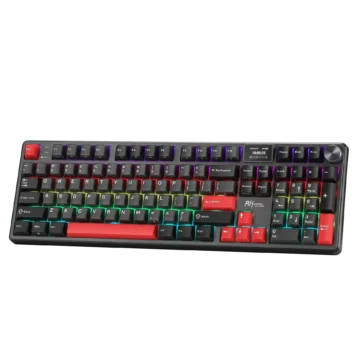
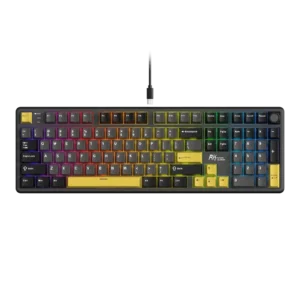
The Royal Kludge X104 is a full-size mechanical keyboard with a 100% layout, RGB backlighting, and a removable multifunction volume knob. The keyboard uses a wired USB connection and supports both Windows and Mac operating system layouts.
The X104 measures 422.38 × 137.51 × 42.79 mm and features mechanical switches, a complete function-key row, navigation keys, dedicated arrow keys, and a numeric keypad. It also includes indicator lights for Num Lock, Caps Lock, and Windows Lock.
The keyboard’s removable rotary knob controls system volume. Turning it clockwise increases the volume, turning it counterclockwise decreases the volume, and pressing it mutes the audio. The knob can also be replaced by the Calculator (Cal) key.
RGB backlighting can be adjusted using Fn key combinations. These shortcuts control brightness, lighting-effect speed, backlight colors, and lighting modes. The keyboard also supports multimedia functions for Windows and Mac, including music playback, application shortcuts, screen brightness, and audio controls.
The following instructions cover keyboard specifications, USB connection, indicator lights, rotary knob functions, RGB lighting, Windows and Mac shortcuts, factory reset, and driver support.
Technical Specifications
| Specification | Details |
| Brand | Royal Kludge (RK) |
| Product | X104 Mechanical Keyboard |
| Keyboard Layout | 100% Full-Size |
| Keyboard Type | Mechanical |
| Switch Type | Mechanical Switches |
| Length | 422.38 mm |
| Width | 137.51 mm |
| Height | 42.79 mm |
| Dimension Tolerance | ±2 mm |
| Backlighting | RGB |
| Connection Version | USB |
| Connection Mode | Wired |
| Volume Control | Removable Rotary Knob |
| Rotary Knob Functions | Volume Up, Volume Down, Mute |
| Windows Layout | Supported |
| Mac Layout | Supported |
| Function Keys | F1–F12 |
| Numeric Keypad | Yes |
| Indicator Lights | Num Lock, Caps Lock, Windows Lock |
| Factory Reset | Fn + Spacebar |
| Driver Download | https://en.rkgaming.com/download/1/ |
Keyboard Parts and Components
The Royal Kludge X104 includes a standard full-size keyboard layout with an additional removable rotary knob.
Main Keyboard Components
| Component | Function |
| Mechanical Keys | Provide typing and command input |
| Function Keys F1–F12 | Perform standard and multimedia functions |
| Fn Key | Activates secondary keyboard functions |
| Numeric Keypad | Provides number and arithmetic input |
| Arrow Keys | Provide directional input and RGB lighting adjustments |
| Rotary Knob | Controls audio volume and mute |
| Cal (Calculator) Key Position | Accepts the removable knob or Calculator key |
| USB Connector | Connects the keyboard to the computer |
| RGB Backlighting | Provides adjustable key illumination |
| Num Lock Indicator | Shows numeric keypad lock status |
| Caps Lock Indicator | Shows capitalization lock status |
| Win Lock Indicator | Shows Windows key lock status |
Full-Size Keyboard Layout
The X104 uses a 100% keyboard layout.
The layout includes:
- Main alphanumeric keys
- F1–F12 function keys
- Navigation and editing keys
- Dedicated arrow keys
- Numeric keypad
- Windows and Fn modifier keys
- Removable rotary knob
This arrangement provides standard typing controls alongside dedicated navigation and number-entry functions.
Keyboard Indicator Lights
The X104 has three indicator lights identified as Num, Caps, and Win.
Indicator Light Guide
| Indicator | Meaning |
| Num | Num Lock status |
| Caps | Caps Lock status |
| Win | Windows Lock status |
Num Lock Indicator
The Num indicator shows the status of the Num Lock function associated with the numeric keypad.
Caps Lock Indicator
The Caps indicator shows whether Caps Lock is active.
Windows Lock Indicator
The Win indicator shows the status of the Windows key lock function.
The Windows Lock function is controlled using the Fn + Win shortcut.
Before First Use
The X104 is connected to a computer through USB.
Initial Setup Instructions
- Place the keyboard on a stable surface.
- Locate the keyboard’s USB connector.
- Connect the USB cable to the keyboard.
- Connect the USB-A plug to an available USB port on the computer.
- Select the appropriate Windows or Mac keyboard layout.
The keyboard can then be operated through its wired connection.
How to Connect the X104 in Wired Mode
The Royal Kludge X104 uses a wired USB connection for communication with the host computer.
Wired Connection Instructions
- Connect the USB cable to the keyboard’s USB port.
- Insert the other end of the cable into a compatible USB port on the computer.
- Use the keyboard through the wired connection.
The wired-mode illustration shows a direct USB connection between the keyboard and a computer.
Removable Rotary Knob Functions
The X104 includes a removable rotary knob for controlling audio volume.
The knob can be used in place of the Calculator (Cal) key.
Rotary Knob Control Guide
| Knob Action | Function |
| Rotate Clockwise | Increase Volume |
| Rotate Counterclockwise | Decrease Volume |
| Press the Knob | Mute Audio |
Increasing Volume
Rotate the knob clockwise to increase the system volume.
Decreasing Volume
Rotate the knob counterclockwise to decrease the system volume.
Muting Audio
Press the knob to activate Mute.
Calculator Key Option
The rotary knob is removable and can be replaced with the Calculator (Cal) key.
The keyboard layout provides the Calculator key position as an alternative to the knob.
RGB Backlight Controls
The X104 features RGB backlighting that can be adjusted using Fn key combinations.
The keyboard supports brightness adjustment, lighting-effect speed adjustment, color switching, and lighting-mode switching.
RGB Backlight Shortcut Table
| Shortcut | Function |
| Fn + ↑ | Increase Backlight Brightness |
| Fn + ↓ | Decrease Backlight Brightness |
| Fn + ← | Decrease Backlight Effect Speed |
| Fn + → | Increase Backlight Effect Speed |
| Fn + Comma/Less-Than Key (<) | Switch Backlight Color |
| Fn + Backslash (\) | Switch Backlight Mode |
How to Adjust Backlight Brightness
The arrow keys provide brightness controls.
- Press Fn + Up Arrow to increase backlight brightness.
- Press Fn + Down Arrow to decrease backlight brightness.
How to Adjust Backlight Effect Speed
The left and right arrow keys change the speed of the active lighting effect.
- Press Fn + Left Arrow to decrease the speed.
- Press Fn + Right Arrow to increase the speed.
How to Change RGB Backlight Color
Press Fn + Comma/Less-Than (<) key to switch the backlight color.
How to Change the RGB Lighting Mode
Press Fn + Backslash (\) to switch between the available backlight modes.
Windows Key Lock
The X104 includes a Windows Lock function controlled through the Fn key.
How to Use Windows Lock
Press Fn + Win to switch the Windows key lock function.
The keyboard includes a Win indicator that shows the lock status.
Windows and Mac Operating System Modes
The keyboard provides separate layouts for Windows and Mac.
Switching Between Windows and Mac
| Shortcut | Function |
| Fn + A | Switch to Windows System |
| Fn + S | Switch to Mac System |
How to Switch to Windows Mode
Press Fn + A.
The keyboard uses the Windows system layout and its corresponding multimedia shortcuts.
How to Switch to Mac Mode
Press Fn + S.
The keyboard uses the Mac system layout and its corresponding multimedia shortcuts.
Windows Multimedia Shortcuts
When Windows mode is selected, the function keys provide shortcuts for applications, music playback, and volume controls.
Windows Multimedia Function Table
| Shortcut | Function |
| Fn + F1 | Open Computer |
| Fn + F2 | Open Browser |
| Fn + F3 | Open Mailbox |
| Fn + F4 | Open Calculator |
| Fn + F5 | Open Media Player |
| Fn + F6 | Stop Playback |
| Fn + F7 | Previous Track |
| Fn + F8 | Play/Pause |
| Fn + F9 | Next Track |
| Fn + F10 | Mute |
| Fn + F11 | Decrease Volume |
| Fn + F12 | Increase Volume |
Application Shortcuts
The Windows multimedia functions include direct shortcuts for common applications.
| Shortcut | Application |
| Fn + F1 | Computer |
| Fn + F2 | Browser |
| Fn + F3 | Mailbox |
| Fn + F4 | Calculator |
| Fn + F5 | Media Player |
Windows Music Playback Controls
The keyboard provides the following media controls:
- Fn + F6: Stop playback.
- Fn + F7: Play the previous track.
- Fn + F8: Play or pause.
- Fn + F9: Play the next track.
Windows Volume Controls
The function keys provide an alternative to the rotary knob.
- Fn + F10: Mute sound.
- Fn + F11: Decrease volume.
- Fn + F12: Increase volume.
Mac Multimedia Shortcuts
When Mac mode is selected, the function keys provide shortcuts for screen brightness, desktop controls, keyboard illumination, and multimedia playback.
Mac Multimedia Function Table
| Shortcut | Function |
| Fn + F1 | Decrease Screen Brightness |
| Fn + F2 | Increase Screen Brightness |
| Fn + F3 | Show Desktop |
| Fn + F4 | Search |
| Fn + F5 | Decrease Keyboard Backlight Brightness |
| Fn + F6 | Increase Keyboard Backlight Brightness |
| Fn + F7 | Previous Track |
| Fn + F8 | Play/Pause |
| Fn + F9 | Next Track |
| Fn + F10 | Mute |
| Fn + F11 | Decrease Volume |
| Fn + F12 | Increase Volume |
Adjusting Screen Brightness on Mac
In Mac mode:
- Press Fn + F1 to decrease screen brightness.
- Press Fn + F2 to increase screen brightness.
Desktop and Search Functions
The keyboard provides two Mac system shortcuts:
- Fn + F3: Show Desktop.
- Fn + F4: Search.
Mac Keyboard Backlight Controls
The Mac multimedia function keys include additional keyboard illumination controls.
- Fn + F5: Decrease keyboard backlight brightness.
- Fn + F6: Increase keyboard backlight brightness.
Mac Music Playback and Volume Controls
| Shortcut | Action |
| Fn + F7 | Previous Track |
| Fn + F8 | Play/Pause |
| Fn + F9 | Next Track |
| Fn + F10 | Mute |
| Fn + F11 | Volume Down |
| Fn + F12 | Volume Up |
Japanese Keyboard Input Functions
The Japanese-language instructions describe character input behavior when using Japanese input modes.
The available character output depends on the Caps Lock state, Shift key, and Japanese kana input mode.
Japanese Input Modes
| Input Setting | Function |
| Caps Lock On | English letters, numbers, and symbols |
| Caps Lock On + Shift | Alternate English character and symbol input |
| Caps Lock Off | Japanese kana input |
| Caps Lock Off + Shift | Alternate Japanese character and symbol input |
Japanese character input requires the operating system’s Japanese input function to be enabled.
The Japanese keyboard layout and printed key labels may vary depending on the keyboard configuration.
How to Restore Factory Settings
The X104 provides a factory reset function through a keyboard shortcut.
Factory Reset Instructions
- Locate the Fn key.
- Press and hold Fn + Spacebar.
- Keep both keys pressed for three seconds.
- The keyboard restores its factory settings.
| Function | Shortcut | Duration |
| Restore Factory Settings | Fn + Spacebar | 3 Seconds |
Royal Kludge X104 Driver Download
Royal Kludge provides a driver download resource for the keyboard.
Driver Download Address
https://en.rkgaming.com/download/1
The manufacturer identifies this address for obtaining its keyboard driver software.
Manufacturer and Customer Support
Royal Kludge provides customer assistance for product questions and issues.
Manufacturer Information
| Field | Details |
| Brand | Royal Kludge (RK) |
| Manufacturer | JingHeng TengWei (HuiZhou) Electronic Technology Co., Ltd. |
| Address | No. 8, Minying 1st Road, Yuanzhou Town, Boluo County, Huizhou City, Guangdong Province, China |
| Executive Standard | GB/T 14081-2010 |
| Driver Download | https://en.rkgaming.com/download/1/ |
For product issues or questions, customers can contact Royal Kludge customer support.
Frequently Asked Questions
1. How do I connect the Royal Kludge X104 keyboard?
Connect the USB cable to the keyboard’s USB connector and insert the other end into an available USB port on the computer. The X104 uses a wired USB connection.
2. How do I change the X104 RGB backlight color?
Press Fn + Comma/Less-Than (<) key to switch the backlight color.
3. How do I change the RGB backlight mode on the X104?
Press Fn + Backslash (\) to switch between the available RGB lighting modes.
4. How do I adjust the X104 backlight brightness and speed?
Press Fn + Up Arrow to increase brightness and Fn + Down Arrow to decrease it. Press Fn + Right Arrow to increase the lighting-effect speed or Fn + Left Arrow to decrease it.
5. What does the removable knob on the RK X104 do?
The rotary knob controls audio volume. Rotate it clockwise to increase volume, counterclockwise to decrease volume, or press it to mute. The knob can be replaced by the Calculator key.
6. How do I switch the Royal Kludge X104 between Windows and Mac modes?
Press Fn + A to select Windows mode or Fn + S to select Mac mode.
7. How do I reset the Royal Kludge X104 keyboard?
Press and hold Fn + Spacebar for three seconds. The keyboard restores its factory settings.
8. Where can I download the Royal Kludge X104 keyboard driver?
The driver download address is https://en.rkgaming.com/download/1/.