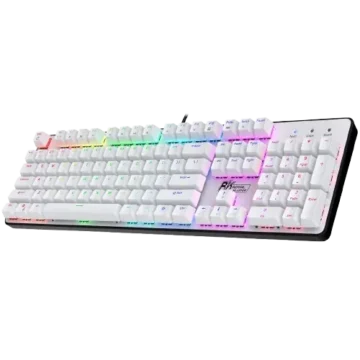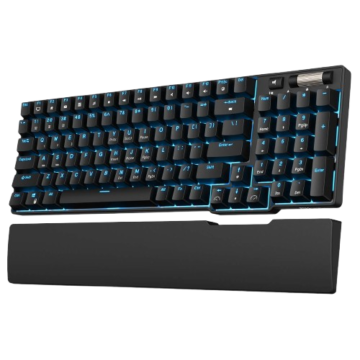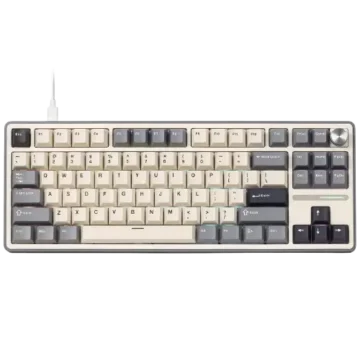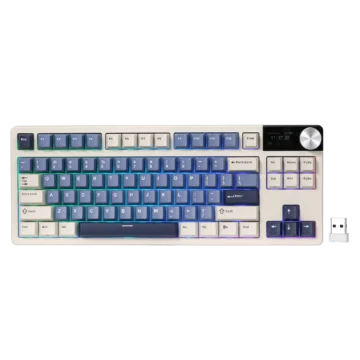
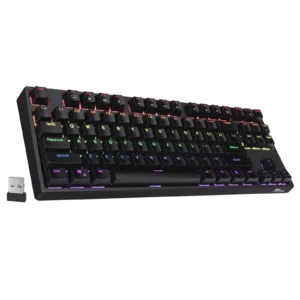
| Document Detail | Information |
| Document Title | Mechanical Wireless Keyboard User Manual |
| Document Type | User Manual |
| Brand Name | Royal Kludge |
| Product Name | Mechanical Wireless Keyboard |
| Model Number(s) | RK87 |
| PDF File Size | 5 MB |
| Number of Pages | 8 |
| Languages | English |
Royal Kludge RK87 Mechanical Keyboard
The Royal Kludge RK87 is a mechanical wireless keyboard designed for computer use through a wired USB connection or a wireless connection using a USB receiver. It features a compact keyboard layout with function keys, navigation keys, arrow keys, adjustable backlighting, multimedia controls, and programmable macro functions.
The keyboard supports wired operation through a USB Type-C cable. Wireless operation uses a USB receiving module and a physical ON/OFF power switch. The USB cable can also be used to charge the keyboard.
The RK87 includes keyboard shortcuts for changing backlight effects, adjusting brightness and effect speed, customizing individual key lighting, controlling multimedia playback, locking the Windows key, and restoring factory settings.
Three macro recording profiles allow users to save and trigger custom key sequences through Fn shortcuts. Additional keyboard configuration is available through the Royal Kludge driver.
What’s Included in the Box
The RK87 packing list identifies four items.
| Item | Description |
| Mechanical Keyboard | Main RK keyboard |
| Key Puller | Tool used for removing keycaps |
| Type-C Cable | USB cable for wired connection and charging |
| User Manual | Product setup and keyboard function instructions |
Keyboard Parts and Components
The RK87 features a compact mechanical keyboard layout with dedicated function keys, navigation controls, arrow keys, and a wireless power switch.
| Component | Function |
| Mechanical Keys | Provide keyboard input |
| Fn Key | Activates secondary keyboard functions |
| F1–F12 Keys | Provide multimedia and application shortcuts when combined with Fn |
| Arrow Keys | Provide directional navigation and backlight adjustments |
| Scroll Lock Key | Used with Fn to switch backlight controls |
| Page Up Key | Used with Fn to change backlight color on RGB versions |
| Print Screen Key | Used for custom backlight recording |
| Windows Key | Can be locked using an Fn shortcut |
| Left Ctrl Key | Used with Fn and Esc for factory reset |
| USB Type-C Port | Supports wired operation and charging |
| ON/OFF Switch | Controls power during wireless operation |
| USB Receiver | Provides the wireless connection through a computer’s USB port |
Mechanical Keyboard Layout
The keyboard diagram includes:
- Function keys F1–F12.
- Standard letter and number keys.
- Modifier keys, including Ctrl, Alt, Shift, Fn, and Windows.
- Navigation keys, including Insert, Delete, Home, End, Page Up, and Page Down.
- Print Screen, Scroll Lock, and Pause keys.
- Dedicated directional arrow keys.
USB Type-C Port
The USB Type-C connector is located on the keyboard housing.
It allows the keyboard to connect to a computer using the supplied Type-C cable and supports charging.
Wireless Power Switch
The wireless power switch has OFF and ON positions.
The switch controls the keyboard’s wireless operation.
When the keyboard is connected using the USB cable, the manual indicates that wired connection and charging are available regardless of whether the switch is ON or OFF.
Backlight Controls
The keyboard supports shortcut combinations for changing backlight modes, brightness, effect speed, and custom lighting.
Macro Keys
The Q, W, and E keys are used with Fn and Ctrl to manage three macro recording profiles.
Technical Specifications
| Specification | Details |
| Brand | Royal Kludge |
| Brand Abbreviation | RK |
| Model | RK87 |
| Product Type | Mechanical Wireless Keyboard |
| Keyboard Layout | Compact Layout with Function and Navigation Keys |
| Key Technology | Mechanical |
| Wired Connection | USB |
| USB Interface | Type-C |
| Wireless Connection | USB Receiver |
| Wireless Power Control | ON/OFF Switch |
| USB Charging | Supported |
| Backlighting | Adjustable |
| RGB Color Switching | Supported on RGB Version |
| Backlight Brightness Adjustment | Supported |
| Backlight Effect Speed Adjustment | Supported |
| Custom Backlight Recording | Supported |
| Selectable Backlight Modes | Fn + 1 Through Fn + 9 |
| Macro Recording Profiles | 3 |
| Macro Keys | Q, W, E |
| Multimedia Controls | Fn + F1 Through Fn + F12 |
| Windows Key Lock | Supported |
| Factory Reset | Fn + Left Ctrl + Esc |
| Keyboard Driver | Available from RK Website |
| Executive Standard | GB/T 14081-2010 |
| Country of Manufacture | China |
Connection and Charging Instructions
The RK87 supports two connection methods: wired USB and wireless operation through a USB receiver.
The required setup depends on the selected connection method.
How to Connect the RK87 Using USB
Wired mode connects the keyboard directly to a computer through the USB Type-C cable.
Wired Connection Instructions
- Locate the USB Type-C port on the keyboard.
- Insert the Type-C connector of the supplied cable into the keyboard.
- Connect the USB-A end of the cable to the computer’s USB port.
- Use the keyboard through the wired connection.
The connection diagram shows the keyboard connected by cable to a computer.
Wired Mode and the Power Switch
The wireless ON/OFF switch applies to wireless operation.
When using a USB cable, the keyboard can connect and charge whether the wireless switch is in the ON or OFF position.
How to Connect the RK87 Wirelessly
Wireless operation requires the USB receiving module and the keyboard’s power switch.
Wireless Connection Instructions
- Locate the USB wireless receiver.
- Insert the receiver into an available USB port on the computer.
- Locate the ON/OFF switch on the keyboard.
- Move the switch to ON.
- Use the keyboard through the wireless connection.
The connection diagram identifies the USB receiver and the ON position as the required wireless setup.
Important: The power switch must be ON for wireless operation.
How to Charge the RK87 Keyboard
The RK87 supports charging through its USB Type-C connection.
USB Charging Instructions
- Locate the USB Type-C port on the keyboard.
- Connect the Type-C end of the supplied cable to the keyboard.
- Connect the USB end to a suitable computer USB port.
- Leave the cable connected while charging.
The connection instructions indicate that the keyboard can connect and charge through the USB cable regardless of the wireless power switch position.
Backlight Control and Settings
The RK87 includes keyboard shortcuts for changing backlight effects, brightness, speed, and colors.
The backlight functions use the Fn key together with other keys.
Backlight Shortcut Table
| Shortcut | Function |
| Fn + Scroll Lock | Switch Backlight Control |
| Fn + Page Up | Switch Backlight Color on RGB Version |
| Fn + Up Arrow | Increase Backlight Brightness |
| Fn + Down Arrow | Decrease Backlight Brightness |
| Fn + Left Arrow | Decrease Backlight Effect Speed |
| Fn + Right Arrow | Increase Backlight Effect Speed |
How to Change Backlight Effects
- Locate the Fn key.
- Press and hold Fn.
- Press Scroll Lock.
- Release both keys.
- Repeat the shortcut to switch between the available backlight controls.
How to Adjust Backlight Brightness
Use the following shortcuts:
- Fn + Up Arrow: Increase backlight brightness.
- Fn + Down Arrow: Decrease backlight brightness.
Repeat the appropriate shortcut until the desired brightness level is reached.
How to Adjust Backlight Effect Speed
The keyboard allows the speed of supported lighting effects to be changed.
- Fn + Left Arrow: Decrease effect speed.
- Fn + Right Arrow: Increase effect speed.
These shortcuts control the animation speed of the selected backlight effect.
How to Change Backlight Color
For the RGB version, press Fn + Page Up to switch the backlight color.
The manual identifies this shortcut specifically for the RGB version.
How to Customize RK87 Keyboard Backlighting
The RK87 supports custom backlight settings that allow users to choose which keys receive lighting.
The custom backlight procedure uses Fn + number keys and Fn + Print Screen.
Step 1: Select a Backlight Mode
Press Fn together with a number key from 1 through 9.
Available shortcut combinations include:
| Shortcut | Function |
| Fn + 1 | Select Backlight Mode 1 |
| Fn + 2 | Select Backlight Mode 2 |
| Fn + 3 | Select Backlight Mode 3 |
| Fn + 4 | Select Backlight Mode 4 |
| Fn + 5 | Select Backlight Mode 5 |
| Fn + 6 | Select Backlight Mode 6 |
| Fn + 7 | Select Backlight Mode 7 |
| Fn + 8 | Select Backlight Mode 8 |
| Fn + 9 | Select Backlight Mode 9 |
Select the backlight mode to be customized.
Step 2: Enter Custom Backlight Settings
- Press Fn + Print Screen (PrtSc).
- The keyboard enters custom backlight settings mode.
- The indicator lights begin blinking.
The blinking indicators show that the keyboard is ready to record the custom lighting arrangement.
Step 3: Select Keys for Backlighting
Press the keys that should be included in the custom lighting arrangement.
Repeat this process for each additional key.
For example, individual letter, number, or other keys can be selected.
Step 4: Save the Custom Backlight Settings
- After selecting the desired keys, press Fn + Print Screen again.
- The keyboard saves the custom backlight settings.
- The recording mode closes.
Custom Backlight Procedure Summary
| Step | Shortcut or Action | Result |
| 1 | Fn + 1 Through Fn + 9 | Select Backlight Mode |
| 2 | Fn + PrtSc | Enter Custom Backlight Settings |
| 3 | Press Desired Keys | Configure Selected Key Lighting |
| 4 | Fn + PrtSc | Save and Exit |
Multimedia Function Keys
The RK87 includes multimedia and application shortcuts using Fn together with F1–F12.
These shortcuts provide access to computer functions, web applications, media playback, audio controls, and the calculator.
Multimedia Shortcut Table
| Shortcut | Function |
| Fn + F1 | Computer |
| Fn + F2 | Web |
| Fn + F3 | |
| Fn + F4 | Player |
| Fn + F5 | Previous Track |
| Fn + F6 | Next Track |
| Fn + F7 | Start / Pause |
| Fn + F8 | Stop |
| Fn + F9 | Increase Volume |
| Fn + F10 | Decrease Volume |
| Fn + F11 | Mute |
| Fn + F12 | Calculator |
Computer Shortcut
Press Fn + F1 to access the Computer function.
Web Shortcut
Press Fn + F2 to activate the Web function.
Email Shortcut
Press Fn + F3 to activate the email function.
Media Player Shortcut
Press Fn + F4 to activate the Player function.
Previous and Next Track
Use the following shortcuts during media playback:
- Fn + F5: Previous track.
- Fn + F6: Next track.
Start and Pause Media
Press Fn + F7 to start or pause playback.
Stop Playback
Press Fn + F8 to stop media playback.
Adjust Audio Volume
Use the following shortcuts:
- Fn + F9: Increase volume.
- Fn + F10: Decrease volume.
- Fn + F11: Mute audio.
Open Calculator
Press Fn + F12 to activate the Calculator function.
How to Lock the Windows Key
The keyboard supports a Windows key lock function.
Windows Key Lock Shortcut
Press Fn + Win to activate the Windows key lock function.
The Windows key includes a lock symbol in the keyboard diagram.
Press the shortcut again when the Windows key lock function needs to be changed.
Macro Key Recording Function
The RK87 supports three macro recording profiles.
A macro records a sequence of key presses that can later be triggered using a shortcut.
The supported macro profiles use:
- Q.
- W.
- E.
Macro Recording Shortcuts
| Shortcut | Function |
| Fn + Ctrl + Q | Record Macro Profile Q |
| Fn + Ctrl + W | Record Macro Profile W |
| Fn + Ctrl + E | Record Macro Profile E |
| Fn + Q | Trigger Recorded Q Macro |
| Fn + W | Trigger Recorded W Macro |
| Fn + E | Trigger Recorded E Macro |
The manual demonstrates macro recording using Fn + W.
How to Record a Macro on the RK87
The following example records a sequence of directional arrow key presses and assigns it to Fn + W.
Step 1: Enter Macro Recording Mode
Press Fn + Ctrl + W.
The W key and an indicator light begin flashing.
The flashing indicators show that macro recording mode is active.
Step 2: Record the Key Sequence
Press the keys that should be included in the macro.
The example in the manual records the following sequence:
- Up Arrow.
- Down Arrow.
- Left Arrow.
- Right Arrow.
These key presses are recorded in the selected order.
Step 3: Save the Macro
After entering the required key sequence:
- Press Fn + Ctrl + W again.
- The W key and indicator light stop flashing.
- The recorded macro is saved.
The recording mode is complete when the indicators stop blinking.
Step 4: Trigger the Recorded Macro
Press Fn + W.
The keyboard automatically triggers the recorded directional key sequence.
For the example above, the recorded sequence is:
Up Arrow, Down Arrow, Left Arrow, Right Arrow.
How to Record Three Different Macros
The same procedure can be used to create three separate macro profiles.
Macro Q
- Press Fn + Ctrl + Q to enter recording mode.
- Enter the required key sequence.
- Press Fn + Ctrl + Q again to finish recording.
- Press Fn + Q to activate the recorded macro.
Macro W
- Press Fn + Ctrl + W to enter recording mode.
- Enter the required key sequence.
- Press Fn + Ctrl + W again to finish recording.
- Press Fn + W to activate the recorded macro.
Macro E
- Press Fn + Ctrl + E to enter recording mode.
- Enter the required key sequence.
- Press Fn + Ctrl + E again to finish recording.
- Press Fn + E to activate the recorded macro.
Macro Recording Indicator Guide
| Indicator Condition | Meaning |
| Macro Key and Indicator Flashing | Recording Mode Is Active |
| Macro Key and Indicator Stop Flashing | Recording Is Complete |
Macro Function Summary
The keyboard supports three macro recording sets using Q, W, and E.
Each profile allows a sequence of key presses to be recorded and later activated through its corresponding Fn shortcut.
How to Restore RK87 Factory Settings
The keyboard includes a factory reset shortcut for restoring its settings.
Factory Reset Shortcut
Fn + Left Ctrl + Esc
Factory Reset Instructions
- Locate the Fn key.
- Locate the left Ctrl key.
- Locate the Esc key.
- Press Fn + Left Ctrl + Esc together.
This activates the keyboard’s factory reset function.
Royal Kludge RK87 Driver Download
Royal Kludge provides a driver download page for compatible keyboard software.
https://rkgamingstore.com/pages/software
The driver download address appears alongside the keyboard’s multimedia function instructions.
RK87 Troubleshooting and Operating Checks
The following checks use the connection procedures, backlight controls, macro instructions, and reset shortcuts described in the manual.
| Problem or Condition | What to Check | Recommended Action |
| Keyboard Does Not Work Wirelessly | Wireless Power Switch | Move the Switch to ON |
| Wireless Connection Is Not Available | USB Receiving Module | Connect the Wireless Receiver to the Computer |
| Wired Connection Is Not Established | USB Type-C Connection | Connect the Keyboard and Computer Using the Type-C Cable |
| Backlight Setting Needs Changing | Backlight Shortcut | Use Fn + Scroll Lock |
| Backlight Is Too Dim | Brightness Setting | Press Fn + Up Arrow |
| Backlight Effect Is Too Slow | Effect Speed Setting | Press Fn + Right Arrow |
| Custom Backlight Changes Need Saving | Custom Recording Mode | Press Fn + PrtSc Again |
| Windows Key Is Locked | Windows Lock Function | Press Fn + Win |
| Macro Recording Is Not Complete | Recording Indicators Are Still Flashing | Press the Same Fn + Ctrl + Macro Key Combination Again |
| Recorded Macro Needs Activation | Assigned Macro Profile | Press Fn + Q, Fn + W, or Fn + E |
| Keyboard Settings Need Resetting | Factory Reset Function | Press Fn + Left Ctrl + Esc |
RK87 Wireless Keyboard Not Connecting
The wireless instructions require the USB receiver to be connected and the keyboard power switch to be ON.
- Check that the USB receiving module is inserted into the computer.
- Locate the keyboard’s power switch.
- Move it to ON.
- Use the keyboard in wireless mode.
RK87 Wired Mode Not Working
For wired operation, the USB Type-C cable must connect the keyboard to the computer.
- Check the Type-C connection at the keyboard.
- Check the USB connection at the computer.
- Use the keyboard through the cable.
The wired connection does not depend on the ON/OFF position of the wireless power switch.
RK87 Backlight Is Too Dim
Press Fn + Up Arrow to increase brightness.
Use Fn + Down Arrow to decrease brightness.
RK87 Backlight Effects Need Changing
Press Fn + Scroll Lock to switch the backlight control.
For supported RGB versions, Fn + Page Up changes the backlight color.
RK87 Custom Backlight Is Not Saved
Custom lighting must be saved before leaving recording mode.
After selecting the desired keys, press Fn + Print Screen again to save and exit.
RK87 Windows Key Is Locked
The keyboard includes a Windows lock shortcut.
Press Fn + Win to change the lock state.
RK87 Macro Is Not Recording
The manual identifies the macro key and indicator light flashing together as the recording signal.
To complete recording:
- Enter the macro key sequence.
- Press the same Fn + Ctrl + macro profile combination again.
- Check that the flashing indicators stop.
RK87 Macro Is Not Triggering
Use the trigger shortcut that matches the recorded profile:
- Fn + Q.
- Fn + W.
- Fn + E.
For example, a macro recorded using Fn + Ctrl + W is activated using Fn + W.
RK87 Settings Need Resetting
Press Fn + Left Ctrl + Esc to restore the keyboard’s factory settings.
Product Safety and Compliance Information
The RK87 manual includes a California Proposition 65 warning and manufacturing standard information.
California Proposition 65 Warning
The product documentation contains a California Proposition 65 warning concerning possible exposure to chemicals associated with cancer, birth defects, or other reproductive harm.
The printed warning uses an unfilled placeholder rather than identifying a specific chemical.
Manufacturing Standard
The product documentation identifies the following executive standard:
GB/T 14081-2010
Manufacturing Country
The keyboard is marked as made in China.
Frequently Asked Questions
How do I connect the Royal Kludge RK87 keyboard wirelessly?
Insert the USB wireless receiver into the computer’s USB port and move the keyboard’s power switch to ON. The manual identifies the USB receiving module and ON switch position as the requirements for wireless operation.
Can I use the RK87 keyboard with a USB cable?
Yes. The RK87 supports a wired connection through its USB Type-C port. Connect the keyboard to the computer using the supplied cable. Wired operation and charging are available regardless of the wireless power switch position.
How do I change the RK87 keyboard backlight?
Press Fn + Scroll Lock to switch backlight controls. Use Fn + Up Arrow or Down Arrow to adjust brightness, and Fn + Left Arrow or Right Arrow to change the effect speed. On RGB versions, Fn + Page Up switches the backlight color.
How do I customize individual key lighting on the RK87?
Press Fn + a number key from 1 through 9 to select a backlight mode. Press Fn + Print Screen to enter custom backlight settings. When the indicators blink, press the keys that should receive lighting. Press Fn + Print Screen again to save the configuration and exit.
How do I record a macro on the RK87 mechanical keyboard?
Press Fn + Ctrl + Q, W, or E to enter the corresponding macro recording mode. When the macro key and indicator begin flashing, enter the desired key sequence. Press the same Fn + Ctrl shortcut again to save. The macro can then be activated using Fn + Q, Fn + W, or Fn + E.
How do I lock or unlock the Windows key on the RK87?
Press Fn + Win to control the Windows key lock function. The shortcut allows the Windows key to be locked or unlocked.
How do I reset the RK87 keyboard to factory settings?
Press Fn + Left Ctrl + Esc together to activate the factory reset command. This is the reset combination shown in the RK87 user manual.