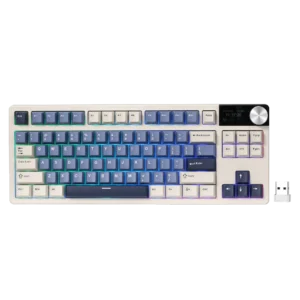
| Document Detail | Information |
| Document Title | RK S85 Mechanical Keyboard |
| Document Type | User Manual |
| Brand Name | Royal Kludge |
| Product Name | S85 Mechanical Keyboard |
| Model Number(s) | S85 |
| PDF File Size | 1 MB |
| Number of Pages | 1 |
| Languages | English, French |
Royal Kludge S85 Mechanical Keyboard
The Royal Kludge RK S85 is an 85-key mechanical keyboard with three connection options: USB wired, 2.4 GHz wireless, and Bluetooth. It features RGB backlighting, a built-in display, and a clickable rotary knob for controlling volume, connection settings, lighting, and other keyboard functions.
The keyboard supports three Bluetooth device profiles, allowing users to pair and switch between different computers or mobile devices. Its 2.4 GHz wireless mode uses the supplied USB receiver, while wired operation uses a USB Type-C cable.
Product Overview
The RK S85 Mechanical Keyboard combines mechanical switches with multiple connection methods and adjustable lighting.
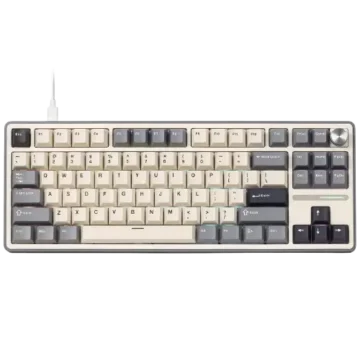
An 85-key layout provides the main typing keys, function keys, navigation keys, and directional arrows. A multifunction display and rotary knob are located in the upper-right section.
The keyboard includes a connection mode switch for selecting wired, 2.4 GHz, or Bluetooth operation.
Main Features
- 85-key layout: Mechanical keyboard with function keys, navigation keys, and arrow keys.
- Mechanical switches: Uses mechanical key switches.
- Three connection modes: USB wired, 2.4 GHz wireless, and Bluetooth.
- Three Bluetooth profiles: Supports BT1, BT2, and BT3 device connections.
- 2.4 GHz USB receiver: Supports wireless operation through the supplied dongle.
- USB Type-C connection: Supports wired operation and charging.
- RGB backlighting: Provides adjustable lighting colors and effects.
- Custom backlighting: Allows selected keys to have customized lighting.
- Side lighting: Supports brightness adjustment and on/off control.
- Built-in display: Shows connection information, operating indicators, and time.
- Clickable rotary knob: Controls volume and display menu settings.
- Date and time adjustment: Supports manual clock configuration.
- Windows and Mac modes: Includes operating-system-specific keyboard functions.
- Multimedia shortcuts: Provides media playback, volume, and application commands.
- Driver support: Supports additional customization through RK software.
What’s Included in the Box
The product information diagram identifies the following supplied items.
| Item | Description |
| RK S85 Mechanical Keyboard | Main 85-key keyboard |
| User Manual | Product instructions and keyboard function guide |
| Switch and Keycap Puller | Tool for removing keycaps and mechanical switches |
| USB Type-C Cable | Cable used for wired connection and charging |
| 2.4 GHz USB Dongle | Wireless receiver for 2.4 GHz operation |
Parts and Components
The RK S85 includes mechanical keys, a multifunction display, a rotary knob, connection controls, and USB connectivity.
| Component | Function |
| Mechanical Keys | Provide keyboard input |
| Fn Key | Activates secondary keyboard functions |
| Multifunction Display | Shows time, connection status, and operating indicators |
| Clickable Rotary Knob | Adjusts volume and controls display menus |
| Connection Mode Switch | Selects wired, 2.4 GHz, or Bluetooth operation |
| USB Type-C Port | Provides wired connection and charging |
| 2.4 GHz USB Receiver | Connects the keyboard wirelessly to a computer |
| RGB Backlighting | Illuminates keyboard keys |
| Side Lighting | Provides additional adjustable lighting |
| Function Keys F1–F12 | Provide standard and multimedia functions |
| Navigation Keys | Include Insert, Home, Page Up, Delete, End, and Page Down |
| Arrow Keys | Provide directional navigation |
Multifunction Display
The display is located beside the rotary knob in the upper-right section of the keyboard.
It provides access to connection profiles, time settings, lighting effects, and system information.
The screen can show:
- Date and time.
- Bluetooth connection profiles.
- 2.4 GHz connection status.
- Wired mode.
- Windows or Mac mode.
- Caps Lock status.
- Num Lock status.
- Windows key lock status.
- Volume adjustment.
- Backlight settings.
Clickable Rotary Knob
The knob has two main functions:
- Rotation.
- Pressing or clicking.
During normal use, rotating the knob adjusts volume.
The knob can also be pressed to open the settings menu and select options.
Connection Mode Switch
The keyboard has a physical mode selector with three positions.
| Switch Position | Connection Mode |
| Middle Position | USB Wired |
| G | 2.4 GHz Wireless |
| B | Bluetooth |
The selected position determines the keyboard’s connection method.
Technical Specifications
| Specification | Details |
| Brand | Royal Kludge |
| Brand Abbreviation | RK |
| Model | S85 |
| Product Type | Mechanical Keyboard |
| Key Layout | 85 Keys |
| Switch Type | Mechanical Switches |
| Connection Methods | USB, 2.4 GHz, Bluetooth |
| USB Interface | Type-C |
| Bluetooth Profiles | BT1, BT2, BT3 |
| Wireless Receiver | 2.4 GHz USB Dongle |
| Backlighting | RGB |
| Side Lighting | Supported |
| Multifunction Display | Included |
| Rotary Control Knob | Clickable |
| Windows Layout | Supported |
| Mac Layout | Supported |
| Date and Time Display | Supported |
| Display Image Customization | Supported with Driver |
| Recommended Charging Supply | 5V, 1A |
| Dimensions (L × W × H) | 410.3 × 140.6 × 42.77 (±2) |
| Driver Website | https://rkgamingstore.com/pages/software |
| Manufacturing Country | China |
| Stated Executive Standard | GB/T 14081-2010 |
Before First Use
Prepare the keyboard and choose the desired connection method before beginning operation.
Step 1: Check the Accessories
Identify the keyboard, USB Type-C cable, 2.4 GHz receiver, switch and keycap puller, and manual.
Step 2: Locate the Connection Switch
Find the three-position connection switch on the keyboard.
The switch provides USB wired, 2.4 GHz, and Bluetooth modes.
Step 3: Choose the Connection Method
Select the connection required for the computer or mobile device:
- Use the middle switch position for USB wired operation.
- Select G for 2.4 GHz wireless operation.
- Select B for Bluetooth operation.
Step 4: Connect or Pair the Keyboard
For wired operation, connect the USB cable.
For 2.4 GHz operation, use the supplied receiver.
For Bluetooth operation, select a Bluetooth profile and pair with the computer or mobile device.
Step 5: Select the System Layout
Use the appropriate shortcut for the operating system:
- Fn + A: Windows system.
- Fn + S: Mac system.
Step 6: Adjust the Keyboard Settings
After the keyboard is connected, the knob and Fn shortcuts can be used to adjust volume, backlighting, display settings, and other functions.
How to Connect the RK S85 Using USB
The RK S85 supports wired operation through its USB Type-C port.
Wired Connection Instructions
- Locate the connection mode switch.
- Move the switch to the middle position.
- Connect the USB Type-C end of the supplied cable to the keyboard.
- Connect the other end of the USB cable to the computer.
- Use the keyboard in wired mode.
The wired connection diagram identifies the middle switch position as the required USB mode.
USB Charging
The keyboard supports charging from a 5V, 1A rated power supply.
Connect the USB Type-C cable to the keyboard and the appropriate power source.
Wired Mode Indicator
The display includes a wired connection indicator that identifies the keyboard’s USB operating mode.
How to Connect the RK S85 Using Bluetooth
The RK S85 supports three Bluetooth connection profiles:
- BT1.
- BT2.
- BT3.
The keyboard can store connections for three different Bluetooth devices.
Bluetooth pairing can be started using either the rotary knob or keyboard shortcuts.
Bluetooth Connection Using the Rotary Knob
- Move the physical connection switch to B.
- Press the rotary knob to open the display menu.
- Rotate the knob to select BT1, BT2, or BT3.
- Press and hold the knob to activate pairing mode.
- The display shows the pairing indicator for the selected Bluetooth profile.
- Turn on Bluetooth on the computer or mobile device.
- Search for available Bluetooth devices.
- Select RK S85 from the device list.
- Complete the connection.
After successful pairing, the display shows a Bluetooth success indicator and automatically returns to the Home screen.
Bluetooth Pairing Using Fn Shortcuts
The keyboard also supports Bluetooth pairing through three Fn shortcuts.
| Shortcut | Bluetooth Profile |
| Fn + Q | BT1 |
| Fn + W | BT2 |
| Fn + E | BT3 |
Pairing BT1
- Move the connection switch to B.
- Press and hold Fn + Q for three seconds.
- Wait for the BT1 pairing indicator to appear.
- Open Bluetooth settings on the computer or mobile device.
- Search for RK S85.
- Select the keyboard to complete pairing.
Pairing BT2
- Move the connection switch to B.
- Press and hold Fn + W for three seconds.
- Wait for the BT2 pairing indicator.
- Search for RK S85 on the device.
- Complete the Bluetooth connection.
Pairing BT3
- Move the connection switch to B.
- Press and hold Fn + E for three seconds.
- Wait for the BT3 pairing indicator.
- Search for RK S85.
- Complete the connection.
How to Switch Between Bluetooth Devices
After the Bluetooth profiles have been paired, the keyboard can reconnect to a selected device.
Switching Using the Keyboard
| Shortcut | Action |
| Fn + Q | Reconnect to BT1 |
| Fn + W | Reconnect to BT2 |
| Fn + E | Reconnect to BT3 |
Press the appropriate shortcut briefly to select a previously paired Bluetooth profile.
The display shows the corresponding linking indicator while reconnection is in progress.
Switching Using the Rotary Knob
- Keep the connection switch in B mode.
- Press the rotary knob to enter the menu.
- Select BT1, BT2, or BT3.
- Press the knob briefly.
- Wait for the connection process to finish.
Bluetooth Connection Status Indicators
| Display Status | Meaning |
| BT1 Pairing | Bluetooth Profile 1 Is in Pairing Mode |
| BT2 Pairing | Bluetooth Profile 2 Is in Pairing Mode |
| BT3 Pairing | Bluetooth Profile 3 Is in Pairing Mode |
| BT1 Linking | Bluetooth Profile 1 Is Reconnecting |
| BT2 Linking | Bluetooth Profile 2 Is Reconnecting |
| BT3 Linking | Bluetooth Profile 3 Is Reconnecting |
| BT Success | Bluetooth Connection Was Successful |
Important: Pair each desired device before using the corresponding Bluetooth reconnection shortcut.
How to Connect the RK S85 Using 2.4 GHz Wireless
The RK S85 includes a USB receiver for 2.4 GHz wireless operation.
The physical connection switch must be moved to G before using this mode.
Connecting Using the Rotary Knob
- Move the connection switch to G.
- Press the rotary knob to open the menu.
- Rotate the knob to select the 2.4 GHz receiver icon.
- Press the knob briefly.
- The display shows the 2.4G Linking indicator.
- Insert the supplied 2.4 GHz dongle into the computer.
- Allow the keyboard to reconnect.
After a successful connection, the screen shows 2.4G Success and automatically returns to the Home screen.
Pairing the 2.4 GHz Receiver Using the Knob
If receiver pairing is required:
- Move the connection switch to G.
- Press the knob to open the settings menu.
- Select the 2.4 GHz receiver icon.
- Press and hold the knob until the display shows 2.4G Pairing.
- Insert the supplied USB receiver into the computer.
- Wait for the pairing process to finish.
The display shows 2.4G Success after successful pairing.
Pairing Using the Keyboard Shortcut
The keyboard supports 2.4 GHz receiver pairing through the Fn + P shortcut.
- Move the connection switch to G.
- Press and hold Fn + P for three seconds.
- Wait for the 2.4G Pairing indicator.
- Insert the 2.4 GHz receiver into the computer.
- Allow pairing to complete.
The display shows 2.4G Success when the connection has been established.
Factory-Paired Receiver
The keyboard and its supplied 2.4 GHz receiver are paired at the factory.
Re-pairing is generally unnecessary when using the original receiver.
2.4 GHz Receiver Storage
The keyboard includes a storage area for the 2.4 GHz receiver.
Use this compartment to keep the dongle with the keyboard when it is not connected to a computer.
How to Use the Rotary Knob
The RK S85 features a clickable rotary knob for volume adjustment and screen menu operation.
Adjusting Volume
The knob defaults to volume adjustment after the keyboard powers on.
| Knob Action | Result |
| Rotate Clockwise | Increase Volume |
| Rotate Counterclockwise | Decrease Volume |
| Press Knob | Enter Settings Menu |
| Short Press in Menu | Confirm Selection |
Opening the Settings Menu
- Press the knob.
- Rotate it to move through the available settings.
- Press the knob briefly to select or confirm an option.
Volume Display Calibration
The manual explains that if the displayed volume information is incorrect, it is automatically calibrated after the keyboard driver is activated.
The driver is available from https://rkgamingstore.com/pages/software.
How to Set the RK S85 Date and Time
The keyboard display supports manual date and time configuration.
The display uses the following formats:
| Setting | Format |
| Date | YY-MM-DD |
| Time | HH-MM-SS |
Manual Time Setting Instructions
- Press and hold the rotary knob for approximately five seconds.
- Wait for the year to begin flashing.
- Rotate the knob clockwise to increase the selected value.
- Rotate it counterclockwise to decrease the value.
- Press the knob to move to the next date or time field.
- Adjust the year, month, and day.
- Continue to the hour, minute, and second settings.
- Complete all required adjustments.
Saving the Date and Time
After configuring the clock:
- Press and hold the knob for another five seconds.
- The settings are saved, and the adjustment menu closes.
Alternatively, press Fn + T to save and exit quickly.
Display Menu and Status Indicators
The RK S85 display provides several operating and status indicators.
Main Display Options
The display supports:
- Time interface.
- Customizable GIF image with driver support.
System Layout
The screen settings allow selection between:
- Windows layout.
- Mac layout.
Display Language
The screen menu supports:
- English.
- Chinese.
Keyboard Status Indicators
| Indicator | Meaning |
| Volume Icon | Volume Adjustment |
| Caps Lock | Caps Lock Status |
| Num Lock | Num Lock Status |
| Win Lock | Windows Key Lock Status |
| Win | Windows System Mode |
| Mac | Mac System Mode |
| Wired Icon | USB Wired Mode |
| 2.4G Icon | 2.4 GHz Wireless Mode |
| BT Icon | Bluetooth Mode |
These indicators help identify the keyboard’s current operating state.
How to Change Display and RGB Settings
The rotary knob can be used to select lighting effects, colors, brightness, and effect speed.
Changing Backlight Effects
- Press the rotary knob to open the settings menu.
- Select the backlight effects icon.
- Press the knob.
- Rotate the knob to choose the desired lighting effect.
Changing Backlight Color
- Open the settings menu.
- Select the backlight color icon.
- Press the knob.
- Rotate it to choose the desired backlight color.
Adjusting Backlight Brightness
- Open the settings menu.
- Select the Brightness icon.
- Press the knob.
- Rotate the knob to adjust the lighting brightness.
Adjusting Backlight Effect Speed
- Open the settings menu.
- Select the Speed icon.
- Press the knob.
- Rotate it to adjust the backlight animation speed.
RGB Backlight Keyboard Shortcuts
The keyboard also supports lighting adjustments without opening the display menu.
| Shortcut | Function |
| Fn + ↑ | Increase Backlight Brightness |
| Fn + ↓ | Decrease Backlight Brightness |
| Fn + ← | Decrease Backlight Effect Speed |
| Fn + → | Increase Backlight Effect Speed |
| Fn + Comma / < | Change RGB Backlight Color |
| Fn + Backslash | Switch Dynamic Backlight Effects |
| Fn + = | Increase Side Light Brightness |
| Fn + – | Decrease Side Light Brightness |
| Fn + Print | Turn Backlight and Side Lights On or Off |
Adjusting Keyboard Brightness
Press Fn + Up Arrow to increase brightness.
Press Fn + Down Arrow to reduce brightness.
Adjusting RGB Effect Speed
Press Fn + Right Arrow to increase the lighting animation speed.
Press Fn + Left Arrow to reduce the effect speed.
Switching Backlight Colors
On the RGB version, use Fn with the comma/less-than key to switch backlight colors.
Switching Lighting Effects
Use Fn with the backslash key to cycle through the dynamic backlight effects.
Adjusting Side Lighting
Press Fn + = to increase side light brightness.
Press Fn + – to decrease side light brightness.
Turning Lighting On or Off
Press Fn + Print to turn the keyboard backlight and side lights on or off.
How to Customize Individual Key Backlighting
The RK S85 supports a custom backlight recording mode that allows users to select keys for a personalized lighting arrangement.
Step 1: Select the Custom Backlight Mode
Press Fn + 1 to select the customizable lighting setting.
Step 2: Enter Backlight Recording Mode
Press Fn + Backspace.
The keyboard enters backlight recording mode.
The manual identifies the backlight turning off as the indication that recording has started.
Step 3: Select the Keys
Press the individual keys that should be included in the customized lighting arrangement.
Repeat the process for each desired key.
Step 4: Save the Custom Lighting
Press Fn + Backspace again.
The keyboard saves the selected lighting configuration and exits recording mode.
Windows and Mac System Settings
The RK S85 provides separate Windows and Mac keyboard layouts.
Switch to Windows Mode
Press Fn + A.
This changes the keyboard to the Windows system layout.
Switch to Mac Mode
Press Fn + S.
This changes the keyboard to the Mac system layout.
The selected system mode is also represented in the display indicators.
Windows Multimedia Shortcuts
When using Windows mode, the keyboard supports the following Fn combinations.
| Shortcut | Function |
| Fn + F1 | Computer |
| Fn + F2 | Browser |
| Fn + F3 | Mailbox |
| Fn + F4 | Calculator |
| Fn + F5 | Media Player |
| Fn + F6 | Stop Playback |
| Fn + F7 | Previous Song |
| Fn + F8 | Play / Pause |
| Fn + F9 | Next Song |
| Fn + F10 | Mute |
| Fn + F11 | Decrease Volume |
| Fn + F12 | Increase Volume |
Windows Application Shortcuts
The first five function-key combinations provide quick access to the computer interface, web browser, email, calculator, and media player.
Windows Media Controls
Fn + F6 through Fn + F12 provide playback and audio functions, including stopping playback, changing tracks, adjusting volume, and muting sound.
Mac Multimedia Shortcuts
When using Mac mode, the function keys provide system and multimedia controls.
| Shortcut | Function |
| Fn + F1 | Decrease Screen Brightness |
| Fn + F2 | Increase Screen Brightness |
| Fn + F5 | Decrease Keyboard Backlight Brightness |
| Fn + F6 | Increase Keyboard Backlight Brightness |
| Fn + F7 | Previous Song |
| Fn + F8 | Play / Pause |
| Fn + F9 | Next Song |
| Fn + F10 | Mute |
| Fn + F11 | Decrease Volume |
| Fn + F12 | Increase Volume |
Mac Screen Brightness
Use Fn + F1 or Fn + F2 to decrease or increase the screen brightness.
Mac Keyboard Backlighting
Use Fn + F5 or Fn + F6 to decrease or increase keyboard backlight brightness.
Mac Media Playback
Fn + F7 through Fn + F12 provide track selection, playback, mute, and volume controls.
Additional Fn Shortcuts
The keyboard supports several additional functions.
| Shortcut | Function |
| Fn + Win | Lock or Unlock Windows Key |
| Fn + Spacebar, Hold 3 Seconds | Restore Factory Settings |
| Fn + Home | Scroll Lock |
| Fn + Page Up | Pause |
| Fn + T | Save and Exit Time Setting |
| Fn + A | Windows Mode |
| Fn + S | Mac Mode |
Windows Key Lock
Press Fn + Win to lock or unlock the Windows key.
The display includes a Win Lock indicator to show the status.
The shortcut also controls the Windows and application key lock functions described in the manual.
Scroll Lock
Press Fn + Home to activate the Scroll Lock function.
Pause
Press Fn + Page Up to activate the Pause function.
How to Factory Reset the RK S85
The keyboard can be restored to its factory settings using an Fn shortcut.
Factory Reset Instructions
- Press and hold Fn + Spacebar.
- Keep both keys pressed for approximately three seconds.
- Release the keys after the reset command has been activated.
The keyboard restores its factory settings.
Keyboard Driver and Software
The RK S85 supports additional configuration through the Royal Kludge keyboard driver.
Driver Download
The manual provides the following official driver download location: https://rkgamingstore.com/pages/software
Driver-Related Functions
The manual identifies driver support for:
- Customizable GIF images on the keyboard display.
- Display-related customization.
- Volume display calibration.
Custom GIF Display
The display can show a customizable GIF image when configured using supported driver software.
Volume Calibration
If the volume display becomes inaccurate, the manual states that the volume information is calibrated automatically after the driver is activated.
Connection and Troubleshooting Guide
The following troubleshooting steps are based on the keyboard’s documented connection, pairing, display, and shortcut procedures.
| Problem or Condition | Check or Explanation | Recommended Action |
| Keyboard Is Not Connecting Through USB | Wired Mode Requires Middle Switch Position | Move Switch to Middle and Connect USB Type-C Cable |
| Bluetooth Pairing Is Not Completed | Bluetooth Pairing Mode Must Be Active | Select B and Hold Fn + Q/W/E for 3 Seconds |
| Bluetooth Device Does Not Reconnect | Previously Paired Profile Must Be Selected | Briefly Press Fn + Q/W/E or Select BT Profile Using Knob |
| 2.4 GHz Keyboard Does Not Reconnect | G Mode and Receiver Connection Are Required | Select G and Connect the USB Dongle |
| 2.4 GHz Receiver Requires Pairing | Receiver Pairing Mode Must Be Activated | Hold Fn + P for 3 Seconds and Insert Receiver |
| Volume Display Is Incorrect | Display Calibration May Be Required | Activate the Keyboard Driver |
| Date or Time Is Incorrect | Display Supports Manual Clock Adjustment | Hold Knob for 5 Seconds and Adjust Date/Time |
| Windows Key Is Locked | Win Lock May Be Active | Press Fn + Win |
| Keyboard Backlight Is Turned Off | Lighting Toggle Is Available | Press Fn + Print |
| Custom Backlight Needs Saving | Recording Mode Requires Save Command | Press Fn + Backspace |
| Keyboard Settings Need Restoring | Factory Reset Shortcut Is Available | Hold Fn + Spacebar for 3 Seconds |
RK S85 Not Connecting Through Bluetooth
To start Bluetooth pairing:
- Move the connection switch to B.
- Select the intended Bluetooth profile.
- Hold Fn + Q, Fn + W, or Fn + E for three seconds.
- Check that the display shows pairing mode.
- Open Bluetooth settings on the computer or mobile device.
- Select RK S85.
RK S85 Not Reconnecting to a Paired Bluetooth Device
After the device has been paired:
- Keep the switch in B mode.
- Briefly press the Fn shortcut for the required profile.
- Wait for the corresponding linking indicator.
The rotary knob can also be used to select the saved Bluetooth connection.
RK S85 2.4 GHz Connection Not Working
Check that the keyboard is in G mode.
Insert the supplied USB receiver into the computer.
If pairing is required:
- Hold Fn + P for three seconds.
- Wait for the 2.4G Pairing indicator.
- Insert the receiver.
- Check for the success message.
The supplied keyboard and receiver are paired at the factory.
RK S85 Wired Connection Not Working
The wired connection instructions require the connection switch to be in the middle position.
Check that the USB Type-C cable is connected between the keyboard and the computer.
RK S85 Time Is Incorrect
Press and hold the rotary knob for approximately five seconds.
Use the knob to adjust the date and time fields.
Hold the knob again for five seconds to save and exit, or press Fn + T.
RK S85 Keyboard Backlight Is Off
Use Fn + Print to turn the backlight and side lights on or off.
Brightness can be adjusted using Fn + Up Arrow and Fn + Down Arrow.
RK S85 Windows Key Is Locked
Press Fn + Win to toggle the Windows key lock.
Check the Win Lock indicator on the display.
RK S85 Volume Display Is Incorrect
The manual states that incorrect volume display information is automatically calibrated when the keyboard driver is turned on.
The driver can be obtained through the official RK website.
Regulatory and Safety Information
The manual includes FCC and Canadian ISED compliance statements.
FCC Compliance
The keyboard is identified as complying with Part 15 of the FCC Rules.
Its operation is subject to two conditions:
- The device must not cause harmful interference.
- The device must accept received interference, including interference that may cause unwanted operation.
The manual identifies the equipment as a Class B digital device under FCC Part 15.
Radio or Television Interference
If the keyboard causes interference to radio or television reception, the manufacturer identifies the following corrective measures:
- Reorient or relocate the receiving antenna.
- Increase the distance between the keyboard and receiver.
- Connect the affected equipment to an electrical circuit different from the receiver’s circuit.
- Consult the dealer or an experienced radio/TV technician.
Unauthorized Modifications
Changes or modifications not expressly approved by the party responsible for compliance may void the user’s authority to operate the equipment.
Radio Frequency Exposure
The manual states that the device has been evaluated against general radio-frequency exposure requirements and can be used under portable exposure conditions without restriction.
Canadian ISED Compliance
The keyboard includes licence-exempt transmitter/receiver components covered by Innovation, Science and Economic Development Canada’s licence-exempt RSS requirements.
The Canadian statement also references CAN ICES-3 (B)/NMB-3(B) and RSS 102 radio-frequency exposure requirements.
Customer Support Information
Royal Kludge provides an official support email address for product issues, questions, and technical assistance.
| Contact Detail | Information |
| Support Email | support@rkgaming.com |
| Official Website | https://rkgamingstore.com/ |
| Country of Manufacture | China |
Frequently Asked Questions
How do I connect the RK S85 keyboard using Bluetooth?
Move the connection switch to B. Press and hold Fn + Q, Fn + W, or Fn + E for three seconds to activate pairing for BT1, BT2, or BT3. Open Bluetooth settings on the computer or mobile device, search for RK S85, and select it. After successful pairing, the keyboard display shows a connection success message.
How do I connect the RK S85 using 2.4 GHz wireless?
Move the connection switch to G and insert the supplied 2.4 GHz receiver into the computer. The keyboard and receiver are paired at the factory. If pairing is required, hold Fn + P for three seconds until the 2.4G Pairing indicator appears, then connect the receiver and wait for the success message.
How do I switch between Bluetooth devices on the RK S85?
The keyboard supports three saved Bluetooth profiles. Briefly press Fn + Q for BT1, Fn + W for BT2, or Fn + E for BT3. The rotary knob can also be used to select a saved Bluetooth profile. The required devices must be paired before switching between them.
How do I change the RGB lighting on the RK S85?
Use Fn + Up Arrow or Down Arrow to change brightness. Fn + Left Arrow or Right Arrow adjusts effect speed. Fn + the comma/less-than key changes RGB color, while Fn + the backslash key switches dynamic lighting effects. Fn + Print turns the keyboard backlight and side lights on or off.
How do I set the date and time on the RK S85 screen?
Press and hold the rotary knob for approximately five seconds until the year begins flashing. Rotate the knob clockwise or counterclockwise to change the selected value. Press the knob to move between date and time fields. Hold the knob for another five seconds to save and exit, or press Fn + T.
How do I switch the RK S85 between Windows and Mac?
Press Fn + A to select the Windows system layout. Press Fn + S to select the Mac system layout. The keyboard display includes Windows and Mac indicators to show the selected mode.
How do I reset the RK S85 keyboard to factory settings?
Press and hold Fn + Spacebar for three seconds. This activates the keyboard’s factory reset function and restores its factory settings.