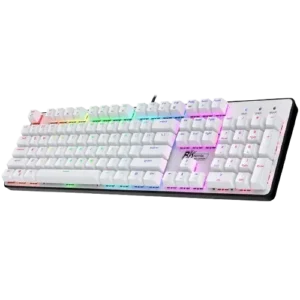
| Document Detail | Information |
| Document Title | Mechanical Keyboard User Manual |
| Document Type | User Manual |
| Brand Name | Royal Kludge |
| Product Name | Mechanical Keyboard |
| Model Number(s) | RK920 |
| PDF File Size | 807 KB |
| Number of Pages | 1 |
| Languages | English |
Royal Kludge RK920 Mechanical Keyboard
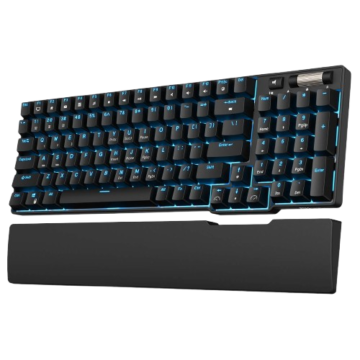
The Royal Kludge RK920 is a 104-key mechanical keyboard with adjustable single-color backlighting, gaming lighting presets, custom key illumination, and multimedia shortcuts. It uses a metal and ABS construction with two-color injection-molded ABS keycaps and mechanical switches.
The keyboard supports five predefined gaming backlight modes, including layouts for League of Legends, FPS games, and Overwatch. Additional lighting controls allow users to switch effects, adjust brightness, change animation speed, and configure custom illuminated keys.
Product Overview
The RK920 is a full-size mechanical keyboard with 104 keys, including a numeric keypad, function keys, navigation keys, and directional arrows.
Its mechanical switches are available in Blue, Red, Brown, and Black variants, depending on the product configuration.
The keyboard provides single-color backlighting with several gaming-oriented lighting arrangements and customizable settings.
Main Features
- 104-key mechanical layout: Includes a numeric keypad, function row, navigation keys, and arrow keys.
- Mechanical switches: Available in Blue, Red, Brown, and Black variants.
- Metal and ABS construction: Combines a metal structure with ABS components.
- Two-color injection keycaps: Uses molded ABS keycaps.
- Single-color backlighting: Provides adjustable illumination.
- Five gaming lighting presets: Includes LOL, FPS, eight-key, 33-key, and Overwatch configurations.
- Dynamic backlight effects: Switchable through an Fn shortcut.
- Custom key lighting: Allows selected keys to be illuminated.
- Brightness control: Increases or decreases backlight intensity.
- Effect speed control: Adjusts backlight animation speed.
- Multimedia shortcuts: Controls media playback, audio volume, and applications.
- Windows key lock: Prevents Windows key activation when enabled.
- Factory reset: Restores default settings using a keyboard shortcut.
What’s Included in the Box
The RK920 packing list identifies the following items.
| Item | Quantity |
| Mechanical Keyboard | 1 |
| Quality Inspection Label | 1 |
| User Manual | 1 |
Parts and Components
The RK920 includes standard typing keys, a numeric keypad, Fn controls, and dedicated navigation keys.
| Component | Function |
| Mechanical Keys | Provide keyboard input |
| Fn Key | Activates secondary keyboard functions |
| F1–F12 Keys | Provide multimedia and application shortcuts |
| Esc Key | Used with Fn to restore factory settings |
| Number Keys 1–5 | Select predefined gaming backlight modes |
| Keys 6–0, – and = | Select custom backlight modes |
| Print Screen Key | Used for custom backlight recording |
| Scroll Lock Key | Switches backlight effects |
| Windows Key | Supports the Windows key lock function |
| Arrow Keys | Provide navigation and backlight adjustments |
| Numeric Keypad | Provides numeric input and arithmetic keys |
Fn Key
The Fn key is located on the bottom row of the keyboard.
It works with other keys to activate secondary functions.
For example:
- Fn + F7 controls playback.
- Fn + Scroll Lock changes backlight effects.
- Fn + Up Arrow increases brightness.
- Fn + Esc restores factory settings when held for two seconds.
Function Keys
The F1–F12 keys provide application and multimedia shortcuts when used with Fn.
They support computer access, web browsing, email, music playback, track selection, volume control, and calculator access.
Numeric Keypad
The right side of the keyboard contains a dedicated numeric keypad.
It includes number keys and common arithmetic controls.
Navigation and Arrow Keys
The keyboard includes dedicated navigation keys and directional arrows.
The arrow keys also control backlight brightness and animation speed when used with Fn.
Technical Specifications
| Specification | Details |
| Brand | Royal Kludge |
| Model | RK920 |
| Product Type | Mechanical Keyboard |
| Keyboard Standard | 104-Key Mechanical Keyboard |
| Keyboard Material | Metal + ABS |
| Keycap Material | ABS |
| Keycap Construction | Two-Color Injection |
| Mechanical Switch Variants | Blue, Red, Brown, Black |
| Backlighting | Single-Color |
| Gaming Backlight Presets | 5 |
| Custom Backlight Selection Keys | 7 |
| Multimedia Shortcuts | Fn + F1–F12 |
| Backlight Brightness Adjustment | Supported |
| Backlight Effect Speed Adjustment | Supported |
| Windows Key Lock | Supported |
| Factory Reset | Fn + Esc |
| Working Voltage | 5V |
| Computer Interface | USB |
| Warranty Period | 12 Months |
| Refund Period for Qualifying Quality Issues | 7 Days |
| Replacement Period for Qualifying Quality Issues | 15 Days |
| Manufacturing Country | China |
The mechanical switch type depends on the keyboard variant.
System Compatibility
The user manual identifies the following supported operating systems.
| Operating System | Versions Listed |
| Windows | XP, Vista, 7, 8, 10 |
| macOS | Mac OS |
| Linux | Linux |
| iOS | iOS |
| Android | Android |
The compatibility section refers to USB interfaces and advises users whose devices lack the necessary interface or adapter to arrange an appropriate adapter.
Before First Use
Step 1: Check the Keyboard
Remove the keyboard from its packaging and check its condition.
Verify that the keyboard and listed documentation are present.
Step 2: Identify the USB Connection
Locate the keyboard’s connection cable or USB interface.
The keyboard operates at 5V.
Step 3: Connect to a Compatible Device
Connect the keyboard through the appropriate USB interface on the computer or compatible device.
Step 4: Check Keyboard Input
After connection, check that the keyboard responds to normal key presses.
Step 5: Select a Backlight Mode
Use Fn + Scroll Lock to switch between the available dynamic lighting effects.
Alternatively, use Fn + 1 through Fn + 5 to select a predefined gaming lighting mode.
Step 6: Adjust Brightness
Press Fn + Up Arrow or Fn + Down Arrow to adjust backlight brightness.
Multimedia Function Keys
The RK920 provides 12 multimedia and application shortcuts through the Fn key.
| Shortcut | Function |
| Fn + F1 | My Computer |
| Fn + F2 | Web |
| Fn + F3 | |
| Fn + F4 | Music |
| Fn + F5 | Previous Track |
| Fn + F6 | Next Track |
| Fn + F7 | Play / Pause |
| Fn + F8 | Stop |
| Fn + F9 | Increase Volume |
| Fn + F10 | Decrease Volume |
| Fn + F11 | Mute |
| Fn + F12 | Calculator |
Computer and Application Shortcuts
The first four shortcuts provide quick access to common computer functions.
- Fn + F1: Opens My Computer.
- Fn + F2: Activates the web function.
- Fn + F3: Activates the email function.
- Fn + F4: Activates the music function.
Media Playback Controls
The keyboard supports playback controls through Fn + F5 to Fn + F8.
- Fn + F5: Previous track.
- Fn + F6: Next track.
- Fn + F7: Play or pause.
- Fn + F8: Stop playback.
Volume Controls
Audio volume can be controlled directly from the keyboard.
- Fn + F9: Increase volume.
- Fn + F10: Decrease volume.
- Fn + F11: Mute audio.
Calculator Shortcut
Press Fn + F12 to activate the calculator function.
How to Change RK920 Backlight Settings
The RK920 includes dynamic lighting effects and dedicated brightness and animation speed controls.
Backlight Shortcut Table
| Shortcut | Function |
| Fn + Scroll Lock | Switch Backlight Effects |
| Fn + Up Arrow | Increase Backlight Brightness |
| Fn + Down Arrow | Decrease Backlight Brightness |
| Fn + Left Arrow | Decrease Backlight Effect Speed |
| Fn + Right Arrow | Increase Backlight Effect Speed |
Switching Backlight Effects
- Locate the Fn key.
- Press and hold Fn.
- Press Scroll Lock.
- Release the keys.
- Repeat the shortcut to change the selected lighting effect.
The available effects depend on the keyboard’s lighting configuration.
Increasing Backlight Brightness
Press Fn + Up Arrow.
Repeat the shortcut until the desired brightness is reached.
Decreasing Backlight Brightness
Press Fn + Down Arrow.
Repeat as needed to reduce the brightness.
Increasing Backlight Effect Speed
Press Fn + Right Arrow to increase the lighting animation speed.
Decreasing Backlight Effect Speed
Press Fn + Left Arrow to reduce the lighting animation speed.
Backlight Adjustment Limit Indicator
When the brightness or animation speed reaches its adjustment limit, the keyboard’s indicator lights flicker continuously.
This indicates that the current setting has reached its maximum or minimum available level.
Five Default Gaming Backlight Modes
The RK920 includes five predefined gaming backlight arrangements.
Each preset can be selected using Fn and a number key.
| Shortcut | Gaming Backlight Mode |
| Fn + 1 | LOL Gaming Backlight |
| Fn + 2 | FPS Gaming Backlight |
| Fn + 3 | Eight-Key Gaming Backlight |
| Fn + 4 | 33-Key Gaming Backlight |
| Fn + 5 | Overwatch Gaming Backlight |
LOL Gaming Backlight Mode
Press Fn + 1 to select the League of Legends gaming backlight arrangement.
FPS Gaming Backlight Mode
Press Fn + 2 to activate the FPS gaming lighting configuration.
Eight-Key Gaming Backlight Mode
Press Fn + 3 to select the preset eight-key lighting arrangement.
33-Key Gaming Backlight Mode
Press Fn + 4 to activate the 33-key gaming lighting configuration.
Overwatch Gaming Backlight Mode
Press Fn + 5 to select the Overwatch gaming backlight arrangement.
Custom Backlight Mode Selection
The RK920 provides seven shortcuts for selecting custom backlight modes.
| Shortcut | Custom Backlight Selection |
| Fn + 6 | Custom Mode Selection |
| Fn + 7 | Custom Mode Selection |
| Fn + 8 | Custom Mode Selection |
| Fn + 9 | Custom Mode Selection |
| Fn + 0 | Custom Mode Selection |
| Fn + – | Custom Mode Selection |
| Fn + = | Custom Mode Selection |
The instructions identify these seven shortcut combinations for custom backlight mode switching. The recording instructions also describe setting and storing three different customized lighting arrangements.
How to Customize Individual Key Backlighting
The RK920 supports custom backlight settings that allow selected keys to be illuminated.
The customization process uses the desired mode shortcut and Fn + Print Screen.
Step 1: Select a Custom Backlight Mode
Press Fn with one of the custom backlight selection keys.
For example, press Fn + 6.
Step 2: Enter Custom Backlight Settings
Press Fn + Print Screen (PrtSc).
The keyboard enters custom backlight recording mode.
The Print Screen indicator begins blinking to show that recording is active.
Step 3: Select the Desired Keys
Press each key that should be included in the customized lighting arrangement.
Repeat this step until all desired keys have been selected.
Step 4: Save the Custom Backlight
Press Fn + Print Screen again.
The keyboard saves the custom lighting arrangement and exits recording mode.
Step 5: Configure Additional Backlight Modes
Repeat the procedure to configure other supported custom backlight modes.
The manual describes storing three different customized lighting arrangements.
Custom Backlight Procedure Summary
| Step | Shortcut or Action | Result |
| 1 | Fn + 6, 7, 8, 9, 0, – or = | Select Custom Backlight Mode |
| 2 | Fn + Print Screen | Enter Recording Mode |
| 3 | Press Desired Keys | Select Keys for Illumination |
| 4 | Fn + Print Screen | Save Settings and Exit |
How to Lock the Windows Key
The RK920 provides a Windows key lock function.
This allows the Windows key to be locked during keyboard use.
Windows Key Lock Shortcut
Fn + Windows Key
Windows Key Lock Instructions
- Locate the Fn key.
- Locate the Windows key.
- Press Fn + Windows Key together.
- Repeat the shortcut when the lock state needs to be changed.
How to Reset RK920 Factory Settings
The keyboard includes a factory reset command that restores its default settings.
Factory Reset Shortcut
Fn + Esc
Factory Reset Instructions
- Locate the Fn key.
- Locate the Esc key.
- Press and hold Fn + Esc for two seconds.
- Wait for the keyboard backlight to flash three times.
- Release the keys.
The three flashes indicate that the factory reset command has been activated.
Factory Reset Indicator
| Indicator | Meaning |
| Full Keyboard Backlight Flashes Three Times | Factory Settings Restored |
RK920 Troubleshooting Guide
The following checks use the connection requirements, lighting controls, multimedia shortcuts, and reset procedure described in the manual.
| Problem or Condition | What to Check | Recommended Action |
| Keyboard Is Not Responding | USB Connection or Compatible Interface | Check the Keyboard Connection |
| Backlight Effect Needs Changing | Current Lighting Mode | Press Fn + Scroll Lock |
| Backlight Is Too Dim | Brightness Setting | Press Fn + Up Arrow |
| Backlight Is Too Bright | Brightness Setting | Press Fn + Down Arrow |
| Lighting Animation Is Too Slow | Effect Speed | Press Fn + Right Arrow |
| Lighting Animation Is Too Fast | Effect Speed | Press Fn + Left Arrow |
| Backlight Indicators Flicker at Limit | Brightness or Speed Limit Reached | Stop Adjusting in That Direction |
| Custom Backlight Is Not Saved | Recording Mode Must Be Completed | Press Fn + Print Screen Again |
| Windows Key Is Locked | Windows Lock Function | Press Fn + Windows Key |
| Keyboard Settings Need Restoring | Factory Reset Available | Hold Fn + Esc for Two Seconds |
RK920 Keyboard Is Not Responding
Check that the keyboard is connected through a suitable USB interface.
If the keyboard or its connection becomes damaged, stop using the product and contact the seller for assistance.
RK920 Backlight Is Not Changing
Press Fn + Scroll Lock to cycle through the supported dynamic lighting effects.
For predefined gaming layouts, use Fn + 1 through Fn + 5.
RK920 Backlight Is Too Dim
Press Fn + Up Arrow to increase the brightness.
RK920 Backlight Effect Is Too Slow
Press Fn + Right Arrow to increase the animation speed.
RK920 Custom Backlight Is Not Saved
After selecting the desired keys in custom recording mode, press Fn + Print Screen again to save and exit.
RK920 Windows Key Is Locked
Press Fn + Windows Key to change the Windows key lock state.
RK920 Settings Need Resetting
Hold Fn + Esc for two seconds.
The keyboard backlight flashes three times when the factory reset is activated.
Warranty Information
The Royal Kludge RK920 includes a 12-month warranty covering qualifying product quality problems.
The warranty begins from the date of purchase.
The manual provides separate procedures for refunds, replacements, and repairs.
Warranty Coverage
| Warranty Detail | Information |
| Brand | Royal Kludge |
| Model | RK920 |
| Warranty Period | 12 Months |
| Qualifying Refund Period | Within 7 Days of Purchase |
| Qualifying Replacement Period | Within 15 Days of Purchase |
| Repair Procedure | After 15 Days |
| Proof of Purchase | Purchase Receipt |
| Service Provider | Place of Purchase |
Refund Within Seven Days
If a qualifying product quality problem occurs within seven days of purchase:
- Return to the place of purchase.
- Bring the keyboard.
- Provide the purchase receipt.
- Bring the delivery materials and packaging in good condition.
- Apply for a full refund.
Replacement Within Fifteen Days
If a qualifying product quality problem occurs within 15 days of purchase:
- Return to the place of purchase.
- Bring the keyboard.
- Provide the purchase receipt.
- Include the delivery materials and packaging in good condition.
- Apply for a replacement product.
Repair After Fifteen Days
For qualifying quality problems occurring after the initial 15-day period:
- Bring the keyboard to the place of purchase.
- Provide the purchase receipt.
- Include the product packaging.
- Apply for repair service.
Damage Caused by Personal Reasons
The manual states that maintenance fees may apply when damage is caused by personal reasons rather than a qualifying product quality defect.
Warranty Exclusions
The manual identifies several conditions that may lead to warranty service refusal.
These include:
- Products with appearance damage or missing logos.
- Products beyond the warranty service period.
- Products that have been disassembled without authorization.
- Products that have been repaired, upgraded, or modified.
- Products with missing parts.
- Products damaged through their circuits or data and power interfaces.
- Products showing foreign material or other abnormal conditions identified in the warranty exclusions.
Warranty service is handled according to the manufacturer’s stated eligibility requirements.
Customer Support Information
Royal Kludge directs customers to its official website and the place of purchase for product-related assistance.
| Contact Detail | Information |
| Official Website | https://rkgamingstore.com/ |
| Email Support | support@rkgaming.com |
Frequently Asked Questions
How many keys does the Royal Kludge RK920 have?
The RK920 is a 104-key mechanical keyboard with a full-size layout. It includes a numeric keypad, function keys, navigation keys, directional arrows, and multimedia shortcuts.
How do I change the RK920 keyboard backlight?
Press Fn + Scroll Lock to switch between dynamic backlight effects. Use Fn + Up Arrow or Down Arrow to adjust brightness, and Fn + Left Arrow or Right Arrow to change animation speed.
What are the five gaming backlight modes on the RK920?
The keyboard includes five predefined gaming lighting modes: LOL, FPS, eight-key, 33-key, and Overwatch. Use Fn + 1, Fn + 2, Fn + 3, Fn + 4, or Fn + 5 to select the corresponding mode.
How do I customize individual key lighting on the RK920?
Select a custom mode using Fn + 6, 7, 8, 9, 0, – or =. Press Fn + Print Screen to enter recording mode. When the indicator begins blinking, press the keys that should be illuminated. Press Fn + Print Screen again to save and exit.
How do I lock or unlock the Windows key on the RK920?
Press Fn + Windows Key to change the Windows key lock state. The shortcut controls the keyboard’s Windows key lock function.
How do I reset the RK920 keyboard to factory settings?
Press and hold Fn + Esc for two seconds. The full keyboard backlight flashes three times to indicate that the factory settings have been restored.
What mechanical switches are available for the RK920?
The manual lists Blue, Red, Brown, and Black mechanical switch variants. The installed switch type depends on the keyboard configuration.