
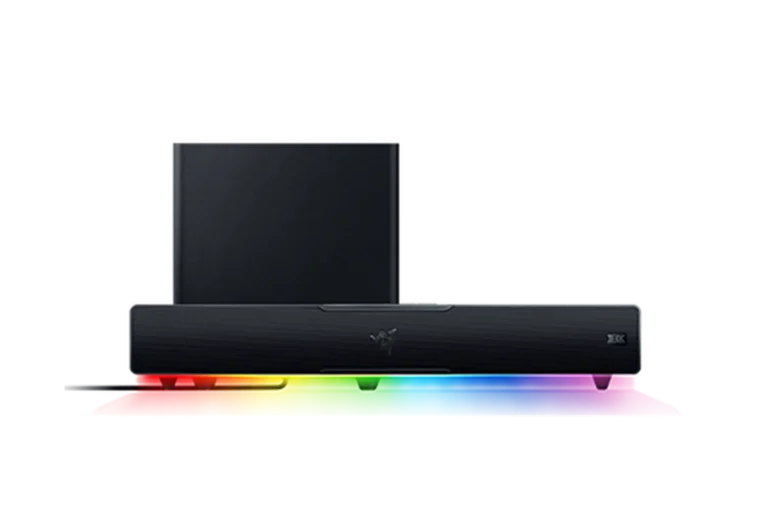
The Razer Leviathan V2 Pro is a PC soundbar with a wired, down-firing subwoofer. It uses an integrated IR camera to track the position of your ears and steer sound toward you, which Razer calls AI head tracking with adaptive beamforming. It connects to a PC over USB or to a phone or tablet over Bluetooth 5.0.
It also has a headset port, 30-zone Razer Chroma RGB lighting, and a custom 10-band equalizer. The camera only detects ear position. It cannot capture images or record video (p. 3).
Product Specifications
| Feature | Detail |
|---|---|
| Lighting | Razer Chroma RGB, 30 zones |
| Audio technology | THX Spatial Audio |
| Wireless | Bluetooth 5.0 |
| Inputs | USB audio input, 3.5 mm socket with mic in |
| Subwoofer | Wired, down-firing, 1 x 5.25″ |
| Full range drivers | 5 x 2.0″ |
| Frequency response | 40 Hz – 20 kHz |
| Max SPL | 98 dB at 1 meter |
| Equalizer | Custom 10-band EQ |
| Camera field of view | 90° |
| Optimal camera distance | 0.3 m – 1.5 m |
| Software | Razer Audio app, Razer Synapse |
What’s in the Box
- Razer Leviathan V2 Pro soundbar
- Subwoofer
- USB Type A to USB Type C cable
- Soundbar power adapter and regional power cords
- Subwoofer regional power cords
- 2.5 mm aux cable for the soundbar-to-subwoofer connection
- Important product information guide
Power cords may vary by region.
Parts and Controls
The top of the soundbar has five controls: the Equalizer button, Audio mode button, Power button with volume knob, Source button, and Chroma button. Indicator LEDs and the IR camera sit on the front. The rear has the power port, subwoofer port, headset port, and USB Type C port.
The subwoofer has a rear-facing bass port, a power port, a soundbar port, and its own power button.
Requirements
You need a USB Type A port on a PC, or a device with Bluetooth. The Razer Audio app needs iOS 14 or Android 10 (or higher) with Bluetooth. Razer Synapse needs 64-bit Windows 10 or higher. Both apps need an internet connection for installation.
Installation and Setup
- Connect the subwoofer to the soundbar’s subwoofer port using the 2.5 mm aux cable.
- Connect the soundbar to a USB Type A port on your PC using the included USB Type C to USB Type A cable.
- Attach the correct regional power cord to the soundbar’s power adapter, plug the adapter into the soundbar’s power port, then plug the cord into an outlet.
- Plug the correct regional power cord into the subwoofer and then into an outlet. The subwoofer’s Power button lights up when it is on.
Connecting the Soundbar
PC Mode
Press the Power button. All the buttons light up, and the Source button turns solid green to show PC mode. Then set the Razer Leviathan V2 Pro as the default output device in your PC’s sound settings. Set it as the default output on any other compatible device you use with it, if that device has such a setting.
Bluetooth Mode
From PC mode, press the Source button once. The Source button blinks blue and the indicator LEDs scroll back and forth to show pairing mode. On your phone or tablet, turn on Bluetooth and choose “Razer Leviathan V2 Pro (BT).” When the connection is made, the Source button turns solid blue and the LEDs turn off.
Keep the soundbar within 1 meter of your mobile device during first-time pairing. After that, it reconnects automatically whenever you switch to Bluetooth mode (p. 11).
To pair a new device, stay in Bluetooth mode and hold the Source button for 4 seconds. Pairing mode can only be started from Bluetooth mode (p. 18).
Headset Port
Plug a headset (not included) into the headset port. It works in both PC and Bluetooth modes. Double press the Source button to switch between soundbar and headset output. The Source button blinks green in PC mode or shows solid cyan in Bluetooth mode while the headset is the output.
The headset stays selected as the output when you switch between PC and Bluetooth modes. To use the headset’s microphone, make sure the Razer Leviathan V2 Pro is set as your system’s input device (p. 13).
Using the Soundbar
Power and Volume
Press the Power button to turn the soundbar on or off. Turn the knob to change the volume. The indicator LEDs spread apart as you raise it and come together as you lower it. When you reach the lowest volume, the two middle LEDs blink. Use the subwoofer’s own Power button to turn the subwoofer on or off.
EQ Presets
Press the Equalizer button to cycle through Flat, Game, Movie, Music, and Custom. The LEDs briefly show the active preset. You can adjust the Custom preset in the Razer Audio app or Razer Synapse.
Audio Modes
Press the Audio mode button to cycle through four modes:
- Stereo: native sound with no processing.
- THX Spatial Audio – Virtual Headset: sound is beamed to your ears for a headset-like experience. It suits games and content with a binaural source.
- THX Spatial Audio – Virtual Speakers: sound is beamed to seven virtual speakers for a wide soundstage centered on you. It suits multi-channel sources.
- Room Fill: a wide, balanced soundfield for several listeners.
Head tracking only works in the two THX Spatial Audio modes. In those modes, the LEDs briefly fade in and out while the camera tracks your ears. If the camera cannot track you, the LEDs continuously diverge at low brightness (p. 15).
Chroma Lighting
Press the Chroma button to cycle through Ambient awareness, Audio meter, Breathing, Fire, Spectrum cycling, Starlight, Static, and Wave. Lighting changes made in Synapse only show on these effects while Synapse is running.
Source Button Indicators
| Source button | Meaning |
|---|---|
| Solid green | PC mode |
| Blinking blue | Bluetooth pairing mode |
| Solid blue | Bluetooth connected |
| Blinking green | Headset output in PC mode |
| Solid cyan | Headset output in Bluetooth mode |
Razer Synapse and Razer Audio App
Razer Synapse (PC) controls the audio mode, EQ, Chroma lighting, and advanced features. The Razer Audio app (iOS and Android) covers EQ, audio modes, switching audio devices, and full RGB lighting control.
In Synapse, the Audio tab holds the main soundbar settings:
- Sound: volume, subwoofer level, soundbar or headset output, input source, and audio modes. Synapse can switch the soundbar to Bluetooth, but it cannot switch back to PC mode. Press the Source button to return to PC mode (p. 24).
- EQ: presets, manual adjustments (editing any preset switches it to Custom), and sound normalization. Normalization keeps sudden loud effects, such as explosions, from jumping in volume.
- Lighting: brightness, a Switch Off Lighting option that turns the lights off when your display is off, Quick Effects, and Advanced Effects through Chroma Studio.
- Power: puts the soundbar into standby after a set idle period.
The Profiles tab lets you save profiles and link them to games so they load automatically. The Settings window controls language, startup behavior, theme, and notifications. Its Reset tab can factory reset connected Razer devices that have on-board memory, which erases all profiles stored on that device’s memory (p. 32).
Safety Instructions
- Use the correct power cord for your region on both the soundbar and subwoofer.
- If you notice any hazard on either unit, unplug the power cord from the outlet right away.
- Place the soundbar and subwoofer on fully level surfaces.
- Keep both units away from liquid, humidity, and moisture.
- Operate the soundbar only between 0°C (32°F) and 40°C (104°F). If it goes outside that range, unplug or switch it off until the temperature settles.
- Do not insert objects into the openings of the soundbar or subwoofer.
- Do not take the device apart or run it under abnormal current loads. Doing so voids the warranty.
- Very loud listening over long periods can damage your hearing. The guide notes that some countries permit 86 dB for up to 8 hours a day, and recommends a comfortable volume (p. 33).
Cleaning and Maintenance
Clean the soundbar and subwoofer about once a month with a soft cloth or cotton swab to prevent dirt buildup. Do not use soap or harsh cleaning agents.
Frequently Asked Questions
How do I connect the Razer Leviathan V2 Pro to my PC?
Connect it with the included USB Type C to USB Type A cable, power on the soundbar, and set it as the default output device in your PC’s sound settings. The Source button turns solid green when it is in PC mode.
How do I pair it with my phone?
From PC mode, press the Source button once to start pairing, then select “Razer Leviathan V2 Pro (BT)” in your phone’s Bluetooth list. Solid blue on the Source button means it is connected.
How do I pair a second device?
Switch to Bluetooth mode and hold the Source button for 4 seconds. The Source button blinks blue while pairing mode is active.
Can I use a headset with the soundbar?
Yes. Plug a headset into the headset port and double press the Source button to switch output. For the microphone to work, set the soundbar as your system’s input device.
Which audio mode should I use?
Use Virtual Headset for games and binaural content, Virtual Speakers for multi-channel content, and Room Fill when several people are listening. Stereo plays the audio unprocessed.
Why do the LEDs keep spreading apart in a spatial audio mode?
That pattern means the IR camera cannot track your ears. The camera works best between 0.3 m and 1.5 m away, within its 90° field of view.
Why can’t Synapse switch the soundbar back to PC mode?
Synapse can only change the input to Bluetooth. Press the Source button on the soundbar to return to PC mode.