
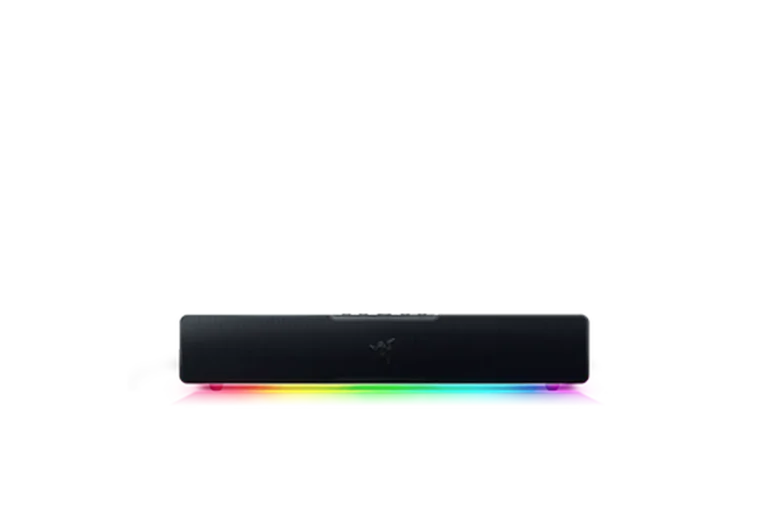
The Razer Leviathan V2 X is a compact, USB Type C powered soundbar built for PC gaming, movies, and music. It plugs into a PC for audio and can also pair with other devices over Bluetooth 5.0. A 14-zone Razer Chroma RGB light bar runs along the unit. You control it with buttons on the soundbar, Razer Synapse on Windows, or the Razer Audio app on a phone.
What’s in the Box
The package includes the soundbar, a Type C cable, and an Important Product Information Guide (p. 4).
Product Specifications
| Feature | Detail |
|---|---|
| Lighting | Razer Chroma RGB, 14 zones |
| Bluetooth | 5.0 |
| Audio input | USB, plus Bluetooth |
| Frequency response | 85 Hz – 20 kHz |
| Max SPL | 90 dB |
| Input power | USB Type C with Power Delivery |
| Full range racetrack drivers | 2 x 2 x 4″ / 2 x 48 x 95 mm |
| Passive radiator | 2 x 2 x 4.1″ / 2 x 48 x 105 mm |
| Driver type | Full range drivers, passive radiator |
| Extras | Customizable EQ, Razer Audio app, PC audio device toggling (via Razer Synapse) |
Requirements
The soundbar needs a Type C port on a PC, or a device with Bluetooth. Razer Synapse requires Windows 10 64-bit or higher and an internet connection for installation. The Razer Audio app requires iOS 13 or Android 10 or higher, Bluetooth, and an internet connection to install (p. 5).
Parts and Controls
The top of the soundbar has four buttons: Source, Bluetooth, Power, and volume up/down. The lighting sits on the front, and the Type C port is on the rear (p. 4).
Setting Up the Soundbar
- Place the soundbar on a flat, stable surface.
- Connect it to a Type C port on your PC with the supplied cable.
- Install Razer Synapse when prompted, or download it from razer.com/synapse (p. 7).
Connecting the Soundbar
PC Mode
- Press the Power button. The lighting briefly turns solid green, which means the soundbar is in PC mode. It then returns to spectrum cycling (the default) or your current effect.
- Check that the cable is in a Type C port on your PC.
- Set the Razer Leviathan V2 X as the default output device on your PC.
For other compatible devices, set it as their default output device where that option exists (p. 8).
Bluetooth Mode
- While powered on in PC mode, press the Bluetooth button. The lighting scrolls back and forth to show pairing mode.
- Turn on Bluetooth on your device and choose “Razer Leviathan V2 X (BT)” from the list.
- Wait for the connection. The lighting briefly shows solid blue once connected (p. 9).
Using the Buttons
Power
Press Power to turn the soundbar on or off. The lighting diverges in green when it powers on and converges in red when it powers off. The soundbar resumes with the last audio source you used (p. 10).
Source
Press Source to switch between PC mode and Bluetooth mode. When you switch to Bluetooth, the soundbar tries to reconnect to your device and shows solid blue briefly. It enters pairing mode if it finds no device.
In PC mode, press and hold Source to toggle between the soundbar and a secondary PC playback device. You choose that secondary device in Razer Synapse (p. 11).
Bluetooth
To pair a new device, hold the Bluetooth button for 5 seconds while in Bluetooth mode. Pairing can only be started from Bluetooth mode. In PC mode, a single press switches to Bluetooth and reconnects to the last known device (pp. 11–12).
When Bluetooth is the active source, the button also controls playback:
| Press | Action |
|---|---|
| Single | Play/pause |
| Double | Skip track |
| Triple | Previous track |
Volume
The volume buttons adjust the current audio mode. The lighting briefly shows the volume level, then diverges as you turn it up or converges as you turn it down (p. 13).
Razer Synapse and the Razer Audio App
Razer Synapse (Windows 10 64-bit or higher) controls the soundbar’s lighting and audio settings. The Razer Audio app lets you switch from your PC to a mobile device, mute or adjust volume, and change EQ using presets or your own settings (p. 13).
Audio Settings in Synapse
The Audio tab is the main tab for this product. Changes save automatically to your system and cloud storage (p. 16). Its Sound subtab includes:
- Volume: Adjusts the soundbar volume. You can also open the Windows volume mixer for the current playback device.
- Toggle PC audio devices: Sets the secondary playback device used by the Source button’s press-and-hold action.
- Input source: Switches the soundbar to Bluetooth mode. Synapse cannot switch it back, so press the Source button on the soundbar to return to PC mode (pp. 17–18).
- Audio equalizer: Offers presets for balance, gaming, movies, and music. If you adjust a preset by hand, it becomes Custom (p. 18).
Lighting Settings in Synapse
You can turn the lighting off with the Brightness toggle or adjust it with the slider. Switch Off Lighting turns the lighting off when your display turns off. Quick Effects are listed below (pp. 19–20):
| Effect | What it does | Setup |
|---|---|---|
| Ambient awareness | Reflects the average color of a selected screen region | Select a screen region |
| Audio meter | LEDs react to audio level | Select a Color Boost level |
| Breathing | Fades in and out of chosen colors | Up to 2 colors, or randomize |
| Fire | Mimics flames | None |
| Spectrum cycling | Cycles through 16.8 million colors | None |
| Starlight | LEDs fade in and out at random | Up to 2 colors or randomize, plus a duration |
| Static | Stays one color | Select a color |
| Wave | Scrolls left-to-right or right-to-left | Select direction |
The Chroma Sync button synchronizes these effects with other Razer Chroma-enabled devices. Only devices that support the selected effect will sync. Advanced Effects lets you use or build a Chroma Effect in Chroma Studio. The Power subtab sets the soundbar to enter standby after a period of inactivity (pp. 20–21).
Profiles and Linked Games
The Profiles tab manages profiles and links them to games and applications. A profile can activate automatically when a linked game runs. You can import profiles from your computer or the cloud, and rename, duplicate, export, or delete them (pp. 22–23).
Safety Instructions
- If the soundbar won’t operate properly and troubleshooting doesn’t help, unplug it and contact the Razer hotline or visit support.razer.com.
- Don’t take the device apart or run it under abnormal current loads. Doing so voids the warranty.
- Keep it away from liquid, humidity, and moisture.
- Operate it only between 0°C (32°F) and 40°C (104°F). If the temperature goes outside that range, unplug or switch off the device until it stabilizes.
- Listening at very high volume for long periods can damage your hearing. The guide notes that some countries allow a maximum of 86 dB for 8 hours a day and recommends a comfortable volume (p. 26).
Cleaning and Maintenance
Maintenance is minimal. Once a month, wipe the soundbar with a soft cloth or cotton swab to prevent dirt buildup. Don’t use soap or harsh cleaning agents (p. 26).
Frequently Asked Questions
How do I connect the Razer Leviathan V2 X to a PC?
Plug the Type C cable into a Type C port on your PC and press Power. A brief solid green light confirms PC mode. Then set the soundbar as your PC’s default output device.
How do I pair it with a phone or tablet?
Press the Bluetooth button while in PC mode. When the lighting scrolls back and forth, select “Razer Leviathan V2 X (BT)” on your device. A brief solid blue light means it’s connected.
How do I pair a new Bluetooth device later?
Switch to Bluetooth mode, then hold the Bluetooth button for 5 seconds to start pairing. Pairing can’t be started from PC mode.
Can I control music playback from the soundbar?
Yes, over Bluetooth only. A single press of the Bluetooth button plays or pauses, a double press skips ahead, and a triple press goes to the previous track.
How do I return to PC mode after using Synapse to select Bluetooth?
Press the Source button on the soundbar. Synapse can set Bluetooth mode but can’t switch back to PC mode.
Do I need Razer Synapse to use the soundbar?
The guide doesn’t say the soundbar needs Synapse for basic PC use. It does tell you to install Synapse when prompted during setup. You need Synapse for the secondary playback device, custom lighting effects, and profiles.
Why did the lighting change when I adjusted the volume?
The lighting briefly shows the current volume level, then returns to your selected effect. It diverges as you raise the volume and converges as you lower it.
Can I use the soundbar in hot or humid conditions?
Keep it away from moisture and use it only between 0°C (32°F) and 40°C (104°F). If it goes beyond that range, unplug or switch it off until it cools to a suitable temperature.