
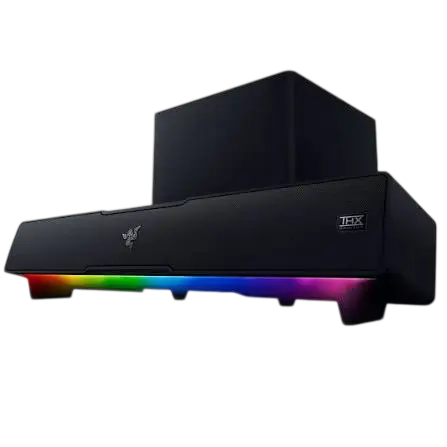
The Razer Leviathan V2 is a multi-driver gaming soundbar paired with a wired subwoofer. It is designed to sit beneath a monitor, at 500 mm (19.7″) long. Audio comes in over USB from a PC or wirelessly over Bluetooth 5.2, with a 60 ms low-latency mode.
On Windows 10 or later, Razer Synapse adds THX Spatial Audio for 360° positional sound. The soundbar also has 18 zones of Razer Chroma RGB lighting. Mobile apps and Synapse handle equalizer settings and lighting.
Product Specifications
| Feature | Detail |
|---|---|
| Frequency response | 45 Hz – 20 kHz |
| Power | External 65 W power adapter |
| Full range drivers | 2 x 2.0 x 4.0″ / 48 x 95 mm |
| Tweeters | 2 x 0.75″ / 20 mm |
| Passive radiators | 2 x 1.7 x 5.3″ / 43 x 135 mm |
| Subwoofer driver | 1 x 5.5″ / 140 mm, down-firing |
| Soundbar size | 19.7 x 3.6 x 3.3″ / 500 x 91.3 x 84 mm |
| Subwoofer size | 8.67 x 8.67 x 9.5″ / 220 x 220 x 241.5 mm |
| Soundbar weight | 3.08 lbs / 1.4 kg |
| Subwoofer weight | 6.61 lbs / 3.0 kg |
| Connectivity | USB audio input, Bluetooth 5.2 |
| Equalizer | Custom 10-band EQ |
What’s in the Box
- Razer Leviathan V2 soundbar
- Subwoofer
- Type-C to Type-A cable
- Detachable feet for adjusting the soundbar angle (flat feet come pre-installed, raised feet are included)
- Power adapter with a regional power cord
- Important Product Information Guide
To use the soundbar you need either a USB-A port or a device with Bluetooth 5.0. Razer Synapse requires Windows 10 64-bit or higher and an internet connection for installation. The Razer Audio and Razer Chroma RGB mobile apps require iOS 12 or Android 8.1 Oreo (or higher) with Bluetooth 5.0, plus an internet connection to install.
Parts and Controls
The top of the soundbar holds the main controls and lighting.
- Source button: switches between PC mode and Bluetooth mode.
- Bluetooth button: jumps to Bluetooth mode and starts pairing.
- Power button: turns the soundbar on or off.
- Volume buttons: raise or lower the volume for the current source.
- Chroma lighting: the RGB light strip.
The rear has the power port, a Type-C port, and the subwoofer output port. The subwoofer has a rear-facing bass port and a connector for the soundbar.
Setting Up the Soundbar
- Place the soundbar and subwoofer on a flat, stable surface. The subwoofer should sit on the floor regardless of where the soundbar goes.
- Plug the subwoofer connector into the subwoofer output port on the soundbar. Press down on the connector’s catch clip before plugging or unplugging it.
- Connect the correct regional power cord to the power adapter and plug it into an outlet. Then connect the adapter to the soundbar’s power port.
Changing the Soundbar Angle
Swap the pre-installed flat feet for the raised feet to tilt the soundbar. This helps sound reach you with less obstruction.
Connecting to a PC
- Connect the soundbar to a USB-A port on your PC using the included Type-C to Type-A cable.
- Press the Power button. The Power and Source buttons light green when the soundbar is on and in PC mode.
- Right-click the sound icon in the system tray and choose Open Sound settings.
- Set Razer Leviathan V2 as the default output device.
Connecting by Bluetooth
- Press the Power button to turn the soundbar on.
- Press the Bluetooth button. The Source button blinks blue to show it is in pairing mode.
- Turn on Bluetooth on your device and select Razer Leviathan V2 from the list.
- Wait for the connection. A static blue Source button means you are connected.
To pair with a different device, hold the Bluetooth button for 6 seconds while in Bluetooth mode. A tone signals that pairing mode is active.
Everyday Operation
Pressing Source while the soundbar is on switches between PC and Bluetooth modes. When you switch to Bluetooth, it reconnects to the last known device and shows solid blue. If no device is found, it enters pairing mode instead. Pressing the Bluetooth button in PC mode does the same thing.
Customizing with Razer Synapse and the Mobile Apps
Razer Synapse is available in PC mode only. The installer is at razer.com/synapse. An internet connection is needed for installation, updates, and cloud features. A Razer ID is recommended but optional.
Audio Settings
The Audio tab is the main page for the soundbar, and changes save automatically to your system and cloud storage. It offers:
- Stereo or THX Spatial Audio: toggle between the two. THX Spatial Audio needs Windows 10 or above.
- Volume: adjust the soundbar volume, or open the Windows volume mixer.
- Toggle PC audio devices: pick a secondary playback device, then press and hold the Source button on the soundbar to switch audio to it.
- Center focus: directs the soundstage toward you for clearer center-channel audio. It works best with multi-channel content.
- Audio equalizer: presets for balance, gaming, movies, or music. Adjusting any preset manually switches it to Custom.
Lighting Settings
The Lighting tab covers brightness, which you can turn off or set with a slider. Switch Off Lighting turns the lights off when your display is off. Quick Effects include:
| Effect | What it does |
|---|---|
| Breathing | Fades in and out of up to 2 chosen colors, or random colors |
| Spectrum cycling | Cycles through 16.8 million colors continuously |
| Static | Holds one selected color |
| Wave | Scrolls light across the bar in the direction you choose |
You can sync effects with other Chroma-enabled devices using the Chroma Sync button. Only devices that support the chosen effect will sync. Advanced Effects open Chroma Studio for building your own.
Profiles and Reset
Profiles can be created, imported, renamed, duplicated, exported, or deleted. They can also be linked to games so a profile loads when the game runs. In Synapse settings you can change the language and startup behavior or sync profiles to the cloud. The Reset tab can factory reset connected Razer devices that have on-board memory. A reset erases all profiles stored on that device’s memory (PDF p. 27).
Mobile Apps
The Razer Audio app can mute or adjust volume, edit EQ settings, and set the auto shutoff feature. The Razer Chroma RGB app changes the lighting effect, with 16.8 million colors available.
Safety Instructions
- Operate the soundbar only between 0°C (32°F) and 40°C (104°F). If the temperature goes beyond that range, unplug or switch off the device until it stabilizes.
- Keep it away from liquid, humidity, and moisture.
- Do not take the device apart or run it under abnormal current loads. Doing so voids the warranty.
- If troubleshooting does not fix a problem, unplug the device and contact Razer at support.razer.com.
- Prolonged loud listening can damage your hearing. The PDF notes that some countries permit a maximum of 86 dB for 8 hours a day, and recommends a comfortable volume (PDF p. 28).
Cleaning and Maintenance
Maintenance is minimal. Once a month, wipe the soundbar and subwoofer with a soft cloth or cotton swab to prevent dirt buildup. Do not use soap or harsh cleaning agents.
Frequently Asked Questions
How do I connect the Razer Leviathan V2 to a PC?
Use the included Type-C to Type-A cable to connect a USB-A port on the PC to the soundbar, then press Power. A green Power and Source button shows PC mode is active. Finally, set Razer Leviathan V2 as the default output device in Windows Sound settings.
How do I pair it with a new Bluetooth device?
Switch to Bluetooth mode, then hold the Bluetooth button for 6 seconds. A tone confirms pairing mode. Choose Razer Leviathan V2 from your device’s Bluetooth list, and the Source button turns solid blue when connected.
What do the Source button colors mean?
Green means PC mode. A blinking blue light means the soundbar is in Bluetooth pairing mode. Solid blue means it is connected to a Bluetooth device.
Can I use THX Spatial Audio on a phone or console?
THX Spatial Audio is PC based and set up through Razer Synapse, which requires Windows 10 or above. The PDF does not describe THX Spatial Audio for Bluetooth or other sources.
Where do I connect the subwoofer?
The subwoofer plugs into the subwoofer output port on the rear of the soundbar. Press the connector’s catch clip before inserting or removing it, and place the subwoofer on the floor.
Can I change the equalizer without a PC?
Yes. The Razer Audio mobile app lets you customize EQ settings and the auto shutoff feature. Synapse offers EQ presets and a custom 10-band EQ, but only in PC mode.
What should I do if the soundbar stops working properly?
The PDF has no troubleshooting section. It advises unplugging the device and contacting Razer support at support.razer.com if you cannot operate it properly. Before that, you can check that it is in the right source mode and, for PC use, that it is the default Windows output device.
How do I clean it?
Wipe the soundbar and subwoofer monthly with a soft cloth or cotton swab. Avoid soap and harsh cleaning agents.