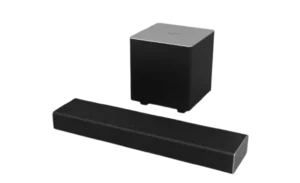
| Brand Name | VIZIO |
| Product Name | Sound Bar |
| Model Number | SB2021n-G6 |
| File Size | 176 KB |
| Number of Pages | 2 |
| Languages Covered | English and French |
VIZIO SB2021n-G6 Sound Bar Guide
The VIZIO SB2021n-G6 can be connected to a TV using several audio-output methods or paired wirelessly with a compatible Bluetooth device. The official setup diagram shows Digital Optical, Digital Coaxial, RCA audio and AUX audio connection options, along with controls for selecting the active audio source.
For Bluetooth playback, the sound bar can be placed into pairing mode from either the sound bar itself or its remote. Once connected, music playback and volume can be controlled from the Bluetooth device.
Quick Setup
The basic setup process has two main connection choices:
- Connect the sound bar to a TV using an audio cable.
- Connect a phone, tablet or another compatible device using Bluetooth.
After the sound bar is connected to power, it automatically begins searching for an audio input. The INPUT button on either the sound bar or remote can be used to change the active source manually.
Inputs and TV Connection Options
The setup diagram on page 1 shows four common audio outputs on a TV:
| TV Audio Output | Connection Shown in Guide |
| Digital Optical OUT | Digital Optical cable |
| Digital Coaxial OUT | Coaxial Audio cable |
| RCA Audio OUT | Stereo RCA-to-3.5 mm audio cable with adapter |
| AUX Audio OUT | Analog audio output shown in the TV connection diagram |
The guide instructs the user to choose one cable and connect the sound bar to the corresponding TV audio output.
Important RCA Connection Warning
The connection diagram specifically warns:
Do not connect the sound bar to the TV’s Video Input R/L connectors.
The audio connection must use the television’s audio output rather than video-input connectors.
How to Connect the VIZIO SB2021n-G6 to a TV
Step 1: Choose an Audio Connection
Check the available audio outputs on the television.
The VIZIO guide shows:
- Digital Optical OUT
- Digital Coaxial OUT
- RCA Audio OUT
- AUX Audio OUT
Use one compatible connection method.
Step 2: Connect the Audio Cable
Connect one end of the chosen cable to the corresponding audio output on the TV.
Connect the other end to the appropriate connection on the sound bar.
The page 1 setup diagram illustrates the TV, sound bar and subwoofer arrangement and shows the three cable types used for the main wired connection methods.
Step 3: Connect Power
Connect the sound bar’s power cable and plug it into an electrical outlet.
Step 4: Let the Sound Bar Find the Input
After power is connected, the sound bar automatically begins searching for an available audio source.
If the correct source is not selected automatically, press the INPUT button on:
- The sound bar, or
- The remote control.
Continue changing inputs until audio from the connected device is heard.
Digital Optical Connection
A Digital Optical cable can carry TV audio to the sound bar.
The setup illustration shows the cable running from the television’s Digital Optical OUT connection to the sound bar.
No Sound When Using Digital Optical
If the sound bar is connected through Digital Optical but no audio can be heard, VIZIO instructs the user to change the TV’s digital audio setting to PCM.
The television’s own user manual should be checked for the exact location of its audio-format setting because menus differ between TVs.
Digital Coaxial Connection
A Digital Coaxial cable is another connection option shown in the setup diagram.
Connect the cable to the television’s Digital Coaxial OUT, then select the corresponding input on the sound bar when necessary.
No Sound When Using Digital Coaxial
The same PCM requirement applies when audio is connected through Digital Coaxial.
If no sound is produced:
- Open the TV’s audio settings.
- Find the digital audio output format.
- Change it to PCM.
- Return to the sound bar and make sure the correct input is selected.
RCA and AUX Audio Connections
The page 1 TV illustration also labels:
- RCA Audio OUT
- AUX Audio OUT
A stereo RCA-to-3.5 mm audio cable with an adapter is shown among the cable choices.
When using an analog connection, make sure the cable is connected to an audio output, not a video input.
How to Change Inputs on the VIZIO Sound Bar
The sound bar searches for an audio input automatically after power-up.
To change the source manually:
- Press the INPUT button on the sound bar, or
- Press the corresponding input control on the remote.
Continue through the available sources until the required connected device is selected.
This is particularly useful when several sources are connected or when the sound bar does not automatically select the expected TV connection.
Sound Bar Controls
The control-panel illustration on page 1 shows five main buttons on the sound bar:
| Control | Purpose |
| Power | Powers the sound bar |
| Input | Changes the selected audio source |
| Bluetooth | Starts Bluetooth pairing |
| Volume – | Lowers volume |
| Volume + | Raises volume |
The Bluetooth button is specifically used during wireless pairing and must be held for five seconds when pairing is started directly from the sound bar.
How to Connect the VIZIO SB2021n-G6 With Bluetooth
Bluetooth provides a wireless way to play audio from a compatible phone, tablet or other Bluetooth device.
Step 1: Start Bluetooth Pairing Mode
There are two methods.
From the sound bar:
Press and hold the Bluetooth button for 5 seconds.
From the remote:
Select the Bluetooth button on the remote.
Step 2: Search From the Bluetooth Device
Open the Bluetooth menu on the phone, tablet or other device.
Search for the VIZIO sound bar and select it when it appears in the available-device list.
Step 3: Play Audio
After the connection is established, audio can be played through the sound bar.
The connected Bluetooth device can also be used to control volume.
Troubleshooting
The Quick Setup Guide contains a few direct checks that can solve common setup problems.
Sound Bar Is Connected but There Is No TV Audio
First, make sure the correct source is selected.
Press the INPUT button on the sound bar or remote to cycle through the available audio sources.
If Digital Optical or Digital Coaxial is being used, check the TV’s audio settings and change its output format to PCM.
No Sound Through Optical Cable
Set the television’s digital-audio output to PCM and make sure the Optical input is selected on the sound bar. VIZIO directs users to the TV owner’s manual for the exact audio-setting procedure.
No Sound Through Coaxial Cable
Digital Coaxial audio may also require the television’s audio output to be set to PCM.
After changing the TV setting, use the INPUT control to select the corresponding sound-bar source.
Bluetooth Device Cannot Find the Sound Bar
Place the sound bar into Bluetooth search mode again.
Press and hold the sound bar’s Bluetooth button for 5 seconds, or use the Bluetooth button on the remote, then search again from the Bluetooth device.
Wrong Audio Source Is Playing
Press the INPUT button on the sound bar or remote until the required connected source is selected.
Customer Support
VIZIO provides the following support information in the English Quick Setup Guide:
| Support Method | Details |
| Phone | (877) 698-4946 |
| Text Message | (205) 301-3729 |
| Website | support.vizio.com |
The text-message support number is marked for U.S. use, and message/data rates may apply.
Frequently Asked Questions
How do I connect the VIZIO SB2021n-G6 sound bar to my TV?
Choose one of the audio outputs shown in the guide, such as Digital Optical, Digital Coaxial or an analog audio connection. Connect the corresponding cable between the TV and sound bar, connect power and let the sound bar search for an input. The INPUT button can be used to select the source manually.
What inputs can be used with the VIZIO SB2021n-G6?
The setup diagram shows TV connection options using Digital Optical, Digital Coaxial, RCA Audio and AUX Audio outputs.
Why does my VIZIO sound bar have no sound with an optical cable?
When Digital Optical is being used and no audio is heard, VIZIO recommends changing the television’s digital-audio setting to PCM. The same instruction applies to Digital Coaxial connections.
How do I put the VIZIO SB2021n-G6 into Bluetooth pairing mode?
Press and hold the Bluetooth button on the sound bar for 5 seconds. Alternatively, select the Bluetooth button on the remote. Then search for the sound bar from the Bluetooth device.
Can I control the VIZIO sound bar volume from my phone?
Yes. Once a Bluetooth device is connected, VIZIO states that audio playback and volume can be controlled from that Bluetooth device.
How do I change the input on the VIZIO sound bar?
Press the INPUT button on either the sound bar or remote. The sound bar also searches automatically for an audio source when powered and connected.
Can the RCA cable be connected to the TV’s red and white video inputs?
No. The page 1 connection diagram specifically warns not to connect to Video Input R/L. The sound bar must be connected to a suitable TV audio output.