| Field | Details |
| Document Title | ElitePRO S1100 Smart Thermostat |
| Document Type | User Guide |
| Brand Name | Honeywell Home |
| Product Name | ElitePRO S1100 Smart Thermostat |
| Model Number(s) | THX1100W3, THX1100B4 |
| PDF File Size | 471.2 KB |
| Number of Pages | 2 |
| Languages Covered | English and Spanish |
Honeywell Home ElitePRO S1100 Smart Thermostat
The Honeywell Home ElitePRO S1100 Smart Thermostat is a connected thermostat designed to control compatible residential heating and cooling systems. It features a touchscreen interface, dual-band WiFi connectivity, customizable display options, indoor room prioritization, and remote control through the First Alert by Resideo app.
The ElitePRO S1100 is available in two versions: THX1100W3 with a white finish and THX1100B4 with a black finish.
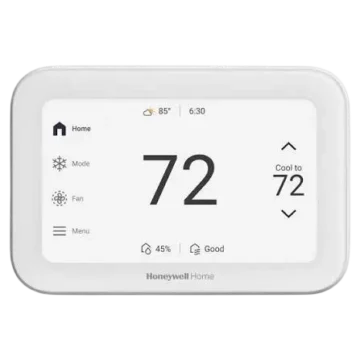
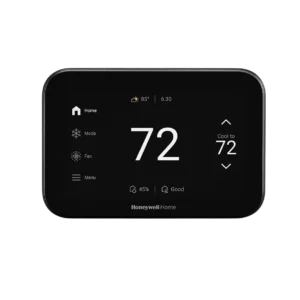
The thermostat displays the current indoor temperature, selected temperature setpoint, system mode, fan mode, indoor humidity, indoor air quality information, weather, and time. Its touchscreen provides access to temperature adjustments, preferences, scheduling-related features, and connected equipment controls.
Through the First Alert by Resideo app, the thermostat supports Auto Away, smart scheduling, alerts, reminders, monthly energy reports, and remote thermostat control. Compatible wireless indoor room sensors can also be used to prioritize the temperature of selected rooms.
The ElitePRO S1100 supports Matter connectivity, allowing compatible Matter controllers to manage thermostat temperature setpoints and system modes through supported automations.
When configured with compatible indoor air quality equipment, the thermostat can also provide humidity and ventilation controls.
This guide explains the touchscreen controls, mobile app connection, WiFi setup, display customization, room prioritization, indoor air quality settings, Matter pairing, and troubleshooting procedures.
Technical Specifications
| Specification | Details |
| Brand | Honeywell Home |
| Product Name | ElitePRO S1100 Smart Thermostat |
| Product Type | Smart Thermostat |
| Model Numbers | THX1100W3, THX1100B4 |
| Manufacturer | Resideo Technologies, Inc. |
| Input Rating | 24V AC, 60 Hz, 0.11A |
| Display | Color Touchscreen |
| WiFi | Dual-Band 2.4 GHz and 5 GHz |
| Bluetooth | Bluetooth Low Energy (BLE), 2.4 GHz |
| RedLINK | 900 MHz |
| Smart Home Connectivity | Matter |
| Mobile App | First Alert by Resideo |
| Heating Setpoint Range Referenced in Troubleshooting | 40–90°F (4.5–32°C) |
| Cooling Setpoint Range Referenced in Troubleshooting | 50–99°F (10–37°C) |
| System Modes Referenced | Heat, Cool, Emergency Heat, Auto |
| Fan Mode Control | Available on Home Screen |
| Customizable Idle Screen | 7 Display Styles and Colors |
| Wireless Room Sensor Support | Compatible Wireless Indoor Room Sensors |
| Room Prioritization | Manual or Activity-Based |
| Indoor Air Quality Controls | Humidification, Dehumidification, Ventilation, When Configured |
| App-Based Features | Auto Away, Smart Scheduling, Alerts, Reminders, Energy Reports |
| Smart Home Integration | Matter-Enabled Automations |
| Warranty | 5-Year Limited Warranty |
| Installation Classification | Trade Product; Professional Installation May Be Required for Warranty Coverage |
Actual temperature settings and available controls may be limited by thermostat configuration or installer-defined range stops.
Thermostat Models and Color Options
The ElitePRO S1100 is available in two model variants.
| Model Number | Thermostat Color |
| THX1100W3 | White |
| THX1100B4 | Black |
Both versions belong to the ElitePRO S1100 Smart Thermostat product family.
Thermostat Touchscreen and Display Guide
The ElitePRO S1100 provides a color touchscreen with several controls and information areas.
The Home screen presents the current indoor conditions, thermostat operating modes, and selected temperature.
Home Screen Components
| Display Item | Function |
| Homescreen | Main thermostat operating interface. |
| Weather | Displays weather information. |
| Time | Shows the current time. |
| Current Temperature | Displays the current indoor temperature. |
| System Mode | Shows the selected heating or cooling mode. |
| Fan Mode | Provides access to fan mode control. |
| Menu | Opens thermostat settings and additional features. |
| Options Menu | Provides access to additional operating options. |
| Indoor Humidity | Displays the indoor humidity reading. |
| Indoor Air Quality | Displays indoor air quality information. |
| Set Temperature | Shows the selected temperature setpoint. |
| Temperature Adjustment Arrows | Allow the temperature setpoint to be changed. |
| Schedule Status | Displays scheduling information, such as Following Schedule. |
Current Temperature Display
The Home screen shows the current indoor temperature.
This represents the temperature being measured by the thermostat.
Temperature Setpoint Display
The selected temperature appears separately from the current room temperature.
The temperature adjustment arrows are positioned beside the setpoint.
System Mode
The System Mode area identifies the selected heating or cooling operating mode.
The thermostat instructions reference the following modes:
- Heat
- Cool
- Emergency Heat
- Auto
Available modes depend on the connected heating and cooling equipment and the thermostat configuration.
Fan Mode
The Fan Mode control is displayed on the Home screen.
It provides access to the fan’s operating mode.
Menu
The Menu provides access to additional thermostat settings and features, including:
- WiFi
- Preferences
- Room Priority
- Matter
- Humidification
- Dehumidification
- Ventilation
Some menu options depend on the equipment and features configured for the installation.
Indoor Humidity Display
The thermostat can display indoor humidity information on its Home screen.
When the thermostat is configured to control humidity equipment, additional humidification or dehumidification settings become available.
Indoor Air Quality Display
The Home screen includes an indoor air quality information area.
The displayed example identifies indoor air quality with a status reading of Good.
When compatible equipment is configured, indoor air quality functions can be managed through the thermostat or First Alert app.
How to Adjust the Temperature
The ElitePRO S1100 displays the desired temperature setpoint on its touchscreen.
Changing the Temperature Setpoint
- Open the thermostat Home screen.
- Locate the Set Temperature area.
- Use the displayed temperature adjustment arrows to change the desired temperature.
- Check the selected temperature shown on the screen.
The thermostat’s selected operating mode determines which temperature setting is being adjusted.
Temperature Setpoint Ranges
The user guide identifies the following ranges when discussing restricted temperature adjustments.
| Mode | Temperature Range |
| Heat | 40–90°F (4.5–32°C) |
| Cool | 50–99°F (10–37°C) |
Installer settings may restrict the selectable temperature range.
If the thermostat does not allow the required temperature to be selected, the operating mode and any configured range stops should be checked.
Temperature Adjustments Restricted by Lockout
If the display shows Unlock, the thermostat owner may have enabled a lockout setting.
This restriction can prevent temperature adjustments.
The owner-defined lockout settings must be addressed before unrestricted adjustments can be made.
Connecting the Thermostat to WiFi
The ElitePRO S1100 supports dual-band WiFi connections.
Compatible WiFi frequencies include:
- 2.4 GHz
- 5 GHz
A WiFi connection allows the thermostat to use supported internet-connected features.
How to Connect the ElitePRO S1100 to WiFi
- Touch Menu on the thermostat screen.
- Scroll through the available menu options.
- Select WiFi.
- Follow the instructions displayed on the screen.
- Enter the WiFi network name (SSID).
- Enter the WiFi password.
- Complete the on-screen connection process.
The thermostat requires the correct network name and password to connect successfully.
WiFi Connection Requirements
| Requirement | Description |
| Wireless Network | Compatible WiFi network |
| WiFi Band | 2.4 GHz or 5 GHz |
| Network Name | SSID |
| Authentication | Correct WiFi Password |
| Router Address Assignment | Automatic IP Assignment (DHCP), for the documented setup |
If the connection fails, the troubleshooting procedures below should be followed.
Connecting the ElitePRO S1100 to the First Alert by Resideo App
The thermostat can be connected to the First Alert by Resideo mobile app.
The app provides remote control and additional connected features.
How to Get the First Alert App
The manufacturer’s app download page is:
https://info.firstalert.com/FA-app-download
The QR code printed in the thermostat user guide also directs users to the app connection process.
Mobile App Connection Instructions
- Access the First Alert by Resideo app download page using the provided link or QR code.
- Follow the app installation and connection instructions.
- Complete the prompts for connecting the ElitePRO S1100 thermostat.
- Use the app to access the supported thermostat functions.
First Alert by Resideo App Features
The First Alert app provides several connected thermostat features.
| App Feature | Function |
| Auto Away | Supports automatic Away operation. |
| Smart Scheduling | Provides connected scheduling features. |
| Alerts and Reminders | Displays supported thermostat notifications. |
| Monthly Energy Reports | Provides monthly energy reports. |
| Energy Rebate Program | Provides access to information about available thermostat incentives and rebates. |
| Remote Thermostat Control | Allows supported thermostat controls to be accessed from another location. |
| Water Leak Detector Monitoring | Supports monitoring compatible water leak detectors sold separately. |
| Smoke and Carbon Monoxide Detector Monitoring | Supports monitoring compatible smoke and carbon monoxide detectors sold separately. |
Auto Away and Smart Scheduling
Auto Away and Smart Scheduling are available as connected features through the First Alert app.
These functions support automated temperature management and scheduling.
Alerts and Reminders
The app provides access to supported thermostat alerts and reminders.
Monthly Energy Reports
Monthly energy reports are available through the app.
Remote Thermostat Control
The First Alert app supports thermostat control from outside the home.
This provides access to supported thermostat functions without requiring physical interaction with the device.
Monitoring Other Compatible Devices
The app can also monitor compatible:
- Water leak detectors
- Smoke detectors
- Carbon monoxide detectors
These detectors are sold separately.
Energy Rebates and Incentives
The ElitePRO S1100 user guide provides a resource for identifying energy providers that offer thermostat incentives and rebates.
Available programs can be searched through:
https://resideo.info/utility-savings-programs
Available incentives depend on the energy provider and applicable program requirements.
How to Customize the Idle Screen
The ElitePRO S1100 allows the idle screen’s appearance to be customized.
The thermostat offers seven different display styles and colors.
These options allow the display to be configured according to user preferences.
How to Change the Idle Screen
- Touch Menu.
- Select Preferences.
- Select Display.
- Select Idle Screen.
- Choose the preferred display style.
- Preview the selected appearance.
- Select Save to store the setting.
Idle Screen Settings Path
Menu > Preferences > Display > Idle Screen
Display Customization Options
The thermostat allows selection from seven different idle-screen styles and colors.
The customization interface includes a preview feature so that the selected appearance can be checked before it is saved.
How to Prioritize Rooms for Comfort
The ElitePRO S1100 supports room prioritization using compatible wireless indoor room sensors.
This feature allows temperature control to focus on selected areas of the home.
How Room Prioritization Works
Compatible wireless indoor room sensors can be used to prioritize different rooms.
The user can manually select which rooms should receive priority.
Alternatively, compatible sensors can automatically determine room priority when activity is detected.
Manual Room Prioritization
Manual room prioritization allows selected rooms to be used for temperature averaging.
The manufacturer illustrates a configuration involving multiple selected rooms, with room tiles displayed on the thermostat.
Activity-Based Room Prioritization
When compatible wireless room sensors are used, the thermostat can allow room priority to change automatically according to detected activity.
How to Open Room Priority Settings
- Touch Menu.
- Scroll through the menu.
- Select Priority.
- Use the available room priority controls.
Room Priority Settings Path
Menu > Priority
Room Priority Options
| Option | Function |
| Manual Room Selection | Allows specific areas of the home to be prioritized. |
| Activity-Based Prioritization | Allows compatible room sensors to determine priority automatically when activity is detected. |
Compatible wireless indoor room sensors are required for room-based priority features.
Indoor Air Quality Controls
The ElitePRO S1100 supports indoor air quality control when the thermostat has been configured to operate compatible equipment.
Depending on the installation, the following functions may be available:
- Humidification
- Dehumidification
- Ventilation
These settings can be adjusted through the thermostat’s user menu or the First Alert app.
Humidification Control
When the thermostat is configured to control humidification equipment, the Humidification menu can be used to access its settings.
Menu path: Menu > Humidification
Dehumidification Control
When dehumidification equipment has been configured, the Dehumidification menu provides access to the associated controls.
Menu path: Menu > Dehumidification
Ventilation Control
The Ventilation menu provides control options for a configured ventilation system.
How to Open Ventilation Settings
- Touch Menu.
- Scroll through the available options.
- Select Ventilation.
- Use the available ventilation controls.
Menu path: Menu > Ventilation
The ventilation interface illustrated in the guide includes automatic and off control options.
Indoor Air Quality Menu Overview
| Menu | Purpose |
| Humidification | Accesses configured humidification controls. |
| Dehumidification | Accesses configured dehumidification controls. |
| Ventilation | Accesses configured ventilation controls. |
The available options depend on the connected equipment and thermostat configuration.
How to Set Up Matter
The ElitePRO S1100 supports Matter connectivity.
Matter allows compatible smart home controllers to operate supported thermostat functions through enabled automations.
Matter Functions
The thermostat supports Matter-enabled control of:
- Temperature setpoints
- System mode
How to Connect the ElitePRO S1100 with Matter
- Touch Menu on the thermostat.
- Scroll through the available settings.
- Select Matter.
- Follow the instructions displayed on the thermostat screen.
- Open the pairing procedure on the compatible Matter controller.
- Scan the QR code shown on the thermostat screen or use the displayed pairing code.
- Follow the controller’s instructions to complete pairing.
Matter Settings Path
Menu > Matter
Matter Pairing Methods
| Method | Description |
| On-Screen QR Code | Scanned using a compatible Matter controller. |
| Pairing Code | Entered through the Matter controller’s pairing process. |
After pairing, supported Matter automations can control thermostat temperature setpoints and system mode.
Troubleshooting Guide
The following troubleshooting procedures address display, compressor protection, temperature adjustment, and WiFi connection problems.
Troubleshooting Table
| Problem | Possible Cause | Recommended Action |
| Thermostat display is blank. | Circuit breaker, equipment power switch, or furnace door condition. | Check the circuit breaker, equipment power switch, and furnace door. |
| Waiting for equipment appears. | Compressor protection is active. | Wait approximately five minutes. |
| Temperature setpoint cannot be changed. | Owner lockout, incorrect operating mode, or installer-defined range stops. | Check the displayed restriction, operating mode, and installer settings. |
| WiFi connection fails. | Incorrect password. | Verify the password and enter it again. |
| WiFi cannot obtain an IP address. | Router is not assigning an address. | Check DHCP configuration and follow the thermostat restart procedure. |
| WiFi shows no internet connection. | Router or internet connection issue. | Verify router settings and restart the router if necessary. |
Thermostat Display Is Blank
A blank display may indicate that the heating and cooling equipment is not receiving electrical power.
Recommended Actions
- Check the circuit breaker.
- Reset the breaker if necessary.
- Make sure the heating and cooling system’s power switch is turned on.
- Check that the furnace door is closed securely.
Waiting for Equipment Message
The thermostat may display:
Waiting for equipment
This message indicates that the compressor protection feature is active.
The compressor protection delay prevents the system from restarting too quickly.
Recommended Action
Wait approximately five minutes for the system to restart safely.
The delay helps protect the compressor from damage.
Cannot Change the Temperature Setpoint
If the selected temperature cannot be changed, one of the following conditions may apply.
Owner-Defined Lockout
If the display shows Unlock, the thermostat owner may have enabled a lockout setting.
Incorrect System Mode
Verify that the thermostat is operating in the intended system mode, such as Heat, Cool, Emergency Heat, or Auto.
Installer-Defined Range Stops
The thermostat may be configured with limits restricting the available temperature range.
If heating cannot be adjusted within 40–90°F (4.5–32°C), or cooling cannot be adjusted within 50–99°F (10–37°C), range stops may be restricting the settings.
Recommended Action
Contact the installer to determine whether temperature range stops have been configured.
WiFi Troubleshooting
The ElitePRO S1100 supports 2.4 GHz and 5 GHz WiFi networks.
Connection problems may result from incorrect credentials, router IP address configuration, or lack of internet access.
WiFi Connection Fails Because of an Incorrect Password
Possible Cause: The entered WiFi password is invalid.
Recommended Action
- Check the WiFi network password.
- Reopen the thermostat’s WiFi setup.
- Enter the correct password.
- Follow the on-screen connection process.
No IP Address Assigned by the Router
Possible Cause: The router has not assigned an IP address to the thermostat.
Recommended Actions
- Verify that the router is configured to assign IP addresses automatically using DHCP.
- If DHCP is already enabled, remove the ElitePRO thermostat from its wall plate to disconnect power.
- Wait approximately 10 seconds.
- Reattach the thermostat to the wall plate.
- Repeat the WiFi setup process.
No Internet Link
Possible Cause: The router or network connection does not provide internet access.
Recommended Actions
- Check the router settings.
- Restart the router if necessary.
- Attempt to connect the thermostat again.
WiFi Connection Checklist
| Item | Check |
| WiFi Network | Correct SSID selected |
| WiFi Password | Correct password entered |
| Router IP Assignment | DHCP configured |
| Internet Connectivity | Router has a working internet connection |
| Thermostat Restart | Remove from wall plate, wait 10 seconds, and reseat when instructed |
Regulatory and Compliance Information
The ElitePRO S1100 includes wireless communication functions and is subject to applicable radio-frequency regulations.
FCC Regulations
The thermostat complies with Part 15 of the FCC Rules.
Operation is subject to two conditions:
- The device must not cause harmful interference.
- The device must accept received interference, including interference that may cause undesired operation.
Changes or modifications not expressly approved by the responsible compliance authority may void the user’s authority to operate the equipment.
Additional FCC information is available at:
Canadian IC Regulations
The thermostat contains licence-exempt transmitters or receivers that comply with applicable Innovation, Science and Economic Development Canada licence-exempt RSS requirements.
Operation is subject to the following conditions:
- The device must not cause interference.
- The device must accept interference, including interference that may cause undesired operation.
RF Exposure Requirements
The transmitter antennas must be installed with a minimum separation distance of 20 cm from all persons.
The antennas must not be co-located or operated together with another antenna or transmitter.
Operation in the 5150–5250 MHz and 5250–5350 MHz frequency bands is restricted to indoor use to reduce the potential for harmful interference to co-channel mobile satellite systems.
IFT Regulations
The device is also subject to IFT operating conditions.
It must not cause harmful interference and must accept received interference, including interference that may cause undesired operation.
Electronic Waste Disposal
The ElitePRO S1100 must not be discarded with ordinary household waste.
At the end of its service life, the thermostat should be taken to an authorized collection center or electronic equipment recycler.
Proper electronic waste disposal helps reduce potential environmental and health impacts.
Warranty Information
The Honeywell Home ElitePRO S1100 Smart Thermostat is covered by a 5-year limited warranty.
Professional Installation Requirement
The ElitePRO S1100 is classified as a trade product.
The warranty may be void if the thermostat is not installed by a professional.
Warranty Information
Warranty details and applicable terms are available at:
https://resideo.info/US-Warranty-THERMOSTAT
Requesting a Printed Warranty
A printed copy of the warranty can be requested from Resideo Customer Care.
Telephone: 1-800-633-3991
The manufacturer states that a printed warranty copy will be mailed free of charge.
Customer Support Information
The ElitePRO S1100 Smart Thermostat is manufactured by Resideo Technologies, Inc. and its affiliates.
The Honeywell Home trademark is used under license from Honeywell International Inc.
| Contact Type | Details |
| Brand | Honeywell Home |
| Manufacturer | Resideo Technologies, Inc. |
| Customer Care Phone | 1-800-633-3991 |
| Full User Manual | https://info.honeywellhome.com/elitepro-s1100-um |
| First Alert App | https://info.firstalert.com/FA-app-download |
| Warranty Information | https://resideo.info/US-Warranty-THERMOSTAT |
| Energy Incentives | https://resideo.info/utility-savings-programs |
Manufacturer Address
Resideo Technologies Inc.
Scottsdale, AZ 85254
United States
When to Contact the Installer
The professional installer should be contacted if:
- Temperature range stops prevent the required setpoint adjustment.
- Owner or installer configuration settings require assistance.
- The thermostat’s connected heating and cooling equipment requires service.
For warranty questions and manufacturer assistance, contact Resideo Customer Care.
Frequently Asked Questions
1. How do I connect the Honeywell Home ElitePRO S1100 thermostat to WiFi?
Touch Menu on the thermostat, scroll to WiFi, and select it. Follow the on-screen instructions to enter the wireless network name (SSID) and password. The thermostat supports both 2.4 GHz and 5 GHz WiFi networks.
If the connection fails, verify the password, confirm that DHCP is enabled on the router, and check internet connectivity.
2. How do I change the idle screen on the ElitePRO S1100?
Touch Menu, then select Preferences, Display, and Idle Screen. Choose one of the seven available display styles and colors. Use Preview to check the selected appearance, then select Save to store it.
3. Why does my ElitePRO S1100 display Waiting for equipment?
The Waiting for equipment message indicates that compressor protection is active. The thermostat temporarily delays equipment operation to prevent the compressor from restarting too quickly. Wait approximately five minutes for the heating or cooling system to restart safely.
4. How do I connect the ElitePRO S1100 to Matter?
Touch Menu, scroll to Matter, and select it. Follow the thermostat’s on-screen instructions. Use a compatible Matter controller to scan the QR code displayed on the thermostat or enter the displayed pairing code.
5. Why can’t I change the temperature on my ElitePRO S1100 thermostat?
The thermostat may have an owner-defined lockout, an incorrect operating mode, or installer-configured temperature range stops. If Unlock appears, a lockout setting may be active. Confirm the intended Heat, Cool, Emergency Heat, or Auto mode. If the temperature remains restricted, contact the installer to check the range-stop settings.
6. Can the ElitePRO S1100 prioritize temperatures in different rooms?
Yes. Compatible wireless indoor room sensors allow selected rooms to receive priority. Rooms can be selected manually, or compatible sensors can automatically determine priority based on detected activity. The feature is accessed through Menu > Priority.
8. What is the warranty on the Honeywell Home ElitePRO S1100?
The ElitePRO S1100 has a 5-year limited warranty. It is classified as a trade product, and warranty coverage may be void if installation is not performed by a professional. Warranty information is available at resideo.info/US-Warranty-THERMOSTAT.
A printed warranty copy can be requested by calling Resideo Customer Care at 1-800-633-3991.