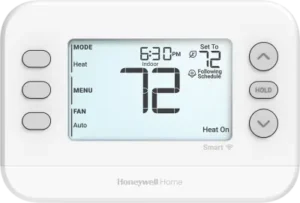
| Field | Details |
| Document Title | FocusPRO Smart S200 Series Thermostat User Guide |
| Document Type | User Guide |
| Brand Name | Honeywell Home |
| Product Name | FocusPRO Smart S200 Series Thermostat |
| Model Numbers | TH2110WF4008, TH2320WF4010 |
| PDF File Size | 355.2 KB |
| Total Number of Pages | 2 |
| Languages Covered | English, French, Spanish |
Honeywell Home FocusPRO Smart S200 Series Thermostat
The Honeywell Home FocusPRO Smart S200 Series Thermostat is designed to control heating and cooling systems through adjustable temperature settings, system operating modes, fan controls, and programmable schedules. Models TH2110WF4008 and TH2320WF4010 support WiFi connectivity and provide an on-device display for viewing indoor temperature, operating status, and other system information.
The thermostat includes Heat, Cool, Off, Auto, and Emergency Heat options, depending on the available system configuration. It also provides Auto, On, and Circulate fan settings, along with time-based temperature scheduling.
Thermostat Controls and Display Overview
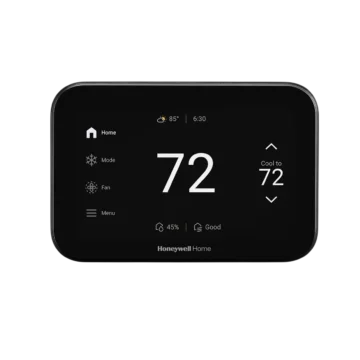
The FocusPRO Smart S200 thermostat uses dedicated buttons and a digital display to control room temperature, heating and cooling modes, fan operation, and programmable settings.
The main display provides temperature information, system status, WiFi status, and scheduling information.
Thermostat Buttons and Functions
| Control | Function |
| Mode | Changes between available system operating modes, including Heat, Off, Cool, Auto, and Emergency Heat. |
| Menu | Opens the thermostat settings, including schedules, WiFi, active alerts, and reminders. |
| Fan | Switches between available fan settings: Auto, On, and Circulate. |
| Up Arrow (▲) | Increases the temperature setpoint or changes a menu selection. |
| Down Arrow (▼) | Decreases the temperature setpoint or changes a menu selection. |
| Select | Selects the highlighted menu option. |
| Next | Moves to the next step when adjusting a setting or schedule. |
| Save & Exit | Saves the selected settings and leaves the current menu. |
Understanding the Thermostat Display
The thermostat screen shows information about the current indoor environment and the active heating or cooling system.
| Display Information | Description |
| Indoor Temperature | Shows the actual temperature measured indoors. |
| Set To | Indicates the selected indoor temperature setting. |
| Time | Displays the configured clock time. |
| Outdoor Temperature | May appear depending on the installer’s configuration. |
| Indoor Humidity | May appear depending on the installer’s configuration. |
| System Mode | Displays the selected operating mode, such as Heat or Cool. |
| Heat On | Indicates that the heating system is operating. |
| Cool On | Indicates that the cooling system is operating. |
| Aux Heat On | Indicates that auxiliary heating is operating. |
| Fan Status | Displays the selected fan operating mode. |
| WiFi Status | Shows wireless connection status. |
| Schedule Information | Indicates when the thermostat is following a time-based schedule. |
The information displayed may vary based on the thermostat’s configuration.
Technical Specifications
The following specifications apply to the FocusPRO Smart S200 Series models identified in this guide.
| Specification | Details |
| Product Type | Smart thermostat |
| Product Series | FocusPRO Smart S200 |
| Model Numbers | TH2110WF4008, TH2320WF4010 |
| Wireless Connectivity | Dual-band WiFi |
| Supported WiFi Frequencies | 2.4 GHz and 5 GHz |
| Bluetooth Frequency | BLE 2.4 GHz |
| System Operating Modes | Heat, Off, Cool, Auto, EM Heat |
| Fan Operating Modes | Auto, On, Circulate |
| Fan Circulation Operation | Approximately 33% of the time in Circulate mode |
| Heating Setpoint Range | 40°F–90°F (4.5°C–32°C), subject to configured range restrictions |
| Cooling Setpoint Range | 50°F–99°F (10°C–37°C), subject to configured range restrictions |
| Clock Formats | 12-hour and 24-hour |
| Scheduling | Time-based programmable schedules |
| Mobile Application | First Alert app |
| Manufacturer | Resideo Technologies, Inc. |
Available modes and settings may depend on the installed heating and cooling equipment and the thermostat’s configuration.
Safety Instructions and Precautions
The thermostat must be operated according to the specified safety conditions to help prevent equipment damage and interference.
Cooling System Temperature Warning
CAUTION — Risk of equipment damage
Do not operate the cooling system when the outdoor temperature is below 50°F (10°C).
Operating the cooling system below this temperature could damage the compressor.
Compressor Protection
The thermostat includes a compressor protection feature that delays equipment operation when necessary.
When this protection is active, the display shows Waiting for Equipment.
The system may require approximately five minutes before it restarts safely.
Wireless and Radio Frequency Safety
The thermostat must meet the following conditions for its wireless transmitter operation:
- Maintain a minimum separation distance of 20 cm (approximately 8 inches) between the transmitter antenna and people.
- Do not position or operate the transmitter antenna together with another antenna or transmitter.
- Operation in the 5150–5250 MHz and 5250–5350 MHz frequency bands is restricted to indoor use.
- Do not make unauthorized modifications to the equipment.
How to Change the Temperature Setting
The temperature setpoint determines the indoor temperature that the thermostat is configured to maintain.
Increasing or Decreasing the Setpoint
- Check the current indoor temperature and the temperature setpoint on the display.
- Press the Up Arrow (▲) to increase the selected temperature.
- Press the Down Arrow (▼) to decrease the selected temperature.
- Stop pressing the button when the required temperature setting is displayed.
The thermostat uses the selected setpoint according to its active system operating mode and settings.
Heating Temperature Range
The thermostat’s documented heating setpoint range is:
- Minimum: 40°F (4.5°C)
- Maximum: 90°F (32°C)
Cooling Temperature Range
The thermostat’s documented cooling setpoint range is:
- Minimum: 50°F (10°C)
- Maximum: 99°F (37°C)
The installer may configure range stops that restrict how far the temperature can be adjusted within these limits.
If the thermostat will not accept a temperature within the specified range, the installer can confirm whether range stops have been configured.
System Operating Modes
The Mode button selects how the thermostat operates the heating and cooling system.
The available system modes are displayed one at a time.
Available System Modes
| System Mode | Description |
| Heat | Heating operation |
| Off | Heating and cooling operation turned off |
| Cool | Cooling operation |
| Auto | Automatic system operation |
| EM Heat | Emergency heat mode |
How to Change the System Mode
- Locate the Mode button on the thermostat.
- Press the Mode button to move to the next available system mode.
- Continue pressing the button until the required mode appears on the display.
- Stop pressing the button when the required mode is displayed.
- The selected system mode activates.
The thermostat cycles only through its available system modes.
Selecting Heating Mode
- Press Mode until Heat appears.
- Leave the thermostat in Heat mode.
- Use the temperature adjustment buttons to select the required heating setpoint.
The screen can display Heat On when heating equipment is operating.
Selecting Cooling Mode
- Press Mode until Cool appears.
- Leave the thermostat in Cool mode.
- Use the temperature adjustment buttons to select the required cooling setpoint.
The screen can display Cool On when cooling equipment is operating.
Important: Do not operate the cooling system when the outdoor temperature is below 50°F (10°C).
Turning Off Heating and Cooling
- Press Mode to cycle through the available options.
- Stop when Off appears.
- Leave the thermostat in Off mode.
Selecting Automatic or Emergency Heat Mode
When available, Auto and EM Heat can be selected using the same Mode button.
- Press Mode.
- Continue through the available modes.
- Stop when Auto or EM Heat appears.
- Allow the selected mode to activate.
Fan Operation Settings
The thermostat provides three fan operating modes: Auto, On, and Circulate.
Each fan mode controls how the system fan operates.
Fan Modes Explained
| Fan Mode | Operation |
| Auto | The fan runs only while the heating or cooling system is operating. |
| On | The fan operates continuously. |
| Circulate (Circ) | The fan operates at varying intervals for approximately 33% of the time to circulate indoor air. |
How to Change the Fan Mode
- Locate the Fan button on the thermostat.
- Press and release the button to move to the next available fan mode.
- Continue pressing until the required mode appears.
- Stop pressing the button when the preferred fan mode is displayed.
The thermostat uses the displayed fan setting.
Using Auto Fan Mode
Auto mode allows the fan to operate when the heating or cooling system is running.
To select it:
- Press Fan repeatedly.
- Stop when Auto appears.
Using On Fan Mode
On mode keeps the fan running continuously.
To activate it:
- Press Fan until On appears.
- Leave the thermostat in this mode.
Using Circulate Fan Mode
Circulate mode runs the fan at varying intervals for approximately one-third of the time.
To activate it:
- Press Fan until Circ appears.
- Stop pressing the button.
Setting the Time and Date
The thermostat allows the clock format, time, and date to be configured from the Menu.
When the thermostat receives its time and date through an internet connection, only the 12-hour or 24-hour clock format can be changed manually.
How to Set the Time
- Press Menu on the thermostat.
- Press the Up or Down Arrow until TIME appears.
- Press Select.
- Use the arrow buttons to choose the 12-hour or 24-hour clock format.
- Press Next.
- Use the arrow buttons to adjust the hour.
- Press Next.
- Use the arrow buttons to adjust the minutes.
- Press Save & Exit to save the time settings.
How to Set the Date
- Press Menu.
- Use the Up or Down Arrow to find DATE.
- Press Select.
- Use the arrow buttons to select the year.
- Press Next.
- Use the arrow buttons to adjust the month.
- Press Next.
- Use the arrow buttons to select the date.
- Press Save & Exit.
The selected date settings are saved when the final command is pressed.
Changing Between 12-Hour and 24-Hour Time
- Open Menu.
- Navigate to TIME.
- Press Select.
- Choose the preferred clock format using the arrow buttons.
- Press Next to continue through the available settings.
Programming the Thermostat Schedule
The FocusPRO Smart S200 thermostat supports time-based scheduling to control temperature settings during different periods of the day.
Schedules can be turned on or off, and individual schedule periods can be adjusted.
How to Enable a Schedule
- Press Menu.
- Press the Up or Down Arrow until SCHED appears.
- Press Select.
- A selection box appears around ON or OFF.
- Use the arrow buttons to select ON.
- Press Next to edit the schedule.
To leave the menu without editing, press Exit.
How to Edit the Schedule
Once scheduling is enabled, the thermostat allows adjustments to the programmed days, periods, times, and temperature setpoints.
- Open Menu and select SCHED.
- Select ON and press Next to edit the schedule.
- The day or days being edited will flash on the display.
- Press Next to continue with the flashing day or days.
- The Wake schedule period begins flashing.
- Press Next.
- Use the arrow buttons to turn the selected schedule period ON or OFF.
- Press Next to continue.
How to Set the Schedule Period Time
When a schedule period is enabled:
- The time for that period begins flashing.
- Press the Up or Down Arrow to adjust the time.
- Press Next to continue.
How to Set the Heating Temperature for a Schedule Period
- When the heating setpoint flashes, use the Up or Down Arrow to adjust the temperature.
- Select the required heating setpoint.
- Press Next.
How to Set the Cooling Temperature for a Schedule Period
- Wait for the cooling setpoint to flash.
- Use the Up or Down Arrow to adjust the cooling temperature.
- Press Next.
How to Edit Additional Schedule Periods
After completing a schedule period, the thermostat displays the next period with its name flashing.
For each additional period:
- Press Next.
- Choose whether the period is enabled or disabled.
- If enabled, adjust its time.
- Set its heating temperature.
- Set its cooling temperature.
- Continue to the next period.
Repeat the procedure for the remaining schedule periods and days.
How to Save the Programmed Schedule
After completing all required schedule adjustments, press Save & Exit in the upper-left area of the display.
How to Disable the Schedule
- Press Menu.
- Navigate to SCHED.
- Press Select.
- Use the arrow buttons to select OFF.
- Press Exit to leave the menu.
WiFi Connectivity and First Alert App
The FocusPRO Smart S200 thermostat supports wireless connectivity through compatible 2.4 GHz and 5 GHz WiFi networks.
Supported Wireless Frequencies
| Connection Type | Supported Frequency |
| WiFi | 2.4 GHz |
| WiFi | 5 GHz |
| Bluetooth Low Energy | 2.4 GHz |
WiFi Status and Menu
The thermostat has a WiFi status indicator on its display.
WiFi is also included among the available Menu options.
To locate WiFi settings:
- Press Menu.
- Use the Up or Down Arrow to move through the available menu items.
- Find the WiFi option.
First Alert App
The FocusPRO Smart S200 user guide provides a QR code for downloading the First Alert app.
The QR code can be scanned using a compatible smartphone to access the application download.
Thermostat Status Messages and Indicators
The thermostat uses on-screen messages and indicators to show equipment activity and current operating conditions.
| Message or Indicator | Meaning |
| Heat On | Heating equipment is operating. |
| Cool On | Cooling equipment is operating. |
| Aux Heat On | Auxiliary heating equipment is operating. |
| Waiting for Equipment | Compressor protection is delaying equipment operation. |
| Unlock | A thermostat lockout setting has been configured by the owner. |
| SCHED | Thermostat schedule settings. |
| TIME | Clock settings. |
| DATE | Date settings. |
| ON / OFF | Used to enable or disable scheduling options. |
| Wake | A programmable schedule period. |
Understanding the Waiting for Equipment Message
The Waiting for Equipment message indicates that the compressor protection feature is active.
This delay helps prevent compressor damage.
When the message appears:
- Allow the thermostat to remain in its current operating condition.
- Wait approximately five minutes.
- Allow the equipment to restart after the protection delay.
The message is associated with normal compressor protection operation.
Troubleshooting Guide
The following troubleshooting procedures address common FocusPRO Smart S200 thermostat issues.
Troubleshooting Table
| Problem | Possible Cause | Recommended Action |
| Thermostat display is blank | Circuit breaker interruption | Check the circuit breaker and reset it if necessary. |
| Thermostat display is blank | Heating or cooling equipment power is off | Confirm that the heating and cooling system’s power switch is on. |
| Thermostat display is blank | Furnace door is not closed securely | Check that the furnace door is properly closed. |
| Waiting for Equipment appears | Compressor protection delay | Wait approximately five minutes for the system to restart safely. |
| Temperature setting does not change | Thermostat lockout | Check whether the display shows Unlock, indicating an owner-configured lockout. |
| Temperature setting does not change | Incorrect system mode | Verify that the appropriate Heat, Cool, EM Heat, or Auto mode is selected. |
| Heating or cooling temperature cannot be adjusted to the expected limit | Installer-configured range stops | Contact the installer to check whether temperature range restrictions have been configured. |
Thermostat Display Is Blank
If the thermostat screen does not display information:
- Check the circuit breaker.
- Reset the breaker if necessary.
- Confirm that the heating and cooling system’s power switch is turned on.
- Check that the furnace door is securely closed.
Waiting for Equipment Appears on the Screen
When the thermostat displays Waiting for Equipment, the compressor protection feature is active.
Allow approximately five minutes for the system to restart without damaging the compressor.
Temperature Settings Cannot Be Changed
When the thermostat does not respond to temperature adjustments:
- Check whether Unlock appears on the display.
- Verify the active operating mode.
- Confirm that the selected mode is appropriate for the required temperature adjustment.
- Check whether the required setpoint falls within the documented heating or cooling range.
If temperature adjustment remains restricted within the specified ranges, contact the installer to check for configured range stops.
Heating Temperature Cannot Be Set Above or Below a Certain Value
The thermostat supports heating settings from 40°F to 90°F (4.5°C to 32°C).
If the thermostat prevents adjustment within this range, the installer may have configured a temperature limit.
Cooling Temperature Cannot Be Set Above or Below a Certain Value
The thermostat supports cooling settings from 50°F to 99°F (10°C to 37°C).
If adjustment within this range is restricted, the installer can verify the configured range stops.
Regulatory and Wireless Compliance Information
The FocusPRO Smart S200 thermostat includes wireless communication equipment subject to applicable regulatory requirements.
FCC Compliance
The thermostat complies with Part 15 of the FCC Rules.
Operation is subject to two conditions:
- The equipment must not cause harmful interference.
- The equipment must accept received interference, including interference that may cause unwanted operation.
Unauthorized changes or modifications can invalidate the user’s authority to operate the equipment.
Radio Frequency Exposure Requirements
The transmitter antenna must maintain a separation distance of at least 20 cm from people.
The antenna must not be operated together with another antenna or transmitter.
Operation within the 5150–5250 MHz and 5250–5350 MHz bands is limited to indoor use.
Canadian Regulatory Compliance
The thermostat contains license-exempt wireless transmitters or receivers that comply with applicable Innovation, Science and Economic Development Canada requirements.
The equipment must not cause interference and must accept interference that could affect its operation.
Mexican Regulatory Compliance
The equipment is also subject to interference requirements under the applicable IFT declaration.
It must not cause harmful interference and must accept interference that may cause undesired operation.
Customer Support and Product Information
The FocusPRO Smart S200 thermostat is manufactured by Resideo Technologies, Inc. and its affiliates.
Honeywell Home is a trademark used under license from Honeywell International Inc.
| Support Information | Details |
| Manufacturer | Resideo Technologies, Inc. |
| Manufacturer Location | Scottsdale, AZ 85254, USA |
| Official Website | www.resideo.com |
| Product Series | Honeywell Home FocusPRO Smart S200 |
| Supported Models | TH2110WF4008, TH2320WF4010 |
| Full User Manual Document Number | 33-00694EFS |
The full user manual can be located by searching for Resideo document number 33-00694EFS or by scanning the user manual QR code provided with the product guide.
Frequently Asked Questions
1. How do I change the temperature on the Honeywell FocusPRO Smart S200 thermostat?
Press the Up or Down Arrow on the thermostat to increase or decrease the selected indoor temperature setting. The adjusted setpoint appears on the display.
2. How do I switch the FocusPRO Smart S200 thermostat from Heat to Cool?
Press the Mode button repeatedly until Cool appears on the display. Stop pressing the button and allow the selected cooling mode to activate.
Do not operate cooling equipment when the outdoor temperature is below 50°F (10°C).
3. What does Waiting for Equipment mean on a Honeywell thermostat?
Waiting for Equipment indicates that compressor protection is active. Allow approximately five minutes for the system to restart safely.
4. How do I turn on the schedule on the FocusPRO Smart S200 thermostat?
Press Menu, find SCHED, and press Select. Choose ON using the arrow buttons, then press Next to edit the schedule. Set the desired schedule periods, times, and heating and cooling temperatures. Press Save & Exit when finished.
5. What is the difference between Auto, On, and Circulate fan modes?
Auto runs the fan when heating or cooling equipment operates. On keeps the fan running continuously. Circulate operates the fan at varying intervals for approximately 33% of the time.
6. Why won’t my Honeywell FocusPRO Smart S200 thermostat change the temperature?
The thermostat may have an owner-configured lockout, may be in an inappropriate system mode, or may have installer-configured temperature range stops. Check the display, confirm the operating mode, and consult the installer if the temperature range is restricted.
7. Does the Honeywell FocusPRO Smart S200 thermostat support 5 GHz WiFi?
Yes. Models TH2110WF4008 and TH2320WF4010 support both 2.4 GHz and 5 GHz WiFi networks.
8. How do I change the time on the FocusPRO Smart S200 thermostat?
Press Menu, navigate to TIME, and press Select. Choose the 12-hour or 24-hour format, then use the arrow buttons and Next to adjust the hour and minutes. Press Save & Exit to save the changes. If time and date are set through the internet, only the clock format is available for manual adjustment.