| Field | Details |
| Document Title | T6 Pro Programmable Thermostat User Guide |
| Document Type | User Guide |
| Brand Name | Honeywell Home |
| Product Name | T6 Pro Programmable Thermostat |
| Model Number(s) | TH6320U2008, TH6220U2000, TH6210U2001 |
| PDF File Size | 474.5 KB |
| Total Number of Pages | 2 |
| Languages Covered | English, French, Spanish |
Honeywell Home T6 Pro Programmable Thermostat
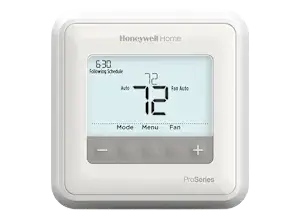
The Honeywell Home T6 Pro is a programmable digital thermostat designed to control compatible residential heating and cooling systems. It provides adjustable temperature settings, programmable daily schedules, heating and cooling modes, fan controls, and a digital display showing indoor temperature and system information.
The thermostat supports four scheduled periods per day: Wake, Away, Home, and Sleep. Different temperature settings can be configured for weekdays and weekends, allowing the heating and cooling system to follow a household’s daily routine.
The T6 Pro includes separate heating and cooling setpoints for each scheduled period. Its factory-programmed schedule uses comfortable temperatures when occupants are at home and energy-saving temperatures during daytime absences and overnight hours.
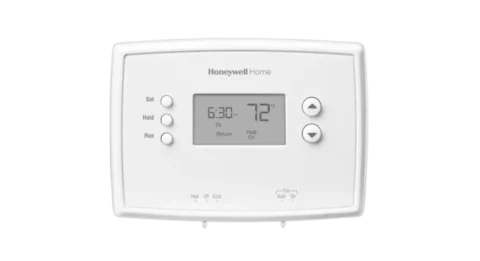
The thermostat has five control buttons for temperature adjustments, system mode selection, fan operation, and menu settings. The digital screen displays the current time, measured room temperature, selected temperature, scheduling information, and system operating status.
Available system modes include Auto, Heat, Cool, Emergency Heat, and Off. Fan settings include Auto, On, and Circ, depending on the connected equipment and thermostat configuration.
The T6 Pro also provides compressor protection. When the compressor is temporarily prevented from restarting, the thermostat displays Wait. The system can resume operation after the five-minute protection period.
Supported Models
The Honeywell Home T6 Pro User Guide covers the following models.
| Model Number | Product Series |
| TH6320U2008 | T6 Pro Programmable Thermostat |
| TH6220U2000 | T6 Pro Programmable Thermostat |
| TH6210U2001 | T6 Pro Programmable Thermostat |
The available heating, cooling, emergency heating, and fan modes depend on the model and the installed HVAC system settings.
Product Overview and Features
| Feature | Description |
| Programmable Temperature Control | Controls heating and cooling according to scheduled settings |
| Digital Display | Shows temperature, time, schedule, and operating information |
| Daily Programming | Four scheduled periods per day |
| Weekday and Weekend Scheduling | Supports different schedules for weekdays and weekends |
| Heating Temperature Settings | Separate heating setpoints for each schedule period |
| Cooling Temperature Settings | Separate cooling setpoints for each schedule period |
| System Modes | Auto, Heat, Cool, Em Heat, Off |
| Fan Modes | Auto, On, Circ |
| Temperature Adjustment | Plus (+) and Minus (–) buttons |
| Menu Controls | Provides access to clock, date, and schedule settings |
| Schedule Activation | Allows the programmed schedule to be turned on or off |
| Schedule Period Control | Allows individual periods to be enabled or disabled |
| Compressor Protection | Provides a five-minute compressor restart delay |
| System Status Display | Shows heating, cooling, recovery, and compressor protection information |
| Clock Format | 12-hour or 24-hour |
| Indoor Temperature Display | Shows the measured indoor temperature |
Technical Specifications and Operating Settings
| Specification | Details |
| Product Series | T6 Pro |
| Product Type | Programmable Thermostat |
| Model Numbers | TH6320U2008, TH6220U2000, TH6210U2001 |
| Display Type | Digital |
| Temperature Adjustment | Plus (+) and Minus (–) |
| Heating Setpoint Range | 40–90°F (4.5–32°C) |
| Cooling Setpoint Range | 50–99°F (10–37°C) |
| Clock Formats | 12-hour and 24-hour |
| Daily Program Periods | Four |
| Scheduling Groups | Weekdays and weekends |
| Factory Schedule | Wake, Away, Home, Sleep |
| System Operating Modes | Auto, Heat, Cool, Em Heat, Off, as configured |
| Fan Operating Modes | Auto, On, Circ, as configured |
| Circulate Fan Operation | Approximately 33% of the time |
| Compressor Protection Waiting Period | 5 minutes |
| Cooling Outdoor Temperature Restriction | Do not operate below 50°F (10°C) outdoor temperature |
Thermostat Parts and Controls
The Honeywell T6 Pro has a digital display and five control buttons positioned along the bottom of the thermostat.
These buttons provide direct access to temperature settings, system modes, fan controls, and programmable schedules.
Main Controls
| Control | Function |
| Minus (–) | Decreases the temperature and moves through menu options |
| Mode | Selects the heating or cooling operating mode |
| Menu | Opens thermostat settings and program scheduling |
| Fan | Selects the fan operating mode |
| Plus (+) | Increases the temperature and moves through menu options |
| Digital Display | Shows room temperature, time, setpoint, and system information |
Minus (–) Button
The Minus button decreases the selected temperature.
It also moves through available menu options and changes settings when a menu is open.
Plus (+) Button
The Plus button increases the desired temperature.
It can also be used to move through menu options and adjust selected values.
Mode Button
The Mode button controls the heating and cooling operating mode.
Pressing the button cycles through the available system modes.
Menu Button
The Menu button opens thermostat settings.
It is used to access the clock, date, and programmed temperature schedule.
Fan Button
The Fan button changes how the heating and cooling system fan operates.
Available settings include Auto, On, and Circ.
Thermostat Display Guide
The T6 Pro display provides information about the current room conditions, scheduled temperature settings, and operating status.
Display Indicators and Their Functions
| Display Information | Meaning |
| Actual Time | Shows the thermostat’s current clock time |
| Schedule Information | Indicates that the thermostat is following its time-based schedule |
| Actual Indoor Temperature | Displays the measured room temperature |
| Indoor Temperature Setpoint | Displays the selected target temperature |
| Heat On | Heating system is operating |
| Cool On | Cooling system is operating |
| Em Heat On | Emergency heating is operating |
| Recovery | Indicates a recovery operating state |
| Compressor Protection | Indicates compressor protection status |
| Fan Auto | Automatic fan operation |
| Fan On | Continuous fan operation |
| Fan Circ | Intermittent fan circulation |
| Wait | Compressor protection delay is active |
Actual Indoor Temperature
The actual indoor temperature is the temperature currently measured by the thermostat.
This reading appears on the main screen.
Indoor Temperature Setpoint
The indoor temperature setpoint is the temperature the thermostat is instructed to maintain.
Press + or – to change the selected temperature.
Schedule Information
When the thermostat follows its programmed schedule, the screen displays scheduling information.
The temperature changes according to the scheduled period and its assigned heating or cooling setpoint.
System Status
The thermostat displays operating information such as Heat On, Cool On, Em Heat On, Recovery, or compressor protection.
The displayed status depends on the current system operation.
Important Safety Instructions
Compressor Damage Warning
CAUTION: EQUIPMENT DAMAGE HAZARD
Do not operate the cooling system when the outdoor temperature is below 50°F (10°C).
Operating the air conditioning system below this outdoor temperature can cause compressor damage.
Compressor Protection
The thermostat provides a compressor protection function.
When the protection function is active:
- Wait appears on the display.
- Compressor operation is temporarily delayed.
- The system resumes when the five-minute protection period ends.
The protection period must be allowed to finish before the compressor restarts.
Before First Use
Before using the thermostat’s programmed schedule, the clock, date, system mode, and fan setting should be configured.
Initial Operating Setup
- Check the thermostat display.
- Select the required heating or cooling operating mode.
- Choose the desired fan setting.
- Set the correct time.
- Set the date.
- Review the factory-programmed heating and cooling schedule.
- Change the scheduled times or temperatures if required.
- Confirm that the schedule is enabled.
The available system and fan modes depend on the installed thermostat configuration.
Setting the System Operating Mode
The Mode button selects the thermostat’s heating and cooling operating mode.
How to Change the System Mode
- Press Mode.
- The next available system mode appears.
- Continue pressing Mode to cycle through the settings.
- Stop when the required operating mode is displayed.
- Leave the selected mode displayed to activate it.
Available System Modes
| System Mode | Function |
| Auto | Automatically switches between heating and cooling when supported and configured |
| Heat | Controls heating operation |
| Cool | Controls cooling operation |
| Em Heat | Controls emergency heating on supported systems |
| Off | Turns off heating and cooling operation |
Heat Mode
Heat mode is used when indoor heating is required.
To select heating:
- Press Mode.
- Continue until Heat appears.
- Leave Heat displayed to activate the mode.
- Use + or – to adjust the desired heating temperature.
Cool Mode
Cool mode is used when indoor cooling is required.
To select cooling:
- Press Mode.
- Continue until Cool appears.
- Leave Cool displayed to activate the mode.
- Use + or – to adjust the desired cooling temperature.
Do not operate the cooling system when the outdoor temperature is below 50°F (10°C).
Auto Mode
Auto mode provides automatic heating and cooling changeover when supported by the thermostat configuration.
To select Auto:
- Press Mode.
- Continue until Auto appears.
- Leave Auto displayed to activate the setting.
Emergency Heat Mode
Em Heat is the emergency heating mode available on compatible systems.
To select it:
- Press Mode.
- Continue until Em Heat appears.
- Leave the mode displayed to activate it.
The display may show Em Heat On when emergency heating is operating.
Off Mode
Off mode turns off the thermostat’s heating and cooling operation.
To select Off:
- Press Mode.
- Continue until Off appears.
- Leave Off displayed to activate it.
Selecting the Fan Operating Mode
The T6 Pro provides three fan operating modes.
How to Change the Fan Setting
- Press Fan.
- The next available fan mode appears.
- Continue pressing Fan until the required setting is displayed.
- Leave the selected fan mode displayed to activate it.
Fan Mode Settings
| Fan Mode | Operation |
| Auto | Fan operates only while the heating or cooling system is running |
| On | Fan operates continuously |
| Circ | Fan operates intermittently, approximately 33% of the time |
Fan Auto Mode
Auto is used when fan operation should follow the heating and cooling system.
The fan operates while heating or cooling is active.
Fan On Mode
On provides continuous fan operation.
The fan continues running rather than operating only during heating and cooling cycles.
Fan Circ Mode
Circ provides intermittent fan circulation.
The fan operates approximately one-third of the time to circulate indoor air.
The available fan modes depend on the thermostat’s system settings.
Setting the Time and Date
The T6 Pro thermostat uses the current time and date for scheduled temperature control.
The clock can be configured to display either 12-hour or 24-hour time.
How to Set the Time
- Press Menu.
- Use + or – to find TIME.
- Press Select.
- Use + or – to choose the 12-hour or 24-hour clock format.
- Press Select.
- Use + or – to adjust the hour.
- Press Select.
- Use + or – to adjust the minutes.
- Press Select to exit the Time menu.
Clock Format Settings
| Clock Format | Description |
| 12-hour | Uses a 12-hour clock |
| 24-hour | Uses a 24-hour clock |
How to Set the Date
- Press the navigation button to move to DATE.
- Press Select.
- The selected date field begins flashing.
- Use + or – to change the flashing value.
- Press Select to move to the next date field.
- Continue until the date is correct.
- Press Home to save the changes and return to the main screen.
Understanding the Programmable Schedule
The T6 Pro supports four programmable temperature periods each day.
Different start times and temperatures can be assigned to weekdays and weekends.
Daily Schedule Periods
| Period | Purpose |
| Wake | Morning temperature setting |
| Away | Temperature while occupants are away from home |
| Home | Temperature when occupants return home |
| Sleep | Overnight temperature setting |
Wake Period
Wake begins at the time occupants normally get up in the morning.
The heating and cooling setpoints control the desired temperature until the next scheduled period.
Away Period
Away begins when occupants leave home.
It is commonly configured with energy-saving temperatures for periods when the home is unoccupied.
Home Period
Home begins when occupants return.
It uses the selected evening heating and cooling temperatures.
Sleep Period
Sleep begins at the usual bedtime.
It controls the temperature throughout the overnight period.
Factory-Programmed Heating and Cooling Schedule
The Honeywell T6 Pro includes recommended heating and cooling schedules.
These preset temperatures can help reduce heating and cooling expenses when they match the household’s routine.
Default Program Schedule
| Schedule Period | Start Time | Heating Temperature | Cooling Temperature |
| Wake | 6:00 AM | 70°F (21°C) | 78°F (25.5°C) |
| Away | 8:00 AM | 62°F (16.5°C) | 85°F (29.5°C) |
| Home | 6:00 PM | 70°F (21°C) | 78°F (25.5°C) |
| Sleep | 10:00 PM | 62°F (16.5°C) | 82°F (28°C) |
Factory Heating Schedule
The default heating temperatures are:
| Period | Heating Setpoint |
| Wake | 70°F |
| Away | 62°F |
| Home | 70°F |
| Sleep | 62°F |
The heating temperature is reduced during Away and Sleep periods.
Factory Cooling Schedule
The default cooling temperatures are:
| Period | Cooling Setpoint |
| Wake | 78°F |
| Away | 85°F |
| Home | 78°F |
| Sleep | 82°F |
The cooling temperature is increased during Away and Sleep periods.
Changing the Factory Schedule
The programmed times and temperatures can be adjusted through the PROG menu.
Each period can also be turned on or off.
How to Program the Honeywell T6 Pro Thermostat
The T6 Pro allows the start time, temperature setting, and activation status of each schedule period to be changed.
Step 1: Open the Schedule Menu
- Press Menu.
- PROG appears on the display.
- Press Select.
- The display shows ON.
Step 2: Enable or Disable Scheduling
When ON appears, press Select to continue using the schedule.
To turn scheduling off:
- Press + or – to change ON to OFF.
- Press Select.
When scheduling is enabled, the thermostat follows the stored time-based program.
Step 3: Select the Day or Group of Days
- Use + or – to select the required day or group of days.
- Press Select.
The thermostat allows weekday and weekend schedule settings to differ.
Step 4: Choose a Program Period
- Press + or – to move through the available schedule periods.
- Select Wake, Away, Home, or Sleep.
- Press Select.
Step 5: Change the Program Settings
For the selected period, the following settings can be changed:
- Period start time
- Temperature setting
- Whether the period is enabled or disabled
Use + or – to change the selected value.
Press Select to keep the displayed value and advance to the next setting.
Step 6: Program Additional Periods
Repeat the procedure for the remaining periods.
The Wake, Away, Home, and Sleep settings can be adjusted to match the desired daily routine.
Step 7: Program Other Days
After completing one day or group of days, select the next required day or group.
Adjust the program periods as needed.
Step 8: Save the Schedule
After completing the schedule settings:
- Press Home.
- The thermostat saves the changes.
- The main screen appears.
Enabling or Disabling a Schedule Period
The T6 Pro allows individual schedule periods to be turned on or off.
How to Disable a Program Period
- Press Menu.
- Select PROG.
- Confirm that scheduling is enabled.
- Select the day or group of days.
- Choose the required period.
- Change the period’s activation setting to OFF.
- Continue through the settings.
- Press Home to save.
How to Enable a Program Period
Follow the same procedure and change the selected period to ON.
The period then becomes part of the active schedule.
Turning the Programmed Schedule On or Off
The complete programmed schedule can also be enabled or disabled.
How to Turn Off the Schedule
- Press Menu.
- Select PROG.
- When ON appears, press + or – to display OFF.
- Press Select.
How to Turn On the Schedule
- Press Menu.
- Open PROG.
- Select ON.
- Press Select.
- Press Home after completing the settings.
When scheduling is enabled, the thermostat follows the configured time and temperature periods.
Understanding Compressor Protection
The T6 Pro includes a compressor protection function.
This function delays compressor restarting when necessary to protect heating and cooling equipment.
What Does Wait Mean on the Honeywell T6 Pro?
When the thermostat displays Wait, the compressor protection feature is active.
The thermostat temporarily delays restarting the compressor.
How Long Does Wait Stay on the Screen?
The compressor protection waiting period lasts five minutes.
After the protection period, the system can restart safely.
What to Do When Wait Appears
- Leave the system in its selected operating mode.
- Allow five minutes for compressor protection to finish.
- Wait for the heating or cooling equipment to resume operation.
The waiting period is designed to prevent possible compressor damage.
Temperature Adjustment Limits
The T6 Pro supports specific temperature ranges for heating and cooling.
Heating Temperature Range
40–90°F (4.5–32°C)
Cooling Temperature Range
50–99°F (10–37°C)
Temperature Settings Table
| Mode | Minimum Temperature | Maximum Temperature |
| Heat | 40°F (4.5°C) | 90°F (32°C) |
| Cool | 50°F (10°C) | 99°F (37°C) |
An installer may configure temperature range stops that further restrict the settings available to the user.
Troubleshooting Guide
The following troubleshooting procedures address the problems identified for the Honeywell T6 Pro thermostat.
Common Problems and Solutions
| Problem | Possible Cause | Recommended Solution |
| Thermostat display is blank | Power supply or system power problem | Check the circuit breaker, heating/cooling power switch, and furnace door |
| Wait appears | Compressor protection is active | Wait five minutes |
| Temperature settings cannot be changed | Keypad lockout enabled | Check whether Unlock appears |
| Temperature settings cannot be changed | Incorrect operating mode | Select Heat, Cool, Em Heat, or Auto as appropriate |
| Desired temperature cannot be selected | Installer-configured temperature range stops | Check the allowable temperature range and contact the installer |
Thermostat Display Is Blank
If the screen is blank:
- Check the circuit breaker.
- Reset the breaker if necessary.
- Make sure the heating and cooling system power switch is on.
- Confirm that the furnace door is securely closed.
Wait Appears on the Thermostat
If Wait appears:
- The compressor protection feature is active.
- Allow five minutes for the protection period to finish.
- The system can restart safely after the delay.
Temperature Settings Do Not Change
If the thermostat does not allow the desired temperature to be changed:
- Check whether the display shows Unlock.
- If Unlock appears, a keypad lockout has been configured.
- If the thermostat is not locked, verify that the correct system mode is selected.
- Check the temperature range for the selected mode.
Thermostat Is Locked
If the display shows Unlock, a thermostat lockout setting is active.
The thermostat owner has configured a restriction on changing settings.
Heating Temperature Cannot Be Increased or Decreased
The thermostat’s supported heating adjustment range is 40–90°F (4.5–32°C).
If the correct system mode is selected but the desired temperature cannot be adjusted within this range, an installer-configured range stop may be restricting the setting.
Contact the installer to check the configured range limits.
Cooling Temperature Cannot Be Increased or Decreased
The thermostat’s supported cooling adjustment range is 50–99°F (10–37°C).
If the correct mode is selected but the desired temperature cannot be adjusted within this range, a configured range stop may be responsible.
The installer can check whether temperature limits have been applied.
Thermostat Status Messages
| Message or Indicator | Meaning | Action |
| Heat On | Heating system operating | Normal system status |
| Cool On | Cooling system operating | Normal system status |
| Em Heat On | Emergency heating operating | Normal on compatible systems |
| Recovery | Recovery operating state | System status indicator |
| Wait | Compressor protection active | Wait five minutes |
| Compressor Protection | Compressor restart protection | Allow the protection period to finish |
| Unlock | Thermostat has a lockout setting | Check the keypad restriction |
| TIME | Clock settings menu | Configure time |
| DATE | Date settings menu | Configure date |
| PROG | Schedule programming menu | Change schedule settings |
| ON | Schedule enabled | Programmed schedule active |
| OFF | Schedule disabled | Programmed schedule inactive |
Customer Support Information
Honeywell Home T6 Pro product assistance is provided through Resideo Technologies, Inc.
| Support Information | Details |
| Brand | Honeywell Home |
| Manufacturer | Resideo Technologies, Inc. |
| Official Website | www.resideo.com |
| Customer Support Phone | 1-800-633-3991 |
| Location | Scottsdale, AZ 85254, USA |
| Supported Models | TH6320U2008, TH6220U2000, TH6210U2001 |
Frequently Asked Questions
1. How do I program a Honeywell T6 Pro thermostat?
Press Menu and select PROG. Confirm that scheduling is ON, then select the day or group of days to configure. Choose Wake, Away, Home, or Sleep and adjust the start time, temperature settings, and period activation as required. Press Home to save the programmed schedule.
2. How do I set the time and date on a Honeywell T6 Pro?
Press Menu, navigate to TIME, and press Select. Choose the 12-hour or 24-hour format, then adjust the hour and minutes. Navigate to DATE, change the flashing date fields using + or –, and press Home when finished.
3. Why does my Honeywell T6 Pro thermostat say Wait?
Wait indicates that the compressor protection feature is active. The thermostat temporarily delays restarting the compressor to prevent equipment damage. Allow five minutes for the system to restart safely.
4. How do I change the Honeywell T6 Pro from Heat to Cool?
Press Mode to cycle through the available system modes. Continue until Cool appears, then leave it displayed to activate cooling. Available modes depend on the model and system settings.
5. What is the difference between Fan Auto, On, and Circ?
Auto operates the fan only when heating or cooling is running. On operates the fan continuously. Circ runs the fan intermittently for approximately 33% of the time to circulate indoor air.
6. What are the default schedule temperatures on the Honeywell T6 Pro?
The factory schedule uses 70°F heating and 78°F cooling for Wake and Home, 62°F heating and 85°F cooling for Away, and 62°F heating and 82°F cooling for Sleep. The default start times are 6:00 AM, 8:00 AM, 6:00 PM, and 10:00 PM.
7. Why can’t I change the temperature on my Honeywell T6 Pro?
The thermostat may have a keypad lockout, an incorrect operating mode, or installer-configured temperature range stops. Check whether Unlock appears and verify that Heat, Cool, Em Heat, or Auto is selected correctly. Contact the installer if temperature limits are restricting adjustments.
8. Why is the Honeywell T6 Pro thermostat screen blank?
Check the circuit breaker and reset it if necessary. Confirm that the heating and cooling system power switch is on and that the furnace door is securely closed.