| Field | Details |
| Document Title | X8S Smart Thermostat User Guide |
| Document Type | Quick User Guide |
| Brand Name | Honeywell Home |
| Product Name | X8S Smart Thermostat |
| Model Number(s) | X8VWF7WC, X8VMC9W, X8VWF7W, X8VMC8BC, X8VWF10B, X8VMC8B |
| PDF File Size | 588.4 KB |
| Total Number of Pages | 2 |
| Languages Covered | English, Spanish |
Honeywell Home X8S Smart Thermostat
The Honeywell Home X8S Smart Thermostat is a smart home temperature controller designed to manage compatible heating and cooling systems through a touchscreen interface and the First Alert by Resideo app. It provides room temperature control, indoor humidity information, scheduling features, wireless room sensor integration, and smart home connectivity.
The X8S supports XRSENSOR wireless indoor room sensors, allowing different rooms in the home to be prioritized for temperature control. Rooms can be selected manually or automatically according to detected activity.
The thermostat also supports compatible video doorbell integration. With a First Alert VX1 or compatible Ring video doorbell, live camera video can be viewed on the thermostat’s display after setup through the First Alert app.
The X8S provides indoor air quality controls for systems configured with compatible humidification, dehumidification, or ventilation equipment. Users can access these controls directly from the thermostat or through the mobile app. Additional features include a customizable idle screen with seven display styles, Matter compatibility for supported smart home automations, Auto Away scheduling, smart alerts, reminders, and monthly energy reports.
The First Alert by Resideo app allows users to control their thermostat remotely and access compatible connected safety devices, including separately purchased water leak, smoke, and carbon monoxide detectors.
Product Overview and Technical Specifications
The X8S Smart Thermostat belongs to the Honeywell Home smart thermostat product family and is manufactured by Resideo Technologies, Inc.
| Specification | Details |
| Brand | Honeywell Home |
| Manufacturer | Resideo Technologies, Inc. |
| Product Name | X8S Smart Thermostat |
| Product Series | X8S |
| Product Type | Smart Heating and Cooling Thermostat |
| Thermostat Interface | Touchscreen |
| Available Colors | White and Black |
| Mobile Application | First Alert by Resideo |
| Remote Thermostat Control | Supported through the app |
| Indoor Temperature Display | Supported |
| Indoor Humidity Display | Supported |
| Weather and Time Display | Supported |
| Indoor Air Quality Information | Supported |
| Wireless Room Sensor | XRSENSOR |
| Room Priority | Selected Rooms and Active Rooms |
| Activity-Based Room Selection | Supported |
| Smart Scheduling | Supported through the app |
| Auto Away | Supported |
| Alerts and Reminders | Supported |
| Monthly Energy Reports | Available through the app |
| Video Doorbell Integration | Compatible First Alert VX1 and Ring devices |
| Live Doorbell Video on Thermostat | Supported with compatible devices |
| Idle Screen Customization | Seven styles and colors |
| Matter Integration | Supported |
| Matter Controls Identified | Temperature setpoints and system mode |
| Humidification Control | Available when configured |
| Dehumidification Control | Available when configured |
| Ventilation Control | Available when configured |
| Limited Warranty | 2 years |
X8S Smart Thermostat Models
The Honeywell Home X8S is available in white and black versions, with different model numbers for the United States and Canada.
Some United States packages include a wireless room sensor.
Model Comparison
| Model Number | Color | Region | Package Description |
| X8VWF7WC | White | Canada | Thermostat |
| X8VMC9W | White | United States | Thermostat with room sensor |
| X8VWF7W | White | United States | Thermostat |
| X8VMC8BC | Black | Canada | Thermostat |
| X8VWF10B | Black | United States | Thermostat with room sensor |
| X8VMC8B | Black | United States | Thermostat |
White and Black Thermostat Models
The X8S is offered with different exterior colors.
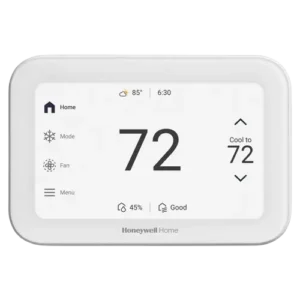
The model illustrated in the manufacturer’s guide is white, although the same operating instructions apply to the listed X8S models.
Models With a Room Sensor
The following United States packages are identified as thermostat-and-room-sensor combinations:
- X8VMC9W — White thermostat with room sensor.
- X8VWF10B — Black thermostat with room sensor.
Thermostat Display, Components, and Controls
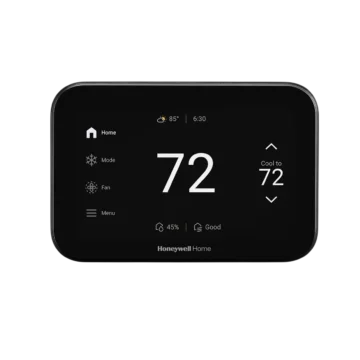
The X8S uses a touchscreen interface for temperature adjustments, system operation, and configuration.
The home screen presents the most relevant operating information, including the current temperature, selected temperature, weather, time, humidity, indoor air quality, and thermostat operating modes.
Home Screen Overview
| Display Element | Function |
| Home Screen | Main thermostat operating display |
| Weather | Shows weather information |
| Time | Displays the current time |
| Current Temperature | Shows the measured indoor temperature |
| Set Temperature | Displays the desired temperature |
| System Mode | Shows the current heating or cooling operating mode |
| Fan Mode | Shows the current fan setting |
| Menu | Opens thermostat features and configuration options |
| Options Menu | Provides access to additional controls |
| Indoor Humidity | Displays indoor relative humidity |
| Indoor Air Quality | Shows indoor air quality status |
Current Temperature
The large temperature value in the center of the display represents the current indoor temperature.
This reading allows occupants to compare the measured temperature with the selected target.
Set Temperature
The Set Temperature area displays the desired heating or cooling temperature.
The touchscreen provides Up and Down arrows beside the selected temperature.
System Mode
The System Mode area provides access to the thermostat’s heating and cooling operating mode.
Fan Mode
The Fan Mode area provides access to fan operation settings.
Menu
The Menu control opens additional thermostat features, including room priority, indoor air quality functions, display preferences, and Matter setup.
Indoor Humidity and Air Quality
The home screen includes indoor humidity and indoor air quality information.
Additional controls are available when the thermostat is configured to operate compatible indoor air quality equipment.
Connecting the X8S to the First Alert by Resideo App
The First Alert by Resideo app provides remote access to the X8S Smart Thermostat and its supported smart home features.
Step 1: Access the First Alert App
The manufacturer’s guide provides a QR code for downloading the application.
The app can also be accessed through:
Step 2: Open the First Alert App
After installing the application, open it on the mobile device.
Step 3: Connect the Thermostat
Use the First Alert app to connect the X8S Smart Thermostat to the mobile application.
Follow the configuration instructions presented in the app.
Step 4: Access Thermostat Controls
After the thermostat has been connected, compatible heating and cooling functions can be managed remotely.
First Alert App Features
The First Alert by Resideo app provides remote thermostat operation and access to several connected home functions.
| Feature | Description |
| Auto Away | Supports temperature adjustments when occupants are away |
| Smart Scheduling | Provides scheduled thermostat operation |
| Alerts and Reminders | Provides notifications about supported conditions and maintenance |
| Monthly Energy Reports | Provides energy-related reporting |
| Energy Rebate Program | Provides access to rebate information |
| Remote Thermostat Control | Allows temperature and settings to be managed remotely |
| Water Leak Detector Monitoring | Supports compatible detectors sold separately |
| Smoke Detector Monitoring | Supports compatible detectors sold separately |
| Carbon Monoxide Detector Monitoring | Supports compatible detectors sold separately |
Auto Away and Smart Scheduling
The app supports Auto Away and Smart Scheduling features for managing temperature settings according to household needs.
Alerts and Reminders
Notifications and reminders can be accessed through the First Alert app.
Monthly Energy Reports
The application includes monthly energy reports for reviewing thermostat-related energy information.
Remote Control
The X8S can be controlled through the First Alert app from away from the thermostat.
Connected Safety Devices
The First Alert app also supports monitoring compatible water leak detectors and smoke and carbon monoxide detectors.
These devices are sold separately.
XRSENSOR Wireless Room Sensors
The X8S supports XRSENSOR wireless indoor room sensors.
These sensors allow temperature control to be based on different areas of the home rather than using only one location.
The room priority function can be configured manually or can respond to detected activity.
Room Priority Options
The thermostat supports two room selection approaches.
| Priority Option | Function |
| Selected Rooms | Uses rooms selected manually |
| Active Rooms | Automatically prioritizes rooms where activity is detected |
Selected Rooms
Selected Rooms allows occupants to choose which rooms contribute to the temperature used for heating and cooling control.
The thermostat uses the selected rooms to calculate an average temperature.
Rooms that are not selected are excluded from this average.
Active Rooms
Active Rooms allows the XRSENSOR devices to determine which rooms should be prioritized according to detected activity.
Rooms where activity is detected are selected automatically.
This allows temperature control to respond to the areas currently being occupied.
Comparing Selected and Active Room Priority
| Feature | Selected Rooms | Active Rooms |
| Room Selection | Manual | Automatic |
| Selection Based on Activity | No | Yes |
| Uses Wireless Room Sensors | Yes | Yes |
| Temperature Control Basis | Manually prioritized rooms | Rooms with detected activity |
How to Change Room Priority
Room priority settings are available directly through the thermostat.
Step 1: Open the Menu
Touch Menu on the X8S home screen.
Step 2: Select Priority
Choose Priority from the thermostat menu.
Step 3: Choose the Priority Method
Select one of the following:
- Selected Rooms.
- Active Rooms.
Step 4: Configure Selected Rooms
When Selected Rooms is chosen, select the rooms that should contribute to the temperature average.
Step 5: Use Active Rooms
When Active Rooms is selected, the wireless sensors automatically prioritize areas where activity is detected.
Step 6: Save the Settings
Touch Save to apply the selected room priority configuration.
Understanding Room Priority Examples
The manufacturer’s display illustrations demonstrate how room selection works.
Selected Rooms Example
A home may have wireless sensors in areas such as:
- Living Room.
- Kitchen.
- Family Room.
- Recreation Room.
- Basement.
- Guest Room.
Selected Rooms allows the required areas to be chosen manually.
The thermostat uses the selected rooms for its temperature average.
Active Rooms Example
When Active Rooms is selected, rooms with detected activity are prioritized automatically.
This allows the thermostat’s temperature control to follow activity within the monitored areas.
Indoor Air Quality Controls
The X8S can provide additional indoor air quality controls when the thermostat has been configured to control compatible equipment.
Available functions depend on the installed system.
Supported Indoor Air Quality Functions
| Function | Purpose |
| Humidification | Controls configured humidification equipment |
| Dehumidification | Controls configured dehumidification equipment |
| Ventilation | Controls configured ventilation equipment |
How to Access Indoor Air Quality Settings
- Open Menu on the X8S thermostat.
- Scroll through the available options.
- Select Humidification, Dehumidification, or Ventilation.
- Adjust the available settings for the configured equipment.
These functions can also be adjusted through the First Alert by Resideo app.
Ventilation Control
The ventilation screen provides operating controls for the connected ventilation system.
The illustrated interface includes Auto and Off choices.
The available ventilation functions depend on the configured equipment.
Connecting a Video Doorbell to the X8S
The X8S supports compatible video doorbell integration.
The manufacturer’s guide identifies First Alert VX1 and Ring video doorbell cameras as supported device families.
Compatible Video Doorbell Types
| Doorbell | Function |
| First Alert VX1 | Compatible video doorbell integration |
| Ring | Compatible video doorbell integration |
Viewing Live Video
After a compatible video doorbell has been paired, live video can be viewed on the thermostat display.
How to Set Up a Video Doorbell
- Open the First Alert by Resideo app.
- Use the app to pair the compatible First Alert VX1 or Ring video doorbell.
- Follow the device setup instructions provided by the app.
- Access the supported live-video function through the X8S thermostat.
Video display functionality depends on the compatibility of the connected doorbell.
Customizing the Thermostat Idle Screen
The X8S allows the idle display to be customized.
The manufacturer provides seven different idle screen styles and colors.
These display options allow the thermostat to present preferred information in different visual layouts.
How to Change the Idle Screen
- Open Menu on the thermostat.
- Select Preferences.
- Select Display.
- Choose Idle Screen.
- Browse the available styles.
Previewing a Display Style
Select Preview to view the chosen idle screen design.
Saving a Display Style
After selecting the preferred appearance, touch Save.
Idle Screen Customization Options
| Setting | Function |
| Idle Screen Style | Changes the display arrangement |
| Color Selection | Changes the visual appearance |
| Preview | Shows the selected design |
| Save | Applies the selected appearance |
The available selection consists of seven styles and colors.
Matter Smart Home Integration
The X8S supports Matter for compatible smart home automation.
Matter-enabled automation can be used to control the thermostat’s temperature setpoints and change its system operating mode.
Matter Functions
| Function | Description |
| Temperature Setpoint Control | Changes the required thermostat temperature |
| System Mode Control | Changes the thermostat operating mode |
| Smart Home Automation | Supports compatible Matter-enabled automation |
How to Set Up Matter on the X8S
Matter setup is accessed through the thermostat menu.
Step 1: Open Menu
Touch Menu on the X8S home screen.
Step 2: Select Matter
Scroll down and select Matter.
Step 3: Follow the On-Screen Instructions
The thermostat displays the required Matter setup instructions.
Step 4: Open the Matter Controller
Use the compatible Matter controller to begin the device pairing process.
Step 5: Complete Pairing
The thermostat provides two pairing methods:
- Scan the Matter QR code displayed on the thermostat.
- Enter the displayed pairing code.
Follow the controller’s instructions to complete setup.
Energy Rebates and Utility Incentives
The manufacturer’s guide provides information about utility incentive and rebate programs.
Energy providers may offer incentives for compatible smart thermostat installations.
To find participating energy providers and available programs, visit:
Rebate availability depends on the participating provider and its program requirements.
Regulatory Information
The X8S Smart Thermostat complies with applicable United States and Canadian radio equipment regulations.
FCC Compliance
The device complies with Part 15 of the FCC Rules.
Operation is subject to two conditions:
- The thermostat must not cause harmful interference.
- It must accept received interference, including interference that may cause undesired operation.
FCC Modification Warning
Changes or modifications not expressly approved by the responsible party may void authorization to operate the equipment.
Canadian IC Compliance
The device contains licence-exempt radio transmitters and receivers that comply with applicable Innovation, Science and Economic Development Canada requirements.
Its operation is subject to the conditions that it must not cause interference and must accept received interference.
RF Exposure and Installation Precautions
The manufacturer’s guide specifies radio-frequency exposure requirements.
Minimum Separation Distance
The transmitting antennas must be installed to provide a separation distance of at least 20 cm from all persons.
Antenna Placement
The transmitting antennas must not be positioned or operated together with another antenna or transmitter.
Indoor Radio Band Restrictions
Operation in the following bands is restricted to indoor use:
| Frequency Band | Restriction |
| 5150–5250 MHz | Indoor use only |
| 5250–5350 MHz | Indoor use only |
These restrictions help reduce potential harmful interference with mobile satellite systems operating on the same channels.
Electronic Waste Disposal
The X8S Smart Thermostat must not be discarded with ordinary household waste at the end of its service life.
The manufacturer directs users to authorized collection centers or recyclers.
Proper electronic waste disposal helps reduce potential environmental and human health impacts.
Warranty Information
The Honeywell Home X8S Smart Thermostat includes a 2-year limited warranty.
Warranty Details
| Field | Information |
| Warranty Type | Limited Warranty |
| Warranty Period | 2 Years |
| Manufacturer | Resideo Technologies, Inc. |
| Warranty Information | https://resideo.info/US-Warranty-THERMOSTAT |
| Printed Warranty Request | Resideo Customer Care |
Obtaining a Printed Warranty
A printed version of the warranty can be requested by calling Resideo Customer Care toll-free.
Phone: 1-800-633-3991
The manufacturer provides the printed warranty copy by mail free of charge.
Customer Support and Manufacturer Information
The Honeywell Home X8S Smart Thermostat is manufactured by Resideo Technologies, Inc. under license to use the Honeywell Home trademark.
| Information | Details |
| Brand | Honeywell Home |
| Manufacturer | Resideo Technologies, Inc. |
| Product | X8S Smart Thermostat |
| Product Series | X8S |
| Customer Support | 1-800-633-3991 |
| Manufacturer Location | Scottsdale, AZ 85254, United States |
| First Alert App | https://info.firstalert.com/FA-app-download |
| Detailed Product Instructions | https://info.honeywellhome.com/x8s-um |
| Warranty Website | https://resideo.info/US-Warranty-THERMOSTAT |
| Energy Rebate Information | https://resideo.info/utility-savings-programs |
Frequently Asked Questions
1. How is the Honeywell Home X8S Smart Thermostat connected to the First Alert app?
The X8S connects through the First Alert by Resideo app.
The application can be accessed at https://info.firstalert.com/FA-app-download.
After installing the app, follow its instructions to connect and configure the thermostat.
3. How does room priority work on the Honeywell X8S?
The X8S uses compatible XRSENSOR wireless room sensors to prioritize areas of the home.
Selected Rooms allows rooms to be chosen manually for temperature averaging.
Active Rooms automatically prioritizes rooms where activity is detected.
Both options are available under Menu > Priority.
4. Can the Honeywell X8S display video from a Ring doorbell?
Yes. The manufacturer’s guide identifies compatible Ring and First Alert VX1 video doorbells as supported devices.
Compatible cameras can be paired through the First Alert by Resideo app, allowing live video to be viewed on the thermostat.
5. How is the idle screen changed on the X8S thermostat?
Open Menu > Preferences > Display > Idle Screen.
Browse the seven available display styles and colors.
Select Preview to view a design, then touch Save to apply the selected appearance.
6. Does the Honeywell X8S support Matter?
Yes. Matter integration allows compatible automations to control temperature setpoints and change the system mode.
Open Menu, select Matter, and follow the on-screen setup instructions.
A compatible Matter controller can pair the thermostat using the displayed QR code or pairing code.
7. Can the X8S control indoor humidity and ventilation?
Yes, when the thermostat has been configured to control compatible indoor air quality equipment.
Humidification, Dehumidification, and Ventilation settings can be accessed through the thermostat Menu or the First Alert by Resideo app.
8. What warranty comes with the Honeywell Home X8S Smart Thermostat?
The X8S includes a two-year limited warranty.
Warranty information is available at https://resideo.info/US-Warranty-THERMOSTAT.
A free printed warranty copy can be requested from Resideo Customer Care at 1-800-633-3991.