| Field | Details |
| Document Title | Royal Kludge R65 Wired Mechanical Keyboard User Manual |
| Document Type | User Manual |
| Brand Name | Royal Kludge (RK) |
| Product Name | R65 Wired Mechanical Keyboard |
| Model Number | R65 |
| PDF File Size | 9.09 MB |
| Number of Pages | 1 |
| Languages Covered in the Document | English |
Royal Kludge R65 Wired Mechanical Keyboard
The Royal Kludge R65 is a compact, 66-key wired mechanical keyboard featuring a gasket-mount structure, USB Type-C connectivity, adjustable LED backlighting, and a multifunction volume control knob.
The R65 is available with monochrome or RGB backlighting. Its compact layout combines standard typing keys with secondary functions accessed through the Fn key. These functions include F1–F12, multimedia controls, navigation commands, lighting adjustments, Windows lock, and factory reset.
The keyboard supports Windows and Mac operating system modes, with dedicated shortcuts for switching between them. It also provides function-key combinations for managing the number row, accessing navigation commands, and controlling supported multimedia features.
This user manual covers keyboard specifications, package contents, USB-C connection, knob operation, indicator lights, backlight settings, Windows and Mac keyboard shortcuts, secondary function keys, and factory reset instructions.
Product Overview and Technical Specifications
R65 Keyboard Specifications
| Specification | Details |
| Brand | Royal Kludge |
| Model | R65 |
| Product Type | Wired Mechanical Keyboard |
| Keyboard Layout | 66 keys |
| Switch Type | Mechanical switches |
| Keyboard Structure | Gasket mount |
| Connection Type | USB wired |
| Connection Interface | USB Type-C |
| Backlighting | Monochrome / RGB |
| Volume Control | Multifunction rotary knob |
| Length | 322.3 |
| Width | 116.8 |
| Height | 40.5 |
| Dimension Tolerance | ±2 |
| Windows Keyboard Mode | Supported |
| Mac Keyboard Mode | Supported |
| Function Keys | F1–F12 through Fn combinations |
| Factory Reset | Fn + Spacebar, held for 3 seconds |
| Manufacturing Country | China |
| Executive Standard | GB/T 14081-2010 |
The dimensions are presented in the same length, width, and height format used in the product specification table.
Main Features
The RK R65 provides the following functions:
- Compact 66-key mechanical keyboard layout.
- Gasket-mount keyboard structure.
- USB Type-C wired connection.
- Adjustable monochrome or RGB backlighting.
- Multiple lighting effects.
- Backlight brightness and effect-speed adjustments.
- RGB monochrome switching on RGB versions.
- Multifunction volume control knob.
- F1–F12 shortcuts.
- Windows and Mac operating system modes.
- Multimedia playback and volume controls.
- Navigation and system shortcuts.
- Windows key locking.
- Factory reset using an Fn shortcut.
What’s Included in the Box
The package includes the following items.
| Item | Quantity |
| R65 Mechanical Keyboard | 1 |
| User Manual | 1 |
| Keycap and Switch Puller | 1 |
| USB Type-C Cable | 1 |
The keycap and switch puller is supplied for handling compatible keycaps and mechanical switches.
Keyboard Layout and Components
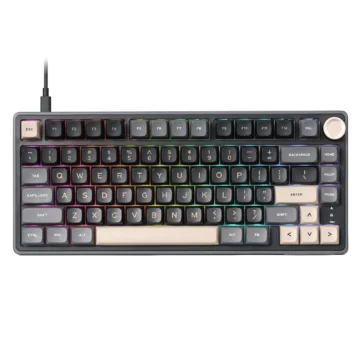
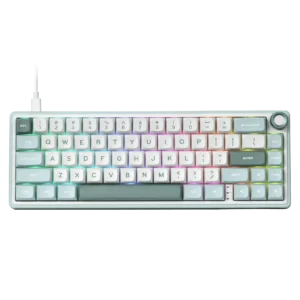
The Royal Kludge R65 uses a compact 66-key layout with a rotary knob positioned at the upper-right corner.
Main Components
| Component | Function |
| Mechanical Keys | Provide standard typing input |
| Fn Key | Activates secondary keyboard functions |
| Number Row | Provides number entry and F1–F12 functions |
| Arrow Keys | Provide directional navigation and lighting adjustments with Fn |
| USB Type-C Port | Connects the keyboard to a computer |
| Rotary Knob | Adjusts system volume and mutes audio |
| Backlight | Illuminates the keys |
| Indicator Lights | Display selected keyboard status conditions |
| Windows Key | Provides Windows-related commands and a locking function |
| Delete Key | Provides Delete and Insert functions |
| Page Up Key | Provides Page Up and Pause functions |
| Page Down Key | Provides Page Down and End functions |
Compact Keyboard Layout
The 66-key layout includes letter keys, a number row, modifier keys, punctuation keys, arrow keys, and selected navigation keys.
Additional commands are accessed by pressing Fn together with the assigned key.
The R65 provides F1–F12 and other secondary commands without requiring a separate full-size function-key row.
Before First Use
The keyboard must be connected to a computer through its USB Type-C cable before operation.
Initial Setup
- Remove the keyboard and supplied accessories from the packaging.
- Locate the USB Type-C connection port on the keyboard.
- Connect the USB Type-C end of the supplied cable to the keyboard.
- Connect the USB-A end to an available USB port on the computer.
- Select Windows or Mac mode using the appropriate shortcut.
The keyboard operates through its wired USB connection.
Wired USB-C Connection
The R65 connects directly to a compatible computer using a USB cable.
How to Connect the R65 Keyboard
- Locate the USB Type-C port on the keyboard.
- Insert the Type-C connector into the keyboard.
- Insert the USB connector at the opposite end into the computer’s USB port.
- Use the keyboard through the wired connection.
The product connection illustration shows the USB Type-C cable connecting the keyboard to a desktop or laptop computer.
Rotary Knob Functions
The RK R65 includes a multifunction rotary knob at the upper-right corner of the keyboard.
The knob controls system audio volume and muting.
Volume Knob Controls
| Knob Action | Function |
| Rotate clockwise | Increase volume |
| Rotate counterclockwise | Decrease volume |
| Press knob | Mute audio |
Increasing Volume
Rotate the knob clockwise to increase the audio volume.
Decreasing Volume
Rotate the knob counterclockwise to reduce the audio volume.
Muting Audio
Press the knob to activate the mute function.
Keyboard Indicator Lights
The R65 includes three status indicator lights near the right-hand modifier keys.
Indicator Light Functions
| Indicator | Meaning |
| Indicator 1 | Caps Lock |
| Indicator 2 | Windows Lock |
| Indicator 3 | Mac system indicator |
Caps Lock Indicator
The first indicator corresponds to the Caps Lock function.
Windows Lock Indicator
The second indicator corresponds to the Windows key locking function.
Mac System Indicator
The third indicator remains steadily illuminated when the keyboard is operating in Mac system mode.
R65 Backlight Controls
The keyboard includes backlighting controls for adjusting brightness, effect speed, and lighting modes.
RGB versions also support switching between RGB and monochrome lighting.
Backlight Shortcut Keys
| Key Combination | Function |
| Fn + Up Arrow (↑) | Increase backlight brightness |
| Fn + Down Arrow (↓) | Decrease backlight brightness |
| Fn + Left Arrow (←) | Decrease backlight effect speed |
| Fn + Right Arrow (→) | Increase backlight effect speed |
| Fn + Backslash (\) | Switch backlight mode |
| Fn + Left Arrow (←), RGB version | Backlight monochrome switching |
The RGB monochrome-switching shortcut uses the same Fn and Left Arrow keys identified in the backlight control chart. Its function depends on the keyboard’s lighting version and active lighting function.
Increasing Backlight Brightness
Press Fn + Up Arrow to increase the LED backlight brightness.
Decreasing Backlight Brightness
Press Fn + Down Arrow to reduce the LED backlight brightness.
Increasing Backlight Speed
Press Fn + Right Arrow to increase the speed of supported animated lighting effects.
Decreasing Backlight Speed
Press Fn + Left Arrow to decrease the speed of supported animated lighting effects.
Changing Backlight Modes
Press Fn + Backslash (\) to switch the keyboard’s backlight mode.
RGB Monochrome Switching
On the RGB version, Fn + Left Arrow is identified for monochrome lighting switching.
Windows Key Lock
The R65 includes a Windows key locking shortcut.
Activating Windows Lock
Press Fn + Win.
This controls the Windows key locking function.
Windows Lock Indicator
The second status indicator corresponds to Windows Lock.
The Windows key locking shortcut can be used when the Windows key function needs to be restricted.
Factory Reset
The keyboard includes a factory reset shortcut for restoring its default settings.
How to Factory Reset the R65
- Keep the keyboard connected to the computer.
- Press and hold Fn + Spacebar.
- Continue holding both keys for 3 seconds.
- Release the keys after the reset command has been activated.
This restores the keyboard’s factory settings.
R65 Function Keys F1–F12
The R65 provides access to F1 through F12 through secondary combinations on the number row.
Function Key Shortcut Table
| Key Combination | Function |
| Fn + 1 | F1 |
| Fn + 2 | F2 |
| Fn + 3 | F3 |
| Fn + 4 | F4 |
| Fn + 5 | F5 |
| Fn + 6 | F6 |
| Fn + 7 | F7 |
| Fn + 8 | F8 |
| Fn + 9 | F9 |
| Fn + 0 | F10 |
| Fn + – | F11 |
| Fn + = | F12 |
Using Function Keys
To activate F1 through F12, press Fn together with the corresponding key on the number row.
For example:
- Fn + 1 activates F1.
- Fn + 5 activates F5.
- Fn + 0 activates F10.
- Fn + – activates F11.
- Fn + = activates F12.
Switching Between Number Keys and Function Keys
The keyboard supports changing the behavior of the number-key and function-key layer.
Fn + Left Ctrl Shortcut
Press Fn + Left Ctrl to switch between the number-key and function-key functions.
This shortcut is supported in Windows and Mac system modes.
Windows Keyboard Mode
The RK R65 provides a dedicated Windows operating system mode.
Switching to Windows Mode
Press Fn + A.
This selects the Windows system layout.
Windows Mode Shortcuts
| Key Combination | Function |
| Fn + A | Switch to Windows mode |
| Fn + Left Ctrl | Switch between number keys and function keys |
| Fn + Win | Windows key lock |
Windows Multimedia Shortcut Keys
In Windows mode, the R65 supports application shortcuts, playback controls, and volume controls through the function-key layer.
Windows Multimedia Functions
| Shortcut Shown in Manual | Function |
| Fn + F1 | Computer |
| Fn + F2 | Browser |
| Fn + F3 | Mailbox |
| Fn + F4 | Calculator |
| Fn + F5 | Player |
| Fn + F6 | Stop |
| Fn + F7 | Previous song |
| Fn + F8 | Play/Pause |
| Fn + F9 | Next song |
| Fn + F10 | Mute |
| Fn + F11 | Decrease volume |
| Fn + F12 | Increase volume |
The function-key labels correspond to the F1–F12 layer assigned to the number row. The Fn + Left Ctrl shortcut changes the number-key and function-key behavior.
Opening the Browser
Use the F2 multimedia function in Windows mode.
Controlling Media Playback
The media controls provide these functions:
- F7: Previous track.
- F8: Play or pause.
- F9: Next track.
- F10: Mute.
- F11: Decrease volume.
- F12: Increase volume.
Mac Keyboard Mode
The R65 also supports a Mac operating system layout.
Switching to Mac Mode
Press Fn + S.
This selects the Mac system layout.
Switching Number and Function Key Behavior
Press Fn + Left Ctrl to switch between the number-key and function-key layers.
Mac Multimedia Shortcut Keys
| Shortcut Shown in Manual | Function |
| Fn + F1 | Decrease screen brightness |
| Fn + F2 | Increase screen brightness |
| Fn + F5 | Decrease keyboard backlight brightness |
| Fn + F6 | Increase keyboard backlight brightness |
| Fn + F7 | Previous song |
| Fn + F8 | Play/Pause |
| Fn + F9 | Next song |
| Fn + F10 | Mute |
| Fn + F11 | Decrease volume |
| Fn + F12 | Increase volume |
Adjusting Mac Screen Brightness
Use the F1 and F2 multimedia functions to decrease or increase the computer screen brightness.
Adjusting Keyboard Backlight Brightness
Use the F5 and F6 multimedia functions to decrease or increase the keyboard backlight brightness.
Mac Audio Controls
The F7–F12 multimedia functions provide media playback and volume controls.
Secondary Combination Function Keys
The R65 also includes secondary commands for system functions and navigation.
Secondary Function Shortcut Table
| Key Combination | Function |
| Fn + A | Switch to Windows system |
| Fn + S | Switch to Mac system |
| Fn + Apostrophe/Quote key | Print Screen (PrtSc) |
| Fn + Del | Insert |
| Fn + PgUp | Pause |
| Fn + PgDn | End |
| Fn + [ | Home |
| Fn + ] | Scroll Lock (ScrLk) |
| Fn + Esc | Grave accent / Tilde (` / ~) |
Print Screen
Press Fn + Apostrophe/Quote key to activate Print Screen.
Insert
Press Fn + Del to activate Insert.
Pause
Press Fn + PgUp to activate Pause.
End
Press Fn + PgDn to activate End.
Home
Press Fn + [ to activate Home.
Scroll Lock
Press Fn + ] to activate Scroll Lock.
Grave Accent and Tilde
Press Fn + Esc to access the grave accent or tilde function.
Complete R65 Keyboard Shortcut Reference
The following table groups the keyboard’s main setup and control shortcuts.
| Key Combination | Function |
| Fn + A | Windows mode |
| Fn + S | Mac mode |
| Fn + Left Ctrl | Switch number/function key behavior |
| Fn + Win | Windows Lock |
| Fn + Spacebar (hold 3 seconds) | Factory reset |
| Fn + Up Arrow | Increase backlight brightness |
| Fn + Down Arrow | Decrease backlight brightness |
| Fn + Left Arrow | Decrease lighting speed / RGB monochrome switching |
| Fn + Right Arrow | Increase lighting speed |
| Fn + Backslash | Switch backlight mode |
| Fn + 1 through Fn + 0 | F1 through F10 |
| Fn + – | F11 |
| Fn + = | F12 |
| Fn + Apostrophe/Quote key | Print Screen |
| Fn + Del | Insert |
| Fn + PgUp | Pause |
| Fn + PgDn | End |
| Fn + [ | Home |
| Fn + ] | Scroll Lock |
| Fn + Esc | Grave accent / Tilde |
Customer Support Information
Royal Kludge provides technical support for product-related questions and issues.
Contact Information
| Field | Details |
| Brand | Royal Kludge |
| Product | R65 Wired Mechanical Keyboard |
| Customer Support Email | rkgaming@rkgaming.com |
| Official Website | www.rkgaming.com |
| Manufacturing Country | China |
| Executive Standard | GB/T 14081-2010 |
For product issues or technical questions, contact rkgaming@rkgaming.com.
Frequently Asked Questions
1. How is the Royal Kludge R65 connected to a computer?
The R65 uses a USB Type-C wired connection. Connect the Type-C end of the supplied cable to the keyboard and the USB end to an available USB port on the computer.
2. How can the RGB backlight be changed on the R65?
Press Fn + Backslash to switch backlight modes. On the RGB version, Fn + Left Arrow is identified for monochrome switching. Brightness is controlled with Fn + Up Arrow and Fn + Down Arrow.
3. How is the Royal Kludge R65 factory reset?
Press and hold Fn + Spacebar for three seconds to restore the keyboard’s factory settings.
4. How can the Windows key be locked on the R65?
Press Fn + Win to control the Windows Lock function. The second keyboard indicator light corresponds to Windows Lock.
5. How is the R65 switched between Windows and Mac mode?
Press Fn + A to select Windows mode or Fn + S to select Mac mode. Fn + Left Ctrl switches between the number-key and function-key behavior.
6. What does the R65 volume knob do?
Turning the knob clockwise increases volume, turning it counterclockwise decreases volume, and pressing the knob mutes audio.
7. How are F1–F12 accessed on the R65 keyboard?
Press Fn with the number-row keys. Fn + 1 through Fn + 0 provide F1–F10, Fn + – provides F11, and Fn + = provides F12.
8. Does the Royal Kludge R65 support RGB and monochrome backlighting?
The R65 manual identifies monochrome and RGB backlighting versions. Both have lighting controls, while RGB versions also include the monochrome-switching function.