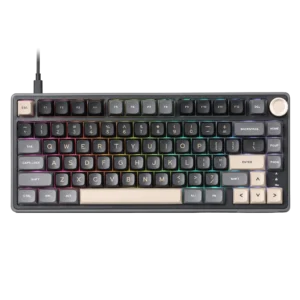
| Field | Details |
| Document Title | Mechanical Keyboard User Manual |
| Document Type | User Manual |
| Brand Name | Royal Kludge (RK) |
| Product Name | R75 Wired Mechanical Keyboard |
| Model Number(s) | R75 (identified by the supplied filename and PDF metadata) |
| PDF File Size | 8.90 MB |
| Total Number of Pages | 1 |
| Languages Covered | English and Russian |
Royal Kludge R75 Wired Mechanical Keyboard
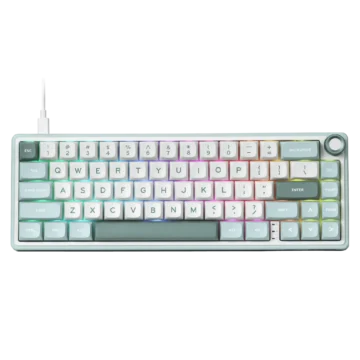
The Royal Kludge R75 is an 80-key wired mechanical keyboard featuring a compact layout, gasket-mounted construction, adjustable backlighting, and a multifunction volume knob. It connects to a computer through a USB Type-C cable and supports Windows and Mac keyboard layouts.
The R75 measures 323 × 142.3 × 41.63 mm and uses mechanical switches. It is available with monochrome or RGB backlighting, depending on the version. Lighting controls allow adjustment of brightness, effect speed, color, and lighting modes through Fn key combinations.
The keyboard includes dedicated F1–F12 keys, navigation controls, arrow keys, and secondary shortcuts for Print Screen, Scroll Lock, Pause, Insert, and End. A rotary knob provides direct control over system volume and mute.
The R75 also supports custom backlight recording, Windows key locking, switching between six-key rollover and full-key rollover, and separate Windows and Mac system modes. It supports VIA software for keyboard configuration and includes a DFU mode for firmware upgrades.
The following instructions cover product specifications, USB connection, keyboard indicators, volume controls, lighting customization, function-key shortcuts, Windows and Mac modes, VIA support, firmware upgrade mode, and factory reset.
Technical Specifications
| Specification | Details |
| Brand | Royal Kludge (RK) |
| Model | R75 |
| Product Type | Wired Mechanical Keyboard |
| Keyboard Layout | 80 Keys |
| Length | 323 mm |
| Width | 142.3 mm |
| Height | 41.63 mm |
| Dimension Tolerance | ±2 mm |
| Switch Type | Mechanical Switches |
| Mounting Structure | Gasket Mount |
| Backlighting | Monochrome or RGB, Depending on Version |
| Connection Mode | Wired USB |
| USB Connection | USB Type-C |
| Volume Control | Rotary Knob |
| Knob Functions | Volume Up, Volume Down, Mute |
| Operating System Layouts | Windows and Mac |
| Key Rollover Modes | Six-Key Rollover and Full-Key Rollover |
| Custom Backlighting | Supported |
| Keyboard Configuration Software | VIA |
| Firmware Upgrade Mode | DFU |
| Factory Reset | Fn + Spacebar |
What’s Included in the Box
The Royal Kludge R75 package includes the keyboard and its operating accessories.
| Item | Quantity | Description |
| R75 Mechanical Keyboard | 1 | Main keyboard unit |
| USB Type-C Cable | 1 | Used for wired connection |
| Keycap and Switch Puller | 1 | Tool for removing keycaps and switches |
| User Manual | 1 | Keyboard instructions and shortcut information |
Keyboard Parts and Components
The R75 uses an 80-key layout with a dedicated function row, navigation keys, arrow keys, and a rotary knob.
Main Keyboard Components
| Component | Function |
| Mechanical Keys | Provide standard typing and command input |
| Fn Key | Activates secondary keyboard functions |
| F1–F12 Keys | Provide standard and multimedia functions |
| Arrow Keys | Provide directional input and lighting controls |
| Rotary Knob | Controls volume and mute |
| USB Type-C Connector | Connects the keyboard to a computer |
| Caps Lock Indicator | Shows Caps Lock status |
| Windows Lock Indicator | Shows Windows key lock status |
| Mac Mode Indicator | Identifies Mac operating mode |
| Spacebar | Used with Fn for factory reset |
| DFU Switch | Provides access to firmware upgrade mode |
Gasket-Mounted Structure
The R75 uses a gasket-mounted keyboard structure.
The construction is identified as Gasket Mount in the product specifications.
Rotary Volume Knob
The rotary knob is positioned in the upper-right corner of the keyboard.
It allows direct adjustment of system volume and provides a press-to-mute function.
Keyboard Indicator Lights
The R75 has three status indicators located near the right side of the keyboard.
Indicator Light Guide
| Indicator | Function |
| Caps Lock | Indicates Caps Lock status |
| WIN Lock | Indicates Windows key lock status |
| Mac | Remains illuminated when Mac system mode is active |
Caps Lock Indicator
The Caps Lock indicator identifies whether the keyboard’s capitalization lock is enabled.
Windows Lock Indicator
The WIN Lock indicator displays the Windows key lock status.
The Windows Lock function is controlled through the Fn + Windows key shortcut.
Mac Mode Indicator
The Mac indicator remains on when the keyboard is operating in Mac mode.
Before First Use
The R75 operates through a wired USB connection.
Initial Setup Instructions
- Remove the keyboard and accessories from the packaging.
- Place the keyboard on a stable surface.
- Locate the USB Type-C connector.
- Connect the supplied USB Type-C cable to the keyboard.
- Connect the USB-A end to an available USB port on the computer.
- Select the Windows or Mac keyboard layout as required.
The keyboard can then be used through its wired connection.
How to Connect the R75 in Wired Mode
The Royal Kludge R75 uses a USB cable for communication with the host computer.
Wired USB Connection
- Locate the USB Type-C port on the keyboard.
- Insert the Type-C end of the cable into the keyboard.
- Connect the USB-A end to the computer.
- Use the keyboard through the wired USB connection.
The keyboard’s wired connection does not require selecting a Bluetooth or 2.4GHz wireless mode.
Rotary Knob Functions
The R75 includes a rotary knob for controlling system audio.
Rotary Knob Control Guide
| Knob Action | Function |
| Rotate Clockwise | Increase Volume |
| Rotate Counterclockwise | Decrease Volume |
| Press the Knob | Mute |
Increasing Volume
Rotate the knob clockwise to increase the system volume.
Decreasing Volume
Rotate the knob counterclockwise to decrease the system volume.
Muting Audio
Press the knob to activate the mute function.
The keyboard also provides a mute shortcut through Fn + F10.
Backlight Controls
The R75 provides backlighting controls through Fn key combinations.
Depending on the keyboard version, the backlighting may be monochrome or RGB.
The keyboard supports brightness adjustment, lighting-effect speed control, backlight-mode switching, and monochrome color switching on the RGB version.
Backlight Shortcut Table
| Shortcut | Function |
| Fn + Up Arrow | Increase Backlight Brightness |
| Fn + Down Arrow | Decrease Backlight Brightness |
| Fn + Left Arrow | Decrease Backlight Effect Speed |
| Fn + Right Arrow | Increase Backlight Effect Speed |
| Fn + Less-Than (<) Key | Switch Monochrome Backlight Color on RGB Version |
| Fn + Backslash (\) | Switch Backlight Mode |
| Fn + Spacebar | Restore Factory Settings |
How to Adjust Backlight Brightness
The keyboard’s illumination brightness can be changed using the vertical arrow keys.
- Fn + Up Arrow: Increases backlight brightness.
- Fn + Down Arrow: Decreases backlight brightness.
How to Adjust Backlight Effect Speed
The speed of the currently selected lighting effect can be controlled using the horizontal arrow keys.
- Fn + Left Arrow: Decreases the lighting-effect speed.
- Fn + Right Arrow: Increases the lighting-effect speed.
How to Change the Backlight Mode
Press Fn + Backslash (\).
The keyboard switches to another available backlight mode.
How to Switch Monochrome Backlight Colors
On the RGB version, press Fn + the Less-Than (<) key to switch the monochrome backlight color.
This function applies to the RGB version of the keyboard.
Custom Backlight Settings
The Royal Kludge R75 supports custom backlight recording.
This feature allows individual keys to be selected for a custom lighting arrangement.
Custom Backlight Shortcut Guide
| Shortcut | Function |
| Fn + 1 | Select Custom Backlight |
| Fn + Backspace | Enter or Exit Backlight Recording Mode |
| Fn + 2 | Fixed Lighting Effect |
| Fn + 3 | Fixed Lighting Effect |
How to Set Custom Backlighting
- Press Fn + 1 to select the customizable backlight setting.
- Press Fn + Backspace to enter backlight recording mode.
- Select the keys to include in the custom lighting arrangement.
- Repeat the selection process for the required keys.
- Press Fn + Backspace again to save the custom settings and exit recording mode.
The keyboard stores the selected backlight arrangement after the recording mode is exited.
Fixed Lighting Effects
The shortcuts Fn + 2 and Fn + 3 select fixed lighting effects.
These effects are separate from the custom backlight recording function.
Windows and Mac System Modes
The R75 supports two keyboard system layouts: Windows and Mac.
The selected mode determines how supported modifier keys and multimedia shortcuts operate.
System Mode Shortcuts
| Shortcut | Function |
| Fn + A | Switch to Windows Mode |
| Fn + S | Switch to Mac Mode |
How to Switch to Windows Mode
Press Fn + A.
The keyboard switches to its Windows layout.
How to Switch to Mac Mode
Press Fn + S.
The keyboard switches to its Mac layout, and the Mac mode indicator remains illuminated.
Windows and Alt Key Behavior
In Mac mode, the Windows and Alt key functions are swapped to match the Mac keyboard arrangement.
Windows Multimedia Shortcuts
The R75 provides multimedia shortcuts for Windows.
These shortcuts support common applications, audio playback, and volume adjustment.
Windows Multimedia Shortcut Table
| Shortcut | Function |
| Fn + F1 | Computer |
| Fn + F2 | Browser |
| Fn + F3 | Mailbox |
| Fn + F4 | Calculator |
| Fn + F5 | Media Player |
| Fn + F6 | Stop Playback |
| Fn + F7 | Previous Track |
| Fn + F8 | Play/Pause |
| Fn + F9 | Next Track |
| Fn + F10 | Mute |
| Fn + F11 | Decrease Volume |
| Fn + F12 | Increase Volume |
Windows Application Shortcuts
The first five multimedia shortcuts provide access to common computer applications.
| Shortcut | Application |
| Fn + F1 | Computer |
| Fn + F2 | Browser |
| Fn + F3 | Mailbox |
| Fn + F4 | Calculator |
| Fn + F5 | Media Player |
Windows Media Playback Controls
The multimedia keys can be used to control supported audio and video applications.
| Shortcut | Function |
| Fn + F6 | Stop |
| Fn + F7 | Previous Track |
| Fn + F8 | Play/Pause |
| Fn + F9 | Next Track |
Windows Volume Controls
The R75 provides keyboard shortcuts as an alternative to the rotary volume knob.
- Fn + F10: Mutes audio.
- Fn + F11: Decreases volume.
- Fn + F12: Increases volume.
Mac Multimedia Shortcuts
When Mac mode is selected, the function keys provide screen brightness, keyboard backlighting, playback, and volume controls.
Mac Multimedia Shortcut Table
| Shortcut | Function |
| Fn + F1 | Decrease Screen Brightness |
| Fn + F2 | Increase Screen Brightness |
| Fn + F5 | Decrease Keyboard Backlight Brightness |
| Fn + F6 | Increase Keyboard Backlight Brightness |
| Fn + F7 | Previous Track |
| Fn + F8 | Play/Pause |
| Fn + F9 | Next Track |
| Fn + F10 | Mute |
| Fn + F11 | Decrease Volume |
| Fn + F12 | Increase Volume |
Adjusting Mac Screen Brightness
In Mac mode:
- Press Fn + F1 to decrease screen brightness.
- Press Fn + F2 to increase screen brightness.
Adjusting Keyboard Backlight Brightness
- Fn + F5: Decreases keyboard backlight brightness.
- Fn + F6: Increases keyboard backlight brightness.
Mac Media and Volume Controls
The keyboard provides previous track, play/pause, next track, mute, volume down, and volume up functions through Fn + F7 to Fn + F12.
Secondary Function Key Combinations
The R75 provides additional system and navigation functions through Fn combinations.
Secondary Function Key Table
| Shortcut | Function |
| Fn + Home | Print Screen |
| Fn + Delete | Scroll Lock |
| Fn + Page Up | Pause |
| Fn + Page Down | End |
| Fn + Right Bracket (]) | Insert |
| Fn + B | Switch Between Six-Key Rollover and Full-Key Rollover |
| Fn + S | Switch to Mac Mode |
| Fn + A | Switch to Windows Mode |
Print Screen
Press Fn + Home to activate Print Screen.
Scroll Lock
Press Fn + Delete to activate Scroll Lock.
Pause
Press Fn + Page Up to perform the Pause function.
End
Press Fn + Page Down to perform the End function.
Insert
Press Fn + Right Bracket (]) to activate the Insert function.
Six-Key Rollover and Full-Key Rollover
The R75 supports switching between two keyboard rollover modes.
Key Rollover Shortcut
Press Fn + B.
The keyboard switches between:
- Six-key rollover
- Full-key rollover
Six-key rollover limits the simultaneous ordinary key presses that can be registered to six, while full-key rollover supports registering a larger number of simultaneous key presses.
The Fn + B shortcut can be used to change the rollover mode.
Windows Key Lock
The R75 includes a Windows Lock function.
How to Lock the Windows Key
Press Fn + Windows Key.
The Windows Lock function changes the operating state of the Windows key.
The keyboard’s WIN Lock indicator shows the corresponding status.
How to Restore Factory Settings
The R75 supports a factory reset using a keyboard shortcut.
Factory Reset Instructions
- Locate the Fn key.
- Press and hold Fn + Spacebar.
- Keep both keys pressed for three seconds.
- The keyboard restores its factory settings.
| Function | Shortcut | Duration |
| Restore Factory Settings | Fn + Spacebar | 3 Seconds |
DFU Mode for Firmware Upgrades
The Royal Kludge R75 includes DFU mode for firmware upgrade and development functions.
DFU stands for Development Firmware Upgrade.
The keyboard supports two methods for entering DFU mode.
Method 1: Using the Switch Under the Spacebar
- Locate the DFU switch underneath the Spacebar.
- Press and hold the switch.
- While holding the switch, connect the keyboard to the computer.
The keyboard enters DFU mode.
Method 2: Using a Keyboard Shortcut
- Connect the keyboard to the computer using the USB cable.
- Simultaneously press Fn + Right Shift + Esc.
This activates DFU mode.
DFU Mode Shortcut Guide
| Method | Required Action |
| Hardware Switch | Hold the switch under the Spacebar while connecting USB |
| Keyboard Shortcut | Fn + Right Shift + Esc |
DFU mode is used for supported firmware upgrade and development functions.
VIA Keyboard Configuration Software
The Royal Kludge R75 supports VIA keyboard configuration software.
VIA Website
VIA provides a configuration interface for supported programmable keyboards.
Royal Kludge Driver Download
The manufacturer also provides a driver download address:
https://www.rkgaming.com/Download/1
The appropriate keyboard configuration software can be obtained through the supported download resources.
Keyboard Troubleshooting
The following documented controls can be used to restore keyboard settings or access supported configuration functions.
Keyboard Functions and Recovery Controls
| Function or Issue | Relevant Action |
| Restore Default Keyboard Settings | Hold Fn + Spacebar for three seconds |
| Change Windows/Mac Layout | Press Fn + A or Fn + S |
| Switch Key Rollover Mode | Press Fn + B |
| Windows Key Is Locked | Use Fn + Windows Key |
| Change Backlight Mode | Press Fn + Backslash |
| Adjust Backlight Brightness | Use Fn + Up/Down Arrow |
| Adjust Lighting Effect Speed | Use Fn + Left/Right Arrow |
| Enter Firmware Upgrade Mode | Use DFU switch or Fn + Right Shift + Esc |
| Configure Supported Keyboard Functions | Use VIA |
Restoring Keyboard Settings
The factory reset shortcut restores the keyboard’s default settings.
Switching Key Rollover Mode
Fn + B changes between six-key rollover and full-key rollover.
Accessing Firmware Upgrade Functions
The keyboard can enter DFU mode through the switch underneath the Spacebar or the Fn + Right Shift + Esc shortcut.
Safety and Regulatory Information
The manual includes a California Proposition 65 chemical exposure warning.
The warning advises that the product may expose users to chemicals associated with cancer, birth defects, or other reproductive harm under California regulations.
Additional information is available at:
https://www.p65warnings.ca.gov
Manufacturer and Customer Support
Royal Kludge provides assistance for product issues and technical questions.
Manufacturer Information
| Field | Details |
| Brand | Royal Kludge (RK) |
| Product | R75 Wired Mechanical Keyboard |
| Country of Manufacture | China |
| Executive Standard | GB/T 14081-2010 |
| Document Number | 166-85101-06 |
| Brand Website | www.rkgaming.com |
| Driver Download | www.rkgaming.com/Download/1/ |
| VIA Configuration | https://usevia.app/ |
Contacting Customer Support
For product problems or questions, customers should contact the seller.
Royal Kludge provides customer assistance through its product support channels.
Frequently Asked Questions
1. How do I connect the Royal Kludge R75 wired keyboard?
Connect the supplied USB Type-C cable to the keyboard and plug its USB-A connector into an available USB port on the computer. The R75 operates through a wired USB connection.
2. How do I change the R75 keyboard backlight settings?
Press Fn + Up/Down Arrow to adjust brightness or Fn + Left/Right Arrow to change the lighting-effect speed. Fn + Backslash changes the backlight mode, while the RGB version also supports monochrome color switching.
3. How do I customize the backlighting on the Royal Kludge R75?
Press Fn + 1 to select custom backlighting. Press Fn + Backspace to enter recording mode, select the keys for the custom lighting arrangement, and press Fn + Backspace again to save and exit.
4. How do I reset the Royal Kludge R75 keyboard?
Press and hold Fn + Spacebar for three seconds. The keyboard restores its factory settings.
5. How do I switch between Windows and Mac modes on the R75?
Press Fn + A to switch to Windows mode or Fn + S to switch to Mac mode. The Mac indicator remains illuminated when Mac mode is active.
6. How do I enter DFU mode on the Royal Kludge R75?
DFU mode can be activated by holding the switch underneath the Spacebar while connecting the keyboard to the computer. Alternatively, connect the keyboard first and press Fn + Right Shift + Esc.
7. Does the Royal Kludge R75 support VIA software?
Yes. The keyboard supports VIA configuration software, available at https://usevia.app/. Royal Kludge also provides driver downloads through its website.
8. How do I switch between six-key rollover and full-key rollover on the R75?
Press Fn + B to switch between six-key rollover and full-key rollover modes.