| Field | Details |
| Document Title | Royal Kludge Mechanical Keyboard User Manual |
| Document Type | User Manual |
| Brand Name | Royal Kludge (RK) |
| Product Name | Mechanical Keyboard |
| Model Number(s) | RK920 |
| PDF File Size | 3.32 MB |
| Total Number of Pages | 1 |
| Languages Covered | English and Russian |
Royal Kludge RK920 Mechanical Keyboard
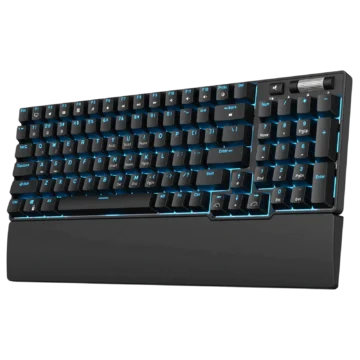
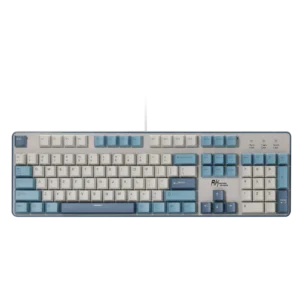
The Royal Kludge RK920 is a full-size, 104-key mechanical keyboard designed for typing, gaming, and multimedia control. It features a metal and ABS construction, two-color injection-molded ABS keycaps, mechanical switches, and adjustable single-color backlighting.
The RK920 mechanical keyboard includes five preset gaming backlight modes and seven selectable custom backlight profiles. Its lighting controls allow users to switch between effects, adjust brightness and animation speed, and create personalized illuminated key arrangements.
The keyboard provides Fn shortcuts for opening applications, controlling music playback, adjusting volume, locking the Windows key, and restoring factory settings. Dedicated function keys, navigation controls, arrow keys, and a numeric keypad are included in the full-size layout.
The RK920 operates at 5V and supports several operating systems, including Windows, macOS, Linux, iOS, and Android, with suitable connection compatibility.
These instructions cover the keyboard’s specifications, parts, initial setup, Fn key combinations, multimedia functions, gaming backlight presets, custom lighting settings, brightness and speed adjustments, factory reset, and warranty service.
Technical Specifications
| Specification | Details |
| Brand | Royal Kludge (RK) |
| Model | RK920 |
| Product Type | Mechanical Keyboard |
| Keyboard Layout | Full-Size |
| Number of Keys | 104 |
| Keyboard Construction | Metal + ABS |
| Keycap Material | ABS |
| Keycap Manufacturing | Two-Color Injection Molding |
| Mechanical Switch Options | Blue, Red, Brown, Black |
| Backlighting | Single-Color Backlight |
| Default Gaming Backlight Modes | 5 |
| Custom Backlight Profile Shortcuts | 7 |
| Working Voltage | 5V |
| Multimedia Functions | Supported |
| Windows Key Lock | Supported |
| Factory Reset | Fn + Esc |
| Warranty Period | 12 Months |
What’s Included in the Box
The RK920 packaging contains the keyboard and product documentation.
| Item | Quantity |
| Mechanical Keyboard | 1 |
| Quality Inspection Label | 1 |
| User Manual | 1 |
Keyboard Parts and Components
The RK920 uses a full-size keyboard layout with 104 keys, including the main typing area, function keys, navigation controls, arrow keys, and numeric keypad.
Main Keyboard Components
| Component | Function |
| Mechanical Keys | Provide typing and command input |
| Fn Key | Activates secondary functions |
| F1–F12 Keys | Provide function and multimedia controls |
| Number Keys 1–5 | Select preset gaming backlight modes with Fn |
| Number Keys 6–0 | Select custom backlight profiles with Fn |
| Minus and Equals Keys | Provide additional custom backlight profiles |
| Print Screen Key | Opens custom backlight recording with Fn |
| Scroll Lock Key | Switches backlight modes with Fn |
| Arrow Keys | Adjust backlight brightness and animation speed |
| Windows Key | Supports the Windows Lock function |
| Esc Key | Restores factory settings with Fn |
| Numeric Keypad | Provides numerical input |
Mechanical Switch Options
The RK920 specifications identify four mechanical switch variants.
| Switch Option | Color |
| Blue | Blue Switch |
| Red | Red Switch |
| Brown | Brown Switch |
| Black | Black Switch |
The installed switch type depends on the purchased keyboard configuration.
Keyboard Construction
The RK920 uses a combination of metal and ABS materials.
Its keycaps are manufactured using a two-color injection-molding process.
Before First Use
The RK920 uses a 5V working voltage and is intended for connection to a compatible host device.
Initial Preparation
- Remove the keyboard and documentation from the packaging.
- Place the keyboard on a stable surface.
- Connect it to a compatible host device using the appropriate USB connection.
- Confirm that the keyboard is receiving power.
- Select the required backlighting mode.
System Compatibility
The RK920 lists compatibility with multiple operating systems.
Supported Operating Systems
| Operating System | Listed Support |
| Windows XP | Yes |
| Windows Vista | Yes |
| Windows 7 | Yes |
| Windows 8 | Yes |
| Windows 10 | Yes |
| macOS | Yes |
| Linux | Yes |
| iOS | Yes |
| Android | Yes |
Devices without a suitable USB connection may require an appropriate external adapter.
The manual identifies USB interface compatibility as a consideration when connecting to supported devices.
Keyboard Function Keys
The RK920 includes multimedia and application shortcuts activated through the Fn key.
Complete Fn Key Function Table
| Shortcut | Function |
| Fn + F1 | My Computer |
| Fn + F2 | Web Browser |
| Fn + F3 | |
| Fn + F4 | Music |
| Fn + F5 | Previous Track |
| Fn + F6 | Next Track |
| Fn + F7 | Play/Pause |
| Fn + F8 | Stop |
| Fn + F9 | Increase Volume |
| Fn + F10 | Decrease Volume |
| Fn + F11 | Mute |
| Fn + F12 | Calculator |
Application Shortcuts
The keyboard includes shortcuts for accessing common computer applications.
| Shortcut | Application |
| Fn + F1 | My Computer |
| Fn + F2 | Web Browser |
| Fn + F3 | |
| Fn + F4 | Music Application |
| Fn + F12 | Calculator |
Music Playback Controls
The RK920 provides shortcuts for controlling compatible media applications.
| Shortcut | Function |
| Fn + F5 | Previous Track |
| Fn + F6 | Next Track |
| Fn + F7 | Play/Pause |
| Fn + F8 | Stop |
Volume Controls
System volume can be adjusted through the function row.
- Fn + F9: Increase volume.
- Fn + F10: Decrease volume.
- Fn + F11: Mute sound.
Windows Key Lock
The RK920 includes a Windows key lock function.
How to Lock the Windows Key
Press Fn + Windows Key.
The shortcut activates the Windows key lock function.
This control can be used when the Windows key should not interrupt keyboard activity.
Backlight Settings
The Royal Kludge RK920 features adjustable single-color backlighting.
The keyboard supports multiple dynamic lighting effects, five preset gaming modes, and selectable custom lighting profiles.
Backlight Shortcut Overview
| Shortcut | Function |
| Fn + Scroll Lock | Switch Backlight Mode |
| Fn + Up Arrow | Increase Backlight Brightness |
| Fn + Down Arrow | Decrease Backlight Brightness |
| Fn + Left Arrow | Decrease Backlight Effect Speed |
| Fn + Right Arrow | Increase Backlight Effect Speed |
| Fn + 1–5 | Select Default Gaming Backlight Modes |
| Fn + 6–0 | Select Custom Backlight Profiles |
| Fn + Minus | Select Custom Backlight Profile |
| Fn + Equals | Select Custom Backlight Profile |
| Fn + Print Screen | Enter, Save, or Exit Custom Backlight Recording |
How to Change the Backlight Mode
Press Fn + Scroll Lock.
The keyboard switches to another available dynamic backlight mode.
Different lighting effects can be selected by repeating the shortcut.
The appearance of individual lighting effects depends on the keyboard’s backlight configuration.
Five Default Gaming Backlight Modes
The RK920 includes five preset gaming backlight arrangements.
These modes illuminate predefined groups of keys for different gaming layouts.
Default Gaming Backlight Shortcut Table
| Shortcut | Preset |
| Fn + 1 | LOL Gaming Backlight Mode |
| Fn + 2 | FPS Gaming Backlight Mode |
| Fn + 3 | 8-Key Gaming Backlight Mode |
| Fn + 4 | 33-Key Gaming Backlight Mode |
| Fn + 5 | Overwatch Gaming Backlight Mode |
LOL Gaming Backlight Mode
Press Fn + 1 to select the LOL gaming backlight preset.
FPS Gaming Backlight Mode
Press Fn + 2 to activate the FPS gaming backlight arrangement.
8-Key Gaming Backlight Mode
Press Fn + 3 to select the preset that illuminates eight gaming keys.
33-Key Gaming Backlight Mode
Press Fn + 4 to activate the 33-key gaming lighting arrangement.
Overwatch Gaming Backlight Mode
Press Fn + 5 to select the Overwatch gaming backlight preset.
Seven Custom Backlight Profiles
The RK920 provides seven key combinations for selecting custom backlight profiles.
Custom Backlight Profile Shortcuts
| Shortcut | Selection |
| Fn + 6 | Custom Backlight Profile 1 |
| Fn + 7 | Custom Backlight Profile 2 |
| Fn + 8 | Custom Backlight Profile 3 |
| Fn + 9 | Custom Backlight Profile 4 |
| Fn + 0 | Custom Backlight Profile 5 |
| Fn + Minus (-) | Custom Backlight Profile 6 |
| Fn + Equals (=) | Custom Backlight Profile 7 |
These combinations are used to select a backlight profile before entering custom lighting recording mode.
How to Customize the RK920 Backlight
The custom backlight setting allows individual keys to be selected for illumination.
Custom Backlight Recording Instructions
- Press one of the custom profile shortcuts: Fn + 6, 7, 8, 9, 0, Minus, or Equals.
- Press Fn + Print Screen to enter custom backlight recording mode.
- The Print Screen key begins blinking, indicating that recording is active.
- Press the keys that should be illuminated.
- Continue selecting keys until the required lighting arrangement is complete.
- Press Fn + Print Screen again to save the settings and exit recording mode.
Example: Creating a Custom Key Arrangement
To configure a custom profile using Fn + 6:
- Press Fn + 6.
- Press Fn + Print Screen.
- Wait for the Print Screen indicator to blink.
- Press the keys required in the custom lighting arrangement.
- Press Fn + Print Screen again to save.
The saved arrangement can be selected using its assigned profile shortcut.
Adjusting Backlight Brightness
The RK920 allows the illumination brightness to be increased or decreased using the vertical arrow keys.
Brightness Controls
| Shortcut | Function |
| Fn + Up Arrow | Increase Backlight Brightness |
| Fn + Down Arrow | Decrease Backlight Brightness |
Increasing Brightness
Press Fn + Up Arrow to increase the illumination brightness.
Decreasing Brightness
Press Fn + Down Arrow to reduce the illumination brightness.
Adjusting Backlight Effect Speed
The horizontal arrow keys control the speed of the selected dynamic lighting effect.
Lighting Speed Controls
| Shortcut | Function |
| Fn + Left Arrow | Decrease Backlight Effect Speed |
| Fn + Right Arrow | Increase Backlight Effect Speed |
Increasing Lighting Speed
Press Fn + Right Arrow to increase the backlight animation speed.
Decreasing Lighting Speed
Press Fn + Left Arrow to slow down the backlight animation.
Brightness and Speed Limit Indicator
When a brightness or effect-speed adjustment reaches its limit, the keyboard indicator lights flash continuously to indicate that the limit has been reached.
How to Restore Factory Settings
The RK920 includes a factory reset shortcut.
Factory Reset Instructions
- Locate the Fn and Esc keys.
- Press and hold Fn + Esc for two seconds.
- The entire keyboard backlight flashes three times.
- The keyboard restores its factory settings.
Factory Reset Indicator
| Action | Indicator |
| Hold Fn + Esc for 2 Seconds | Entire Backlight Flashes Three Times |
| Reset Completed | Factory Settings Restored |
Keyboard Backlight and Reset Indicators
The manual describes visual signals associated with custom lighting, adjustment limits, and factory reset.
| Indicator Behavior | Meaning |
| Print Screen Key Blinks | Custom Backlight Recording Is Active |
| Indicator Lights Flash Continuously During Adjustment | Brightness or Speed Limit Reached |
| Entire Backlight Flashes Three Times After Fn + Esc | Factory Reset Activated |
Troubleshooting Guide
The RK920’s documented shortcuts provide controls for restoring keyboard settings and adjusting backlight behavior.
| Issue or Requirement | Recommended Action |
| Default Settings Need Restoring | Hold Fn + Esc for two seconds |
| Windows Key Is Locked | Use Fn + Windows Key |
| Backlight Mode Needs Changing | Press Fn + Scroll Lock |
| Backlight Is Too Dim | Press Fn + Up Arrow |
| Backlight Is Too Bright | Press Fn + Down Arrow |
| Lighting Effect Is Too Fast | Press Fn + Left Arrow |
| Lighting Effect Is Too Slow | Press Fn + Right Arrow |
| Custom Backlighting Needs Configuring | Select a custom profile and use Fn + Print Screen |
| Indicator Lights Flash During Brightness or Speed Adjustment | The adjustment has reached its limit |
Warranty Information
The Royal Kludge RK920 includes a 12-month warranty for product quality problems.
The manufacturer’s warranty terms describe refund, replacement, and repair arrangements according to the time elapsed after purchase.
Warranty Service Terms
| Period | Available Service for Qualifying Quality Problems |
| Within 7 Days of Purchase | Full Refund |
| Within 15 Days of Purchase | Product Replacement |
| After 15 Days, Within the Warranty Period | Repair |
| Damage Caused by Personal Reasons | Maintenance Fees May Apply |
Seven-Day Refund
If a product quality problem occurs within seven days of purchase:
- Take the product to the place of purchase.
- Bring the purchase receipt.
- Include the supplied packaging and accessories in good condition.
- Request a refund under the applicable warranty terms.
Fifteen-Day Replacement
If a qualifying product quality problem occurs within 15 days of purchase:
- Take the product and purchase receipt to the place of purchase.
- Bring the packaging and supplied items in good condition.
- Request a product replacement under the applicable service conditions.
Repair Within the Warranty Period
For qualifying product quality problems occurring after the initial replacement period:
- Take the product to the place of purchase.
- Provide the purchase receipt.
- Bring the product packaging.
- Request warranty repair.
Warranty Service Exclusions
The manufacturer identifies several circumstances in which warranty service may be refused.
These include:
- Products with appearance damage, missing identification, or an expired service period.
- Products that have been disassembled, modified, upgraded, or repaired outside the applicable service conditions.
- Products with missing parts.
- Damage involving electrical circuits, data interfaces, or power connections.
- Products containing foreign objects or showing other abnormal physical conditions identified by the manufacturer.
Damage caused by personal reasons may be subject to maintenance charges.
Manufacturer and Customer Support
Royal Kludge provides product assistance through its official website and applicable purchase channels.
Support Information
| Field | Details |
| Brand | Royal Kludge (RK) |
| Product | RK920 Mechanical Keyboard |
| Website | www.rkgaming.com |
| Country of Manufacture | China |
| Warranty Duration | 12 Months |
| Refund Window for Qualifying Quality Problems | 7 Days |
| Replacement Window for Qualifying Quality Problems | 15 Days |
For qualifying product quality problems, the warranty procedure directs customers to the place of purchase with the product and purchase receipt.
Frequently Asked Questions
1. How many keys does the Royal Kludge RK920 have?
The Royal Kludge RK920 is a full-size mechanical keyboard with 104 keys. It includes function keys, dedicated navigation controls, arrow keys, and a numeric keypad.
2. How do I change the RK920 keyboard backlight mode?
Press Fn + Scroll Lock to switch between the available dynamic backlight modes.
3. What gaming backlight modes are available on the RK920?
The RK920 includes five gaming presets: LOL, FPS, 8-key, 33-key, and Overwatch. They can be selected using Fn + 1 through Fn + 5.
4. How do I customize the RK920 keyboard backlight?
Select a custom lighting profile using Fn + 6, 7, 8, 9, 0, Minus, or Equals. Press Fn + Print Screen to enter recording mode, select the keys to illuminate, and press Fn + Print Screen again to save.
5. How do I adjust the RK920 backlight brightness and speed?
Use Fn + Up/Down Arrow to adjust brightness and Fn + Left/Right Arrow to change the lighting-effect speed. The keyboard indicator lights flash when an adjustment limit is reached.
6. How do I reset the Royal Kludge RK920 keyboard?
Press and hold Fn + Esc for two seconds. The keyboard backlight flashes three times, and the factory settings are restored.
7. How do I lock or use the Windows key on the RK920?
Press Fn + Windows Key to activate the Windows key lock function.
8. What warranty does the Royal Kludge RK920 have?
The RK920 includes a 12-month warranty for qualifying product quality problems. The manufacturer also describes a seven-day refund period and a fifteen-day replacement period, subject to the stated warranty conditions.