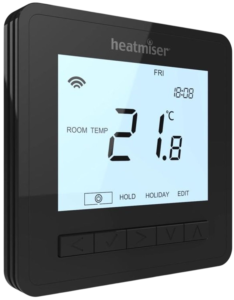
| Document Detail | Information |
| Document Type | Installation and User Guide |
| Brand Name | Heatmiser |
| Product Name | neoAir V3 Wireless Thermostat |
| Model Number(s) | neoAir V3 |
| File Size | 1.14 MB |
| Number of Pages | 48 |
| Languages Covered | English |
The manual identifies the thermostat as Heatmiser neoAir V3 from the neo Series. It covers installation, batteries, three operating modes, receiver and hub pairing, heating and hot-water control, schedules, remote sensors, time-clock operation, optional settings, error codes, reset, and radio compliance information.
Heatmiser neoAir V3 Wireless Thermostat
The Heatmiser neoAir V3 is a battery-powered wireless thermostat designed to send heating and, with compatible equipment, hot-water commands to a Heatmiser receiver. It can work with UH8-RF wiring centres, RF-Switch receivers, RF-Switch 16A, neoHub, and selected neoHub Mini models.
Depending on the installation, the neoAir V3 can operate as a programmable thermostat, a time clock, or a combined thermostat and hot-water timer. When paired with a compatible neoHub, the thermostat can also become part of a Heatmiser neo smart-control system using the neoApp.
Important: the manual specifically states that the neoAir V3 must not be used to control electric underfloor heating.
A remote floor sensor can be used for temperature monitoring and floor limiting in supported heating installations, but the neoAir V3 itself is not approved in this manual as the switching thermostat for electric underfloor heating.
Main Features
The neoAir V3 provides:
- Wireless heating control.
- Three selectable operating modes.
- Weekday/weekend, 7-day, 24-hour, and non-programmable temperature control.
- Four programmable comfort levels.
- neoHub and neoHub Mini connectivity.
- neoApp compatibility through a compatible hub.
- UH8-RF and UH8-RF V2 compatibility.
- RF-Switch, RF-Switch V2, and RF-Switch 16A pairing.
- Heating and hot-water operation with supported receiver combinations.
- Manual temperature adjustment.
- Temperature Hold.
- Hot Water Boost in Mode 3.
- Frost Protection/Standby.
- Holiday programming.
- PIN-protected key locking.
- Built-in and remote sensor options.
- Floor temperature limiting.
- Optimum Start.
- Wireless failsafe setting.
- Temperature recalibration.
- Battery-low indication.
Technical Specifications
| Specification | Manual Information |
| Model | neoAir V3 |
| Mounting Type | Surface mounted |
| Power Source | 4 × AAA batteries |
| Rechargeable Batteries | Must not be used |
| Operating Modes | Thermostat, Timer, Thermostat + Hot Water Timer |
| Temperature Display | °C or °F |
| Frost Temperature Range | 5-17°C |
| Default Frost Temperature | 12°C |
| Floor Limit Range | 18-45°C |
| Default Floor Limit | 28°C |
| Output Delay | 0-15 minutes |
| Optimum Start Range | 0-5 hours |
| Radio Frequencies Listed | 868 MHz and 2.4 GHz |
| Document Revision | 1.3 |
The final page states radio parameters of 868 MHz at 12.43 dBm and 2.4 GHz at 3.54 dBm, and declares compliance with Directive 2014/53/EU.
Installing the neoAir V3
Unlike a flush-mounted wired thermostat, the neoAir V3 is designed to be surface mounted.
Step 1: Separate the Thermostat From the Back Plate
A small flat-head terminal screwdriver should be inserted into the slots on the bottom face of the thermostat.
Carefully separate the thermostat front from its back plate.
Step 2: Mark the Fixing Holes
Use the back plate as a template and mark the two mounting-hole positions on the wall.
Drill the marked points and insert a wall plug into each hole.
Step 3: Attach the Back Plate
Secure the thermostat back plate firmly to the wall.
Step 4: Refit the Thermostat
Clip the thermostat front back onto the fitted rear plate. The four illustrations on page 5 show this complete mounting process.
Recommended Location
Heatmiser instructs installers to:
- Mount the thermostat at approximately eye level.
- Keep it away from direct heat sources.
- Avoid pressing heavily on the LCD.
A nearby heat source can affect temperature sensing and thermostat operation.
Installing the Batteries
The neoAir V3 uses four AAA batteries, which the manual states are supplied with the thermostat.
Battery Installation
- Push and release the battery-compartment door on the bottom of the thermostat.
- Remove the battery holder.
- Insert four AAA batteries.
- Observe the + and – polarity markings shown on the battery holder.
- Push the holder back into the thermostat until it locks in the closed position.
Battery Safety
The manual states:
- Do not use rechargeable batteries.
- Insert batteries using the correct polarity.
- Remove discharged batteries.
- Dispose of old batteries according to local regulations.
- If a battery leaks, protective gloves and eye protection should be worn during removal.
- Only the correct battery type should be used.
A battery icon appears on the display when replacement is required.
Operating Modes
The neoAir V3 provides three installation modes.
| Mode | Function |
| Mode 1 | Thermostat |
| Mode 2 | Timer |
| Mode 3 | Thermostat + Hot Water Timer |
The correct mode should be selected before pairing the thermostat with its receiver.
Changing the Operating Mode
- Use the Left arrow to highlight the Power icon on the menu.
- Press and hold the confirm/check key for 3 seconds.
- When SETUP is highlighted, press and hold the confirm key for 10 seconds, until all display icons appear.
- The current mode number — 1, 2, or 3 — appears in the lower-left corner.
- Use Left/Right to select the required mode.
- Press the confirm key once.
- The neoAir returns to the main display for the selected mode.
Receiver Compatibility
The manual provides pairing procedures for:
- UH8-RF
- UH8-RF V2
- RF-Switch
- RF-Switch V2
- RF-Switch 16A
- neoHub Mini OT
- neoHub Mini HW
- neoHub
The chosen operating mode must also match the receiver and intended heating/hot-water application.
Pairing the neoAir V3
Pairing With UH8-RF
For UH8-RF, the receiver has a channel number configured by two rotary dials. Each UH8-RF should use a unique channel number.
Configure the neoAir
- Enter the neoAir Setup menu.
- The display initially shows Feature 01.
- Press Down twice until P2 appears.
- Open P2.
- Enter the UH8-RF channel number.
- Confirm.
- Choose the zone type:
- rA — Radiators
- UF — Underfloor heating
- Confirm.
- Choose the required zone number from 01-08.
- Confirm again to save and return to the main display.
For heating only, the manual instructs the installer to use Mode 1. For heating plus hot water, use Mode 3.
Pairing With UH8-RF V2
- Enter Setup on the neoAir.
- Move to P1.
- Select P1.
- The display begins counting down from 99, indicating that neoAir pairing mode is active.
- On the UH8-RF V2, hold the pairing button for the desired channel until its output LED flashes.
- When the receiver detects the neoAir, the channel output light turns off.
- Confirm pairing on the neoAir to leave Setup.
The manual states that one neoAir V3 can be paired with multiple UH8-RF V2 channels.
Pairing With RF-Switch
For the original RF-Switch:
- Enter P1 pairing mode on the neoAir.
- Wait for the countdown from 99 to begin.
- Press and hold CH1 on the RF-Switch for 5 seconds.
- The CH1 indicator flashes.
- When the RF-Switch detects the neoAir, the CH1 light turns off.
- Pairing is complete.
- Confirm on the neoAir to return to the main display.
Mode 1 is used for heating only, while Mode 3 can be used for compatible heating and hot-water arrangements.
Pairing With RF-Switch V2
The process is similar:
- Put the neoAir into P1 pairing mode.
- Hold CH1 or CH2 on the RF-Switch V2 for 5 seconds.
- The corresponding indicator flashes.
- The receiver light switches off after successful detection.
- Confirm pairing on the neoAir.
Pairing With RF-Switch 16A
The RF-Switch 16A is used with the neoAir configured in Mode 1.
Pairing Procedure
- Enter Setup.
- Select P1.
- Start the 99-second pairing countdown.
- On the RF-Switch 16A, press and hold its Pair button for 5 seconds.
- Its pairing light starts flashing.
- When the receiver detects the neoAir signal, the Pair light turns off.
- Confirm pairing on the neoAir.
Pairing With neoHub Mini OT
For a single heating zone:
- Configure the neoAir in Mode 1.
- Pair the thermostat to CH1.
For a second heating zone, another neoAir can be paired to CH2.
Pairing With neoHub Mini HW
For one heating zone plus hot water:
- Configure the neoAir in Mode 3.
- Pair it to CH1.
- The hot-water output is paired automatically at the same time.
On either Mini hub, the appropriate CH1 or CH2 button is held for 6 seconds until the zone light flashes green.
Complete neoHub Mini Pairing
On the neoAir:
- Enter Setup.
- Open Feature 01.
- The mesh symbol begins flashing.
- Return to the main display.
- Download the neoApp.
- Register and sign in.
- Choose Add neoHub Mini.
- Follow the app’s pairing steps.
After successful pairing, the mesh symbol remains displayed and the hub zone light turns off.
Pairing With neoHub
The standard neoHub first connects to the router using its supplied Ethernet cable and power supply.
Then:
- Download the neoApp.
- Register and sign in.
- Select Add neoHub.
- Follow the app instructions.
- Add a zone in the app.
- Enter Setup on the neoAir.
- Select the hub-pairing function.
- The mesh symbol flashes while pairing.
- Complete zone setup in the app.
After pairing, the mesh symbol remains permanently visible and the app confirms that the zone has been added.
neoAir V3 Mesh and Wireless Repeaters
The neoAir V3 itself does not relay signals from one thermostat to another.
Where wireless-network extension is needed, the manual states that a neoPlug or Heatmiser Boost can extend the mesh network.
A neoPlug can act as a compatible repeater when the neoAir is used with:
- neoHub
- UH8-RF
- RF-Switch
- RF-Switch 16A
However, the neoPlug is not a compatible neoAir repeater when using neoHub Mini HW or neoHub Mini OT.
Thermostat Modes 1 and 3
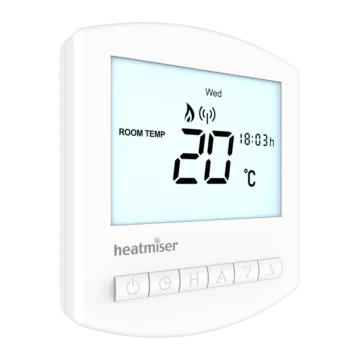
LCD Display Guide
The thermostat-mode display includes the following indicators.
| Indicator | Meaning |
| Mesh Symbol | Connected to neoHub or neoHub Mini |
| Day Indicator | Current weekday |
| Frost Symbol | Frost Protection/Standby active |
| Flame Symbol | Heating demand active |
| Holiday Symbol | Holiday mode active |
| Floor Limit Symbol | Remote floor probe reached its maximum limit |
| Floor/Room Temp | Indicates current sensor mode |
| SET | A schedule or setpoint is being changed |
| Program Indicator | Shows active period during programming |
| Main Menu | Shows selected menu item |
| Key Lock | Controls are PIN locked |
| Battery Indicator | Batteries require replacement |
| Temperature | Current sensor temperature |
| Timer Status | Current timed-output state |
| °C / °F | Temperature format |
| Hold Left | Temperature Hold is active |
| Time/Date | Clock, calendar, or holiday information |
Turning the neoAir V3 On and Off
To switch off the thermostat display and heating output:
- Use Left to highlight the Power icon.
- Press and hold the confirm key for 3 seconds.
To switch the thermostat back on, press the confirm key once.
Setting the Clock and Calendar
The neoAir V3 clock setup includes year, month, date, and time.
- Highlight the Power/menu function.
- Hold the confirm key to turn off the display.
- Select CLOCK.
- Confirm.
- Use Up/Down to set the year.
- Confirm.
- Repeat for month, date, and time.
- Confirm the completed clock settings.
- Return to the Power icon.
- Switch the display back on.
Heating Program Modes
The neoAir V3 supports four scheduling arrangements.
| Program Mode | Operation |
| Weekday/Weekend | Mon-Fri share one schedule; Sat-Sun use another |
| 7 Day | Each day can have a different schedule |
| 24 Hour | Same schedule every day |
| Non-Programmable | Manual Up/Down temperature control without timed comfort levels |
When a neoAir is connected to a neoHub, program mode is set through the neoApp.
Default Comfort Levels
The thermostat ships with four default comfort periods.
| Comfort Level | Default Time | Default Temperature |
| WAKE | 07:00 | 21°C |
| LEAVE | 09:00 | 16°C |
| RETURN | 16:00 | 21°C |
| SLEEP | 22:00 | 16°C |
An unused comfort period can be disabled by changing its time to –:–.
Programming Comfort Levels
- Use Left/Right to select EDIT.
- Select the required day or day group.
- Confirm.
- WAKE flashes.
- Open the WAKE settings.
- Set the hour.
- Confirm.
- Set the minutes.
- Confirm.
- Set the target temperature.
- Confirm.
- Move to LEAVE.
- Repeat for LEAVE, RETURN, and SLEEP.
- Set unused levels to –:–.
- Select DONE and confirm.
Manual Temperature Adjustment
The Up and Down buttons can temporarily alter the target temperature.
- Press Up or Down.
- SET appears.
- Choose the required temperature.
- Confirm the setting.
In programmable operation, this manual adjustment lasts until the next programmed comfort level.
Temperature Hold in Mode 1
Temperature Hold temporarily overrides the heating schedule.
- Scroll to HOLD.
- Confirm.
- Set the Hold duration with Up/Down.
- Confirm.
- Set the Hold temperature.
- Confirm.
HOLD LEFT appears with the remaining time. When it reaches zero, the normal heating schedule resumes.
To cancel, return to HOLD and select CANCEL.
Temperature Hold in Mode 3
With Mode 3, HOLD can apply specifically to heating.
- Select HOLD.
- Confirm.
- With Heating highlighted, confirm.
- Set the Hold period.
- Confirm.
- Set the Hold temperature.
- Confirm.
The thermostat returns to its normal program when the Hold period expires.
Hot Water Boost in Mode 3
Hot Water Boost provides temporary timed hot-water output.
- Select HOLD.
- Confirm.
- Change the highlighted option from Heating to TIMER.
- Confirm.
- Set the boost duration, such as 2 hours.
- Confirm.
The remaining boost time is displayed as HOLD LEFT.
To cancel, return to HOLD, select TIMER, then choose CANCEL.
Locking the neoAir V3
The thermostat includes a four-digit PIN lock.
Lock the Controls
- Navigate to HOLD.
- Press and hold the confirm key for 10 seconds.
- 00:00 appears.
- Enter the first two PIN digits using Up/Down.
- Confirm.
- Enter the second two digits.
- Confirm.
The key-lock icon appears.
Unlock the Controls
- Press confirm.
- Enter the same four-digit PIN.
- Confirm both digit pairs.
The controls then return to normal operation.
Frost Protection and Standby
In Frost Mode, heating operates only if room temperature falls below the configured frost temperature.
The factory default is 12°C.
Enable Frost Protection
- Highlight the Power/Frost menu icon.
- Press confirm once.
- The frost symbol appears.
Standby Without Heat Demand
While in Frost Mode, set the frost temperature to –.
The thermostat will then remain in standby without calling for heat while the frost symbol is displayed.
Disable Frost/Standby
Press the confirm key again while the Frost function is selected. The frost icon disappears.
Holiday Mode
In thermostat operation, Holiday Mode reduces the set temperature to the configured frost-protection temperature.
In Time Clock Mode, it keeps the timed output OFF.
Set a Holiday
- Select HOLIDAY.
- Confirm.
- Set the year.
- Confirm.
- Set the month.
- Continue setting the date and time.
- Confirm.
Unlike some older Heatmiser thermostats, the neoAir V3 holiday period begins immediately and continues until the configured end date and time.
Optional Thermostat Features
| Feature | Function | Setting |
| P3 | Failsafe | 00 disabled; 01 enabled — default |
| P2 | UH8-RF receiver address, zone and type | 00-99 |
| P1 | RF-Switch / RF-Switch 16A / UH8-RF V2 pairing | 99-second countdown |
| 01 | Pairing to neoHub/neoHub Mini | Used to add thermostat to hub |
| 02 | Switching Differential | 0.5°C, 1°C default, 2°C, 3°C |
| 03 | Frost Temperature | 5-17°C; 12°C default; — disables |
| 04 | Output Delay | 0-15 minutes; 0 default |
| 05 | Up/Down Temperature Limit | 0-10°C; 0 default |
| 06 | Sensor Selection | Built-in, remote air, remote floor, built-in + remote floor |
| 07 | Floor Temperature Limit | 18-45°C; 28°C default |
| 08 | Optimum Start | 0-5 hours; 0 default |
| 09 | Rate of Change | Learned minutes required for a 1°C rise |
| 10 | Cool Enable | Disabled by default; available for supported heat-pump setups |
| 11 | Not used | — |
| 12 | Program Mode | Non-programmable, Weekday/Weekend, 7 Day, 24 Hour |
| 13 | Temperature Format | °C default or °F |
Switching Differential
The default switching differential is 1°C.
With a 20°C set temperature:
- Heating turns on at 19°C.
- Heating switches off at 20°C.
With a 2°C differential, heating would instead switch on at 18°C.
Sensor Selection
Feature 06 offers four options:
| Setting | Sensor |
| 00 | Built-in sensor — default |
| 01 | Remote air sensor |
| 02 | Remote floor sensor |
| 03 | Built-in sensor + remote floor sensor |
When both built-in and remote floor sensors are enabled, the floor sensor operates as a limiting sensor to help prevent excessive floor temperature.
Again, the manual warns that the neoAir V3 must not control electric underfloor heating.
Floor Temperature Limit
When Sensor Selection is set to option 03, Feature 07 provides a floor limit from:
18°C to 45°C
The factory default is:
28°C.
Optimum Start
Optimum Start aims to start the heating as late as possible while still reaching the programmed target temperature at the scheduled time.
The thermostat uses its learned Rate of Change to estimate how long the building takes to warm by 1°C.
Wireless Failsafe
If Failsafe is enabled and the receiver does not hear from the neoAir for 40 minutes, the receiver activates its output for 12 minutes every hour.
This cycle continues until communication with the thermostat is restored.
Adjusting Optional Settings
- Highlight the Power icon.
- Hold the confirm key for 3 seconds.
- When SETUP appears, enter the setup menu.
- The small number at the upper right is the feature number.
- Use Up/Down to choose the feature.
- Use Left/Right to change its value.
- Confirm to save and exit.
Recalibrating the Temperature
If the thermostat temperature reading needs correction:
- Turn off the neoAir display.
- Press and hold the specified confirm/check key and Down button together for 10 seconds.
- The current temperature appears.
- Use Up/Down to enter the corrected value.
- Confirm.
- Return to the Power option and switch the thermostat on.
The thermostat then returns to its normal display using the recalibrated reading.
Error Codes
In thermostat Modes 1 and 3, the neoAir displays an error when a built-in or remote sensor fault is detected.
| Error Code | Meaning |
| E0 | Internal temperature sensor fault |
| E2 | Remote probe is not connected, incorrectly wired, or faulty |
Factory Reset
A factory reset removes settings entered during pairing and programming. The neoAir must be paired with its receiver again afterward.
Factory Reset Procedure
- Highlight the Power option.
- Hold confirm for 3 seconds.
- When SETUP appears, press and hold confirm for 10 seconds until all icons appear.
- Select:
- Mode 1 — Thermostat
- Mode 2 — Timer
- Mode 3 — Thermostat + Hot Water Timer
- Confirm.
- Remove the batteries.
- Reinsert the batteries to complete the reset.
Remote Sensor Probe Wiring
Page 41 provides a diagram showing a remote sensor probe or thimble sensor connected through the thermostat’s remote-sensor entry to the RT2 remote-sensor terminals.
The diagram also shows the battery-holder location relative to the sensor connection.
Mode 2 — Time Clock
Time Clock Display Guide
When Mode 2 is selected, the display changes from temperature-control information to timed-output information.
| Indicator | Meaning |
| Comms Symbol | Connected to neoHub |
| Day Indicator | Current weekday |
| Holiday | Holiday mode active |
| SET | A setting is being changed |
| Program Indicator | Current switching period being edited |
| Main Menu | Current menu item |
| Key Lock | Controls are locked |
| Battery Indicator | Batteries require replacement |
| Timer Status | Current timed output state |
| Hold Left | Timer override active |
| Time/Date | Clock, calendar, or holiday information |
Setting Time Clock Switching Times
- Scroll to EDIT.
- Confirm.
- Select the required day or day group.
- Confirm.
- Program period 1 ON time.
- Set the hour.
- Confirm.
- Set the minutes.
- Confirm.
- Set the OFF time.
- Move to period 2.
- Repeat for all required periods.
- Set unused switching periods to –:–.
- Select DONE and confirm.
Timer Override
A temporary timer override can switch the timed output on for a chosen period.
- Set the override duration with Up/Down, such as 02:00.
- Confirm.
- HOLD LEFT appears with the remaining time.
To cancel:
- Press Down.
- CANCEL becomes highlighted.
- Confirm cancellation.
Time Clock Optional Features
| Feature | Function | Setting |
| P3 | Failsafe | 00 disabled; 01 enabled default |
| P2 | UH8-RF address/zone configuration | 00-99 |
| P1 | RF-Switch / RF-Switch 16A / UH8-RF V2 pairing | 99-second pairing countdown |
| 01 | Pair to neoHub | Adds the time clock as a hub zone |
| 02 | Program Mode | Weekday/Weekend, 7 Day, or 24 Hour |
Important Operating Notes
The neoAir V3 relies on its receiver to switch the connected heating or hot-water equipment. Pairing mode, receiver type, operating mode, and any zone number therefore need to match the actual Heatmiser installation.
The thermostat should also remain within a reliable wireless range of its receiver or mesh system. Where additional radio coverage is required, the manual identifies neoPlug or Heatmiser Boost as possible network-extending devices in compatible installations.
Customer Support Information
| Support Detail | Information |
| Company | Heatmiser UK Ltd |
| Support Phone | +44 (0)1254 669090 |
| Website | www.heatmiser.com |
| Address | Units 1-5 Hurstwood Court, Mercer Way, Shadsworth Business Park, Blackburn, Lancashire, BB1 2QU, United Kingdom |
Frequently Asked Questions
What batteries does the Heatmiser neoAir V3 use?
The neoAir V3 uses four AAA batteries. The manual specifically says rechargeable batteries should not be used.
What are the three neoAir V3 operating modes?
Mode 1 is Thermostat, Mode 2 is Timer, and Mode 3 combines Thermostat and Hot Water Timer functions.
Can the neoAir V3 control electric underfloor heating?
No. The manual specifically states that the neoAir V3 must not be used to control electric underfloor heating.
What does the battery icon mean?
The battery icon indicates that the AAA batteries need replacing.
What does E0 mean on a neoAir V3?
E0 means the internal temperature sensor has developed a fault.
What does E2 mean?
E2 indicates that a remote sensor probe is missing, incorrectly wired, or faulty.
What is the default frost-protection temperature?
The default is 12°C. Feature 03 allows adjustment between 5°C and 17°C, or frost protection can be disabled with the — setting.
What happens after a factory reset?
All pairing and programming parameters are erased. The thermostat must be paired to its receiver again, and the batteries must be removed and reinserted to complete the reset.