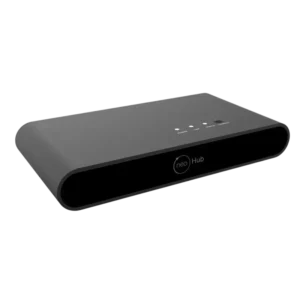
| Field | Details |
| Document Title | Heatmiser neoHub Smart Gateway Quick Start Guide |
| Document Type | Quick Start Guide |
| Brand Name | IMI Heatmiser |
| Product Name | neoHub Smart Gateway |
| Model Number(s) | neoHub Gen3 |
| PDF File Size | 192.7 KB |
| Total Number of Pages | 2 |
| Languages Covered | English |
IMI Heatmiser Smart Gateway neoHub Gen3
The IMI Heatmiser neoHub Gen3 is a smart home gateway designed to connect compatible Heatmiser neo heating controls to a home network. It provides a connection between supported heating devices, the Heatmiser neoApp, and compatible Apple Home smart home controls.
The neoHub connects to a broadband router using an Ethernet cable and receives power through a supplied mains adapter. Once connected to the local network and Heatmiser cloud server, it can be registered through the neoApp to manage compatible heating devices.
The gateway supports compatible Heatmiser neoStat thermostats, neoAir wireless thermostats, neoPlug devices, and other supported neo products. Through Apple HomeKit, compatible devices can also be assigned to rooms and controlled using Siri voice commands.The neoHub supports temperature monitoring, temperature adjustment, temperature hold, and standby control through compatible Apple Home devices.
For wireless communication, the neoHub Gen3 operates on 868 MHz and 2.4 GHz radio frequencies. Communication with supported Heatmiser neo devices uses AES-based frame protection.
The gateway includes an Ethernet connection, power connection, Connect button, reset button, and status indicators. Its Link indicator changes from red to green as network and cloud connections are established.
Product Overview and Technical Specifications
The neoHub Gen3 is part of the Heatmiser neo smart heating control system.
It acts as a gateway between compatible neo heating devices and the home network, allowing those devices to communicate through the Heatmiser neoApp and supported Apple Home services.
| Specification | Details |
| Brand | IMI Heatmiser |
| Product Name | neoHub Smart Gateway |
| Model | neoHub Gen3 |
| Product Type | Smart Heating Gateway |
| Primary Function | Connects compatible Heatmiser neo devices to a home network |
| Network Connection | Wired Ethernet |
| Internet Requirement | Active broadband connection |
| Router Requirement | DHCP-enabled broadband router |
| Power Supply | Supplied mains power adapter |
| Mains Supply | 230V AC |
| Power Adapter Connection | 2.1 mm DC jack plug |
| Adapter DC Output Specified | 6–12V DC |
| Mobile Application | Heatmiser neoApp |
| Mobile Platform Requirements | iOS, Android, or Windows operating system, as listed in the guide |
| Apple Home Integration | Supported |
| Siri Voice Control | Supported |
| Device Pairing | Through neoApp and compatible neo device controls |
| Wireless Frequency 1 | 868 MHz |
| Maximum E.R.P. at 868 MHz | 6.24 dBm |
| Wireless Frequency 2 | 2.4 GHz |
| Maximum E.R.P. at 2.4 GHz | 9.04 dBm |
| Wireless Communication Protection | AES-based frame protection with 128-bit randomly generated keys |
| Factory Reset | Physical reset button |
| Factory Reset Hold Duration | 15 seconds |
| Approximate Reset and Reboot Time | 5 minutes |
| Regulatory Compliance | Directive 2014/53/EU |
How the Heatmiser neoHub Works
The neoHub provides network connectivity for compatible Heatmiser neo heating devices.
The gateway connects to a broadband router through an Ethernet cable and communicates with the Heatmiser cloud server.
Once the gateway has been registered in the neoApp, compatible thermostats and other neo devices can be added to the system.
Connecting Heating Controls to the Home Network
The neoHub serves as the connection point between compatible Heatmiser heating controls and the home network.
The basic setup follows this sequence:
- Connect the neoHub to the broadband router.
- Connect its power adapter.
- Wait for the network and cloud connection indicators.
- Register or sign in to the Heatmiser neoApp.
- Add the neoHub as a location.
- Pair compatible neo heating devices.
- Complete the setup.
Remote Heating Control Through the neoApp
The Heatmiser neoApp provides the interface for registering the gateway and adding compatible heating devices.
The app allows the neoHub to be associated with an account and organized under a named location, such as Home.
Compatible neo thermostats can then be added as individually named zones.
Apple Home and Siri Integration
The neoHub also supports Apple HomeKit technology.
This allows compatible Heatmiser heating controls to appear within the Apple Home system.
Supported operations described in the manufacturer’s instructions include checking the current temperature, changing the required temperature, activating temperature hold, and controlling standby.
System Requirements
The following requirements must be met before setting up the neoHub Gen3.
| Requirement | Description |
| Broadband Connection | Active broadband internet connection |
| Router | Broadband router with DHCP functionality |
| Power | 230V mains supply and supplied power adapter |
| DC Connection | 2.1 mm jack plug connection associated with 6–12V DC output |
| Setup Device | Compatible mobile device |
| Operating System | iOS, Android, or Windows, as identified in the guide |
| Application | Heatmiser neoApp |
| Local Network | Setup device connected to the same Wi-Fi network as the neoHub’s router |
Broadband Router Requirement
The neoHub requires a broadband router with DHCP functionality.
DHCP allows the router to assign network configuration information to connected devices.
The neoHub connects to the router through its Ethernet port.
Power Requirements
The neoHub uses the power adapter supplied with the gateway.
The manufacturer’s system requirements identify a 230V mains supply and a 2.1 mm DC jack plug connection for the adapter.
Mobile Device Requirement
A mobile device is used to download the Heatmiser neoApp, register an account, and complete the gateway setup.
During initial setup, the mobile device must be connected to the same Wi-Fi network as the broadband router to which the neoHub is connected.
Supplied Connection Accessories
The setup instructions identify the following equipment used to connect the gateway.
| Component | Purpose |
| neoHub Smart Gateway | Central gateway for compatible neo devices |
| Supplied Ethernet Cable | Connects the neoHub to the broadband router |
| Supplied Power Adapter | Provides power to the neoHub |
Parts, Ports, Buttons, and Indicators
The neoHub includes connection ports and controls used during setup and reset.
Main Components
| Component | Function |
| Power Connection | Connects the supplied power adapter |
| Ethernet Port | Connects the neoHub to a router |
| Connect Button | Registers the gateway to a location in the neoApp |
| Reset Button | Starts the factory reset procedure |
| Link Indicator | Shows local network and cloud connection status |
| Status Light | Flashes during device pairing setup |
Power Port
The power connection accepts the DC jack plug from the supplied power adapter.
The power adapter connects to the specified mains supply.
Ethernet Port
The Ethernet port connects the neoHub directly to a broadband router.
The manufacturer’s connection illustration shows the Ethernet port on the neoHub connected to an Ethernet port on the router.
Connect Button
The Connect button is used when adding the neoHub to an account through the neoApp.
The button is pressed when the app requests confirmation to connect the gateway.
Reset Button
The Reset button is used to restore the neoHub to its factory state.
The manufacturer’s diagram identifies the small reset button next to the rear connection ports.
Link Indicator
The Link indicator communicates the gateway’s network connection status.
| Indicator | Meaning |
| Red | The neoHub is connected to the local network |
| Green | The neoHub is connected to the Heatmiser cloud server |
Before Setting Up the neoHub
Before beginning installation, the broadband network and setup device must be ready.
The router must have an active broadband connection and DHCP functionality.
The Heatmiser neoHub is connected using the supplied Ethernet cable.
The mobile device used for registration must be connected to the same Wi-Fi network as the router.
The supplied power adapter must also be available to power the gateway.
Connecting the neoHub to the Router
The first installation step is to connect the neoHub to the broadband router and power supply.
Step 1: Connect the Ethernet Cable
- Locate the Ethernet port on the neoHub.
- Connect one end of the supplied Ethernet cable to the neoHub Ethernet port.
- Connect the other end to an Ethernet port on the broadband router.
The gateway now has a physical network connection to the router.
Step 2: Connect the Power Adapter
- Locate the power connection on the neoHub.
- Connect the supplied power adapter to the gateway.
- Connect the adapter to the specified mains supply.
The gateway powers on and begins establishing its network connection.
Step 3: Check the Local Network Connection
After the neoHub connects to the local network, the Link indicator turns red.
This indicates that the gateway has established its connection to the network.
Step 4: Check the Cloud Connection
Once the neoHub connects to the Heatmiser cloud server, the Link indicator turns green.
The green indicator confirms the cloud connection described in the setup instructions.
Downloading and Setting Up the Heatmiser neoApp
The Heatmiser neoApp is used to register the gateway and add compatible heating devices.
Step 1: Connect the Mobile Device to Wi-Fi
Connect the smartphone or other supported setup device to the same Wi-Fi network used by the router connected to the neoHub.
Step 2: Download the neoApp
Download the free Heatmiser neoApp from the appropriate application store.
The manufacturer’s setup guide identifies:
- Apple App Store.
- Google Play Store.
Step 3: Register an Account
- Open the Heatmiser neoApp.
- Select the account registration option.
- Complete the registration details.
- Sign in to the newly registered account.
An existing registered user can sign in with the appropriate account credentials.
Adding the neoHub to the neoApp
Once the account has been registered and the gateway is connected to the router, the neoHub can be added as a location.
Step 1: Select Add Location
- Open the neoApp.
- Sign in to the account.
- Open the Locations screen.
- Select ADD LOCATION.
Step 2: Connect the Gateway to the Account
The app requests confirmation to connect the neoHub.
Press the Connect button on the neoHub.
The app then associates the gateway with the account.
Step 3: Name the Location
When the neoHub has been connected successfully, enter a location name.
For example, the location can be named Home.
The named location is used to organize the connected heating devices.
Step 4: Continue to Device Pairing
After naming the location, the app offers the next setup step.
Select ADD NEOSTAT to begin pairing compatible neo thermostats with the hub.
Adding a neoStat Thermostat to the neoHub
The manufacturer’s quick-start instructions illustrate the pairing procedure for a compatible neoStat thermostat.
Step 1: Select Add neoStat
- Open the location in the neoApp.
- Select ADD NEOSTAT.
- Choose a preset device name or enter a custom name.
- Press NEXT.
The app begins the process of adding a heating zone.
Step 2: Activate the Hub’s Pairing Process
After the device name has been selected, the status light on the neoHub flashes.
This indicates that the gateway is in the pairing stage.
Step 3: Open Setup on the Thermostat
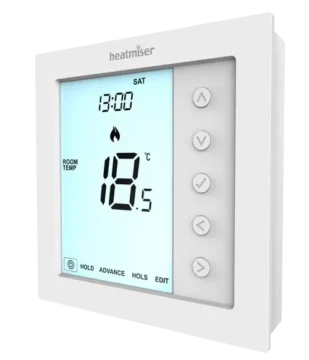
Using the illustrated neoStat control interface:
- Press Left or Right to highlight the Power symbol.
- Press and hold the Tick (✓) key.
- SETUP becomes selected.
- Press Tick twice.
Step 4: Check the Thermostat’s Wireless Symbol
The wireless symbol on the thermostat begins flashing.
This indicates that the thermostat is attempting to establish its connection with the neoHub.
Step 5: Confirm Pairing
When the thermostat connects successfully, the wireless symbol becomes permanently displayed.
The thermostat has now joined the neoHub system.
Adding Additional Heating Zones
More compatible neo devices can be added after pairing the first thermostat.
How to Add Another Device
- Return to the neoApp.
- Select ADD ANOTHER.
- Follow the device naming and pairing procedure for the next compatible device.
How to Finish Setup
When all required devices have been added, select FINISH.
The initial neoHub setup is complete.
Compatible Heatmiser neo Devices
The neoHub provides Apple HomeKit connectivity for several Heatmiser neo products identified in the manufacturer’s guide.
| Compatible Product | Product Family |
| neoStat | Smart Thermostat |
| neoStat-e | Electric Heating Thermostat |
| neoStat-hw | Hot Water Programmer |
| neoStat 12v | Low-Voltage Thermostat |
| neoAir | Wireless Thermostat |
| neoPlug | Smart Plug |
| neoUltra | neo Heating Control Product |
The available controls depend on the supported device and its operating functions.
Apple HomeKit Integration
The neoHub supports Apple HomeKit, allowing compatible Heatmiser devices to be connected to Apple’s smart home system.
Apple HomeKit provides a way to control supported heating equipment through Apple devices and Siri.
The manufacturer’s guide identifies compatible Apple platforms including:
- iPhone.
- iPad.
- Apple Watch.
- HomePod.
- HomePod mini.
- Mac.
Apple HomeKit Functions
The guide identifies the following available controls through Siri and compatible Apple devices.
| Function | Description |
| Current Temperature | Requests the measured temperature |
| Set Temperature | Changes the target temperature |
| Temperature Hold | Controls a temporary temperature hold |
| Standby On | Activates standby on compatible devices |
| Standby Off | Cancels standby on compatible devices |
Connecting the neoHub to Apple HomeKit
Apple HomeKit setup is completed through the Heatmiser neoApp.
Step 1: Open HomeKit and Siri Settings
- Open the Heatmiser neoApp.
- Go to the Settings screen.
- Select HomeKit & Siri.
Step 2: Create a Home
If an Apple Home has not already been created:
- Select CREATE A NEW HOME.
- Enter a name for the home.
- Tap the Right Arrow to enter the home.
Step 3: Add a New Accessory
- Select ADD NEW ACCESSORY.
- Wait for the app to scan for compatible HomeKit devices.
- Select Heatmiser neoHub from the available devices.
Step 4: Scan the HomeKit Setup Code
- Locate the HomeKit setup code on the reverse of the neoHub.
- Open the camera scanning step on the iOS device.
- Scan the HomeKit setup code.
Once the code has been accepted and pairing completes, the neoHub is connected to Apple HomeKit.
Assigning neo Devices to Apple Home Rooms
After the neoHub has been paired with Apple HomeKit, the connected Heatmiser devices can be assigned to rooms.
How to Assign a Device to a Room
- Open the room assignment stage in the app.
- Select a compatible device connected to the neoHub.
- Choose the appropriate Apple Home room.
- Edit the device’s service name if required.
- Repeat the procedure for additional devices.
- Select FINISH SETUP after the devices have been assigned.
Naming Devices for Siri
The service name can be changed to match the wording that will be used through Siri voice control.
The selected name helps identify the device when requesting temperature information or changing heating settings.
Using Siri With the neoHub
When the neoHub is successfully connected to Apple HomeKit, supported devices can respond to Siri commands.
Available Voice-Control Functions
The manufacturer’s guide identifies four main types of operation:
- Requesting the current temperature.
- Selecting a new target temperature.
- Operating temperature hold.
- Switching standby on or off.
The availability of each function depends on the connected compatible heating device.
Apple Home Automations and Shared Control
Apple HomeKit provides features for organizing devices, creating automations, and sharing access.
After pairing the neoHub, the Apple Home app can be used to configure supported HomeKit functions.
Apple Home Features
| Feature | Description |
| Automations | Creates automatic actions for compatible devices |
| Siri | Provides supported voice control |
| Shared Control | Allows authorized users to control supported devices |
| Room Assignment | Organizes devices by room |
| Device Configuration | Manages compatible Apple Home accessories |
The manufacturer’s guide directs users to Apple’s Home app information for automation, sharing, and device management.
Apple Home information is available at:
https://www.apple.com/uk/ios/home
Additional Heatmiser neo information is available at:
Apple HomeKit Compatibility Requirements
The manufacturer’s quick-start guide identifies iOS 9.3.2 or later as the recommended minimum version for controlling the HomeKit-enabled accessory.
For automatic or away-from-home HomeKit control, the guide identifies an Apple TV running tvOS 10.0 or later, or an iPad running iOS 10.0 or later, configured as a home hub.
These are the compatibility requirements recorded in the supplied guide. Current Apple Home platform requirements may differ.
Wireless Communication and Security
The neoHub uses wireless radio communication to connect with compatible Heatmiser neo equipment.
The Gen3 gateway operates on both 868 MHz and 2.4 GHz frequencies.
Radio Specifications
| Specification | Value |
| Equipment Model | neoHub Gen3 |
| Frequency Band 1 | 868 MHz |
| Maximum E.R.P. at 868 MHz | 6.24 dBm |
| Frequency Band 2 | 2.4 GHz |
| Maximum E.R.P. at 2.4 GHz | 9.04 dBm |
Communication Security
Communication between the Heatmiser neoHub and supported neo devices uses a frame-protection mechanism based on Advanced Encryption Standard (AES).
The manufacturer’s guide identifies 128-bit randomly generated encryption keys.
Communication between the neoHub and compatible Apple devices through HomeKit is protected using Apple HomeKit technology.
Factory Reset Instructions
The neoHub Gen3 includes a physical reset button that restores the gateway to its factory state.
Important: A factory reset erases all connected devices from the gateway. These devices must be paired again after the reset.
How to Factory Reset the Heatmiser neoHub Gen3
- Locate the Reset button beside the rear connection ports.
- Press and hold the Reset button.
- Continue holding for 15 seconds.
- Release the button when the Power light begins flashing.
- Allow approximately 5 minutes for the neoHub to complete the reset and reboot.
Factory Reset Duration
| Action | Duration |
| Hold Reset Button | 15 seconds |
| Reset Confirmation | Power light begins flashing |
| Reset and Reboot | Approximately 5 minutes |
After the Factory Reset
The factory reset removes the previously connected devices.
The gateway must be set up again, and compatible heating controls must be re-paired.
The normal setup sequence can then be repeated using the Heatmiser neoApp.
Connection Indicators and Troubleshooting
The neoHub provides light indicators that can be used to check the setup process.
LED Status Guide
| Indicator | Meaning |
| Link Light Red | neoHub is connected to the local network |
| Link Light Green | neoHub has connected to the Heatmiser cloud server |
| Hub Status Light Flashing During Setup | Device pairing is in progress |
| Thermostat Wireless Symbol Flashing | The illustrated neoStat is attempting to pair |
| Thermostat Wireless Symbol Steady | The illustrated neoStat has connected successfully |
| Power Light Flashing During Reset | Factory reset confirmation |
Checking the Network Connection
After the gateway is connected to the router and powered on, the Link light turns red when the local network connection is established.
The Link light turns green when the gateway connects to the Heatmiser cloud server.
These states can be used to identify the stage reached during network setup.
Checking Thermostat Pairing
During the illustrated neoStat pairing procedure, the thermostat’s wireless symbol flashes.
After a successful connection, the symbol remains permanently displayed.
Checking Device Registration
The neoHub is added to the neoApp by selecting ADD LOCATION and pressing the Connect button on the gateway.
Once connected, the location can be named and compatible heating devices can be added.
Checking the Factory Reset
The Power light begins flashing when the Reset button has been held for the required 15 seconds.
The gateway then requires approximately 5 minutes to reset and reboot.
All connected devices must be paired again afterward.
Regulatory Compliance
Heatmiser declares that the neoHub Gen3 radio equipment complies with Directive 2014/53/EU.
The manufacturer’s guide includes a QR code for the required Statement of Compliance.
The statement also includes information about the security update support period.
Further compliance information is available through the Heatmiser website.
Customer Support Information
IMI Heatmiser provides product assistance and additional technical information through its official support channels.
| Information | Details |
| Brand | IMI Heatmiser |
| Product | neoHub Smart Gateway |
| Model | neoHub Gen3 |
| Support Telephone | +44 (0)1254 669090 |
| Official Website | https://www.heatmiser.com |
| neo Product Website | https://neo.heatmiser.com |
| Apple Home Information | https://www.apple.com/uk/ios/home |
Frequently Asked Questions
1. How is the Heatmiser neoHub Gen3 set up?
Connect the neoHub to a broadband router using the supplied Ethernet cable and connect its power adapter.
Wait for the Link indicator to turn red for the local network connection and green for the Heatmiser cloud connection.
Install the Heatmiser neoApp, register or sign in, select ADD LOCATION, and press the Connect button on the neoHub when prompted.
The gateway can then be named and compatible heating devices added.
2. Does the neoHub Gen3 connect directly to Wi-Fi?
The manufacturer’s quick-start procedure specifies a wired Ethernet connection between the neoHub and the broadband router.
The mobile device used for setup connects to the same router’s Wi-Fi network.
3. What do the red and green lights mean on the Heatmiser neoHub?
The red Link light indicates that the neoHub has connected to the local network.
The Link light turns green once the gateway has connected to the Heatmiser cloud server.
4. How is the Heatmiser neoHub Gen3 factory reset?
Press and hold the physical Reset button for 15 seconds.
Release it when the Power light begins flashing.
Allow approximately 5 minutes for the gateway to reset and reboot.
The factory reset erases connected devices, which must be paired again.
5. How is a neoStat thermostat paired with the neoHub?
Select ADD NEOSTAT in the Heatmiser neoApp, name the zone, and press NEXT.
On the illustrated neoStat, highlight the Power symbol using the Left and Right keys and hold Tick.
When SETUP is selected, press Tick twice.
The wireless icon flashes during pairing and becomes permanently displayed after successful connection.
6. Can the Heatmiser neoHub Gen3 work with Apple HomeKit and Siri?
Yes. The neoHub supports Apple HomeKit for compatible Heatmiser heating devices.
Using the neoApp, select HomeKit & Siri, create or choose a home, add the Heatmiser neoHub, and scan its HomeKit setup code.
Supported Siri functions include checking the temperature, changing the set temperature, operating temperature hold, and controlling standby.
7. What happens to connected thermostats after resetting the neoHub?
A factory reset erases the connected devices from the neoHub.
After the gateway has rebooted and been set up again, the heating devices must be re-paired using the appropriate neoApp and device pairing procedures.
8. Which Heatmiser devices are compatible with the neoHub?
The manufacturer’s guide identifies the neoStat, neoStat-e, neoStat-hw, neoStat 12v, neoAir, neoPlug, and neoUltra product families as supported for Apple HomeKit connectivity through the neoHub.
The available heating and smart home controls depend on the connected device.