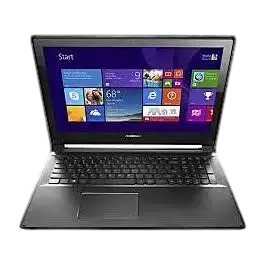
| Field | Details |
| Document Title | E14/R14/E15/S3 Gen 2 User Guide |
| Document Type | User Guide |
| Brand Name | Lenovo |
| Product Name | ThinkPad E14, ThinkPad R14, ThinkPad E15, ThinkPad S3 Gen 2 |
| Model Number(s) | E14 (20RA, 20RB, 20WF, 20WG); R14 (20RC); E15 (20RD, 20RE); S3 Gen 2 (20RG) |
| PDF File Size | 6.04 MB |
| Number of Pages | 98 |
| Languages Covered | English |
Lenovo ThinkPad S3 Gen 2
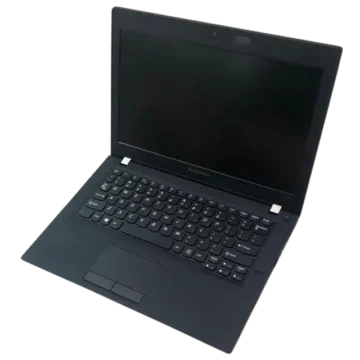
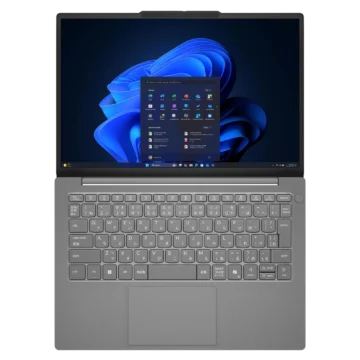
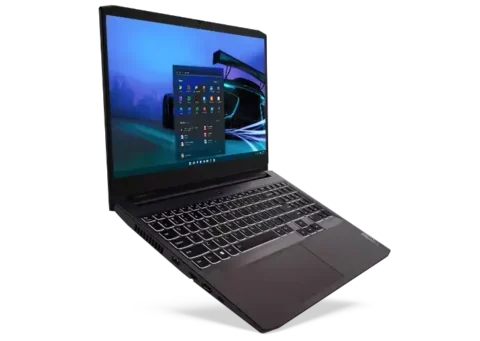
The Lenovo ThinkPad E14, R14, E15, and S3 Gen 2 are laptop computers designed for business applications, everyday computing, internet access, communication, and multimedia use. These models feature Full HD displays, built-in cameras, microphones, stereo speakers, wireless networking, and Lenovo’s TrackPoint pointing system.
The ThinkPad E14, R14, and S3 Gen 2 feature 14-inch displays, while the ThinkPad E15 includes a larger 15.6-inch display and a dedicated numeric keypad. All four models use a six-row keyboard, with backlit keyboards available in selected configurations.
The computers include USB-C connectivity for charging, data transfer, and compatible external displays. Additional connections include HDMI, USB Type-A, Ethernet, a 3.5 mm audio connector, and a security-lock slot.
Selected models include a fingerprint reader integrated into the Power button, a physical ThinkShutter camera privacy cover, and a Trusted Platform Module (TPM).
The computers support Windows 10, Lenovo Vantage, UEFI BIOS configuration, Windows recovery tools, and customer-replaceable components. Available storage configurations include 2.5-inch drives, M.2 solid-state drives, and Intel Optane memory on selected models.
These instructions cover computer specifications, hardware components, Windows setup, keyboard shortcuts, TrackPoint operation, wireless connections, power management, security, BIOS configuration, system recovery, hardware replacement, troubleshooting, and Lenovo support.
Supported Models and Specifications
Model Identification
| Product | Machine Type(s) | Display Size |
| ThinkPad E14 | 20RA, 20RB, 20WF, 20WG | 14 inches |
| ThinkPad R14 | 20RC | 14 inches |
| ThinkPad E15 | 20RD, 20RE | 15.6 inches |
| ThinkPad S3 Gen 2 | 20RG | 14 inches |
Dimensions
| Measurement | E14 / R14 / S3 Gen 2 | E15 |
| Width | 325.3 mm (12.80 inches) | 368 mm (14.49 inches) |
| Depth | 232.8 mm (9.17 inches) | 245 mm (9.65 inches) |
| Thickness | 18.8–21.4 mm (0.74–0.84 inches) | 19.75 mm (0.78 inches) |
Technical Specifications
| Specification | Details |
| Product Type | Laptop Computer |
| Operating System Covered | Windows 10 |
| Display Resolution | 1920 × 1080 pixels |
| Display Technology | IPS or TN, Depending on Configuration |
| Processor | Varies by Configuration |
| Memory | DDR4 |
| Storage Options | 2.5-Inch Storage Drive, M.2 SSD, Intel Optane Memory (Selected Models) |
| 2.5-Inch Drive Height | 7 mm (0.28 inches) |
| Keyboard | Six-Row Keyboard |
| Keyboard Backlight | Available on Selected Models |
| Numeric Keypad | ThinkPad E15 |
| Pointing Devices | TrackPoint and Trackpad |
| Camera | Built-In |
| Microphones | Built-In |
| Speakers | Integrated |
| Wireless Networking | Wireless LAN and Bluetooth |
| Wired Networking | Ethernet |
| Fingerprint Reader | Selected Models |
| ThinkShutter Privacy Cover | Selected Models |
| Security Chip | TPM on Selected Models |
| Firmware | UEFI BIOS |
| AC Adapter Power Options | 45W or 65W, Depending on Model |
Processor information can be viewed by right-clicking the Windows Start button and selecting System.
Electrical Specifications
| Specification | Value |
| AC Adapter Input Voltage | 100–240V AC |
| Input Frequency | 50–60 Hz |
| Maximum Heat Output, 45W Configuration | 154 Btu/hr |
| Maximum Heat Output, 65W Configuration | 222 Btu/hr |
| USB-C Power Output | 5V, 3A |
| USB-C Data Transfer Rate | Up to 5 Gbps |
Operating Environment
| Condition | Specification |
| Maximum Altitude Without Pressurization | 3048 m (10,000 ft) |
| Operating Temperature | 5–35°C (41–95°F) |
| Storage Temperature Without Packaging | 5–43°C (41–109°F) |
| Storage Temperature in Original Packaging | -20–60°C (-4–140°F) |
| Operating Relative Humidity | 8–95% at 23°C Wet-Bulb Temperature |
| Storage Relative Humidity | 5–95% at 27°C Wet-Bulb Temperature |
| Minimum Battery Charging Temperature | 10°C (50°F) |
Parts and Components
Front Components
| Component | Function |
| Built-In Microphones | Capture sound for recording, voice communication, and conferencing |
| Camera | Takes photographs and records videos |
| Camera Indicator | Illuminates when the camera is operating |
| ThinkShutter | Covers or uncovers the camera lens on selected models |
| Display | Provides Full HD visual output |
Camera and Privacy Cover
The integrated camera supports photography, video recording, and communication through compatible applications.
Selected models include ThinkShutter, a physical sliding camera cover.
Move the ThinkShutter slider to cover the camera lens when it is not being used.
When the camera operates, the camera indicator turns on.
Base Components: E14, R14 and S3 Gen 2
| Component | Function |
| Power Button | Turns on the computer or activates Sleep mode |
| Fingerprint Reader | Provides fingerprint authentication on selected models |
| Speakers | Produce audio output |
| Trackpad | Controls pointer movement, clicking, and gestures |
| TrackPoint Pointing Device | Provides pointer control and scrolling |
Base Components: E15
The ThinkPad E15 includes the same primary pointing and power controls, together with a dedicated numeric keypad.
| Component | Function |
| Power Button/Fingerprint Reader | Controls power and optional fingerprint authentication |
| Numeric Keypad | Allows rapid numeric input |
| Speakers | Produce audio output |
| Trackpad | Provides touch-based mouse functions |
| TrackPoint | Provides pointing, clicking, and scrolling controls |
Left-Side Ports and Connections
The left side includes USB-C, USB 3.2, HDMI, and audio connections.
Connector Guide
| Connector | Function |
| USB-C (USB 3.2 Gen 1) | Charging, data transfer, external display, and compatible accessories |
| Always On USB 3.2 Gen 1 | Connects and charges compatible USB devices |
| USB 3.2 Gen 1 | Connects USB peripherals |
| HDMI | Connects compatible external displays and digital audio equipment |
| Audio Connector | Connects compatible headphones or headsets |
USB-C Connector
The USB-C connector supports several functions.
| Function | Specification |
| Computer Charging | Supported |
| USB-C Peripheral Power Output | 5V, 3A |
| USB Data Transfer | Up to 5 Gbps |
| USB-C to VGA Output | 1920 × 1080 at 60 Hz |
| USB-C to DisplayPort Output | 3840 × 2160 at 60 Hz |
| Peer-to-Peer Charging | Lenovo P-to-P 2.0 |
When the battery charge is below 10%, connected USB-C accessories might not function correctly.
Always On USB Charging
The Always On USB connector can charge compatible devices when the laptop is:
- Powered on
- Powered off
- In Sleep mode
- In Hibernation mode
By default, Always On USB is enabled, while Charge in Battery Mode is disabled.
When the laptop is off or hibernating and Charge in Battery Mode is disabled, connect AC power to use the charging feature.
How to Enable Always On USB
- Enter the UEFI BIOS menu.
- Select Config > USB.
- Enable Always On USB.
- Save the changes.
HDMI Connector
The HDMI connector supports compatible digital audio and video devices, including televisions, monitors, and projectors.
Audio Connector
The 3.5 mm four-pole connector supports compatible headphones and headsets.
Important: The audio connector does not support standalone external microphones.
Right-Side Ports and Connections
| Connector | Function |
| USB 2.0 | Connects compatible USB peripherals |
| Ethernet | Connects to a wired local area network |
| Security-Lock Slot | Accepts a compatible security cable lock |
USB Connection Standards
| USB Standard | Nominal Data Rate |
| USB 3.2 Gen 1 / USB 3.1 Gen 1 | 5 Gbps |
| USB 3.2 Gen 2 / USB 3.1 Gen 2 | 10 Gbps |
| USB 3.2 Gen 2×2 | 20 Gbps |
These values describe USB standards. The laptop’s USB-C and USB 3.2 Gen 1 connections are specified for up to 5 Gbps.
Actual transfer speeds depend on the connected device, system configuration, files, and operating environment.
Power and Fingerprint Indicator Lights
The Power button contains status lights for system operation and optional fingerprint authentication.
Power Indicator Guide
| Indicator | Meaning |
| White, Blinks Three Times | Computer has just been connected to power |
| Solid White | Computer is on |
| Rapidly Blinking White | Computer is entering Sleep or Hibernation mode |
| Slowly Blinking White | Computer is in Sleep mode |
| Off | Computer is off or in Hibernation mode |
Fingerprint Reader Indicator
| Indicator | Meaning |
| Green, Blinks for Two Seconds Then Remains On | Fingerprint reader is ready |
| Solid White | Fingerprint scan was successful |
Important Safety Instructions
The laptop, power adapter, and rechargeable battery must be operated according to Lenovo’s safety instructions.
General Safety
- Keep liquids away from the computer and electrical connections.
- Do not use cracked, damaged, or overheated power cables.
- Avoid dropping, twisting, striking, or shaking the computer.
- Keep ventilation openings unobstructed.
- Do not place heavy objects on the display.
- Do not operate or charge the computer near flammable materials.
- Disconnect power before opening the computer for an authorized replacement procedure.
Heat and Ventilation
The computer and power adapter can become hot during operation.
Avoid prolonged skin contact with hot surfaces.
Do not place the computer on beds, carpets, sofas, or other materials that obstruct ventilation.
The temperature of air entering the computer must not exceed 35°C (95°F).
Power Adapter Safety
Use power cords and adapters supplied or approved by the manufacturer.
Do not wrap cords around the adapter while it is operating.
Do not cover the adapter with clothing or other objects.
Keep the adapter away from liquids and damaged electrical outlets.
Battery Safety
Do not:
- Open or disassemble the rechargeable battery.
- Crush or puncture the battery.
- Short-circuit its electrical connections.
- Expose it to fire, water, or excessive heat.
- Use a damaged or leaking battery.
The built-in rechargeable battery must be replaced by a Lenovo-authorized repair facility or technician.
Electrical Safety
Do not connect or disconnect cables during electrical storms.
Connect power cables to properly wired electrical outlets.
Before disconnecting non-USB external devices, wait at least five seconds after shutting down the computer.
Display Safety
The LCD contains glass.
If the display breaks and internal fluid contacts the eyes or skin, rinse the affected area with water for at least 15 minutes.
Seek medical assistance if symptoms remain.
Headphone Safety
Excessive headphone volume can damage hearing.
Use compatible headphones and maintain an appropriate listening level.
Before First Use
Initial Setup
- Place the laptop on a stable, well-ventilated surface.
- Make sure the cooling openings are clear.
- Connect the supplied AC power adapter to the USB-C power connector.
- Connect the adapter to a suitable electrical outlet.
- Press the Power button.
- Follow the Windows 10 setup instructions.
Windows 10 Account Setup
Windows requires a user account.
The account can be a local Windows account or a Microsoft account.
Local Windows Account
A local account is associated with the computer.
The first account created during Windows setup has Administrator privileges.
Adding Another User
- Open Start > Settings > Accounts.
- Select Family & other users.
- Follow the displayed instructions.
Microsoft Account
A Microsoft account provides access to supported Microsoft services and can synchronize selected settings between Windows devices.
A Microsoft account can be created through:
Windows 10 Desktop and Controls
| Windows Component | Function |
| Start Button | Opens the Start menu |
| Search | Finds applications, settings, files, and information |
| Task View | Displays open applications |
| Settings | Opens Windows configuration options |
| Power | Provides Sleep, Shutdown, and Restart |
| Network Icon | Displays network status and available networks |
| Battery Icon | Displays battery charge and power settings |
| Action Center | Displays notifications and quick settings |
Opening Control Panel
Open:
Start > Windows System > Control Panel
Control Panel can also be found through Windows Search.
Connecting to WiFi
The laptops include wireless LAN connectivity.
WiFi Setup Instructions
- Select the network icon in the Windows notification area.
- View the available wireless networks.
- Choose the required network.
- Enter the security information if requested.
Connecting to Ethernet
Connect an Ethernet cable between the laptop’s Ethernet port and compatible network equipment.
When using a supported docking station, use the docking station’s Ethernet connector instead.
Connecting Bluetooth Devices
Bluetooth supports communication with compatible devices such as keyboards, mice, smartphones, and speakers.
Bluetooth Pairing
- Open Action Center.
- Enable Bluetooth.
- Right-click the Bluetooth icon.
- Select Go To Settings > Add Bluetooth or other device > Bluetooth.
- Choose the required device.
- Follow the instructions to finish pairing.
For reliable communication, keep Bluetooth devices within approximately 10 meters (33 feet) of the computer.
Lenovo Vantage
Lenovo Vantage provides tools for managing and maintaining the computer.
Lenovo Vantage Functions
| Function | Description |
| Device Information | Displays system details |
| Hardware Settings | Changes supported computer settings |
| Updates | Installs available BIOS, firmware, and driver updates |
| Diagnostics | Checks supported hardware components |
| Security | Provides available security information |
| Warranty | Displays warranty status |
| Documentation | Opens guides and support resources |
Opening Lenovo Vantage
Open the Start menu and select Lenovo Vantage.
The application can also be found through Windows Search.
If it is not installed, Lenovo Vantage can be obtained from Microsoft Store.
Keyboard Shortcuts and Function Keys
The laptops include special keys for controlling common computer functions.
Keyboard Function Guide
| Function | Description |
| Speaker Mute | Turns sound on or off |
| Volume Down | Decreases speaker volume |
| Volume Up | Increases speaker volume |
| Microphone Mute | Turns microphone input on or off |
| Brightness Down | Darkens the display |
| Brightness Up | Brightens the display |
| External Display | Opens display management |
| Wireless Control | Enables or disables wireless functions |
| Settings | Opens Windows Settings |
| Bluetooth | Enables or disables Bluetooth |
| Keyboard Settings | Opens keyboard configuration |
| User-Defined F12 | Runs the configured function |
| Calculator | Opens Calculator on the E15 |
| Sleep | Places the computer into Sleep mode |
| Snipping Tool | Opens the screen capture tool |
Fn Lock
Fn Lock controls whether F1–F12 keys perform standard functions or special functions directly.
| Fn Lock Status | F1–F12 Behavior |
| Enabled | Standard F1–F12 functions |
| Disabled | Special functions printed on the keys |
Press Fn + Esc to change Fn Lock.
Fn Key Combinations
| Shortcut | Function |
| Fn + Spacebar | Changes keyboard backlight status on supported models |
| Fn + B | Break |
| Fn + K | Scroll Lock |
| Fn + P | Pause |
| Fn + S | System Request |
| Fn + 4 | Sleep mode |
| Fn + Left Arrow | Home |
| Fn + Right Arrow | End |
To wake the computer after using Fn + 4, press Fn or the Power button.
Numeric Keypad
The ThinkPad E15 includes a dedicated numeric keypad.
Numeric input is available when Num Lock is enabled.
Using the TrackPoint Pointing Device
The TrackPoint pointing system provides mouse functions without requiring an external mouse.
TrackPoint Controls
| Component | Function |
| Pointing Stick | Moves the pointer |
| Left-Click Button | Selects or opens an item |
| Right-Click Button | Displays a shortcut menu |
| Middle Button | Supports scrolling |
Moving the Pointer
Apply gentle fingertip pressure to the TrackPoint pointing stick.
The pointer moves in the direction of pressure.
Greater pressure increases pointer movement speed.
Scrolling with TrackPoint
Hold the middle button while applying pressure to the pointing stick vertically or horizontally.
Disabling TrackPoint
- Open Start > Settings > Devices > Mouse.
- Follow the displayed TrackPoint configuration instructions.
Replacing the TrackPoint Cap
The pointing-stick cap can be replaced.
Use a compatible replacement cap with the required grooved design.
Using the Trackpad
The trackpad supports pointer movement, clicking, scrolling, and multi-touch gestures.
Trackpad Gestures
| Gesture | Function |
| One-Finger Tap | Left-click |
| Two-Finger Tap | Right-click |
| Two-Finger Slide | Scroll vertically or horizontally |
| Two-Finger Pinch | Zoom out |
| Two-Finger Spread | Zoom in |
| Three-Finger Swipe Up | Opens Task View |
| Three-Finger Swipe Down | Shows the desktop |
Disabling the Trackpad
- Open Start > Settings > Devices > Touchpad.
- Turn off the Touchpad setting.
Trackpad Cleaning
If the surface becomes stained, turn off the computer and gently wipe the trackpad with a soft, lint-free cloth lightly moistened with lukewarm water or computer cleaner.
Using the Camera
The built-in camera supports photographs, video recording, and video conferencing.
Taking Photos or Videos
- Slide ThinkShutter to the right to uncover the lens, if fitted.
- Open the Start menu.
- Select Camera.
- Choose the photo or video function.
The camera indicator lights up during operation.
Connecting an External Display
The laptops support wired and wireless external displays.
Wired Display Connections
- Connect the display to HDMI or a compatible USB-C display adapter.
- Connect the display to power.
- Turn on the external display.
If Windows does not recognize it, right-click the desktop and select:
Display settings > Detect
External Display Resolutions
| Connection | Maximum Supported Resolution |
| USB-C Display Output | 4096 × 2304 at 60 Hz |
| HDMI | 4096 × 2160 at 24 Hz |
Display Modes
| Mode | Function |
| Duplicate | Shows the same image on both displays |
| Extend | Expands the desktop across displays |
| Show Only on 1 | Uses the computer display |
| Show Only on 2 | Uses the external display |
Wireless Display Connection
For compatible Miracast displays:
- Open Settings > Devices > Bluetooth & other devices.
- Select Add Bluetooth or other device.
- Choose Wireless display or dock.
- Follow the pairing instructions.
Battery Charging and Power Management
Checking Battery Status
Select the battery icon in the Windows notification area.
The battery icon provides charge information and access to power settings.
Battery temperature information can be viewed through Lenovo Vantage.
Charging Time
| Charging Condition | Approximate Time |
| Standard Full Charge | 4–8 Hours |
| Rapid Charge, Computer Off | Up to 80% in Approximately 1 Hour |
Rapid charging is available only when supported by the supplied power adapter.
The recommended charging temperature is 10–35°C (50–95°F).
The computer does not start a new charging cycle when the remaining battery charge exceeds 95%.
Lenovo P-to-P 2.0 Charging
The USB-C connector supports Lenovo P-to-P 2.0, allowing one compatible computer to supply power to another through a USB-C cable.
Requirements
- Both computers must support P-to-P 2.0 and USB-C Power Delivery.
- Always On USB and Charge in Battery Mode must be enabled.
- The supplying computer must have at least 30% battery charge.
- Its battery level must be at least three percentage points higher than the receiving computer.
Enabling P-to-P Charging
- Open UEFI BIOS.
- Select Config > USB.
- Enable Always On USB and Charge in Battery Mode.
- Save the settings.
Connect both compatible computers using a USB-C to USB-C cable.
The supplying computer stops delivering power when its battery falls below 30%.
Power Plans and Sleep Settings
Changing the Power Button Function
- Right-click the battery icon.
- Select Power Options > Choose what the power buttons do.
- Configure the required action.
Default ENERGY STAR Power Settings
When connected to AC power:
| Function | Default Time |
| Turn Off Display | After 10 Minutes |
| Enter Sleep Mode | After 30 Minutes |
Power settings can be changed through Windows Power Options.
Airplane Mode
Airplane Mode disables wireless communication.
To change the setting:
- Open Start > Settings > Network & Internet > Airplane mode.
- Turn Airplane Mode on or off.
Security Features
Security-Lock Slot
A compatible cable lock can be connected to the computer and secured to a desk or other fixed object.
UEFI BIOS Passwords
| Password | Function |
| Power-On Password | Restricts startup access |
| Supervisor Password | Protects BIOS settings |
| System Management Password | Provides managed access to BIOS configuration |
| User Hard Disk Password | Protects data on the storage drive |
| Master Hard Disk Password | Provides administrative access to protected storage |
Setting or Changing a BIOS Password
- Restart the computer.
- Press F1 when the Lenovo logo appears.
- Select Security > Password.
- Choose the required password type.
- Follow the instructions.
- Save the changes.
Forgotten Passwords
| Password Type | Recovery Requirement |
| Power-On Password | Can be removed using a known Supervisor password; otherwise contact Lenovo service |
| Supervisor Password | System board replacement through authorized service |
| System Management Password | Can be removed using a known Supervisor password; otherwise contact Lenovo service |
| Hard Disk Password | Lenovo cannot reset the password or recover protected data; storage replacement may be required |
Fingerprint Reader Setup
Selected models include a fingerprint reader integrated into the Power button.
Enrolling a Fingerprint
- Open Start > Settings > Accounts > Sign-in options.
- Select the fingerprint enrollment option.
- Follow the instructions.
Registering multiple fingerprints is recommended.
Signing In
When the fingerprint indicator is solid green, place an enrolled finger on the reader.
Fingerprint Reader Care
Avoid scratching the reader.
Do not use wet, dirty, injured, or wrinkled fingers for authentication.
UEFI BIOS Setup
UEFI BIOS initializes the computer’s hardware and starts the operating system.
Entering BIOS
- Restart the computer.
- Press F1 when the Lenovo logo appears.
BIOS Navigation Keys
| Key | Function |
| F1 | General Help |
| F9 | Restore Default Settings |
| F10 | Save and Exit |
| F5 / Minus | Decrease Value |
| F6 / Plus | Increase Value |
| Arrow Keys | Navigate Menus |
| Enter | Select |
| Esc | Return to Previous Menu |
Changing the Boot Order
- Open UEFI BIOS.
- Select Startup > Boot.
- Arrange the startup devices.
- Press F10 to save.
Temporary Boot Device Selection
Press F12 during startup.
Choose the required boot device and press Enter.
Setting Date and Time
- Enter UEFI BIOS.
- Select Date/Time.
- Adjust the date and time.
- Save the settings.
Updating UEFI BIOS
BIOS updates can be installed through Lenovo Vantage or downloaded from:
Follow the instructions supplied with the update package.
Windows 10 Recovery
Windows 10 provides several recovery functions for restoring system files, settings, and the operating system.
System Restore
- Open Control Panel.
- Select Recovery.
- Select Open System Restore.
- Follow the instructions to restore an earlier system state.
Restoring Personal Files
If files were previously backed up using File History:
- Open Control Panel.
- Select File History > Restore personal files.
- Follow the recovery instructions.
Resetting Windows 10
- Open Start > Settings > Update & Security > Recovery.
- Under Reset this PC, select Get started.
- Choose whether to keep or remove personal files.
- Follow the instructions.
Back up important data before resetting Windows.
Advanced Startup Options
- Open Settings > Update & Security > Recovery.
- Select Restart now under Advanced Startup.
- Open Troubleshoot > Advanced options.
- Choose the required recovery tool.
Automatic Windows Recovery
After two consecutive failed startup attempts, the Windows recovery environment starts automatically.
The recovery environment provides repair and restoration options.
Creating a Recovery USB Drive
A recovery USB drive can be used when Windows does not start correctly.
Creating the Drive
- Connect the computer to AC power.
- Prepare a USB drive with at least 16 GB of storage.
- Connect it to the computer.
- Search Windows for Create a recovery drive.
- Open the application.
- Approve the User Account Control prompt.
- Follow the displayed instructions.
Important: Existing files on the USB drive will be deleted.
Using the Recovery USB
- Connect AC power.
- Insert the recovery USB drive.
- Restart the computer.
- Press F12 at the Lenovo logo.
- Select the recovery USB drive.
- Follow the recovery instructions.
Installing Windows 10 and Drivers
A clean Windows installation replaces the operating system and may erase existing files.
Preparing for Installation
Before installation:
- Back up important files.
- Disable BitLocker if it is enabled.
- Set TPM 2.0 to Active in BIOS.
- Use the appropriate storage controller settings.
Installing Windows
- Connect the Windows installation drive.
- Enter UEFI BIOS.
- Select Startup > Boot.
- Choose the installation device.
- Enable OS Optimized Defaults.
- Save the BIOS configuration.
- Follow the Windows installation instructions.
- Install device drivers.
- Run Windows Update.
- Install Lenovo Vantage.
Intel Optane Configurations
On models equipped with Intel Optane memory, select RST mode for the storage controller before installation.
After Windows installation, install Intel Rapid Storage Technology and the Intel Optane management software before enabling Intel Optane.
Customer Replaceable Units
The laptops support customer replacement of designated components.
Self-Service CRUs
| Component | Replacement Type |
| AC Power Adapter | Self-Service |
| Power Cord | Self-Service |
Optional-Service CRUs
| Component | Replacement Type |
| Base Cover Assembly | Optional-Service |
| Memory Module | Optional-Service |
| Hard Disk Drive | Optional-Service, Selected Models |
| Hard Disk Drive Bracket | Optional-Service, Selected Models |
| Hard Disk Drive Cable | Optional-Service, Selected Models |
| M.2 Solid-State Drive | Optional-Service, Selected Models |
| M.2 SSD Bracket | Optional-Service, Selected Models |
| Speaker Assembly | Optional-Service |
Preparing for Hardware Replacement
Before replacing internal components, Fast Startup and the built-in battery must be disabled.
Disabling Fast Startup
- Open Control Panel.
- Select Power Options > Choose what the power buttons do.
- Select Change settings that are currently unavailable.
- Clear Turn on fast startup.
- Save the changes.
Disabling the Built-In Battery
- Restart the computer.
- Press F1 during startup.
- Select Config > Power.
- Choose Disable Built-in Battery.
- Confirm Yes.
- Wait for the computer to turn off automatically.
Allow the computer to cool before continuing.
Replacing the Base Cover
- Disable the built-in battery.
- Disconnect power and all external cables.
- Close the display.
- Turn the computer over.
- Loosen the base-cover screws.
- Release the retaining latches.
- Remove the base cover.
To reinstall, position the replacement cover, secure its latches, and tighten the screws.
The E14/R14/S3 Gen 2 and E15 use different base-cover layouts.
Replacing the Memory Module
- Disable the built-in battery and disconnect power.
- Remove the base cover.
- Release the latches on both sides of the memory slot.
- Remove the existing module.
- Align the replacement DDR4 module with the socket.
- Insert it at approximately 20 degrees.
- Pivot it downward until the latches lock.
- Reinstall the base cover.
Do not touch the memory module’s electrical contacts.
Replacing the Internal Storage Drive
The 2.5-inch storage drive is connected through a cable and mounting bracket.
Storage Drive Replacement
- Back up important data.
- Disable the built-in battery and disconnect power.
- Remove the base cover.
- Disconnect the storage cable from the system board.
- Remove the storage drive.
- Disconnect its cable.
- Remove its mounting bracket.
- Attach the bracket and cable to the replacement drive.
- Install the new drive.
- Reconnect the system board cable.
- Reinstall the base cover.
Avoid shocks, pressure, and contact with electrical connections.
Replacing an M.2 Solid-State Drive
The laptop supports different M.2 drive arrangements depending on configuration.
Short M.2 SSD
- Disable the built-in battery.
- Disconnect power and remove the base cover.
- Remove the M.2 drive bracket.
- Remove the retaining screw.
- Remove the existing SSD assembly.
- Install the replacement SSD in its bracket.
- Insert the assembly at approximately 20 degrees.
- Pivot it downward and secure the screw.
- Reinstall the bracket and base cover.
Long M.2 SSD
For configurations using Intel Optane memory, disable Intel Optane before replacing the drive.
- Enter UEFI BIOS.
- Open the Intel Rapid Storage Technology settings.
- Disable Intel Optane while preserving user data.
- Wait for the process to finish.
- Disable the built-in battery and disconnect power.
- Remove the base cover and SSD bracket.
- Remove the SSD retaining screw.
- Replace the drive.
- Reinstall the bracket and base cover.
Important: Do not remove or damage the thermal pads attached to the SSD bracket.
Replacing the Speaker Assembly
- Disable the built-in battery and disconnect power.
- Remove the base cover.
- Remove the speakers and release their cables.
- Disconnect the speaker assembly connector.
- Connect the replacement speaker assembly.
- Route the cables correctly.
- Install the speakers in their designated positions.
- Reinstall the base cover.
Troubleshooting Guide
Common Problems and Recommended Actions
| Problem | Recommended Action |
| Computer does not respond | Hold the Power button until the computer turns off, then restart |
| Windows fails to start | Use Windows Recovery |
| WiFi does not connect | Check the network connection and wireless settings |
| Bluetooth device cannot connect | Enable Bluetooth and repeat device pairing |
| Trackpad does not work | Check Touchpad settings |
| External monitor is not detected | Open Display settings and select Detect |
| Battery is not charging | Check the power connection and charging temperature |
| Fingerprint reader does not recognize a finger | Clean the reader and use an enrolled finger |
| USB device does not operate | Check its connection and applicable USB settings |
| Computer fails after hardware replacement | Recheck the replacement procedure and power connection |
Unresponsive Computer
If the computer stops responding, press and hold the Power button until it turns off.
Restart the computer.
If the problem persists on a model with a built-in battery, disconnect power, hold the Power button for approximately seven seconds, reconnect AC power, and restart.
Liquid Spilled on the Computer
- Disconnect AC power immediately.
- Turn off the computer.
- Do not turn it upside down to drain liquid.
- Wait until the computer is completely dry before restarting.
Error Codes and Messages
| Error Code | Meaning | Recommended Action |
| 0190 | Critical Low Battery | Connect AC power and charge the battery |
| 0191 | Invalid Remote Security Change | Confirm the operation and retry |
| 0199 | Supervisor Password Retry Limit Exceeded | Confirm the password and retry |
| 0271 | Incorrect Date or Time | Set date and time in BIOS |
| 210x/211x | Storage Detection or Read Error | Reinstall the drive; replace it if the error continues |
| UEFI Variable Storage Nearly Full | Insufficient Firmware Variable Storage | Open BIOS and review the cleanup confirmation |
| Fan Error | Cooling Fan Problem | Use limited-performance startup only as instructed; arrange service if the error persists |
Lenovo SmartBeep Diagnostics
Lenovo SmartBeep can identify certain startup beep errors using a compatible smartphone.
- Visit https://support.lenovo.com/smartbeep.
- Install the recommended diagnostic application.
- Run the application near the computer.
- Press Fn to repeat the beep sequence.
- Review the decoded error information.
Cleaning and Maintenance
Cleaning the Computer Cover
Use a lint-free cloth lightly dampened with mild soap and water.
Do not apply liquid directly to the computer.
Cleaning the Keyboard
Wipe individual keys with a lint-free cloth dampened with mild soap and water.
Use a camera blower with a brush or cool air from a hair dryer to remove dust.
Cleaning the Screen
Use a dry, soft, lint-free cloth.
For stubborn marks, lightly moisten the cloth with water or eyeglass cleaner.
Allow the screen to dry before closing the display.
Storage and Transportation
Long-Term Battery Storage
Store the computer at room temperature with the rechargeable battery at approximately 30–50% charge.
Recharge approximately once per year to prevent overdischarge.
Transporting the Computer
Before placing the laptop in a carrying case:
- Turn it off or use Sleep or Hibernation.
- Disconnect external equipment.
- Use a padded carrying case.
- Avoid placing heavy objects on the computer.
Accessibility and Ergonomics
Windows provides accessibility functions for users with different requirements.
Accessibility Shortcuts
| Shortcut | Function |
| Windows + U | Ease of Access Center |
| Right Shift for 8 Seconds | Filter Keys |
| Shift Five Times | Sticky Keys |
| Num Lock for 5 Seconds | Toggle Keys |
| Left Alt + Left Shift + Num Lock | Mouse Keys |
| Left Alt + Left Shift + PrtSc | High Contrast |
Ergonomic Recommendations
| Area | Recommendation |
| Viewing Distance | 510–760 mm (20–30 inches) |
| Head and Neck | Maintain an upright, neutral position |
| Wrists | Keep them relaxed and neutral |
| Seating | Use a chair with appropriate back support |
| Feet | Keep feet flat on the floor or on a footrest |
| Work Breaks | Take regular short breaks |
Warranty Information
The Lenovo ThinkPad E14, R14, E15, and S3 Gen 2 are subject to the Lenovo Limited Warranty applicable to the purchased computer.
Warranty Services
Applicable services may include hardware problem diagnosis, qualifying repairs, and engineering changes.
Warranty coverage depends on the purchased model and applicable warranty conditions.
Warranty Resources
| Resource | Website |
| Lenovo Limited Warranty | https://www.lenovo.com/warranty/llw_02 |
| Warranty Lookup | https://pcsupport.lenovo.com/warrantylookup |
| Additional Services | https://www.lenovo.com/services |
Customer Support Information
Lenovo provides support for drivers, BIOS updates, hardware diagnostics, warranty information, and computer problems.
Support Resources
| Resource | Address |
| Lenovo Support | https://pcsupport.lenovo.com |
| Regional Support Numbers | https://pcsupport.lenovo.com/supportphonelist |
| Lenovo SmartBeep | https://support.lenovo.com/smartbeep |
| Accessories | https://www.lenovo.com/accessories |
| Recycling | https://www.lenovo.com/recycling |
| Microsoft Support | https://support.microsoft.com |
Before Contacting Support
Prepare the product name, machine type, serial number, Windows version, error messages, and description of the problem.
The machine type and serial number can be found on the product label on the underside of the computer.
Frequently Asked Questions
1. How do I enter BIOS on the ThinkPad E14, R14, E15 or S3 Gen 2?
Restart the computer and press F1 when the Lenovo logo appears. The UEFI BIOS menu allows configuration of startup devices, security, hardware settings, and system preferences.
2. How do I enable or disable the ThinkPad trackpad?
Open Start > Settings > Devices > Touchpad and change the Touchpad setting. TrackPoint settings can be accessed separately through the Mouse settings.
3. Does the ThinkPad E14 or E15 support USB-C charging?
Yes. The USB-C connector supports computer charging, compatible USB accessories, data transfer, and external display connections.
4. How long does the ThinkPad battery take to charge?
A normal full charge takes approximately four to eight hours. With a supported rapid-charge adapter and the computer turned off, the battery can reach approximately 80% charge in one hour.
5. How do I reset Windows 10 on these ThinkPad laptops?
Open Settings > Update & Security > Recovery and select Get started under Reset this PC. Choose whether to keep or remove personal files and follow the instructions.
6. Can the RAM and SSD be replaced?
Yes. The guide provides Customer Replaceable Unit procedures for compatible memory modules, internal storage drives, and M.2 SSDs. Fast Startup and the built-in battery must be disabled before starting replacement work.
7. How do I fix a ThinkPad that does not respond?
Hold the Power button until the computer turns off. For a model with a built-in battery, disconnect power and hold the Power button for approximately seven seconds if needed, then reconnect AC power and restart.
8. Where can I download Lenovo ThinkPad E14, R14, E15 and S3 Gen 2 drivers?
Drivers, BIOS updates, and firmware packages are available through Lenovo Vantage or the official Lenovo Support website at https://pcsupport.lenovo.com.