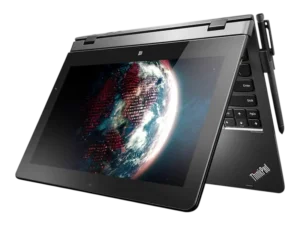
| Field | Details |
| Document Title | ThinkPad Helix User Guide |
| Document Type | User Guide |
| Brand Name | Lenovo |
| Product Name | ThinkPad Helix |
| Model Number(s) | Machine Types 20CG and 20CH |
| PDF File Size | 4.27 MB |
| Number of Pages | 136 |
| Languages Covered | English |
Lenovo ThinkPad Helix 20CG
The Lenovo ThinkPad Helix 20CG/20CH is a detachable Windows tablet computer that combines a multi-touch display with optional keyboard accessories for tablet and notebook-style operation. It features an 11.6-inch Full HD display, built-in cameras, an M.2 solid-state drive, Bluetooth 4.0, wireless networking, and support for compatible docking and pen accessories.
The ThinkPad Helix supports Windows 8.1 and Windows 10, with configurations offering 4 GB or 8 GB of memory. Its touchscreen can be used for navigation, handwriting, drawing, and interacting with applications. Depending on the model, additional features include fingerprint authentication, NFC, mobile broadband, smart card access, and satellite-based location services.
The tablet supports three keyboard accessories: the ThinkPad Helix Ultrabook Keyboard, Ultrabook Pro Keyboard, and Folio Keyboard. The ThinkPad Tablet Dock provides additional USB, network, video, and audio connections.
These instructions cover initial setup, battery charging, touchscreen operation, wireless connections, keyboard accessories, security settings, system configuration, recovery, maintenance, and troubleshooting for ThinkPad Helix machine types 20CG and 20CH.
Technical Specifications
Hardware Specifications
| Specification | Details |
| Product | ThinkPad Helix |
| Machine Types | 20CG, 20CH |
| Product Category | Detachable Tablet Computer |
| Operating System | Windows 8.1 or Windows 10 |
| Memory | 4 GB or 8 GB |
| Internal Storage | M.2 Solid-State Drive |
| Display Size | 11.6 inches (294.5 mm) |
| Screen Resolution | 1920 × 1080 pixels |
| Display Technology | IPS, LED Backlight |
| Screen Protection | Anti-reflective Gorilla Glass |
| Touch Input | Multi-touch |
| Front Camera | 2 Megapixels |
| Rear Camera | 5 Megapixels with Autofocus |
| Bluetooth | Bluetooth 4.0 |
| Wireless LAN | Supported |
| Wireless WAN | On Selected Models |
| NFC | On Selected Models |
| GNSS | On Selected Models |
| Fingerprint Reader | On Selected Models |
| Micro-SD Card Reader | Supported |
| Micro-SIM Card Slot | On Selected Models |
| Smart Card Reader | On Selected Models |
| Tablet Battery | 35 Wh Lithium-Polymer |
| Ultrabook Pro Keyboard Battery | 26 Wh Lithium-Polymer |
| AC Adapter Input | 100–240V AC, 50–60 Hz |
The processor and certain other hardware features vary by configuration.
Tablet Dimensions
| Measurement | Dimension |
| Width | 301.1 mm (11.85 inches) |
| Depth | 192.5 mm (7.58 inches) |
| Height Without Smart Card Slot | 9.6 mm (0.38 inch) |
| Height With Smart Card Slot | 19.35 mm (0.76 inch) |
Operating Environment
| Condition | Specification |
| Maximum Unpressurized Altitude | 5,000 m (16,404 ft) |
| Operating Temperature Up to 2,438 m | 5–35°C (41–95°F) |
| Storage Temperature Up to 2,438 m | 5–43°C (41–109°F) |
| Maximum Operating Temperature Above 2,438 m | 31.3°C (88°F) |
| Operating Relative Humidity | 8–95% |
| Storage Relative Humidity | 5–95% |
The tablet should be used in a dry, well-ventilated environment away from direct sunlight, excessive dust, and extreme temperatures.
Included and Optional Accessories
The ThinkPad Helix uses a power cord and AC power adapter for charging and external power. Additional accessories vary by purchased configuration.
| Accessory | Function |
| Power Cord and AC Adapter | Supply power and charge the tablet |
| ThinkPad Helix Quickshot Cover | Screen protection, sleep/wake control, camera access, and stand |
| Tablet Digitizer Pen | Handwriting and drawing input |
| ThinkPad Active Pen | Battery-powered handwriting and drawing input |
| Lenovo Micro HDMI to VGA Adapter | Connects a VGA display |
| Lenovo Mini DisplayPort to VGA Adapter | Connects a VGA display through the Ultrabook Pro Keyboard |
| ThinkPad USB 3.0 Ethernet Adapter | Provides a wired network connection |
| ThinkPad Helix Ultrabook Keyboard | Adds a physical keyboard and clickpad |
| ThinkPad Helix Ultrabook Pro Keyboard | Adds TrackPoint, trackpad, ports, speakers, and battery |
| ThinkPad Helix Folio Keyboard | Provides a keyboard and multiple operating positions |
| ThinkPad Tablet Dock | Adds charging, USB, Ethernet, HDMI, and audio connections |
Parts, Buttons, and Connectors
Front and Side Components
| Component | Function |
| Microphones | Capture voice and audio |
| Camera-in-Use Indicator | Illuminates when a camera is active |
| Front-Facing Camera | Captures photos, videos, and video calls |
| Ambient Light Sensor | Adjusts display brightness automatically |
| NFC Touchpoint | Short-range NFC communication on supported models |
| Windows Button | Opens Windows Start or switches views |
| Screen-Rotation-Lock Button | Enables or disables automatic screen rotation |
| Power Button | Turns the tablet on |
| Audio Connector | Connects compatible headphones or headsets |
| Volume Buttons | Increase or decrease sound volume |
| Micro-SIM Slot | Accepts a micro SIM on mobile broadband models |
| Micro-SD Slot | Accepts supported micro-SD memory cards |
| USB 3.0 Connector | Connects compatible USB devices |
| Micro HDMI Connector | Connects external audio/video equipment |
| Keyboard Connector | Connects the Ultrabook Keyboard |
| Dock Connector | Connects compatible docking equipment |
| Power Connector | Connects the AC adapter |
| Emergency-Reset Hole | Resets an unresponsive tablet |
The tablet’s audio connector supports headphones and headsets, but not a conventional standalone microphone.
Rear Components
The rear of the tablet contains the following components:
| Component | Function |
| Rear-Facing Camera | 5 MP camera with autofocus |
| Smart Card Slot | Smart card access on supported models |
| System-Status Indicator | Indicates power and operating status |
| Integrated Speakers | Provide audio output |
| Fingerprint Reader | Fingerprint authentication on supported models |
System-Status Indicator
The illuminated dot in the rear ThinkPad logo indicates the tablet’s operating condition.
| Indicator Behavior | Meaning |
| Blinks Three Times | Tablet has been connected to a power source |
| Remains On | Tablet is turned on |
| Off | Tablet is turned off or in Sleep mode |
Important Safety Instructions
The ThinkPad Helix is a sealed electronic device containing a rechargeable battery and delicate internal components.
General Handling Safety
- Do not drop, bend, puncture, or crush the tablet.
- Do not place heavy objects on the display.
- Do not insert foreign objects into the tablet.
- Do not disassemble or modify the device.
- Keep the tablet away from liquids and excessive moisture.
- Avoid extended contact between hot surfaces and the body.
- Keep small accessories and packaging away from young children.
If the glass display cracks or breaks, stop using the tablet. Do not touch or attempt to remove broken glass. Contact Lenovo-authorized service personnel.
Battery Safety
Use only Lenovo-approved battery replacements.
Do not open, puncture, crush, disassemble, or short-circuit the battery. Keep it away from water, fire, and children.
The built-in rechargeable battery and internal coin-cell battery must be replaced by a Lenovo-authorized repair facility or technician.
Stop using the battery if it becomes damaged, leaks, or develops abnormal deposits around its contacts.
AC Adapter Safety
Use Lenovo-approved AC adapters and power cords.
Keep the charger ventilated during operation. Disconnect it if it becomes damaged, wet, or exposed to excessive moisture.
Headphone Safety
High headphone volume can cause hearing damage.
Use an appropriate listening volume and compatible headphones or headsets. The audio connector complies with EN 50332-2, Subclause 7.
Protecting Data
Do not delete unfamiliar system files or rename directories that were not created by the user.
Keep firewall, antivirus, and other security software updated to reduce the risk of malware and unauthorized access.
Initial Setup Instructions
Setting Up the ThinkPad Helix for the First Time
- Connect the power cord to the supplied AC power adapter.
- Insert the adapter’s power connector into the tablet’s power port.
- Connect the power cord to a standard AC electrical outlet.
- Press and release the Power button.
- Follow the displayed Windows setup instructions.
The battery may not be fully charged when the tablet is first unpacked.
Turning the Tablet Off
Windows 8.1: Open the Start screen, select the Power icon, and choose Shut down. Alternatively, open the Charms bar and select Settings > Power > Shut down.
Windows 10: Open Start, select Power, and choose Shut down.
Changing the Power Button Function
- Open Control Panel.
- Change the view to Large Icons or Small Icons.
- Select Power Options.
- Select Choose what the power buttons do.
- Configure the required behavior.
Charging the Battery and Power Management
The tablet contains a 35 Wh lithium-polymer battery.
Charging the Tablet
- Connect the power cord to the approved AC adapter.
- Connect the adapter to the tablet’s power connector.
- Plug the power cord into an electrical outlet.
- Allow the battery to charge.
When using the ThinkPad Helix Ultrabook Pro Keyboard, the adapter can also charge its 26 Wh battery through the keyboard’s power connection.
The ThinkPad Tablet Dock provides another supported charging arrangement.
Checking Battery Status
The Windows notification area displays an approximate battery level.
For additional power information:
- Open Control Panel.
- Switch to Large Icons or Small Icons.
- Select Power Options.
- Review the battery status and available power settings.
Extending Battery Life
To reduce power consumption between charges:
- Disable Wi-Fi, Bluetooth, and mobile broadband when not needed.
- Lower the screen brightness.
- Use Sleep mode during temporary inactivity.
- Shut down the tablet when it will not be used for an extended period.
Using Sleep Mode
On Windows 8.1 or Windows 10, open the Power menu and select Sleep.
The Quickshot Cover can also place the tablet into Sleep mode when closed, using its default settings.
Using the Multi-Touch Screen
The touchscreen supports finger gestures for selecting items, scrolling, opening menus, and switching between applications.
Touchscreen Gesture Guide
| Gesture | Action |
| Tap | Selects or activates an item |
| Tap and Hold | Opens a menu with additional options |
| Slide | Scrolls through pages or lists |
| Drag | Moves an item |
| Two-Finger Spread | Zooms in |
| Two-Finger Pinch | Zooms out |
| Two-Finger Rotate | Rotates a supported item |
| Swipe from Left Edge | Opens task view in Windows 10 or switches apps in Windows 8.1 |
| Swipe from Right Edge | Opens Action Center in Windows 10 or Charms in Windows 8.1 |
| Swipe from Top to Bottom | Closes a full-screen application where supported |
Some gestures depend on the application or Windows version.
Touchscreen Precautions
Do not press hard on the display or use metallic objects, fingernails, or unsuitable pointing tools.
Use fingers or the approved Tablet Digitizer Pen or ThinkPad Active Pen where supported.
Using the Tablet Digitizer Pen and ThinkPad Active Pen
Selected configurations support pen input for handwriting, drawing, annotations, and precise screen selections.
The Tablet Digitizer Pen and ThinkPad Active Pen are different accessories intended for their corresponding supported configurations.
Tablet Digitizer Pen
The Tablet Digitizer Pen operates without a battery.
Its components include:
| Component | Function |
| Pen Tip | Screen input |
| Click Button | Additional selection operations |
| Eraser Tip | Erasing supported digital ink |
ThinkPad Active Pen
The ThinkPad Active Pen operates using one AAAA alkaline battery.
To install the battery:
- Unscrew the pen’s end cap.
- Insert an AAAA battery with the negative terminal facing outward.
- Reattach and tighten the end cap.
If the battery becomes depleted, the click and eraser buttons stop functioning until the battery is replaced.
Pen Actions
| Action | Instruction |
| Select | Tap the display once |
| Double-Click | Tap twice without pausing |
| Right-Click | Hold the pen tip on the display for approximately one second, or use the click button while tapping |
| Erase Ink | Hold the eraser button and drag the tip across the digital ink |
For the best line quality, keep the pen approximately perpendicular to the display.
Do not immerse the pen in water or subject it to excessive vibration or impact.
Using the On-Screen Keyboard
The tablet supports Windows on-screen input methods for entering text, numbers, and symbols.
Opening the On-Screen Keyboard
Search Windows for On-Screen Keyboard and open the application.
The touch keyboard and handwriting panel can also be opened using the keyboard icon in the Windows notification area.
Changing the Input Language
- Open Control Panel.
- Select Clock, Language, and Region.
- Select Change input methods.
- Follow the displayed instructions to configure the language.
Using the Cameras
The ThinkPad Helix has a 2 MP front-facing camera and a 5 MP rear-facing autofocus camera.
The front camera is suitable for supported video calling applications, while the rear camera can capture photographs and video.
Opening the Camera
On Windows 8.1, select Camera from the Start screen.
On Windows 10, open Start > All Apps > Camera.
The camera-in-use indicator illuminates when either camera is active.
Changing Camera Settings
Camera settings can be adjusted through the Camera application or supported Lenovo Settings software.
Available settings depend on the application and configuration.
Using the Micro-SD Card Reader
The micro-SD slot accepts SD, SDHC, and SDXC micro-sized memory cards.
Installing a Micro-SD Card
- Open the protective cover on the tablet’s right side.
- Locate the micro-SD slot.
- Hold the card with its metal contacts facing downward and toward the tablet.
- Insert the card until it clicks into place.
- Close the protective cover.
Before handling the card, touch a grounded metal object to reduce static electricity.
Removing a Micro-SD Card
- Open the protective cover.
- Press the card inward until it clicks.
- Release the card so that it ejects.
- Remove it gently.
- Close the protective cover.
Do not place the tablet into Sleep or Hibernation mode during an active card data transfer.
Using a Smart Card
Selected models include a smart card reader for compatible cards used in authentication and data applications.
Supported Smart Card Dimensions
| Measurement | Size |
| Length | 85.60 mm |
| Width | 53.98 mm |
| Thickness | 0.76 mm |
Do not insert a smart card with slits, as it may damage the reader.
Installing a Smart Card
Position the smart card with its metal contacts facing downward and toward the slot, then insert it as illustrated by the card orientation.
If Windows does not automatically recognize the hardware:
- Open Control Panel.
- Select Hardware and Sound > Device Manager.
- Open the Action menu.
- Select Add Legacy Hardware.
- Follow the Add Hardware Wizard.
Removing a Smart Card
- Open the hidden icons area in the Windows taskbar.
- Select Safely Remove Hardware and Eject Media.
- Stop the relevant card.
- Gently slide the card out.
Connecting an External Display
The tablet includes a Micro HDMI connector for digital video output.
A compatible external display can be connected directly through suitable HDMI equipment or by using the optional Lenovo Micro HDMI to VGA Adapter for VGA displays.
Connecting a VGA Display
- Connect the Lenovo Micro HDMI to VGA Adapter to the tablet.
- Connect the compatible VGA display cable to the adapter.
- Configure the external display using Windows display settings.
The guide specifies a video interface cable with a ferrite core when connecting an external display.
Detecting an External Monitor
Windows 8.1: Press and hold an empty area of the desktop, select Screen Resolution, and choose Detect.
Windows 10: Press and hold an empty desktop area, select Display Settings, and choose Detect.
Selecting the Display Mode
The display settings allow output to the tablet, the external monitor, or both.
In Windows 8.1, use Devices > Project > Second Screen.
In Windows 10, open Settings > System > Display and select the required presentation arrangement.
Wireless Networks and Bluetooth
The ThinkPad Helix supports wireless LAN and Bluetooth 4.0. Some models also include wireless WAN, NFC, and GNSS capabilities.
Connecting to Wi-Fi
- Select the wireless-network icon in the Windows taskbar.
- Choose the desired wireless network.
- Enter the network password if required.
- Complete the connection.
If available networks do not appear, check that Airplane mode is disabled and the appropriate wireless control is enabled.
The guide describes Wi-Fi operation at distances of up to approximately 100 m (328 ft), depending on the router, environment, and signal obstructions.
Pairing a Bluetooth Device
- Turn on the Bluetooth device.
- Make it discoverable.
- Enable Bluetooth on the tablet.
- Select the device from the available device list.
- Choose Pair.
For Windows 8.1, Bluetooth settings are under Change PC Settings > PC and Devices > Bluetooth.
For Windows 10, the documented path is Settings > Devices > Bluetooth.
Bluetooth communication is described for distances of approximately 10 m (32.8 ft).
Installing a Micro SIM Card
Models equipped with wireless WAN hardware may require a micro SIM card for 3G, 4G, or LTE mobile broadband access.
Installing the SIM Card
- Turn off the tablet.
- Open the protective cover on the right side.
- Locate the micro-SIM slot.
- Position the card with its metal contacts facing downward.
- Insert it until it clicks.
- Close the cover and turn on the tablet.
Avoid touching the SIM card’s metal contacts.
Removing the SIM Card
- Turn off the tablet.
- Open the protective cover.
- Press the SIM inward until it clicks.
- Release the SIM and remove it.
- Close the cover.
Using NFC
On models equipped with Near Field Communication, NFC can transfer data between the tablet and compatible NFC cards or smartphones over very short distances.
Enabling NFC
The NFC feature is enabled by default on supported configurations.
For Windows 8.1, the documented path is Settings > Change PC Settings > NFC.
For Windows 10, the guide identifies Settings > Devices > Network > Airplane Mode.
If NFC remains unavailable, open ThinkPad Tablet Setup and check Security > I/O Port Access > NFC.
Using an NFC Card
- Confirm that NFC is enabled.
- Use a compatible card in NFC Data Exchange Format (NDEF).
- Position the card with its front facing upward.
- Align its left edge with the NFC mark on the tablet.
- Move the card slightly left or right within approximately 5 mm.
- Hold it for about one second until the tablet detects it.
Using an NFC Smartphone
Turn on NFC on both devices.
Position the smartphone screen upward, align it with the tablet’s NFC touchpoint, and move it slightly until the connection is detected.
Keep both devices active until the data transfer is finished.
Using the GNSS Receiver
Some ThinkPad Helix configurations include a Global Navigation Satellite System receiver for location-based applications.
The receiver can provide location information for supported mapping, navigation, and related applications.
When not needed, the GNSS receiver can be disabled through the operating system’s wireless or Airplane mode settings to conserve battery power.
Using the Fingerprint Reader
Selected ThinkPad Helix models include a fingerprint reader that can be used for Windows authentication.
Enrolling a Fingerprint
For Windows 10:
- Set a Windows account password.
- Open Settings > Accounts > Sign-In Options.
- Select Add under Fingerprint.
- Follow the enrollment instructions.
- Select Finish.
For Windows 8.1, open Settings > Change PC Settings > Accounts > Sign-In Options and add a fingerprint.
Registering more than one finger is recommended.
Scanning a Fingerprint
- Place the upper joint of the finger on the sensor.
- Apply light pressure.
- Swipe the finger toward the user in one smooth movement.
Do not lift the finger while swiping.
Maintaining the Reader
Use a soft, dry, lint-free cloth to clean the fingerprint sensor.
Avoid scratching it with fingernails or hard objects.
If fingerprint recognition fails frequently, clean the finger and sensor or register another finger.
ThinkPad Helix Quickshot Cover
The optional Quickshot Cover attaches magnetically to the tablet.
It provides screen protection, sleep/wake control, camera access, and a stand position.
Sleep and Wake Operation
By default:
- Closing the cover places the tablet into Sleep mode.
- Opening the cover wakes the tablet.
The cover behavior can be changed through Control Panel > Hardware and Sound > Power Options > Choose what closing the lid does.
Opening the Camera with the Cover
When the cover is opened to approximately 360 degrees, the magnetic tab can be flipped to launch the camera automatically.
The function is enabled by default.
Using the Cover as a Stand
The cover can be folded into a stand position to support the tablet during viewing or presentations.
The stand function may not work as effectively on configurations equipped with the rear smart card slot.
ThinkPad Helix Ultrabook Keyboard
The optional ThinkPad Helix Ultrabook Keyboard provides a physical keyboard, clickpad, special keys, USB 2.0 connection, and pen-storage slot on supported configurations.
Dimensions
| Measurement | Size |
| Width | 301.1 mm |
| Depth | 215.7 mm |
| Height | 7.3–25.4 mm |
Attaching the Tablet
- Position the tablet vertically above the keyboard connector.
- Insert the tablet into the keyboard.
- Confirm that it is secured.
- Release it so that it moves backward into its supported position.
The tablet reaches an angle of approximately 125 degrees.
Do not detach the tablet while actively using the keyboard.
Using the Clickpad
The clickpad supports pointer movement, selection, dragging, scrolling, and touch gestures.
The right-click area functions as the secondary mouse button. The remaining area provides primary-click functionality.
Press Fn + 8 to enable or disable the clickpad.
ThinkPad Helix Ultrabook Pro Keyboard
The optional Ultrabook Pro Keyboard adds a TrackPoint pointing device, trackpad, speakers, Mini DisplayPort, Always On USB 3.0 port, power connector, and a 26 Wh battery.
Dimensions
| Measurement | Size |
| Width | 301.1 mm |
| Depth | 213.3 mm |
| Height | 20.2 mm |
Main Components
| Component | Purpose |
| TrackPoint | Pointer movement and scrolling |
| Trackpad | Touch-sensitive pointing control |
| Special Keys | Quick access to supported functions |
| Dock Connector | Connects to the tablet |
| Security Lock Slot | Accepts a compatible cable lock |
| Mini DisplayPort | Connects compatible external displays |
| Always On USB 3.0 | Connects devices and supports specified device charging |
| Power Connector | Connects the AC adapter |
| Eject Button | Releases the tablet |
| Speakers | Audio playback |
Attaching the Tablet
- Align the tablet’s bottom hook holes with the keyboard hooks.
- Slide the tablet gently into the keyboard.
- Pivot the tablet upward into its operating position.
Do not open the display beyond 125 degrees relative to the keyboard.
Removing the Tablet
- Press the keyboard’s eject button.
- Lift the tablet away from the keyboard.
Do not remove the tablet while actively using the keyboard.
Always On USB Charging
The Always On USB 3.0 connector can charge certain mobile devices:
- When the tablet is on.
- When the tablet is sleeping.
- When the tablet is turned off but connected to AC power.
Charging while the tablet is off and disconnected from AC power requires the supported power settings in Lenovo Settings.
TrackPoint Operation
The TrackPoint pointing device includes:
- Pointing stick
- Left-click button
- Right-click button
- Scroll control
Apply pressure to the pointing stick to move the pointer. Use the click buttons for selection and menus.
Hold the scroll control while moving the pointing stick to scroll.
Trackpad Gestures
The trackpad supports:
| Gesture | Function |
| One-Finger Tap | Select or open an item |
| Two-Finger Tap | Open a shortcut menu |
| Two-Finger Movement | Scroll |
| Two-Finger Pinch | Zoom out |
| Two-Finger Spread | Zoom in |
| Three-Finger Swipe Up | Open Task View in Windows 10 |
| Three-Finger Swipe Down | Show Desktop in Windows 10 |
TrackPoint and trackpad settings can be adjusted through Control Panel > Hardware and Sound > Mouse.
ThinkPad Helix Folio Keyboard
The Folio Keyboard includes a physical keyboard, clickpad, pen holder, and protective cover.
Dimensions
| Measurement | Size |
| Width | 303.7 mm |
| Depth | 214.8 mm |
| Height | 17.65–19.15 mm |
Attaching the Tablet
Insert the tablet into the corresponding keyboard attachment and confirm that it is properly secured.
Do not detach the tablet while using the keyboard.
Folio Operating Modes
| Mode | Description |
| Tablet Mode | Tablet-style operation |
| Notebook Mode | Keyboard and display positioned for typing |
| Flat Mode | Tablet and keyboard arranged in a flat position |
| Closed Mode | Cover folded over the tablet |
Special Keys
The Folio Keyboard uses the Hotkey Features Integration software for full special-key functionality.
The software can be obtained through Lenovo System Update or the appropriate Lenovo support download.
Keyboard Function Keys and Shortcuts
Supported ThinkPad Helix keyboard accessories include keys for audio, display, wireless, and Windows functions.
Common Keyboard Functions
| Function | Action |
| Speaker Mute | Mutes or restores speaker audio |
| Volume Down | Reduces volume |
| Volume Up | Increases volume |
| Microphone Mute | Mutes or restores microphone input |
| Brightness Down | Darkens the display |
| Brightness Up | Brightens the display |
| External Display | Manages connected displays |
| Wireless Control | Enables or disables wireless functions |
| Fn + 4 | Places the tablet into Sleep mode |
| Fn + 8 | Enables or disables the clickpad |
| Fn + B | Break function |
| Fn + K | Scroll Lock function |
| Fn + P | Pause function |
| Fn + S | System Request function |
| Fn + End | Insert function |
Ultrabook Pro Keyboard Backlight
On the Ultrabook Pro Keyboard, Fn + Spacebar cycles through three keyboard backlight settings:
- Off
- Low
- High
Fn Lock
Fn Lock determines whether pressing a function key activates F1–F12 or its assigned special function.
The behavior can be changed using the Fn Lock key combination or through the Keyboard Properties settings.
ThinkPad Tablet Dock
The optional ThinkPad Tablet Dock holds the tablet upright and provides additional peripheral connections.
Dock Connections
| Connector | Function |
| Dock Connector | Connects the tablet |
| Always On USB 3.0 | Connects and charges compatible devices |
| Combo Audio Connector | Headphone or headset connection |
| Rear USB 3.0 Ports | Connects USB equipment |
| HDMI | External audio/video output |
| Ethernet | Wired network connection |
| Power Connector | External power and charging |
Connecting the Tablet to the Dock
- Position the tablet with its dock connector facing downward.
- Align the tablet connector with the dock connector.
- Slide the tablet gently into the dock.
- Connect the dock’s supplied AC adapter and power cord.
- Plug the power cord into an electrical outlet.
Once connected, the dock supports compatible USB accessories, external displays, wired networking, and audio equipment.
Passwords and Security
The ThinkPad Helix supports multiple security methods for protecting the system and stored information.
Password Types
| Password | Purpose |
| Windows Password | Protects access to the Windows account |
| Power-On Password | Restricts startup access |
| Supervisor Password | Protects firmware configuration settings |
| User Hard Disk Password | Protects access to the storage drive |
| Master Hard Disk Password | Provides administrative storage access |
Setting a Power-On Password
- Save open files and close applications.
- Open ThinkPad Tablet Setup.
- Select Security > Password.
- Select Power-On Password.
- Enter the new password.
- Confirm the password.
- Save the settings.
Supervisor Password
The supervisor password protects configuration settings in ThinkPad Tablet Setup.
Only an authorized system administrator should set or change this password.
Important: If the supervisor password is forgotten, Lenovo cannot reset it. System-board replacement may be required, with proof of purchase and applicable service charges.
Hard Disk Password
Hard disk passwords restrict access to information stored on the internal drive.
User and master password arrangements can be configured through Security > Password > Hard Disk 1 Password.
Forgetting the applicable hard disk passwords can permanently prevent access to stored data. Lenovo cannot recover the forgotten passwords or the data protected by them.
BitLocker Drive Encryption
Supported Windows editions include BitLocker Drive Encryption.
BitLocker can encrypt system and user files to help protect data if the tablet is lost or stolen.
The documented settings location is:
Control Panel > System and Security > BitLocker Drive Encryption.
Trusted Platform Module
Depending on configuration, the tablet may include a firmware TPM 2.0 or both a discrete TPM 1.2 and firmware TPM.
TPM settings are managed through the Security Chip menu in ThinkPad Tablet Setup.
The menu includes chip selection, enable/disable controls, and a clear-security-chip function.
Clearing security keys can affect access to encrypted information and should be performed only when appropriate.
ThinkPad Tablet Setup and BIOS Configuration
ThinkPad Tablet Setup provides access to firmware settings, startup devices, and hardware configuration.
Opening ThinkPad Tablet Setup
- Restart the tablet.
- When the ThinkPad logo appears, tap the on-screen message for interrupting normal startup.
- Select F1 on the screen.
- Enter the supervisor password if required.
Setup Menu Overview
| Menu | Function |
| Main | Displays system information and date/time |
| Config | Configures supported hardware functions |
| Security | Controls passwords and security features |
| Startup | Manages startup and boot settings |
| Restart | Saves or discards changes and restarts |
Changing Boot Priority
- Open ThinkPad Tablet Setup.
- Select Startup.
- Open the Boot submenu.
- Arrange the startup devices in the required order.
- Save changes and restart.
Important: Changing the startup sequence can affect encrypted systems. BitLocker may prevent normal startup after a boot-order change.
Installing Drivers and BIOS Updates
Drivers and firmware updates for the ThinkPad Helix are available through Lenovo Support.
The manual identifies:
http://www.lenovo.com/ThinkPadDrivers
Use the product’s machine type when selecting the appropriate software package.
Troubleshooting Guide
The following procedures address common problems with the ThinkPad Helix.
General Troubleshooting
| Problem | Recommended Action |
| Tablet will not turn on | Connect AC power and check battery condition |
| Tablet stops responding | Use the power button or emergency reset procedure |
| Screen remains blank | Check power, Sleep mode, and display response |
| Touchscreen responds incorrectly | Clean and dry hands, then restart |
| Battery does not charge | Check the approved adapter connection |
| Wi-Fi connection fails | Check Airplane mode, network signal, and SIM if applicable |
| Bluetooth device is not detected | Check Bluetooth settings and operating distance |
| Audio is missing or distorted | Check mute, volume, speaker obstruction, and headset |
| Media file will not play | Check whether the file is damaged |
| USB connection fails | Check the supported cable and connection |
Tablet Does Not Turn On
- Connect the tablet to a working AC outlet using its approved adapter.
- Attempt to start the tablet.
- If it remains unresponsive, use the emergency-reset procedure.
- Contact Lenovo support if the problem continues.
Using the Emergency-Reset Hole
If the tablet cannot be turned off normally:
- Disconnect the AC adapter.
- Locate the emergency-reset hole on the tablet.
- Insert a straightened paper clip into the hole to reset the system.
- Restart the tablet.
Screen Is Blank
If the tablet is running but the display is blank, touch the screen to exit the screen saver or press the Power button to wake the tablet from Sleep mode.
If the display remains blank during startup after power connections have been checked, the tablet may require service.
Screen Shows Only a White Pointer
- Turn the tablet off.
- Restart it.
- If the problem remains, use the documented recovery procedures to restore the system.
- Seek service if recovery does not resolve the problem.
Touchscreen Responds Slowly
Confirm that fingers and the touchscreen are clean and dry.
Restart the tablet. If the problem continues, contact Lenovo support.
Battery Does Not Charge
Check that the AC adapter is connected correctly.
If the connection is secure and charging still fails, contact Lenovo for battery service or replacement.
Wireless Network Connection Fails
Check that:
- Airplane mode is disabled.
- The tablet is within network coverage.
- The signal is sufficiently strong.
- The micro SIM is valid on cellular-enabled models.
Bluetooth Device Cannot Be Found
Confirm that Bluetooth is active on both devices and that they are within approximately 10 m of one another.
The target device must also be discoverable.
Poor Audio or No Sound
Check the speaker openings, mute setting, and volume level. If a headset is connected, disconnect and reconnect it.
If the problem continues, contact Lenovo technical support.
Error Codes and System Messages
The ThinkPad Helix displays specific error messages when it detects firmware, security, storage, or hardware problems.
| Error Code or Message | Meaning and Required Action |
| 0177 | Supervisor-password data checksum problem; service required |
| 0183 | Security settings checksum error; check security settings in ThinkPad Tablet Setup and restart |
| 0187 | EEPROM data access failure; service required |
| 0188 | Invalid RFID serialization information; system-board service required |
| 0189 | Invalid RFID configuration information; system-board service required |
| 0190 | Critical low battery; connect AC power and charge |
| 0191 | Invalid remote security change; confirm the operation and enter ThinkPad Tablet Setup |
| 0199 | Supervisor-password retry limit exceeded; verify the password and enter setup |
| 1802 | Unsupported wireless network card detected; remove the unsupported card |
| 1820 | Multiple external fingerprint readers detected; remove the extra readers |
| 0270 | Real-time clock failure; service required |
| 0271 | Date/time not configured; set them through ThinkPad Tablet Setup |
| 2101 | M.2 SSD detection failure; service required |
| 2111 | M.2 SSD read error; service required |
| 2200 | Invalid machine type or serial number; service required |
| 2201 | Invalid machine UUID; service required |
| Thermal Sensing Error | Temperature sensor problem; shut down immediately and seek service |
| System UEFI Variable Storage Nearly Full | Insufficient UEFI variable storage for additional operating-system or application data |
System UEFI Variable Storage Error
If the UEFI variable storage is nearly full, ThinkPad Tablet Setup may offer a storage cleanup.
Choosing Yes removes operating-system and application-created variable data, except the specified UEFI global variables.
Choosing No retains the data, but prevents additional changes to the affected variable storage while it remains full.
The action should be performed carefully because stored firmware-related information may be affected.
Windows Recovery and Factory Reset
The ThinkPad Helix includes recovery options for Windows 8.1 and Windows 10.
Warning: A factory reset can remove personal files, applications, and settings. Important files should be backed up before starting a destructive recovery operation.
Refreshing Windows 8.1
The Refresh function reinstalls Windows while retaining personal files and settings.
- Open the Charms bar.
- Select Settings > Change PC Settings.
- Open Update and Recovery > Recovery.
- Select Get Started under Refresh Your PC Without Affecting Your Files.
- Follow the instructions.
Programs installed outside the applicable retained application categories may be removed.
Resetting Windows 8.1
- Open Settings > Change PC Settings.
- Select Update and Recovery > Recovery.
- Select Get Started under Remove Everything and Reinstall Windows.
- Confirm the operation.
- Choose the required removal option.
The guide provides two choices:
| Option | Action |
| Just Remove My Files | Performs a quicker removal process |
| Fully Clean the Drive | Performs a more extensive cleaning process |
Resetting Windows 10
- Open Start > Settings.
- Select Update & Security > Recovery.
- Under Reset This PC, select Get Started.
- Follow the displayed recovery instructions.
The Windows 10 reset process offers options for keeping or removing personal files.
Advanced Startup Options
Advanced startup provides access to firmware settings, external boot devices, repair functions, and recovery tools.
For Windows 10, open:
Settings > Update & Security > Recovery > Advanced Startup > Restart Now.
Then select Troubleshoot > Advanced Options.
Creating a Recovery USB Drive
A USB storage device with at least 16 GB of capacity is required. The actual capacity requirement depends on the recovery image.
Warning: Creating a recovery drive deletes the existing contents of the selected USB drive.
For Windows 10:
- Connect an appropriate USB drive.
- Search Windows for Create a recovery drive.
- Open the recovery tool.
- Approve the User Account Control prompt.
- Follow the Recovery Drive Wizard.
For Windows 8.1, the recovery-drive creation process also includes an option to copy the recovery partition to USB storage.
Keep the completed recovery USB drive in a secure location.
Recovering from USB
- Connect the recovery USB drive.
- Connect the tablet to AC power.
- Open ThinkPad Tablet Setup.
- Select Startup > Boot.
- Move the recovery USB drive to the first boot position.
- Save the settings and restart.
- Follow the recovery instructions.
Cleaning and Maintenance
Regular cleaning helps protect the display, fingerprint reader, keyboard, and other exposed surfaces.
Cleaning the Tablet
- Turn off the tablet.
- Disconnect attached cables.
- Wipe the touchscreen gently with a soft, dry, lint-free cloth.
- Remove fingerprints and dust using light pressure.
Do not use household cleaners, aerosol sprays, solvents, alcohol, ammonia, abrasive materials, or unsuitable screen-cleaning products.
Cleaning the Fingerprint Reader
Use a dry, lint-free cloth to remove dirt or moisture from the sensor.
Protecting the Screen
A compatible replaceable protective film can be installed to reduce scratching.
Clean the screen before applying the protective film.
Storage and Travel Instructions
Long-Term Storage
For extended periods without use:
- Remove the micro SIM card.
- Place the tablet in a protective case.
- Store it in a dry, ventilated area.
- Keep it away from direct sunlight and extreme temperatures.
Lenovo recommends storing rechargeable batteries at approximately 30–50% charge.
For long-term storage, the battery should be charged approximately once per year to help prevent overdischarge.
Traveling With the Tablet
Use a protective carrying case to prevent scratches or impact damage.
When traveling by air, follow airline restrictions on wireless devices. Airplane mode can be enabled when required.
Keep the tablet under observation during airport security screening.
Warranty and Customer Support
The applicable warranty terms for the ThinkPad Helix are provided in the Safety, Warranty, and Setup Guide supplied with the product.
Lenovo provides technical assistance for supported hardware problems during the applicable warranty period.
Lenovo Support Services
Warranty services may include hardware problem diagnosis, eligible hardware repairs, and applicable engineering changes.
Finding Product and Serial Numbers
The machine type/model and serial number appear on the product identification label.
The FCC ID and IC Certification information for installed wireless transmitters can be found on the bottom of the tablet.
Official Support Resources
| Resource | Address |
| Lenovo Support | http://www.lenovo.com/support |
| Product Registration | http://www.lenovo.com/register |
| Drivers and Firmware | http://www.lenovo.com/ThinkPadDrivers |
| Support Telephone Directory | http://www.lenovo.com/support/phone |
| Product Documentation | http://www.lenovo.com/UserManuals |
| Compatible Accessories | http://www.lenovo.com/essentials |
Before contacting technical support, prepare the machine type, serial number, and a description of the problem.
Frequently Asked Questions
1. How do I turn on the Lenovo ThinkPad Helix 20CG/20CH?
Connect the approved power adapter to the tablet and an electrical outlet. Press and release the Power button, then complete the Windows setup instructions.
2. What are the main specifications of the ThinkPad Helix?
The ThinkPad Helix has an 11.6-inch Full HD touchscreen, M.2 SSD storage, 4 GB or 8 GB of memory, Bluetooth 4.0, a 35 Wh tablet battery, and 2 MP front and 5 MP rear cameras. Some features vary by configuration.
3. How do I reset a frozen ThinkPad Helix?
Press and hold the Power button for at least four seconds. If the tablet remains unresponsive, disconnect the AC adapter and use the emergency-reset hole with a straightened paper clip. Then restart the tablet.
4. Does the ThinkPad Helix support a keyboard and stylus?
Yes. The ThinkPad Helix supports compatible Ultrabook, Ultrabook Pro, and Folio keyboards. Selected configurations support either the Tablet Digitizer Pen or ThinkPad Active Pen.
5. How do I connect the ThinkPad Helix to Wi-Fi?
Select the wireless-network icon in the Windows taskbar, choose the network, and enter its password when prompted. Confirm that Airplane mode is disabled.
6. How do I enter BIOS on the ThinkPad Helix?
Restart the tablet. When the ThinkPad startup logo appears, select the on-screen option to interrupt normal startup, then tap F1 to enter ThinkPad Tablet Setup.
7. How do I factory reset the ThinkPad Helix?
In Windows 10, open Settings > Update & Security > Recovery and select Get Started under Reset This PC. In Windows 8.1, use Update and Recovery > Recovery > Remove Everything and Reinstall Windows. Back up important files before resetting.
8. What should I do if the ThinkPad Helix battery does not charge?
Check that the Lenovo-approved AC adapter and power cord are connected correctly. If charging still fails, contact Lenovo-authorized support for battery service.